Dispatch board
One picture of who and what is busy, and when: every booking of every unit laid out on a calendar, so you can see before you promise.
Where: capsule → Operations → Dispatch (/dispatch). If the entry is missing, your group has not been granted this section — see Roles & access.
The board only shows. Nothing is created, moved or cancelled here — bookings are made and closed on the job card, in Jobs.
Who can do what
| Role | On the Dispatch board |
|---|---|
| Viewer | Everything the board does — it is read-only for every role |
| Operator | + nothing extra here — booking, Mobilize and Return live on the job card |
| Manager | + nothing extra here |
| Admin | + nothing extra here |
At a glance
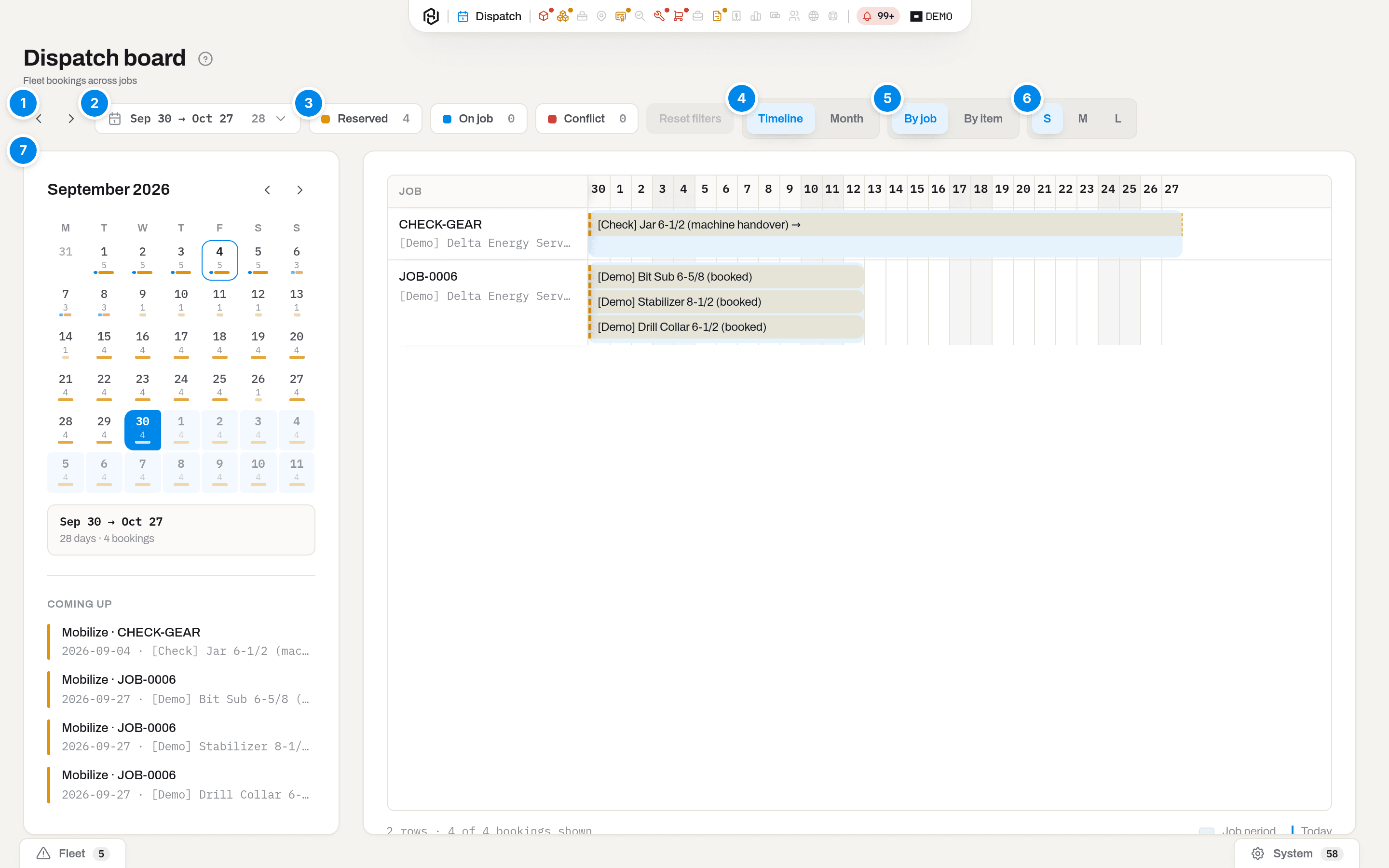
- The pair of arrows — Earlier and Later. They carry no caption; they step the window back and forward by its own length, so a 35-day window moves 35 days.
- The date range chip — {from} → {to} with the number of days. Click it for presets and a small calendar; see Choose the window.
- Reserved · On job · Conflict — the legend, with a count for each. These are also switches: click one to take that class of bar off the board. Reset next to them brings all three back.
- The first three-segment switch is Board view: Timeline (the resource calendar you are looking at) or Month (a six-week grid). Only the two segment captions are on screen; the name of the switch is not.
- The second switch is Board rows — By job or By item: the same bookings stacked two different ways.
- The third switch is Column width, and it shows only S, M, L. Narrow columns fit more days on screen; at M and L each column also carries its weekday letter.
- The left rail — the month calendar with the daily load, the range read-out, and Coming up.
Weekends are shaded, the current day is highlighted and carries a vertical line, and in By job the pale band behind a row is the job's own period. The board scrolls sideways when the window is wider than the screen.
The footer counts what you are looking at and names the two marks that are not bars:

Key concepts
A bar is one booking
Every bar is one unit reserved for one job for one period — the same row you see under Equipment on the job card. It has a start, it may have an end (an open booking runs until the unit is returned), and it belongs to exactly one job. Ten units on one job are ten bars, not one.
A bar that begins before the window or runs past its end is cut at the edge; one that continues beyond the last day also carries an arrow. Widen the window to see the whole of it.
The bar is the calendar, not the money. On a job billed by booking period the same booking carries a second period — the rental — which starts on the day the unit actually went out and can be paused by a break. The board keeps showing the calendar, because that is what answers is this unit free; the rental period is read and edited on the job card.
The three classes of bar
| Chip | Colour | What it means | What changes it |
|---|---|---|---|
| Reserved | amber | The unit is promised to that job for those dates, but is still in the yard | Mobilize on the job card turns it into On job; Cancel removes it |
| On job | blue | The unit has left — it is physically with the client | Return on the job card closes it |
| Conflict | red | Two live bookings of the same unit overlap | See Conflicts |
Returned and cancelled bookings are history, not plans: they never appear on the board.
By job and by item are the same data
By job answers what is going out on this job — one row per job, bars labelled with the item name, the job's own period drawn as a band behind them. By item answers when is this unit free — one row per unit with its serial underneath, bars labelled with the job code.
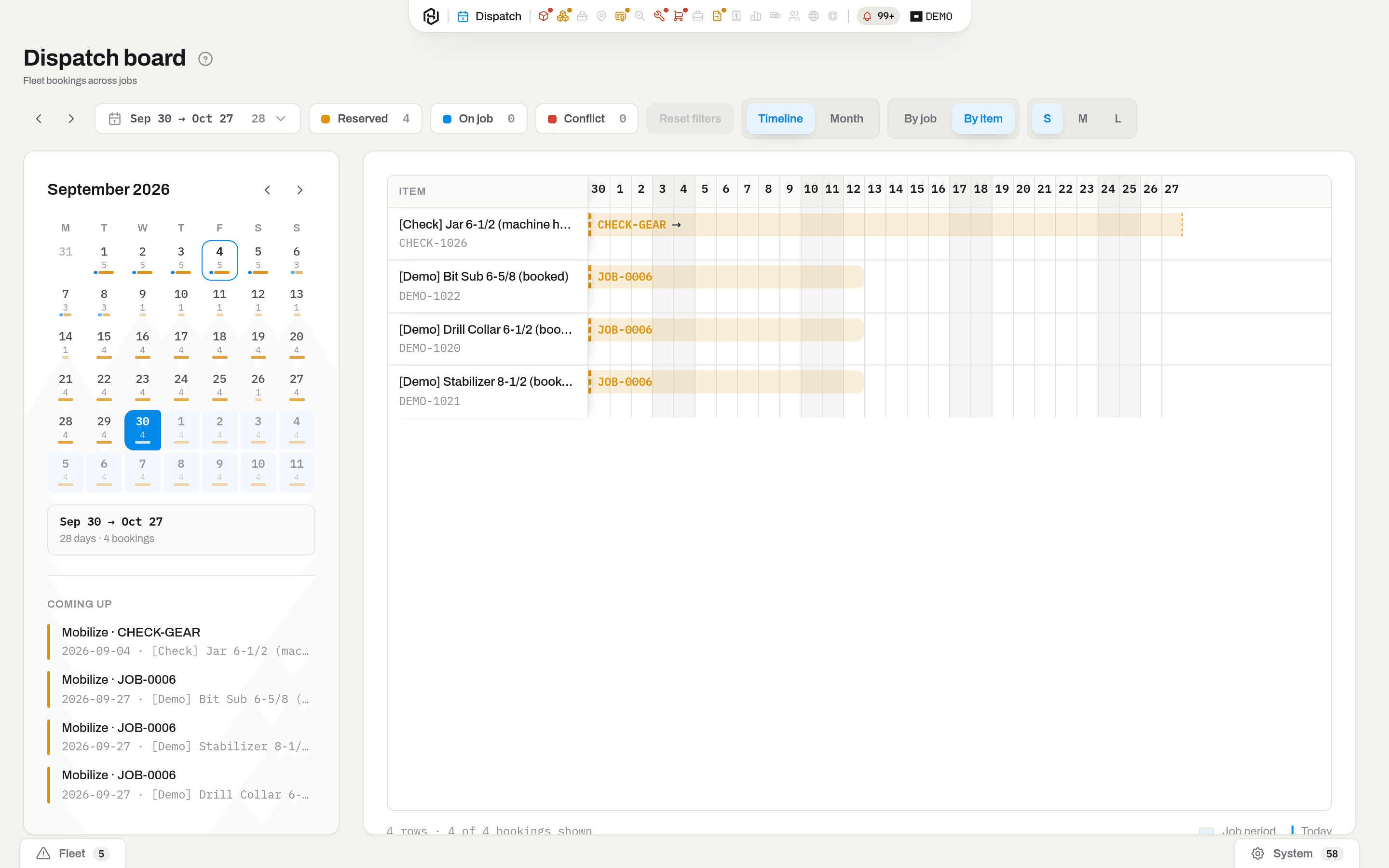
Use By job when you are loading a truck and By item when someone asks whether a particular unit can be promised.
Conflicts
A conflict is two overlapping bookings of the same unit while both are still live. The board paints both bars red and counts them on the Conflict chip.
In practice that chip reads 0, and it should. Hafrix refuses a double booking at the moment it is made. In Reserve equipment on the job card, picking a unit lists everything already booked on it under Existing bookings; the rows that clash with your dates turn red, the line Conflicts with the chosen period — adjust the dates. appears under the list, and the Reserve button itself is disabled until the dates are moved. Ask the server directly and it answers Item is already booked on job {code} ({from} → {to}) — with open end in place of the date when the booking in the way has none. Boundaries count as busy: a booking that ends on the 30th blocks one that starts on the 30th.
Note
If a red bar ever does appear, nothing on this board will fix it: open one of the two jobs and cancel or re-book that unit with dates that do not overlap. A booking's period cannot be edited — cancel it and reserve again.
Coming up
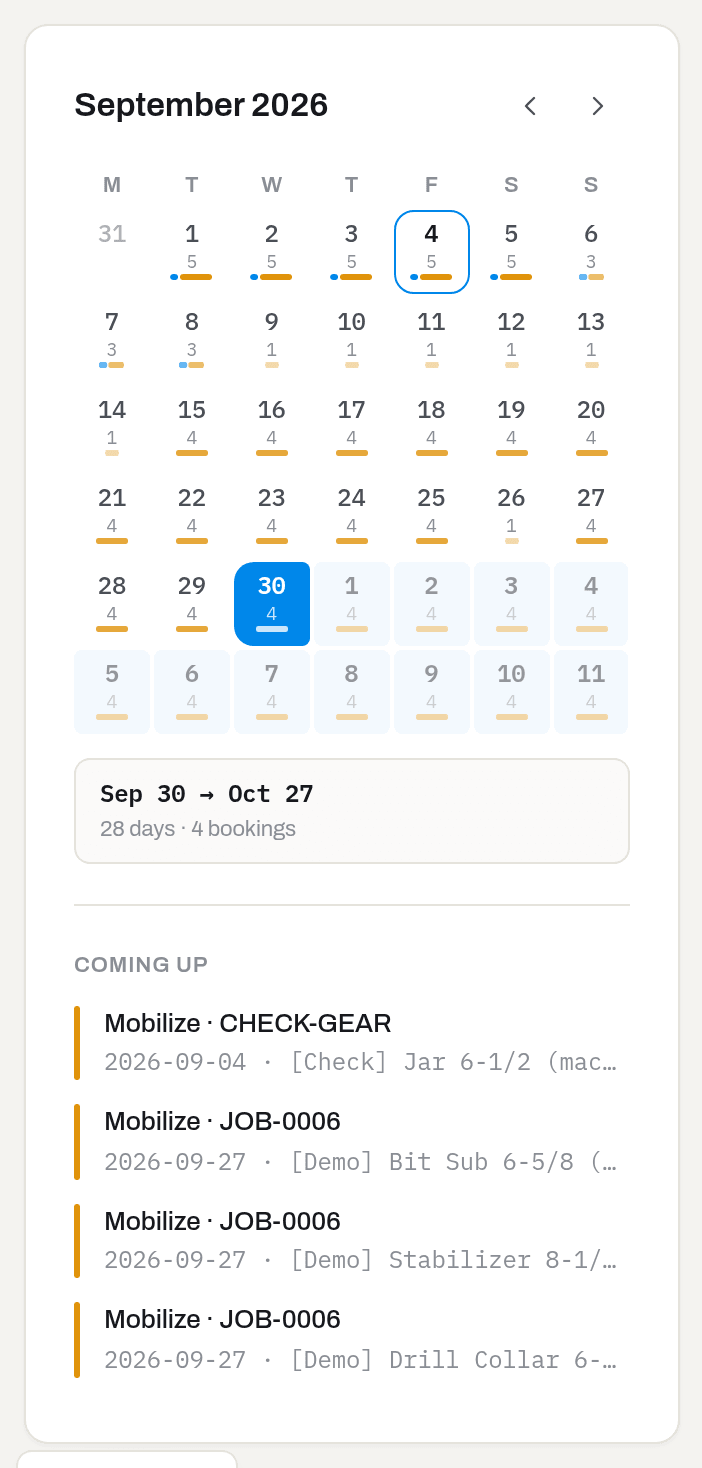
The bottom of the rail lists what is about to happen, up to six bookings, each linking to its job:
- Mobilize · {job} — a Reserved booking whose first day is today or later. The kit has to be pulled, checked and loaded before that date.
- Return due · {job} — an On job booking whose last day is today or later.
What gets in is decided by the booking, not by the date of the event: any booking that touches your window is considered, and the date shown may well fall outside it. A window of the current month will happily tell you about a return due three weeks after it ends. The legend chips do filter this list. When nothing is left it says Nothing scheduled ahead.
Above it, each day of the small calendar carries the number of bookings that day and a bar split by class — blue, amber, red — so a crowded week is visible before you open it. This calendar counts everything in the window and ignores the legend chips: switching Reserved off empties the board but leaves the day bars alone. The current day is drawn as a ring, not a fill, because the fill means inside the selected range.
How to
Choose the window you are planning in
Who: Viewer and above.
- Click the date range chip in the toolbar.
- Take a preset — Today, 7 days, 2 weeks, Month, Quarter — or pick the dates by hand: click the first day, then the last one. Order does not matter; while the board waits for the second click the read-out says Pick the end of the range. Month and Quarter are the calendar month and the calendar quarter you are in, so both start in the past: in late September, Quarter opens on 1 July.
- Use ‹ and › over the calendar to move between months; the range may start in one month and end in another.
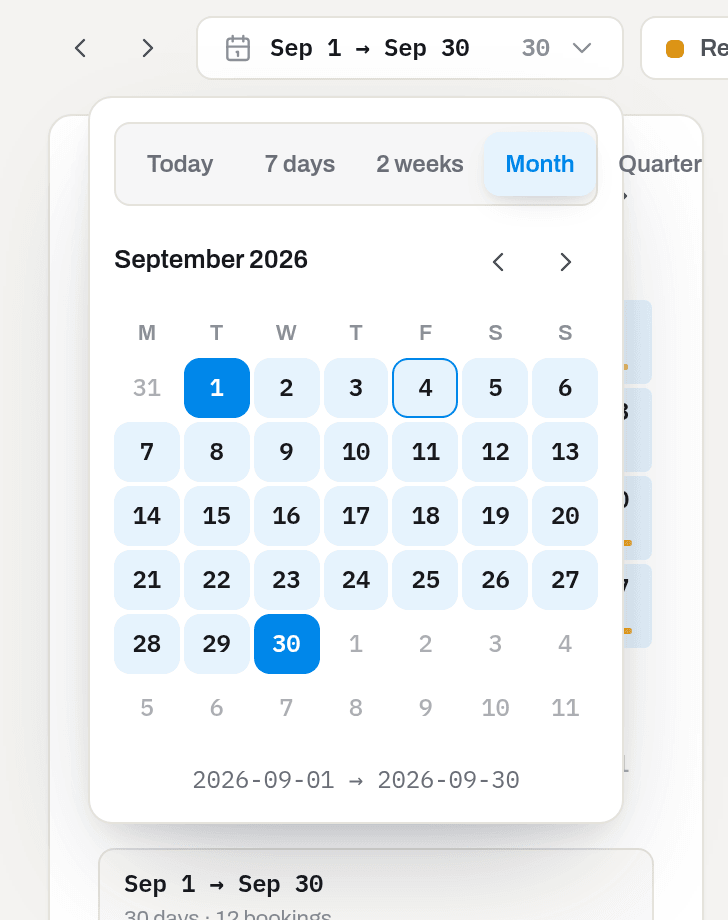
Result: the chip shows the new period and the day count, the board redraws, and the rail says {days} days · {count} bookings. The same picker sits in the left rail, and works the same way.
If it fails: in Timeline the board says No bookings in this window. — there is genuinely nothing booked in those dates; step the window with Earlier / Later, or take the Quarter preset to see further out. The window is not kept in the address bar: reloading the page brings the board back to the current month.
Narrow the board to one class of booking
Who: Viewer and above.
- Click Reserved, On job or Conflict to switch that class off; click again to bring it back.
- Click Reset to clear all three at once.
Result: the rows are rebuilt from what is left, so a job or a unit with nothing to show drops off the board entirely rather than sitting there empty. The footer keeps counting — {rows} rows · {shown} of {total} bookings shown, where the total is the whole window and the shown is what survived the switches. Coming up and the month view follow the same switches; the rail calendar does not.
If it fails: Nothing matches these filters in this range. means the window still has bookings, but not of the classes you left on — press Reset.
Look at a whole month at once
Who: Viewer and above.
- Switch Board view to Month.
- Move between months with ‹ and › in the left rail.
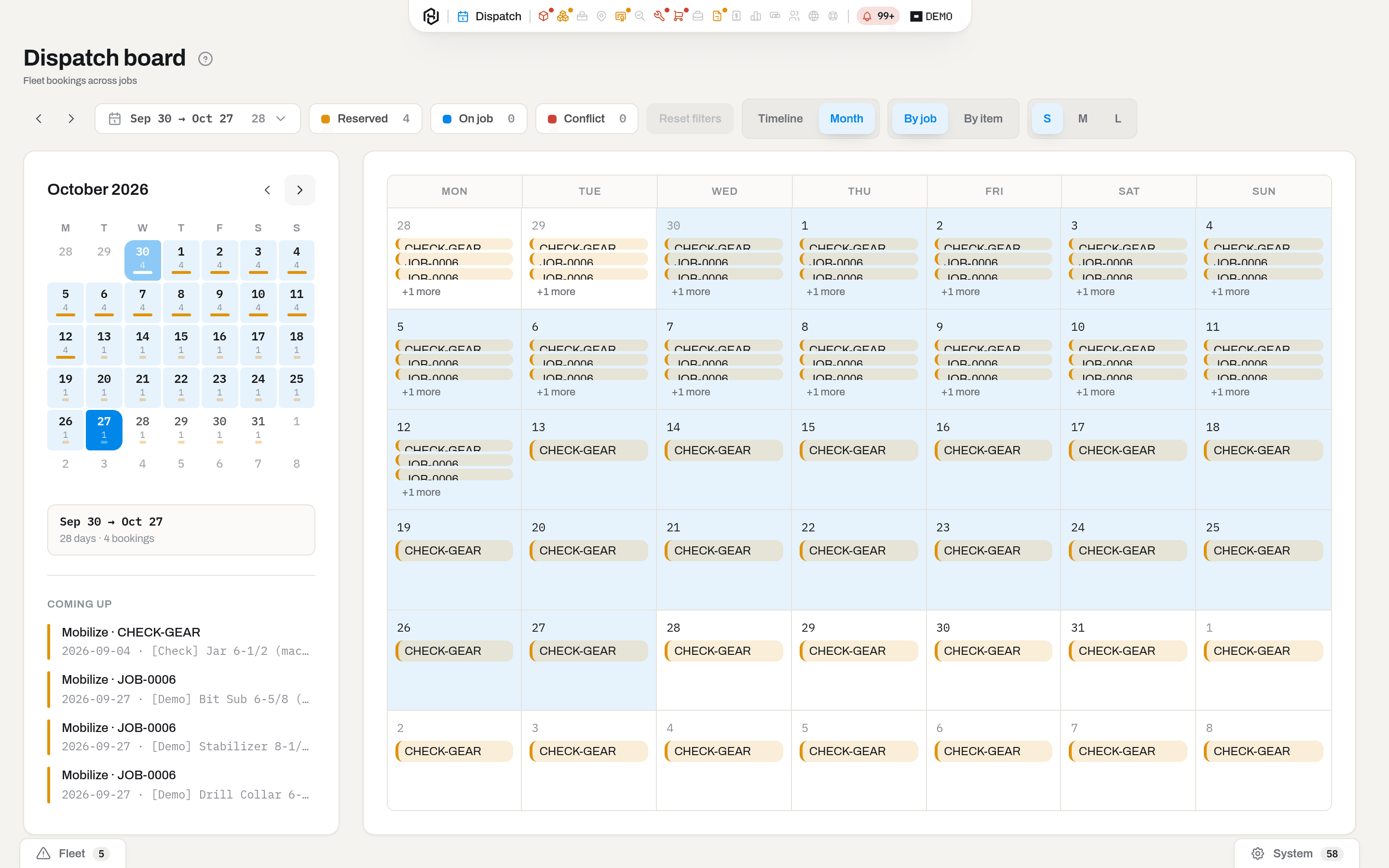
Result: a Monday-to-Sunday grid of six weeks. A cell shows up to three events and then +{count} more; days inside your selected range are tinted. Clicking an event opens the job (in By job) or the unit (in By item); clicking the empty part of a day starts picking a new range, exactly like the small calendar.
If it fails: a month can look half-empty although the fleet is busy. The range still decides which bookings are on the board — only those that touch it — while each one is then drawn on every day it covers, inside the range or not. Widen the range, do not blame the grid.
See which days are billed
Who: Viewer and above with Dispatch.
- Switch Board view to Billing.
- Read the bar itself: each period booking is painted along its length — Billed (solid, including any standby day that has already made it onto an invoice), Unbilled (dashed outline, no fill), Off-rent (a plain gap — a rental break is not an event, so it carries no color at all). A day of standby still waiting on an invoice is marked Standby rather than folded into Unbilled, so a bar can show all three at once.
- The footer swaps its usual row count for a total: days across the window, broken into Billed, Unbilled and Off-rent — those three always add up to the total — with Standby printed alongside as a count of how many of those days were standby, not a fourth slice.
- Use Export in the header to download the same rows and days that are on the board, as Excel, CSV or PDF.
Result: a booking with unpaid days stands out immediately — the dashed, unfilled part is the days already worked but not yet on an invoice that has gone out. A booking billed all the way through reads as one solid bar.
If it fails: a bar with no color at all (just the outline) has not been invoiced for any of the window — check whether the job even has a period booking, or whether the invoice covering it is still a draft; a Draft invoice does not count as billed, but Sent, Partially paid and Paid all do. Off-rent gaps are not a bug: they come from recorded rental breaks (the unit went down, or was pulled for another job) and are excluded from both billed and unbilled totals. A dashed grey bar reading Ticket-billed job is a different case entirely — the booking is not on the rental period plan at all, so this view has nothing to color; its billing is counted from field tickets, not from days.
Open the job or the unit behind a bar
Who: Viewer and above.
- Click a bar — the job it belongs to opens.
- Click a row label instead: in By job it opens the job, in By item it opens the item card.
- Hover a bar to read {job} · {item} · {from} → {to} without leaving the board.
Result: you land on the job card or the item card, where the booking can actually be changed — Reserve equipment, Mobilize, Return, Cancel.
If it fails: if you keep landing on a job when you wanted the item card, you are clicking the bar. In By item the two lead to different places on purpose — a bar always opens the job it belongs to, the label opens the unit.
Availability
Where: the Availability segment of Board view, next to Timeline, Month and Billing. The open segment lives in the address: /dispatch?view=availability is a link you can send to a colleague.
Who: Viewer and above — the same grant as the board.
This segment answers a different question than the calendar above it: not what is booked when, but what is free right now, and how much of it. Every asset in the lens (consumables are not counted) lands in exactly one row, grouped by Size and Tool type, and in exactly one of five columns:
| Column | What it counts |
|---|---|
| Free | Active, in the yard, not booked and not on a rig |
| Reserved | Booked to a job for some part of the chosen window, but the booking has not been mobilized yet — still in the yard |
| On rig | Out with a client or on a rig right now |
| In repair | The unit's own status is In repair |
| Needs inspection | The unit's own status is Needs inspection |
Cutters low sits on top of the row rather than inside it: how many of the row's units carry an installed component — a cutter set — with less than 20% of its own life budget left. A unit can be Free and still be counted here; the two are different questions about the same body.
From and To decide which bookings count toward Reserved — the default is today through the next seven days. Size narrows the matrix to a single row.
Free, On rig, In repair, Needs inspection and Cutters low are links: click one and it opens Items filtered to exactly that slice — Cutters low opens every unit with a low-life component installed anywhere in the fleet, not only bodies of this row's size and type, because the component is its own tracked part. Total and Reserved are not links: Total is just the count of the row, and there is no "booked in this window" filter on Items yet for Reserved.
Reserve for job opens Items narrowed to active units that are free and not assigned, in the same lens; pick the ones you need there and reserve them, or open the job first and use Reserve equipment.
What the system tells you
| When | Feed row | Who gets it | |
|---|---|---|---|
| A booking starts tomorrow | {n} bookings start tomorrow — {job} · {client} — the kit leaves on {date}., linking to this board | — | operators and above who can see Dispatch |
The row is written once a night (07:15 in the workspace's own time zone) and covers all of tomorrow's departures in one line, not one line per unit — ten units of one job are still one truck. Read the count, not the name: the number is every booking leaving tomorrow, while the job code and the client are taken from the first of them, so three jobs departing on the same day still produce a single row naming one of them. Open the board to see the rest. Everything else that happens to a booking happens because a person pressed a button, so it is confirmed with a toast on the job card, not with a feed row.
Related
- Jobs — where bookings are created, mobilized, returned and cancelled.
- Items — the fleet the board is booking; the readiness of a unit is decided there, not here.
- Item card — one unit, including everything it has been booked on.
- Field tickets — what the crew reports back from the days the board planned.
- Utilization — the same movements counted as numbers instead of drawn as bars.
- Roles & access — why the section, or half of it, may be missing.
FAQ
Why is there no button to book something here? — Because a booking belongs to a job: it needs a client, a well, a rig and a period. The board is the view; the work is on the job card, Reserve equipment.
The Conflict chip always says 0. Is it broken? — No, that is the healthy state. Two live bookings of the same unit cannot be created: the reservation dialog blocks it and the server refuses it. The chip exists so that a conflict, if one ever slipped in, would be red and obvious rather than hidden.
A unit is out with a client, but the board shows nothing. — Then it went out without a job. Equipment handed over from Items → Assign as Ad-hoc (client + rig) has no booking, so it has no bar; it is counted in Utilization instead. Reserving it for a job is still allowed — the dialog will warn Currently with {client} — reserving is allowed, mobilization will require a return first.
I moved the job's dates and the bars stayed where they were. — A booking carries its own period. The job's dates only draw the pale Job period band behind the row. Change the dates of a booking by cancelling it and reserving again.
In By job the board is empty, in By item it is full. — The board reads two things: the bookings, which belong to this section, and the jobs they hang on, which belong to Jobs. If your group has been granted Dispatch but not Jobs, the job rows never arrive. Ask an admin to grant both.
Can I send someone a link to this exact view? — Not yet. The range, the view, the grouping and the legend switches live in the screen, not in the address, so a link always opens on the current month, Timeline, By job.
What happens to a booking with no end date? — It runs until the unit is returned, is drawn to the edge of the window with an arrow, and blocks that unit for every future date — which is why nothing else can be booked on it. Every booking in the demo tenant has an end date, so the pictures here do not show one; the arrow you can see on them is the other case, a booking whose end simply falls outside the window.
Updated 2026-09-05
New to Hafrix?
See this workflow in your operation
Connect equipment availability, dispatch and billing in one rental workflow. See how Hafrix fits the way your team runs a job.