Compliance
The whole fleet seen through its paperwork: how many assets have certificates in date, how many are about to lose them, and exactly which units to chase today.
Where: capsule → Fleet → Compliance (/compliance). If the entry is missing, your group has not been granted this section — see Roles & access.
Who can do what
| Role | In Compliance |
|---|---|
| Viewer | Everything on this screen: the counters, the list, the status chips, the search, Columns, Export |
| Operator | + Upload inspection reports — file a batch of PDFs as certificates in one pass; add and correct a single certificate on the item card (see Item card) |
| Manager | + void a certificate; Settings → Certificate types, where the validity of a fresh paper is set |
| Admin | + nothing extra here — this screen has no settings of its own |
Note
The counters and the list read the fleet's report card and change nothing themselves — every repair to the picture is made on the item card, one at a time, or through Upload inspection reports for a batch of PDFs (Operator and above). Note also that the certificates on an item card are read through this section — for a person who has Items but not Compliance, that block on the card does not load, whatever their role.
At a glance
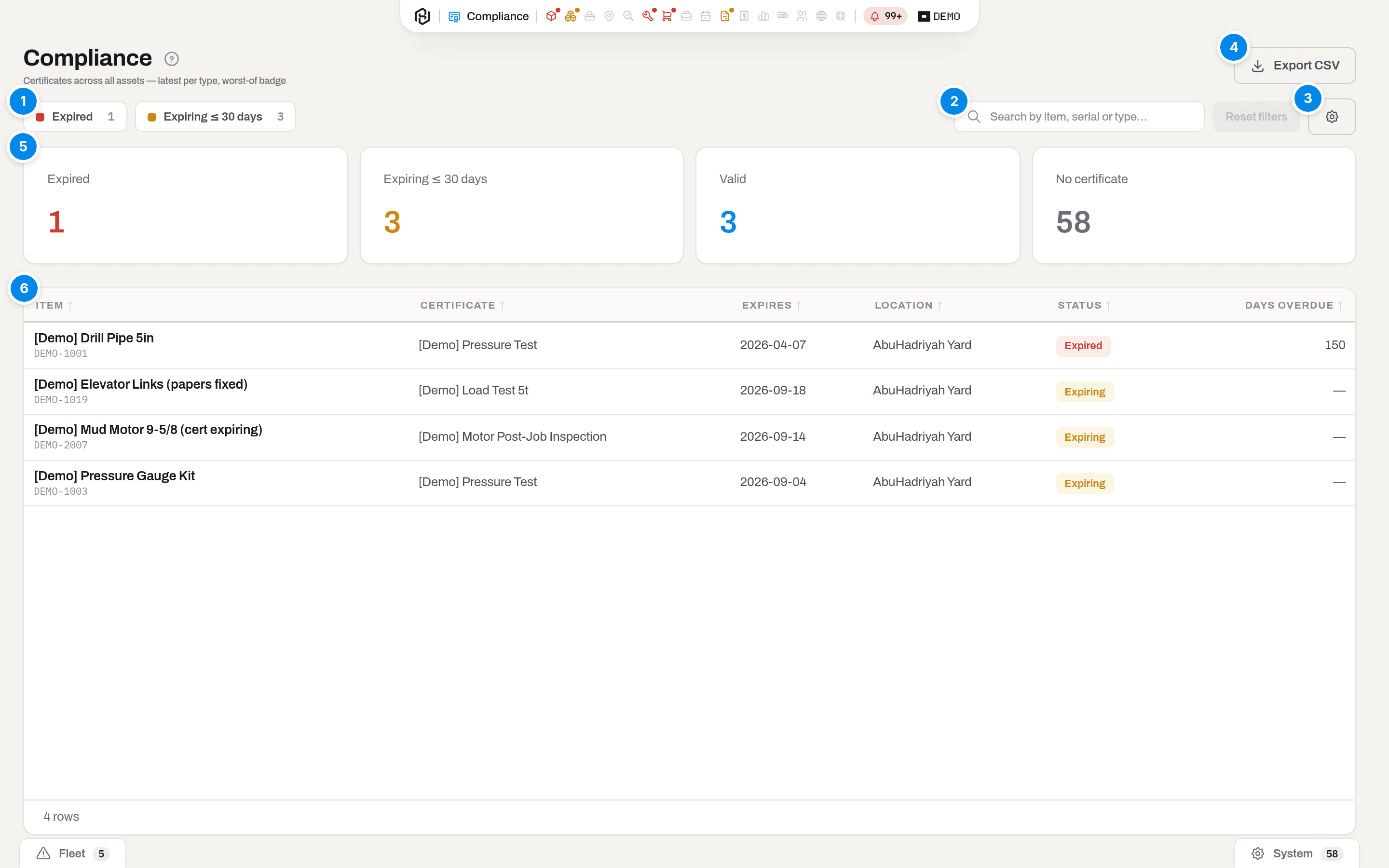
- Expired and Expiring ≤ 30 days — two chips, both pressed when you arrive. Each carries the number of rows of that status; unpressing one hides those rows from the list below.
- Search — Search by item, serial or type…: matches the item name, the serial, the certificate type and the location. It filters the rows already on the page, so it answers instantly, and it travels in the address bar — a link you send shows the same search.
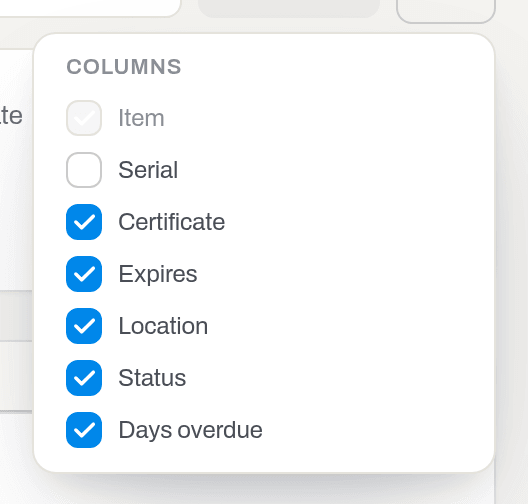
- Columns — the gear: show or hide columns. Serial is hidden by default; Item cannot be hidden. The choice is remembered for you.
- Export — the burning list as Excel, CSV or PDF. Viewer and above.
- The four counters — Expired, Expiring ≤ 30 days, Valid, No certificate. They count assets, one vote each, over the whole fleet.
- The list under the counters (it carries no visible heading; screen readers announce it as Needs attention) — one row per burning certificate, worst first. A click on a row highlights it; click its name, click the row again, or press Enter to open the item card (Choose how a row click behaves); the back arrow on that card brings you here.
Reset next to the search clears the search and puts both chips back on. When nothing is burning at all the list says Nothing is burning. 🎉; when your filters hide everything it says No certificates match the filters.
Key concepts
The four states of a certificate
Every state on this screen is computed from one date — the certificate's Expires — against today.
| State | Meaning | Where it shows |
|---|---|---|
| Expired | The expiry date is in the past. The unit is not fit to go out. | Counter, red chip, Expired badge, and a row in the list with Days overdue filled in |
| Expiring ≤ 30 days | The expiry date falls within the next 30 days, today included. | Counter, amber chip, Expiring badge, and a row in the list |
| Valid | In date — or no expiry date at all, which is how an indefinite certificate is recorded. | Counter only; a valid certificate never makes a row |
| No certificate | The asset has no certificate of any type on record. | Counter only |

Thirty days is the whole warning you get, and it is the same thirty days everywhere in Hafrix — the badge on an item, this screen and the nightly alert all read one rule.
Tip
No certificate is usually the largest number in a young workspace, and it is not a queue of problems: it counts every asset that has no paper on file, including units already scrapped, sold or lost. Read it as "how much of the fleet we have not documented yet".
The latest certificate of each type, and nothing else
An asset collects certificates over the years — every pressure test, every inspection. Only the latest one of each type is current; the older ones are history and are ignored by this screen. A voided certificate is ignored too, at any age.
"Latest" is by Done at — the day the work was done, not the day somebody typed it in. A renewal entered late but dated before the paper it should replace does not become current, and the row stays.
The counter reads the asset by its worst current certificate: one expired pressure test makes the unit Expired even if three other types are fine. The list works the other way round — it prints a row per burning certificate. So an asset with two expired papers is one vote in the counter and two rows in the list.
Certificates cover assets — serialized units. A consumable is a stock card with no individual identity, so it has no certificates and never appears here at all.
The columns
| Column | What it says |
|---|---|
| Item | The unit's name, with its serial underneath. Click it to open the card. |
| Serial | The serial on its own, for exports and for sorting. Hidden by default. |
| Certificate | The certificate type — [Demo] Pressure Test, [Demo] Motor Post-Job Inspection. Types live in Settings → Certificate types, where Validity (days) decides how long a fresh certificate of that type lasts; leave it empty and the certificate never expires. |
| Expires | The expiry date this whole screen is computed from. |
| Location | Where the unit is now — its container's location if it lives in a kit box. |
| Status | Expired or Expiring. |
| Days overdue | How long the paper has been dead. Only expired rows have it; expiring rows show —. |
The list arrives sorted by criticality — longest overdue first, then the ones that are merely expiring. Click any column header to sort by that column instead; click again to reverse it.
What this screen does not say
Compliance answers one question — is the paper in date — and it is easy to read more into it than it holds.
- It does not read the result. A certificate that records a failed inspection but has not yet expired counts as Valid here. The fleet knows better: the same unit shows Need repair in Items, because readiness reads the result and compliance reads the calendar.
- It does not carry inspections owed by the work cycle. A motor back from the well raises an Inspection due alert and points at this section — but there is no expired paper on it, so there is no row here. That queue lives in Items, under the Need inspection quick view.
- It does not filter out scrapped iron. The counters cover every asset in the fleet whatever its status, so units already sold or written off sit in No certificate. The nightly alerts do skip them, which is why the alert count and these counters rarely match.
How to
Find a row
Who: Viewer and above.
- Type into the search box — an item name, a serial, a certificate type or a location.
- To look at one status at a time, unpress the chip you do not need. Expired off leaves only what is about to expire; Expiring ≤ 30 days off leaves only what is already dead.
- Click a column header to sort, and use Columns to bring in Serial.
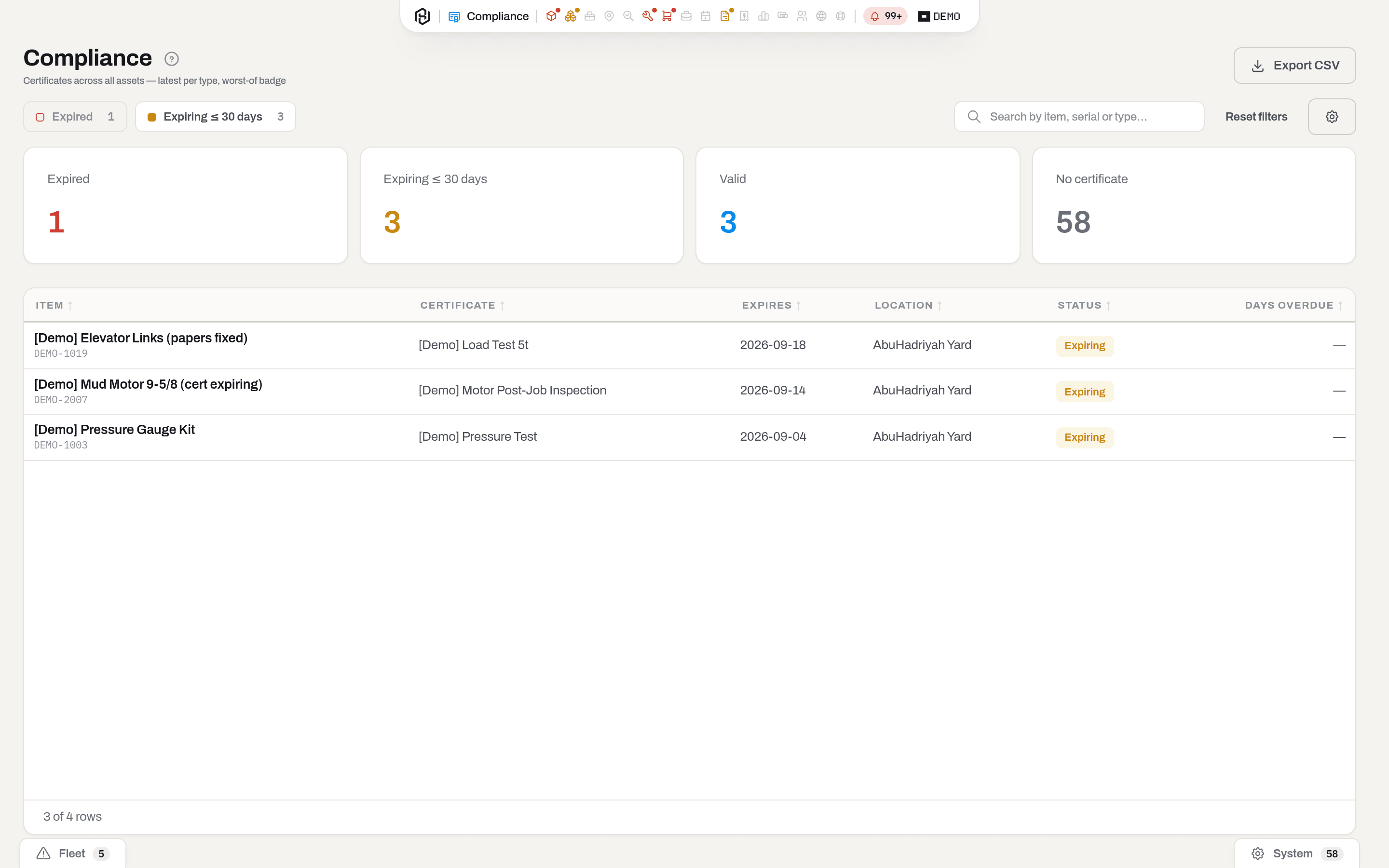
Result: the footer counts what you are looking at — {shown} of {count} rows while a filter is on, plain {count} rows when it is not. The counters above do not move: they describe the fleet, not your filter.
If it fails: No certificates match the filters. — click Reset. Remember that the search does not reach into the fleet: it narrows the rows this screen already has, and a unit with valid papers cannot be found here by name.
Clear a row from the list
Who: Operator and above; voiding takes a Manager.
- Click the row's name, click the row again, or press Enter (Choose how a row click behaves). The item card opens.
- Go to Certifications and record the new paper — the full procedure is in Item card. If the row is there because somebody entered a certificate that never existed, void it instead; that takes a Manager.
- Leave the card with the back arrow. You come back to Compliance with the row you came from highlighted, and your search still in the address bar — but the chips are back on, both of them: they live in the page, not in the link.
Result: the counters and the list are recomputed on the next load of this screen — the unit moves out of Expired into Valid, and its readiness in Items is recomputed with it. The alert stops on the next nightly run, or immediately if somebody presses Check now in Alerts & notifications (Manager and above).
If it fails: Requires tenant role 'operator' or higher — ask an admin for the role. Voiding a certificate changes the compliance picture of the fleet — it takes a manager. means exactly that. And a row that will not go away after a renewal usually means the new certificate was filed under a different Certificate type: current is the latest of each type, so a new pressure test does not cover an old lifting inspection.
Warning
Voiding the newest certificate of a type does not leave the unit blank — it promotes the previous one of that type back to current, and that one is often long expired. Void a paper because it should never have been entered, not to tidy the screen.
Upload inspection reports as files
Who: Operator and above.
- Click Upload inspection reports next to Export.
- Name each PDF
<serial>_<size and type>_<YYYY-MM-DD>.pdf(for example924_22in String Roller Reamer_2026-08-16.pdf), then drop the batch in or choose the files. A prefix likeDEP-in front of the serial is ignored, and dashes inside the serial are tolerated — the match does not need the name to be exact. - Pick the Type of certificate, an Inspector and Result for the batch, and add Notes if useful — these apply to every file, and Result can still be changed per row.
- Hafrix previews the match: each file lands on a row with the card it found (serial — name), a date read from the filename (editable), and a result. Rows with no card, or with more than one possible card, show a search box instead — type a serial or name and pick the right card by hand, and the row joins the save.
- Click Save.
Result: every matched row files the report as a Certificate-kind attachment on its item and records the certification, exactly as if it had been entered on the item card one by one. A Fail result sends that unit to In repair, same as anywhere else certificates are recorded.
If it fails: a row that never gets a card stays out of the save — check the serial in the filename against the item's serial number. A row that saves the file but fails the certification (for instance, a future date) keeps its error on the row so you can fix it and click Save again; already-saved rows are skipped on a retry.
Export the list
Who: Viewer and above.
- Click Export in the top right and pick Excel, CSV or PDF.
Result: one line per burning certificate — item, serial_no, cert_type, expires_at, location, status, days_overdue in CSV (compliance.csv), the same rows with readable headings and values in Excel (compliance.xlsx), or a landscape printout in PDF (compliance.pdf). The file always holds the whole burning list: your chips, your search and your hidden columns do not narrow it, and it never carries the valid papers or the assets with no certificate. For the whole fleet with its compliance state, export the Assets tab of Items instead — that file has a compliance column.
If it fails: nothing happens and the browser reports a failed download — that is the section grant: without Compliance the export is refused with a 403, exactly like the screen behind it. A file with nothing but a header row means nothing is burning, which is the answer, not an error.
What the system tells you
| When | Feed row | Who gets it | |
|---|---|---|---|
| A certificate expires within 30 days | Certificate expiring | in the fleet digest (07:30 workspace time) | Feed row: everyone who can see Alerts, whatever their role. Email: managers and admins, or the alert recipients the workspace has named |
| A certificate has expired | Certificate expired, marked important | in the same digest | the same two audiences — a viewer with the Alerts grant gets the row and never the letter |
| An event of the work cycle asks for an inspection | Inspection due | in the same digest | as above |
| A current certificate is voided | — | A certificate was voided on {item} — with what the unit's compliance and readiness are now | managers and admins, or the alert recipients the workspace has named |
Findings are recomputed once a night (07:00 workspace time) and the digest goes out half an hour later, and only when there is something in it that was not in the last one. Daily is the default; a workspace can set the digest to weekly (Mondays) or turn it off, and the feed rows keep coming either way.
Between runs the capsule carries the news: a coloured dot over the Compliance icon, red when something has expired and amber when something is only expiring — or when a unit owes its post-use inspection, which has no row on this screen at all. The dot counts open alerts, not rows here: an alert somebody has acknowledged puts the dot out and leaves the row exactly where it was.
Related
- Items — the fleet itself, and the readiness that reads these certificates.
- Item card — where certificates are added, corrected and voided.
- Alerts & notifications — the queue behind the dot, Check now, and acknowledging a finding.
- Maintenance — work orders for the units this screen sends to the workshop.
- Catalogues in Settings — Certificate types and their Validity (days); Inspection after use on a category, under Categories.
- Roles & access — why the section, or the certificates inside a card, may be missing.
FAQ
I acknowledged the alert and the row is still here. — Acknowledging says "I have seen this", not "this is fixed". The queue goes quiet, the dot goes out, and the certificate is still expired — so the row stays until a new certificate is filed. That is the point of having two places.
How do I get the list of assets with no certificate? — Not from here: the No certificate counter is a number, not a link. Export the Assets tab of Items — the file has a compliance column, and NONE marks every asset with no paper on record. Export the Consumables tab by mistake and every line will say NONE: a consumable has no certificates to have, so the column is empty for all of them.
This unit is Valid here but Need repair in Items. — Both are right. Compliance reads the calendar; readiness reads the result. A failed inspection that has not yet expired is a valid paper and an unusable unit.
Why does the chip count differ from the counter above it? — The counter counts assets, one each, by their worst certificate. The chip counts rows, and one asset with three expired papers writes three rows.
Why can I see the section but not the certificates on an item card? — The certificates on a card belong to this section, not to Items. Ask an admin to add your group to the Compliance grant.
Why can't I see this section? — Someone has granted Compliance to named groups, and yours is not among them. It is not about your role: see Roles & access.
Updated 2026-09-20
New to Hafrix?
See this workflow in your operation
Connect inspections, workshop work and equipment readiness. Walk through your maintenance workflow with the Hafrix team.