Register audit
The accountant's fixed-asset register laid next to the fleet, line by line: what the books carry that the yard has never heard of, what the yard runs that the books never bought, and where the two disagree about a serial, a status or a price.
Where: capsule → Fleet → Register audit (/audit). If the entry is missing, either you are not an admin or your group has not been granted this section — see Roles & access.
Who can do what
| Role | In Register audit |
|---|---|
| Viewer, Operator, Manager | Nothing. The whole section — the list, the tiles, every action — answers Requires tenant role 'admin' or higher. There is no read-only view of it. |
| Admin | Upload a register, read every row, link items, decide where each fix goes, confirm links in bulk, export rows to a file |
| Admin who can also see Finance | + Pull from Sage and Depreciation policies, the two actions that move the register's money into the fleet |
| Admin who can also see Items and Finance | + Create item, the one action that puts a new asset into the fleet — it enters the asset and carries the register's price onto its card, so it asks for both keys |
Important
This is the one screen in Hafrix that is admin-only on the server, and grantable as a section. Both locks have to be open. Granting Register audit to a group does not let a manager in — it only decides which of the admins get to see it. That is deliberate: the report prints the book value of the fleet and it rewrites inventory numbers.
At a glance
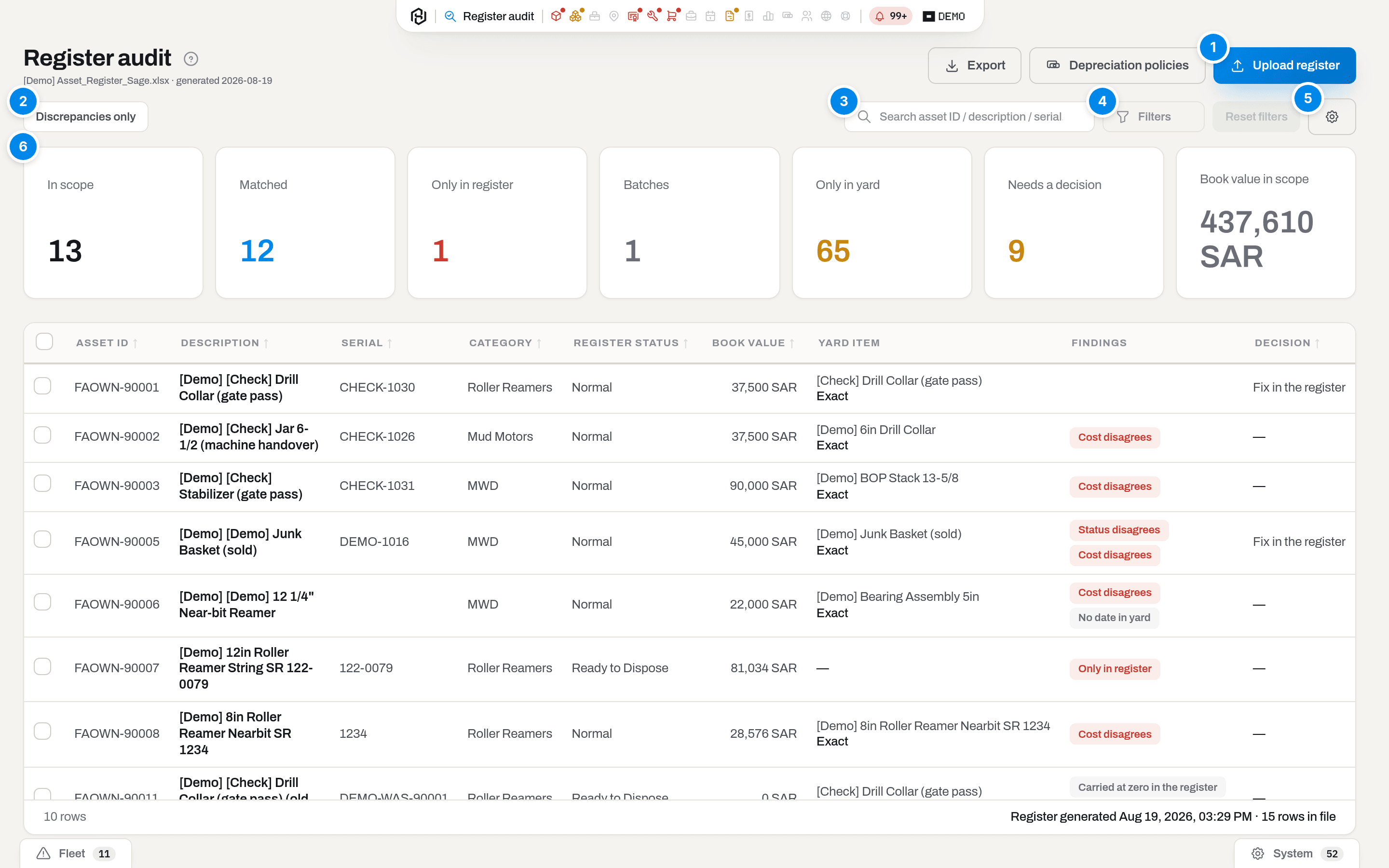
- Upload register — the only way anything gets onto this screen. Takes an
.xlsxor.xlsmexport; while it reads, the button says Reading…. Next to it, Export hands the current list to the accountant as a file, Depreciation policies appears for admins who can also see Finance, and — from the second file on — a bare list of file names to switch runs with. It has no visible label; screen readers hear Audit run. - Discrepancies only — pressed when you arrive. This report is about disagreement, so rows the machine is happy with are hidden until you unpress it. A row you have decided to fix — on either side — stays in view even when its finding is a quiet one: your own verdict says the disagreement is real.
- Search asset ID / description / serial… — matches those three fields of the register row. It does not search the yard.
- Filters — opens the filter panel beside the list with three fields: Finding, Register category, Decision.
- Columns — the gear: hide what you are not reading today. Description cannot be hidden.
- The six tiles — In scope, Matched, Only in register, Only in yard, Needs a decision, Book value in scope.
Under the title sits the file you are looking at and the date the accountant generated it — [Demo] Asset_Register_Sage.xlsx · generated Aug 19, 2026, not the day it was uploaded. The footer of the list repeats it in full and adds 10 rows in file. With no file uploaded at all the subtitle reads Upload a Sage asset register export to start. and the toolbar is not drawn.
A click on a row highlights it; click it again, or press Enter, to open it (Choose how a row click behaves). The row opens as a comparison dialog, not as a page — there is nothing to browse to, only two versions of one asset to hold side by side.
Key concepts
Neither side is the source of truth
Everything about this screen follows from one rule: the register can be wrong and the fleet can be wrong, and they are wrong in different ways.
The register knows money and inventory numbers, and it is blind to physics: it has no location, no run hours, no certificates, and its categories are a handful of ledger accounts. The fleet knows the iron and is thin on money: most items were entered by the yard, not by accounting, so they carry no cost and no purchase date at all.
So the report never names a correct value. Every comparison is printed in two equal columns headed Register and Yard, differences are shaded on both sides, and the findings are given neutral names — Only in register, not "missing from the yard". What the audit does with a disagreement is nothing: it waits for a person to say where the fix belongs.
Note
Uploading a register changes no item. The one thing this section ever writes into an item card by itself is the Asset ID — and only when you press Confirm link on that row. Everything else is either a decision recorded on the register row, or a Pull you asked for explicitly.
What the file has to be
An A/M Asset Listing in Detail export from Sage 300, as the accountant sends it — no cleaning, no re-saving as CSV.
| The parser needs | Where it looks |
|---|---|
| A row of column headings containing Asset ID | anywhere in the first 30 rows of the first sheet |
| The columns themselves | Asset ID, Description, Serial No, Status, Category, Category Name, Acquisition Date, Location, Cost Center, Life (mo), Book Value, Accumulated Depreciation, Net Value |
| The generation date | the report header, first four rows |
| A control count | a second sheet with a category summary, if the export has one |
The report's own tail — TOTAL, % of Book Value, the "893 assets printed" footnote — sits in the same first column as the asset numbers and is skipped, not read as data. Two register statuses are understood: Normal and Ready to Dispose, and the second one means fully depreciated in the books, not scrapped in the yard.
Money in the file is read as SAR and converted to the item's own currency at 3.75 before anything is compared. The rate is fixed by the code; the screen has no field for it.
Scope: what the audit is even allowed to complain about
A real register carries the office too — desks, laptops, the ERP licence — and the yard will never hold any of it. Those rows are marked Out of scope, excluded from every count, and left in the file so you can see they were read.
The scope is a map of register category codes. The first upload builds it: codes 141, 142 and 143 start in scope, everything else out, and any code appearing in a later export is added out of scope. New categories are never dragged in silently.
To change it, open the Scope tab of the list (admins with the audit section). Each register code has two settings:
- In scope — whether the audit checks rows of that code at all.
- Yard category — the category an item created from a row of that code gets. Only asset categories are offered; the register lists fixed assets.
Click the pencil at the end of the code's row, change what you need and click Save. The Decided column then shows who last moved the code in or out of scope, and when; codes whose scope nobody changed read By an upload. Mapping a yard category alone does not count as a scope decision.
Note
The scope applies from the next register upload — rows of a run already loaded keep the scope they were read with. A code you decide here stays as you left it: a scripted import that sets the scope skips it and reports so in the run's warnings.
The Register category filter only offers the in-scope codes, so out-of-scope rows can be found by search but not filtered to.
How a row finds its item
For each register row the first rule that hits wins, and the rule that hit is printed in the dialog as Matched by …, confidence ….
| Order | Rule | Reported as | Confidence |
|---|---|---|---|
| 1 | The Asset ID is already on an item — somebody confirmed this pair before | a confirmed asset ID | Exact |
| 2 | The serial matches exactly one item, by its number or by a former number | serial number / a former number of this unit | Exact |
| 3 | It matches several, and one item's name is written inside the row's description | the rule that found the winner | Exact |
| 4 | It matches several and no name decides it | serial number | Ambiguous |
| 5 | The serial matches exactly one item's part number | part number | Probable |
| 6 | It matches the part number of several items — one line, a batch of things | a part number shared by the batch | Probable |
| 7 | The serial is one character away from an item's serial — a character too many or too few | a serial one character apart | Weak |
| 8 | A word in the description is some item's serial or part number | a serial / a part number in the description | Probable |
| 9 | The description is an item's name, word for word once punctuation is ignored | the name, word for word | Probable |
| 10 | The description reads like an item's name (82% similar or better) | name similarity | Weak |
| 11 | Nothing | — | the row becomes Only in register |
Three of these rules exist because a register remembers things the yard has moved on from.
Former numbers. Equipment gets renumbered — a combo box takes the number of the tool it lives with, a laptop wears the kit number until it gets its own plate, a probe gains a prefix. The books keep the number that was written the day the asset was booked. An item can carry those old numbers in Was on its card, and the audit searches them exactly as it searches the current one. That is why a row can read serial 85068 while the item it found reads 85069: look at the Former numbers line in the comparison — the old number is right there.
One number, several things. When the same old number sits on three different units, the cascade does not take the first one. It reads the row's description and looks for an item whose name appears inside it: Drillwell laptop SN# 85068 finds the laptop, XL-50 Combo box SN# 85068 finds the box. If no single name wins, the row is honestly Ambiguous and waits for you.
A character apart. A serial that differs by one extra or one missing character is offered as a Weak candidate — that is a typing slip. A serial that differs by one replaced character is not: serials run in families, and SWF-1175002 and SWF-1175006 are two different motors.
Serials are compared after normalisation, because the Serial No column of a real register is a junk drawer: leading spaces, SN: and Part # prefixes, leading zeros, mixed separators. ' 0013-01-962-035' and 13-1-962-35 are the same key.
One extra check runs on top: if the register's Book value divided by the item's cost lands within 1% of 3.75, the confidence is raised one step — Probable becomes Exact, Weak becomes Probable. Ambiguous is never promoted, and neither is a pair that is Exact already. Two systems arriving at the same price from different directions is evidence, independent of names and serials, that they are talking about the same thing.
Whatever the confidence, the pair is only ever proposed: every matched row opens with Confirm link waiting, and nothing is confirmed without a person pressing it. The confidence is a warning label, not a gate — Name match only and Several candidates rows carry the same button as an exact serial hit, and deserve a much longer look before you press it.
The findings
Findings are badges on the row, and a row can carry several.
| Badge | What happened | Actionable |
|---|---|---|
| Only in register | The books have this asset; nothing in the yard answers to it. Usually the biggest number on a first run, and usually the whole point of the exercise. | yes |
| Only in yard | An item nothing in the register claims. | yes |
| Several candidates | The number points at more than one item and no name decides which. | yes |
| Another row covers this item | A second register line lands on an item another line already claims — usually a zero-value stocktake line next to the one that carries the money. Not a mistake of the matching; a question for the books. | yes |
| Name match only | Found by name similarity alone — no serial, no part number. Read it before believing it. | yes |
| Status disagrees | Register says Normal, the yard says sold, lost, scrapped or obsolete. | yes |
| Cost disagrees | Both sides have a price, and after conversion they differ by more than 1%. | yes |
| No cost in yard | The matched item has no acquisition cost, so there is nothing to compare. | no |
| No date in yard | The matched item has no acquisition date. | no |
| Fully depreciated, in service | The books wrote it off; the yard still runs it. Information for the accountant, not a fault. | no |
| Carried at zero in the register | The books say ready to dispose and carry the line at zero. That is not a written-off asset — it is one that was never capitalised, usually a physical stocktake typed into the books without prices. | no |
| Out of scope | The row's category is not part of the reconciliation. | no |
The seven actionable ones are what Discrepancies only keeps and what Needs a decision counts. The other five are background: a fleet with no costs entered would otherwise raise hundreds of red rows about nothing. Background is what the machine found, though — the moment you decide a row Fix in the yard or Fix in the register, it stays in view whatever its finding, because it is now on somebody's worklist. That is what keeps the accountant's file whole: Fully depreciated, in service is a quiet finding, and the rows you send him carry it most often of all.
Note
Only in yard has no register line to sit on, so it lives in its own list: press the Only in yard tile, or switch the list to Only in yard, and you get one line per item nothing in the register mentions — see Items only the yard knows. Consumables are not counted as a finding, and neither is anything a register of fixed assets was never going to carry: equipment you rent in, and anything whose role is Spare & tooling or Consumed material rather than Capital equipment. Those items are still in the list when you switch off Own capital only, but they carry no badge and Needs a decision ignores them: without that filter a handful of genuine gaps drowns in dozens of rows about batteries and hand tools.
What the tiles count, and when
| Tile | Counts | Colour |
|---|---|---|
| In scope | register rows whose category is in scope | plain |
| Matched | rows the cascade paired with an item | blue |
| Only in register | rows with no item at all | red |
| Batches | rows that describe several units at once | grey |
| Only in yard | your own capital equipment no row mentions | amber |
| Needs a decision | rows carrying at least one actionable finding | amber |
| Book value in scope | the register's own money, summed over in-scope rows, in the file's currency | grey |
All seven are measured at upload and stored with the run. They are a photograph of the file, not a live queue: deciding rows does not make Needs a decision go down, and linking an item by hand does not push Matched up. To see the numbers move you upload the next export.
How to
Upload a register
Who: Admin only.
- Click Upload register (top right) and pick the
.xlsxor.xlsmthe accountant sent. Maximum 20 MB. - Wait — the button reads Reading… while the file is parsed and matched.
- The new run opens by itself, and its file name is selected in the Audit run picker.
Result: the tiles and the list are filled; the footer shows Register generated … and … rows in file. Everyone else who can see this section gets a Register reconciliation is ready row in their feed — you do not, because you are the one who pressed the button.
If it fails:
- Expected an .xlsx register export. — a CSV or a PDF was chosen. Ask for the workbook.
- File is larger than 20 MB. — that is not an asset listing.
- Could not read the workbook: … — the file is damaged or password-protected.
- No data rows found in the register. — the sheet parsed, but nothing under the headings looked like an asset. Usually the wrong Sage report.
- Requires tenant role 'admin' or higher — the section is admin-only; a section grant does not substitute.
Tip
Uploading a file whose name you have used before replaces that run rather than adding a second one — same name, same run. Every row is rebuilt and every decision recorded against it is lost. What survives is only the number on the item card: the asset ID stays, and the next run matches by it instantly — but the confirmation went with the old run, so the pair comes back undecided and Pull from Sage is hidden until you press Confirm link again. Send the next month as its own file name.
If the parser counted differently from the report's own footnote, or from the category summary sheet, a yellow banner sits above the tiles listing each disagreement — report footer says 893 assets printed, but 829 data rows were read, category 141: summary sheet says 267 assets, 266 rows parsed. Nothing is guessed and nothing is fixed: the numbers are printed for you to take back to the accountant.
Narrow the list
Who: Admin only.
- Leave Discrepancies only pressed to see the rows with an actionable finding, plus any row you have already decided to fix; unpress it to see the whole file, out-of-scope rows included.
- Type into the search to hunt one asset number, one description or one serial.
- Open Filters for the three selects; the list behind the panel follows every pick.
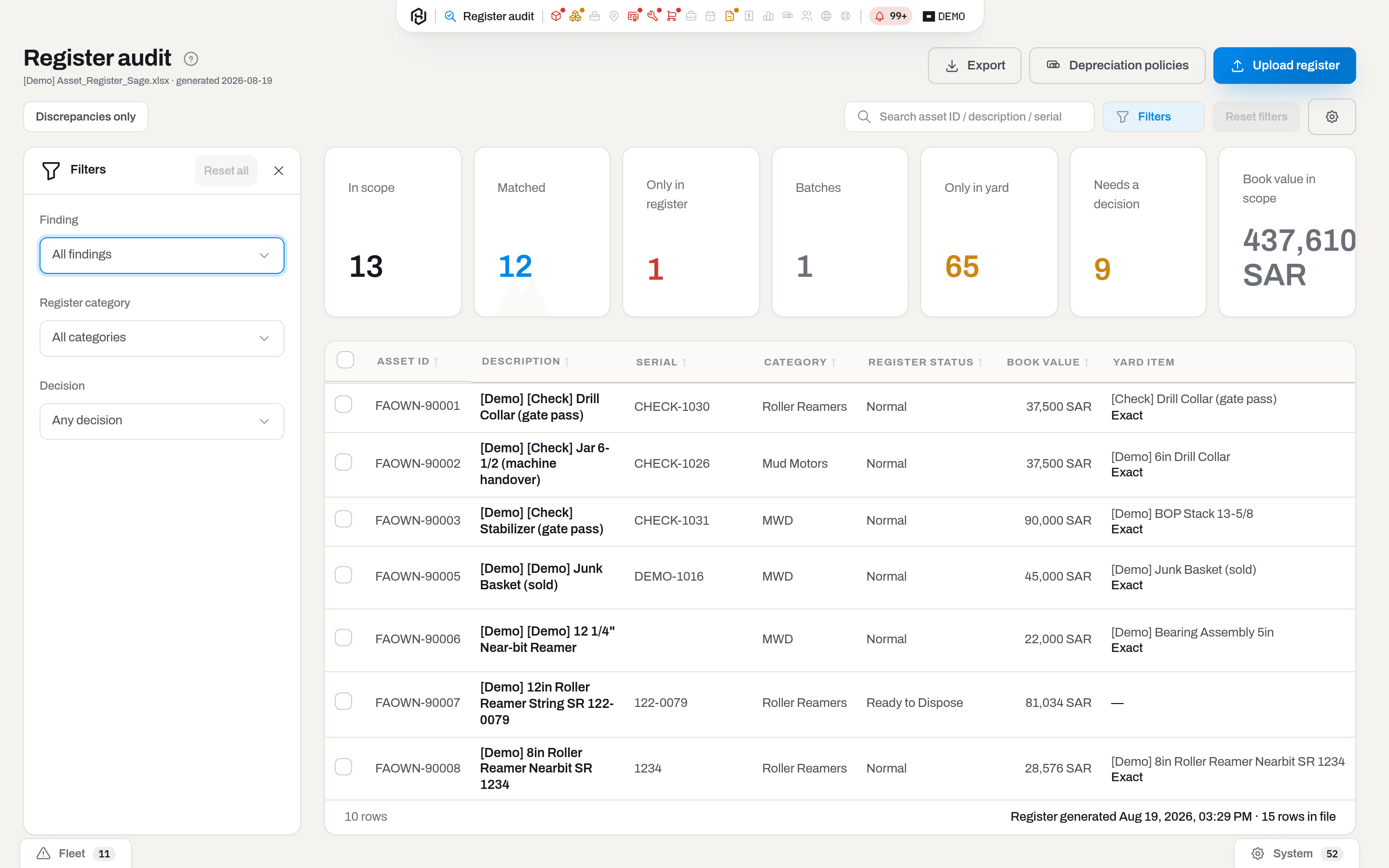
- Finding lists only the findings this run actually produced, each with its count, so an empty category cannot be chosen. Out of scope is left out on purpose — unpress Discrepancies only to see those rows.
- Register category lists the in-scope codes of this run.
- Decision is Any decision, Undecided, Fix in the yard, Fix in the register or No discrepancy.
- Click a column heading to sort; a second click reverses it and a third clears it. Yard item and Findings do not sort.
Result: the footer counts the rows your filters returned — 5 rows. It only splits into {shown} of {count} rows when the 500-row cap has cut the view short. Reset all, in the tray of active filters above the list, clears the search, all three selects and puts Discrepancies only back on.
If it fails: No rows match the filters. means the combination is empty, not that the file is. The list is capped at 500 rows per view; on a full register, filter rather than scroll.
Read a row
Who: Admin only.
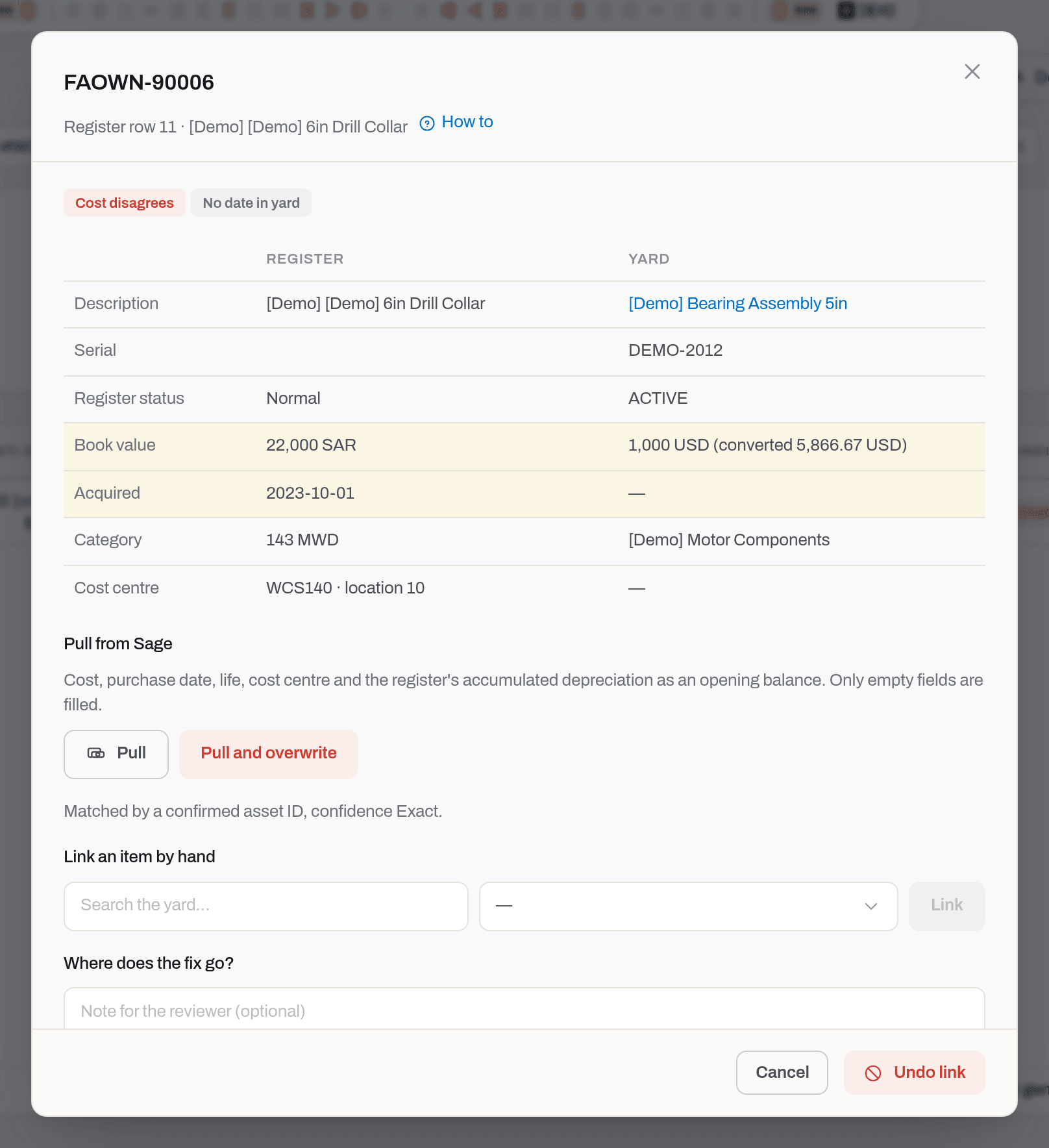
- Click the row to highlight it, then click it again, or press Enter, to open it (Choose how a row click behaves). The dialog is titled with the asset number and subtitled Register row 10 · [description].
- The badges at the top repeat the row's findings.
- Read down the two columns. Rows that disagree are shaded on both sides — neither is marked wrong.
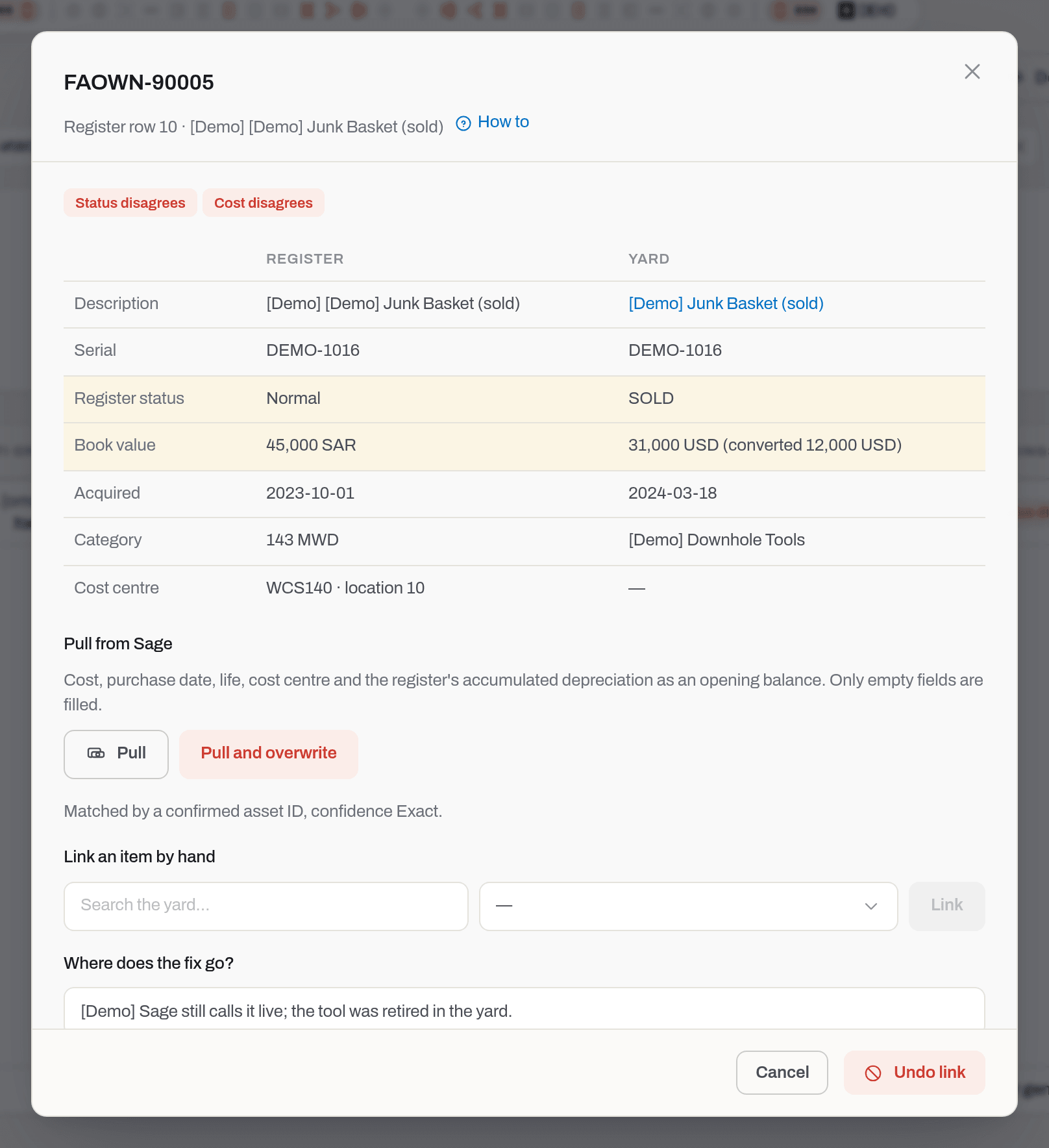
| Line | Register side | Yard side |
|---|---|---|
| Description | the register's text | the item's name, as a link into its card |
| Serial | Serial No as printed | the item's serial |
| Former numbers | — | the numbers this unit used to carry. The line only appears when it has some, and it is the answer to "why does the register say 85068 and the card say 85069". |
| Register status | Normal or Ready to Dispose | the item's own status, printed as its internal code — ACTIVE, SOLD, IN_REPAIR |
| Book value | the register's amount in its currency | the item's own cost, then in brackets (converted …) — the register's amount brought into the item's currency at 3.75. That bracket is the number actually compared. |
| Acquired | acquisition date | the item's acquisition date |
| Category | code and register name | the item's category in the fleet |
| Cost centre | cost centre and the register's location code | — always. The fleet's locations are not the register's. |
- Below the grid, Matched by …, confidence … tells you which rule paired them.
- One register row, N items appears when the line describes a batch: the register books four gamma tools on one line, and the yard keeps four cards. Every unit is listed with its serial. Confirming links all of them at once — there is no state where two of the four are recognised and two are not — and Pull divides the register's amount between them, writing a share into every one of their cards. The inventory number stays on the register row: it is one number and there are four things, so it cannot be stamped on a card.
- Already covered by another row: … appears when a second register line lands on an item another line already claims. Nothing is broken in the matching — the books have the same thing twice, usually a zero-value stocktake line beside the one that carries the money. The note names the row that got there first.
- Cancel, or the ✕, closes the dialog and changes nothing.
Result: nothing. Reading a row writes nothing at all.
If it fails: if the yard column is blank down its whole length, this row is Only in register — there is nothing to compare it against yet.
Link an item by hand
Who: Admin only.
Use this when the row found nothing, or found the wrong thing.
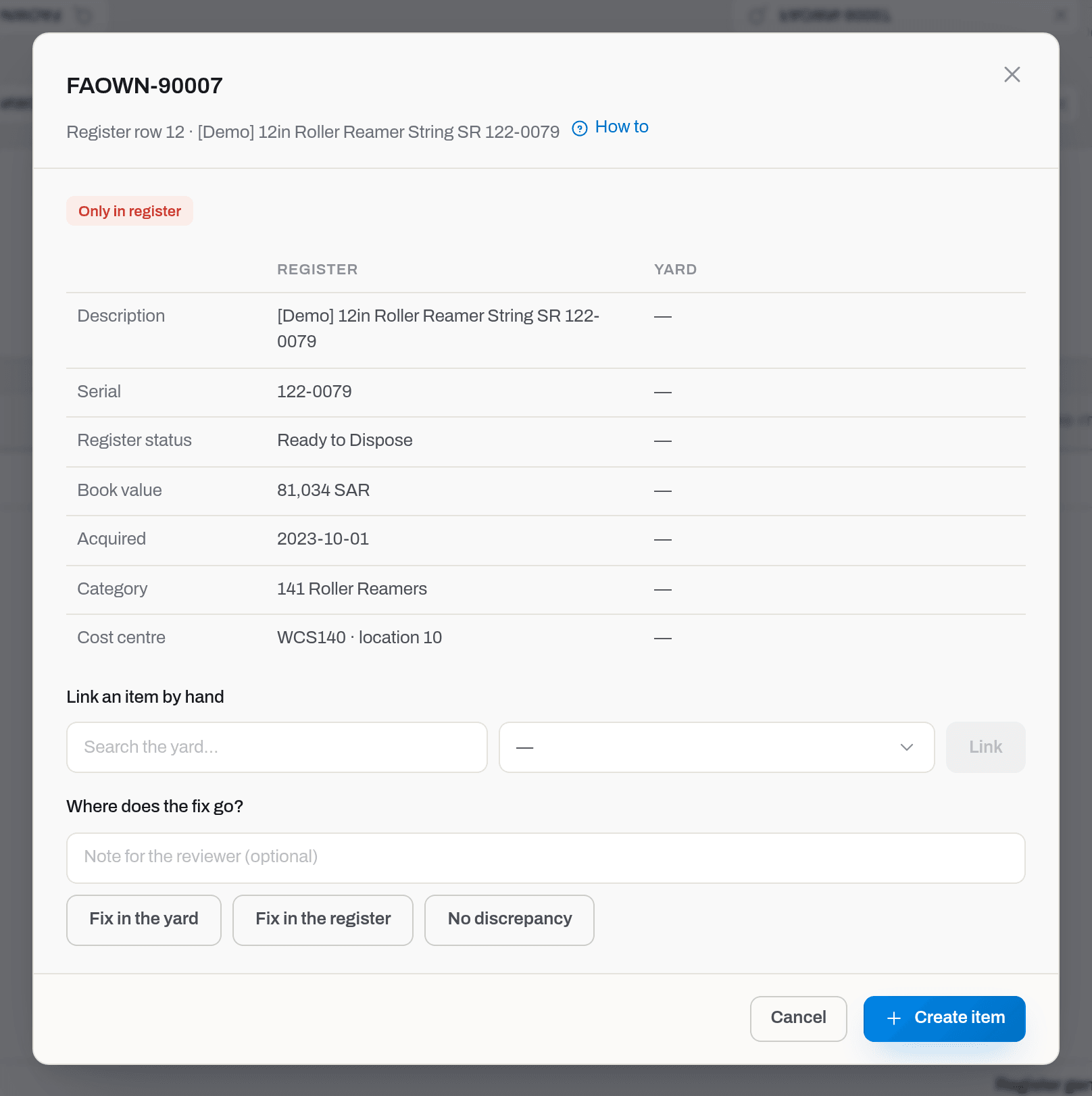
- Open the row.
- If the machine offered several possibilities, they are listed under Candidates with a Link button each — click the right one and you are done.
- Otherwise type at least two characters into Search the yard…. It looks across the whole fleet — serial, part number, manufacturer number and asset number as fragments, name and description from the start of a word — and puts the first 20 matches into the select beside it.
- Choose the item and click Link.
- If the line covers several things — AXCEL surface unit V.2200 (QTY 4) is one register line and four boxes — choose the first, press Add to the batch, choose the next, and so on. The picked items are listed underneath, each with a ✕ to drop it again, and the button turns into Link N items. Nothing is written until you press it.
Result: the pair is created and confirmed in one step — a hand-made link is never left hanging. The register's asset number is written into that item's Asset ID, the dialog closes and a toast says Saved. From the next upload on, this row matches instantly as a confirmed asset ID. A batch is different in one way: the asset number stays on the register row, because one number cannot sit on four cards. Everything else — the confirmation, the divided value on Pull — works as it does for a batch the machine found by itself. If the item you picked is already the answer to another line of the same register — which a batch can do without warning you, because a batch writes no asset number to refuse — the row you just linked is marked Another row covers this item, with a note naming the line that carries the money, and joins the accountant's questions. The link itself stands: two lines for one thing is a question for the books, not a mistake in the pairing.
If it fails: Asset ID FAOWN-90007 is already on another item (…). — the number is taken. One asset number, one item: open the other item, or undo the link there first. … already answers register row FAOWN-00881 means the opposite: the item is already the answer to a different line, so the books carry the same thing twice. Decide which line is the real one before linking this one. If the search finds nothing, remember that names and descriptions are matched from the start of a word: reame finds the roller reamers, eamer — the middle of the word — finds nothing. Serials and part numbers do match on any fragment.
Confirm or undo a link
Who: Admin only.
An automatic pair is a proposal until you accept it. This matters most on Name match only and Several candidates rows, which are exactly the ones the machine is least sure about.
- Open the row and read both columns.
- Press Confirm link if it is the same asset.
- If a pair was confirmed in error, press Undo link (red, bottom right) — but only a pair confirmed in the run you are looking at offers that button.
Result: confirming writes the register's asset number into the item's Asset ID, which then shows in the item card's facts and in the (hidden by default) Asset ID column of Items. Undoing removes that number again, provided it is still the one this pair set. Either way the dialog closes with a Saved toast. Undoing also settles Another row covers this item: whichever line is left alone on that item loses the mark, because the register no longer carries the thing twice. The line you undid keeps its mark — the question was addressed to the books, and dropping the pair is not an answer to it.
If it fails: Asset ID … is already on another item (…) — see above. This row has no candidate to decide on; link an item by hand. — there is nothing to confirm yet.
Note
A link made during an earlier audit does not come back as confirmed. A new upload rebuilds every pair from scratch and leaves it undecided, so the row shows Confirm link again even though the item still carries the asset number and matched by it. To take the number off, either press Confirm link and then Undo link, or switch back to the older run in the header and undo it there.
Warning
Neither confirming nor undoing leaves a trace in the item's Activity feed — the number simply changes on the card. If it matters why an asset number moved, put the reason in the row's note before you press.
Say where the fix goes
Who: Admin only.
This is the answer the whole screen exists to collect, and it is the one thing on it that no automation could do for you.
- Open the row.
- Under Where does the fix go?, write a line in Note for the reviewer (optional) — who you asked, what they said.
- Press one of the three:
| Button | Means | What happens next |
|---|---|---|
| Fix in the yard | the register is right, our card is wrong | somebody edits the item — corrects the status, pulls the cost, or creates the missing item |
| Fix in the register | the yard is right, the books are wrong | the row joins the accountant's file |
| No discrepancy | looked at, nothing to do | the row is closed on both sides |
Result: the dialog closes, a toast says Saved, and the Decision column of the list fills in — with your note in its tooltip. Pressing a decision does not touch the item, the register or the tiles: it records a judgement, and Needs a decision keeps the number it had at upload.
If it fails: nothing here validates, so the failures are the section's own — Requires tenant role 'admin' or higher. A decision can be changed as often as you like; the last press wins.
Items only the yard knows
Who: Admin only.
The other half of the reconciliation. A register row with nothing in the yard is a question about the yard; an item with nothing in the register is a question about the books — and the books are where it gets fixed. These items are not rows of the file, so they have a list of their own on the same screen.
- Press the Only in yard tile, or switch the list to Only in yard. The Own capital only filter is on by default: it keeps serial-numbered items whose role is Capital equipment and which are owned rather than rented in — the things a register of fixed assets was obliged to know.
- Open a line. The dialog shows the item as the yard has it — name, serial, part number, category, status, role and ownership — with a link to its card, and the same Where does the fix go? block a register row has.
- Write a note and press Fix in the register (the accountant should add it), Fix in the yard (it should not be a capital item, or should not be here at all) or No discrepancy.
To decide many at once, tick the lines — or Select all matching — and press Decide side in the selection bar: one side and one note for the whole set. The same button exists for register rows.
Result: the Decision column fills in, and a line decided Fix in the register joins the accountant's file with the register half of its columns empty and the yard half filled. The decision belongs to the item, not to its place in the list: re-run the matching, or link the item to a row by hand, and the note stays. An item that has since found its row loses the Only in yard badge but keeps your decision in view, exactly as a register row does.
If it fails: Requires tenant role 'admin' or higher is the only refusal here. An item missing from the list is not a failure: check Own capital only — rented-in equipment, spares and consumables sit behind it.
Create an item from a row
Who: Admin only, and only with the Items and Finance sections as well. Creating the item enters it in the live fleet — that is Items — and carries the register's Book Value onto its card as the acquisition cost, which is Finance: the same two keys the yard asks for anywhere else money moves.
Only in register is the finding this whole report exists to produce, and for most of those rows the honest answer is the plainest one: the asset is real, it works in the yard, and nobody ever entered it. This is how it gets entered — one row, one item, without retyping the serial or the price.
- Open a row whose finding is Only in register. Create item appears as the blue button in the footer — it is offered only while the row has no pair at all and its category is in scope.
- The dialog opens with the register's own words already in it: Description becomes the item's name, Serial is the register's serial with Sage's rubbish trimmed off (a leading space, an
SN:orPart #prefix). - Category is proposed from the audit scope's map — the fleet category you have tied to this register category. If nothing is mapped, pick one; the list offers the fleet's asset categories only, since a register of fixed assets has nothing to say about consumables.
- Location you have to answer yourself. The register's own Location column is a Sage code —
10on 767 rows out of 829 — not a place in the yard, so there is nothing to copy. - Press Create item.
Result: an active asset appears in Items carrying the Asset ID, the serial, the register's Book Value as its acquisition cost in the register's currency and the register's acquisition date. Its Activity feed opens with Imported, naming the register file and the row number, so the origin of the figure is visible on the card forever. Back on this screen the row is no longer Only in register: it now shows the new item as its pair, confirmed, its decision is set to Fix in the yard, and the Only in register tile drops by one.
Note
The money is copied without converting. The register keeps SAR, so the new item is kept in SAR too — there is no second source for its price, and a dollar figure invented by a rate would be indistinguishable later from one a person typed. Reports convert it using the rate in Finance settings.
If it fails:
- No yard category is mapped to register category '141' — pick a category in the dialog, or map it once for every row of that category in the audit scope.
- Serial 122-0079 is already on … — that serial is in the yard already, so this is not a missing asset but a missed match: close the dialog and use Link an item by hand instead. If the register put a part number in the serial column, clear the Serial field and create it without one.
- The row already has a candidate — the row is not Only in register any more; decide on the candidate first.
- No Create item button — the row has a pair, its category is out of scope, or you cannot see the Items or Finance section.
Important
There is no bulk version of this, and that is deliberate. Sawafi's file carries 320 Only in register rows and 259 of them are one un-digitised fleet of roller reamers: entering it is a conversation with the client about categories, locations and what is actually still in the yard — not a button. Pressing Create item twice on the same row is safe, though: the second press finds the asset number already taken and links to that item instead of making a twin.
Confirm links in bulk
Who: Admin. Pull additionally needs Finance.
A real reconciliation is hundreds of rows, and the confident half of them does not deserve a click each.
- Tick the rows — the checkbox in the heading takes the whole page.
- The bar at the bottom of the screen offers Confirm link, Undo link, Pull and Export. Pull moves the register's money, so it appears only if the Finance section is open to you — the same rule as the button on a single row.

- Filter first, then select. Sorting the list by Findings or filtering Finding to one kind is how you get a page worth confirming in one go.
- For everything your filters found rather than the page in front of you, click Select all {count} matching in the bar. Export then takes the same filter instead of a list of rows.
- Every one of the three asks first: the window names the count, lists what it is about to touch and greys out the rows it cannot take — no candidate to decide on, and for Pull also link not confirmed yet.
Result: each row is processed on its own, and the window reports {done} done, {failed} failed. Rows that failed stay selected with the server's reason beside them, so you can fix and repeat; rows that worked are cleared.
If it fails: the usual reason is a row with nothing to confirm (This row has no candidate to decide on) or an asset number already taken by another item. Both are per-row: the rest of the batch still goes through. A full register is more than 500 rows, and one action takes at most 500: over that the bar offers no Select all matching at all, it says Up to 500 rows at a time — narrow the filter. Filter by Finding, category or side, and the link comes back with the new count.
Warning
Undo link in bulk is not "clear my selection" — it runs the real action on every row it is given. It only takes an asset number off an item where that pair was confirmed and the number on the item is still the one it set; rows with nothing to undo come back as failures (This row has no candidate to decide on), and a row confirmed onto a different number is left alone.
Pull the register's figures into an item
Who: Admin only, and only with the Finance section as well.
Most yards enter iron without prices. The register has them, and once a pair is confirmed the figures can be copied across.
- Open a row whose link is confirmed — the block Pull from Sage appears under the comparison grid.
- Press Pull. It fills only the fields the item does not already have: acquisition cost (converted), acquisition date, useful life in months, cost centre, and the register's accumulated depreciation as an opening balance dated to the register's generation date. If the item is kept in a currency other than the workspace's and has no purchase-day rate yet, today's rate is written in as well.
- Read the line that appears — it names what was written (Pulled: …), and kept as is: … for anything the item already had. When the item was complete already it says Nothing to pull — the yard already has it all.
- Pull and overwrite (red) does the same but replaces existing values. Use it when you know the yard's numbers were guesses.
On a batch — one register line, several items — the pull writes into every card of that line, not just the first. The register books the whole batch on one line, so the amount and the accumulated depreciation are divided by the number of units and each card gets its share: four boxes on a line of 716,625 SAR each take a quarter of it. The result line says how many cards it landed in (into 4 cards), and a field the pull left alone on one card while filling another is named in both halves of the line — Pulled: acquisition_cost = 12081.87 into 4 cards · kept as is: acquisition_cost means part of the batch already carried a price of its own.
Result: the item's cost and date change on its card — every item of a batch line — and its depreciation card in Finance gets a life and an opening balance. The dialog deliberately stays open so you can see what landed — and the row settles with it: the findings the pull has just answered (No cost in yard, No date in yard) go out on the spot, the Yard column fills in, and the tiles at the top of the screen count again. What the pull cannot answer stays: a line the register carries at zero keeps Carried at zero in the register, because that figure is a question for the accountant, not a gap in the card.
If it fails:
- Confirm the match first — the register may be pointing at another item. — pulling money over an unconfirmed guess is exactly the mistake worth preventing.
- No SAR/USD rate — set it in finance settings first. — the run's accumulated depreciation cannot be converted into the workspace's currency until a rate exists.
- No Pull from Sage block at all — the pair is not confirmed, or you cannot see the Finance section.
Create depreciation policies from the register
Who: Admin only, and only with the Finance section as well.
The register's Life (mo) column is the accountant's answer to "how long does this kind of thing last", and it is the number the fleet's depreciation needs.
- Click Depreciation policies in the header. The dialog Policies from the register opens on a preview — looking costs nothing and writes nothing.
- Read the table: Category (the fleet's own category, not the register's), Items, Life, months, In the register — the whole spread,
60×2 · 84×1, so you can see how solid the answer is — and What happens: New policy, Life updated or Already has a policy.
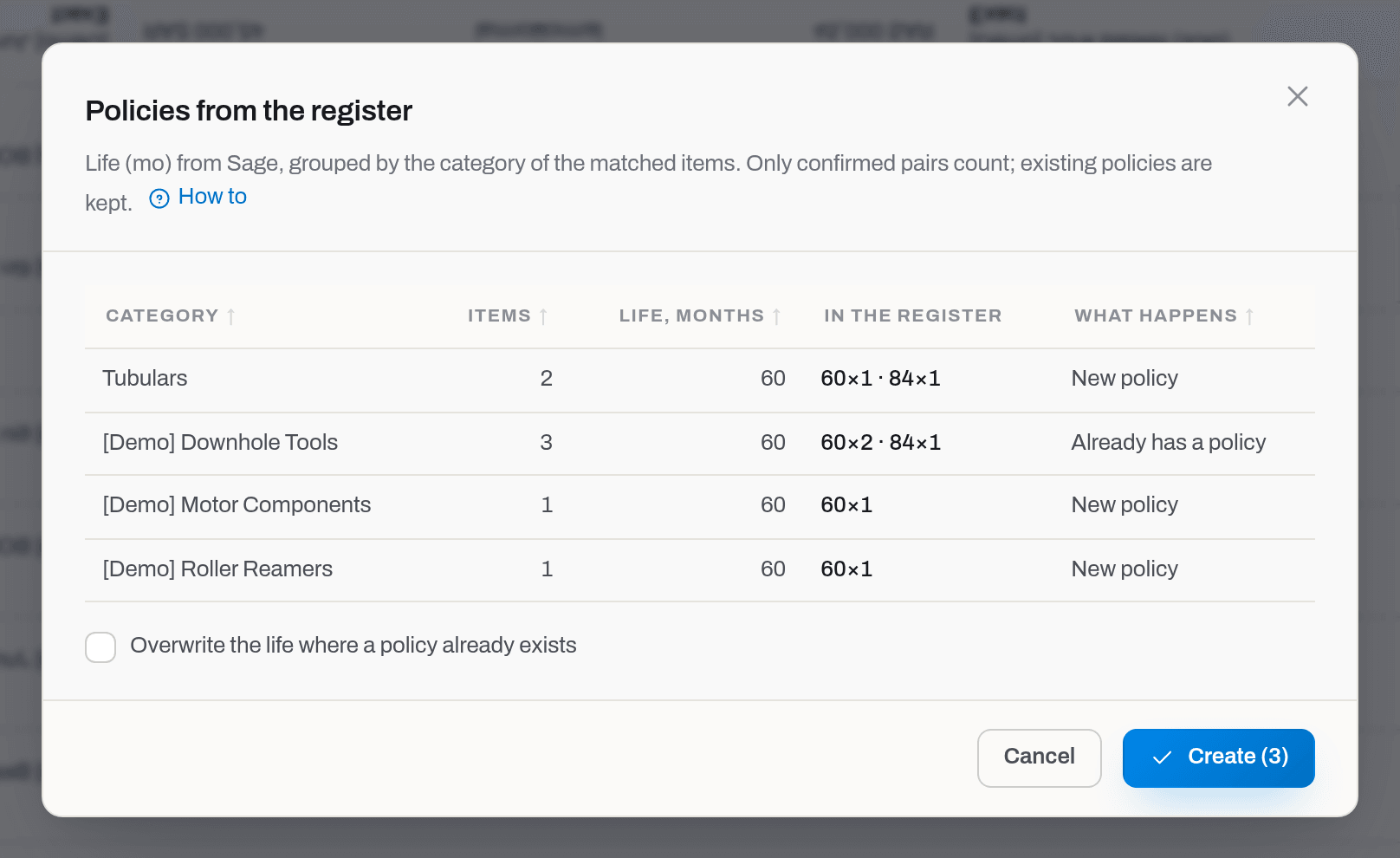
- Tick Overwrite the life where a policy already exists only if you mean to replace what the workspace already decided.
- Press Create (N).
Result: the categories named get a depreciation policy, and the ledger starts covering their items. The dialog closes.
If it fails: the preview table can come up empty — No confirmed matches with a life in the register. That is not a refusal: only confirmed pairs are counted, and only where the register carries a Life (mo), so confirm some links and open it again. Create is disabled while there is nothing to write — an empty table, or every line reading Already has a policy.
Export rows for the accountant
Who: Admin only.
Half of what this screen finds is not ours to fix. Fix in the register rows are corrected in Sage, by the person who keeps it — and he needs them as a file, not as a screen he has no login for.
- Filter the list down to what he should get. For his own worklist that is Filters → Decision → Fix in the register; any other combination of filters works the same way — the file is exactly what the list shows. Discrepancies only can stay pressed: a row you have sent him is in view because you decided it, whatever the machine made of it.
- Press Export in the header. To send a hand-picked set instead, tick the rows and press Export in the selection bar at the bottom.
- Choose the format. Excel workbook (.xlsx) is for reading — bold headers, frozen top row, money and dates as real numbers he can sum. CSV is for loading into something else.
- Press Download.
Result: a file lands in your browser's downloads, named after the day the register was generated — register-audit-2026-08-19.xlsx. Every line holds the register row and the yard's answer side by side, so the accountant sees not only his own figure but what disagrees with it:
Items only the yard knows travel in the same file, after the rows, with the register group of columns empty and findings reading ONLY_IN_YARD: the accountant gets one worklist, not two. They obey the same filters as far as they can answer them — Decision, the search box and Discrepancies only apply; a Sage category or a confidence filter has nothing to say about an item that has no row, so with those set the file holds rows alone. From the Only in yard list, Export sends exactly that list.
| Group of columns | What is in them |
|---|---|
| The register | row_no, asset_id, description, serial_no, register_status, category_code, category_name, acquired_at, location_code, cost_center, life_months, currency, book_value, accumulated_depreciation, net_value |
| The audit | findings, in_scope, decision, note, decided_at |
| The yard | yard_item, yard_serial_no, yard_part_no, yard_asset_id, yard_category, yard_status, yard_location, yard_cost, yard_currency, yard_acquired_at, match_method, match_confidence, match_decision |
The column names are deliberately plain and stay that way: they are what the accountant's own import maps onto, and renaming one would break his setup the way renaming a field breaks an integration. They are not translated for the same reason.
If it fails: an empty filter is not a failure — you get a file with the headings and no rows, which is a perfectly good answer to "nothing left for you this week". A selection larger than 500 rows is refused (rows in one request — the limit is 500); export by filter instead, which has no such ceiling.
Note
Nothing is marked as sent. The file is a snapshot of the rows as they stand; export the same filter again next week and you will get whatever is still open then.
Fields
Only two things on this screen are typed rather than pressed.
| Field | Where | Meaning | Required |
|---|---|---|---|
| Note for the reviewer (optional) | row dialog, under Where does the fix go? | why this row was decided the way it was; shown as the tooltip of the Decision cell. Up to 500 characters, kept until the next upload of this file. | no |
| Search the yard… | row dialog, under Link an item by hand | at least two characters; matches serial, part number, manufacturer number and asset number as fragments and name and description from the start of a word; the first 20 hits go into the select beside it | to link by hand |
| Description | Create an item from this row | the new item's name; pre-filled from the register's description, editable | yes — a row with no description falls back to {category} {asset id} |
| Serial | Create an item from this row | the register's serial with Sage's prefixes trimmed. Clear it when the register is holding a part number in that column — an item with no serial is better than one carrying a wrong one | no |
| Category and Location | Create an item from this row | the two answers the register cannot give. Category is proposed from the scope map; location has no counterpart in Sage at all | yes, both |
The rest of the comparison grid is not editable anywhere on this screen. The Register column can only be changed in Sage; the Yard column can only be changed on the item's own card in Items.
What the system tells you
| When | Feed row | Who gets it | |
|---|---|---|---|
| A register is uploaded and matched | Register reconciliation is ready — {file}: {rows} rows, {matched} matched, {decisions} waiting for a decision, linking to this screen | — | every manager and admin who can see this section — which, until somebody grants it to a group, means all of them — except the person who uploaded the file. Only the admins among them can open what the row links to. |
| An item is created from a row | — | — | a Saved toast, to you only. The new asset's own Activity feed records Imported, naming the register file and row |
| Rows are exported to a file | — | — | the file itself; nothing is recorded, nothing is marked as sent |
| Any successful action on a row | — | — | a Saved toast, to you only |
That single feed row is the whole point of the notification: the person who receives the accountant's file is rarely the person who can tell one downhole tool from another. Uploading is a handover, and the row is what hands it over.
This section sends no email at all — nothing here is urgent enough to interrupt anyone's day, and the file itself arrives by mail already.
Related
- Items — the fleet side of every comparison, the Asset ID field, and where a Fix in the yard decision is actually carried out.
- Finance — depreciation policies, opening balances and the currency rate that Pull depends on.
- Compliance — the other fleet-wide report, and the difference between a paper problem and a book-keeping one.
- Roles & access — why this section can be invisible to an admin.
- Basics — toasts, the feed, tables, filters and the selection bar.
FAQ
I decided ten rows and "Needs a decision" still says the same number. — It usually will. The tiles are computed when the file is read and stored with the run: they describe the file, not your progress, and pressing a decision changes a judgement rather than a finding. The one exception is Create item, which removes a real finding — Only in register — and so recounts the tiles as it goes. Filter Decision to Undecided to see what is actually left.
The accountant wants the list of things he has to fix. Where is it? — Filter Decision to Fix in the register and press Export. He gets one file with his row and ours on the same line.
Where do I see the 36 items that are "Only in yard"? — Not from here. Those items have no register row to click, so the number is all this screen carries. Export the fleet from Items and look for assets with no Asset ID.
The same item is linked to two register rows. — That can happen: the older link is remembered on the item as its Asset ID, and a newer row can be confirmed onto the same item, taking the number over. If two rows in one file legitimately point at one item, the register is double-counting it — that is a Fix in the register.
Why is the yard's cost of 31,000 USD "disagreeing" with 45,000 SAR? — Because 45,000 SAR is 12,000 USD at 3.75, and 12,000 is not 31,000. The comparison always converts first; the (converted …) figure in brackets is what is actually compared, to within 1%.
Register says Ready to Dispose but the tool is out on a job. Is that wrong? — No. Ready to Dispose is a book-keeping state — fully depreciated — and Hafrix never reads it as scrapped. That combination raises Fully depreciated, in service, which is a note to the accountant, not a fault.
Can I undo an upload? — Not from the screen; runs are not deletable here. Upload the corrected file under a different name and pick the right one in Audit run. Uploading under the same name rebuilds that run in place and drops every decision on it.
Why can't I see this section? — Two possible reasons, and they need different fixes. You are not an admin: only an admin can help. Or Register audit has been granted to named groups and yours is not one of them: see Roles & access.
Updated 2026-08-31
New to Hafrix?
See this workflow in your operation
Explore the platform behind these guides: equipment inventory, rentals, maintenance and operational finance. Tell us which workflow you want to see.