Clients & companies
One registry for every outside company the yard deals with — the operators you rent equipment out to and the vendors you rent it from — and the door to what each client is charged.
Where: capsule → Clients (/clients). If the entry is missing, your group has not been granted this section — see Roles & access.
Who can do what
| Role | In Clients |
|---|---|
| Viewer | Open the list, the tiles and the company card, search, sort, switch List / Tiles, jump to a client's Invoices |
| Operator | + upload a document onto a company card |
| Manager | + New company, edit a company, set its status, remove a document, open Repair rates and Rental rates for a client, delete a company nothing uses |
| Admin | + mark a vendor as an affiliate, restore a deleted company from Settings → Trash |
At a glance
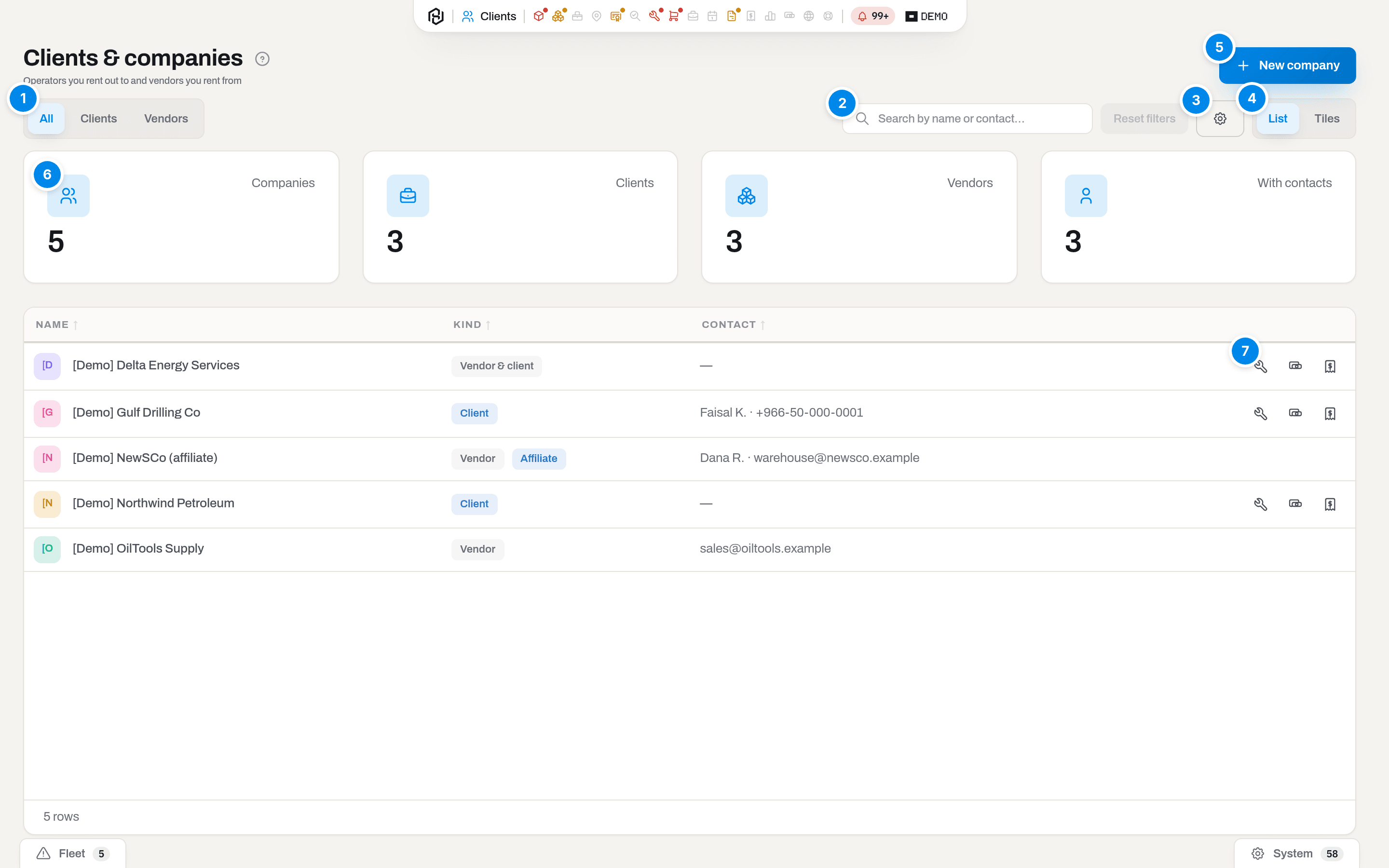
- All / Clients / Vendors — the only filter this screen has. A company of kind Vendor & client appears under both Clients and Vendors, because it is both.
- Search — Search by name or contact…: matches the name, the contact person, the email and the phone. The whole registry is loaded at once, so it narrows as you type, with no page to turn.
- Columns — the gear: show or hide Name, Kind, Contact. The choice is kept with your account, so it follows you to any browser (how the gear works). It appears in List only.
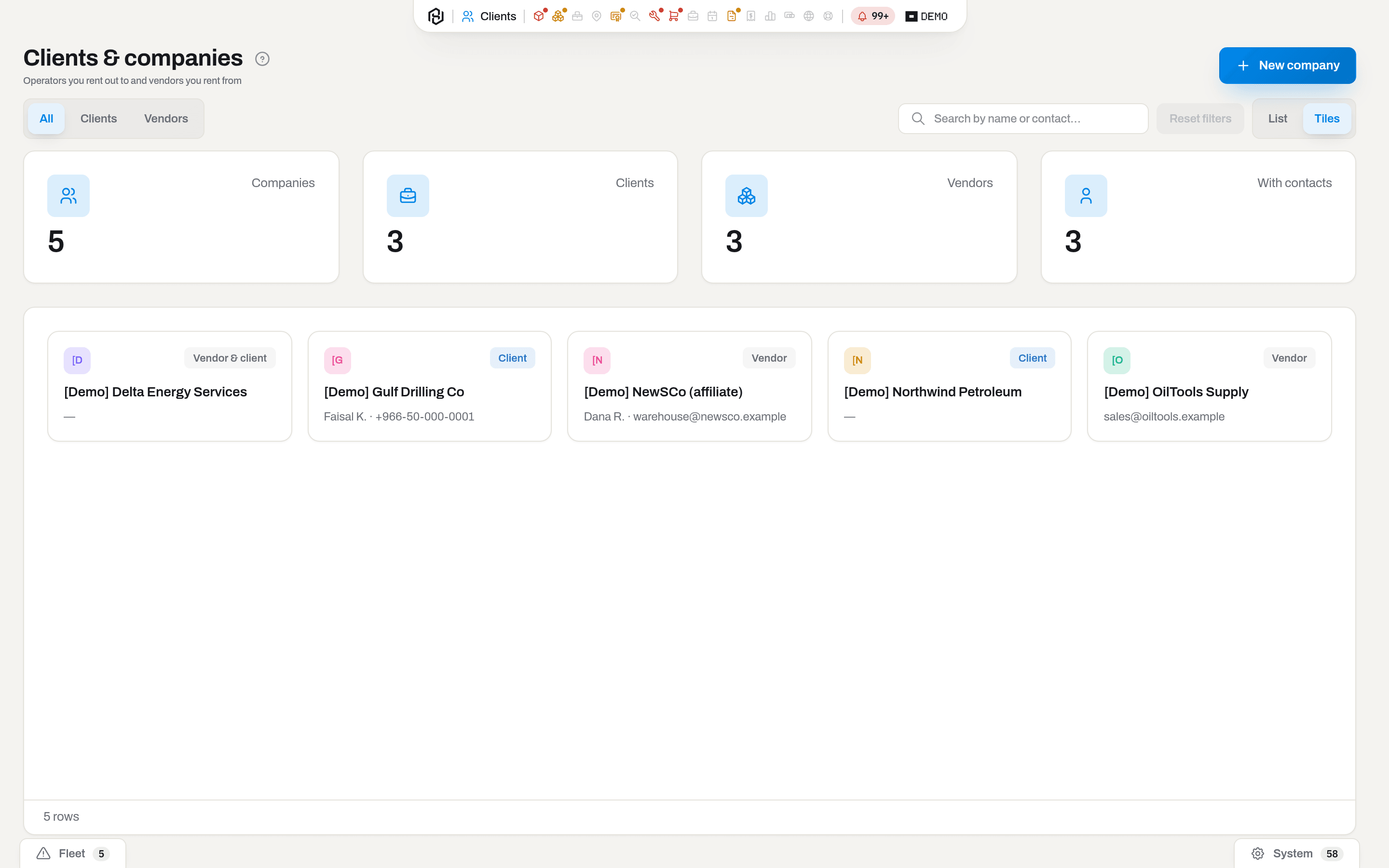
- List / Tiles — the same rows as a table or as cards.
- New company — the create dialog. Manager and above; an operator and a viewer do not see the button.
- The counters — Companies, Clients, Vendors, With contacts — always describe the whole registry, not what the tabs and the search left on screen. Vendor & client is counted in both Clients and Vendors, which is why the two can add up to more than Companies.
- The shortcuts at the end of a row. The pencil opens the edit dialog and is on every row; Repair rates, Rental rates and Invoices are on client rows only — you do not charge a vendor.
A click on a row highlights it; click it again, or press Enter, to open the company card (/clients/{id}) (Choose how a row click behaves) — see The company card. A company that is on hold or blocked carries its status as a second badge next to the kind, in the list and in the tiles alike.
Reset clears the search and puts the tab back to All; it appears only once there is something to clear. The tab, the search text and the layout all live in the address bar (?tab=CLIENT&q=gulf&view=grid), so a filtered registry can be bookmarked and sent to a colleague.
Note
Prices are not on the card. The card holds the terms — who to talk to, how they are paid, how long they take to deliver — while what a day of equipment costs lives in the two rate books in Settings.
Key concepts
One registry, two roles
A client and a vendor are the same kind of record with a different Kind. Kind is not decoration: it decides which dropdowns the company turns up in elsewhere in Hafrix.
| Badge | What it means | Where the company appears |
|---|---|---|
| Client | You rent equipment out to them, or you repair for them | Client pickers: a job, a field ticket, Assign to client, an invoice, a work order billed to a client, both rate books |
| Vendor | You rent equipment in from them, or you send work out to them | Vendor pickers: Vendor on a rented-in item, a work order billed to a vendor |
| Vendor & client | Both at once — common with service companies | Both lists |
Get the kind wrong and the company simply is not offered where you expect it. That is the usual reason for No client companies yet — add one on the Clients page on a screen where the company clearly exists.
The company card
A click on a row highlights it; click it again, or press Enter, to open the company's own page: /clients/{id} (Choose how a row click behaves). The cross at the top right takes you back where you came from — the list with your filters, on the row you left.
The left side is one card with tabs, and which tabs you get depends on the company and on your own sections:
| Tab | Shown for | What is in it |
|---|---|---|
| Orders | a vendor, if you have Procurement | every purchase order sent to them, newest first; a row highlights on the first click, click again or press Enter to open the order (row click) |
| Receipts | a vendor, if you have Procurement | everything that has arrived from them, by GRN |
| Jobs | a client, if you have Jobs | the jobs booked for them, with the period and the status |
| Documents | always | their qualification papers — see Add a qualification document |
Below the tabs sits Contacts, one line per person, labelled with the role.
The right side is the facts: kind, status, the supplier terms, the default currency, the client's tax number and payment days, and the address. Under it, for a vendor, the Delivery record — see Delivery record.
Working with a supplier
A vendor card carries what your agreement with them says, and Hafrix reads it when a new order to them is created — ahead of the workspace defaults in Settings → Procurement:
| Field | What a new order does with it |
|---|---|
| Payment terms | copied onto the order in the supplier's own words, and printed on the PDF |
| Lead time, days | sets the order's Expected date: today plus that many days |
| Default currency | the order opens in it instead of the procurement default |
Status is the third one, and it is the only field on this screen that can stop a document:
| Status | What happens |
|---|---|
| Approved | normal — the default for every company |
| On hold | orders still go out; the card carries a warning line so whoever is about to send one talks to procurement first |
| Blocked | Send on an order to them is refused — … is blocked — orders do not go out to a blocked supplier. Drafts can still be written, and existing orders still receive goods |
Delivery record
Delivery record on a vendor card answers "how do they actually deliver?" from the paperwork itself — there is no separate scorecard to keep up to date. It counts the orders sent to them over the last 12 months:
| Line | How it is counted |
|---|---|
| Orders sent | orders that left as Sent; a draft never reached them, so it is not counted |
| On time | of the orders that had an Expected date and something arrived, the share whose first receipt was posted no later than that date |
| Still waiting | how many are open, and how many of those are past their expected date |
| Closed short | closed with part of the order never delivered |
| Cancelled | cancelled after the order had already gone out |
On time says Nothing to measure yet rather than 0% when no order has both a promised date and a delivery: a supplier who has not been given a date to miss has not missed one.
The two rate books
Money is not stored on the company. It is stored in two dated price books that live in Settings, and the row shortcuts open each one already filtered to that client:
| Book | Where | Answers |
|---|---|---|
| Repair rates | Settings → Maintenance | What a repair level costs this client |
| Rental rates | Settings → Finance | What a day or an hour of equipment costs this client |
Both books read the same way. A row with no client is the default for everyone; a row with no scope covers any equipment. The closest row wins — client before everyone, one unit before a category, a category before anything — and among equal rows the latest one dated no later than the day being priced. That is why a row has an Effective from date and not a "current price": a repair closed in March does not change its mind in April when the price book goes up.
Money on the card, prices in the books
The two books hold prices. The company card holds the terms the invoice is written under: the buyer's tax number, how long they have to pay, what currency their contracts are in, whether they insist on a purchase order, and how often they expect to be billed. Those five fields are money too, so they are only shown to people who have the Finance section — the same lock that hides the rental price book.
Each one is a default that something else inherits. The Default currency is copied onto every new job of this client and lives on the job from then on — and, on the same company as a supplier, onto every new order to them. Payment terms, days decide the due date of the invoice — 45 days here beats the workspace default of 30, and a deliberate 0 means due on receipt, which is not the same as leaving the field empty. A PO number is required stops an invoice for this client from being sent while its PO field is blank.
The supplier side of the card is not money in that sense and is not locked: Payment terms in words, Lead time and Status are read by whoever writes the order, and they belong to the same people who work in Procurement.
Contacts and their roles
A company has as many contacts as it has people who speak for it, each one a row of person, email, phone and a role. The role is not a label — it decides where paper goes:
| Role | Used for |
|---|---|
| Orders | the address a purchase order is emailed to |
| Invoices | the address this client's invoice is sent to |
| Quality | who to ask for a certificate; nothing is sent there automatically |
| General | no particular job — and the fallback for every role above |
There is always a fallback: if nobody carries the role being looked for, the first contact with an email answers instead. A company with one contact needs no roles at all.
The Contact column in the list prints the first contact and, if there are more, +2 after it. With contacts counts the companies that have at least one.
A contact's position, and what a vendor does
Position on a contact row is a free-text job title — Purchasing manager, Workshop foreman — printed next to the name wherever the contact shows up. It is not the Role: the role decides where paper goes, the position only says who the person is.
Services is a closed catalogue on a Vendor (or Vendor & client) card — machining, hardfacing, welding, NDT, stator reline, seals, rentals, tool maintenance, manufacturing, spare parts and calibration. Tick what this vendor actually does; leave it blank if you are not sure yet. Three places read it:
- the register's own Service dropdown, first in the list's header, before the kind tabs;
- the Workshop picker on a repair work order — see Open a work order;
- the supplier picker when ordering from a request — see Order from a supplier.
All three narrow the list, never hide a company that is already chosen: pick a service after a vendor is already on the form, and that vendor stays in the list even if it does not do that service.
How to
Add a company
Who: Manager and above.
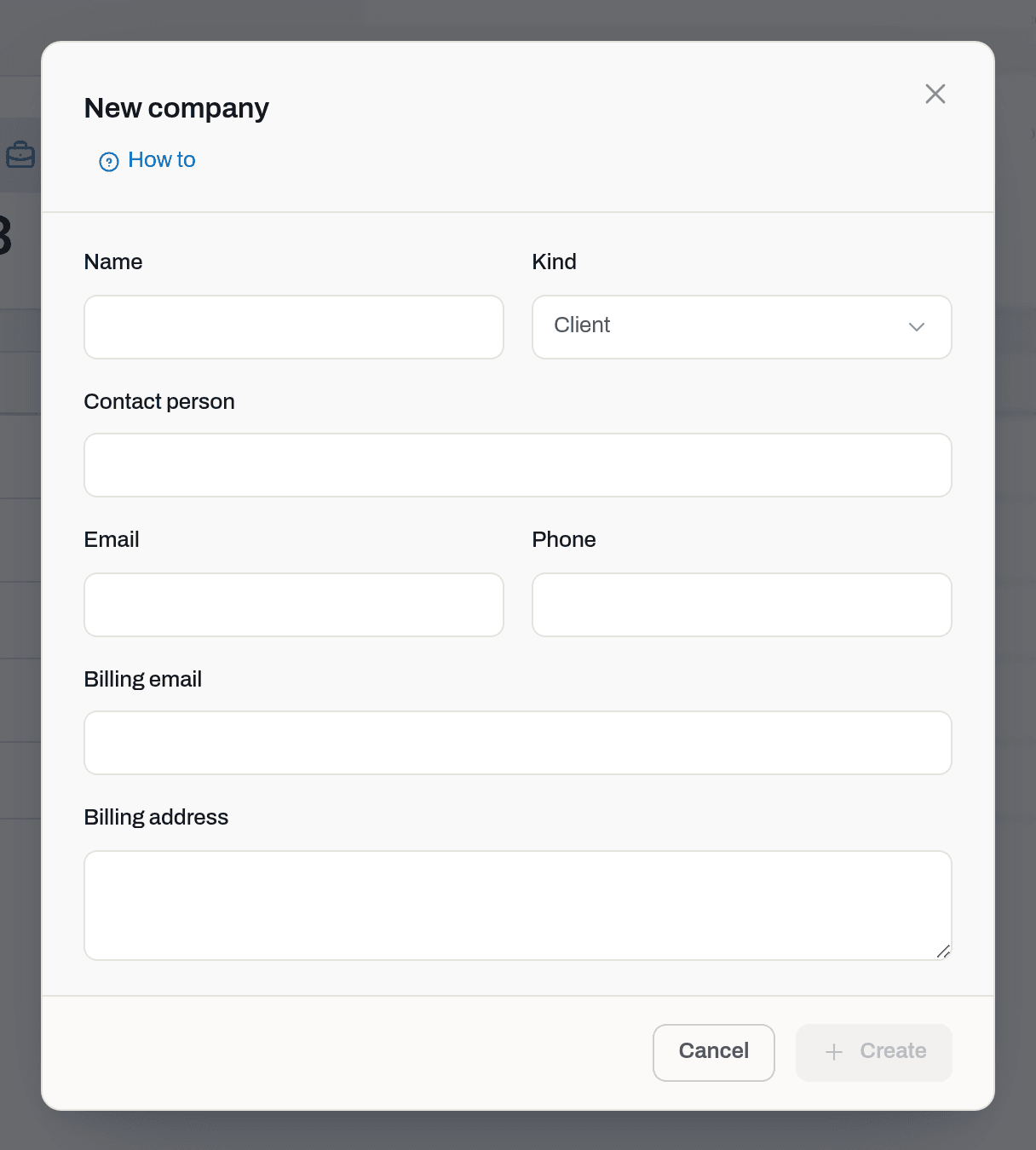
- Click New company (top right).
- Fill in Name — the only required field. Create stays disabled until it has something in it.
- Pick Kind: Client, Vendor or Vendor & client. It opens on Client.
- Leave Status on Approved unless you already know otherwise — see Working with a supplier.
- Click Add contact for each person you deal with, and give them a Role: Orders for the order desk, Invoices for accounts payable, Quality for certificates. One contact with no role is fine.
- Fill in Address if this company is invoiced or ordered from — it prints on the invoice, the credit note and the purchase order.
- On a vendor, fill in Payment terms and Lead time, days — they go onto every order to them.
- On a vendor, an admin also sees Affiliate — see Mark a vendor as an affiliate.
- Click Create.
Result: a toast says Saved, the dialog closes and the company takes its place in the list — the registry is always sorted by name. The counters at the top go up, and the company starts appearing in the pickers its kind belongs to.
If it fails: You do not have permission to perform this action — creating companies is Manager and above; ask an admin for the role. Another company already uses this name — two companies in one workspace cannot share a name; search for it first, it is probably already registered, perhaps under the other kind.
Fill in the billing details
Who: Manager and above, with the Finance section. Without it the block is not in the dialog at all, and the server will not accept those fields either.
- Open the client — the pencil on its row, Edit on its card, or New company.
- Below Address, fill in what applies:
- Tax number (VAT / CR) — printed on the invoice PDF under the payer's address. A buyer in Saudi Arabia will not book an invoice without it.
- Payment terms, days — leave it empty to follow the workspace setting; type
0for due on receipt. - Default currency — leave it on Tenant default unless this company is contracted, or ordered from, in another currency. It sits above the block because it serves both sides of the card.
- Billing cycle — Monthly or Per job; a note for whoever bills, and the setting the billing run will read.
- Purchase order — tick A PO number is required on every invoice for clients whose accounts payable rejects invoices without one.
- Default tax schedule — what a new invoice for this client starts with, from the tax schedules catalog; empty leaves it to be picked per invoice.
- Click Save.
Result: a toast says Saved. Nothing changes on invoices that already exist — they are documents and keep what they were written with — but the next job created for this client copies the currency, and the next invoice built for them takes the payment terms and the default tax schedule.
If it fails: the block is missing — you do not have the Finance section; ask an admin (Roles & access). The fields are simply not sent for you, so saving the rest of the card still works.
Mark a vendor as an affiliate
Who: Admin, on a company of kind Vendor or Vendor & client.
A company in your own group — a sister company with its own warehouse — is not somebody you buy from. Tick Affiliate in its dialog and orders to it stop being purchases: they are numbered ICT-, print as a Transfer request without payment terms, and carry the value the affiliate itself holds the goods at. See Procurement.
Result: the company shows an Affiliate mark in the list, and the order dialog in Procurement says what will happen when you pick it.
If it fails: the checkbox is not there — it is Admin only, and only on a vendor: a client-only company cannot be an affiliate. Only an admin can mark a company as an affiliate. — a manager can edit everything else on the card, but not this.
Correct a company
Who: Manager and above.
- Click the pencil on the row, or open the card and click Edit — the same dialog opens, titled Edit company, with the name under the title.
- Change what you need and click Save.
Result: a toast says Saved; the row shows the new values, and so does every screen that names the company.
If it fails: the pencil is not there — editing the registry is Manager and above; a viewer and an operator open the card and read it. Changing Kind away from Client takes the company out of client pickers and hides its Repair rates and Invoices shortcuts; work already booked to it stays where it is.
Delete a company
For a company entered by mistake or twice, before anything was done with it.
- Open the company card.
- Press Delete in the header and confirm. It is there only for a manager, and only while nothing points at the company; otherwise the header says Used by N records in its place.
- The company moves to Settings → Trash and you return to the list. An admin can restore it from there.
Put a supplier on hold or block it
Who: Manager and above.
- Open the vendor's card and click Edit.
- Set Status: On hold while you are waiting for them to explain a late delivery, Blocked once you have decided not to buy from them.
- Click Save.
Result: the badge changes on the card and in the list, and the card carries a line saying what the status means. Everyone who can see Procurement from Manager up gets a feed row — Supplier blocked: {name} — except you: your own action is the toast, not news. From that moment Send on an order to a blocked supplier is refused with … is blocked — orders do not go out to a blocked supplier.
Set it back to Approved the same way, and orders go out again immediately; nothing needs re-approving.
If it fails: the field is not in the dialog — the dialog itself is Manager and above. An order that is already Sent is not affected: goods on their way still get received, and the block only stops the next one from leaving.
Add a qualification document
Who: Operator and above, on the Documents tab of the card.
- Open the company card and switch to Documents.
- Drag the file in, or click to pick one: ISO 9001, API Q1 or Q2, the HSE record, a signed supply agreement.
- The details dialog opens straight after the upload — give the file a title and, if it helps, a description. Cancel leaves it under its own filename.
Result: the file is listed on the tab, with who uploaded it and when. It is stored privately and downloads through a signed link, like every other file in Hafrix.
If it fails: there is no upload area — your group does not have the Clients section. The bin is missing on somebody else's file — an operator removes only their own uploads; a manager removes any.
Note
A document here has no expiry date, so nothing warns you when their ISO certificate lapses. Certificates that expire belong to equipment, on Compliance; supplier paperwork with a date of its own is planned, not built.
Price repairs for a client
Who: Manager and above, with the Maintenance section granted.
- In the client's row, click the spanner — Repair rates.
- Settings opens on the Maintenance tab with Repair rates already filtered to that client. The table shows the client's own rows and the All clients defaults that apply when the client has no row of their own.
- Click New rate, choose the Level, optionally a Category, set Flat price and Effective from, and save.
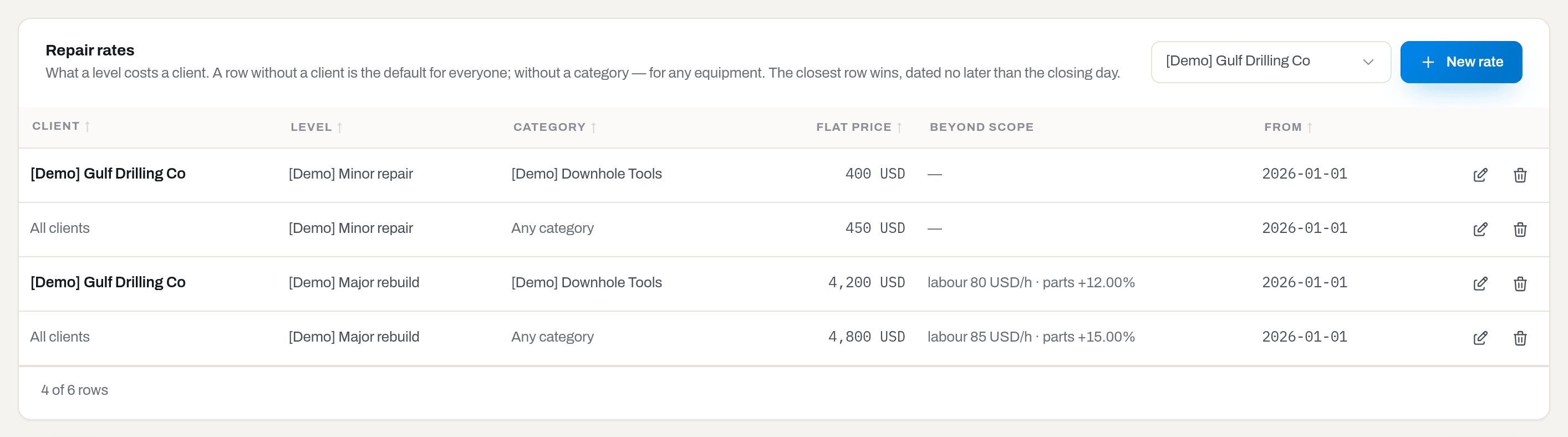
Result: the price is picked up the next time a work order for that client is closed, and the closing dialog shows which row it resolved to before you commit.
If it fails: Create a service level first — rates hang on levels. — repair prices are attached to service levels, so define those on the same tab first. If the spanner is not in the row, the company is a Vendor, or you are below Manager. If the spanner lands you in Settings with no Maintenance tab, your group has no grant for that section — see Roles & access.
Price rentals for a client
Who: Manager and above, with the Finance section granted.
- In the client's row, click the banknote — Rental rates.
- Settings opens on the Finance tab with Rental rates filtered to that client, defaults included.
- Click New rate, choose what it Applies to — Any equipment, One category or One unit — set the Measure (Per day or Per hour), the Operating rate, optionally Standby rate and Minimum charge, and an Effective from date.
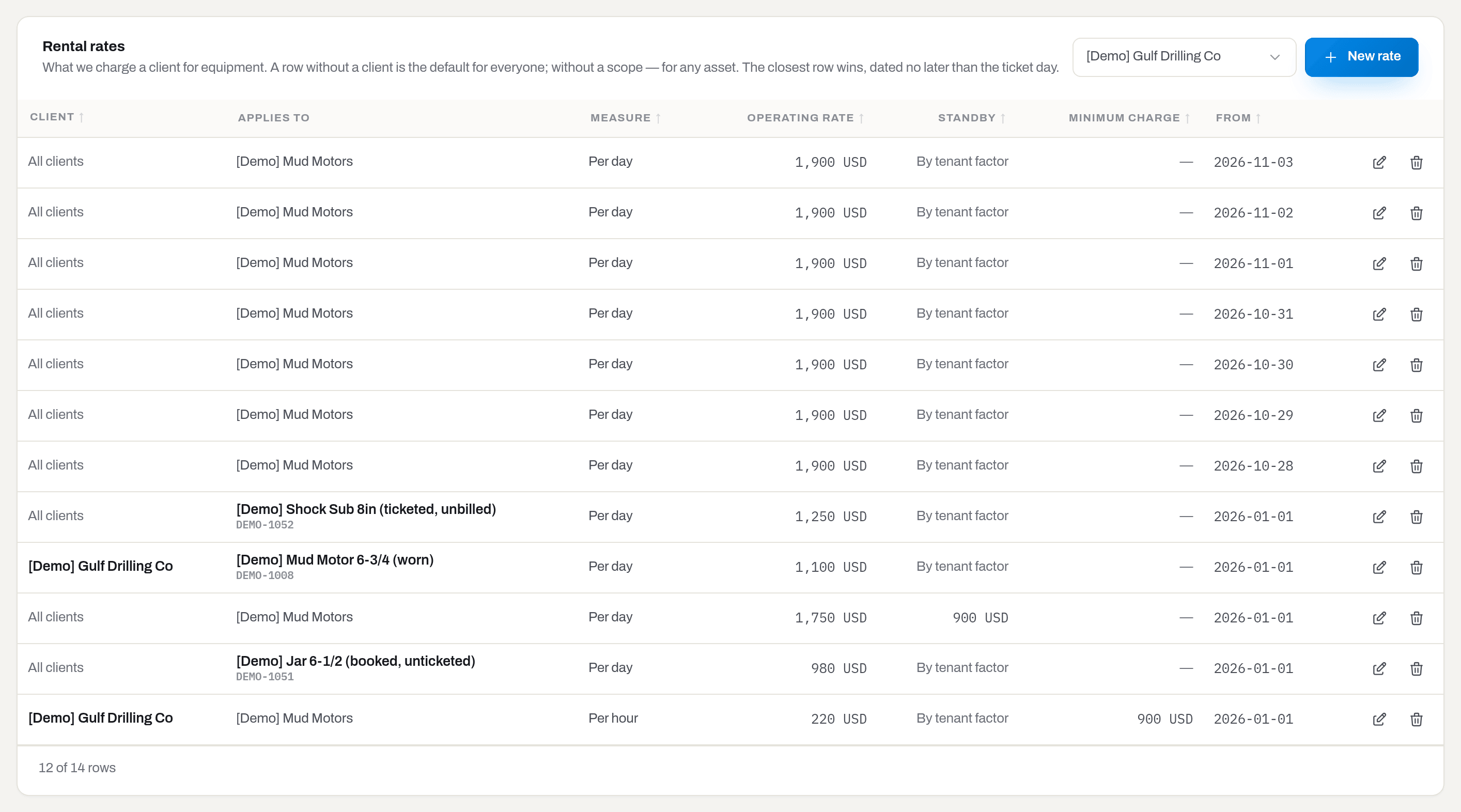
Result: field tickets for that client are priced from this book, and the income lands on the invoice for the period.
If it fails: the banknote is missing from the row — your group has no Finance grant, or you are below Manager. Leave Standby rate empty and standby is charged by the workspace factor instead; that is a setting, not an omission.
Open a client's invoices
Who: Viewer and above, with the Invoices section granted.
- In the client's row, click the receipt — Invoices.
- Invoices opens on All with the Client filter already set to that company.
Result: every invoice ever raised for the client, in any state, newest first.
If it fails: the receipt is missing — your group has no Invoices grant; see Roles & access.
Fields
| Field | Meaning | Required | Who edits |
|---|---|---|---|
| Name | What the company is called. Unique in the workspace, and the name that goes on invoices and PDFs | yes | Manager+ |
| Kind | Client · Vendor · Vendor & client — which pickers the company shows up in | yes (defaults to Client) | Manager+ |
| Status | Approved · On hold · Blocked — whether orders to this supplier may leave | yes (defaults to Approved) | Manager+ |
| Contacts | One row per person: Contact person, Email, Phone and a Role — Orders, Invoices, Quality or General | no | Manager+ |
| Address | The company's address, printed on the invoice, the credit note and the purchase order | no | Manager+ |
| Payment terms | What your agreement with this supplier says, in their own words — Net 30 from invoice, 50% advance. Copied onto every new order to them | no | Manager+ |
| Lead time, days | How long they take to deliver. A new order to them opens with Expected set that many days out | no | Manager+ |
| Tax number (VAT / CR) | The buyer's tax or registration number, printed on the invoice PDF | no | Manager+ with Finance |
| Payment terms, days | How long this client has to pay. Empty follows the workspace setting; 0 means due on receipt |
no | Manager+ with Finance |
| Default currency | What this company's documents are counted in: their jobs and invoices as a client, their orders as a supplier | no | Manager+ with Finance |
| Billing cycle | Monthly or Per job — how often they expect to be invoiced | no (defaults to Monthly) | Manager+ with Finance |
| Purchase order | A PO number is required on every invoice — their invoices cannot be sent with the PO field empty | no | Manager+ with Finance |
| Default tax schedule | What a new invoice for this client starts with, from the tax schedules catalog | no — empty leaves it to be picked per invoice | Manager+ with Finance |
What the system tells you
| When | Feed row | Who gets it | |
|---|---|---|---|
| A company is created or corrected | — | — | nobody — the registry is quiet on purpose; only the Saved toast confirms it |
| A supplier is blocked, put on hold, or approved again | Supplier blocked / put on hold / approved again: {name} | — | everyone who can see Procurement, from Manager up, except whoever changed it |
| An invoice is sent to this client | Invoice sent | Invoice {number} from {workspace}, with the PDF attached | the email goes to the client, at the address on their card; the feed row to everyone who can see Invoices, except whoever sent it |
| That invoice goes past its due date | Invoice overdue | {count} invoices past due — one summary per run, not one per invoice | the feed row to everyone who can see Invoices; the email to managers and admins among them |
A status change is a feed row and not an email on purpose: there is nothing to decide and nowhere to go — it catches whoever is preparing an order the next time they open the bell. What the registry does decide is where the mail goes: the Orders contact receives purchase orders, the Invoices contact receives invoices, and the company's Name and Address are what the other side reads on the PDF.
Related
-
Jobs — where the contract currency and the PO end up.
-
Items — Vendor on a rented-in unit, and Assign to client to send equipment out.
-
Jobs — a job belongs to exactly one client, and the client is locked once equipment is booked on it.
-
Field tickets — a field ticket is raised against a client and priced from their rental book.
-
Invoices — what a client owes, built from their tickets and closed work orders.
-
Maintenance — a work order can be billed to a client or to a vendor.
-
Utilization — which of your equipment is standing on whose rig right now.
-
Catalogues in Settings — the two rate books, on the Maintenance and Finance tabs.
-
Connectors — the beat company directory, which is a separate thing (see below).
-
Roles & access — why a button or a whole section may be missing.
FAQ
Why can I open the list but not change anything? — Writing to the registry is Manager and above. A company name travels onto invoices and contracts, so correcting it is not an operator's call. A viewer and an operator get the list, the search and — if their group has Invoices — the receipt shortcut.
Why is there no Delete on this company? — Because something already points at it: the card says Used by N records where the button would be. Everything a company touches outlives it — jobs, field tickets, invoices, rented-in equipment, price rows — and Hafrix refuses to leave those pointing at nothing. A company nothing uses shows Delete — see Delete a company. If a used company is finished, rename it — Old name (do not use) — or switch its Kind so it stops appearing in the pickers you work in.
My client is not in the dropdown on a job. — Check the Kind. Client pickers offer Client and Vendor & client only; vendor pickers offer Vendor and Vendor & client. Fixing the kind is one edit and takes effect immediately.
The invoice went to the wrong address. — Look at the contacts on the company: an invoice goes to the one whose Role is Invoices, and falls back to the first contact with an email only when nobody carries that role. The same rule sends purchase orders to the Orders contact.
I cannot send an order to a supplier. — Open their card. A Blocked badge is the answer: … is blocked — orders do not go out to a blocked supplier. A manager lifts it in the edit dialog, and the order goes out with no further steps. On hold does not stop anything — it only warns.
The delivery record is empty on a supplier we buy from constantly. — It counts orders sent in the last 12 months. Orders that were kept as drafts, orders older than a year, and purchases recorded outside Procurement are all invisible to it.
We are connected to beat — where are its 523 companies? — They are a separate directory, kept on Connectors for lookups and hints. Nothing is merged into your registry automatically: which of those companies is really your client is a decision a person makes, by creating it here.
Two rows look like the same company. — They are two records, and the register will happily bill both. Names are unique, so the duplicate is spelled differently (Gulf Drilling / Gulf Drilling Co.). Decide which one is the real one, move any open work onto it, and rename the other so nobody picks it again.
Updated 2026-09-24
New to Hafrix?
See this workflow in your operation
Connect equipment availability, dispatch and billing in one rental workflow. See how Hafrix fits the way your team runs a job.