Invoices
The bill you send a client, assembled from the field tickets they already signed and the repairs you already closed — and then followed from draft to money in the bank.
Where: capsule → Operations → Invoices (/invoices), right after Tickets. If the entry is missing, your group has not been granted this section — see Roles & access.
Unbilled work (/invoices/unbilled) is part of the same section: the Unbilled work button in the header opens it, and the same grant governs both.
Who can do what
| Role | In Invoices |
|---|---|
| Viewer | Open the list and the cards, switch views, filter, Print |
| Operator | + Attach files |
| Manager | + New invoice, Billing run, Edit, Add line, edit and remove lines, Send, Record payment, Credit note, Void, Export to accounting, Mark submitted, Undo submitted, Clear export mark |
| Admin | + nothing extra here |
Note
Attaching files is the only thing an operator can do here. Everything that touches money going out to a client starts at Manager.
At a glance
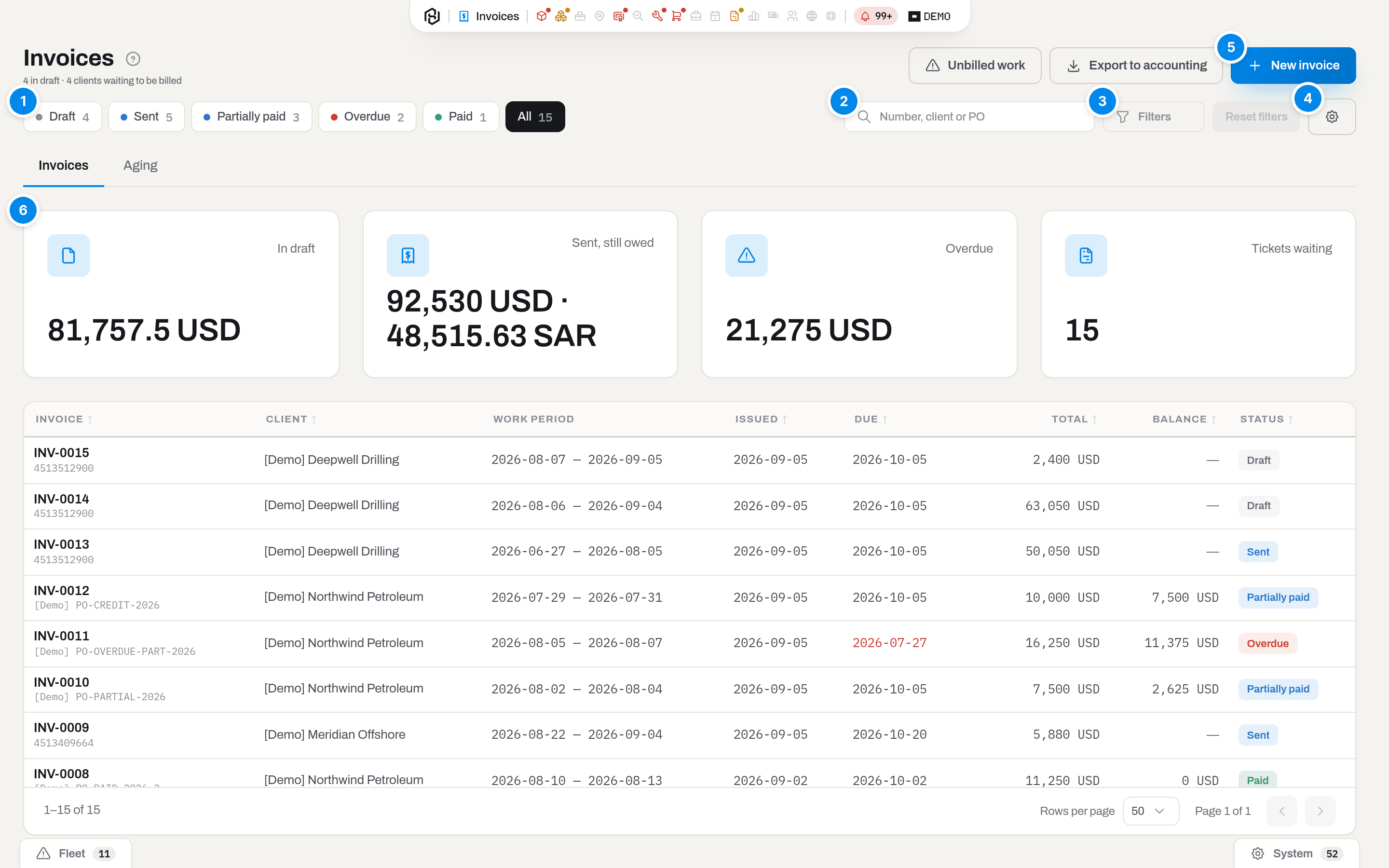
The list, switched to All so every state shows at once.
- View — a dropdown in the table's own header: the button shows the pick — Draft, Sent, Partially paid, Overdue, Paid or All — and each option in the panel carries its own live count. The list opens on Draft, because an unfinished bill is worth more of your attention than a paid one. Overdue is not a status of its own — it is an open invoice, sent or partly paid, whose Due date has passed and whose balance is still open.
- Search — matches the invoice number, the client name and the client PO.
- Filters — opens the filter panel beside the list: Client, Exported, Deal type (Rental, Service or General), and an Issued from / Issued to window.
- Columns — which columns to show; the choice is remembered per person.
- New invoice — opens the dialog that assembles a draft (Manager and above).
- The four figures — In draft, Sent, still owed and Overdue are money, counted over all invoices rather than over the page you are looking at, and split per currency rather than added into one number. They count what is still owed, not what was billed: an invoice half paid stands in them for its remaining half. Tickets waiting is not money: it is how many approved field tickets are still waiting for a bill.
A row that is past due shows its Due date in red and carries an Overdue badge instead of its status — one invoice, one badge. The Balance column shows what is left when it differs from the total; when nothing has been paid or credited it stays empty rather than repeating the total.
Above the list sit two tabs: Invoices — everything described here — and Aging, the same debt sorted by how long it has been due (see Aging).
Key concepts
An invoice is a document, not a report
The revenue figures in Finance are recalculated every time you open them. An invoice is the opposite: it stores its own lines with their own amounts, frozen at the moment the draft was built. Raise a rate in April and the March invoice the client already paid stays exactly as it was.
Two rules follow, and nothing in this section breaks them:
- only a draft can be edited. Once an invoice is sent it is frozen — dates, tax, lines, everything;
- a signed document is billed once. A field ticket or a work order belongs to exactly one invoice. That is what stops a client being charged twice for the same day.
Statuses
| Badge | Meaning | What changes it |
|---|---|---|
| Draft | Assembled but not sent. Lines can be added, priced, corrected, removed. The tickets behind it are still Approved — the work is not billed yet | Build the draft creates it |
| Sent | The invoice has gone out — by any channel. Tickets turn Invoiced, repairs turn Invoiced with a date | The first send, on any channel — see Send history |
| Partially paid | Some of the money has arrived, or part of the invoice has been credited — but not all of it | Record payment, or issuing a credit note |
| Overdue | An open invoice — Sent or Partially paid — whose Payment due date is in the past and whose balance is still open. Not a status — a state | The due date passing |
| Paid | Nothing left to pay: the payments and credit notes cover the total | The payment that closes the balance |
| Void | Cancelled, with a reason. Tickets and repairs go back into the queue; the number stays used | Void |
You never set Partially paid or Paid by hand: both are worked out from what is left. Void the payment and the invoice walks back down the same ladder on its own — there is no separate "un-pay" button, and no state the product can put a document into but not take it out of.
Full list of badges across the product — Statuses and badges.
Send history
Sending an invoice does not add a status — only Draft, Sent and what follows from it exist, same as before. What changes is that every attempt to get the document to the client is now kept as its own event, so you see the whole trail rather than only the latest one:
- Email — click Send and Hafrix mails the PDF itself. See Send the invoice;
- Mail and By hand — you posted it or handed it over yourself. Record it, backdated to when it actually left, with Record delivery. See Send history.
The first send on any of the three channels turns a draft Sent and bills the tickets and repairs behind it — exactly what Send always did. Every send after that only adds a line to the trail: the status does not move again and nothing gets billed twice.
Work that was never billed
Everything above starts from paper you already have: a ticket somebody signed, a repair somebody closed. Unbilled work starts from the other end — from what the rig reported.
Run hours arrive from Aramco on their own (see Connectors): a tool with a distinctive serial number is matched to the daily BHA reports, and every closed trip lands in its timeline. Set that against your own paperwork and one question answers itself — the tool worked on a well; is anybody being charged for those days?
Three answers, and the report names the first one that is missing:
| Missing | What it means | What to do |
|---|---|---|
| No assignment | Nothing at all: the trip is not on any job, and no ticket claims those days | Create the job — the button opens the dialog with the trip's dates, well and rig already filled in |
| No ticket | The item was assigned to a job, but no approved day sheet covers those days | Open Tickets on that job and file the sheet |
| Ticket not approved | A day sheet does cover those days, but it is still a draft or waiting for approval — an invoice only ever picks up approved tickets | Open the ticket and approve it. Filing a second sheet for the same day is refused as a duplicate, so this is the only way through |
| Not invoiced | Tickets exist and were approved, but no invoice has picked them up | Build the draft for that client |
Worth is what those days come to at the contract rate, resolved by the rental price book exactly as an invoice would resolve it. Days that already carry a ticket line are priced by that line — its quantity, its unit and its rate basis, so standby days and hourly work come out at the figure the invoice will show, not at a day rate invented here. Days with no ticket at all are the only ones estimated, at the daily rate. If any part of a row cannot be priced, the whole row says No rate rather than quietly showing a smaller number. The column and the Money at stake figure need the Finance section; without it you still see the trips, the days and what is missing.
Days reads billable of total — the total is the days of the trip that fall inside the window, and the first number is those of them no invoice covers yet. A trip that started before the window is counted from the window's first day only, and the row says Trip runs past this window under the dates.
Warning
The window is the last 90 days by default, and that is deliberate. The first sync backfills a year of drilling history, and for the months before you started keeping records here there is no paperwork by definition — every one of those trips would show up as a loss. Widen the window with the From / To chips in the toolbar when you actually want that audit.
Not everything unbilled is a loss
A tool can be down a hole for a week and still owe you nothing: it was your own operation, it went in as a free warranty replacement, or it belongs to a contract with a monthly retainer where days are not counted at all. Left alone, those trips come back every sync until people stop reading the report — which is how a report of this kind dies.
So mark them. Not a loss takes a reason (Own operation, Warranty or free replacement, Flat-fee contract, Other) and a note, and it applies either to this trip or to every trip of that item — a retainer is a property of the contract, not of one run. Marked rows drop out of the report; the Rows marked as not a loss chip in the toolbar brings them back, and Back to the report undoes the mark.
Where the lines come from
Four kinds of record feed an invoice, and all four go into the same document — rental first, then work, then repairs, then fees:
| Source | What is picked up | Which window it falls in |
|---|---|---|
| Bookings (Jobs) | Mobilized or returned bookings of a job billed by booking period, for the days no invoice has claimed yet | The rental days themselves |
| Field tickets (Field tickets) | Status Approved, not yet claimed by any invoice. Rejected tickets and drafts are never taken | The ticket's date |
| Work orders (Maintenance) | Closed, billed to the client (not internal, not a warranty claim on a vendor), still waiting to be billed | The date the repair was closed, not opened |
| Additional fees (Contract tab) | Not yet billed, on a job that has started | The first draft built for the job's client and PO afterwards — once |
A repair brings a fourth thing with it: the parts it sold to the client. They are a second revenue on the same work order — cutters fitted during a redress of the client's own housing — and they get their own lines, priced from the sale book, right after the repair line.
One line per rate, and the trail behind it
A month of one motor is thirty daily tickets. Nobody reads an invoice with thirty identical lines, so the assembly adds up ticket lines that match on all of it: the kind of charge, the same equipment or speciality, the same measure, the same basis (working or standby), the same rate and the same book that gave it. Ten days of a motor at 1,100 become one line — 10 day · 1,100 USD · 11,000 USD. Change the rate mid-month and you get two lines, not one averaged line the client cannot check against the contract.
Standby is billed but not blended: a standby day is priced from the standby rate in the price book, or from your standby factor when the book has none, and lands on its own line marked (standby).
Grouping never loses the trail. The Priced by column names the book that gave the rate and then the documents behind the line — 2 ticket lines, the work order number for a repair, or the job and the day count for a rental — and the Covered field tickets and Covered repairs cards below list every one of them.
Two more columns carry that same trail on screen and on paper. Source is a link to the document behind the line — the field ticket, the work order, the job the booking belongs to, or the return check that carried a loss — one link per document when a line grouped more than one. Units lists the serial numbers of the equipment the line billed, as they stood the day the invoice was built: re-tag the equipment later and the invoice still shows what it showed when it went out.
A repair is the exception to the grouping: one work order, one line. It has a single price, and there is nothing to split it into.
Note
A Minimum charge is applied per ticket line, not per invoice line. Ten two-hour call-outs at a 400.00 minimum cost 4,000.00, not "20 hours × the rate". When that happens the line carries a note saying to how many entries the minimum was applied — otherwise the arithmetic would not add up in front of the client.
Rental days on an invoice
On a job billed by booking period the equipment line is not built from tickets at all. It is built from the booking, and it reads the way the client's own log reads: Roller reamer 12 1/4" · 23-1708 · 02 Jan → 09 Jan 2026 · 8 days.
Four rules shape those lines.
One line per unit per calendar month. A rental that runs from 20 January to 5 March gives three lines, not one. The month is the billing unit: the price ladder and the monthly cap in the rental price book are both applied per calendar month, and one line spanning three of them would give the client a figure they cannot split across their own accruals.
One day is billed once, ever. Each line records exactly which days it closed, and the database refuses a second document over the same days. Bill January now and February next month: the second draft picks up only what is left. Void an invoice and its days go back into the queue, exactly like its tickets.
A break splits the line. Standby days come out on their own line at the standby rate, marked (standby); off-rent days are not charged at all and simply are not there. Inside one month the line carries one entry per stretch of days, so the trail says which days were rented and which were paused.
The rate is the deal's rate. The same ladder as everywhere — job rate, then the client's book, then the counter — but resolved for DAY, WEEK and MONTH together, so a period is priced by the cheapest breakdown the contract allows. The line shows the day rate that comes out of it and explains the rest in its note: Charged as 1 × week, 1 × day, Monthly cap applied, Minimum rental term: 15 days. Free first days and a fixed issue fee are properties of the whole rental: the free days come off the first invoice, and the issue fee appears once, as its own service line.
An open rental — one that has not come back yet — is billed up to the end of the invoice window. The rest waits for the next cycle.
Rental period on invoice lines. Under the description, a rental line also shows its period, the way a RigER rental fee reads: 1 Jan 2026 – 31 Jan 2026 · Days 31 (billable 31) · Period: Month × 1.0333 · Rate 1,500.00. Days counts calendar days in the window. Billable counts the days actually charged, after the day rule, free days and any minimum term, and it is always the line's Qty. Period names the rate unit that priced the line and how many of those units were charged. A part month shows as a fraction: 1,500.00 for a 30-day month, with one extra day at 1/30 of it, reads × 1.0333. Rate is the price for one unit. If the job rate carries a discount, a second row reads Disc. 10% (list 1,666.67). The line is already priced after that discount, so no separate discount line appears. A breakdown that mixes units (1 × week, 1 × day) or is cut by a monthly cap shows only the largest unit, and its note explains the sum. The line's money is still Qty days × the day Rate; the period is a reference that explains it. Period is rounded to four decimals while the line's amount is counted in days, so Period × Rate can differ from the line's amount by a few cents. A credit note copies the period from the line it credits, and prints it the same way.
One invoice per PO
Most clients hand out a purchase order per rig, per contract or per year, and their accounts payable will not book an invoice that spans two of them. So the PO decides the shape of the document.
The number lives on the job, not on the invoice form: whoever books the work knows it. From there it is inherited — the draft takes the PO of the work it is billing, and the invoice prints it as Your PO, next to the Contract / RSA number and the buyer's tax number.
Because of that, tickets from two different POs are never assembled into one invoice. If a client has work under two of them, the New invoice dialog offers a Client PO picker with the counts on each, and you build one invoice per PO. Repairs have no purchase order of their own, so they ride with the Without a PO basket.
A client can also insist on it: tick A PO number is required on every invoice on their card and their invoices refuse to be sent while the field is blank.
The Deal type works the same way: Rental, Service or General, set on the job and copied onto the invoice when it is assembled. It prints as Invoice (OFR) — or (OFS) / (GR) — above the invoice number, and can still be corrected on a Draft with Edit, the same as the Client PO and Contract / RSA numbers, in case the deal was reclassified between assembly and sending.
Where the price comes from
An equipment line is priced by the first source that has an answer, in this order:
- Job rate — a rate agreed for this job only, discount already applied (Contract tab);
- Rental price book — the client's row, then the counter row, in the rental book;
- Item card — the list rate on the unit itself, when nothing in the books covers it.
A service or a part line asks the job's own Service and parts card first — a contract line for the same catalogue service, item or category wins over the books, discount included, the same way a job rate wins for equipment.
Every other kind of line has a book of its own, and each answers the same way — the client's row beats the counter row, the closest scope wins, the latest date that is not after the document day wins the tie:
- Labour — the labour book, client × speciality × measure × date;
- Consumables and sales — the sale price book, client × item or category × piece or metre × date;
- Services — the service book, but only where the line names a catalogue service. A service described in words alone has nothing to price against and arrives without a price, which is the honest answer: it is not something you sell regularly;
- Repairs bring their price with them from the workshop.
The line on the card says which of these answered, and the price is a snapshot: raising a rate tomorrow does not change an invoice written today.
Currency and price
The invoice is written in the contract currency, chosen when the draft is built; the default is your tenant's own currency. A rate held in a different currency is converted through the exchange rates on Settings → Finance.
| What is being billed | Where the rate comes from |
|---|---|
| Equipment | The rental price book; the item card's list rate as a fallback, and only when its measure matches the ticket line's — a daily rate is never spread over an hourly line |
| Crew | The labour price book — client × speciality × measure × date |
| Consumables and sales | The sale price book — client × item or category × piece or metre × date |
| Services | The service book, when the line names a catalogue service; a one-off described in words is priced by hand |
| A repair | The price already on the work order: the repair price book, or the quote |
A line without a price is not a line worth zero. It arrives with an empty Rate, a red No price badge and an amount of 0, and while one is on the invoice there is no Send button at all. Price it by hand or remove it — both are more honest than billing work at nothing.
Money arrives in instalments
A contractor in this market is rarely paid in one clean transfer. Retention is held back, a disputed line is settled a month late, or the client's bank simply splits the amount. So payment is a journal, not a flag: every transfer, cheque or card receipt is its own row against the invoice, with its own date, method and reference, and the invoice adds them up.
Three rules follow:
- the balance is the number that matters. The list, the section figures, the overdue check and Aging all count what is still owed, not what was billed;
- a payment is never edited — it is voided, with a reason. Its entry may already sit in your accountant's books, and the way to take it out of them is a mirrored reversal, not a row quietly disappearing. A refund is a voided payment, never a negative one;
- more than the balance is refused. An overpayment is a conversation with the client, not a line that pushes the receivable below zero.
A sent invoice is corrected by a second document
Once an invoice has gone out, the client's accounts department has it on file under that number. Editing it would leave two different documents claiming to be the same one. So a mistake is corrected by a credit note — its own document, CN-0001, against that invoice and with the same PO, cancelling part of what is owed.
- a credit note points at lines, not at a lump sum. Your client's accountant has to tie it back to the charge it corrects, and "minus 5,000" ties to nothing. You cannot credit more than a line was billed for, counting any credit note that already touched it;
- crediting everything is just crediting every line. There is no separate "cancel the whole invoice" document — leave every line ticked and the note reverses the invoice in full;
- the tax comes from the invoice, not from today's settings: you give back at the rate you charged;
- the tickets and repairs stay Invoiced. The work was billed and then credited — not un-billed. If it has to go out again, build a new invoice for it. Releasing it automatically would eventually bill the same day twice, which is the one thing this section exists to prevent.
A credit note lives on the card of the invoice it corrects. It has no section of its own in the capsule, because it is not a document you go looking for — you arrive at it from the invoice.
The invoice leaves twice: as paper and as an entry
The PDF goes to the client; the journal entry goes to your own accounting system. Hafrix is not that system and does not try to be — it produces the file your accountant imports, and stops there. Tax invoicing (ZATCA and its equivalents) is issued by your accountants, not by us.
Every exported document turns into a balanced entry:
| Entry | Debit | Credit | Dated | Posted for |
|---|---|---|---|---|
| Invoice | Accounts receivable, the full total | Revenue, split by account; tax on its own line | The issue date | The invoice |
| Credit note | Revenue and tax back | Accounts receivable | The credit note's date | Each credit note |
| Payment | Bank / cash | Accounts receivable | The date the payment landed | Each payment |
| Payment reversal | Accounts receivable | Bank / cash | The day the payment was voided | Each payment |
| Credit note reversal | Accounts receivable | Revenue and tax | The day the note was voided | Each credit note |
| Reversal | Revenue and tax back | Accounts receivable | The day the invoice was voided | The invoice |
Every payment and every credit note posts on its own, with its own reference: INV-0007-PMT, INV-0007-PMT2, and the credit note under its own number CN-0001. That is why the card can list several Payment exported facts on one invoice.
Three rules fall out of that, and none of them are optional:
- only real documents post, and every entry that left has its own way back. A draft is not a document; it has no entry at all. A void invoice produces a reversal only if it was exported before — there is nothing to unwind in books that never saw it. Voiding an invoice that was already paid produces two reversals, one for each entry that reached the books: the payment goes back out of the bank first, then the invoice comes off the receivable. Reversing only the invoice would close the receivable and leave the money sitting in the bank account with nothing behind it;
- an entry leaves once. The moment a document is exported it is marked, and the next export skips it. That is the whole point of the mark: exporting the same month twice must not post the same revenue twice;
- both currencies travel, and the rate belongs to the entry. The invoice is in the contract currency, your ledger is in the functional one, so each row carries
debit/creditin the document currency andbase_debit/base_creditconverted through the FX table. No rate for the pair means the base columns come empty rather than pretending one-to-one — the same rule the rest of Finance follows. The rate is fixed the moment the invoice entry is exported, and the payment and the reversal reuse that rate however far the market has moved since. It is not an approximation: a reversal converted at today's rate would balance on its own and still leave a receivable behind on a document that no longer exists.
Tax by schedule
Tax on a document comes from a tax schedule — a named catalog row with one or more jurisdictions, kept in Tax schedules — rather than a percentage typed by hand. A schedule with several jurisdictions (a state and a county, say) adds them up into one rate, and an exempt schedule prints as a zero-rated document rather than a rate that happens to read zero.
A schedule is picked at four levels, each one falling back to the level above when it is left empty: client (its own default), job, invoice header, invoice line. An invoice inherits the schedule of the client it bills unless the job or the invoice itself sets its own; a line follows the invoice's schedule unless it is given a different one — an export line on an otherwise taxed invoice, for instance.
Where every line agrees, the invoice shows one Tax (…) row named after the schedule, same as it always did. Where lines disagree — more than one schedule in play, or an exempt line next to a taxed one — the totals and the printed PDF break tax down into one row per schedule, each with its own name, rate and amount, and the rows still add up to the one Total due.
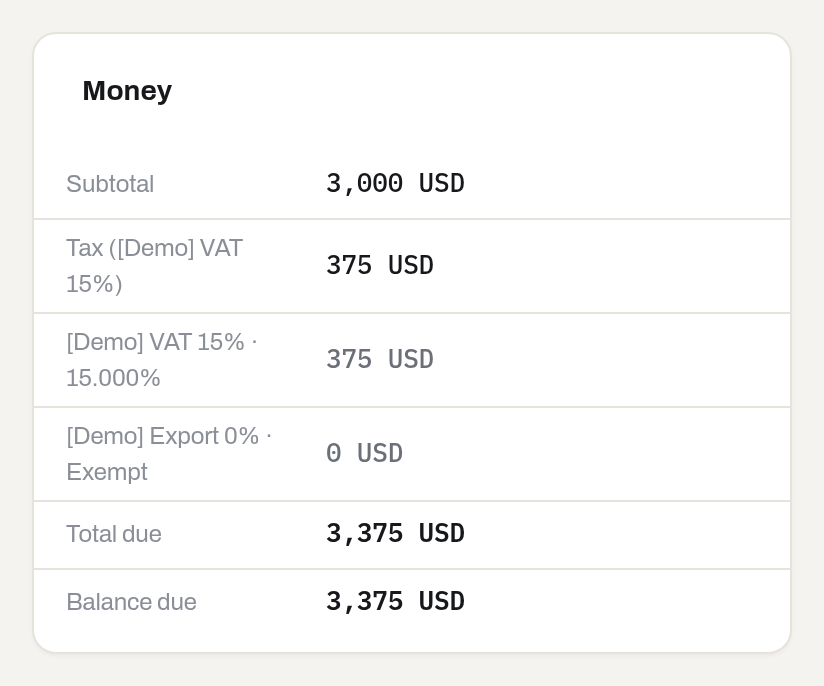
Tax rate, % in the money basics still works: pick No schedule (manual rate) on the invoice header to price it as a single percentage the old way, the route documents from before schedules existed still use. A credit note never chooses a schedule itself — it reads the one the invoice it corrects was charged under, so the money it gives back matches to the rate.
How to
Build a draft
Who: Manager and above.
- Click New invoice (top right of the list).
- Pick the Client. The dropdown only lists clients who actually have unbilled work, and says how much: 2 tickets · 2 repairs.
- To bill one job only, pick it in Job — the invoice then takes just that job's tickets and rental days, and its PO and contract. Repairs are not tied to a job, so they wait for an invoice without one. The field is shown when the client has jobs and you can see the Jobs section; leave it on All of this client's work otherwise.
- Without a job, if that client has work under more than one purchase order, pick the Client PO — each one bills on its own invoice, and repairs ride with Without a PO. With a single PO the field is not shown: there is nothing to choose.
- Read the blue preview line: how many tickets, how many ticket lines, what it comes to, over what window — and, in bold, how many lines will arrive without a price. It counts by PO, so it is hidden while a job is picked.
- Work from / Work to are filled in from that client's waiting documents. Narrow them if you are billing a shorter period.
- Set the Currency if the contract is not in your default one. The preview recounts in the currency you choose, so it never promises a figure the draft will not produce.
- Leave Department, Line of business and Purpose blank — the work being billed rarely comes from one job — or set them here; either way they can still be changed later with Edit — see Document dimensions.
- Click Build the draft.
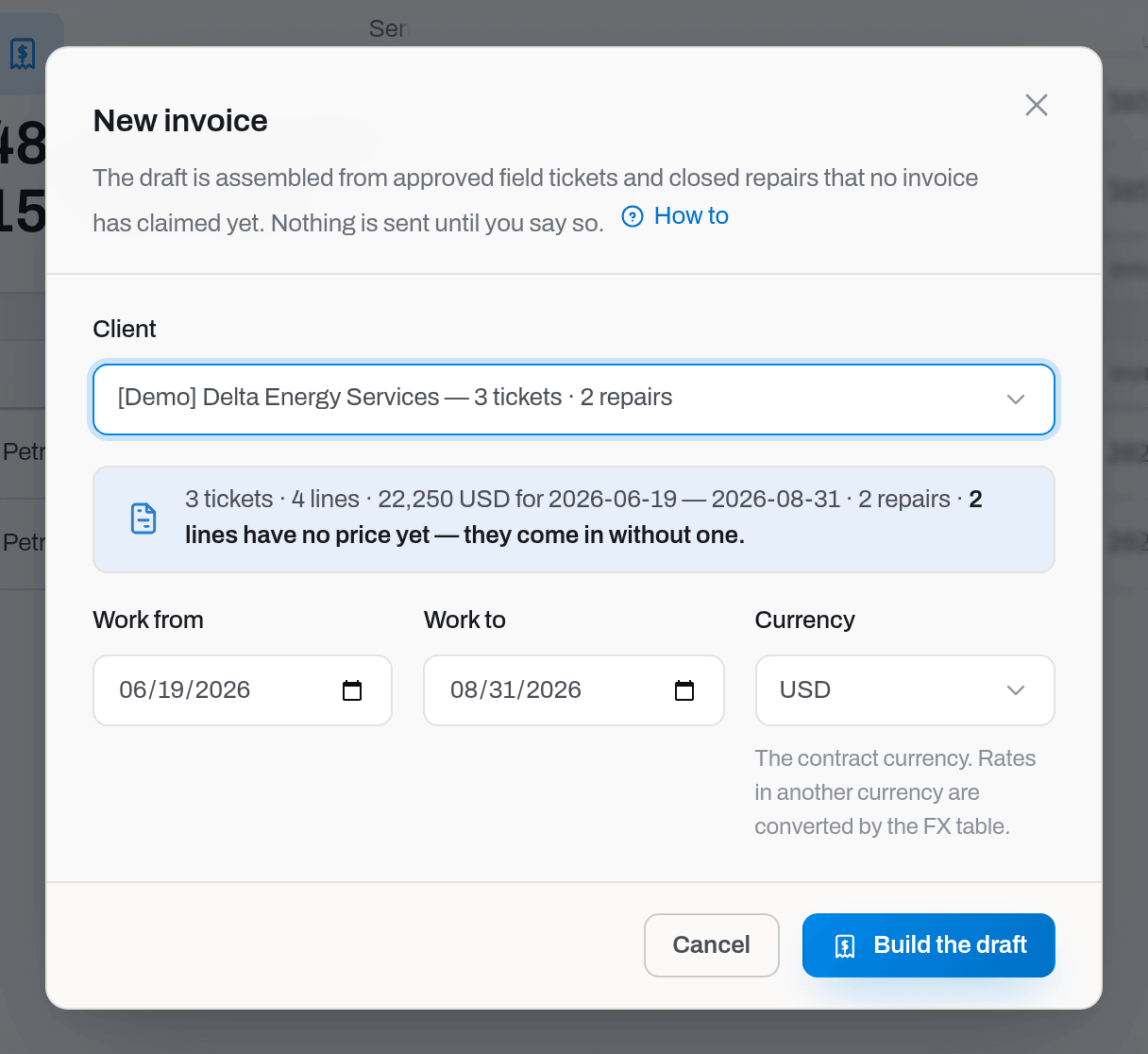
Result: the invoice is created with the next number (INV-0001, INV-0002 …), dated today, due after the client's payment terms (their own, if their card sets them; otherwise the workspace default), and you land on its card. The client PO, the contract number and the currency come from the work being billed — see One invoice per PO. Every ticket and repair it took is now attached to it — they will not appear in anyone else's draft.
Note
A sale invoice — numbered SI-0001, SI-0002, … and carrying its own Sale badge — is not built here at all. It comes from Create invoice on a sales order, lands as a draft with the order's lines already priced, and from there lives the same life as any other invoice: send it, record payment, void it.
If it fails:
- No approved tickets or closed repairs waiting to be invoiced for this client and period — the window is wrong, or someone has already billed that work. An empty document with a number is worse than no document, so none is created;
- Tickets in this window belong to different client POs (…) — build one invoice per PO — the window covers two purchase orders. Pick one in Client PO and build them separately;
- You do not have permission to perform this action — building an invoice starts at Manager; ask an admin for the role.
Billing run
Who: Manager and above.
A billing run does at once what New invoice does one client at a time: it finds every client on the Monthly billing cycle who has unbilled work, cuts each of them off on their own Billing day (set on the client card, next to Billing cycle — empty means the run's own cut-off date, usually the last day of the month), and builds a draft for every basket — one per client PO, and one per rig too when that client's card has One invoice per rig checked. A Per job client is skipped by a run of the whole cycle — bill them one at a time with New invoice, or name them directly in the run.
- Pick Billing run from the menu next to Export to accounting, top right of the list, or click it on the Billing runs tab.
- Set Through — the cut-off date the run works to. It defaults to the last day of last month.
- Leave Client on All clients to run the whole monthly cycle, or pick one client to run them alone — picking a client runs them regardless of their own billing cycle.
- Click Preview. Nothing is written yet: the table below lists every basket the run would bill, with its client, PO, rig, currency, cut-off date, the tickets/repairs/bookings/losses behind it, the amount, and a No rate badge where lines have no price. A basket that will not be billed says why under Skipped — a per-job client, nothing to invoice, or a build error.
- Click Run once you are happy with the plan. It stays disabled until the preview has at least one basket that is not skipped.
Result: a small run (50 baskets or fewer) finishes on the spot and you land on the Billing runs tab with its drafts already listed. A larger one is queued instead — the dialog says so and you get an email once it is done. Either way, every draft it built still starts as a draft: nothing is sent to a client on its own.
Read the billing runs log
Who: Viewer and above.
The Billing runs tab is the log of every run, latest first: when it started, the cut-off it ran to, the client (or All clients), its status, how many drafts it made, the totals by currency and how many baskets it skipped, and who started it. A click on a row highlights it; click it again, or press Enter, to open its baskets below the table (Choose how a row click behaves) — the same detail the run's preview showed, now with a link to each draft it built.
Read the invoice card
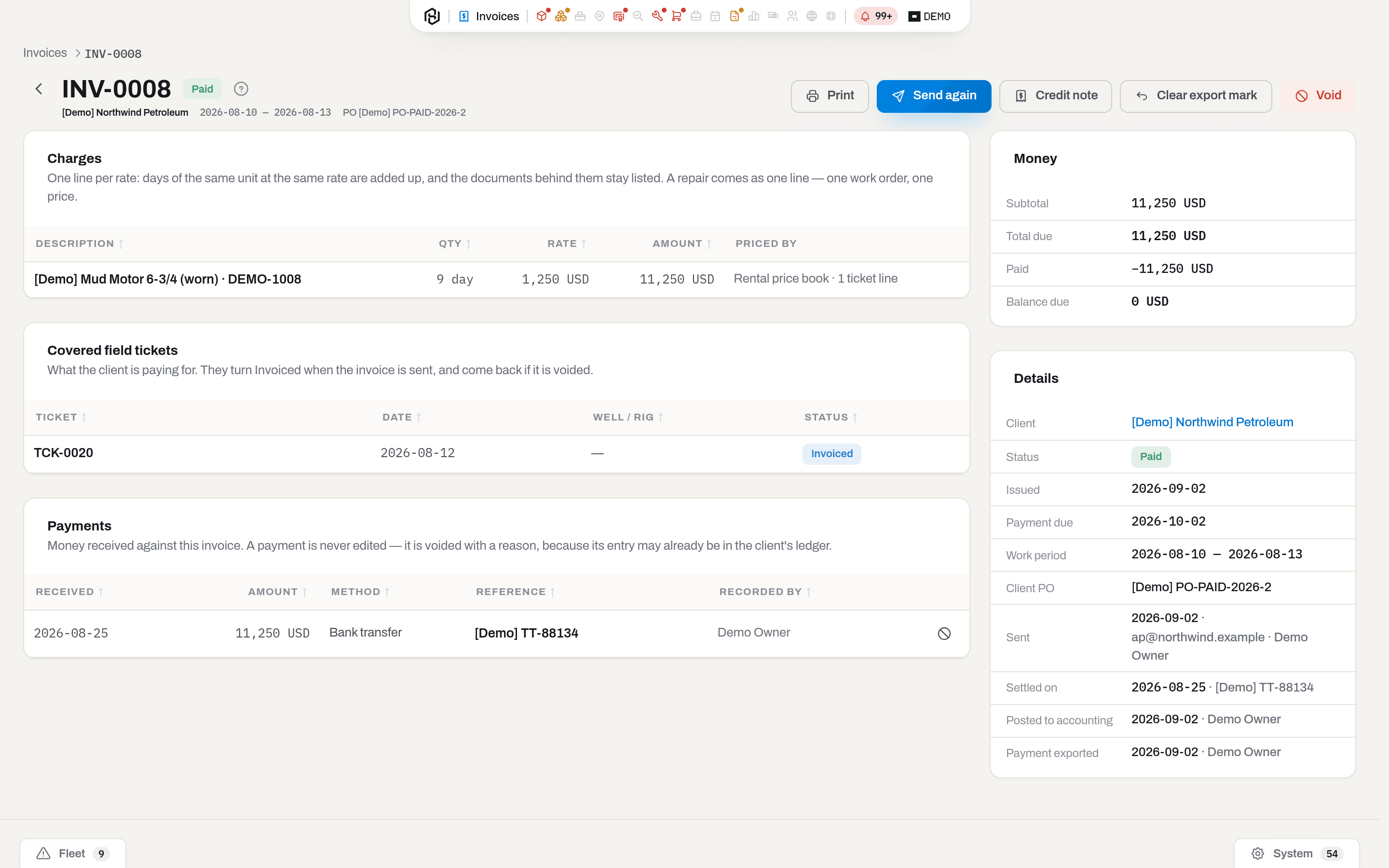
A paid invoice, INV-0001.
The left column is the document: Charges, then Covered field tickets, then Covered repairs when there are any, then Notes to the client. The right column is the facts: Money — Subtotal, then Total due, with a tax row in between only when a rate is set, labelled with the schedule (Tax (VAT 15%)) or the manual rate (Tax (15%)) — and, when the lines do not all share one schedule, one extra row per schedule underneath it, each with its own name and rate (see Tax by schedule) — then Details (client, status, dates, work period, client PO, when it was last sent — with the channel, the address and who sent it, plus how many times once there is more than one send — when it was paid and with what reference, or who voided it and when), then Send history — every send on this invoice by Email, Mail or By hand (see Send history) — then Client signature once there is one (see Client signature), and finally Internal notes when there are any.
Money on screen is shown to the round unit — 1,100 USD. The two decimal places appear in the PDF and in the email to the client.
The header carries the status badge and only the buttons the server will actually accept. On this paid invoice a Manager gets Print, Send again, Void, Export to accounting while an entry of it is still waiting to go, and Clear export mark once anything about it has been exported. A void invoice keeps Print and Export to accounting while its reversals are still waiting — they have to reach the books — but never Send again or Void; Clear export mark appears on it only once the reversals are out. Below Manager the card is read-only and the only button is Print.
The back arrow before the number returns you to wherever you opened the invoice from, and the list puts you back on the row you left.
Correct a draft
Who: Manager and above.
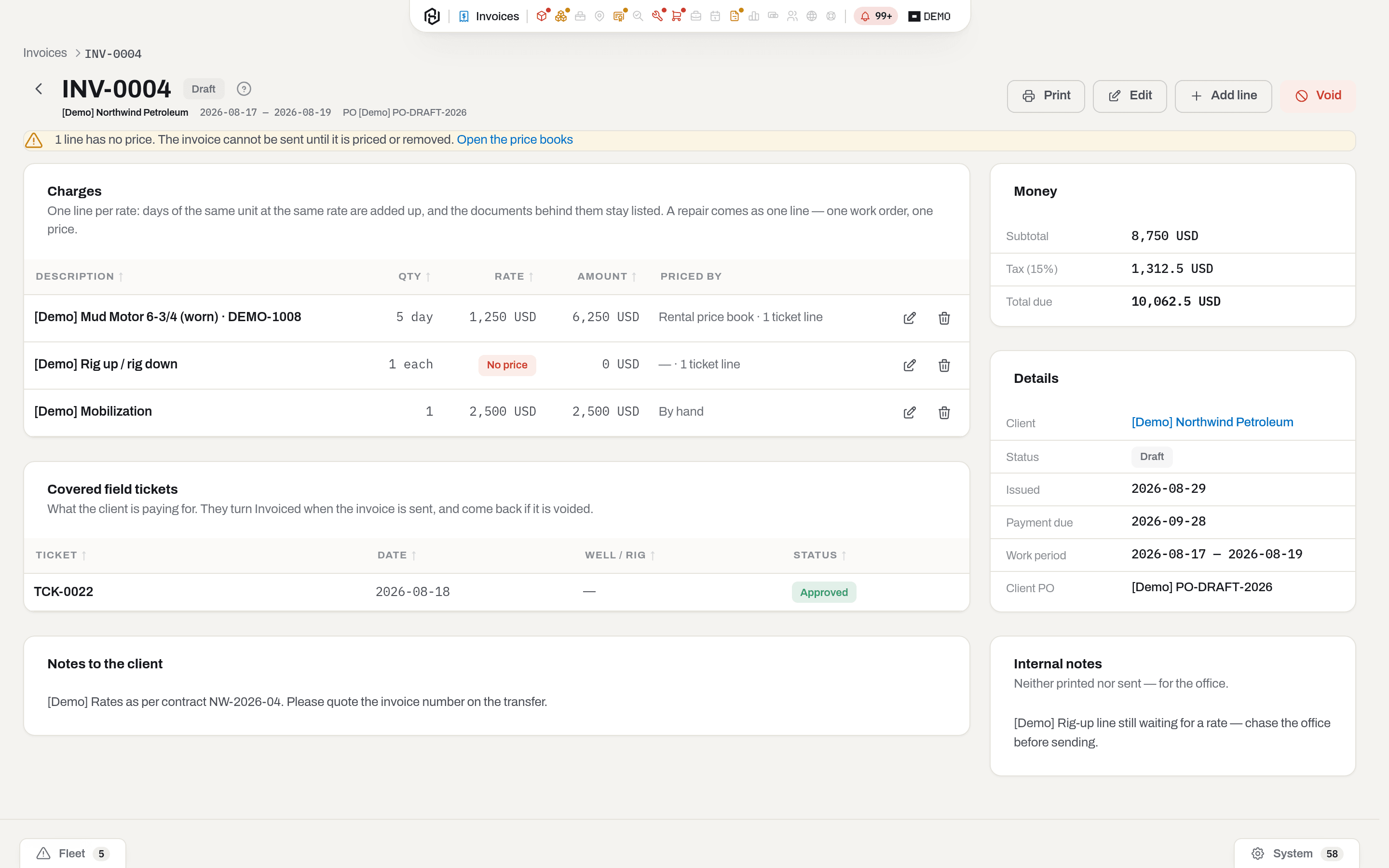
A draft, INV-0004 — note the strip under the header and the No price line. That strip appears for one reason only: lines with no price. It says nothing about your role or about a voided document.
- Edit opens Invoice details: Issued, Payment due, Work period from and Work period to (the dates printed on the invoice — the lines stay exactly as they were built), Tax schedule (or No schedule (manual rate) to fall back to Tax rate, %), Client PO, Contract / RSA, Deal type (empty means Not set), Notes to the client (printed on the invoice), Internal notes (neither printed nor sent) and its Department, Line of business and Purpose — see Document dimensions.
- Add line adds a line of your own — mobilization, a service, or a discount as a negative rate. Pick a Service from the catalogue and the book fills in the words, the measure and the contract price for you; all three stay editable, and Not from the catalogue leaves the line entirely in your hands. Its own Tax schedule defaults to Same as invoice — see Tax by schedule.
- The pencil on a line edits it; the bin removes it.
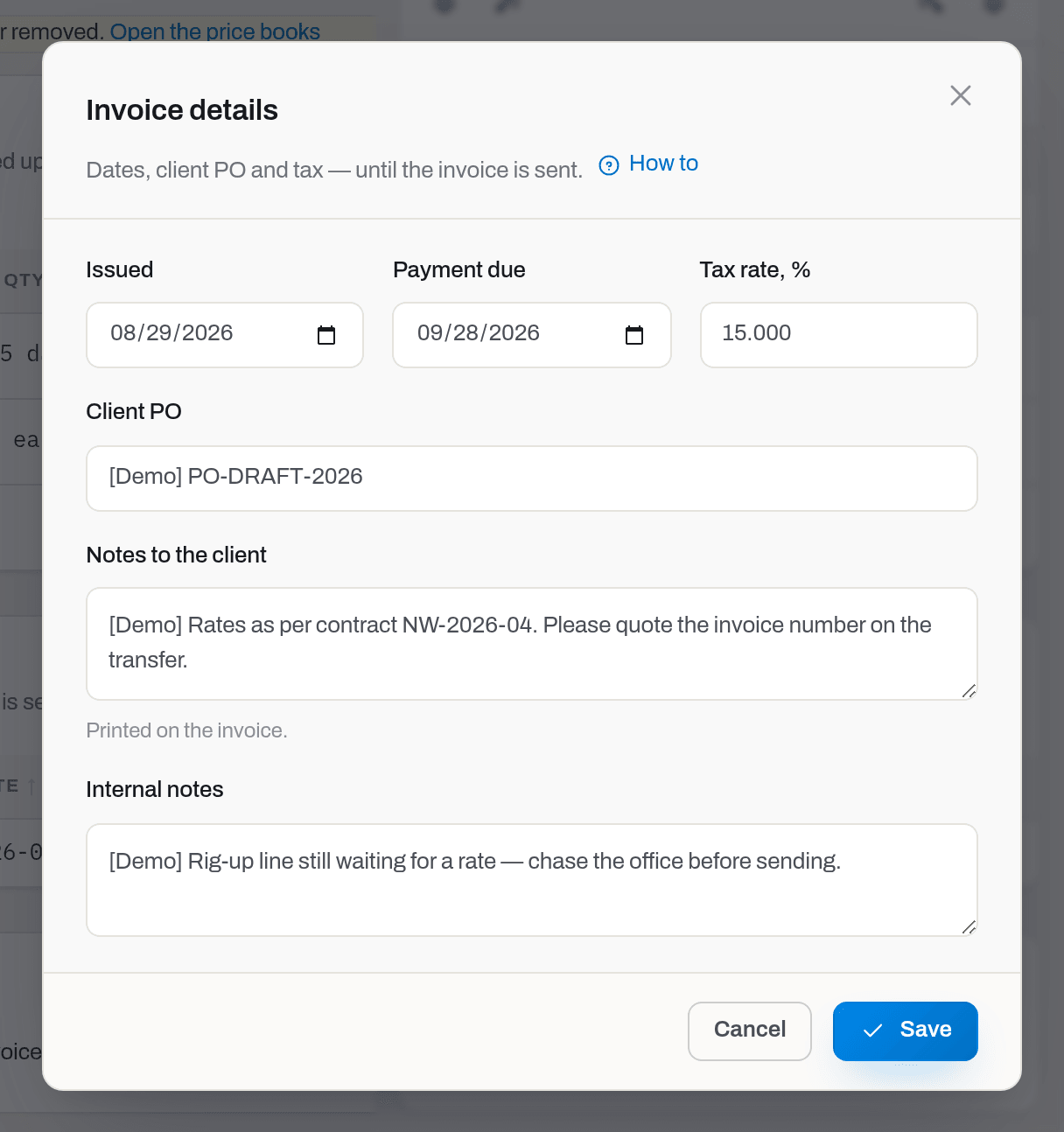
Result: the totals recompute immediately and a toast confirms each save.
If it fails: Invoice INV-0005 is SENT — only a draft can be edited — the invoice left while your form was open. Nothing is written into a sent document; if it is genuinely wrong, void it and build a new one. The period ends before it starts — Work period to is earlier than Work period from; fix either date.
Warning
Removing every line that came from a ticket releases that ticket back into the queue to be billed. That is deliberate — but it means the work will show up in the next draft someone builds.
Delete a draft
Who: Manager and above, on a Draft only.
A draft built by mistake — the wrong client, the wrong window, two drafts for the same PO — is removed, not voided: nobody outside has seen it yet.
- Open the draft and click Delete in the header.
- Read the confirmation and click Delete draft.
Result: the draft and its lines are gone and you are back on the invoice list. Everything it billed goes back to waiting for an invoice: its tickets, repairs, rental days, kit losses charged to the client, contract fees and a sales order return to the queue, and the next draft picks them up.
If it fails: Invoice INV-0005 is SENT — only a draft can be deleted — the invoice was sent while the page was open. The client has that paper: void it or correct it with a credit note instead. Delete is not shown on a sent, paid or voided invoice, nor to Operators and Viewers.
Price a line that came in without one
Who: Manager and above.
- On the draft, find the line with the red No price badge. The strip under the header counts them and links to Open the price books.
- Either fix it at the source — add the missing row to the rental, labour, sale or service book in Catalogues in Settings, delete the line and rebuild the draft — or price this one line by hand: click the pencil, type the Rate, Save.
- If the charge does not belong on this invoice at all, remove the line with the bin.
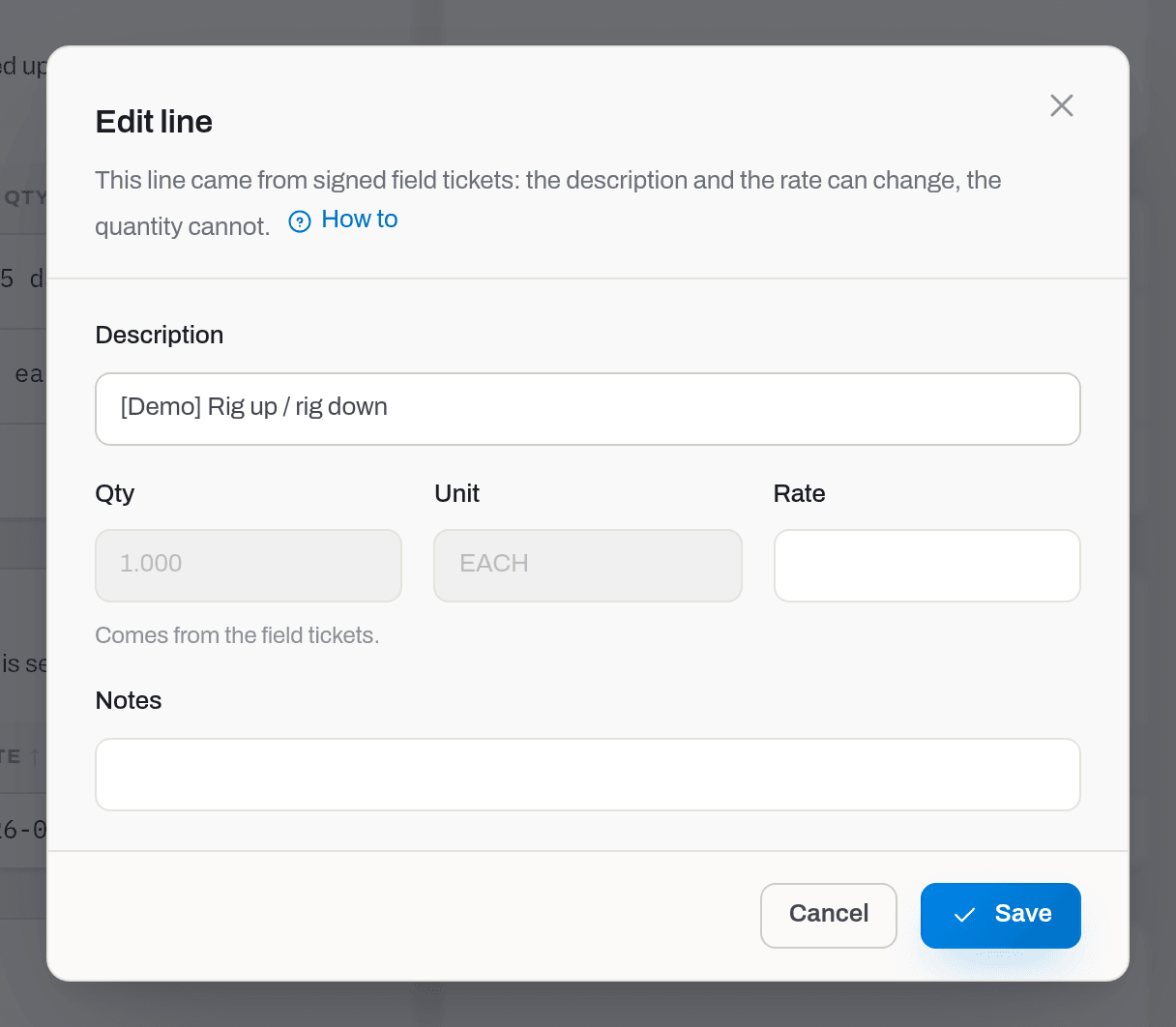
Result: the amount, the subtotal and the total recompute; Priced by now reads By hand, and the Send button appears once no unpriced line is left.
If it fails: Qty and Unit are greyed out and will not take a value on any line that came from tickets or a repair — the number was signed for in the field, and the invoice is not allowed to disagree with it. Need a different figure: delete the line and add a manual one.
Bill a repair
Who: Manager and above.
Repairs come in with the same Build the draft — there is no separate action and no separate invoice. What you need to know when you check one:
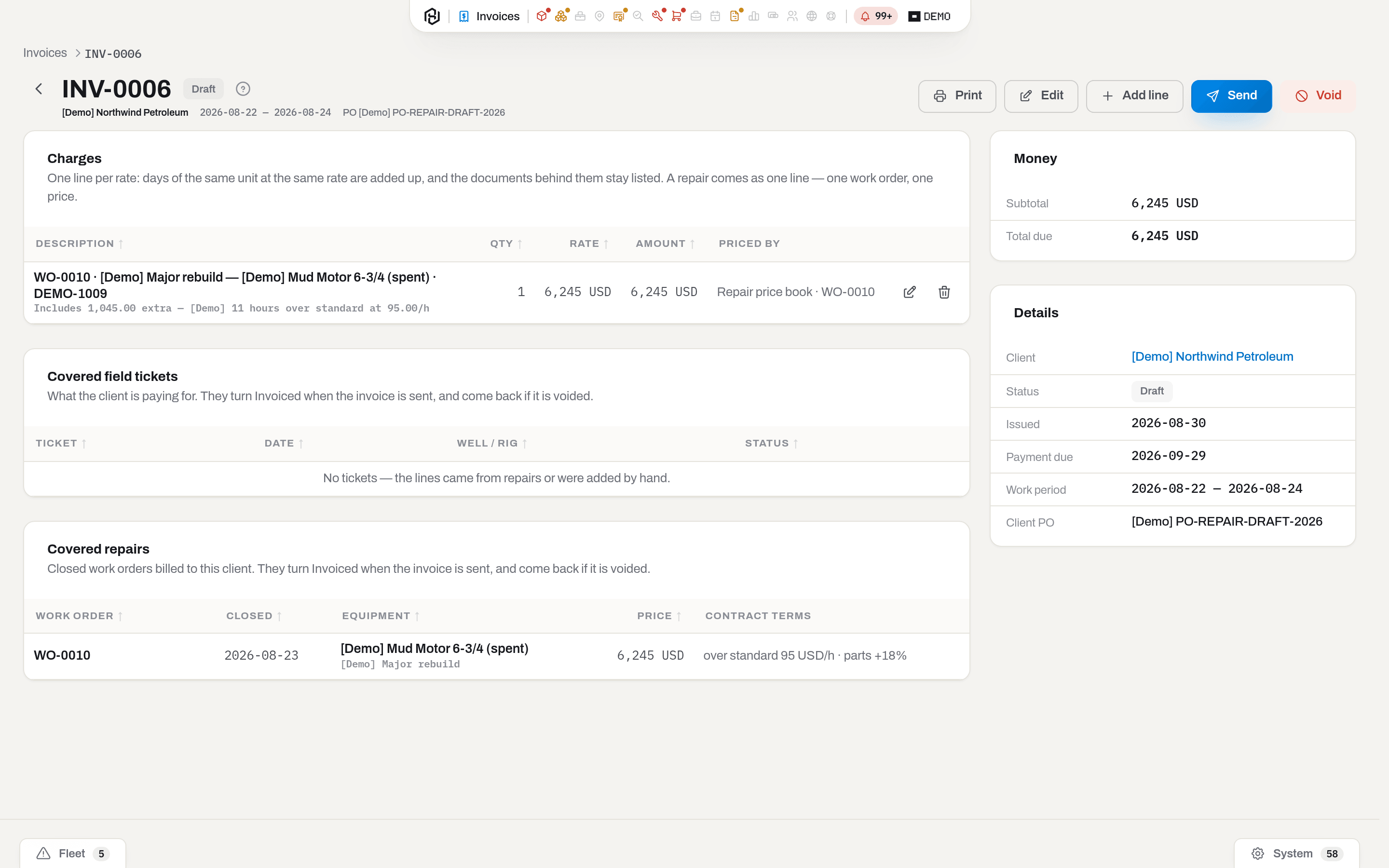
- one closed work order becomes one line, described as WO-0010 · Major rebuild — the equipment;
- work beyond the standard scope is not a separate line. It is part of the one price, and the line's note spells it out: Includes 1,045.00 extra — 11 hours over standard at 95.00/h;
- the invoice never recalculates a repair. The workshop already priced it, and Priced by says which way — Repair price book or Quote;
- the Covered repairs card shows the Contract terms behind that price — the over-standard hourly rate, the parts mark-up, the quote reference. They are for you, not for the client: they are not part of the sum and they are not printed.
Result: when the invoice is sent, each covered repair turns Invoiced and stops appearing in the billing queue.
If it fails: the repair is not in the draft — check on the work order that it is Closed, billed to this client rather than internally or to a vendor, and that its closing date falls inside Work from / Work to. See Maintenance.
Send the invoice
Who: Manager and above.
- On the draft, click Send. If the button is not there, see If it fails below.
- To — leave it empty and the invoice goes to the client's Email from their card. Type an address to override it for this send.
- Cc — one more address that gets a copy, such as the client's controller. Optional.
- A line to the client — an optional sentence that goes into the body of the email.
- Click Send.
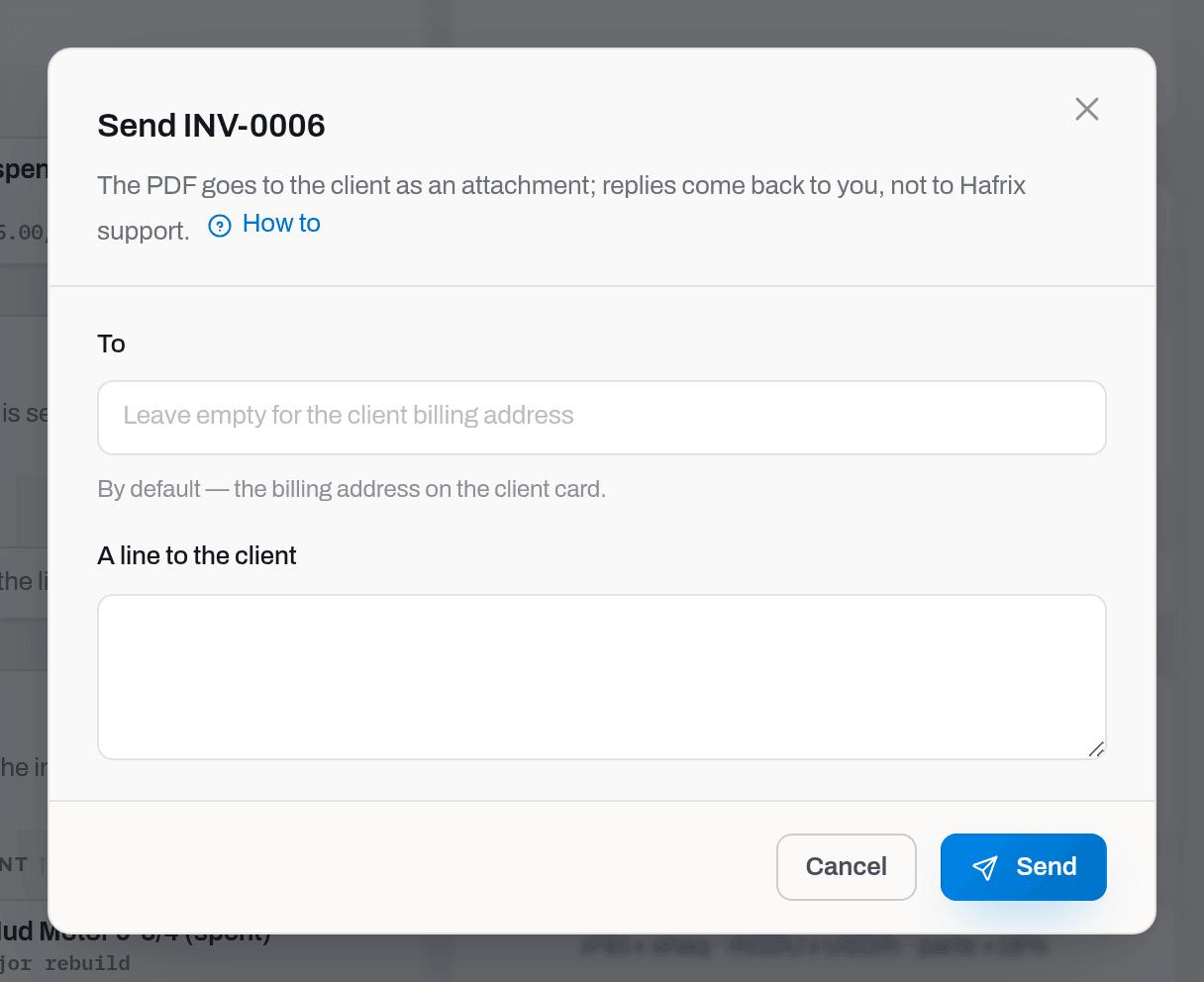
Result: the invoice turns Sent, and the moment it does:
- every covered field ticket turns Invoiced, every covered repair turns Invoiced with the date;
- the document freezes — no more editing;
- the client's accounts department gets an email with the PDF attached. It is the only mail Hafrix sends outside your workspace, so it carries no links into the app and no talk of your fleet — just the number, the amount, the due date, the work period and the count of documents covered. Replies come back to you, not to Hafrix;
- the event lands in Send history — see Send history.
Sending again is allowed — the client lost the email, the address was wrong — and it does not change the status or re-bill anything. The button then reads Send again, and each send adds another row to Send history.
If it fails:
- there is no Send button. Nothing is broken — the server would have refused, so the button is not offered. Either you are not a Manager, or the invoice is Void, or it has no lines, or a line still shows No price, or this client requires a purchase order and the invoice has none — fill in Client PO with Edit on the card, or see One invoice per PO;
- No billing address for this client — add one on the client card — fill in Email on the client card under Clients & companies; an invoice is never sent into the void.
Send history
Who: Manager and above to record a delivery; everyone with this section to read the trail.
Every invoice keeps a log of every attempt to get it to the client: click Send as many times as you need, add a courier drop or a hand delivery yourself. Each attempt is its own row, newest first.
| On the row | Meaning |
|---|---|
| Channel | How it went out: Email, Mail or By hand |
| To · Reference | After the channel: the address, the courier or the person it went to, then a tracking number or free text — whatever helps you find it again |
| Who · When | One line under the channel — Karim B. · 3d ago: the person who sent or recorded it (first name and initial), then how long ago it went out — backdated for a delivery you record after the fact; older than a week, the date. Hover the line for the exact time |
The Sent fact under Details follows the latest send.
To record a delivery by mail or by hand:
- Click Record delivery. It is there on any invoice that has already gone out, paid or not, and on a draft only when the draft could be sent — see If it fails below.
- Channel — Mail or By hand. Email is only ever recorded by Send.
- Sent on defaults to today — set it back to the day it actually left.
- To — the courier, the address, or who it was handed to. Reference — the tracking or waybill number, if there is one.
- Click Record delivery.
Result: the row is added to the trail. If this is the invoice's first send on any channel, it also turns the invoice Sent and bills the tickets and repairs behind it, the same as Send does; if the invoice was already sent, recording a delivery only adds the line — the status and the billed work do not change again.
If it fails:
- there is no Record delivery button. The server would have refused, so the button is not offered. Either you are not a Manager, or the invoice is Void, or it is a draft that cannot go out yet — it has no lines, a line still shows No price, or this client requires a purchase order and the invoice has none. The fixes are the same as for Send;
- A send cannot be dated before the invoice was created — Sent on is a day before the invoice existed. A delivery on the very day the invoice was created is fine: it is recorded at the moment the invoice was created, since a day recorded after the fact carries no time of its own;
- A send cannot be dated in the future — Sent on is after today.
Client signature
Who: Manager and above to record one; everyone with this section to see it.
A sent invoice can carry the client's signature — their name, position, the date, and, when there is one, an image of the signature itself. It prints on the PDF as its own Client signature block. Once a signature is recorded, it cannot be recorded again.
To record a signature the client gave you on paper:
- On a Sent invoice (or later) with no signature yet, click Record signature. There is no button on a Draft, on a Void invoice, or once a signature is already recorded.
- Signer name — who signed. Position is optional.
- Signed on defaults to today — set it back to the date on the paper copy. It cannot be earlier than the day the invoice was created; a signature on that very day is recorded at the moment the invoice was created.
- Click Record signature.
Result: the signature appears on the card and on the printed PDF, credited to you as the one who recorded it.
The client can also sign electronically through the client link — see below. Whichever happens first, a paper signature you record or an electronic one the client draws, is the invoice's one and only signature; once one is recorded, the other can no longer be.
Give the client a link to approve or dispute
Who: Manager and above issue and revoke the link; anyone who sees the invoice sees its state.
A client link is a page where the client opens this invoice without an account, downloads the PDF and answers once: Approve or Dispute with a reason. It is handy when the invoice has to be signed off by someone who does not read the email you sent — forward the link in WhatsApp or paste it into the client's portal.
- Open a sent invoice (Sent, Partially paid or Paid) and find the Client link card under the totals. Link reads Not issued.
- Click Create link. The full link appears on the card under Link.
- Click Copy link — the button turns to Copied — and send the link to the client. Copy it now: for security the full link is shown only once. After you leave or reload the page the card shows only the link's state, and the only way to get a link to send again is to issue a new one. If your browser does not allow copying, the link is selected on the card instead — copy it by hand.
Result: Link reads Live until a date 30 days ahead. Once the client opens the page, Opened shows how many times and when last. When the client answers, Client answer shows Approved by or Disputed by with the name the client typed and the date and, for a dispute, the reason. You and whoever sent the invoice get a line in the feed and an email; a dispute also opens a window, because money on that invoice is on hold.
The client sees only what is already on the PDF — lines, totals, covered field tickets, your notes to the client. Internal notes, costs and your colleagues' addresses never reach the page.
To let the client sign electronically: the page also offers Sign this invoice, next to Approve/Dispute — the two are independent, so the client can sign and still approve or dispute, in either order. The client types their name, optionally a title, draws their signature with a finger or a mouse, and clicks Sign the invoice. The moment is recorded by the server's own clock, not the client's device, and the client's IP address is kept with the signature. Once signed, the page shows Signed by their name and the date instead of the form; a link carries only one signature, so signing again is refused. If the signature image fails the antivirus check, the client sees an error and nothing is saved — they can clear it and draw it again.
Result: the signature appears on the invoice's signature card as Signed via client link, and prints on the PDF as Signed electronically. You and whoever sent the invoice get a line in the feed and an email.
New link and revoke:
- while a link is live and its full address is no longer on the card, the card offers New link. It asks Issue a new client link?, then issues a fresh link and stops the old one at once — use it when you lost the copied link or sent it to the wrong person;
- Revoke asks Revoke the client link? and stops the link without a replacement; Link then reads Revoked. An answer the client already gave stays on the invoice either way;
- when no link is live — Revoked or Expired — the card offers Create link again;
- voiding the invoice withdraws its link automatically.
If it fails:
- there is no Client link card. The invoice is a draft — a client link is only for an invoice the client has already received;
- the card has no buttons. Either you are not a Manager, or the invoice is Void;
- the client says the link has expired — links live 30 days, and Link reads Expired. Click Create link, copy the new link and send it;
- the client says the link was withdrawn — someone issued a new link or revoked it (a voided invoice gets no new link at all). The full address of a link is shown only once, so you cannot resend an old one: click New link (or Create link if Link reads Revoked), copy it and send it;
- the client wants to change the answer — each link takes one answer. Talk to the client, correct the invoice with a credit note if needed, and send a new link; the card shows the latest answer.
- the client's signature would not save — the antivirus check rejected the image, or the scanner is briefly unavailable. Ask them to try again in a few minutes; nothing is kept until it passes clean.
- the client says they already signed — a link carries only one signature, and their page shows who signed and when — it switches to that on its own if they try to sign again. The invoice's signature card shows the same.
Record a payment
Who: Manager and above.
- Open the invoice and click Record payment. The button is there while any balance is open.
- Amount arrives filled in with the whole balance — accept it and the invoice is settled in one click. Type a smaller figure for a part-payment.
- Received on defaults to today. Method is Bank transfer, Cheque, Cash, Card or Other; Reference is the transfer or cheque number.
- Click Record payment.
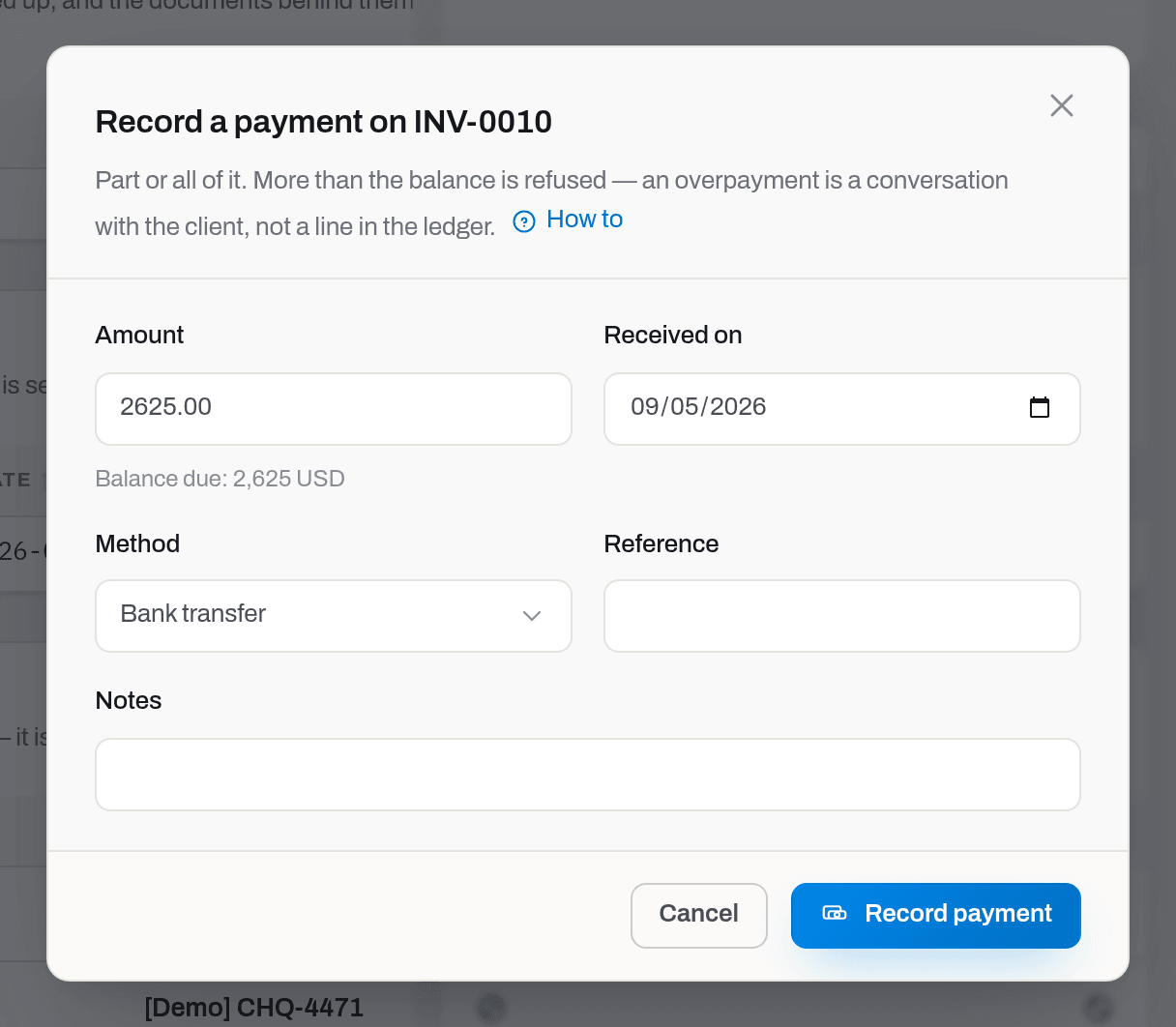
Result: the payment appears in the Payments block on the card, Balance due drops by that much, and the badge follows: Partially paid while something is left, Paid when nothing is. A settled invoice leaves the Sent, still owed and Overdue figures.
To void a payment — the bank pulled the transfer back, or the money belonged to another invoice — click the ban icon on its row and give a reason. The row stays, struck through and carrying that reason: its entry may already be in your accountant's books, and the next export carries the mirrored reversal. The invoice walks back to Partially paid or Sent on its own.
If it fails:
- Only 4,200.00 SAR is left on INV-0007 — you typed more than the balance. Record the rest against the invoice it actually belongs to;
- there is no Record payment button on a Draft or a Void invoice, nor on one that is already settled.
Correct a sent invoice with a credit note
Who: Manager and above.
- Open the sent invoice and click Credit note.
- Type the Reason — it is printed on the document and goes to the client, so write what actually happened ("Motor came back on the 12th — two days billed in error").
- Every line of the invoice is listed with what it was billed for and what is still left to credit, ticked and filled in with the whole remainder. Untick the lines you are not correcting and edit the amounts on the ones you are. Leaving everything as it comes reverses the invoice in full.
- Notes to the client — optional, printed at the foot of the note: how the refund will be paid, say.
- Leave Department, Line of business and Purpose blank to pick them up from the invoice, or set them here — see Document dimensions.
- Save draft. The note appears in the Credit notes block as
CN-…, Draft — it does not touch the invoice yet. - Check it, then click the send icon on its row to Issue it. The dialog says how much will be credited and what will be left due, and offers to email the PDF. With the email ticked, leave To empty for the client's billing address or type another, and add A line to the client if you want one in the email.
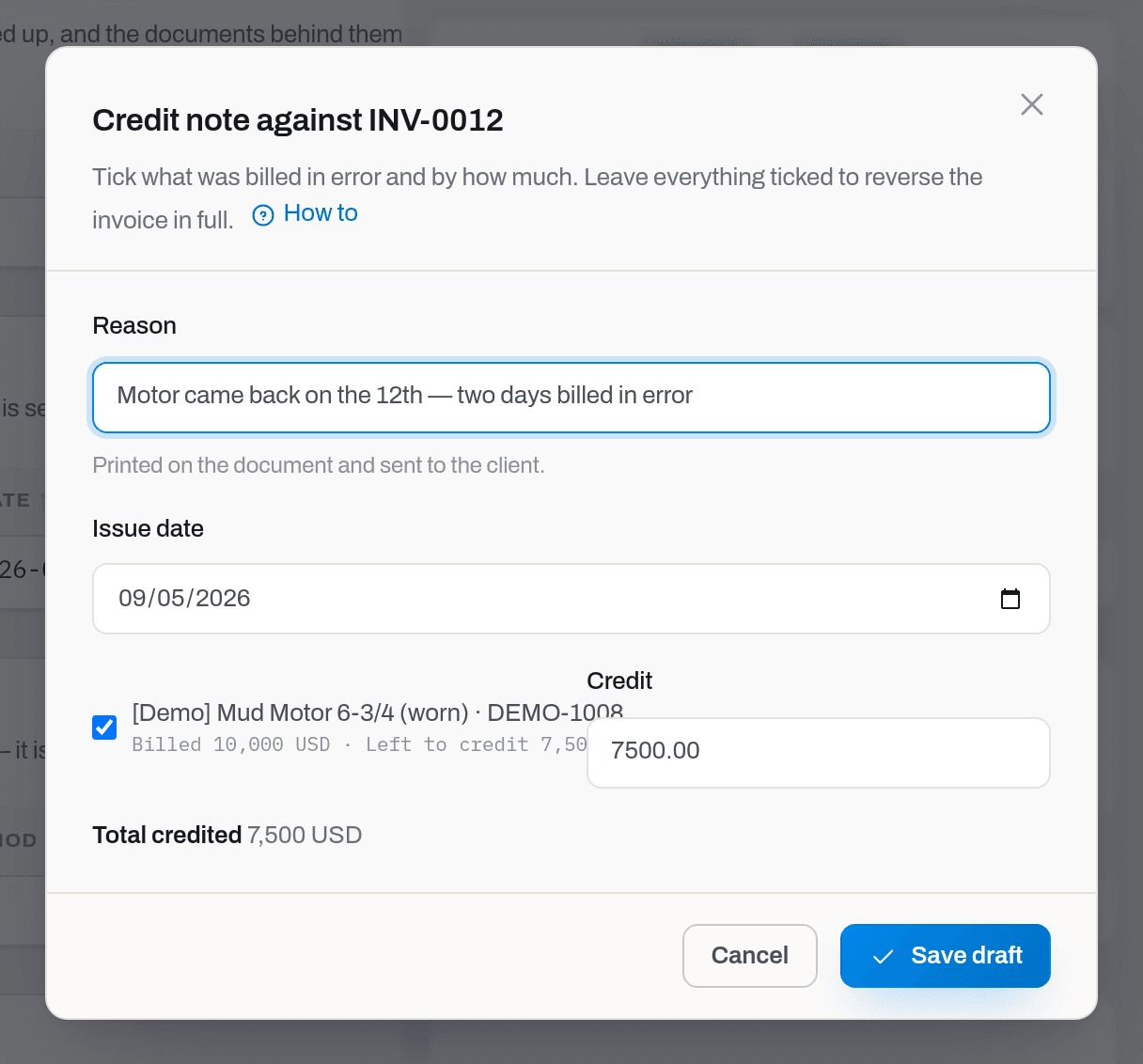
Result: from the moment it is issued the note reduces what the client owes. Credited appears in the money facts, Balance due drops, and the invoice turns Partially paid — or Paid, if the note covered everything left. The client gets a Credit note CN-… for invoice INV-… email with the PDF attached.
A draft can be edited or deleted — pencil and bin on its row. An issued one cannot: it is a document with a number. If it was issued in error, void it with a reason; the debt comes back and the next export carries the reversal.
If it fails:
- Only 1,200.00 SAR of «MWD engineer» is left to credit on this invoice — another note already covered part of that line. Drafts count too: two half-notes would credit the line twice on issue;
- Nothing left to credit on INV-0007 — every line is already credited in full;
- there is no Credit note button on a draft or a void invoice: a credit note corrects a document that was sent.
Attach files
Who: Operator and above with the Invoices section to upload; the uploader or a manager to remove. Anyone who can see the section can view.
- On the invoice card, drop files onto Documents & photos or click Upload.
- Credit note files live on their own: click the paperclip on a row in the Credit notes table to open Credit note {number} files and attach there.
Result: the signed copy the client sends back, correspondence over a dispute, or anything else worth keeping travels with the document. There is no status lock — the signed copy usually arrives only after the invoice is sent, so attaching to a Sent, Paid or even Void invoice works the same as on a draft. A user without the Invoices section never sees these files.
If it fails: Only the person who uploaded this file, or a manager, can remove it. — someone else attached it; ask a manager to remove it instead.
Read the aging report
Who: Viewer and above.
- Open Invoices and switch to the Aging tab.
- As of defaults to today. Set it to a month end to read the debt as it stood then — payments and credit notes that arrived later are not counted, and invoices sent later are not in the report at all.
- Read the four figures — Owed in total, Past due, Over 90 days, Clients owing — then the table.
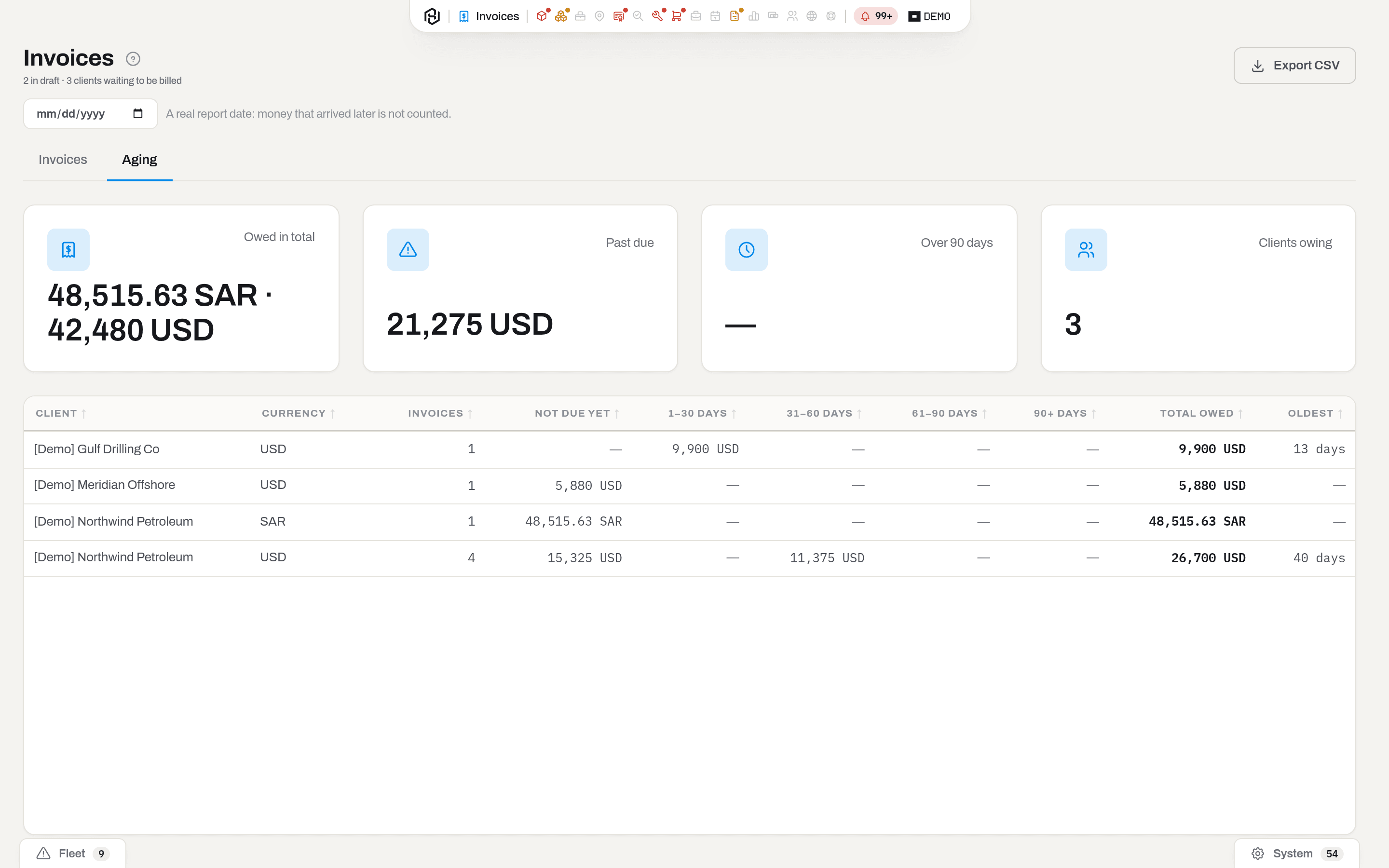
Each row is one client in one currency: Not due yet, then 1–30, 31–60, 61–90 and 90+ days past due, the total owed and how old the oldest open invoice is. The 90+ column is the only one in red — that is where the conversation stops being about a reminder.
Export picks a format — CSV for your accountant, Excel to read, PDF to print.
If it looks wrong: the table counts balances, so an invoice paid in full disappears from it, and one paid in half stands for its remaining half. If a figure disagrees with the list, check the Balance column there first.
Void an invoice
Who: Manager and above.
- Open the invoice and click Void.
- Type the reason in Why — the button stays disabled until you do. It is stored and shown on the card from then on.
- Click Void.
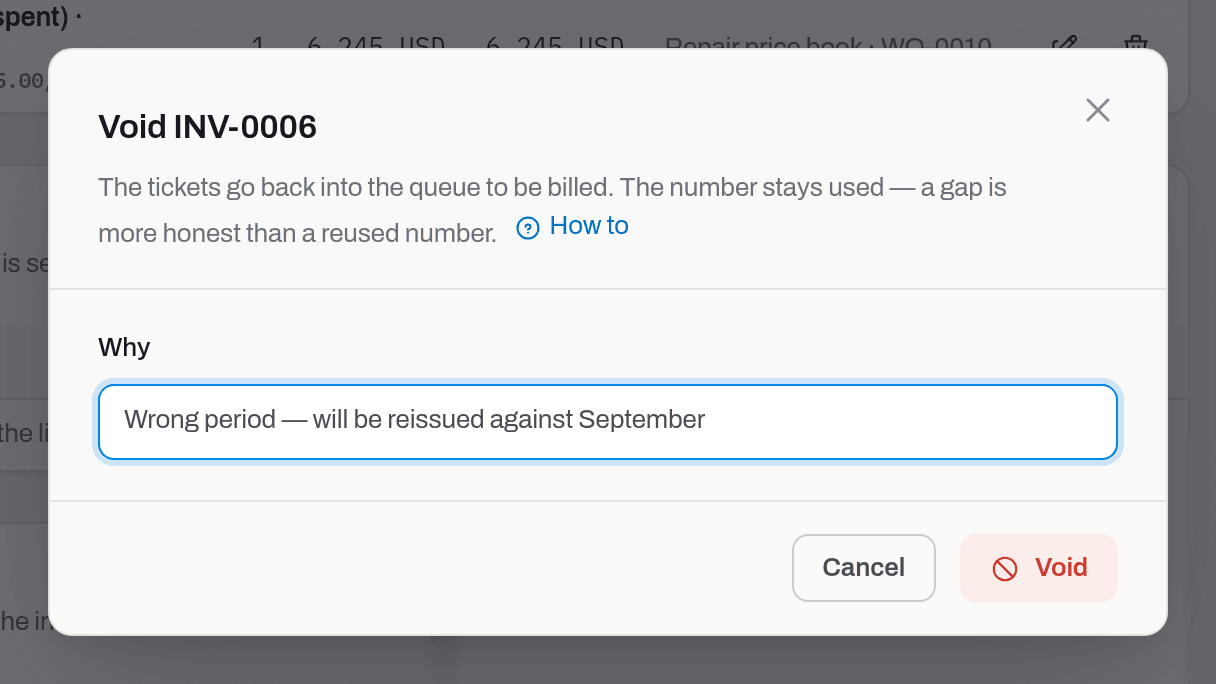
Result: the invoice turns Void; the tickets and repairs behind it are released and go back to waiting to be billed; the lines and their amounts stay, because a cancelled document still gets read.
The trail, however, does not. Covered field tickets empties and Priced by loses its N ticket lines tail: the claim each line had on a ticket has to be given up, or that work could never be billed again — which is the whole point of voiding. Note the ticket numbers before you void if you will need them.
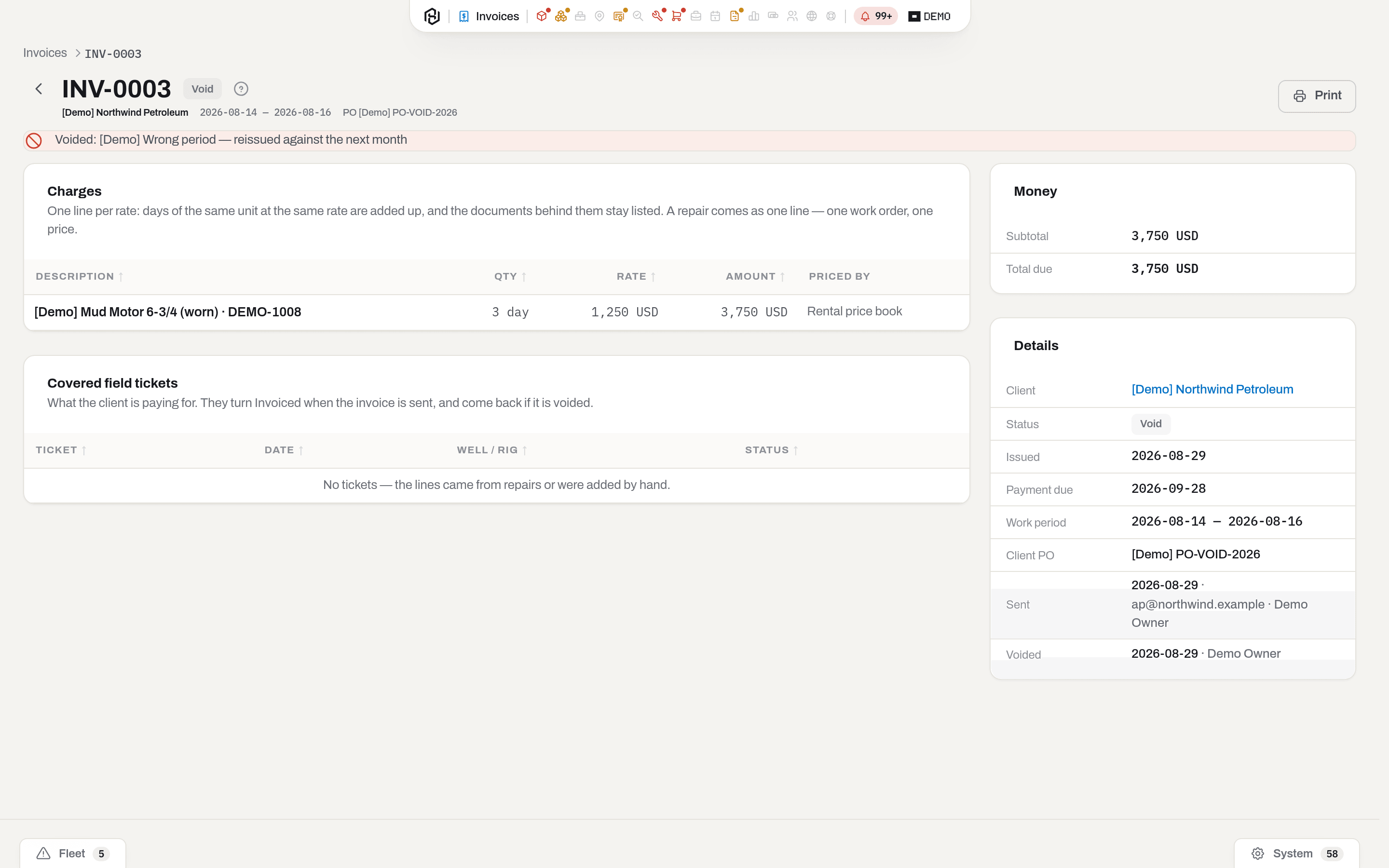
The number is not reused. A gap in the numbering is more honest than two documents sharing a number.
A paid invoice can be voided too — the whole billing was wrong, not just one line. The dialog says so: the tickets go back into the queue and the money is unwound as well. If the invoice had already been exported, the next export carries a reversal for everything that reached the books — every payment, every credit note and the invoice itself — so your books end up exactly where they were before the document existed. Move the refund itself in your bank and your accounting system; Hafrix reverses the entries, it does not send money.
Note
Voiding the invoice is the heavy option. A payment that went astray is voided on its own row (Record a payment); a line billed in error is corrected with a credit note. Reach for Void when the document itself should never have existed.
If it fails: Invoice INV-0003 is already void — someone voided it before you. There is no Void button on a void invoice at all.
Warning
A ticket held by an invoice cannot be un-approved from the Tickets section — it answers ticket is on an invoice. The way back is through the invoice: remove the line, or void the document.
Find work that was never billed
Who: Viewer and above can read the report. Marking a row Not a loss — and taking it back — is Manager and above, the same rung as billing itself.
- Click Unbilled work in the Invoices header — on its own button if you are below Manager, in the header's split-button menu (open the chevron) if you are Manager and above.
- Read the four figures: Trips to settle, Items, Days to bill and — with the Finance section — Money at stake.
- Use the Missing quick views to work one kind at a time. No assignment first: those are the days nobody has any record of.
The report reads two tracks at once. One is the drilling reports: the tool ran in a hole, and there is no booking, no ticket or no invoice behind those days. The other is the bookings themselves — a rental on a job billed by booking period whose days no invoice has claimed yet; those rows are marked booking and always sit at the No invoice step, because the paper exists and it is the invoice that is missing. Not a loss is offered on the first track only: a rental is closed with an invoice or a break, not with a note in a report. 4. Act on the row:
- Create job — opens the job dialog with the trip's dates, well, rig and the item already in the set. Pick the client and create; that closes No assignment, and the row comes back on the next read as No ticket.
- Add ticket — takes you to Tickets on the job that already holds the item. Once every day of the trip carries a sheet, there is nothing left to file — a second sheet for the same day is refused as a duplicate — so the button reads Approve ticket instead and the badge reads Ticket not approved. A trip that is half approved and half draft shows whichever of the two the server will actually accept: file the days that are still free first, approve the rest after.
- Bill client — takes you to Invoices filtered to that client, ready to build the draft.
- If the run was never chargeable, click Not a loss — see Not everything unbilled is a loss.
Result: each action closes the step the row names, and the row then moves to the next one — assignment, ticket, invoice. It leaves the report once an invoice covers every day of the trip. Nothing is written to the timeline by this screen — it only reads.
Note
A trip whose tickets are approved and simply waiting for the month-end invoice run stays in the report — the money is genuinely not billed yet — but it does not raise a notification. Only trips with no assignment and no approved ticket do.
If the list is empty: either every trip in the window is settled, or the Aramco connector has brought nothing in. The Connectors tab shows when the channel last succeeded.
Print or download the PDF
Who: Viewer and above — whoever can see the invoice can print it.
Click Print in the header. The PDF carries your logo, the invoice number and dates, From and Bill to, the table of charges — with the Source / date and Units columns from the card printed after the description of each line — subtotal, tax and total, the lists of covered field tickets and covered repairs, your notes to the client and your payment details from Settings → Finance. A credit note prints the same two columns on the lines it corrects.
Result: a draft prints as Draft invoice with a large DRAFT watermark, and a void one with a VOID watermark — showing a client a preliminary calculation is fine, letting them mistake it for the bill is not.
Export to accounting
Who: Manager and above, with the invoices section. It writes — the documents come back marked — so it is not a Viewer's action.
Before the first export: the chart of accounts has to exist. A receivable and a revenue account are the minimum; a tax account is needed as soon as one invoice in the batch carries tax, and a bank account as soon as one of them is paid. The dialog names whichever is missing, for the batch you are actually exporting, and offers a link straight to the chart — the Export button stays dark until it is complete.
- Narrow the list to what you are posting — the usual Issued from / Issued to window, and Exported set to Not exported yet if you want to see the work list first. The export takes the filters of the screen as they are; there is no second place to say what goes in the file.
- Click Export to accounting in the header. From a single invoice, open its card and use the Export to accounting button there instead — same dialog, one document.
- The dialog counts what will go: 3 invoices · 1 payment · no reversals.
- File — CSV for importing, Excel for reading first, or one of the two QuickBooks files described in Export to QuickBooks.
- Leave Include entries that were exported before off. Turn it on only to reproduce a file that was lost — the repeated rows arrive with
previously_exported_atfilled in, so the entries are recognisable as a copy before anyone loads them. - Click Export. The file downloads, and the documents in it are marked.
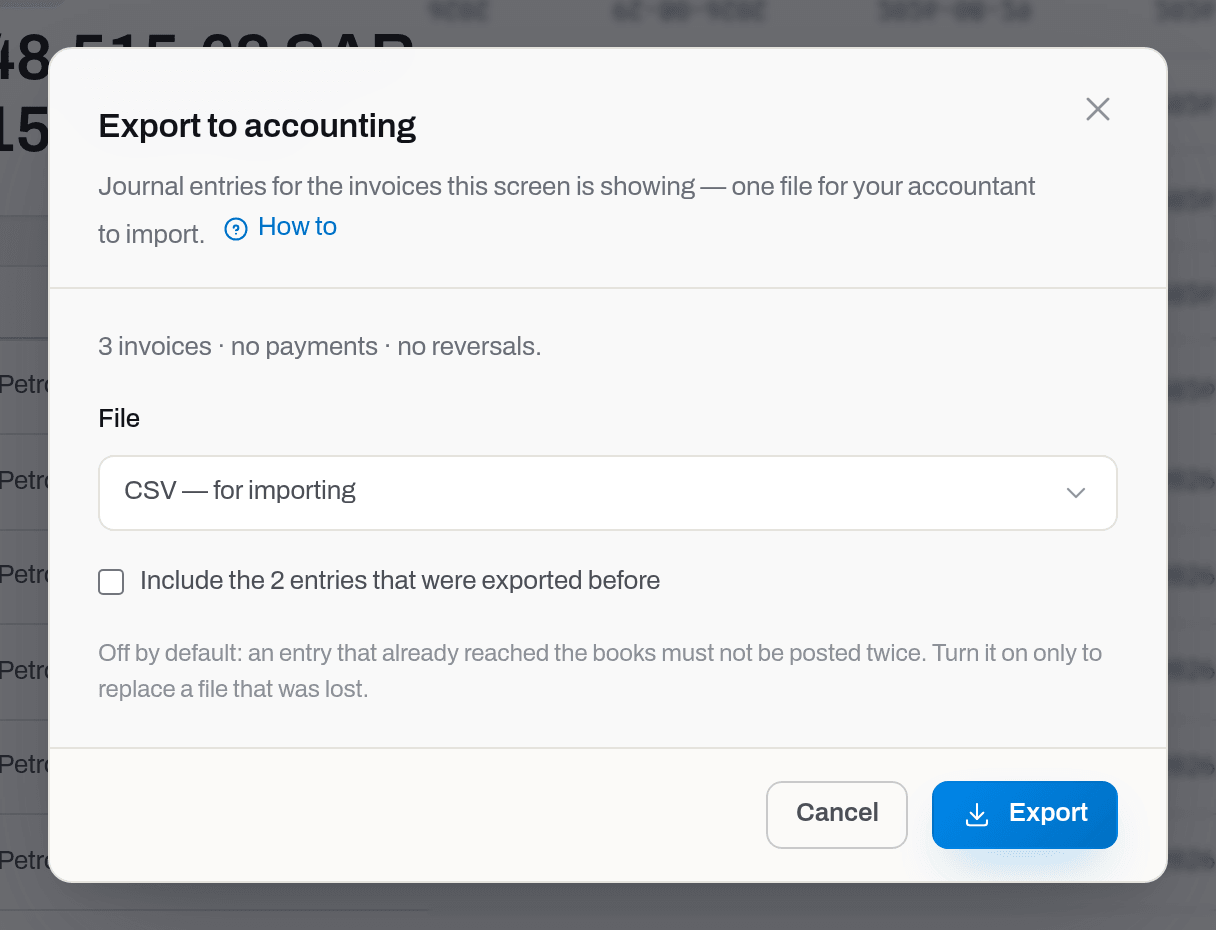
Result: one flat table, one row per journal line, English column headers that stay stable so a mapping configured once keeps working. The card of every exported invoice now shows Posted to accounting with the date and who did it, and the list can be filtered by Exported.
If it fails: it mostly cannot — every refusal the server can give is also a reason the Export button stays dark, and the dialog names it before you click. Three apply to any file; a fourth, a missing exchange rate, only to the QuickBooks Desktop file (see Export to QuickBooks). Nothing to export here — the selection holds no new entry; switch the filter to Not exported yet to see what is actually waiting. The chart of accounts is missing the … account — set it up first. Up to 500 rows at a time — narrow the filter — the limit counts every invoice the filter matches, drafts and already-exported ones included, so a narrower Issued from / Issued to window is the fix; a single file of more than five hundred documents is an import, not a month.
Export to QuickBooks
Who: the same people as Export to accounting — it is the same export in a different file.
QuickBooks does not read the generic table; it has importers of its own. Pick the file for yours in the File field of the same dialog:
- QuickBooks Online — journal import (.csv) — in QuickBooks Online, open Settings → Import data → Journal entries and upload the file. Rows with the same JournalNo become one journal entry; the customer is on every line, because QuickBooks refuses a receivable line without one, and the cost centre travels as Class. Amounts are in the invoice currency with a Currency column. An invoice in a currency other than the QuickBooks company's home currency needs Multicurrency turned on in QuickBooks Online, and QuickBooks converts it at its own rate.
- QuickBooks Desktop — journal import (.iif) — in QuickBooks Desktop, File → Utilities → Import → IIF Files. Each entry is one
GENERAL JOURNALtransaction. Desktop keeps one currency, so the amounts are in your functional currency (Finance settings), converted at the invoice's rate. IIF is an ANSI file (Windows-1252): letters outside it, such as Cyrillic or Arabic, would arrive as "?", so the dialog names those client and account names and the invoices they touch, and does not offer this file for them. Give such clients and accounts a Latin name, or pick another file. A name that starts with=,+,-or@goes out with a leading apostrophe, so a spreadsheet does not run it as a formula; rename it if QuickBooks should match an existing name.
Everything else is shared with the generic file: the same entries, the same Exported mark, the same reversals after a void, the same Include entries that were exported before for a lost file. An invoice exported as a QuickBooks file will not go out again in the generic file, and the other way round.
Important
QuickBooks finds an account by its name, not its code. The account names in the chart of accounts must match the accounts in QuickBooks exactly, or the import stops at the first unknown one.
If it fails: QuickBooks Desktop keeps one currency. Set the exchange rate for … — an invoice is in a currency other than your functional one and Finance settings has no rate for it. Add the rate, or use the Online or generic file, which carry the currency themselves. The dialog knows this in advance: with the Desktop file picked, it keeps Export dark and names the invoices. Nothing is marked when this happens.
Mark as submitted
Who: the same people as Export to accounting.
Exported means the file left; submitted means your accountant has posted it. Once they confirm, open the invoice and click Mark submitted — every entry of the invoice that has gone out is marked with the date and your name, and the card shows Submitted by the accountant. Once every entry is posted, the button disappears from the card; it comes back only when a new, not-yet-submitted entry shows up — a late payment exported afterwards, say.
The mark sits on each entry, not on the invoice. A payment exported after the invoice was submitted arrives as a new, unsubmitted entry, so the invoice goes back to Exported, not submitted and the button returns until that payment is posted too.
To find what the accountant still has to post, set Exported in the list to Exported, not submitted; Submitted by the accountant shows the rest. A Submitted column can be switched on in the table.
Undo: if the accountant has not posted the entries after all, click Undo submitted on the card and confirm. The export mark stays — nothing is exported twice. Clearing the export mark itself (Undo an export mark) removes the submitted mark with it, and entries exported again start as not submitted.
Undo an export mark
Who: Manager and above, with the invoices section.
Only for the case where the file never reached the books — it went to the wrong period or the wrong company and was deleted on the other side. Open the invoice and click Clear export mark, then confirm.
Result: the document returns to the queue and will be exported again with the next batch.
There is one invoice the button does not appear on, and it is the one you would regret most: a void invoice whose reversals have not been exported yet. A void invoice reverses only what actually went out, so clearing its mark would erase the product's only record that the invoice and its payment are sitting in your accountant's books — after which neither a normal export nor Include entries that were exported before produces a single row for it, and the books can only be fixed by hand. Export the reversals first; then the mark clears with them. If you send the request anyway, the server answers This invoice is void and its reversals have not been exported yet.
Clearing the mark on a void invoice whose reversals have gone out is allowed, and it means what it says: none of it ever reached the books, so nothing more will be exported for that invoice — the reversals included.
Warning
If the entry is in your accounting system, remove it there first. Clearing the mark and exporting again is how the same revenue gets posted twice — which is exactly what the mark exists to prevent. To hand your accountant another copy of a file they lost, use Include entries that were exported before instead; it changes nothing.
See the section as a board
Who: Viewer and above.
The layout switch has a first position, Overview: instead of the register, the section shows a board of widgets — the register in numbers, and every number a link back into a quick view, the aging report or a document. The register is still the section: Overview is a view you switch into, and the section opens on the register itself, at Invoices on the switch.
- Click Overview on the layout switch, at the left of the toolbar. Quick views, search and the filter rail belong to the register, so the toolbar keeps only the Department filter and the switch.
- Read the board. The Department filter applies to Counters, By status, Due soon and Recent: each number is counted over the invoices of the department you have chosen, and a link from one of these widgets opens the register narrowed to the same department. Aging and Ready to bill always look at the whole register — a client with an unbilled ticket has no document yet, so it has no department to narrow by.
- Click Invoices to go back to the register.
| Widget | Shows | Links to |
|---|---|---|
| Counters | Draft, Open (sent or partially paid), Overdue, Outstanding and Overdue amount, each sum by currency | Draft and Overdue open the register on the matching quick view; Open, Outstanding and Overdue amount are counts and sums only |
| By status | Draft, Sent, Partially paid, Paid and how many are overdue, plus Void as a plain count | The register, on the matching quick view — Void has none of its own |
| Aging | What is owed in total, past due and over 90 days, by currency, and the five clients owing the most | Aging, and a debtor's card |
| Ready to bill | How many clients, repairs and tickets are waiting, and the first eight clients with an Unpriced badge where a line still has no rate | A client's card, and Billing run |
| Due soon | Sent invoices due within the next seven days, oldest first, with how many days remain or how many they are overdue | The invoice's card |
| Recent | The latest invoices issued, within the department you are looking at | The invoice's card |
A widget you have no right to is neither on the board nor on offer — the same rule as everywhere else in Invoices. The board is yours to arrange — drag by the header, resize or remove through the header menu, bring back through Add widget — exactly as on Overview, and the arrangement is saved for you and follows you to another computer.
Result: the address carries the tab (/invoices?tab=overview), so the link opens the board for a colleague too, with the same department filter.
Add or remove a widget on the board
Who: Viewer and above.
- To remove one: open its header menu (the ⋮ next to the drag handle) and choose Remove from board.
- To bring one back: click Add widget above the board, find it in the list and click Add.
Result: the widget leaves or joins the board right away, and the change is saved. The board of Invoices is its own: removing a widget here does not touch the board on Overview or on any other section.
Fields
New invoice
| Field | Meaning | Required | Who edits |
|---|---|---|---|
| Client | Only clients with unbilled work are listed | yes | Manager+ |
| Work from / Work to | The window of work to pick up. Filled in from that client's waiting documents | yes | Manager+ |
| Currency | The contract currency. Rates in another currency are converted by the FX table | no — defaults to the tenant currency | Manager+ |
Invoice details (draft only)
| Field | Meaning | Required | Who edits |
|---|---|---|---|
| Issued | The date on the document | yes | Manager+ |
| Payment due | Set from your payment terms when the draft is built | yes | Manager+ |
| Work period from / Work period to | The window of work the invoice covers, printed on it. Set when the draft is built; editing it does not rebuild the lines. The end cannot be before the start | yes | Manager+ |
| Tax schedule | The catalog schedule this invoice is charged under | no — No schedule (manual rate) falls back to Tax rate, % | Manager+ |
| Tax rate, % | One manual rate for the whole invoice, used only while Tax schedule is empty. Clear it for a zero-rated export | no | Manager+ |
| Client PO | The client's own order number. Searchable, printed | no | Manager+ |
| Deal type | Rental, Service or General — printed as (OFR) / (OFS) / (GR) above the invoice number. Copied from the job when the invoice is assembled | no | Manager+ |
| Notes to the client | Printed on the invoice | no | Manager+ |
| Internal notes | Neither printed nor sent — for the office | no | Manager+ |
Line (draft only)
| Field | Meaning | Required | Who edits |
|---|---|---|---|
| Description | What the client reads | yes | Manager+ |
| Qty / Unit | Locked on any line that came from tickets or a repair | yes on a manual line | Manager+ |
| Rate | Setting it by hand switches Priced by to By hand, recounts the line from your figure and drops the price book's minimum — the note about the minimum goes with it, because it would no longer be true | no — an empty rate is a No price line | Manager+ |
| Tax schedule | This line's own schedule; Same as invoice follows the header | no | Manager+ |
| Notes | Printed under the line | no | Manager+ |
Record delivery
| Field | Meaning | Required | Who edits |
|---|---|---|---|
| Channel | Mail or By hand — Email is recorded by Send | yes | Manager+ |
| Sent on | The day it actually left | yes — today by default | Manager+ |
| To | The courier, the address, or who it was handed to | no | Manager+ |
| Reference | The tracking or waybill number | no | Manager+ |
Record signature
| Field | Meaning | Required | Who edits |
|---|---|---|---|
| Signer name | Who signed the paper copy | yes | Manager+ |
| Position | Their role at the client | no | Manager+ |
| Signed on | The date on the paper copy | no — today by default | Manager+ |
Record payment
| Field | Meaning | Required | Who edits |
|---|---|---|---|
| Amount | Pre-filled with the whole balance. More than the balance is refused | yes | Manager+ |
| Received on | The value date of the money, not the day you typed it in | yes — today by default | Manager+ |
| Method | Bank transfer, Cheque, Cash, Card, Other — one of five, so a bank statement can be reconciled against them | yes — Bank transfer by default | Manager+ |
| Reference | The transfer or cheque number, free text | no | Manager+ |
| Notes | For the office; not printed | no | Manager+ |
Credit note (draft only)
| Field | Meaning | Required | Who edits |
|---|---|---|---|
| Reason | Printed on the document and sent to the client | yes | Manager+ |
| Issue date | The date on the credit note | yes — today by default | Manager+ |
| Lines | Each invoice line with what is left to credit on it. Ticked and filled to the remainder by default | at least one | Manager+ |
Export to accounting
| Field | Meaning | Required | Who edits |
|---|---|---|---|
| File | CSV for importing into the accounting system, Excel for reading | yes — CSV by default | Manager+ |
| Include entries that were exported before | Repeats entries that already left, with previously_exported_at filled in. Marks nothing anew |
no — off | Manager+ |
What the system tells you
| When | Feed row | Who gets it | |
|---|---|---|---|
| An invoice is sent — Email, Mail or By hand | Invoice INV-0005 sent — 5,200 USD to Aramco. for an email; any other channel is named at the end: — by mail, — by hand | Invoice INV-0005 from … — 5,200.00 USD, PDF attached, replies to the sender — Email channel only | Feed: everyone with this section except whoever sent or recorded it. Email: the client, and only when the channel is Email |
| The client's signature is recorded | Invoice INV-0005 signed | — | Feed: everyone with this section except whoever recorded it. No email: nothing left the building |
| A payment is recorded | Payment received: INV-0005 — with what is still due | — | Feed: everyone with this section except whoever recorded it. No email: nothing left the building |
| A credit note is issued | Invoice corrected: CN-0002 | Credit note CN-0002 for invoice INV-0005 — …, PDF attached | Feed: everyone with this section except the one who issued it. Email: the client |
| An open invoice passes its due date with a balance still owed — checked once a day, 07:45 workspace time | Invoice INV-0002 is past due, for the amount still outstanding | One digest, N invoices past due in …, listing every one | Feed: everyone with this section, Viewer included. Email: Managers and admins with this section |
| Entries are exported to accounting | N invoices exported to accounting | — | Feed: Managers and admins with this section, except the one who exported. No email: nothing left the building, and the file is already in their hands |
| The nightly Aramco sync brings in trips with no assignment and no approved ticket behind them | N Aramco trips have no paperwork — one row per sync, not per trip | — | Feed: everyone with this section |
Two things this section deliberately does not do:
- the client is never chased automatically. No reminder, no dunning letter. Deciding when to lean on a customer is the business owner's call, not a default;
- the overdue row is written once per invoice. The same debt reappearing in the feed every morning is noise, and noise gets skipped along with everything else.
Codes and payloads for both rows — Notification codes.
Related
- Field tickets — where the billable days are signed for and approved.
- Maintenance — closing a repair and deciding who pays for it.
- Catalogues in Settings — the chart of accounts the ledger export posts to, the tax schedules invoices and their lines are charged under, the rental, labour and repair price books, and Exchange rates. The tenant-wide defaults an invoice inherits — Payment terms, days, Payment details — live in the Finance settings card on the same tab and can only be changed by an Admin.
- Clients & companies — the billing address the invoice is sent to.
- Finance — what the fleet earned, as a report rather than a document.
- Statuses and badges · Notification codes — the badge and feed dictionaries.
FAQ
Why is there no Send button? — Four reasons, all of them the server refusing in advance: you are not a Manager; the invoice is Void; it has no lines; or it still has a line with No price. Only the last of the four announces itself — as the strip under the header — so check your role and the status badge before hunting for a fault.
Why can't I change a quantity? — Because it came off a ticket somebody signed in the field. The invoice is not allowed to disagree with the signed paper. Delete the line and add a manual one if the figure genuinely has to differ.
A ticket is missing from my draft. — It is only picked up if it is Approved, unclaimed, and dated inside the window. Check that it was approved and not still submitted, and that no earlier draft already took it. On the ticket card you can see the invoice holding it.
Can I delete an invoice? — There is no delete button on the card, and nothing that has been sent can be removed at all — the client has paper with that number on it. Use Void instead: it undoes the billing without pretending the document never existed.
Why is there no Export to accounting button on this card? — Either you are not a Manager, or there is nothing left to export: the invoice is still a draft, or its entries have all gone already — the invoice, every payment, every credit note, and the reversal of each of them if the document was voided after being exported. The card lists each one as a fact with the date it left.
The client paid part of the invoice and disputes the rest. What do I do? — Record what arrived (Record a payment); the invoice turns Partially paid and the balance keeps showing what is open. If the disputed part turns out to be billed in error, issue a credit note for those lines — that closes the invoice without pretending the money was received.
Can I credit an invoice that is already paid in full? — Yes, and the balance goes negative, which is exactly what it means: you owe the client that money back. Hafrix does not move it — issue the refund in your bank and your accounting system; the credit note is the paper behind it.
Our rate changed between the invoice and the payment — which one does the file use? — The invoice's. The rate is stored with the entry the day it is exported, and the payment and the reversal are converted at that same rate, so the receivable the invoice opened is the receivable they close — to the cent. We do not post an exchange difference: recognising one needs an account for it in your chart, and that is a decision for your accountants rather than something to slip into a file.
Do you connect to QuickBooks / Sage / Odoo directly? — No, and deliberately. Every client runs a different system, and a connector for one is a connector nobody else can use. A file your accountant imports works with all of them and can be read before it is loaded.
We voided an invoice — can the next one reuse its number? — No. The voided document keeps its number and stays in the list; the next invoice takes the next number. A gap in the run of live invoices is easier to explain to an auditor than two documents sharing a number.
Can I invoice in a currency that is not our own? — Yes, pick it in Currency when you build the draft. Rates held in another currency are converted through the FX table. If there is no rate for a currency pair the line comes in with No price rather than being treated as one-to-one.
The client paid half. — Record it in your accounting system. Mark paid is all-or-nothing here, because a payments ledger inside Hafrix would be a second source of truth about money.
Updated 2026-09-28
New to Hafrix?
See this workflow in your operation
Follow the path from field activity to invoices and operational finance. See how Hafrix connects the records behind your billing.