Alerts & notifications
What the system found in the fleet overnight, and everything it has to tell you personally — in one queue, one feed, one bell.
Where: neither screen sits in the capsule. Alerts (/alerts) is reached from the bell, from the Fleet strip at the bottom of the screen, and from the link at the end of the nightly digest e-mail; Notifications (/notifications) from the bell and from the foot of either bottom strip. Alerts is a granted section — if your group has not been granted it, neither the queue nor its findings reach you (see Roles & access). Notifications is nobody's section: the feed is your own, and everyone has one.
Who can do what
| Role | In Alerts and Notifications |
|---|---|
| Viewer | Read the queue and the feed, filter and search, mark rows read |
| Operator | + Got it and Undo on an alert, one row or many at a time |
| Manager | + Check now — run the rules without waiting for the night; receives the daily digest e-mail |
| Admin | + writes announcements (see Admin guide) |
At a glance
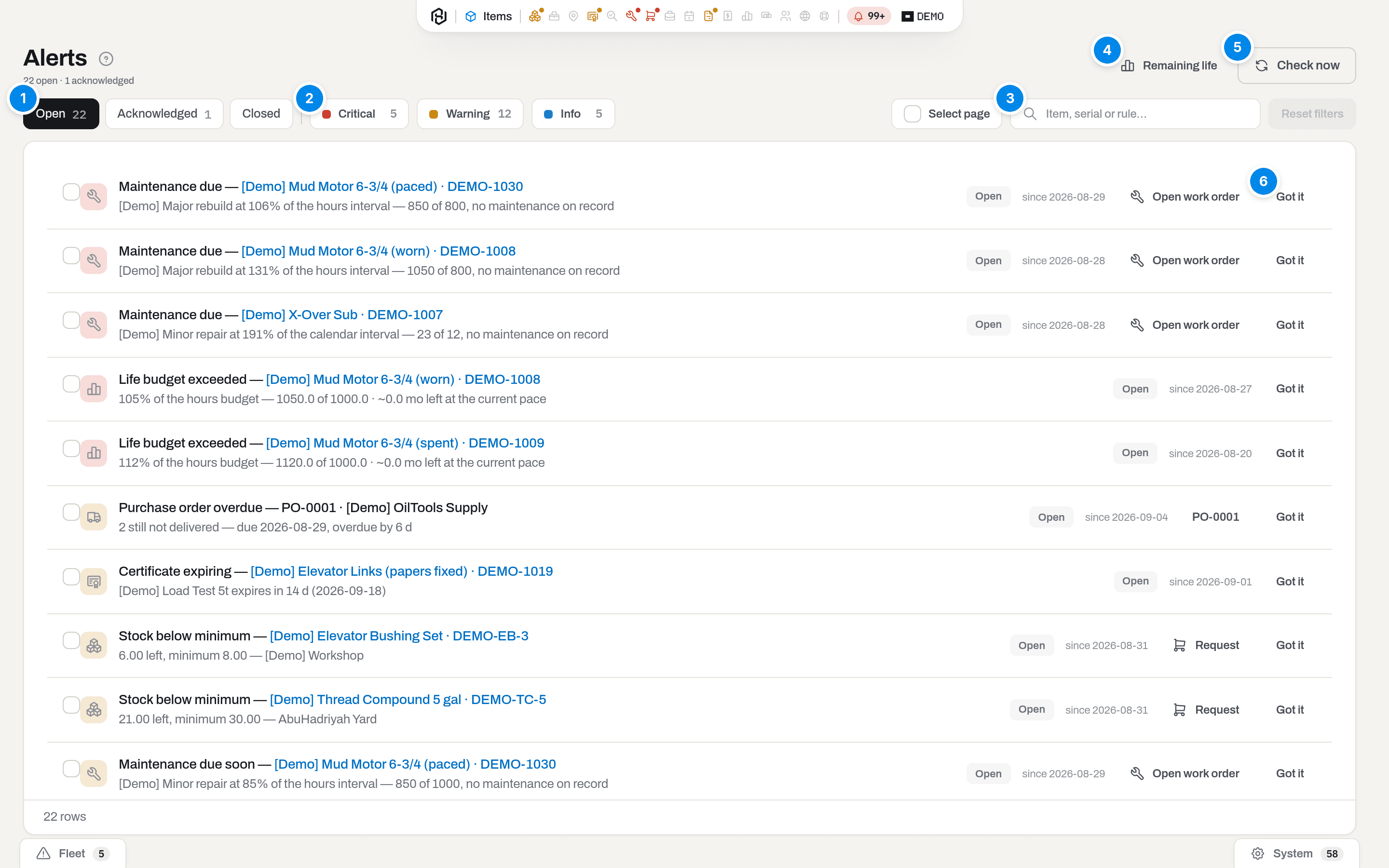
- Queue — Open, Acknowledged, Closed, with counts for the first two. Closed holds the findings the data has already answered; on the row itself that state wears the badge Resolved — one state, two names.
- Severity — Critical, Warning, Info with their colour dots and counts. These are switches, not tabs: press one to take that severity out of the list, press it again to bring it back.
- Search — Item, serial or rule…: matches the item's name and serial, the rule's name and the sentence of numbers under it. Reset next to it clears the search and puts every severity back.
- Remaining life — the other half of the section: what the fleet has left against its life budgets, including the units no rule has reached yet.
- Check now — run every rule against today's data, right now. Manager and above.
- Got it — acknowledge this finding. Operator and above; the row keeps its place and changes its badge.
Rows are sorted by severity: critical first, then warnings, then info. The item name is a link to its card, and the footer counts the rows the filters left.
Note
Only the queue and the search survive a reload — they live in the address bar, so a filtered queue can be bookmarked and sent to someone. The severity switches do not: a bookmark always opens with all three on.
Key concepts
Four channels, and they are not interchangeable
| Channel | What it is | Whose it is | How it goes away |
|---|---|---|---|
| Toast | A short confirmation at the bottom right after a save — Saved, Created, Sent | Yours, this second | By itself in a few seconds, or Dismiss |
| Alert | A finding of a rule about the fleet | The whole workspace shares one alert | Only when the data stops matching the rule |
| Feed row | A line in your own list of notifications | Yours alone, even when everybody got one about the same event | When the thing behind it is resolved — reading it is not the same as removing it |
| Announcement | Words a person wrote for the workspace | Everybody in the workspace | It stays in the feed until an admin revokes it |
The distinction that matters day to day: an alert is the fleet's, a feed row is yours. When a colleague presses Got it on an alert, it is acknowledged for everyone — that is the point, so that two people do not chase the same expired certificate. When you press Mark all read in your feed, nothing changes for anybody else, and nothing leaves the list: reading takes the highlight off a row and the number off the bell, and that is all it does.
Note
There is deliberately no bar in Items, Stock or Compliance saying "3 certificates expired". Those questions all live in the bell's Fleet tab; a section only carries notes about the data on that screen.
An alert's three states
| Badge | Meaning | What changes it |
|---|---|---|
| Open | Found and nobody has said anything | Got it |
| Acknowledged | Someone has seen it and taken it on. The condition is still true | Undo, or the data |
| Resolved | The finding is gone — the certificate was renewed, the stock was topped up, the work order was closed. This is what the Closed queue holds | The nightly run, or Check now |
There is no button that closes an alert, and that is not an omission. An alert is a statement about the data; it stops being true when the data changes, not when someone dismisses it. Got it only says "seen, mine".
The rules
Eleven rules run over the whole fleet. Each one names the item it is about and puts its numbers in the line underneath, so the queue can be read without opening anything.
| Rule | Severity | It fires when | It clears when | Fix it in |
|---|---|---|---|---|
| Certificate expired | Critical | A certificate on a live asset is past its date | A valid certificate is recorded | Compliance |
| Certificate expiring | Warning | A certificate runs out within 30 days | The certificate is renewed | Compliance |
| Inspection due | Warning | An event of the work cycle — after job, after reassemble, after idle or before job — asks for an inspection the unit has not had since. Only for categories that carry inspection triggers | The inspection is recorded | Compliance |
| Life budget exceeded | Critical | Accumulated hours, runs or months are past the category's life budget | The budget is raised, or the unit leaves service | Items |
| Life budget warning | Warning | Use has crossed the warning share of that budget — 80% unless the budget says otherwise | Same | Items |
| Maintenance due | Critical | A maintenance plan has reached 100% of its interval | The work order for that level is opened, or closed | Maintenance |
| Maintenance due soon | Warning | The same plan has crossed its warning share — again 80% unless the plan says otherwise | Same | Maintenance |
| Work order open too long | Warning | A work order has stood open longer than the workspace allows — two weeks unless it was changed | The order is closed or cancelled | Maintenance |
| Stock below minimum | Warning | On hand is under the minimum for that item in that location — the same item elsewhere is a separate finding | The level is topped back up | Stock |
| Idle asset | Info | An active unit sitting in the yard has had no event for 30 days. Registering the card and importing it do not count as activity, and a unit out with a client is never idle | Anything happens to it | Utilization |
| Storage conditions not met | Warning | A live unit sits in a place weaker than its category's storage requirement, or one that is missing a condition it asks for. Serialized units in our own places only — a client site or a vendor is never judged, and a place that declares no shelter at all is not either | The unit is moved somewhere that fits, or the requirement is relaxed | Catalogues |
The warning share is per budget and per plan: set it on the budget under Settings → Life budgets (Catalogues) and on the maintenance plan itself. The two weeks a work order is allowed to stand still have no screen; the digest and the master switch do — Settings → Alerts.
Tip
Severity is fixed by the rule, not by the item: Certificate expired is always critical, Idle asset is always info. If the queue is loud, filter it with the severity chips rather than acknowledging rows you have not looked at.
The nightly run
Every rule is evaluated once a day, at 07:00 in the workspace's own time zone — after the connector has brought in yesterday's run hours, and before the working day starts. New findings open, findings that are gone close, and findings that are still true are simply left alone.
At 07:30 workspace time the digest e-mail goes out — but only if something new appeared since the last one. "Everything as yesterday" is read once and then filtered away, so the mail stays quiet on quiet days. By default it goes to every manager and admin in the workspace; an admin can name the recipients, switch the digest to Mondays or turn it off, and stop the rules altogether, under Settings → Alerts (Admin guide). What the letter looks like is in Emails.
This is also why a certificate you renewed this afternoon still shows in the queue: the rule has not looked again. Check now makes it look.
The bell and the middle of the screen
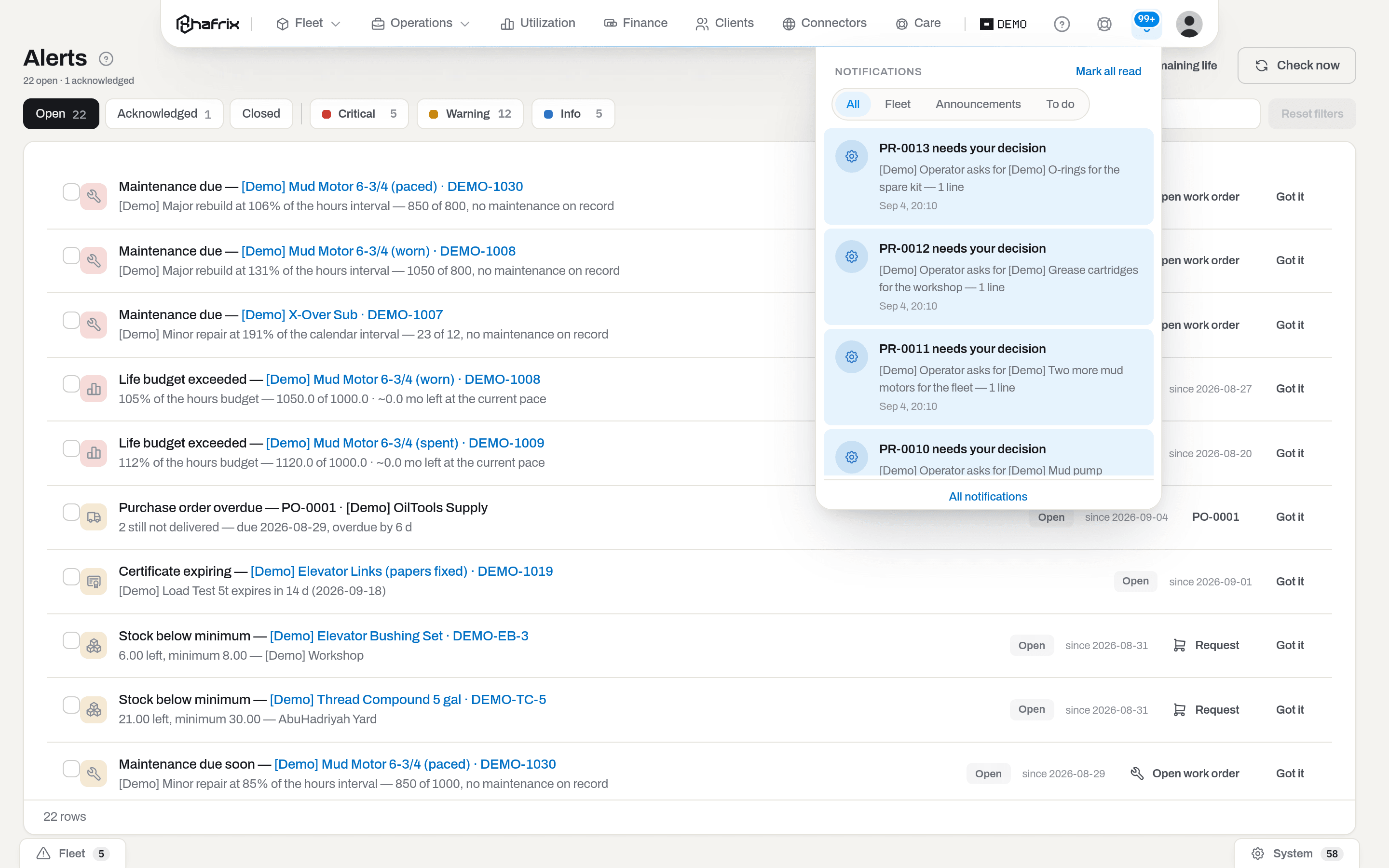
The bell lives in the open face of the capsule and carries the count of your unread rows (99+ above ninety-nine). It shows the same feed as /notifications, the newest eight rows, under the same three tabs — All, Fleet, System — and it checks for new ones about once a minute. When the capsule is closed the count is still there, as a small pill with the bell and the number — red while an alert is among the unread, amber otherwise. That pill is about your feed and nothing else; the coloured dots sitting over the individual section icons are a different mechanism, and they say where an urgent finding is answered.
Fleet holds exactly the findings of the rules, plus a Time to reorder block above the list for stock that has just dropped under its minimum during today's work, before any rule has seen it. System holds everything else the feed carries: two-factor authentication, an unconfirmed address, announcements, a connector that did not answer, closed repairs waiting to be billed, tickets waiting for approval, invoices past due, and the one non-rule to-do that touches the fleet — items that have a cost but no depreciation policy. The tab is chosen by the kind of the row, not by its subject.
An announcement written as Important or Critical does not wait in a list: it opens in the middle of the screen, one at a time, over whatever you were doing, and counts the others with {count} more waiting. Important also closes on Esc or a click outside; Critical closes only by its Got it button. An announcement published as Info never opens a window at all — it is a row in the feed like any other.
Remaining life
The section's second screen (/alerts/rul, the Remaining life button in the queue's header) answers a different question. The queue lists what a rule has already caught; Remaining life measures the whole fleet against its life budgets — Budget minus accumulated use, projected at the pace of the last 6 closed months — including the units nothing has flagged yet.
Four counters across the top: Over budget, Near the limit, Within budget and No budget set — the last one matters, because a category without a budget is not a healthy category, it is an unmeasured one. Below them a table of Asset, Category, Spent (the bar), Of budget (percent and the two numbers), Dimension (hours, runs or calendar), Months left and Runs out; Pace from is hidden until you turn it on under the columns gear. Where there has been no use to project from, Months left says no pace rather than inventing a zero.
The toolbar filters by Category and by horizon — Any horizon, or Runs out within 3 / 6 / 12 months — and searches by name, serial or category. A click on a row highlights it; click its name, click the row again, or press Enter to open the item's card (Choose how a row click behaves); Alert queue in the header goes back. Whether the budgets themselves are right is argued elsewhere: the card Actual life against the budget, which compares each budget with what worn-out units really lasted, lives under Settings → Life budgets (Catalogues).
Dispose candidates
A quick view on Remaining life narrows the table to units worth retiring rather than repairing again. A unit qualifies only when three things are true together: its life is already exceeded, its cost per hour is above the median for its category (see Finance), and it has sat idle — no booking, no work order — longer than Idle days, which defaults to 90 and can be widened or narrowed in the quick view. A unit missing a cost or a category median is never a candidate; the list explains why rather than guessing.
Result: a shorter table than the full Over budget count — the units where age, cost and idleness agree, not merely one of the three. Open a candidate's card to record a disposal from there; see Disposals for what happens to the books once you do.
Cutter demand by size
The section's third screen (/alerts/cutters, the Cutter demand by size button in the queue's header) answers a narrower question than either of the other two: for each calibre of cutter set, is there enough to go around? A consumable category only shows up here once it has a life budget and has actually been fitted as a component somewhere — a demo category and a real one can carry different names and still both qualify. The screen and alert are named for cutters because that is who they were built for, but any serialized spare with a life budget that is installed as a component is forecast the same way — the department lens just keeps the ones that are yours.
Per calibre the table shows Good sets on hand (live units, not yet worn past the warning share — client-owned sets are counted separately and never in this figure), Bodies active and Bodies reserved on the horizon, Sets per body (how many are actually mounted on one body, not the slot count), To equip (what it takes to dress every body once), Burn (how many sets the field has used up over the horizon, at the pace of the last Burn window), and Need — the larger of To equip and Burn, minus what is already on hand, never less than zero. Equipping and burning are not added together: one is what a body needs at the start, the other is what a run uses up, and whichever would run out first is the number that matters.
A row with Need above zero is highlighted. The toolbar filters by department, by category, and by horizon — 30 / 90 / 180 days — the window both Burn and the bodies-on-the-horizon count use.
Result: the same picture that feeds the Cutter sets running short alert (see below) — the screen lets you check a calibre before the nightly run has caught up, or after you have already covered it and want to see the number update.
The cutter shortage alert
When a calibre's Need is above zero, the nightly run raises Cutter sets running short — a Warning-level finding whose subject is the calibre itself, not a single item, so it carries no item link. Procurement is who it is addressed to, same as Budget nearly or fully used. Click Request on the row, or on the matching row of the demand screen, to open a prefilled request for exactly the shortfall — see Ask for a refill from an alert for what happens next and how the "already asked" link works. The alert closes itself on the run after the shortfall is gone, whether the sets were bought, moved from another location or simply used less.
How to
Read an alert
Who: Viewer and above.

- The title is the rule and the item — Maintenance due — [Demo] Mud Motor 6-3/4 (paced) · DEMO-1030. The item is a link to its card.
- The line underneath is the finding in numbers: how far past the interval, how many days overdue, how much is left against the minimum.
- On the right: the status badge, since {date} — when the rule first saw this, not when it last ran — and the actions the row offers.
Result: nothing changes; reading a queue is free.
If it fails: a row whose numbers look stale is telling the truth about the last run. Ask a manager for Check now, or wait for the night.
Find an alert
Who: Viewer and above.
- Pick the queue — Open, Acknowledged or Closed.
- Switch off the severities you do not want with the Critical / Warning / Info chips.
- Type into the search box: an item name, a serial, or part of the rule's name.
Result: the queue and the search go into the address bar; the severity switches do not, so a link you send opens with all three on. The counts on the severity chips describe the queue you are looking at, not the whole fleet.
If it fails: Nothing matches the filters — click Reset. No alerts — the fleet is clean means exactly that for this queue.
Acknowledge an alert
Who: Operator and above.
- Find the row and click Got it.
Result: the badge turns Acknowledged, the row moves to the Acknowledged queue, and it stops counting as open — for everyone in the workspace, not only for you. The feed rows about it stay where they are; acknowledging is not the same as reading.
If it fails: a viewer has no Got it at all — the button is not hidden behind an error, it is simply not drawn. Ask an admin for the operator role.
Undo an acknowledgement
Who: Operator and above.
- Switch to the Acknowledged queue.
- Click Undo on the row.

Result: the alert is Open again and counts as open for everybody.
If it fails: if the row has vanished from Acknowledged rather than moving, the data answered it in the meantime — look for it under Closed, where it now wears Resolved.
Acknowledge many at once
Who: Operator and above.
- Tick the rows, or use Select page in the toolbar to take everything the filters left.
- A bar appears at the bottom with the count.
- Click Got it — or Undo, if you are putting a batch back.
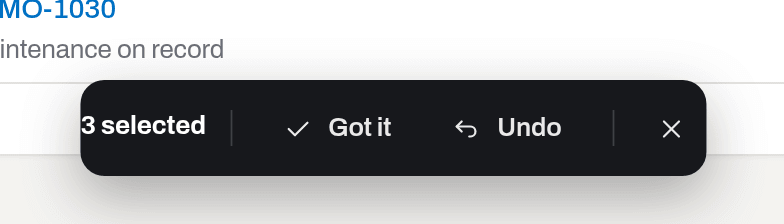
Result: each alert is processed on its own and the result is reported as {done} done, {failed} failed; rows that failed stay selected so you can look at them. This is the way to deal with a digest that brought thirty certificates at once — a queue you tick through row by row is a queue nobody reads.
If it fails: nothing is selected until at least one checkbox is ticked; the bar does not appear otherwise.
Run the rules now
Who: Manager and above.
- Click Check now in the header. It reads Checking… while it works.
Result: every rule is evaluated against today's data. New findings appear, findings the data has answered turn Resolved, and the counts in the header and on the quick views are recalculated. No e-mail is sent — the digest keeps to its own schedule.
If it fails: an operator and a viewer do not see the button; if you need the queue re-read, ask a manager. Nothing happens at all if alerts are switched off for the workspace.
Open a work order from an alert
Who: Operator and above, and only with access to Maintenance.
- On a Maintenance due, Maintenance due soon or Inspection due row, click Open work order.
- The usual work order dialog opens with the unit filled in, and the service level too when there is one to choose. Complete it and save.
For Inspection due the service level is the one whose steps include a Certificate of the type the unit is waiting for. If no level issues that certificate, or several do, the field stays empty and you pick the level yourself.
Result: the repair exists in Maintenance and the alert stops asking. An open work order for that level answers the finding, so the row goes on the next run. For an inspection, any open order whose level issues the awaited certificate counts, and closing it writes the certificate.
If it fails: the button is missing when Maintenance is not yours. A Work order open too long row carries the order's number instead — that link is drawn for everyone, viewer included, and it leads to the order that has been standing.
Ask for a refill from an alert
Who: Operator and above, with access to Procurement.
- On a Stock below minimum row, click Request.
- The request dialog opens with the consumable, the location it is short in and enough quantity to reach the minimum already filled in. Say why in one line and add it.
- Submit the request — see Procurement.
Result: the line goes into your open draft, and once the request is submitted the alert row carries its number back as a link. That link is the answer to has anyone dealt with this? — open the request instead of raising a second one for the same shelf. The alert itself closes on the run after the shelf is back above its minimum, whether the goods were bought or moved from another location.
If it fails: the button is missing when Procurement is not yours, or you are a viewer.
Read your feed
Who: Viewer and above.
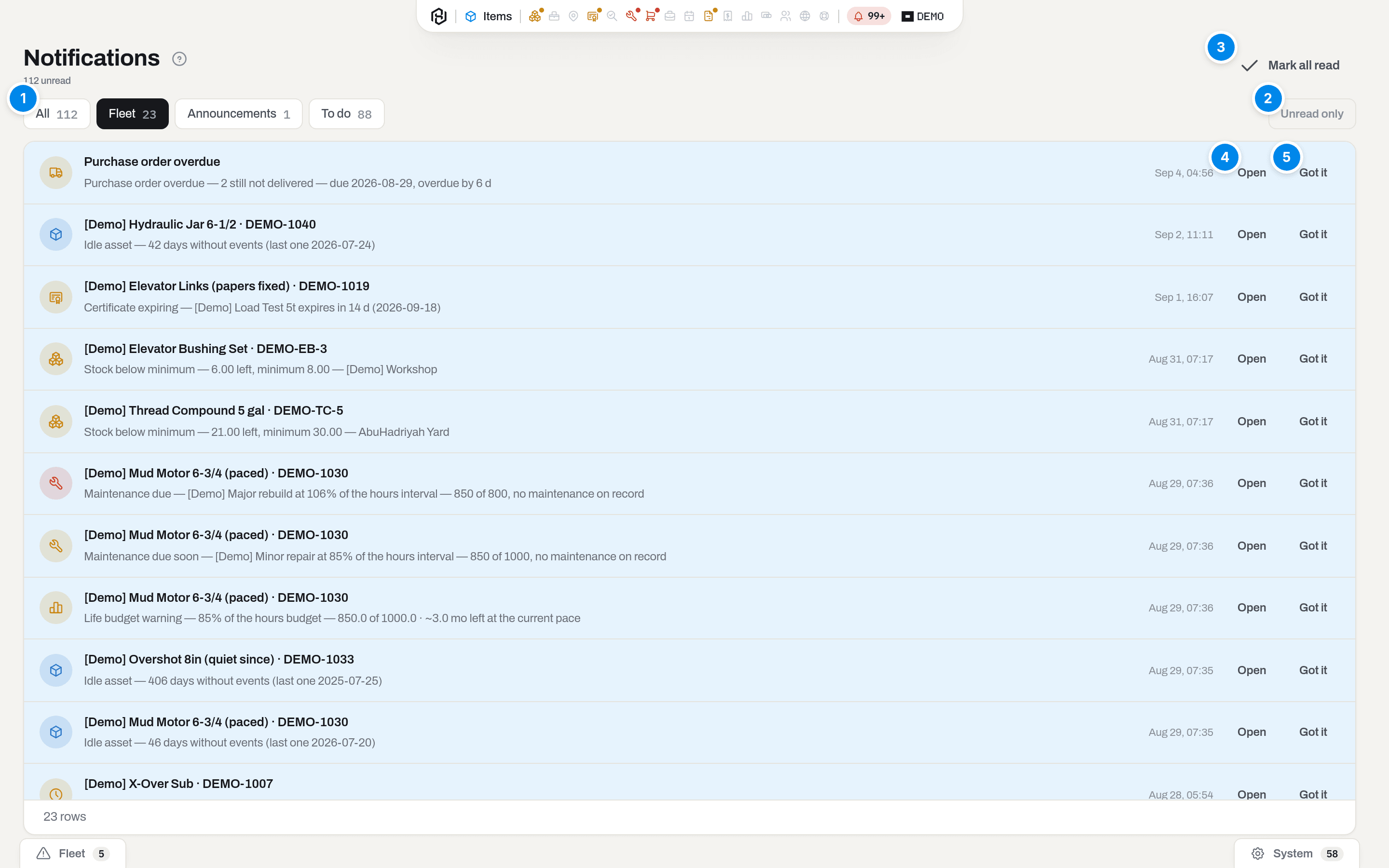
- All, Fleet, System — one feed, three cuts of it. Fleet is the alerts, System is everything else: announcements, what waits for you personally and what the system did on its own.
- Unread only hides everything you have already looked at.
- Mark all read clears the badge on the bell. It does not acknowledge alerts, does not confirm announcements and does not shorten the list — it says "I have seen it".
- Open goes to what the row is about and marks the row read. On an alert row that means the queue, not the item's card — the item is one more click from there.
- Got it appears on rows carrying an alert that is still open — the same acknowledgement as on the queue, done from here. Operator and above.
Result: unread rows lose their tint, the count in the subtitle and on the bell drops. The rows themselves stay until what they are about is resolved.
Live and History above the list choose how far back it goes. Live is what is still going on — the same rows as the bell. History adds the rows that are already over: an alert that closed, two-factor authentication that got set up, an announcement that was withdrawn. Those rows are greyed out and say when they were resolved under the time. The tabs and Unread only work on both. The bell never shows history.
If it fails: your feed being shorter than a colleague's is normal, not a bug — see the FAQ.
Open an announcement
Who: Viewer and above.
- Go to the System tab and click Open on the row.
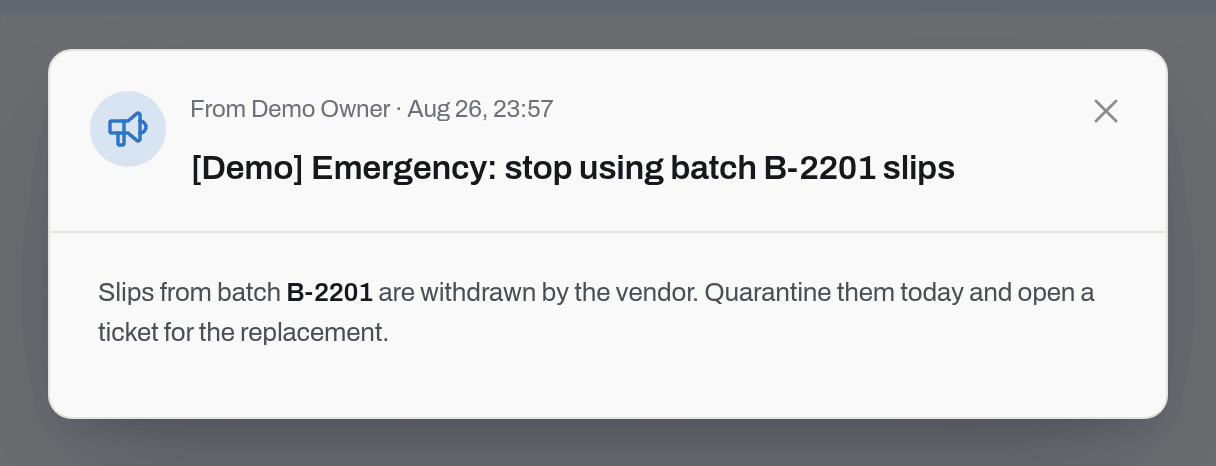
Result: the announcement opens in the middle of the screen, read-only, with who published it — From your workspace, From {name} or From the Hafrix team — and when. Close it with the ✕. The row stays in the feed for as long as the announcement stands; Got it on the pop-up version dismisses the window, not the row.
If it fails: an announcement an admin has revoked leaves everybody's feed at once and stops popping up, so a link to one may lead nowhere. What people have already read stays read.
What the system tells you
| When | Feed row | Who gets it | |
|---|---|---|---|
| A rule opens a new finding | one row per person, worded from the rule and its numbers | — | everyone who could see Alerts at that moment |
| The nightly run has something new to report | — | the fleet digest, 07:30 workspace time | managers and admins, or the addresses named under Settings → Alerts |
| A living alert is still true the next night | — | it appears in the digest as context, but does not by itself cause one | — |
| The data answers a finding | the rows about it leave the feed on their own | — | — |
| An admin publishes an announcement | a row, and for Important and Critical a window in the middle of the screen | only if the author ticked Send by email as well | everyone in the workspace |
| An admin revokes an announcement | the rows about it leave every feed | — | — |
| Your account owes something — two-factor, an unconfirmed address | a To do row that appears and disappears with the fact itself | separately, by its own letter | you |
A new alert makes exactly one round of feed rows, on the night it is born. "Still expired" the next morning is not news, and a feed that repeats itself every day teaches people to close it without looking.
The full list of feed codes and their wording is in Notification codes; the letters themselves, digest included, are in Emails.
Related
- Notification codes — every machine-written row, code by code.
- Emails — the digest and every other letter Hafrix sends.
- Compliance — where certificate findings are answered.
- Maintenance — work orders, service levels and the plans behind the maintenance rules.
- Items and Stock — life budgets and minimum levels, the numbers the rules compare against.
- Utilization — what an idle asset costs.
- Catalogues — life budgets and their warning share.
- Admin guide — writing, levelling and revoking an announcement.
- Basics — toasts, the capsule, the shape of every list.
- Roles & access — why a section or a button may be missing.
FAQ
Why is there no Alerts icon in the capsule? — Because you fix an expired certificate in Compliance and a low stock level in Stock, not in a list of findings. An urgent finding lights a dot over the section where it is answered; the queue itself is the place to see everything at once, and it is one click from the bell.
Why can't I close an alert? — Nothing in the interface closes one, for anybody. An alert is a fact about the data — renew the certificate, receive the stock, close the work order, and the next run marks it Resolved. Got it is for saying it is yours.
I fixed it. Why is it still there? — The rules look once a night. Ask a manager for Check now if you cannot wait; it is a manager's button precisely because it re-reads the whole fleet.
My colleague pressed Got it and my row changed too. — As designed. One alert exists per finding for the whole workspace. Reading, on the other hand, is personal: your unread count is yours.
Why does my colleague have more notifications than me? — Two reasons. Alerts only go to people who can see the Alerts section, and only to those who could see it on the night the alert was born; and rows about a section you have not been granted never reach you at all.
An announcement popped up in the middle of my screen and I cannot close it. — Then it was published as Critical, and its only exit is the Got it button. That is what the level is for.
I closed an announcement — where did it go? — Nowhere. Got it dismisses the window; the announcement stays in the feed under Announcements, and Open shows it again. Only an admin revoking it takes it out.
A toast said Saved but nothing looks different. — The toast is about the request, not the screen. Lists cache their page for a few seconds; reload if it lingers.
Updated 2026-09-18
New to Hafrix?
See this workflow in your operation
Explore the platform behind these guides: equipment inventory, rentals, maintenance and operational finance. Tell us which workflow you want to see.