Utilization
How much of the fleet is earning and how much is sitting: four counters over the whole yard, and under them one row per client and rig saying exactly what is out and since when.
Where: capsule → Utilization (/utilization). It stands on its own, not inside a group. If the entry is missing, your group has not been granted this section — see Roles & access.
Who can do what
| Role | In Utilization |
|---|---|
| Viewer | Everything on this screen: the counters, the table, search, sorting, columns, Export (needs the Items section too), the jump into the item list |
| Operator | + nothing extra |
| Manager | + nothing extra |
| Admin | + nothing extra |
The board only reads. Nothing here changes the fleet: a unit goes out to a client and comes back through Assign and Return in Items, and it goes to the workshop through a status change or a work order in Maintenance.
At a glance
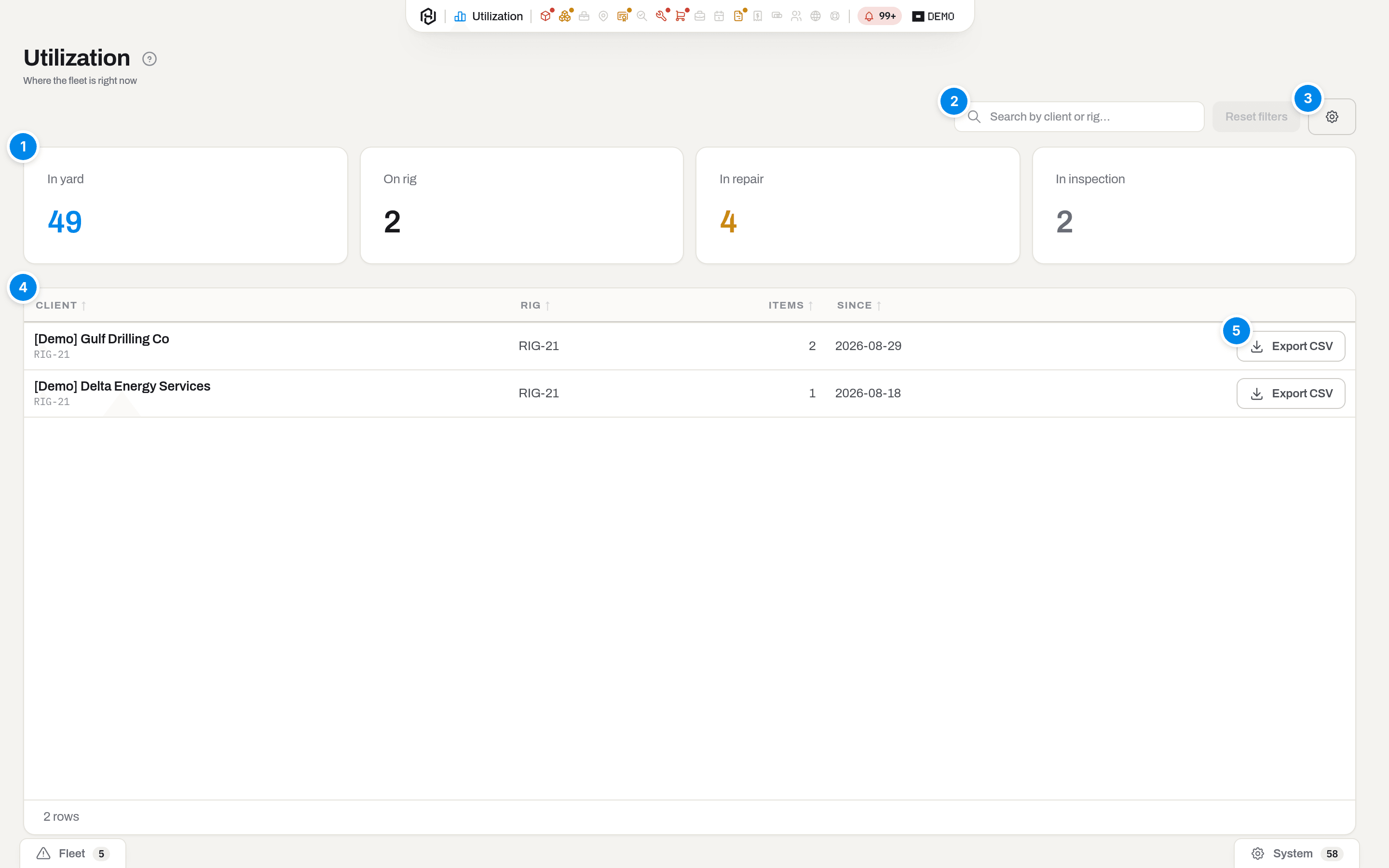
The board of the demo yard: twenty-seven units in the yard, two out with clients.
- In yard · On rig · In repair · In inspection — the whole fleet of serialized units, split four ways, right now.
- Search by client or rig… — filters the table below. It matches the client name and the rig reference, and nothing else.
- The gear — show or hide the columns Rig, Items and Since. Client always stays.
- The table — one row per client and rig: who has it, which rig, how many units, since when. It carries no visible heading; sorting is on the column headers.
- Export — the units of that one row, as Excel, CSV or PDF. It reads the item list, so it shows only if your group also has the Items section.
There are no filters, no quick views and no buttons in the header. The board is a snapshot, not a report you assemble. It refreshes itself: the numbers go stale after fifteen seconds and are refetched when you come back to the tab, so a unit a colleague sent out is on your screen without a reload.
Key concepts
Four buckets, one unit in each
| Counter | What lands in it |
|---|---|
| In yard | An Active unit assigned to nobody — available to send out |
| On rig | An Active unit assigned to a client |
| In repair | A unit with status In repair, whether or not it is still assigned |
| In inspection | A unit with status In inspection, same rule |
The workshop wins over the rig: a tool on a bench is not working for a client, however the paperwork reads. Every unit lands in exactly one bucket, so the four numbers add up without double counting.
The table below counts differently — a row lists everything assigned to that client and rig, including the units the counters put under In repair or In inspection. That is why the Items column can add up to more than On rig.
What the board never counts
- Consumables. A stock card has quantities, not a place on a rig. Its card lives in Items on the Consumables tab, and how much lies where is Stock.
- Units out of the fleet: Disassembled, Obsolete, Scrap, Lost, Sold. A unit taken apart is a shelf of parts, and counting it as in yard would inflate what you can actually ship.
So the four counters together are smaller than the number of rows in Items, and that is by design.
A row is a client and a rig
The same client working two rigs is two rows. A unit assigned to a client with no rig written down gets its own row with an empty Rig cell, shown as —. Hiding the Rig column does not hide the rig: it stays as the small line under the client's name.
Since is the day the oldest unit of that row went out — the earliest date entered as Assigned from when the units were assigned. Add one more tool to the same rig tomorrow and the date does not move; it is the age of the deployment, not of the last dispatch.
How to
Find a client or a rig
Who: Viewer and above.
- Type a name or a rig reference into Search by client or rig….
- Click a column header — Client, Rig, Items, Since — to sort by it.
- Reset, next to the search box, clears the search.
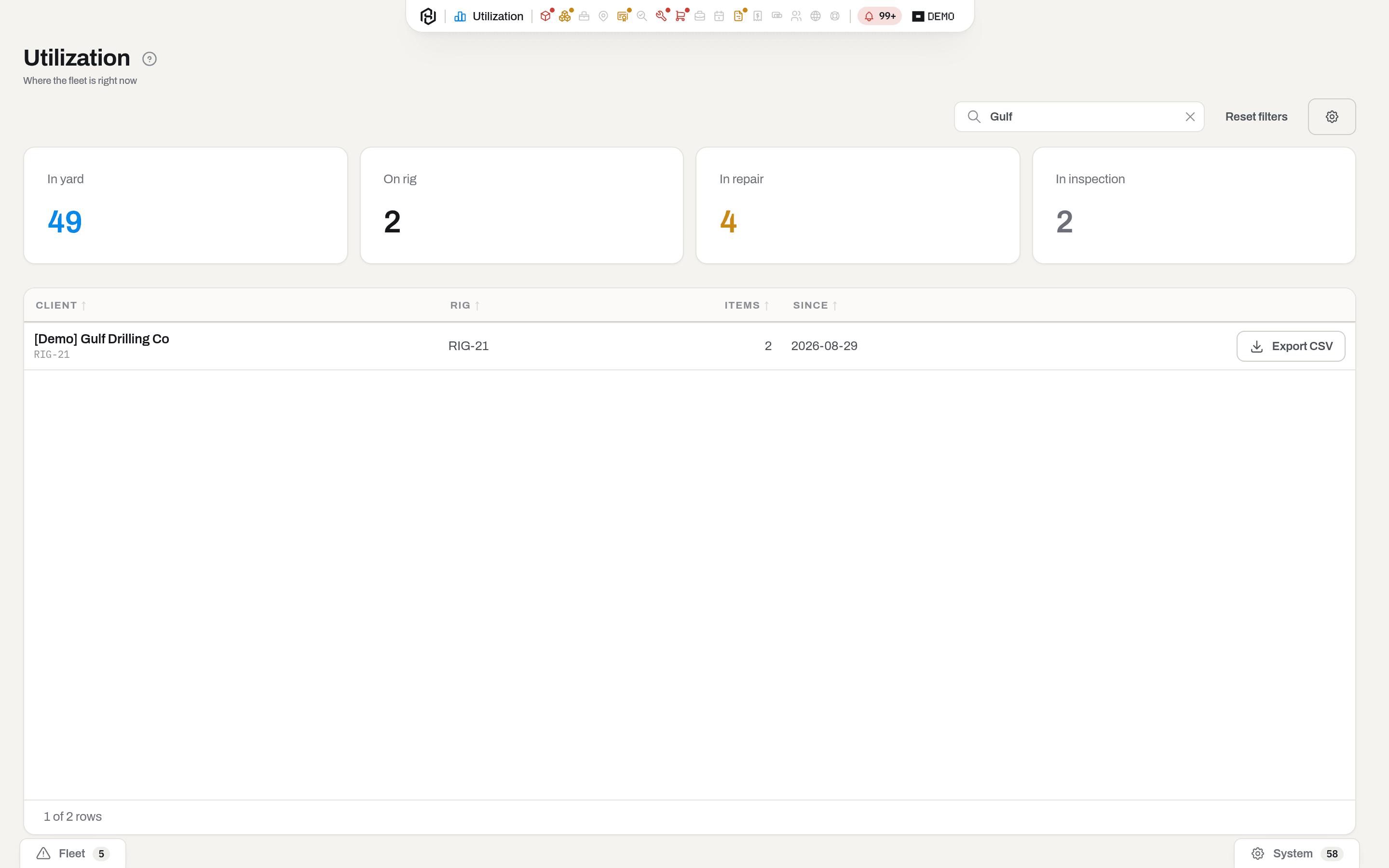
The same board with Gulf typed into the search.
Result: the footer counts what is left — 1 of 2 rows. The search lives in the address bar (?q=…), so a filtered board can be bookmarked or pasted into a chat.
If it fails: No rigs match the filters. — nothing matched the text you typed; clear it with Reset. Nothing is on a rig right now. is a different message: it means no unit is assigned to anybody, and the search is not to blame.
Note
The counters do not follow the search. They always describe the whole fleet, never the rows left in the table.
See which units are out with a client
Who: Viewer and above.
- Click the client's name to open it right away, or click the row, then click it again, or press Enter (Choose how a row click behaves).
- You land in Items, already narrowed to that client.
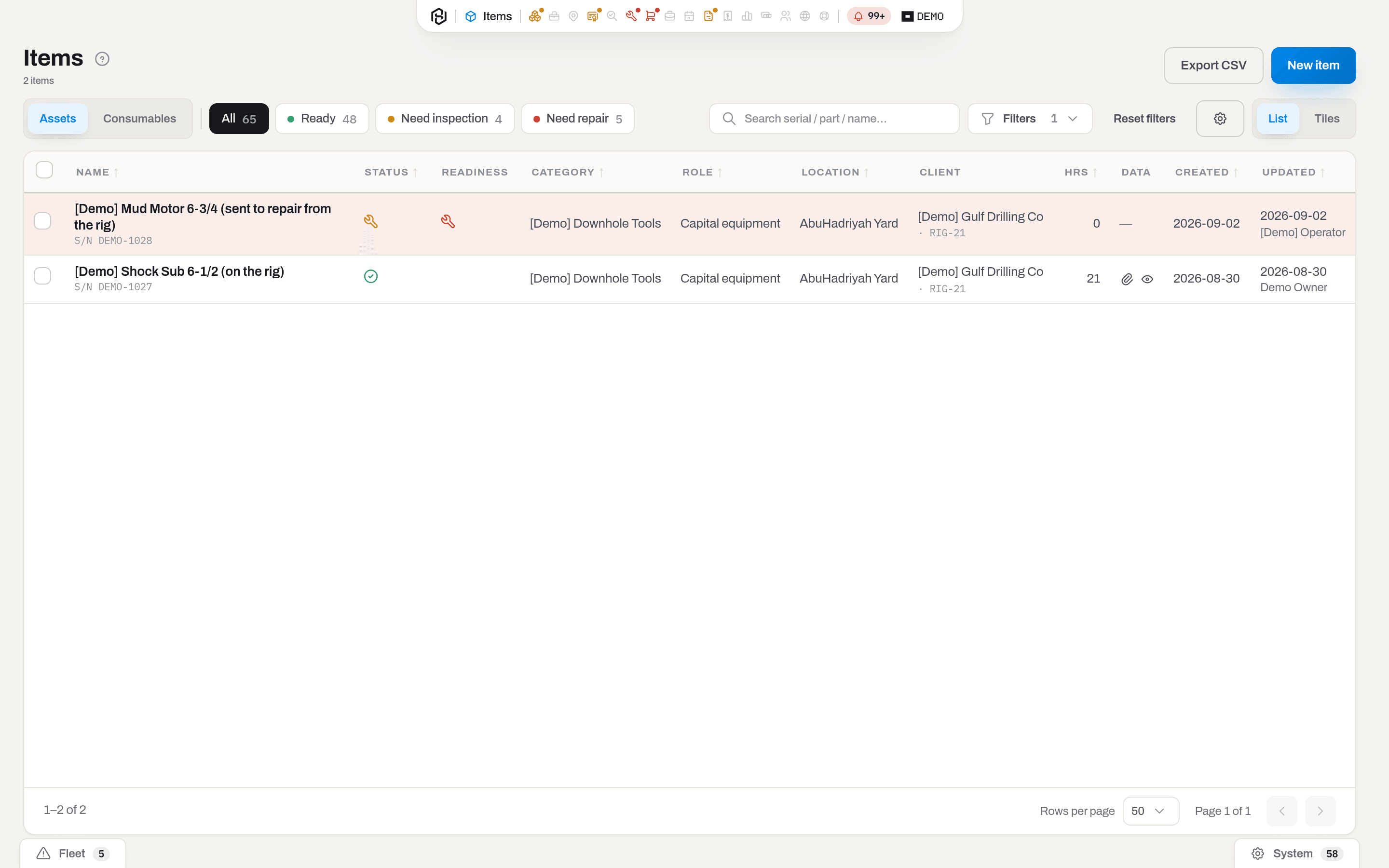
The items of one client, opened from the row above.
Result: the item list of that client, with the client and the rig in the Client column. From there open a card, print labels or run any of the actions your role allows.
If it fails: the list needs the Items section as well as this one. If your group has been granted Utilization but not Items, the row click ends on a screen you cannot open — ask an admin for the Items grant.
Warning
The link carries the client only — not the rig, not the status. A client on two rigs gives you both rigs' units in one list, and their units in repair, sold or scrapped come along too, so the list can be longer than the Items number promised. The filter is real but has no field of its own: the Filters chip counts it, and none of the fields in the panel names it. Reset removes it, and so does touching Assignment — that select clears the client without saying so. To get one rig on its own, use Export on the row instead.
Export what is out on one rig
Who: Viewer and above, whose group also has the Items section: the export reads the item list.
- Find the row.
- Click Export at the right of it and pick Excel, CSV or PDF.
Result: a file named after the rig — on-rig-RIG-21.xlsx, .csv or .pdf — downloads. It is the full item export: identity, category, status, ownership, location, client, rig, the date assigned, hours, runs, compliance and every specification attribute of the categories involved.
If it fails: the button is missing — your group has Utilization but not Items, and the export needs that grant too. Ask an admin to open Items for your group (Roles and access).
Warning
The file is not the Items number of the row. It filters by client and rig and by nothing else, so units of that client and rig which are Sold, Scrap or In repair are in the file although the counters left them out. The rig is matched as a fragment, too: exporting RIG-2 brings RIG-21 with it. Check the Status and Rig columns of the file (status and assigned_rig in the CSV) before you send it to anybody.
What the system tells you
| When | Feed row | Who gets it | |
|---|---|---|---|
| A unit sits in the yard for 30 days with nothing happening to it | Idle asset | — | everyone who can see Alerts |
| The same finding, in the nightly summary of the fleet | — | the alert digest, 07:30 workspace time | managers and admins, or the workspace's own recipient list |
That is the only thing this section says out loud, and it says it about the In yard number rather than about the board: the counters themselves never write a feed row, never send a letter and never raise a toast. Reading the board and exporting a rig leave no trace either.
The Idle asset row appears in the bell and in the Fleet lane of Notices at the bottom of the screen. It does not put a dot on the Utilization icon in the capsule: a dot promises something urgent, and a tool that could be working is not urgent. Findings are recalculated once a night (07:00 workspace time) — see Alerts & notifications.
Note
Thirty days is the default, and so is a daily digest. A workspace can be set to a weekly digest or none at all, and to its own list of addresses instead of every manager and admin — but there is no screen for it yet, so ask your platform admin to change it.
Reliability
Where: the Reliability tab, next to the board described above.
Who: Viewer and above — the same grant as the board.
This tab answers a different question than the board: not what is out right now, but what breaks, and how often, over a window you pick. It reads only Failed events (from Report failure on an item card or on the mobile app) — a repair or a work order on its own tells the tab nothing, because not every repair follows a failure someone recorded, and not every failure needs a repair.
- Category, From and To narrow the window; Group by — Year, Category, Size, Client or Mode — decides what each row of the table is.
- The metric switch — MTBF, h or Runs per failure — picks which of the two rate columns is shown. Both are honest about what they measure: MTBF, h is hours run divided by failures, and Runs per failure is runs divided by failures — neither is a promise of time between breakdowns, only an average over the window.
- The table also carries Items, Hours, Runs, Failures, Failures / 1000 h and Downtime h (downtime the item reported, or — when a failure opened a work order — the time until that order closed).
- Export downloads the rows for the current filters, as Excel, CSV or PDF.
If a row reads Not enough data: the group has fewer than the minimum sample size, or no hours at all — no rate is shown, because averaging three or four items would read as more certain than it is. No failures is a different, better message: enough items and hours, and simply nothing broke in the window — the rate columns are blank because there is nothing to divide by, not because the sample is too thin.
Runs
Where: the Runs tab, next to Reliability.
Who: Viewer and above — the same grant as the board.
A run is one logged use of a serialized unit — Log usage on the item card, a run synced from beat, or an imported historical record — with its hours, KREV and where it happened. A run that was later reversed drops out together with its reversal, and hours passed down from an assembly to its components, footage added to an earlier run, or drilling hours that arrived from beat later than the run itself are not counted as runs of their own — hours that arrive late are folded into the hours already on that run instead of vanishing from the tiles.
- From, To, a serial search, Rig, Size, Client and Without deal only narrow the list; a department lens applies here too, the same chips as on the board.
- Six tiles read the same filters: Runs, Hours, KREV, Days in BHA, Without deal — runs with no job attached at all — and Idle, median days, described below.
- The table carries Date, Item (linking to its card), Client, Rig, Well, Days in BHA, Hours, KREV, Job (linking to it) and Coverage.
- Export downloads the same rows for the current filters, without the row limit on screen — and two fields the screen does not show at all: hours basis (measured by the crew, taken from beat, or computed) and KREV source (measured, beat, computed or imported), for whoever needs to know exactly where a number came from.
Coverage says how far a run is from being invoiced, and never says how much — no rate, no amount and no total appears anywhere on this tab, for any role.
| Coverage | Meaning |
|---|---|
| Invoiced | Covered by a sent invoice |
| Draft | A ticket or invoice covering it exists, but is still a draft |
| Assigned | A booking or job covers the dates, but nothing has been billed yet |
| Missing | Nothing covers this run at all |
| N/A | The run is historical, imported before Hafrix tracked the deal — the question does not apply |
Idle, median days is the middle value of every gap between a unit's return and its next issue in the window. A unit still sitting idle since its last return, with no next issue yet, is not part of that count — it shows up separately as Open idle, since there is nothing yet to measure to. Click Idle between rentals under the tiles to see the pairs behind the number: which unit, when it returned, when it went out again, and to which job.
Related
- Items — where a unit is assigned to a client and rig, and where it is returned.
- Clients & companies — the companies the rows are named after.
- Jobs and Dispatch board — bookings with dates, which is what fills the board tomorrow.
- Finance — utilization as a percentage over a period, with From and To.
- Alerts & notifications — the Idle asset finding and the nightly digest.
- Roles & access — why a whole section may be missing from the capsule.
FAQ
Where do I pick a date range? — Nowhere: this board is right now, which is why it needs no period. Utilization as a percentage over a period — days worked against days available, per unit and per category — is the Utilization column on Finance, under From and To.
The counters do not add up to my fleet. — They are not supposed to. Consumables are not counted at all, and neither are units that have left the fleet: Disassembled, Obsolete, Scrap, Lost, Sold.
A unit is out on a rig, but it is counted under In repair. — Its status says In repair, and the workshop wins over the rig. The row for that client still lists it, which is why the Items column can be larger than the On rig counter.
The board says Nothing is on a rig right now. — No unit is assigned to a client. Assign one from Items — select the rows, click Assign, pick the client and the rig — and it appears here on the next refresh.
Why is there no chart? — Because the question the board answers is what is out and with whom, and the answer is a list you can act on. The money view of the same fleet lives in Finance.
Updated 2026-09-24
New to Hafrix?
See this workflow in your operation
Explore how Hafrix connects equipment records, locations and readiness across your fleet. Bring your inventory workflow to a demo.