Care
Support as a conversation inside Hafrix: you ask, we answer in the same thread, and neither of us has to explain who you are or which workspace you are looking at.
Where: two places, and they answer different questions.
- The Support chat — the lifebuoy in the open capsule, next to the ?. It opens a panel at the edge of the screen and that is where the conversation happens. The panel stays with you: the app underneath keeps working, and moving to another screen does not close it.
- The Care section in the capsule (
/care) — the archive: every request you have sent and how it ended.
Both are there for everybody. Unlike the fleet sections, Care cannot be closed off by a group — being unable to ask for help is not a level of access anyone should have.
Who can do what
| Role | In Care |
|---|---|
| Viewer | Everything on this page |
| Operator | The same |
| Manager | The same |
| Admin | The same — including no way to read a colleague's conversation |
Note
Your conversations are yours. An administrator of the workspace does not see them, and neither does anybody else in the company: a support thread routinely contains "I think I broke something" and "I do not understand what my colleague did", and that is between you and us.
At a glance
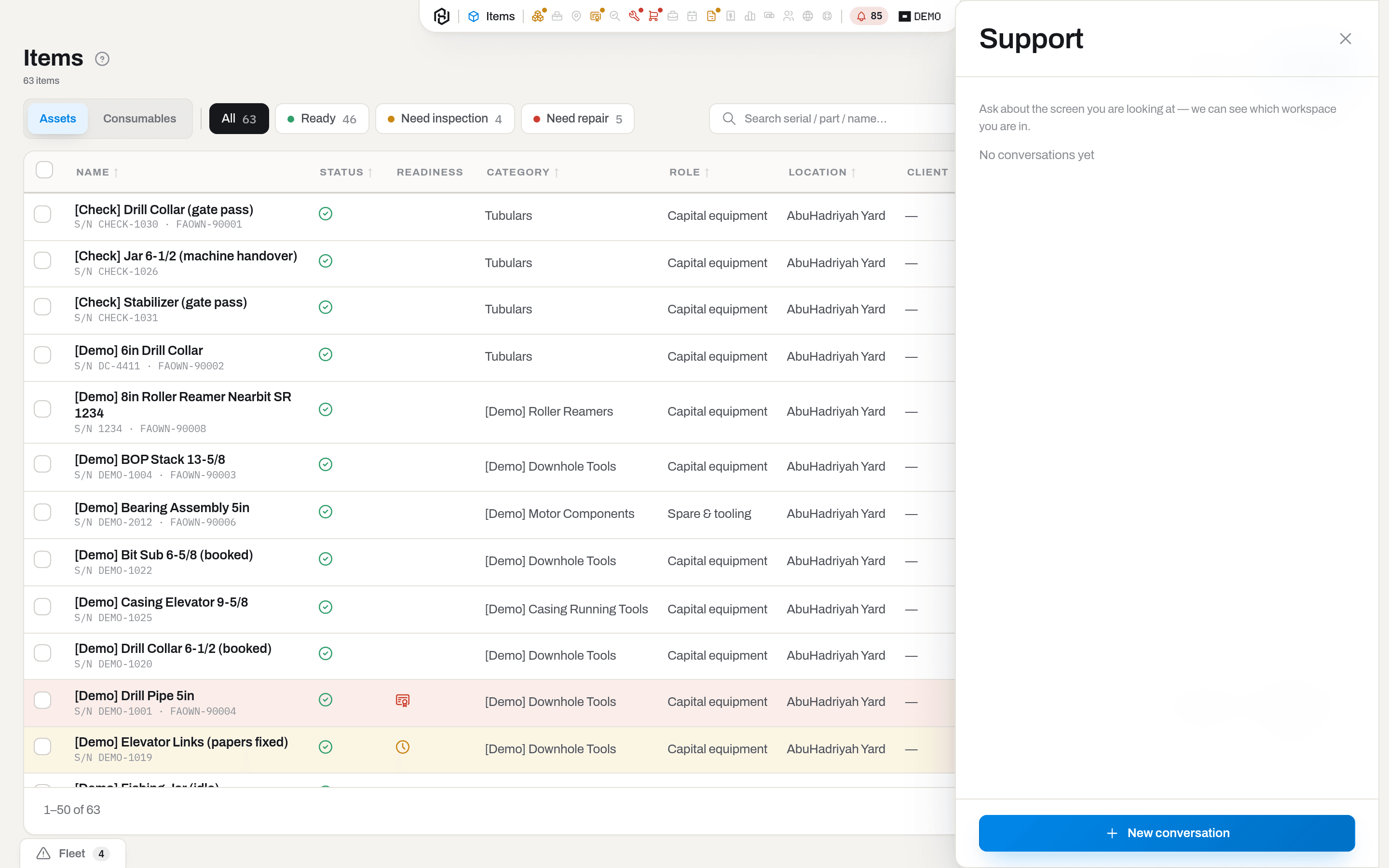
The panel
The panel opens on your open conversations. Pick one to read it and reply, or click New conversation to start one. The header's ‹ goes back to that list, the ✕ closes the panel — and neither loses anything: the conversation is on the server, not in the window.
The panel is deliberately not a modal. You can keep clicking around the app while it is open, which is the point: the conversation is usually about the screen you are looking at.
The section
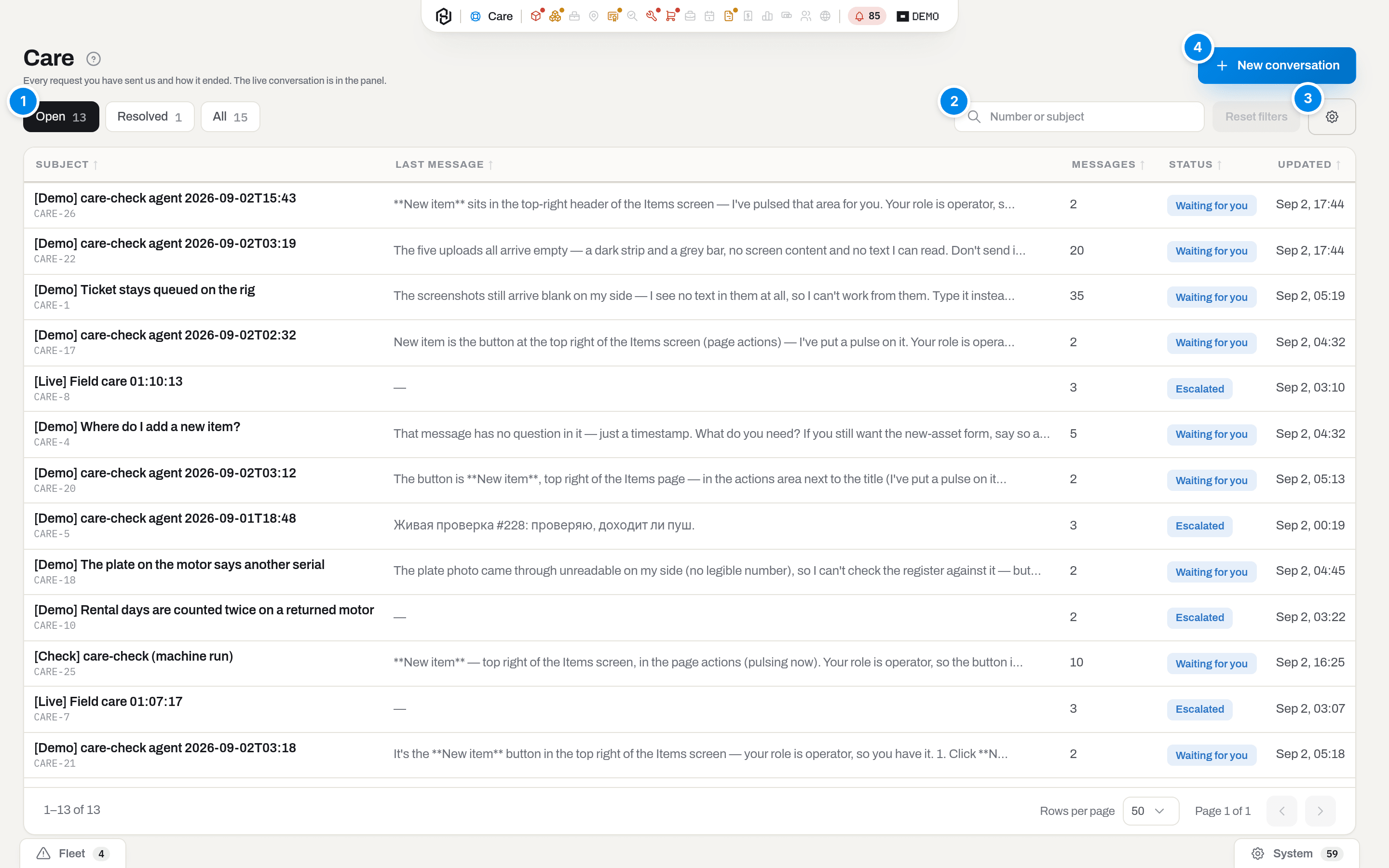
The list opens on Open — the conversations that are still going. Resolved holds the ones we have closed with an answer, All everything including the ones you closed yourself.
- Show — the three views, each with a count.
- Search — matches the number (CARE-3) and the subject.
- Columns — show or hide Last message, Messages, Status, Updated. Subject always stays.
- New conversation — opens the panel on the form. Everybody has it.
A row shows the tail of the talk, so the list can usually be read without opening anything. A click on a row highlights it; click the subject, click the row again, or press Enter to open the archive page of that conversation (Choose how a row click behaves); the back arrow leads to wherever you came from.
Key concepts
Who answers
An assistant answers first. It reads this manual and, when the question is about your own workspace, the same data you can see yourself — your register, your tickets, your plan and your role. It cannot see another workspace, and inside yours it cannot see anything a section you have no access to would hide from you.
It can also point. Ask where do I do this and it will move you to the right screen and put a pulse on the button for a couple of seconds. That is the whole of what it does to the app: it shows. It never clicks, fills in, saves or deletes anything for you — what happens to your data stays something you did.
Some things it hands to a person from Hafrix instead of answering: anything about money, access or data loss, anything this manual does not cover, and anything it is not sure about. So does every reply that does not pass review before it is sent. When that happens you see a dashed line in the thread saying so, the status becomes Escalated, and the answer comes from a person — in the same conversation, without you having to repeat yourself.
Reports of something being broken take a third path, and it is the one that ends fastest. See When you report a bug.
Note
Write to it the way you would write to a colleague. What you should not do is treat it as a way into the app: it has no power to change anything, and asking it to grant access or bypass a check only sends the conversation to a person.
When you report a bug
Say that something is broken and the assistant does three things at once: it gives you a way around it if there is a safe one, it writes the problem up as a defect — in its own words, as an engineering description, so nothing you wrote is copied anywhere — and it logs that description as a development task. You see Tracked as on the conversation from then on.
What happens next depends on the defect, and the conversation tells you which way it went.
- We fix it and ship it. For a narrow, reproducible bug the fix is written, proven by a test that fails without it, put through the full checks, reviewed, merged and deployed — and the conversation goes to Resolved with a line saying it is live. Try the thing again; if it still happens, say so in the same thread.
- A person takes it. Anything wider than that — a change to how something works rather than a repair, anything touching access, money or your data, or anything the checks or the review were not happy with — goes to a person from Hafrix. You see a line saying so, and the answer comes in this conversation.
Either way you are not asked to wait for news: the workaround, if there is one, arrives immediately.
Note
A fix never changes your data to make a problem go away. It changes how Hafrix behaves. If something is wrong in your records — a wrong number, a booking that should not be there — that is a conversation with a person, not a repair.
One request, one conversation
A conversation is a single request with a single thread. Everything about it — your follow-ups, our answers, the closing note — stays in that one place, which is why the subject matters: it is what you will scan the list for in a month.
Two unrelated problems belong in two conversations. It costs one extra click and saves the answer from being about two things at once.
Statuses
| Badge | Meaning | What moves it |
|---|---|---|
| Waiting for support | The ball is with us — the assistant is reading it | Our reply |
| Waiting for you | We answered and are waiting for you — usually for a detail we asked for | Your next message |
| Escalated | Handed to a person from Hafrix who can decide it | Their answer, or a fix |
| Fix in progress | It was a bug, it is accepted, and it is being fixed | The fix shipping, or a person taking it over |
| Resolved | Closed with an answer. Still yours to reopen | Your message reopens it |
| Closed | Finished. Nothing can be added | Nothing — start a new conversation |
Only Closed is final, and only you can put a conversation there.
How to
Start a conversation
Who: everybody.
- Open the Support chat in the capsule (the lifebuoy) and click New conversation. From the Care section, the New conversation button does the same thing.
- Fill in Subject — the one line you would use to describe the problem to a colleague.
- Fill in Message: what happened, what you expected, and what you saw instead. Names and numbers help — TCK-0024, SWF-000412, the exact wording of the red message.
- Add a screenshot with the paperclip if there is anything to show — see Attach a screenshot.
- Click Send.
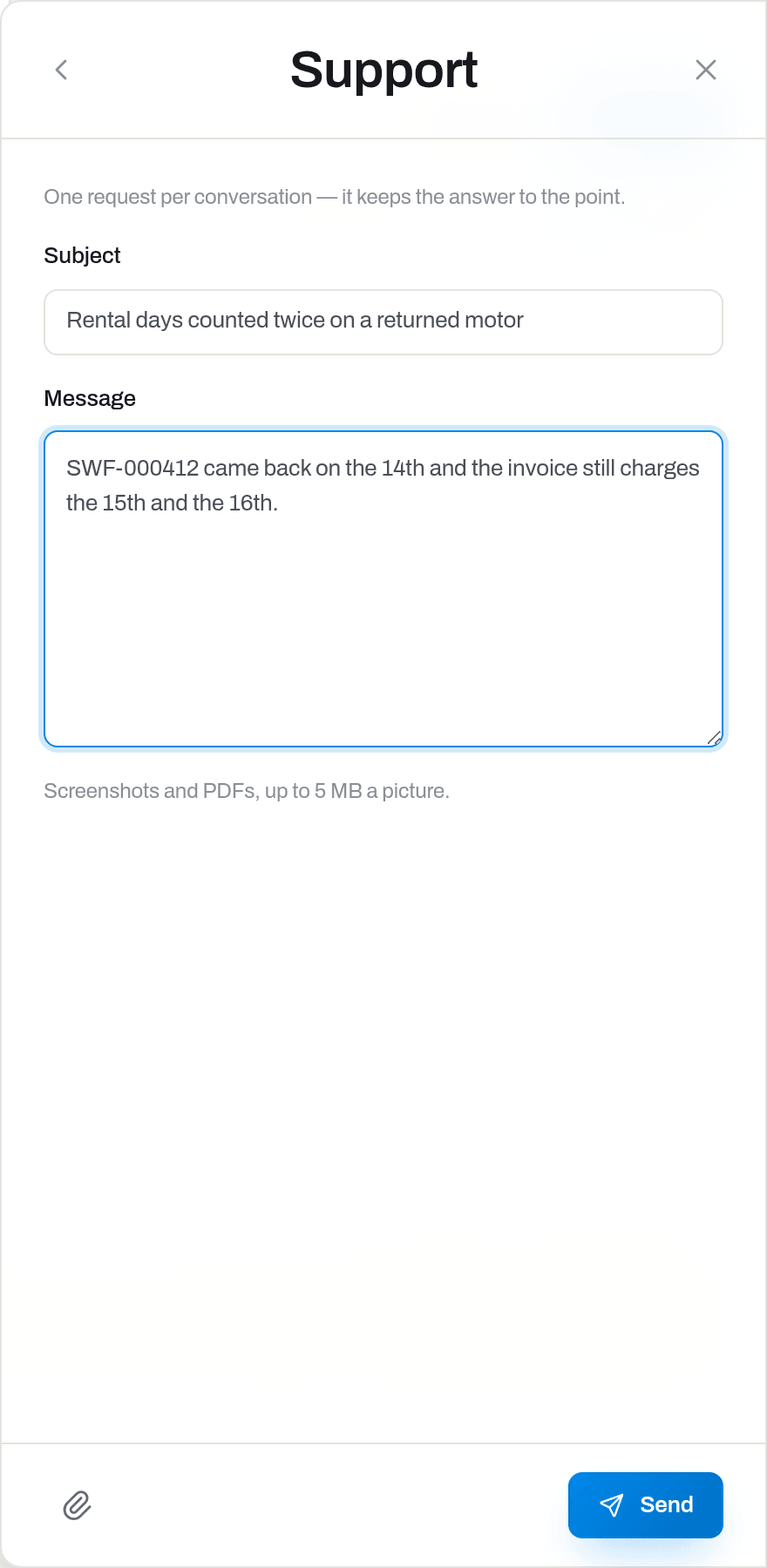
Result: the conversation opens at Waiting for support with your message as the first entry, and the panel switches to the thread. An email lands in your inbox as a receipt with the number (CARE-3) and a link back.
Do it from the screen the problem is on. The conversation is easier to answer when it starts where it happened, and the panel does not make you leave.
If it fails: a red field means Subject or Message is empty — a conversation without words is one nobody can answer.
Attach a screenshot
Who: everybody, in a new conversation and in any reply.
- Click the paperclip next to Send.
- Pick one or more files — PNG, JPEG or WebP pictures, or a PDF. Each picture can be up to 5 MB, a PDF up to 10 MB, and one conversation holds ten files in total.
- The file uploads straight away and appears as a chip above the box. Picked the wrong one? Remove it with the × on the chip.
- Write your message and click Send. The files go with it and show up in the thread under your words.
Result: the picture is part of the conversation — support looks at it directly, which is usually a better description of a defect than any retelling. A PDF is stored and read by a person; the assistant is told it is there but does not read it, so quote the line that matters.
The paperclip is only on the way in. Once a file has been sent it stays in the thread: the conversation is a record you can point at later, and a record that can be edited afterwards is worth nothing.
Take the shot of the whole screen if you can, error message included. Remember that a screenshot carries whatever was on the screen — close anything you would not put in a support thread first.
If it fails:
- Only PNG, JPEG or WebP images and PDF files can be attached — the file is something else. A
.docxor a.zipis not read here; export the page as PDF or take a picture of it. - … is larger than 5 MB — the picture is too big to be looked at. Screenshot the part that matters instead of the whole desktop.
- A conversation holds at most 10 files — start a new conversation for the next thing to show.
Follow a conversation
Who: the person who opened it.
- Open the Support chat and pick the conversation. From the archive page of a conversation, Continue in chat opens the same thread in the panel.
- Read the thread top to bottom: your messages sit on one side, ours on the other, and dashed rows are the system telling you something happened.
- Type in the box at the bottom and press Enter — Shift+Enter makes a new line instead. Send does the same.
The thread refreshes itself while the panel is open, so an answer that arrives while you are working simply appears — usually within a minute or two, and Support is looking into it… under the thread means it is being written. You do not have to sit and wait: a reply also lands in the bell (Support answered CARE-3), and closing the conversation sends you an email.
An answer may also move you. If it does, the panel takes you to the screen it is talking about, the title of that screen pulses for a moment, and a short pulse marks the element it means. What the answer did is listed right under it as small chips — Opened: Items, Shown on screen — and clicking a chip repeats the move or the pulse, so a hint you missed can be shown again. The conversation stays open across the move, and you can keep asking from where you landed.
The archive page in the Care section shows the same thread but does not let you write — one request has one place to answer in, and that place is the panel.
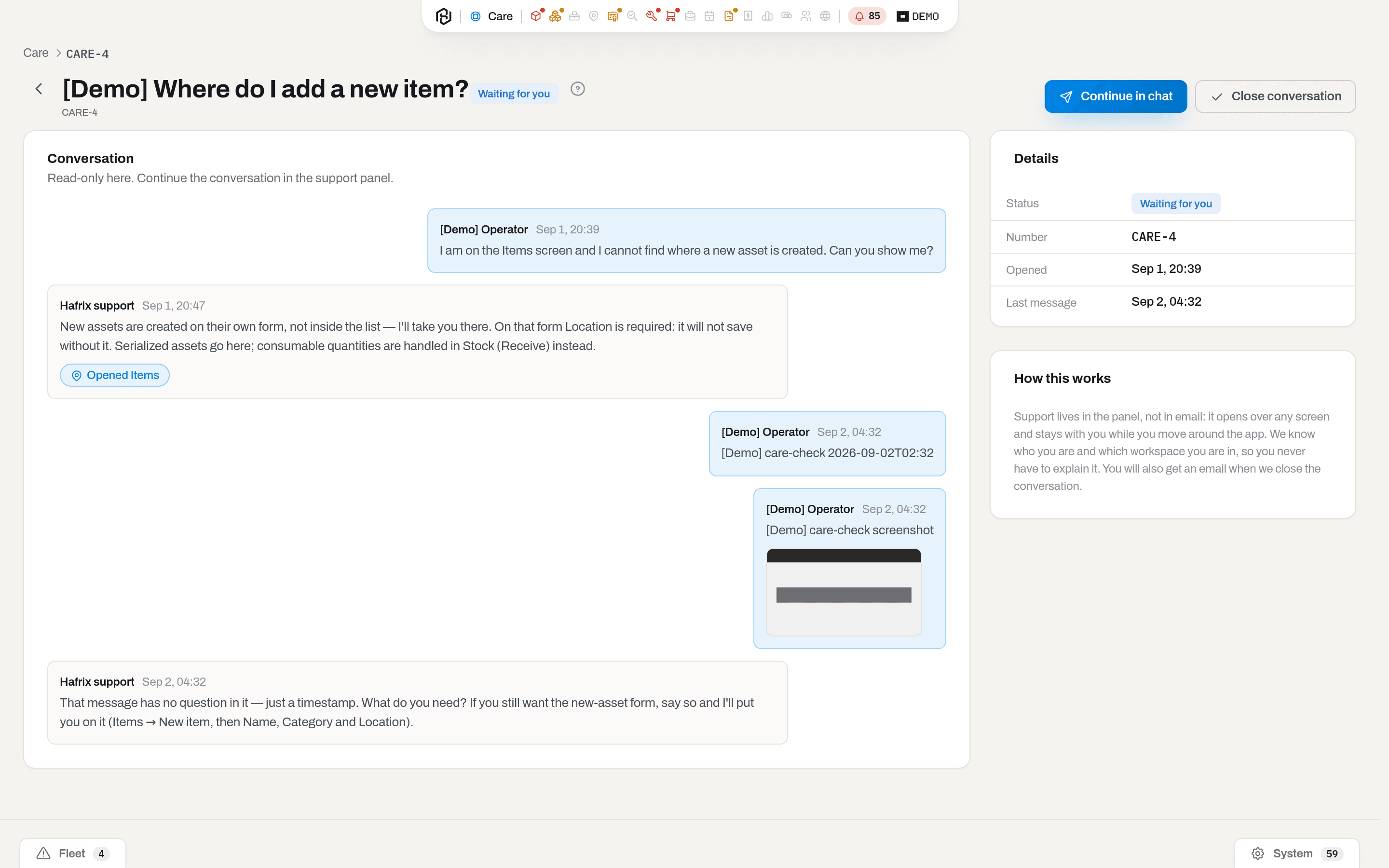
Result: your message joins the thread and the status goes back to Waiting for support.
If it fails: This conversation is closed — start a new one means the thread is Closed. Closed is final by design.
Reopen a resolved conversation
Who: the person who opened it.
Write in the same thread — open it in the Support chat and reply. A Resolved conversation reopens the moment you add a message, and it goes back to Waiting for support.
That is deliberate: "it is not actually fixed" is the most useful thing you can tell us, and it should not cost you a new conversation and a re-explanation.
Close a conversation
Who: the person who opened it.
- Open the conversation from the Care section — the archive page.
- Click Close conversation (top right) and confirm.
Result: the status becomes Closed. The thread stays readable forever; nothing more can be added to it.
Use it when you worked the problem out yourself — it takes the request out of our queue, which is the polite version of "never mind".
Fields
| Field | Meaning | Required | Who edits |
|---|---|---|---|
| Subject | One line naming the request. Shown in the list and in the emails | yes | Set once, when you open the conversation |
| Message | The request itself, and later every reply | yes | Everybody, in their own conversation |
| Number | CARE-1, CARE-2… — issued by the server, unique in your workspace | — | Nobody |
| Status | Where the conversation stands | — | Moved by what happens, never typed |
| Tracked as | The development task a confirmed bug became | — | Us |
What the system tells you
| When | Feed row | Who gets it | |
|---|---|---|---|
| You open a conversation | — | We have your message — CARE-3 | You |
| Support answers | Support answered CARE-3 | — | You |
| The conversation goes to a person | CARE-3 is with a person now | — | You |
| A report is confirmed as a defect | CARE-3 is confirmed as a defect | — | You |
| The conversation is resolved | CARE-3 is resolved | CARE-3 is resolved | You |
Every message does not get an email on purpose: this is a chat, and a letter per line would teach you to ignore all of them. The two emails mark the edges of the conversation — we have it, and we are done with it.
What about email?
care@hafrix.com is a real mailbox and it is the Reply-To on everything we send, so writing to it does reach us. It is just slower, and it cannot see what you see: a letter has no idea which workspace you are in or what your role is, and half of any support conversation is spent establishing exactly that.
Write to it and you will get an automatic answer pointing you back here. A person still reads what you sent.
Related
- Interface basics — the bell, where the Support answered row shows up.
- Roles & access — why a section may be missing from your capsule, which is the most common thing people open a conversation about.
- Account — your own password, second factor and devices.
FAQ
Can my administrator read my conversation? — No. Support threads are personal; only the person who opened one can see it.
Can I attach a screenshot? — Yes, with the paperclip next to Send — see Attach a screenshot. It is the best thing you can do for a quick answer: support looks at the picture itself. Words still help, though — say what you expected to see, because the picture only shows what happened.
In which language should I write? — Yours. The conversation records the language you were using, and the answer comes back in it.
Am I talking to a person or to a machine? — To an assistant first, to a person whenever the assistant hands the conversation over — and the thread says which, so you are never guessing. See Who answers.
Can it do the thing for me instead of showing me? — No, and that is on purpose. It can move you to a screen and highlight what to press; pressing it stays yours, so nothing happens to your data that you did not do.
How long does a fix take? — There is no promise, and the conversation will not pretend there is one. A narrow bug can be live the same day; anything a person has to decide takes as long as deciding it takes. The thread tells you when it moves.
Does anyone read the fix before it ships? — It is reviewed, but by a machine, not by a person: the change has to be proven by a test that fails without it, it has to pass every check the product's own developers run, and a separate reviewer has to agree it does only what the report asked for. Anything that does not fit that description stops and goes to a person instead.
It answered something wrong. What now? — Say so in the same thread. Every reply is reviewed before it is sent, but review is not proof: telling us it was wrong is what puts the conversation in front of a person.
Updated 2026-09-02
New to Hafrix?
See this workflow in your operation
Explore the platform behind these guides: equipment inventory, rentals, maintenance and operational finance. Tell us which workflow you want to see.