Quotes & sales orders
The price you offer a client before any work happens — written from your own price books, sent as a PDF, and, once the client says yes, turned into the job with its rates and bookings already in place.
Where: capsule → Operations → Quotes (/quotes), between Tickets and Invoices. If the entry is missing, your group has not been granted this section — see Roles & access.
Who can do what
| Role | In Quotes |
|---|---|
| Viewer | Open the list and the cards, switch views, filter |
| Operator | + Print — the PDF goes out to a client, so printing starts one rung above reading |
| Manager | + New quote, Edit, Add line, edit and remove lines, Send, Accepted, Declined, Convert to job, Revise, Save revision |
| Admin | + nothing extra here |
Note
A quotation is a promise the company makes about money, so writing one starts at Manager — the same rung as sending an invoice.
At a glance
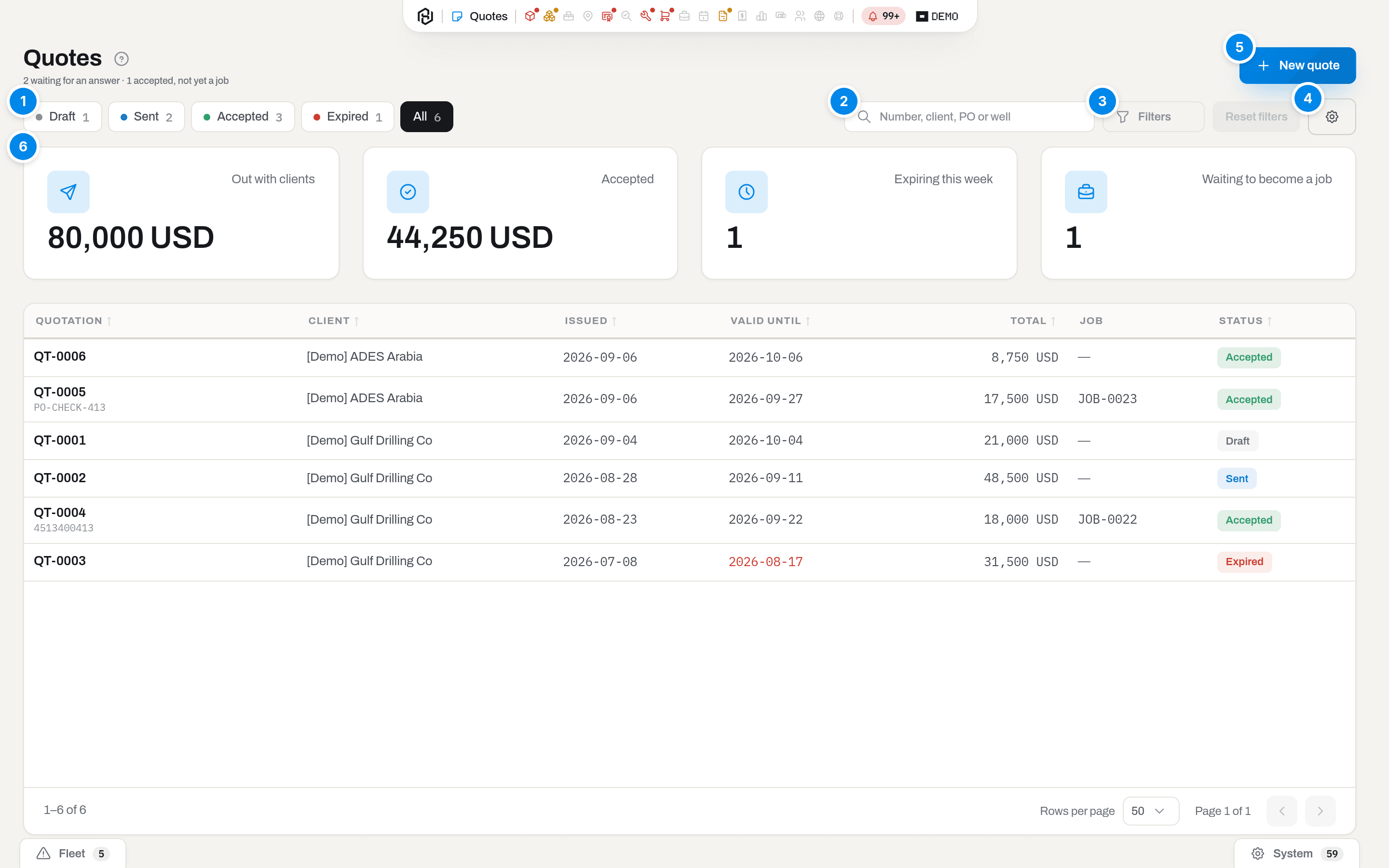
- View — the quick views: Draft, Sent, Accepted, Expired, All, with live counts. The list opens on Sent, because a quotation waiting for an answer is the one that needs you today.
- Search — matches the number, the client name, the client PO, the well and the rig.
- Client and Job — two dropdowns in the table's own header: the button shows the pick. Client narrows to one company; Job narrows to whether the quotation has already been converted or not. There is no filters panel and no rail on this screen — every condition lives in the header.
- Issued — a third dropdown, the same button style. It lists ready periods — Any time, This month, Last 30 days, This quarter — and Custom range…, which opens two date fields, From and To, inside the same menu. The button reads Issued: any time until you pick one, then shows the period or the range; Any time clears it.
- Columns — which columns to show; the choice is remembered per person.
- New quote — opens the dialog that starts a draft (Manager and above).
- The four figures — Out with clients and Accepted are money, counted over all quotes and split per currency rather than added into one number. Expiring this week and Waiting to become a job are counts: the first is your call list, the second is work you have already won and not yet booked.
A quotation whose Valid until date has passed shows it in red and carries an Expired badge instead of its status.
Key concepts
A quotation is a document, not a calculator
Prices in the price books change. A quotation does not: every line stores its own rate, taken from the books on the quotation date, and keeps it. Raise the rate a week later and the paper the client is reading stays exactly as it was sent.
Two rules follow, and nothing in this section breaks them:
- only a draft can be edited. Once it is sent, the client is reading that number — a new price is a new quotation, not a correction of the old one;
- a quotation becomes a job once. After Convert to job the document is frozen for good and points at the job it became.
Statuses
| Badge | Meaning | What changes it |
|---|---|---|
| Draft | Being written. Lines can be added, priced, corrected, removed | New quote creates it |
| Sent | The PDF has gone to the client and you are waiting for an answer | Send |
| Accepted | The client agreed. The next step is Convert to job | Accepted |
| Declined | The client said no, with a reason you can read a year later | Declined |
| Expired | Valid until passed with no answer. Set overnight, not by a person | The validity date passing |
An expired quotation is not dead: if the client comes back, Accepted still works and the document returns to the cycle. The date is there so paper does not hang open for ever, not so an answer gets thrown away.
Full list of badges across the product — Statuses and badges.
Where the price comes from
A line with no rate of its own asks the books, on the quotation date, exactly the way an invoice would:
| Line kind | Book asked | If the book is silent |
|---|---|---|
| Equipment | Rental price book — client first, then the item, then the nearest category, then the counter price | The line comes in with No price |
| Labor | Labour price book — client first, then the speciality | The line comes in with No price |
| Consumable, Service | No book yet — type the price by hand | — |
The book also carries the terms, and they travel with the line: the standby rate and the minimum charge are copied into the quotation, printed next to the rate, and later become the job's own rates.
Type a rate yourself and the line is marked Entered by hand — that is your negotiated price, and nothing overwrites it afterwards, not even Edit on the quotation date or Reprice.
Note
A rate in a currency other than the quotation's is converted through the tenant's exchange table. If the pair is missing, the line comes in with No price rather than at an invented rate.
A quotation that cannot go out
Send is missing — not greyed out, missing — when the server would refuse:
- the quotation has no lines;
- some line has No price;
- Valid until is already in the past.
The same rule everywhere in the product: there is no button where the server says no.
How to
Write a quote
Who: Manager and above.
- Click New quote (top right) — or open a client card and click New quote there, and the client is already chosen.
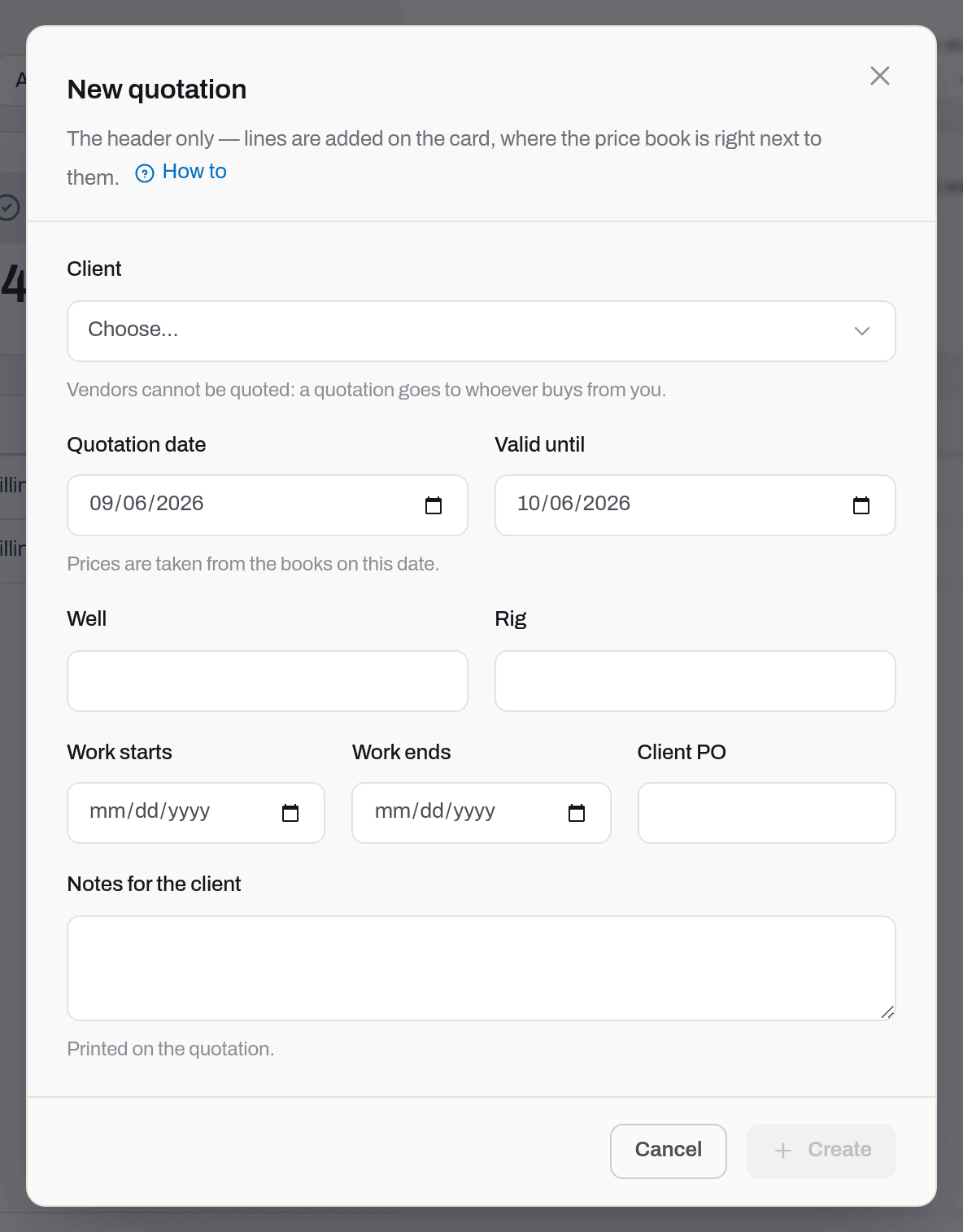
- Choose the Client. Vendors are not offered: a quotation goes to whoever buys from you.
- Check the Quotation date — this is the date the prices are taken on — and Valid until, which starts 30 days out.
- Fill in Well, Rig and the expected Work starts / Work ends if you know them. They are printed, and they become the job's period on conversion.
- Client PO if they have already given you one.
- Leave Currency on From the contract to follow the client's contract currency, or pick one when this quotation is priced differently.
- Notes for the client, which are printed.
- Click Create.
Result: the quotation gets its number — QT-0001, QT-0002, … — and opens as a Draft with no lines. Unless you picked one, the currency comes from the client card; you can still change it with Edit while the quotation is a draft — book-priced lines are priced again in the new currency. A price you typed by hand keeps its number but now reads in the new currency, so check it. The tax schedule follows the client, falling back to the tenant's default — see Tax by schedule — so you do not retype the contract.
If it fails: Requires tenant role 'manager' or higher — ask an admin for the role.
Tip
Delete a draft you started by mistake — see Delete a draft quote — and its number goes back into the pool: nobody has seen it. Numbers are only kept for paper that went out.
Add and price a line
Who: Manager and above, on a draft.
- Click Add line in the header.
- Choose the Kind — Equipment, Labor, Consumable, Service or Sale — and the Unit: day, week, month, hour or each. Sale is a fleet unit you are selling outright: pick it in Fleet unit by serial, and the line is priced per piece.
- Tell the price book what the line is: for a Labor line pick the Crew role; for any other kind pick the Category. A line that already names an item takes its category from the item, and the field is locked.
- Type the Description the client will read.
- Set the Qty. Leave Rate empty to let the price book fill it in, or type your own price.
- Click Save.
Result: the line appears with its amount, and the totals of the document are recalculated. The Priced by column (hidden by default) names what gave the rate — Rental price book, Labour price book or Entered by hand.
To change the order the lines are printed in, use the Move up and Move down arrows at the end of a line while the quotation is a draft.
If it fails: only a draft can be edited — the quotation has already gone out; write a new one.
Tip
Clearing a rate you typed by hand hands the line back to the book. That is the way back from a negotiated price to the contract one.
Reprice from the books
Who: Manager and above, on a draft or an open revision.
A line takes its book price once, when it is added. If the price book changed after you built the draft, the lines keep the old rate until you ask again.
- Click Reprice in the header. It shows once the quotation has at least one line.
Result: every line not marked Entered by hand asks its book again on the quotation date — rate, standby and minimum charge — and the totals are recalculated. Your hand-typed prices stay. A line with No price gets another chance, and a line whose book is now silent comes in with No price, so Send (or Save revision) disappears until you price it.
If it fails: only a draft or an open revision can be edited — the quotation went out while the page was open; click Revise first.
Delete a draft quote
Who: Manager and above, on a Draft only.
- Open the draft and click Delete in the header.
- Read the confirmation and click Delete draft.
Result: the quotation and its lines are gone and you are back on the list. Nothing else is touched: a draft has no job, sales order or letter behind it yet.
If it fails: Quote QT-0001 is sent — only a draft … — the quotation went out while the page was open, and the client already has this paper. Mark it Declined, or let it expire; to change it, revise it. Delete is not shown on a sent quotation, even with a revision open, nor to Operators and Viewers.
Read the quotation card
The card is one page: the lines and the client notes on the left, the money and the trail on the right.
- Money — subtotal, tax and total, all in the quotation's currency;
- Details — client, status, the two dates, well and rig, the proposed period, who sent it and where, who marked it accepted and against which reference, and the job it became;
- Internal notes — never printed, never sent.
A yellow note above the card counts the lines with no price; a blue one appears once the quotation has become a job and links to it.
Tax by schedule
A quotation is taxed by the same tax schedule as an invoice — see Tax by schedule for what a schedule is and how several jurisdictions add up. On creation the quotation takes the client's default schedule, falling back to the tenant's default when the client has none; pick a different one, or No schedule (manual rate) to price it as a single percentage by hand, while it is still a draft.
Converting the quotation to a job carries the schedule with it — the job is charged under the same schedule, and the invoices it raises inherit it from there in turn.
Send the quotation
Who: Manager and above.
- Click Send.
- Leave To empty to use the client's Orders contact, or type another address.
- Put one more address in Cc if someone else should get a copy — the buyer, say. Optional.
- Add a Message if you want one — it appears in the email above the figures.
- Click Send.
Result: the status becomes Sent, the PDF goes out as an attachment, and everyone else in the section sees a Quotation sent row in their feed. Replies come back to you, not to support. Sending again is normal — the client lost the email — and only counts the send.
If it fails: No contact for this client — add one on the client card; lines have no price — price them first.
Revise a sent quote
Who: Manager and above, on a quotation that is Sent.
The client already has a copy of this paper. When the deal changes — a rate they pushed back on, an extra line, a different well — Hafrix does not silently rewrite what went out; it opens a new, numbered revision instead.
- Click Revise. The card unlocks exactly as if it were a draft again: lines, rates, dates, notes.
- Make the changes the client agreed to. While the revision is open, Send, Accept and Decline are hidden — the client would otherwise get, or answer, the old letter.
- Click Save revision, say why, and leave the checkbox ticked to email the client the revised PDF — or clear it if you will hand it over yourself.
Result: the header now reads QT-0001 Rev B, and a Revisions card lists every letter with its date, who saved it and the reason. With the checkbox ticked and a contact on file, the client gets the revised PDF attached with the reason in the text; the first revision (Rev A, taken the moment the quotation was first sent) never mails a letter of its own — the client already has that copy from the original Send. Print on the card always gives the current letter — to see an earlier one exactly as it went out, open its row in Revisions and print from there. To see exactly what moved between two letters, see Compare two revisions.
There is no undo. Clicking Revise by mistake is not free to walk back: save the revision anyway, with a reason such as opened by mistake — the extra letter costs nothing on paper.
If it fails: only a sent quotation can be revised — a draft does not need one, and a quotation that is accepted, declined, expired or already converted to a job is past the point of revising. … has a revision in progress — save it first; a quotation cannot be sent again while a revision is open. … has no revision in progress — click Revise before Save revision. Saving with no reason is refused — it is the line the next reader of this quote will ask about. Save revision is not shown while a line has no price or the quotation has no lines at all — the saved letter goes to the client just like Send, so it is held back by the same checks.
Mark it accepted or declined
Who: Manager and above, on a sent quotation.
- Accepted takes the client's reference — their PO number, or the email that confirms it — and puts the quotation in line for conversion. Everyone in the section sees it in their feed: that is how dispatch learns equipment will be needed.
- Declined takes a reason, and it is required. It is the thing you read a year later when the same client asks for the same tools.
Convert it into a job
Who: Manager and above, on an accepted quotation that is not a job yet.
- Click Convert to job.
- Check Job starts and Job ends — they come from the quotation and can be adjusted here.
- Choose how equipment is billed: By booking period (rental counted from the dates of the booking) or By field ticket (see Jobs).
- Click Convert to job.
Result: three things happen in one go, and the card lands on the new job:
- a job is created with the client, the period, the PO, the contract number and the currency of the quotation;
- every priced Equipment line becomes a job rate — the price you agreed on, above the client's book, so the invoice counts it the way you sold it. Its Qty on the job's Job rates card: a line for one named item is 1; a line for a category is the merged lines' quantity divided by how many days — or, only when the quotation's period is a whole number of weeks, weeks — fit in that period (a motor quoted for 10 days on a 10-day job is Qty 1; two merged for 10 days each are Qty 2). Hourly and monthly lines are always Qty 1. When the period does not divide evenly, or the quotation has no period, Qty is 1 and you adjust it on the Job rates card yourself;
- every Equipment line that names a specific item becomes a Reserved booking for the job's period.
The quotation is frozen and from now on points at the job.
If it fails: Item is already booked — somebody else took that tool for those dates. Nothing is created: a job with half the promised equipment is worse than a clear refusal. Free the item in Dispatch, or edit the booking that holds it, and convert again.
Convert it into a sales order
Who: Manager and above, on an accepted quotation that has not already become a job or an order.
A quotation has one outcome, not two: Convert to job turns it into work — rentals booked, labour scheduled, billed over time. Convert to sales order turns it into a sale — equipment or parts that leave the yard for good against a single bill. Whichever button you click first wins; the other disappears, and the quotation carries a link to whichever it became.
- Click Convert to sales order.
- Click Convert to sales order again to confirm — there is nothing to fill in: the order takes the client, currency, client PO, tax schedule and notes exactly as they stand on the quotation.
Result: a new sales order opens as a Draft, and the card lands on it. Only Sale and Consumable lines that name a specific item or a category come across — a Sale line for one fleet unit becomes a fleet-unit line with its price, a line for one consumable becomes a goods line with its quantity; a line for a category becomes a goods line priced and quantified the way the quotation had it. Equipment, Labor and Service lines are left behind, even when an equipment line names a fleet unit: they describe rental and work, not a sale. To sell a unit, quote it as a Sale line. Every line keeps the price it was quoted at, entered by hand — the order does not go back to a price book. The quotation is frozen and now points at the order.
If it fails: … has no sale or consumable lines with a unit or category — convert it to a job instead — nothing on the quotation is sellable; write the rental as a job. A named item that is no longer ours to sell — rented in, already out of the fleet, or booked on a job — refuses the whole conversion the same way a booking clash refuses Convert to job; free or drop that line and convert again. Quote … has already become … — a quotation converts once, into a job or an order, never both.
Print or download the PDF
Who: Operator and above.
Click Print on the card. The PDF opens in a new tab: your logo, the client's details, the scope with rates — and the standby and minimum columns when any line carries them — the totals and the validity line. A draft carries a DRAFT watermark; an expired or declined quotation carries its own, so an old print is never mistaken for a live offer.
The document is in English: it goes into the client's purchasing department.
Fields
| Field | Meaning | Required | Who edits |
|---|---|---|---|
| Client | Who the offer goes to. Vendors are not offered | yes | Manager+, at creation |
| Quotation date | The date the book prices are taken on | yes | Manager+, on a draft |
| Valid until | How long the client has to answer. Cannot be before the quotation date | yes | Manager+, on a draft |
| Well / Rig | Where the work is. Printed, and copied to the job | no | Manager+, on a draft |
| Work starts / Work ends | Expected period. Becomes the job's period | no | Manager+, on a draft |
| Client PO | Their order number, if they already gave one | no | Manager+, on a draft |
| Contract | Frame agreement number, printed on the paper | no | Manager+, on a draft |
| Tax schedule | The catalog schedule this quotation is charged under — see Tax by schedule | no — No schedule (manual rate) falls back to Tax rate, % | Manager+, on a draft |
| Tax rate, % | One manual rate for the whole document, used only while Tax schedule is empty | no | Manager+, on a draft |
| Notes for the client | Printed under the table | no | Manager+, on a draft |
| Internal notes | Never printed, never sent | no | Manager+, on a draft |
| Kind | Equipment, Labor, Consumable, Service | yes | Manager+, on a draft |
| Unit | day, week, month, hour, each | yes | Manager+, on a draft |
| Rate | Empty = the book decides; a number = your own price | no | Manager+, on a draft |
What the system tells you
| When | Feed row | Who gets it | |
|---|---|---|---|
| A quotation is sent | Quotation sent | Quotation … from … with the PDF attached | Feed: everyone in the section except the sender. Email: the client |
| A client accepts | Quotation accepted | — | Everyone in the section except whoever marked it |
| A client declines | Quotation declined | — | Everyone in the section except whoever marked it |
| Valid until passes with no answer | Quotation expired | — | Everyone in the section |
| A sales order is sent | Sales order sent | Sales order … from … with the PDF attached, when email is on | Feed: everyone in the section except the sender. Email: the client |
| A sales order is confirmed, shipped or invoiced | Sales order confirmed / shipped / invoiced | — | Everyone in the section except whoever did it |
There is no daily email about expiring quotations, and that is deliberate: an overdue invoice is money missing from the bank, a quotation nobody answered is a call you have not made. It lives in the feed, where you look for it.
Related
- Jobs — what an accepted quotation becomes, and where its rates and bookings land.
- Invoices — the bill that follows the work the quotation promised.
- Settings & catalogs — the rental and labour price books a quotation reads.
- Clients — the client card, its contacts and its currency.
FAQ
Why can't I edit a sent quotation? — Because the client is reading it. A different price is a different document; write a new quotation and send that.
The client agreed by phone after it expired. Now what? — Mark it Accepted anyway. The validity date exists so paper does not hang open for ever, not so an answer gets thrown away.
Why is there no price on my consumable line? — Consumables and services have no price book yet; type the price by hand. Rental and labour read their books automatically.
Can I quote a tool that is already booked? — Yes: a quotation books nothing. The booking is made at Convert to job, and that is the moment a clash is refused.
Where did the standby rate come from? — From the price book line that priced the equipment. It is copied into the quotation as a snapshot, printed next to the rate, and carried to the job on conversion.
Sales orders
The document for equipment or parts that leave the yard for good — sold, not rented — from the price you agreed through the paperwork that moves it out and the bill that closes it.
Where: capsule → Operations → Sales orders (/sales-orders), right after Quotes — the same section, so the same grant opens both. If the entry is missing, see Roles & access.
Who can do what
| Role | In Sales orders |
|---|---|
| Viewer | Open the list and the cards, switch views, filter |
| Operator | + Print — the PDF goes out to a client, so printing starts one rung above reading |
| Manager | + New sales order, Add line, edit and remove lines, Confirm, Ship, Create invoice, Cancel, Send |
| Admin | + nothing extra here |
Note
A sales order sells company equipment outright — the same rung as writing a quotation or sending an invoice, so it starts at Manager.
Most orders arrive already filled, from an accepted quotation's Convert to sales order; a New sales order here starts one from nothing, for a sale with no quotation behind it.
The list. Quick views walk the same one-way ladder the card does — Draft, Confirmed, Shipped, Invoiced, All — plus Cancelled, the one exit that is not on that ladder. Search matches the order number, the client name and the client PO. Filters adds Client and an Ordered from / Ordered to window. The Quote, Shipment and Invoice columns are empty until the order reaches that step, then carry the document's number.
Write a sales order
Who: Manager and above.
- Click New sales order.
- Choose the Client. Vendors are not offered: an order goes to whoever buys from you.
- Check the Order date, and set the Currency if the sale is not in your default one.
- Client PO if they have already given you one, and Payment terms, days if they differ from the client's own terms — leave it empty to fall back to the client's terms, then the workspace default.
- Click Create.
Result: the order gets its number — SO-0001, SO-0002, … — and opens as a Draft with no lines. From there, Add line puts on either a Fleet unit (picked by serial from the item picker; its description and serial come from the item card; the price you type) or Goods (a description you type, a quantity and a unit — each or meter). Every line takes its own Price and Disc % by hand: unlike a quotation, a sales order reads no price book — there is no catalog behind a one-off sale. Lines can be added, priced, corrected and removed only while the order is a Draft.
If it fails: Requires tenant role 'manager' or higher — ask an admin for the role.
Confirm, ship and invoice
Who: Manager and above. Ship also needs the Items section (it marks the units as sold) and Create invoice the Invoices section; if a group closes either one to you, that button is not shown. Printing needs Operator and above.
The card is one page, like a quotation's: lines and notes on the left, money and the document trail — From quotation, Shipment, Invoice — on the right. An order walks four steps, each one narrowing what can still change:
- Confirm — freezes the lines (at least one is required, and every line needs a price above zero) and re-checks that every named fleet unit is still sellable: still owned, still in the fleet, not booked on a job, not on another confirmed order. Draft becomes Confirmed.
- Ship — on a confirmed order that names at least one fleet unit. Pick the date shipped, or leave it for now, and confirm. In one stroke this creates a delivery note
SS-…(its paper prints from the order card — see below) and moves every fleet-unit line out of the park as Sold — the same disposal event as any other write-off, with the order and the shipment on its trail. This is permanent: cancelling the order afterwards does not bring the units back. An order of Goods lines only has nothing to ship — skip straight to Create invoice once it is Confirmed. - Create invoice — on a Shipped order, or on a Confirmed one with no fleet units. Opens a draft invoice
SI-…, kind Sale, with the order's lines carried over at their discounted price and its own payment terms (or the client's, or the workspace default). From there the invoice lives the ordinary invoice life — send it, record payment, void it. Status becomes Invoiced. - Cancel — on a Draft or a Confirmed order, with a reason. Once an order has shipped it cannot be cancelled: the units are already gone. Voiding the invoice later returns the order to Shipped or Confirmed, but never undoes the shipment.
Print gives the order's own PDF — client, lines, prices and totals. Once the order has shipped, three more buttons print the shipment's paper: Print shipment (the delivery note SS-…), Bill of lading (BOL-SS-…) and Packing slip (PS-SS-…). They need only the Sales section, not Jobs or Dispatch. The bill of lading prints with blank lines for the carrier, truck and signatures — fill them in by hand, or record them on the card itself (see Transport, signatures and the shipment email). Send emails that PDF to the client: leave To empty to use the client's own contact, add a Message if you want one, and click Send. It does not move the order along its own status ladder — a cancelled order is the only one that refuses it — and the card records Sent with the date and address; sending again just updates that mark.
If it fails: Add at least one line before confirming the order — an empty order confirms nothing. … has no price — a sale at zero is not confirmed — type a price on that line. … is already on confirmed order SO-… — a unit is sold once; cancel the other order or drop the line. … is shipped — confirm it before shipping (or the reverse) — actions run in order, one status at a time. Nothing to ship: the order has no fleet units — invoice it directly — a goods-only order has no shipment step. A fleet unit sold, retired or booked since it was added refuses Confirm or Ship the same way an unsellable line refuses Convert to sales order — free or drop the line and try again. Cancelling an order requires a reason — say why; it is the line the next reader will ask about. Goods cannot ship in the future — the ship date can be today or earlier. This line comes from a sales order — lines of an SI- invoice built from an order cannot be removed one by one; delete the draft (or void the invoice) and invoice the order again. A cancelled order that came from a quotation stays linked to it: the quotation is not reopened — issue a new one.
Transport, signatures and the shipment email
Who: Operator and above with the Sales section — the Jobs and Dispatch sections are not needed. Sign also needs the Items section: the signature image is stored on the sold unit, and without that section the button is not shown.
Once the order has shipped, a Transport card appears under the lines — the on-screen bill of lading of the shipment SS-…, the same card the delivery-notes journal shows for rentals. Edit records the carrier, carrier reference, driver and phone, truck and trailer, origin and destination, pieces and weight, departure and arrival times. Below it are three signatures: Released (your yard hands the goods over), Carrier (the driver takes them — this also stamps the departure) and Delivered (the buyer receives them — this stamps the arrival). Only one order is enforced: Carrier must sign before Delivered. Released can be taken at any point until the buyer signs — the buyer's signature closes the transport, so a signature still missing then stays missing. Each one asks for the signer's name and a signature drawn on the screen.
The buyer's Delivered signature is the signature of the shipment itself: the delivery note SS-… becomes signed, Print shipment from then on gives the signed copy, and the office sees "SS-… signed by the buyer" in the notification feed. Once the buyer has signed, the transport is closed and cannot be edited.
Email shipment sends the delivery note SS-… to the client as a PDF attachment: leave To empty to use the client's orders contact, add a Message if you want one, and click Send. It can be sent before or after the buyer signs — after signing, the attachment is the signed copy.
If it fails: The carrier signs first — the buyer cannot receive before the driver has picked the goods up. This role has already signed — each signature is taken once. A signature on screen needs its image or The signature image … — clear the pad and sign again. This client has no contact email — add one on the client card, or type an address in To. Sales order SO-… has not been shipped yet — transport and the shipment email appear only after Ship.
Updated 2026-09-29
New to Hafrix?
See this workflow in your operation
Connect equipment availability, dispatch and billing in one rental workflow. See how Hafrix fits the way your team runs a job.