Field tickets
One day of one job, written down and signed on the rig: what ran, who worked, what was used up — the paper the office approves and the invoice is later built from.
Where: capsule → Operations → Tickets (/tickets). If the entry is missing, your group has not been granted this section — see Roles & access.
Who can do what
| Role | In Field tickets |
|---|---|
| Viewer | Open the queue and the documents, filter, sort and hide columns |
| Operator | + New ticket, edit a draft, Add line, Edit header, Submit, Reopen as draft, delete a draft, upload files |
| Manager | + Approve, Reject, Undo approval — one by one or over a selection |
| Admin | + nothing extra here — approval is a manager's job, not a privilege of rank |
Note
Tickets are usually written in the field app on a phone, offline, and only approved here. Filing from the phone is a separate story — see Field app.
At a glance
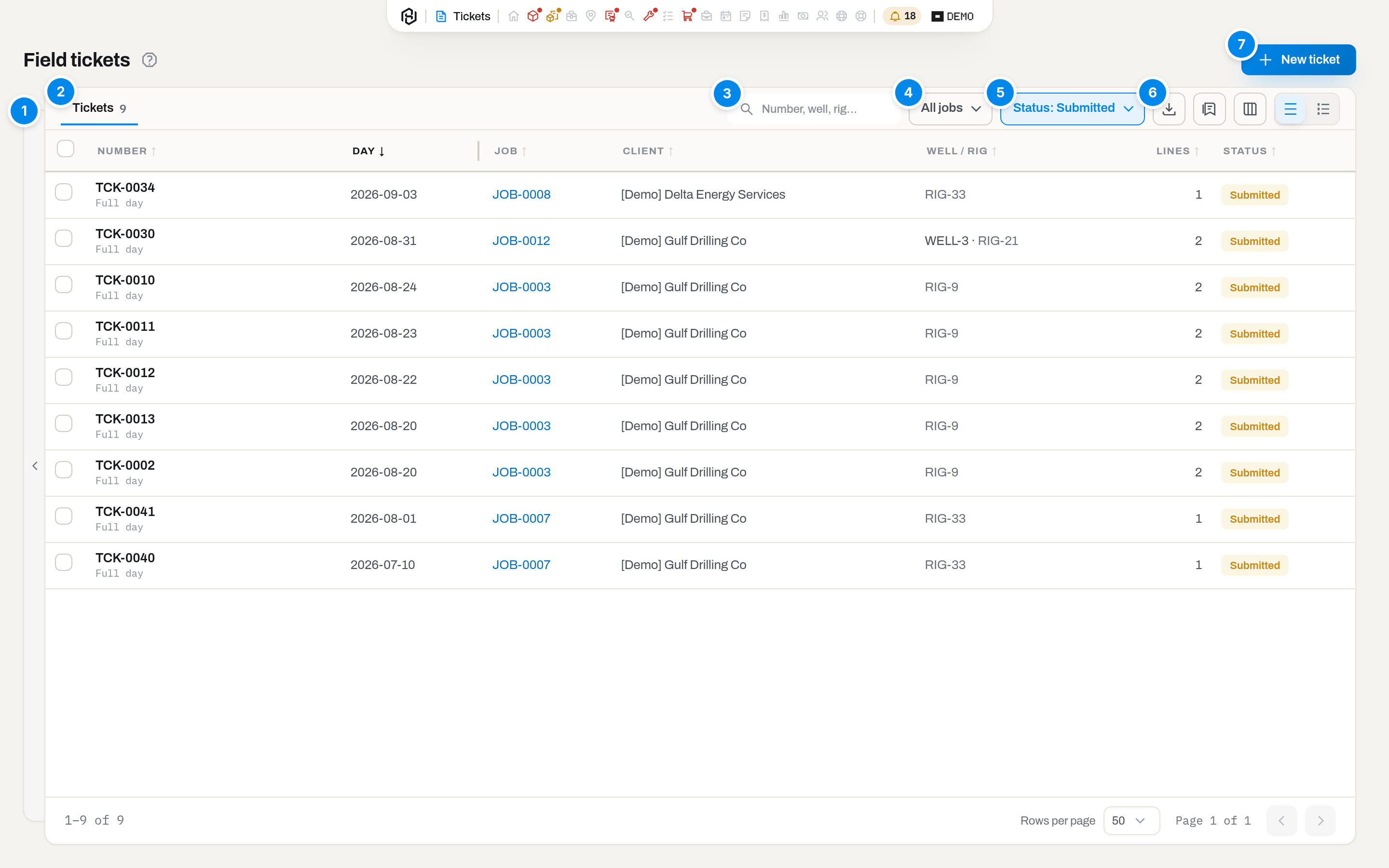
The queue is your inbox, not an archive: it opens on Status: Submitted — what is waiting for approval.
- Filters — a rail at the left edge of the list: a handle on its own outer edge opens it, and a click tucks it back to a thin 22px strip. Below 1200px wide the strip is gone and a Filters button, first in the table's header, opens the same panel as an overlay instead. The queue narrows but stays in view and recounts itself as you pick; a set field is outlined and carries a × that drops that one condition, and every visit starts with the rail tucked away. Inside, three groups:
- Client — defaulting to All clients.
- Day — one period button, Day: any time until you pick This month, Last 30 days, This quarter or Custom range… for your own from and to dates.
- Line — Item: pick a unit or a consumable, and only the tickets with a line on it stay; Shift: All shifts or one of the tenant's shifts.
- Tickets — the one tab on the table's own header, with the number of tickets that match right now.
- Search — Number, well, rig…: matches the ticket number, the summary, the well, the rig and the name of whoever signed.
- Job — a button right after the search box, reading All jobs until you pick one, then Job: J-0042. It leaves no pill in the tray.
- Status — a dropdown right after Job: Status: Submitted when the queue opens, or All statuses, Approved, Draft, Rejected and Invoiced, each with a live count in the panel. The counts obey everything else you have set — Job, the rail and the search — so the number next to a status is the number of rows you get by picking it. Like Job, it has no pill in the tray.
- Export, Views, Columns and density — the rest of the table's header row, square icon buttons of one size; hover any of them to see its name. Columns shows or hides Day, Job, Client, Well / rig, Lines and Status; Number always stays. There is no layout switch: the queue has one view.
- New ticket — top of the page, above the table. Operator and above; a viewer does not see the button.
Whatever you set in the rail or type in the search box rides out as a pill in the tray under the top edge of the list card, each with a × that drops it. Reset all, at the right of the tray, clears every condition at once — rail, search, Job and Status — and returns the queue to Status: Submitted. The tray, with its Reset all, also shows when no pill is set but Job or a non-default Status narrows the queue — for instance, right after you arrive from a job card. There is no other reset button on the screen; in the narrow overlay, where there is no tray, Reset all sits at the top of the panel.
The columns are Number (with the shift on a second line), Day, Job, Client, Well / rig, Lines and Status. The rows carry no buttons of their own: to Approve, Submit or Reject… from the queue, tick the rows and use the bar that appears at the bottom — see Work through the queue in one go. Inside a Submitted document, Approve and Reject sit in its header.
A click on a row highlights it; click its name, click the row again, or press Enter to open the ticket (Choose how a row click behaves). The Tickets crumb always leads back here, with your filters intact and the row you left under the eye; the back arrow leads to wherever you opened the ticket from — from a job card, back to that job. Arriving from a job (Jobs → card → Field tickets → All tickets) opens the queue filtered to that job and on All statuses, because one job's shifts are rarely all in the same status.
Key concepts
One ticket is one day of one job
A ticket covers a Day on a Job, for one Shift. That is the unit the client is billed by, so a second ticket for the same job, day and shift is refused: Ticket TCK-0007 already covers 2026-06-27 on job JOB-0007. If a second crew really did work that shift, Create anyway appears next to Cancel and lets it through — but it is a manager's decision, not a shortcut, and only a manager is offered the button.
A returned (Rejected) ticket releases its day; a draft, a submitted, an approved and an invoiced one hold it.
The field sees its own jobs
An operator sees the tickets of the jobs they are already on — their own and their crew mates' — and nothing from anybody else's rig. A viewer, a manager and above see the whole workspace, which is what the approval queue is for.
You are on a job as soon as your name is on one of its documents: a ticket you wrote, a kit check that names you as the field engineer, or a work order you opened from the rig. The limit is applied by the server, so it holds for the list, the counters above it, Export and bulk actions alike — and somebody else's ticket opened by address answers Not found. Details: Roles & access.
Statuses
| Badge | Meaning | What moves it |
|---|---|---|
| Draft | Being written. The only status in which the body and the lines can be changed | Submit (Operator+) → Submitted |
| Submitted | Signed and handed to the office. The body and the lines are frozen for everyone, the office included | Approve / Reject (Manager+) |
| Approved | Accepted. The lines have been written into the fleet's journals and the work is now billable | Undo approval (Manager+) → back to Submitted; billing → Invoiced |
| Rejected | Sent back with a reason. Not the end of the road | Reopen as draft (Operator+) → Draft |
| Invoiced | On an invoice that has been sent. The header has no actions left at all | Only voiding the invoice releases it back to Approved |
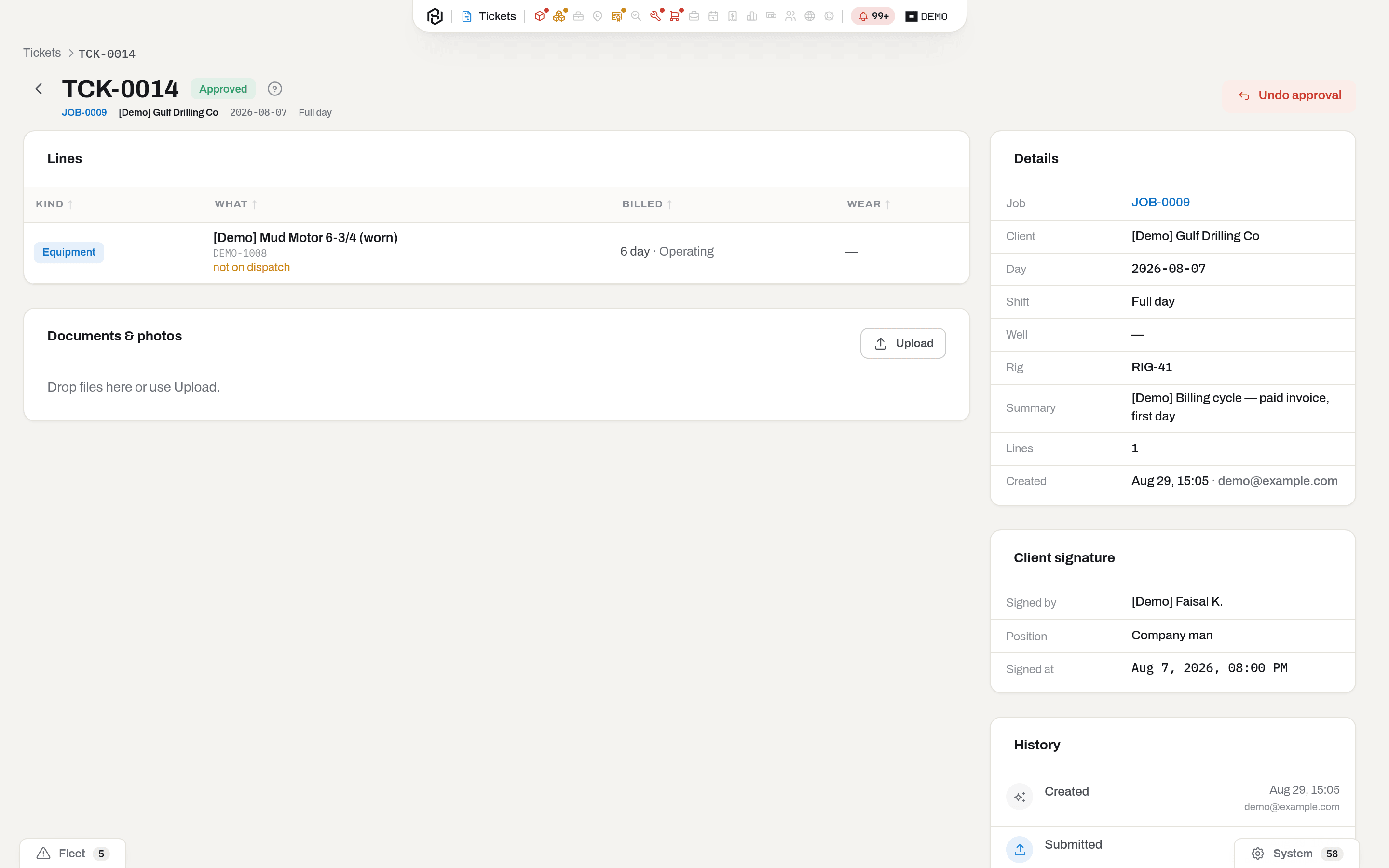
The reason a ticket cannot be edited after Submit is the signature: the client's representative signed that document. A mistake is corrected by sending it back to the field, not by quietly retyping it.
"Frozen" means the body, the lines and the file cards: from Submitted onwards nothing in Lines or Edit header can be touched, and a file can no longer be renamed or removed. Adding a photo is the one thing that stays open in every status — a picture that turns up two days later is evidence, not an edit.
Line kinds
| Kind | What it is | What it needs | What approval does with it |
|---|---|---|---|
| Equipment | A unit that was on the rig that day | An asset from the fleet | Writes wear onto the unit, if hours or runs were entered |
| Labor | A person's time, billed by Crew role | A crew role from Settings → Crew roles | Nothing to the fleet — it is billing only |
| Consumable | Material used up | A consumable and a Write off from location | Takes the quantity off that location's stock |
| Service | Something done, priced as a job | A catalogue Service, or a Description for a one-off | Nothing to the fleet — billing only |
| Sale | A serialized unit sold to the client | One asset from the fleet, quantity 1 | Changes the owner of that unit and takes it off your balance sheet |
Billing and wear are two different numbers
Quantity + Unit is what the client pays for. Hours worked and Runs are what the unit spent of its life. They are separate fields on purpose: a standby day is billed as a full day and costs zero hours of life. Rate basis — Operating or Standby — says which kind of day it was; the Billed column shows both, as 1 day · Operating.
What approval writes
Approving is not a rubber stamp — it moves facts into the rest of the system, and the document then says what it moved.
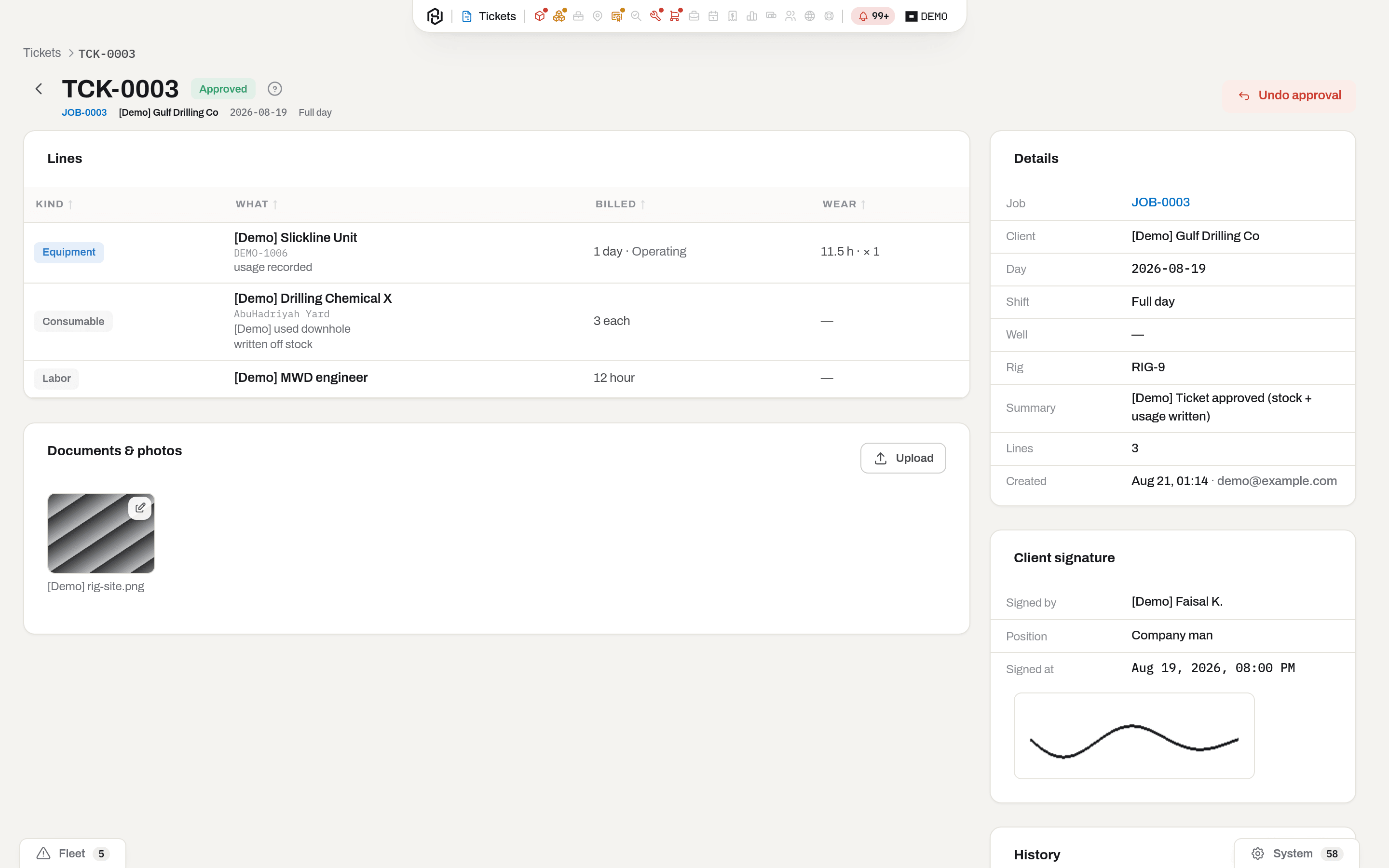
- a Consumable line takes its quantity off the location it named, and the line is marked written off stock — the movement shows up in Stock;
- an Equipment line with hours or runs adds them to the unit's life, and the line is marked usage recorded — the event shows up on the unit's timeline and its life budgets start counting it (see Item card);
- Labor and Service lines write nothing to the fleet;
- a Sale line changes the owner of the unit it names — see Sell a unit from a ticket — and the line is marked owner changed;
- every line becomes billable work waiting to be picked up by Invoices — but only the Equipment lines are counted as rental revenue in Finance. Labour, services and consumables are billed to the client and simply do not belong in a fleet's revenue-per-unit report.
Undo approval reverses all of it with counter-entries rather than deletions: the timeline keeps both the mistake and the correction.
Effect chips
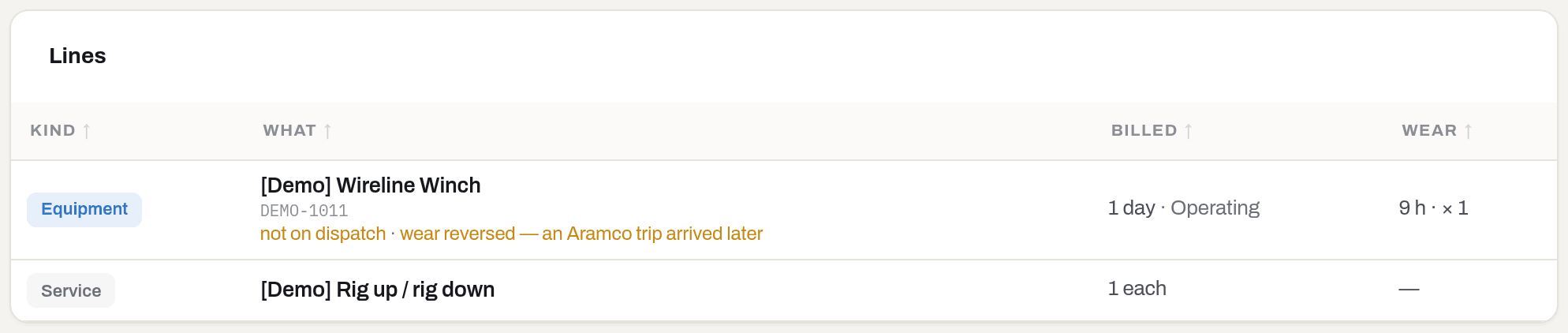
Under the name of a line, small coloured words say what happened to it. Grey ones are what was written, amber ones are what you should look at.
| Chip | Meaning |
|---|---|
| written off stock | The quantity has left the named location |
| usage recorded | Hours and runs went onto the unit's life |
| not on dispatch | The unit was billed on this job but is not booked to it in Dispatch board — a warning, not a block |
| wear skipped — day covered by Aramco | An Aramco trip already covers that day for that unit; billing is untouched, wear is not counted twice |
| wear reversed — an Aramco trip arrived later | The ticket was approved first, the trip arrived afterwards, and the ticket's wear was reversed in favour of the trip |
| owner changed | A sale line moved the unit to the client and wrote its disposal off your balance sheet |
| no sale price | The sale went through, but no row in the sale price book covers it — the invoice line will arrive without a price |
The signature
Signed by and Signed at are what make the ticket a primary document, and this tenant will not let a ticket be submitted without them. Position and the drawn signature are optional; Signed where appears only when the phone that took the signature also had a position fix.
How to
Find a ticket
Who: Viewer and above.
- Pick the status you need from the Status button in the table's header — Submitted for the approval queue, All statuses to search everything. To see one job's tickets, pick it under Job right beside it.
- Type into the search box, or open the Filters rail and narrow by Client, Day, Item or Shift.
- Click a column header to sort by it; Columns, among the icons at the right of the header, shows and hides columns.
Result: the filters live in the address bar, so the queue can be bookmarked and sent to someone else; the footer counts the rows.
If it fails: No tickets match the filters. — a pill, Job or a Status you picked leaves nothing; click Reset all in the tray above the list. A Day period left over from last month's close is the usual reason — or a Status other than the one you need, which Reset all returns to Submitted. No tickets here. with nothing set means the queue itself is empty — on Status: Submitted, nothing is waiting for approval. If the list stays empty with no filters at all and you are an operator, you are simply not on a job yet — see The field sees its own jobs.
Create a ticket
Who: Operator and above.
- Click New ticket (top right).
- Choose the Job — only open jobs are offered, as {code} · {client}.
- Set the Day (today by default) and the Shift (your tenant's default shift, or No shift if the day is not split).
- Write a Summary if it helps someone recognise the shift later. It is optional.
- Click Create.
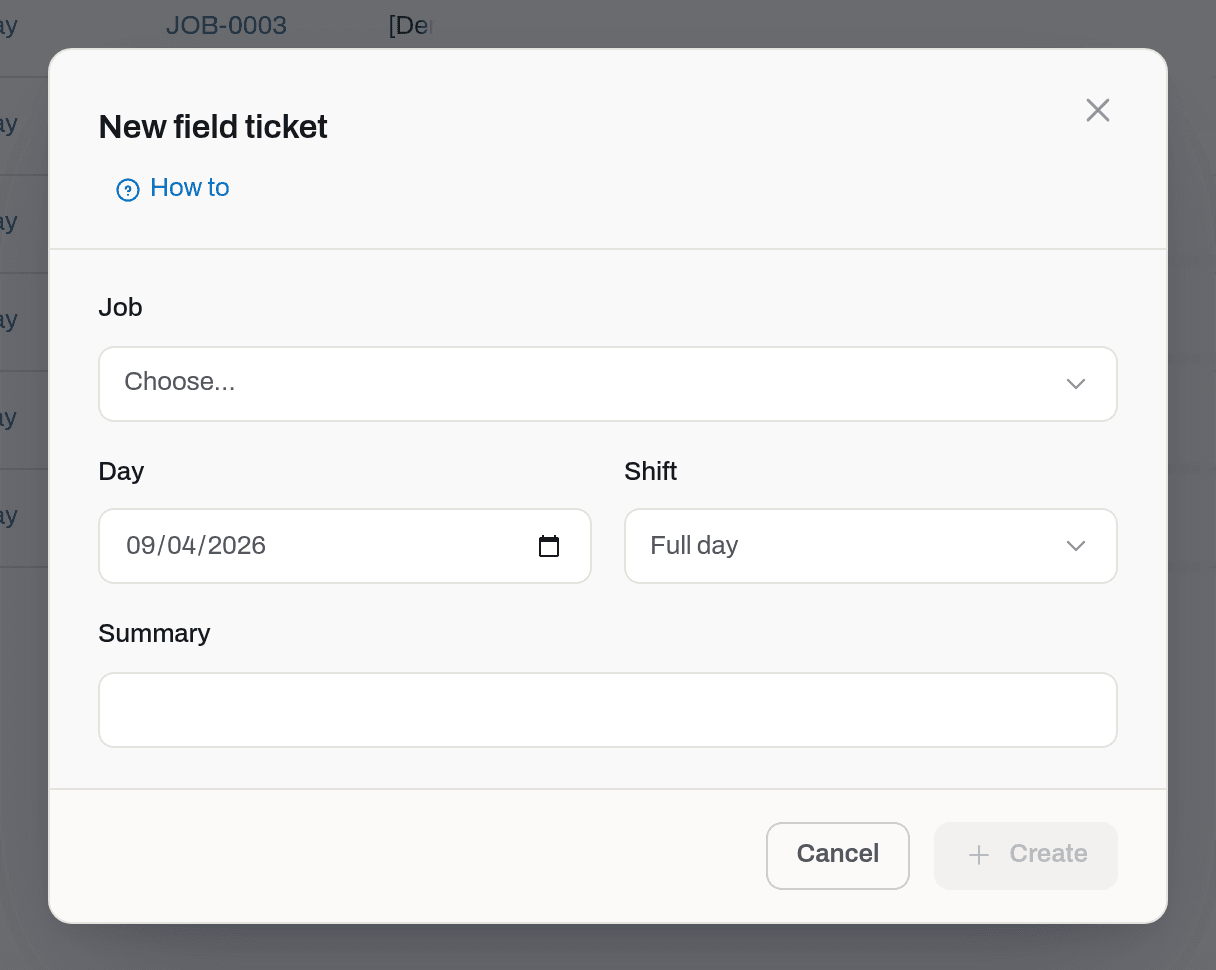
Result: the ticket gets its number (TCK-0001, TCK-0002…), takes the client, well and rig from the job, and its document opens, empty, in Draft.
If it fails: No open job to file a ticket against — create one first. — the job list only offers planned and active jobs; open one in Jobs. Ticket TCK-0007 already covers 2026-06-27 on job JOB-0007. — that day is taken; open the existing ticket, or press Create anyway if a second crew genuinely worked it.
Read a ticket
Who: Viewer and above.
The header carries the number and the status badge, and under them the handles of the shift: the Job (a link to its card), the client, the Day and the Shift. The actions on the right are only the ones the status and your role allow — a Draft offers Add line, Edit header, Submit and Delete; a Submitted one Approve and Reject; an Approved one Undo approval; a Rejected one Reopen as draft; an Invoiced one nothing at all. A returned ticket also carries a yellow band with the reason it came back.
Everything on the left is the document — Lines, each with its effect chips (Effect chips), and Documents & photos. Everything on the right is what the ticket is: Details (job, client, day, shift, well, rig, summary, the line count, the Invoice once it has been billed, and who created it), Client signature, History — Created, Submitted, Approved, Returned to the field, with who and when — and Notes, when there is text in them.
The back arrow before the number goes where you came from — the queue, or the job that sent you here. The Tickets crumb always goes back to the queue with your filters.
Add a line
Who: Operator and above, on a Draft.
- Open the ticket and click Add line.
- Pick the Kind — Equipment, Labor, Consumable, Service or Sale. It cannot be changed later: a different kind is a different line.
- Fill in what that kind asks for, in the order the dialog offers it:
- Equipment — the unit under Item (Name or serial…), then Description (optional);
- Labor — Crew role (required) and the Person's name;
- Consumable — the material under Item and the Write off from location (required);
- Service — a Service from the catalogue, or One-off (describe below) plus a Description;
- Sale — the unit being sold under Item, and optionally Sold against: the rental this sale went with, so the reports can answer "how many cutters went to that rig".
- Set Quantity and Unit. The unit is pre-filled with the usual one for that kind — day for equipment, hour for labour, each for the rest. On a Sale line both are fixed at one piece: a serialized unit is one thing, and there is no second one with the same number.
- On an Equipment line, finish with Rate basis, Hours worked and Runs at the bottom of the dialog.
- Add Notes if the line needs a remark, then click Create.
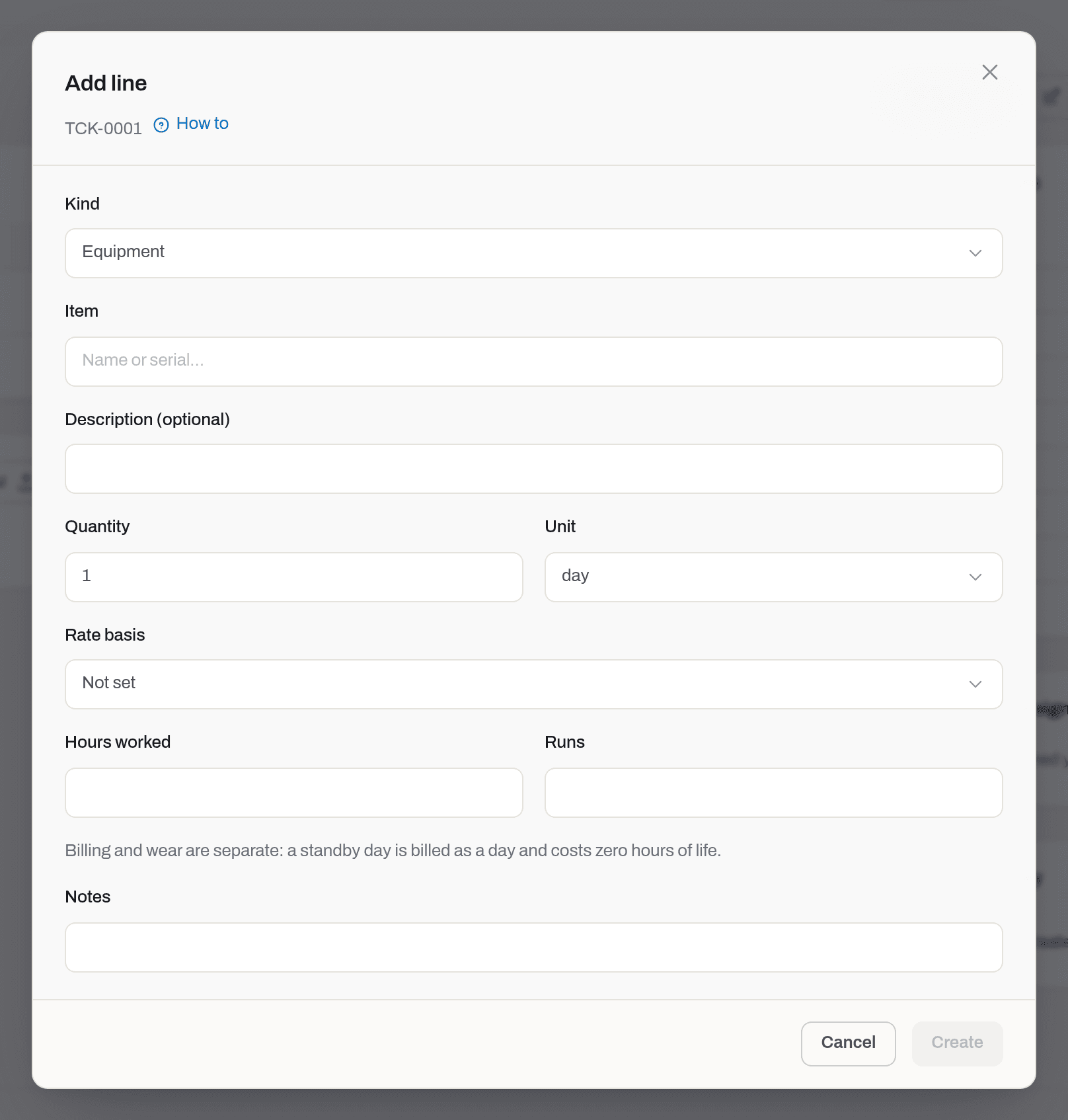
Result: the line appears in Lines with its Billed and Wear columns filled in. The pencil on the row edits it, the bin removes it — both only while the ticket is a draft.
If it fails: the Create button stays grey until the kind has everything it needs. Service line needs a service or a description. — name it from the catalogue or describe it; one of the two. Nothing found. under the item search means the search matched no usable unit — scrapped, lost and sold units are not offered, and an equipment line only picks assets while a consumable line only picks consumables. No crew roles yet — add them in Settings → Crew roles. means the catalogue is empty; a manager fills it in Catalogues in Settings.
Sell a unit from a ticket
Who: Operator and above writes the line; a manager approves it.
A cutter set sold to the rig does not stop existing — it keeps going down hole, comes back for a redress and carries its history with it. So a sale is not a status: it is a change of owner, written on approval by the same machinery as the ownership dialog on the unit's card.
- Add a line of kind Sale and pick the unit under Item.
- If the sale went with a rental — cutters sold for the housing working on that rig — pick it under Sold against. Leave it empty for a sale straight from stock.
- Submit the ticket and let a manager Approve it.
Result: on approval the unit becomes Client-owned with this ticket's client as its owner, an owner changed chip appears on the line, and the disposal is written to the books in the same transaction, with the sale price as the proceeds. The price comes from the sale price book, never from the field: there is no money on a ticket, and a figure typed in gloves would disagree with the contract. If no row covers the sale the line is also marked no sale price — the sale still happened, but the invoice line will arrive without a price.
If it fails: Item is out on a job — return it before changing the owner. — the unit is booked out on a rental; close the booking first. Ticket ... sold equipment — the owner has changed. is the refusal you get if you try to undo the approval: the tool is physically with the client now, and the way back is a purchase in the other direction on the item card, with its own date, price and paperwork.
Edit the header
Who: Operator and above, on a Draft.
- Open the ticket and click Edit header.
- Correct the Day, Shift, Well, Rig, Summary and Notes, and record the client's representative in Signed by, Position and Signed at.
- Click Save.
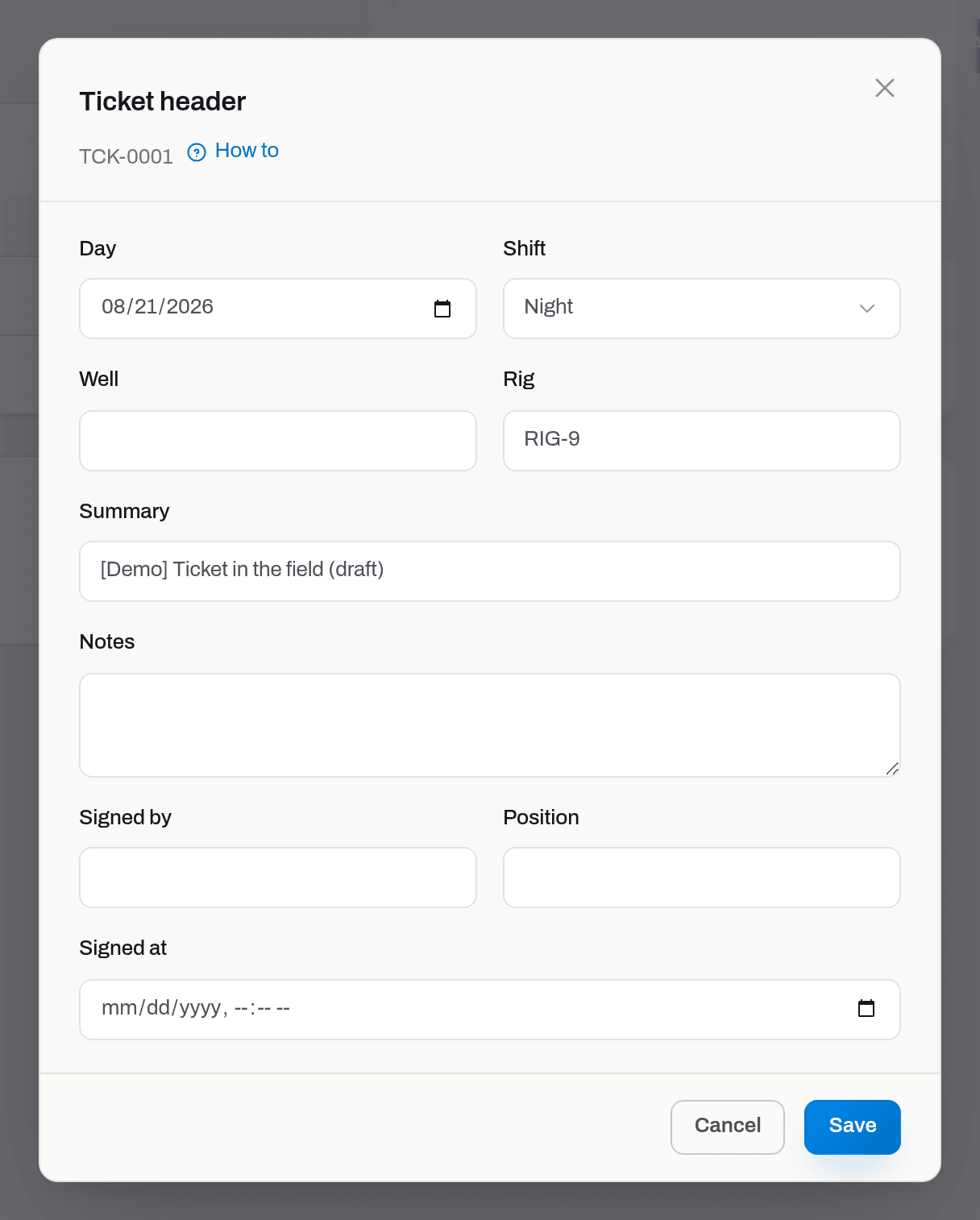
Result: the facts on the right of the document and the Client signature card follow the change.
If it fails: Ticket TCK-0011 is SUBMITTED — only a DRAFT can be edited. — the document has left your hands. Ask a manager to send it back to you.
Attach photos and documents
Who: Operator and above — in any status. A photo that turns up after the shift was handed in is still evidence.
- On the ticket, drop files onto Documents & photos or click Upload.
- The pencil on a file opens File details — Name, File type, Description.
- The bin removes a file, after a confirmation.
Result: the files hang on the document and travel with it. The drawn client signature is kept separately and shown on the Client signature card, not in this list.
If it fails: Only the person who uploaded this file, or a manager, can remove it. — the usual refusal; someone else put that file there. Ticket TCK-0011 is SUBMITTED — a signed ticket is frozen. Reopen it to a draft first. — renaming and removing stop at Submit, even though uploading does not.
Submit a ticket
Who: Operator and above.
- Check the lines and the signature on the draft.
- Click Submit.
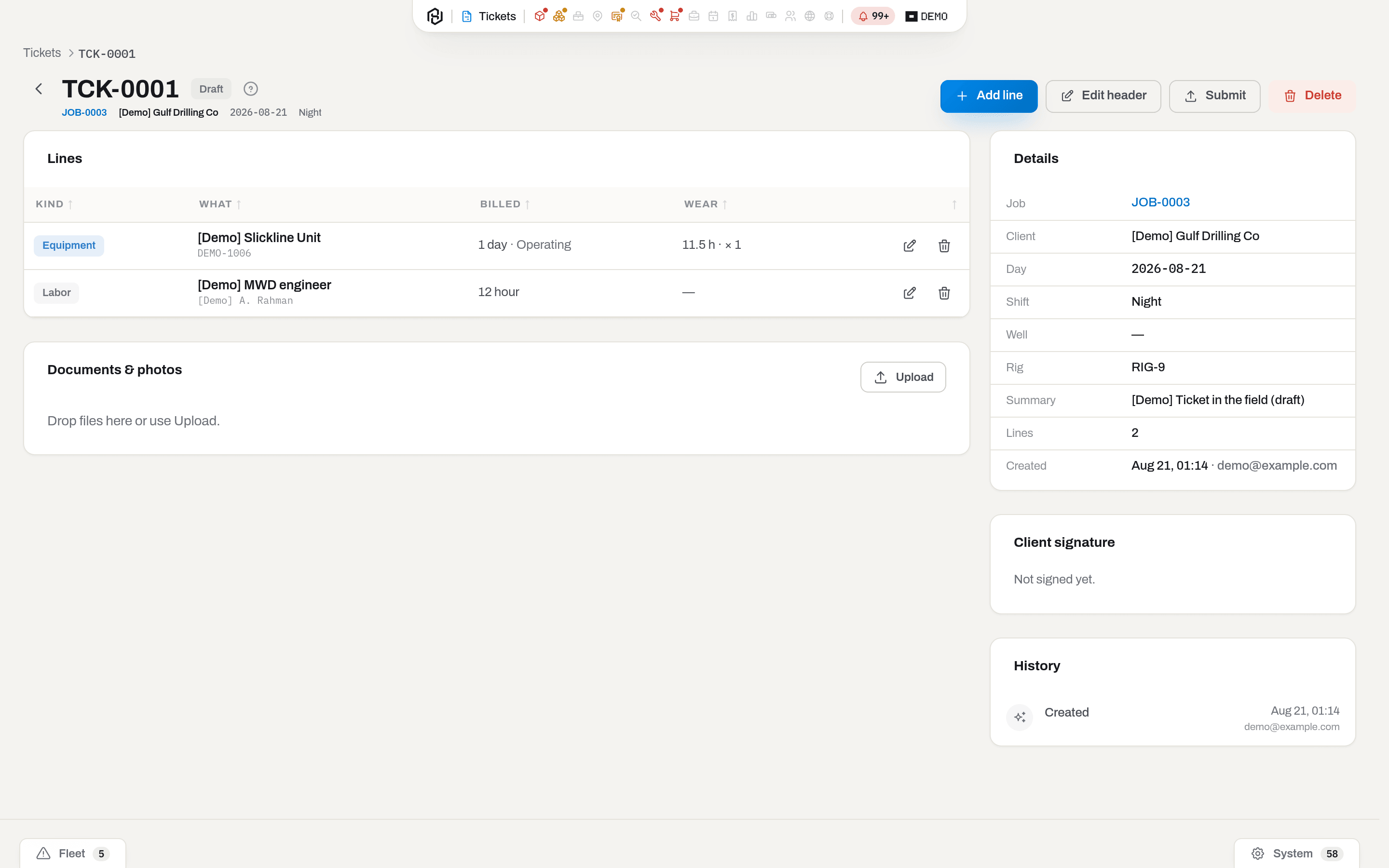
Result: the status becomes Submitted, the body and the lines freeze, History gains a Submitted row with the time and your e-mail address, and everyone who approves tickets gets a feed row.
If it fails: the Submit button is disabled while the ticket has no lines. A ticket without lines has nothing to submit. — add at least one. The client representative has not signed this ticket. — fill in Signed by and Signed at under Edit header.
Approve a ticket
Who: Manager and above.
- Open a Submitted ticket from the queue and click Approve in its header — or, from the queue itself, tick the row and click Approve in the bar that appears at the bottom (Work through the queue in one go). The rows have no buttons of their own.
- From the document there is no confirmation step: approving is immediate. The selection bar asks first and lists the rows it is about to approve.
Result: the status becomes Approved, the effects described in What approval writes happen at once, and every line shows what it did. If some wear was not recorded, an amber note says so: Approved. Wear on 1 line(s) was not recorded — those days are already covered by an Aramco trip.
If it fails: Approving and rejecting tickets requires the manager role. — an operator can file and submit but not accept. Stock would go negative (-2.000). — a consumable line asks for more than the named location holds; nothing is written at all, so correct the stock in Stock or send the ticket back. Consumable line 2 needs an item and a location. — the line is incomplete; only a return to the field can fix it.
Send a ticket back to the field
Who: Manager and above.
- Click Reject in the header of a Submitted document — or, from the queue, tick the row and choose More → Reject… in the selection bar (Work through the queue in one go).
- Write the Reason. It is required — "redo it" without a reason is not a decision the field can act on.
- Click Reject.
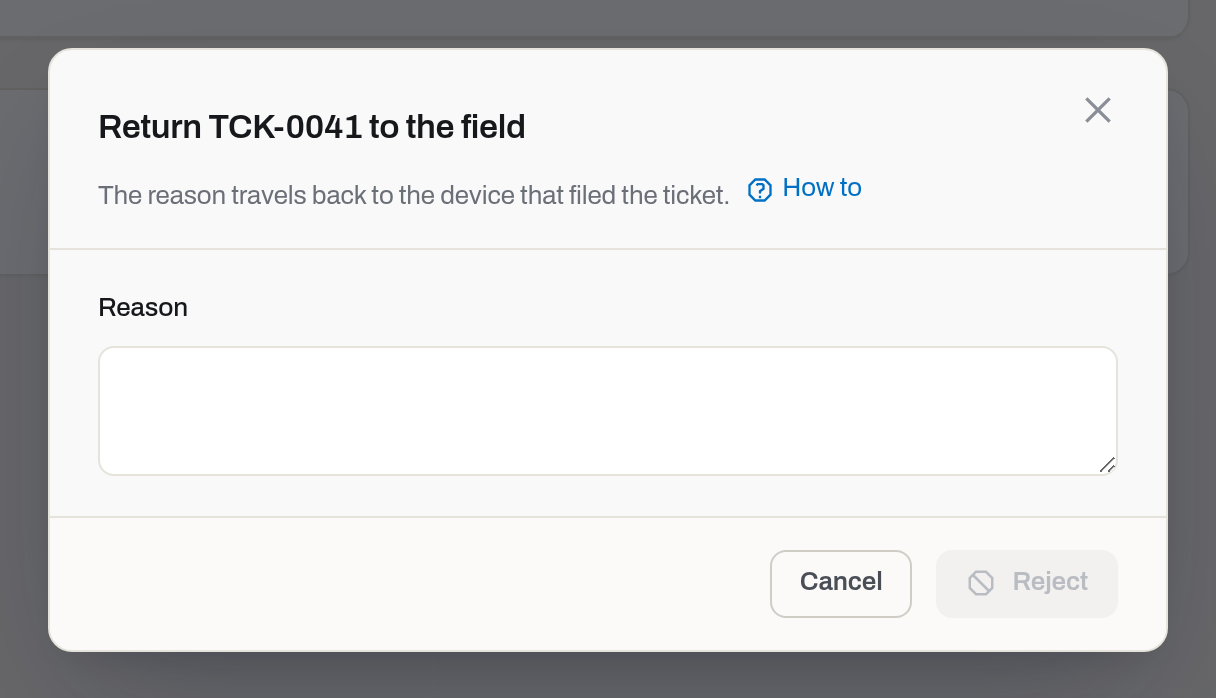
Result: the status becomes Rejected, a yellow band on the document repeats Returned to the field: {reason}, History gains a Returned to the field row, and the author gets both a feed row and an e-mail with the reason — they are on a rig and will not see the screen by themselves.
If it fails: the Reject button stays grey until the reason is typed.
Reopen a returned ticket
Who: Operator and above.
- Open the returned ticket — the yellow band explains what the office asked for.
- Click Reopen as draft.
- Fix what was asked, then Submit again.
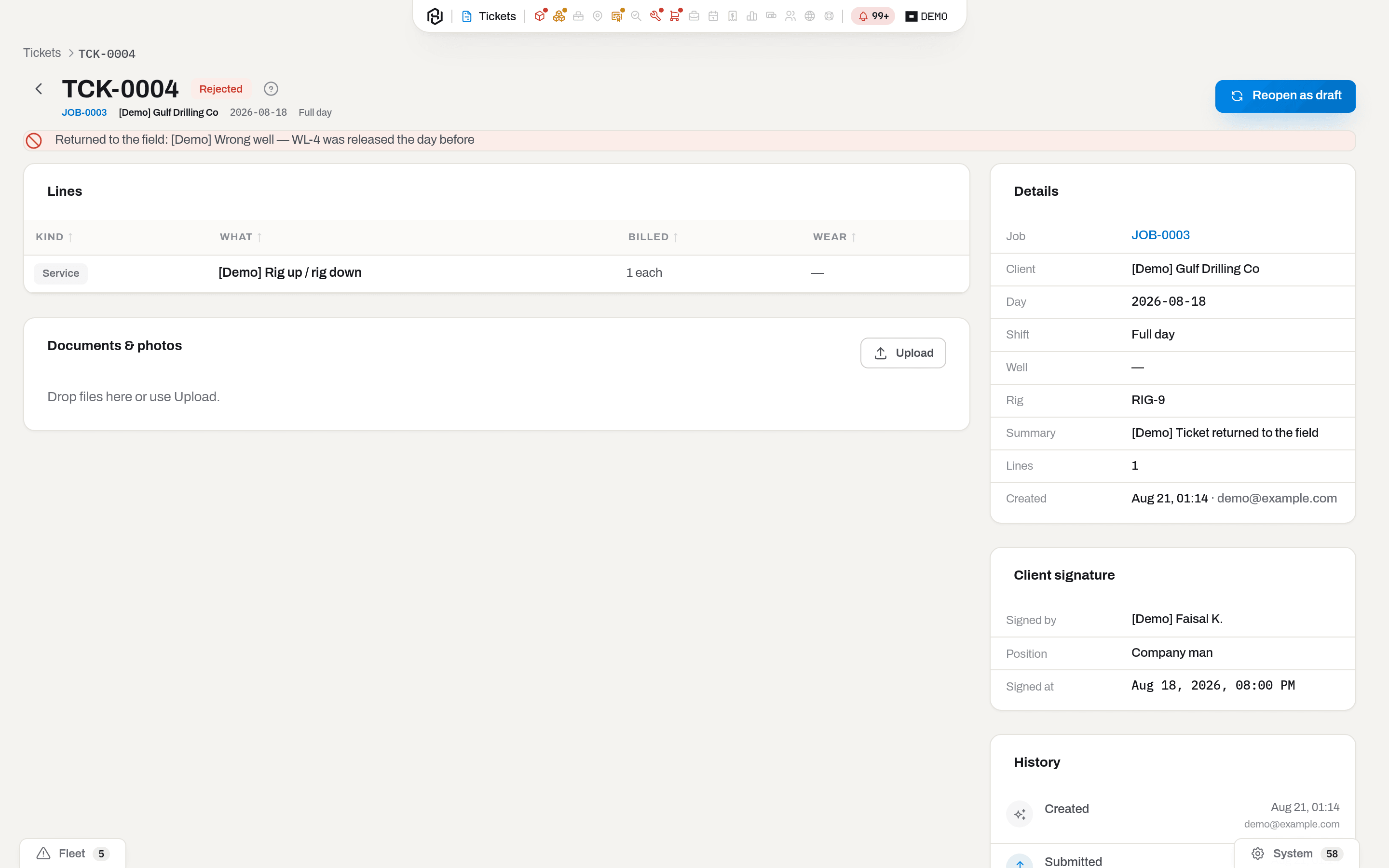
Result: the same document goes back to Draft, keeping its number, its signature and its files. A new ticket for every typo would break the link to the signature, so there is no such button.
If it fails: nothing to fix here — an operator who can see the section can always reopen what came back.
Undo an approval
Who: Manager and above.
- Open the approved ticket and click Undo approval.
- Read the warning — Stock and usage written by this ticket are reversed with counter-entries; the ticket goes back to submitted — and confirm.
Result: the status returns to Submitted, and the stock movements and usage events written at approval are reversed by opposite entries. Nothing is erased: the fleet's history keeps both.
If it fails: Ticket TCK-0022 is on an invoice — void the invoice first. — the work has already been counted into an invoice. Release it in Invoices; the button on the ticket does not check this in advance, so this refusal is normal and safe.
Work through the queue in one go
Who: Operator and above for Submit; Manager and above for Approve and Reject….
- Tick the rows you need. A bar appears at the bottom with the count.
- A month-end queue is longer than one page. Tick the heading checkbox to take the page, then click Select all {count} matching in the bar — the server works from your filters instead of a list of rows, so Status: Submitted plus a Day period is the whole queue in one action.
- Choose Approve or Submit in the bar, or open More for Reject…. Every dialog lists what it is about to touch and greys out the rows it cannot take — Not submitted, Not a draft.
- For Reject…, write one Reason — it goes to every returned ticket, and each author sees it on their own document.

Result: each ticket is processed on its own. Approve answers with more than a count — Approved 12 · usage recorded on 7 line(s) · 2 skipped, already covered by an Aramco trip. Rows that failed stay selected, so you can fix the reason and repeat. A batch of returns reaches each author as one message about their own tickets, not one per ticket.
If it fails: Nothing done — 3 rows failed — read the reason beside each row. A viewer has no checkboxes at all. With Select all matching on, everything that matches goes in — so set Status to Submitted before approving, or the drafts under All statuses come back as failures. One action takes at most 500 rows, so above that the bar offers no Select all matching — it says Up to 500 rows at a time — narrow the filter; a Day period usually brings a month-end queue under the ceiling.
Delete a draft
Who: Operator and above.
- Open the draft and click Delete.
- Confirm: Only a draft can be deleted. A submitted ticket is a primary document.
Result: the draft is gone and the queue opens where you left it.
If it fails: there is no Delete on a submitted, approved or invoiced ticket, for anyone. What has been signed and handed over is not deleted — it is returned, corrected and resubmitted.
Fields
The header
| Field | Meaning | Required | Who edits |
|---|---|---|---|
| Job | The job this shift belongs to; the client, well and rig are copied from it | yes | Operator+, at creation |
| Day | The calendar day the work is billed for | yes | Operator+, draft only |
| Shift | Which shift of that day, from Settings → Shifts; No shift when the day is not split | no | Operator+, draft only |
| Well / Rig | Where the crew actually stood — pre-filled from the job, corrected if it differs | no | Operator+, draft only |
| Summary | One line to recognise the shift by | no | Operator+, draft only |
| Notes | Anything the fields do not hold | no | Operator+, draft only |
| Signed by / Position | The client's representative who accepted the shift | Signed by yes, to submit | Operator+, draft only |
| Signed at | When they signed | yes, to submit | Operator+, draft only |
A line
| Field | Meaning | Required | Who edits |
|---|---|---|---|
| Kind | Equipment · Labor · Consumable · Service | yes | Operator+, at creation only |
| Item | The unit or the material the line is about | for Equipment and Consumable | Operator+, draft only |
| Crew role | The billing unit for people | for Labor | Operator+, draft only |
| Person | Who actually worked — for the argument about the rig, not for the invoice | no | Operator+, draft only |
| Write off from | The location the consumable leaves at approval | for Consumable | Operator+, draft only |
| Description | What was done | for Service | Operator+, draft only |
| Quantity / Unit | What the client pays for: day, hour, each or meter | yes, above zero | Operator+, draft only |
| Rate basis | Operating or Standby — which kind of day it was | no | Operator+, draft only |
| Hours worked / Runs | What the unit spent of its life — not what is billed | no | Operator+, draft only |
| Notes | A remark on this line | no | Operator+, draft only |
What the system tells you
| When | Feed row | Who gets it | |
|---|---|---|---|
| A ticket is submitted | Ticket {number} is waiting for approval | — | everyone who can approve tickets (manager and above with this section) |
| Several are submitted at once | {count} tickets are waiting for approval | — | the same people, as one row |
| Your ticket is sent back | Your ticket {number} came back | Ticket {number} was sent back to you | the author of the ticket |
| Several of yours are sent back | {count} of your tickets came back | {count} of your tickets were sent back | each author, about their own only |
Approving sends nothing. It happens dozens of times a day, and a mailbox that rings on every shift is a mailbox nobody reads — the queue count in the capsule is the notification. The one message that does go out by e-mail is a return, because the person who needs it is on a rig and will not be looking at the screen.
Your own actions never notify you: a toast confirms the save, and that is all.
Related
- Field app — filing the ticket on a phone, offline, and getting the client's signature on the glass.
- Jobs — the job a ticket belongs to; its card lists every ticket filed against it.
- Dispatch board — what is booked to a job; the source of the not on dispatch warning.
- Item card — the unit's timeline, where recorded wear lands, and the life budgets it moves.
- Stock — where a written-off consumable leaves from.
- Invoices — what approved tickets turn into, and the only way to release an invoiced one.
- Catalogues in Settings — Shifts and Crew roles, the two catalogues a ticket picks from.
- Roles & access — why a button or the whole section may be missing.
- Statuses and badges — every badge in the product in one table.
FAQ
Why can I not edit a submitted ticket? — Because the client's representative signed that document. Editing it afterwards would make the signature worthless. Ask a manager to send it back; the same document comes to you as a draft, with its number, signature and photos.
I approved by mistake. What now? — Undo approval. The stock and the wear written at approval are reversed by opposite entries and the ticket goes back to Submitted. Once the work is on an invoice, the invoice has to be voided first.
Where is the money? — Not on the ticket. A ticket records what happened; the price comes from the client's rate book when the invoice is built. A rate typed in the field would sooner or later disagree with the contract.
Why is the wear column empty on a line that was clearly working? — Because Hours worked and Runs were left empty. A day is billed whether or not anyone wrote down the hours, so nothing forces them — but an empty wear column means the unit's life budget did not move either.
A line says "wear skipped — day covered by Aramco". — That unit already gets its hours automatically from the client's own trip reports for that day. Counting the ticket as well would spend its life twice and make an exhausted tool look healthy. The billing side is untouched: the day is still on the invoice.
Two crews really did work the same shift. Am I stuck? — No, but it takes a manager. Create the second ticket, and when the day clash is reported press Create anyway. It is deliberately a second click by someone with the authority, because a duplicated day is the classic dispute with a client.
Why do I not see Approve? — Because approving and returning belong to a manager. An operator and a viewer see neither the buttons on the queue rows nor the ones in the document header — the screen never offers a decision the server would refuse. Check your role in the profile menu, and see Roles & access.
Updated 2026-09-29
New to Hafrix?
See this workflow in your operation
See how field records connect to equipment and office workflows. Bring a real field scenario to a Hafrix demo.