Statuses and badges
Every coloured pill in Hafrix, what it actually claims, and what makes it change — one page to look up the badge you are staring at.
Where: Help Center (/help) → Reference, or Search the manual in the help panel. Badges live on the screens themselves — this page is the table you look them up in.
At a glance
A badge answers one of two questions, never both:
- what somebody declared — an item is Scrap because a person said so, an invoice is Paid because the office marked it paid;
- what the system worked out — an asset is Need repair because a certificate failed, an invoice is Overdue because today is past its due date.
Declared states are changed by an action and are recorded with a name and a timestamp. Computed states have no action behind them: you change the underlying fact — add the certificate, log the payment — and the badge follows on its own.

One asset, three badges, three different questions: Active is its declared status, Need inspection is its computed readiness, and Cert · overdue 146 d is the countdown to its nearest certificate expiry.
Key concepts
The colour is the message
Five tones carry the whole system, and they mean the same thing everywhere:
| Tone | Reads as | Examples |
|---|---|---|
| Grey | a fact, nothing to do | Draft, Scrap, Void, Not billable |
| Blue | in flight, someone else's move | In inspection, Sent, On rig, Planned |
| Green | good, or finished well | Active, Ready, Valid, Approved, Paid, Closed |
| Amber | needs a person soon | Need inspection, Expiring, Submitted, Reserved, To bill |
| Red | stop, or money at risk | Need repair, Expired, Rejected, Lost, Overdue |
Two deliberate exceptions are worth knowing. A Voided certificate is grey, not red — the paper was crossed out on purpose, and colouring it like an expired one would read as a second problem. Disassembled is amber, not grey — the unit is neither working nor written off, and somebody still has to decide what happens to the parts.
Where the word goes
In a list of assets the status and the readiness are icons, not words: the same word repeated down fifty rows says nothing, and the exception is what you are looking for. Hover the icon to read it. On a card the word is always spelled out.
Readiness has one more trick: a row whose asset needs attention is tinted — amber for Need inspection or a certificate expiring within 30 days, red for Need repair or a certificate already expired. Red wins over amber, so a row is coloured by its worst signal, not its first.
Declared and computed, side by side
| Computed badge | Built from | So it cannot be set by hand |
|---|---|---|
| Ready / Need inspection / Need repair | status, certificates, inspections after use | fix the paper or close the repair |
| Valid / Expiring / Expired / No certificate | the latest non-voided certificate of each type | add or correct a certificate |
| Overdue on an invoice | the due date against today | send it, get it paid, or void it |
| On rig | the item has a client assigned | assign it, or return it |
The badges
Item status
Eight declared states, all changed through Change status — on the item card, or on a selection in the list under More actions → Status. Operator and above.
| Badge | Meaning | What changes it |
|---|---|---|
| Active | In service. Can be booked, assigned, moved and repaired | Change status; also set back automatically when the last open work order on the unit closes or is cancelled |
| In repair | On an open work order | Opening a work order sets it; closing or cancelling the last open one puts the previous status back |
| In inspection | Away for certification. Still counts as fleet | Change status only — no action sets it for you |
| Disassembled | Taken apart; the parts live on as their own items | Change status. It leaves the utilization board and the wear rules, but it is still your property in the register |
| Obsolete | Kept, but not to be used again | Change status. Stays on the balance sheet |
| Scrap | Written off | Change status. Books the disposal in the ledger at the next month close |
| Lost | Gone, unaccounted for | Change status. Books the disposal too — this is the only red one of the eight |
| Sold | Left the fleet against money and you will not see it again | Change status; the dialog also asks for Sale proceeds if you are a manager who can see Finance |
Four of those take the unit out of the fleet for good — Obsolete, Scrap, Lost and Sold — and for those the dialog asks one more thing: Reason for disposal.
| Reason | When |
|---|---|
| Worn out | It reached the end of its life and there is nothing left to redress |
| Damaged beyond repair | A failure, not wear |
| Lost in hole | It stayed downhole |
| Sold used | Sold on as second-hand equipment |
| Obsolete | Still serviceable, but nothing runs it any more |
| Other | Anything else — say what in Reason |
The free-text Reason is for a person to read; the code is what the disposal report and the replacement candidates count by. Give both when you can.
Note
Selling a tool that keeps working for the customer is not Sold. That is a change of owner: see Sell a unit to a client. Sold is for the unit that is gone.
Note
A consumable card has only two of these — Active and Obsolete. Quantities are a matter for Stock, not for a status.
There is no Deleted. An item is never deleted by anyone: its timeline is the yard's memory and the register's evidence.
Readiness
Three computed values, assets only, and only while the unit is in the fleet. A Disassembled, Obsolete, Scrap, Lost or Sold unit has no readiness at all — the list shows a dash there, because an empty cell would read as "fine".
| Badge | Meaning | What changes it |
|---|---|---|
| Ready | Papers valid, no failed inspection, nothing owed after use | the default when nothing else applies; never shown in a list — a green tick on every row says nothing |
| Need inspection | A certificate has expired, the unit is In inspection, or it ran after its last inspection of the type its category requires | add the inspection the category asks for, or renew the paper |
| Need repair | The current certificate of some type came back Fail, or the unit is In repair | close the work order and record a passing inspection |
Tip
Readiness and the expiry countdown are two different numbers. An asset whose certificate expires in three weeks is Ready today — the countdown chip (Cert · 14 d) warns you, the badge does not lie about it.
Certificates
Per certificate type, the latest non-voided record wins; the item's own compliance badge is the worst of them.
| Badge | Meaning | What changes it |
|---|---|---|
| Valid | In date, or valid indefinitely (a COC with no expiry) | a newer certificate of the same type replaces it |
| Expiring | Expires within 30 days | time, or a new certificate |
| Expired | The expiry date has passed | a new certificate of that type |
| No certificate | The asset has no certificate of any type at all | Add certificate on the item card |
| Voided | The record was struck out — wrong item, wrong type, an inspection that never happened | Void this certificate (the ban icon), Manager and above. It stays in the history with the reason and stops counting towards compliance and readiness |
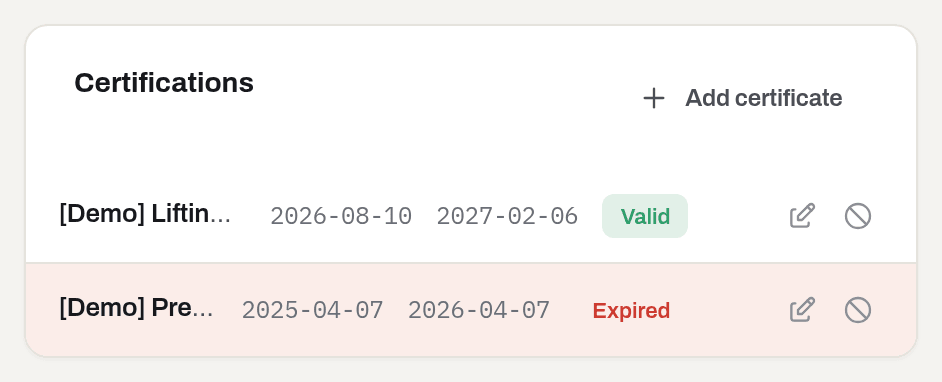
The Result of an inspection — Pass, Fail or N/A — is a field of the record, not a badge. It matters anyway: a current certificate with Fail is what turns readiness into Need repair, and a later Pass of the same type clears it.
The fleet-wide view of the same four states is Compliance, where they are the four figures over the list — Expired, Expiring ≤ 30 days, Valid, No certificate.
Assignment
Where a unit physically is, as far as the yard is concerned.
| Badge | Where it shows | Meaning | What changes it |
|---|---|---|---|
| On rig | item card header, item picker, job card | The asset has a client (and usually a rig) against it | Assign puts it there; Return takes it off |
| In yard | Utilization counters | An Active asset with no client against it | the same two actions, from the other side |
| Assigned / Returned | the item's Activity timeline | The moment it left and the moment it came back | they are events, not states — they never go away |
In repair and In inspection beat assignment on the utilization board: the tool is physically in the workshop, whatever the paperwork says.
Alongside assignment there is Custody — one computed word for who is holding the unit, whoever owns it. It reads top down and the first match wins: On job (out with a client), At client site (standing on a location that belongs to a customer), In our shop (in repair, in inspection, or in a workshop or lab), At our site. Paired with Ownership it names the two arrangements that have no badge of their own — consignment and reverse consignment: see Whose it is, and who is holding it.
On a job, each piece of equipment carries its own state:
| Badge | Meaning | What changes it |
|---|---|---|
| Reserved | Booked for the job, still in the yard. Blocks the dates for everyone else | Reserve equipment on the job card; Mobilize or Cancel move it on |
| Active | Mobilized — the unit is out on this job | Mobilize; mobilizing the first one also flips a Planned job to Active |
| Returned | Came back from the job; the real end date is recorded | Return, from the job card or from the item |
| Cancelled | The booking never happened | Cancel on a reservation, or completing/cancelling the job, which cancels the reservations still hanging on it |
Jobs
| Badge | Meaning | What changes it |
|---|---|---|
| Planned | Created, nothing has left the yard yet. Equipment can be reserved | Activate job on the job card; mobilizing the first booking also does it by itself |
| Active | Work is running; equipment can still be reserved and mobilized | Activate job, or mobilizing a booking |
| Completed | Finished. No new bookings, no new tickets | Complete on the job card. Refused while anything is still Active on it — return the equipment first |
| Cancelled | Called off. Reservations still hanging on it are cancelled with it | Cancel job, with the same rule about equipment still out |
Completed and Cancelled are final: a job never comes back.
Field tickets
The document the client's man signs, and the only path from a day in the field to an invoice.
| Badge | Meaning | What changes it |
|---|---|---|
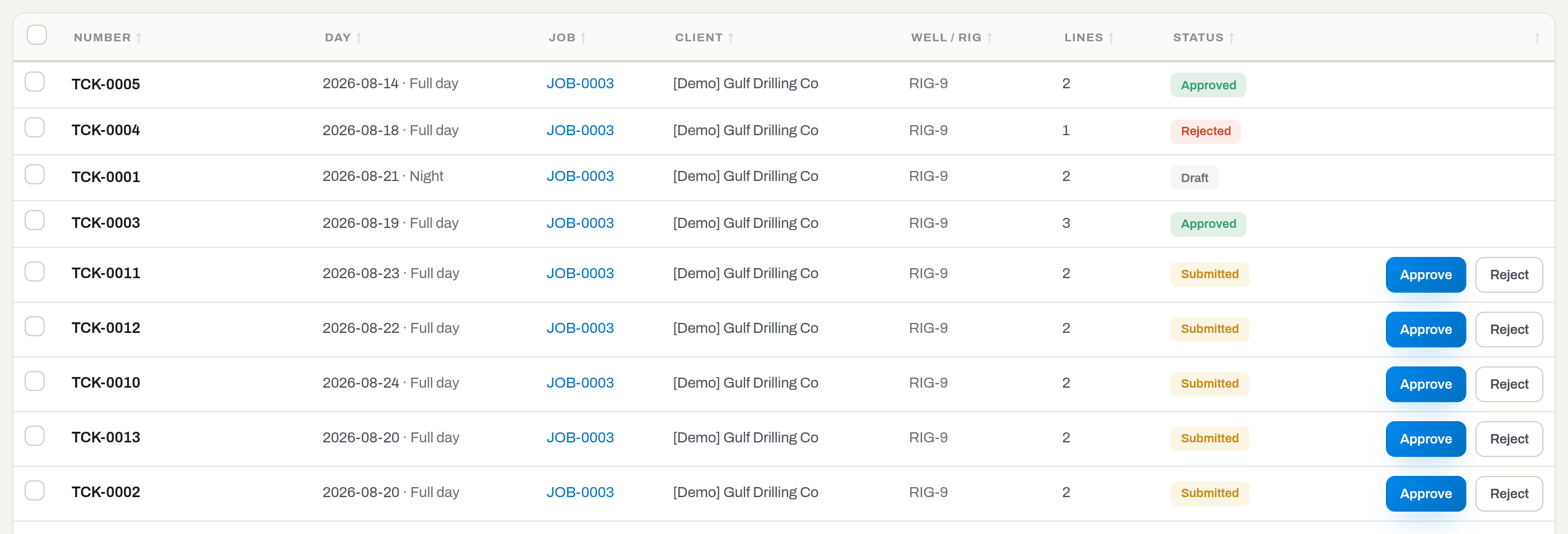
| Draft | Being written. The only state in which the ticket and its lines can be edited or deleted | Submit (Operator and above) sends it on |
| Submitted | Signed and handed in, waiting for the office. Frozen | Approve or Reject — Manager and above |
| Approved | Accepted. Consumables have left the stock, run hours are on the items' timelines | Undo approval puts it back to Submitted and reverses those entries with counter-entries; invoicing moves it on |
| Rejected | Returned to the field with a reason, which the author sees on the document | Reopen as draft — then it can be corrected and submitted again |
| Invoiced | Covered by an invoice that has been sent | voiding that invoice brings it back to Approved and into the billing queue |
Warning
A submitted ticket is a primary document — it is never edited, and only a Draft can be deleted. A mistake is fixed by sending it back to the field, not by rewriting it.
Work orders
A repair carries two badges at once: what is happening to the machine, and what is happening to the money.
| Badge | Meaning | What changes it |
|---|---|---|
| Open | The repair is running. The item is In repair | Close or Cancel order |
| Closed | Done. A Repaired row lands on the item's timeline, the price is worked out from the price book, and the item goes back to the status it had | Close (Operator and above) |
| Cancelled | Opened by mistake. No price, no repair in the history | Cancel order, with a reason |
The billing column says different things depending on the first badge. While an order is Open it shows who pays — Internal, Client or Vendor. Once it is Closed it shows where the money is:
| Badge | Meaning | What changes it |
|---|---|---|
| Not billable | Nobody is being charged — internal maintenance, or a cancelled order | the Billing dialog, while the order is not yet invoiced |
| To bill | Closed, priced, waiting for the office | it turns Invoiced when an invoice covering it is sent |
| Invoiced | On a sent invoice. Frozen — billing cannot be changed any more | voiding that invoice releases it back to To bill |
| No rate | Not a status: a closed billable repair that no price book covers. It cannot be invoiced until a rate exists | set a rate under Settings → Maintenance, or agree a Quote |
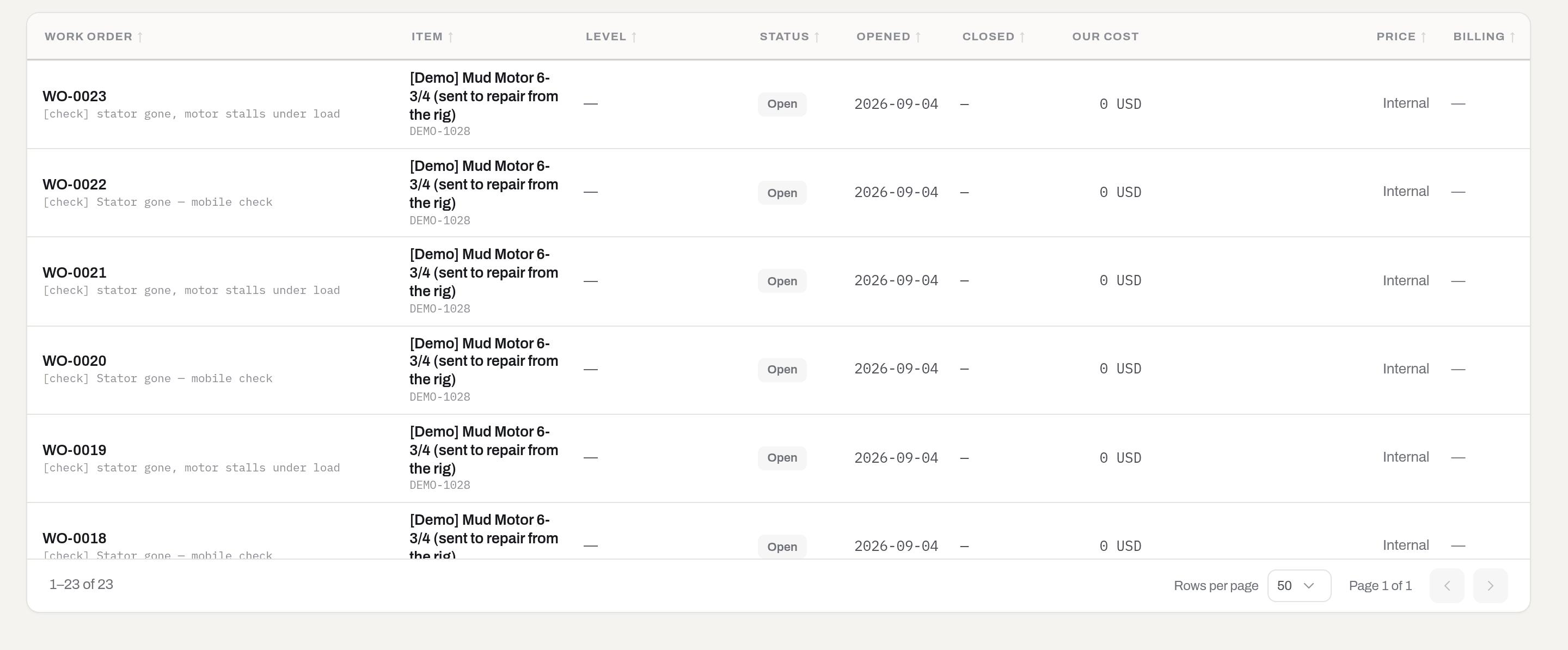
The price itself is labelled by where it came from — Price book or Quote. A quoted price is entered by a manager: the workshop records costs, the office agrees money with the client.
Invoices
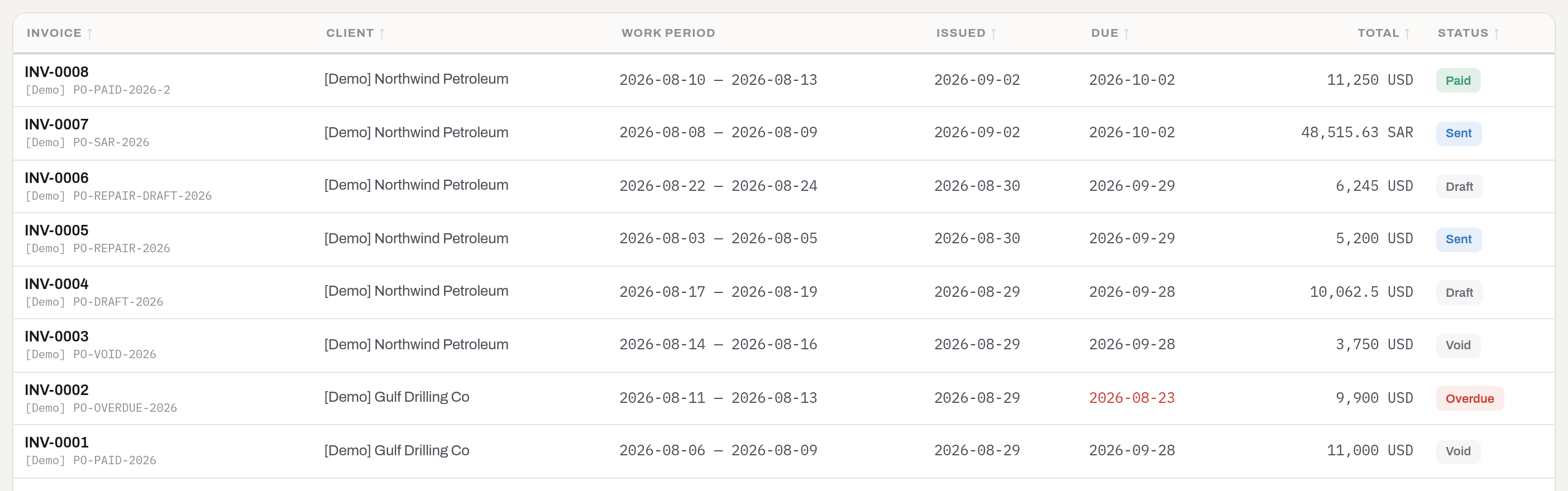
| Badge | Meaning | What changes it |
|---|---|---|
| Draft | Being assembled. Lines can still be added, priced and removed; the whole invoice can be deleted | Send (Manager and above) |
| Sent | Gone to the client. The document is frozen, and the tickets and repairs it covers turn Invoiced | Record payment, a credit note, or Void. Send again re-sends the same document without changing anything |
| Partially paid | Some of the money has arrived, or part of the invoice has been credited — not all of it | More money, another credit note, or voiding a payment, which walks it back |
| Paid | Nothing left to pay: payments and credit notes cover the total | Voiding a payment takes it back to Partially paid or Sent; Void is still possible |
| Void | Cancelled with a reason. The document stays readable, but the work it covered goes back into the billing queue | nothing; it is final |
| Overdue | Not a status: an open invoice — Sent or Partially paid — whose due date has passed with a balance still owed. The due date turns red with it | payment, a credit note, or voiding |
Credit notes carry their own three: Draft (being assembled, credits nothing yet), Issued (a document; it reduces what the client owes) and Void (cancelled with a reason; the debt comes back).
Send is refused while any line has no price, and refused outright on an empty invoice — a numbered document with nothing on it is the kind of thing that eventually gets sent by accident.
Alerts
Findings of the nightly rules. Severity is fixed by the rule, not by a person.
| Badge | Meaning | Rules that raise it |
|---|---|---|
| Critical | Do not send this out | Certificate expired, Life budget exceeded, Maintenance due |
| Warning | Deal with it this week | Certificate expiring, Life budget warning, Stock below minimum, Inspection due, Maintenance due soon, Work order open too long |
| Info | Worth knowing | Idle asset |
An alert also carries where it stands with the people who read it:
| Badge | Meaning | What changes it |
|---|---|---|
| Open | Nobody has picked it up | Got it (Operator and above) acknowledges it |
| Acknowledged | Somebody has taken it on. The condition is still true | Undo puts it back to Open |
| Resolved | The condition is gone | the data — an alert is never closed by hand. The queue calls this view Closed |

How to
Read a badge you have not seen before
Who: Viewer and above.
- In a list of assets, hover the icon in Status or Readiness — the word appears, and readiness adds the reason and the countdown (Need inspection · overdue 142 d).
- Open the row. A card always spells its states out in full, in the header.
- Still unclear what moved it? The item's Activity timeline, and the history on a ticket, a repair or an invoice, name the person and the moment.
Result: you know what the badge claims and who last changed it.
If it fails: a dash instead of a badge is an answer too — it means the value does not apply here at all: a consumable has no readiness, an open work order has no billing status yet.
Filter a list down to one state
Who: Viewer and above.
- Use the quick views in the toolbar where they exist: readiness on Items, Submitted / Approved / Draft / Rejected on Field tickets, Open / To bill / Closed / Cancelled on Maintenance, Draft / Sent / Partially paid / Overdue / Paid on Invoices, Open / Acknowledged / Closed on Alerts & notifications.
- For anything the chips do not cover, open Filters and pick Status there.
- Click the Status column header to sort instead of filtering when you want everything, grouped.
Result: the choice goes into the address bar, so the filtered list can be bookmarked and sent to somebody else, and it survives opening a card and closing it again.
If it fails: an empty list with a live filter — click Reset (or Reset all in the tray above the table). Note that some views are not a plain status: To bill means closed and billable, and Overdue means sent and past due.
Change a state
Who: depends on the state — see the table.
| What | Where | Minimum role |
|---|---|---|
| Item status | item card → Change status, or a selection → More actions → Status | Operator |
| Void a certificate | item card → Certifications → the ban icon | Manager |
| Assign / return an item | item card or selection → Assign / Return | Operator |
| Job status | job card → Activate job / Complete / Cancel job | Operator |
| Reserve, mobilize, return equipment | job card → Reserve equipment, Mobilize, Return | Operator |
| Submit a field ticket | ticket card → Submit | Operator |
| Approve or reject a ticket | ticket card → Approve / Reject | Manager |
| Open, close, cancel a work order | item card or Maintenance | Operator |
| Price a repair by quote | work order → Billing | Manager |
| Send, settle or void an invoice | invoice card → Send / Mark paid / Void | Manager |
| Acknowledge an alert | Alerts & notifications → Got it | Operator |
| Re-run the rules now | Alerts & notifications → Check now | Manager |
Result: the badge changes, a toast confirms it, and the record's own history gains a row naming you.
If it fails: Requires tenant role 'operator' or higher (or 'manager') — ask an admin for the role. If the button is not there at all, either your role is short of it or your group has not been granted that section: see Roles & access.
What the system tells you
Badges change quietly. These are the ones that also go and find a person.
| When | Feed row | Who sees it |
|---|---|---|
| The rules run (07:00 workspace time) and a finding is new or still standing | one row per rule — Certificate expired, Life budget exceeded, Stock below minimum, Idle asset, … | everyone who can see Alerts |
| A valid certificate is voided | — (letter only) | every manager and admin, unless your workspace has been given an explicit list of addresses |
| A field ticket is submitted | Ticket {number} is waiting for approval | manager and above, with Field tickets |
| A field ticket is rejected | Your ticket {number} came back | the person who wrote the ticket — nobody else |
| A work order is closed | Repair closed — ready to bill, or Repair closed without a price | manager and above, with Maintenance |
| An invoice is sent | Invoice {number} sent | everyone who can see Invoices, whatever their role, except the sender |
| A sent invoice passes its due date (07:45 workspace time) | Invoice {number} is past due | everyone who can see Invoices |
| The month closes and a unit is Sold, Scrap or fully depreciated | Sold / Written off / Fully depreciated | manager and above, with Finance |
| Damage is reported on an item | Damage reported | manager and above, with Items |
Some of these go out as letters too — the nightly digest, the voided certificate, the closed repair, the returned ticket, the invoice itself. Who gets which letter, and what each one is called, is Emails; the row-by-row mapping is Notifications. The daily fleet digest (07:30 workspace time) goes to every manager and admin, unless your workspace has been given an explicit list of addresses — the section grant has nothing to do with it.
Rules are evaluated once a night, so a certificate you renew today stops shouting tomorrow morning — or straight away, if a manager presses Check now.
Related
- Items — where status, readiness and the certificate countdown live together.
- Compliance — the four certificate states across the whole fleet.
- Jobs — job and equipment states, reservations and mobilization.
- Field tickets — the approval chain behind those five badges.
- Maintenance — work orders, who pays, and the price behind To bill.
- Invoices — the billing cycle from Draft to Paid.
- Alerts & notifications — the rules, the queue and the digest.
- Notifications — which feed row every badge change writes, and to whom.
- Emails — every letter Hafrix sends, and what it is called.
- Glossary — the words themselves.
FAQ
Why is an Active item not Ready? — Because one is declared and the other is computed. An expired certificate, a failed inspection, an open repair or an inspection owed after a run will each hold readiness back while the status stays exactly as somebody set it.
Why does the list show icons where the card shows words? — A word repeated down every row carries no information. In a list the exception is what you are hunting for, so the status and the readiness are icons with the word on hover, and the row itself is tinted when it needs you. On a card there is one record and plenty of room, so it is spelled out.
Why is a voided certificate grey and an expired one red? — Red means "somebody has to act". An expired certificate needs a new inspection; a voided one has already been dealt with — it was struck out on purpose and no longer counts towards anything.
Overdue is not in any status list — where does it come from? — It is computed from the due date, and it only ever describes a Sent invoice. The same is true of No rate on a repair and of the certificate countdown chip on an item: they are conditions drawn as badges, not values stored in a field.
Can I add a status of our own? — No. Every one of these lists is fixed, because the rules behind them — what blocks a booking, what can be invoiced, what raises an alert — are written against exactly these values. What you can shape is the vocabulary around them: certificate types, service levels, categories and shifts are all yours.
A badge is missing where I expected one. — A dash means the value does not apply: a consumable has no readiness and no compliance, an asset out of the fleet has no readiness, an open work order has no billing status until it closes. A missing button next to a badge is a different thing — that is your role or your section grants, see Roles & access.
Updated 2026-08-31
New to Hafrix?
See this workflow in your operation
Explore how Hafrix connects equipment records, locations and readiness across your fleet. Bring your inventory workflow to a demo.