Procurement
How equipment and consumables get into the yard in the first place: somebody asks, one person decides, and the request stays visible until what was asked for is on the shelf.
Where: capsule → Fleet → Procurement (/procurement). If the entry is missing, your group has not been granted this section — see Roles & access.
Who can do what
| Role | In Procurement |
|---|---|
| Viewer | Open the list, switch views, search, filter, read any request |
| Operator | + ask for something (Request, from here or from a stock line, an alert, an item card, a repair or a job), edit and submit their own draft, withdraw it, edit it again after it comes back, fulfil a line from our own stock, receive goods against an order, raise a claim to a supplier, attach sub-rental files, fast purchase, where it is turned on and can also open Clients |
| Manager | + edit and submit anyone's draft, close a request or a single line with a reason, delete a draft, turn approved lines into an order, send it, add charges, close or cancel it, void a receipt, send a claim and record the supplier's answer |
| Admin | + set who approves (Settings → Procurement), mark a company as an affiliate |
Approving is not a step on the role ladder. It is a named group in Settings → Procurement, and while no group is named, every admin decides. Above that group you can put approval limits — who decides depends on how much the request is likely to cost. See Who decides depends on the amount and Procurement settings.
The section has five lists: requests (/procurement), orders (/procurement/orders), supplier invoices (/procurement/invoices), claims (/procurement/claims) and sub-rentals (/procurement/subrentals) — the tools we rent in from somebody else. On the requests list they sit in the menu of the split button at the top right, next to Fast purchase; the buttons in each other header move between them. Supplier invoices are money rather than a yard operation, so manager and above enter and approve them.
At a glance
The list is one row per request, newest first, with the two numbers that matter above it: how many wait for your decision, and how many are approved but not ordered yet.
- Queue — a dropdown in the table's own header: Awaiting my approval (only if you are an approver, with a count), Mine, Approved, not ordered, Sent back, All — the button shows the pick.
- Search — matches the request number, its title, and the description or part number of any line in it.
- Filters — opens the filter panel beside the list: Raised by (what caused the need), Priority and Job.
- New request — the same dialog every other screen opens; operator and above.
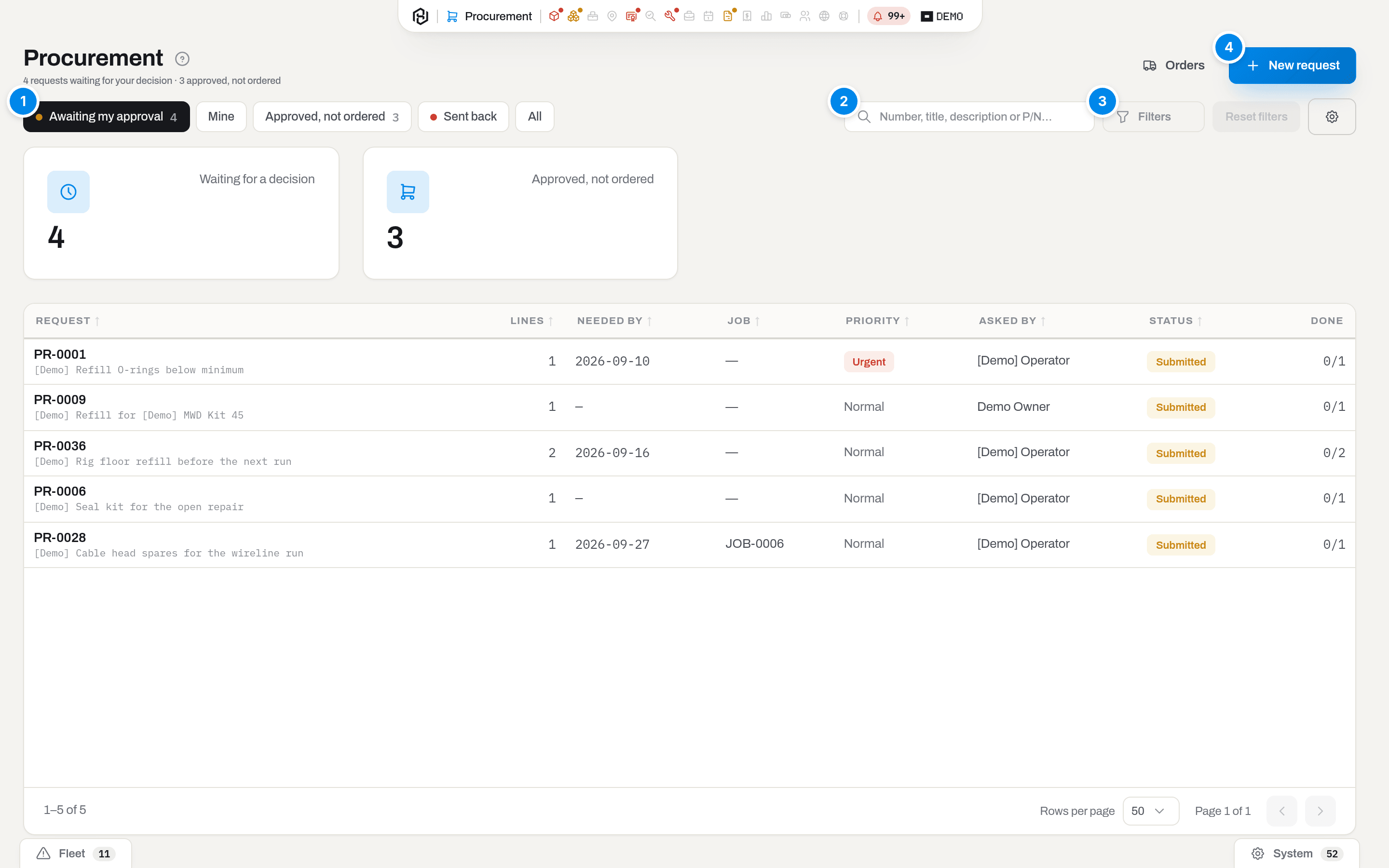
An Urgent request is marked in its own column, and the Done column reads 2/3: how many lines of the request are finished or closed. Columns hides an Estimated total column that nobody needs every day — switch it on when you are working through what waits for a decision.
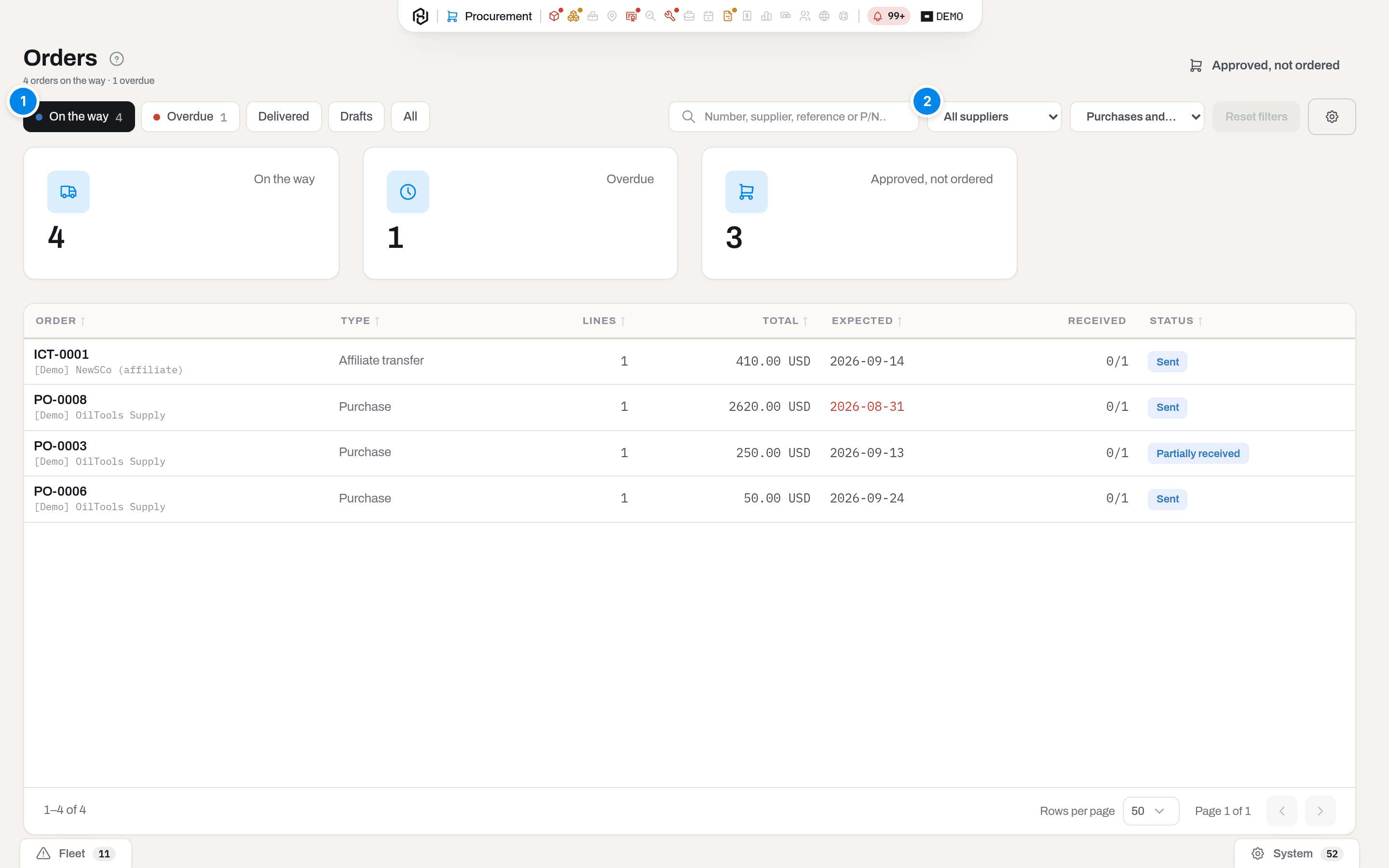
The Orders list is the same shape: quick views On the way, Overdue, Delivered, Drafts and All; search over the number, the supplier, their reference and part numbers; filters by supplier and by type. The Expected date turns red once it has passed, and Received reads 2/5. There is no New order button here on purpose — see below. Where it is turned on, a Fast purchase button and a matching Fast filter let you find and buy the small stuff without a request — see Fast purchase.
Key concepts
A request is the one way in
There is no second form called "order this". Whether the need comes from a shelf under its minimum, a repair waiting for a part, a damaged tool or somebody simply knowing they will need six of something next week, it becomes a line on a request — and every line remembers what raised it. That is what an approver reads when they ask why.
The practical effect: Request appears in seven places and always opens the same dialog.
| Where you click it | What it fills in |
|---|---|
| Procurement → New request | nothing — you type it |
| A Stock row | the consumable, the location it is short in, and enough quantity to reach the minimum |
| An alert Stock below minimum | the same, plus the alert as the reason. Once the request is submitted, the alert carries its number back as a link, so nobody asks for the same thing twice |
| An item card | for a consumable, the card itself; for a serialized asset, a description asking for a replacement for that serial number |
| A repair (work order) | the repair as the reason, and its job |
| A job | the job as what it is for, and Needed by on the day the job starts — nothing arriving after it is of any use |
| A short row on a kit | the item the box is missing, the quantity it is short by, and the shortage as the reason (Ask for a refill) |
Your open draft is a basket
The dialog does not ask you to name a request. It puts the line into your open draft — and creates one if you have none. Click Request on four stock rows in a row and you get one request with four lines, not four requests with one line each. If you have a draft already and this need belongs somewhere else, pick New request in the dialog.
Nobody sees a draft but you (and a manager, who can act on anyone's). Nothing happens to it until you submit it.
A line does not need a catalogue card
A line can be an item from the catalogue, or just a description and a part number. A supplier does not care which — they read the description.
The card becomes necessary when the goods arrive: stock lives on an item at an address, and there is nowhere to put a description. So the receipt asks for one, and lets you create it on the spot — a catalogue card with zero on hand, filled in from the line you are receiving. From then on the order and the request remember it, and the next order for the same thing offers the price and the supplier's part number you used this time.
The card decides what a line becomes
Under the name of an order line that has a card, the order shows what that card is:
| Tag | What receiving the line does |
|---|---|
| Asset | creates one unit per serial number, and the units join the fleet |
| Assembly | the same, for an asset whose category is assembled from components |
| Consumable | adds the quantity to stock at the address you receive to |
A service line shows the kind of work instead, and a line without a card shows no tag. The line has no kind of its own: to change what it becomes, change the card.
Coming from RigER? Its line types map onto the card: Rental unit is an Asset line, Material a Consumable line, Combo Unit an Assembly line, Goods a line on a goods-for-sale card or on no card at all, and Service a service line.
An order is born from a request, never from nothing
Every line of an order points at an approved line of a request. There is no other way to create one, and that is the whole point: approval is the single place where somebody takes responsibility for spending money, and a "quick order" button would walk straight around it. If the person who asks is also the person who buys, an admin turns on self-approval — the decision is still recorded, signed by them.
One request can become several orders (two suppliers), and one order can carry lines from several requests (one delivery instead of two). What you do not order stays open on the request, and somebody else can order it later.
Three ways to get what is asked for
An approved line does not have to be bought. There are three ways to close it, and picking the right one is most of what procurement is:
| Source | What happens | Paper |
|---|---|---|
| An external supplier | you buy it | PO-…, a purchase order |
| An affiliate — a sister company with its own warehouse | the cost moves inside the group; nothing is bought | ICT-…, a transfer request |
| Our own stock in another location | a van, not an invoice | none — two lines in the stock journal |
The cheapest of the three is the last one, and it is the one that gets missed: somebody orders six of something that is sitting on a shelf two doors away. So the request card offers Fulfil from stock on every consumable line and shows what is on which shelf before you decide — see Fulfil it from our own stock.
A supplier and an affiliate are different pieces of paper
An order to a supplier is numbered PO-0001 and is a purchase: their price, your payment terms.
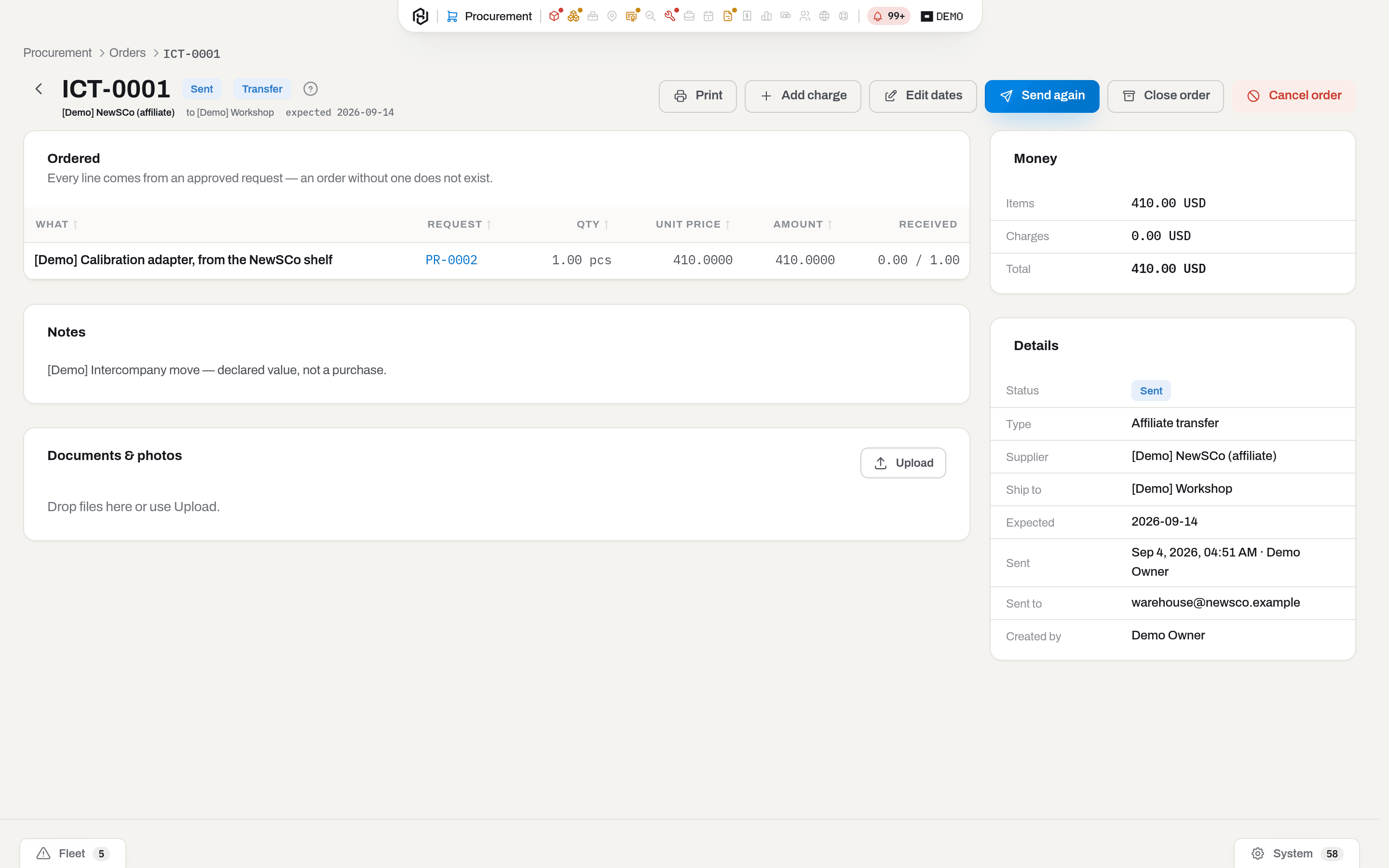
An order to a company marked as an affiliate (Mark a company as an affiliate) is numbered ICT-0001 and is an internal transfer: the goods move between your own companies, so nothing is bought, the printed form says Transfer request, there are no payment terms on it, and the price is the value the affiliate carries the goods at.
The type is decided when the order is created and does not change afterwards, even if the company stops being an affiliate: the paper stays what it was when it was signed.
The price on the order is not the cost on the shelf
The unit price is what you agree to pay the supplier, in the currency of the order. What the thing ends up costing on the shelf is decided when it arrives, and can differ — the delivery note says something else, or the money is converted at the rate of the day.
Charges — freight, insurance, customs, handling — are kept in their own list on the order instead of being spread across line prices by hand. They count towards the order total, so you can check the forwarder's invoice against it, and when the goods arrive they are shared out over the lines of the receipt, so what lands on the shelf is what the thing actually cost to get here — not the price on the invoice. That sharing out is described under Charges on an order.
Zero is a real price: a warranty replacement or a sample costs nothing, and that is the truth about the delivery. An empty price is different — an order with one goes nowhere.
What a request is likely to cost
A request carries no money of its own — prices belong to the order, and the order does not exist yet. But somebody has to sign the request, and signing without knowing whether it is two hundred or twenty thousand is not a decision.
So the request card shows an Estimated total, and it is exactly what it says: for every line that names a catalogue card, Hafrix takes the price from the last order that was actually sent for that card — from any supplier — multiplies it by the quantity asked for, and converts it into the workspace currency. That is the number in Estimated total, with from the last order written under it so nobody mistakes it for a quote.
It is worked out when you open the card and never stored. Prices move; the request does not. A number written onto the document on the day it was submitted would be a third place where a price lives, and the first change would make it a lie.
Marked incomplete, the total is short of something:
- a line that is words rather than a catalogue card — nobody ever ordered that, so there is nothing to look up;
- a card that has never been ordered before, or was only ever put on a draft order that was never sent — a draft is not a price;
- a price in a currency with no rate in Settings → Finance. It is left out rather than counted one for one: a hundred thousand riyals and a hundred thousand dollars differ by a factor of nearly four.
An incomplete total is a floor, not an estimate — what is known so far, and no more. When nothing at all can be priced, the card says —.
Who decides depends on the amount
A box of O-rings and a mud motor are not the same decision, and sending both to the same person makes one of them a rubber stamp. Settings → Procurement → Approval limits is a short list read top to bottom:
| Up to | Decided by | Then the next step |
|---|---|---|
| 1,000 | Buyers | yes |
| anything above | Directors | — |
- One rule applies — the one whose range the request falls into. The amount compared against the limits is the Estimated total (What a request is likely to cost), in the workspace currency.
- The step is picked once, when the request is submitted, and stays on the document. Prices in the order history move every week; the request stays the one that was submitted, and a chain that wandered to another approver halfway through would be worse than no chain at all.
- An estimate that could not be worked out in full takes the strictest step — the last one on the list. An unknown amount is never a small one, and a line typed as words is exactly that: unknown.
- An amount above every limit goes to the last step too, rather than to nobody. You do not have to leave a step without a limit, though it reads better when you do.
- Then the next step turns one decision into two: the first group approves, and only then does the second one hear about it — a letter, a line in their feed, and the dot on their Procurement icon. Leave it off and the chain is one decision by one person, exactly as before, with the group chosen by the amount.
- A refusal at any step ends it. The request goes back to its author with the reason, and Edit again starts the chain over from the beginning: after a correction it is a different amount and a different piece of paper. The signatures already given stay on the card — they are the history of the document, and nothing rewrites them.
- An empty list is the plain behaviour: the approvers group above decides everything.
The card of a submitted request shows the ladder under Approvals — who is deciding now, who is next, and what each step already said.
A rented-in tool is a period, not a rate
A tool we rent from somebody else costs money for as long as it sits on our yard, and that is what a sub-rental period records: the vendor, the PO, the day it arrived, the day the contract says it goes back, and the rate — per day or per month.
Two things follow from keeping the period rather than only the rate:
- The rent lands in the cost of ownership of that tool, one line per calendar month. So "what did this NMDC cost us in March" has an answer, and so does "did it earn more than it cost" — see the Sub-rental tab in Finance.
- Two weeks before the contract end, an alert says so. Extending is cheaper than a surprise invoice for another month.
One tool has one live period at a time — the same steel cannot stand at two vendors. Leaving it longer is an extension of the same period, not a second one.
What is set aside for it
An approval limit asks who signs this. A budget asks a different question — is there anything left — and neither answers the other. Settings → Procurement → Budgets holds a short list of amounts set aside for a slice over a period:
| Covers | What for | Period | Set aside | Used |
|---|---|---|---|---|
| Category | Consumables | 1 Jul – 30 Sep | 40,000 | 82% |
| Job | JOB-1044 | 1 Jul – 30 Sep | 25,000 | 118% |
| Cost center | OPS-21 | 1 Jul – 31 Dec | 60,000 | 34% |
| Whole workspace | — | 1 Jul – 30 Sep | 250,000 | 55% |
- Four slices, and they overlap on purpose. One line of a request touches every budget whose slice fits it — its category, its job, its cost center, and the workspace as a whole. Each answers for itself.
- A category budget covers the whole branch, not just the one node: a budget on Consumables counts what was spent on everything under it.
- Used is two numbers added up. Committed is what sent orders still owe — quantities that have not arrived yet. Actual is what receipts have already cost, including the share of freight and duty landed on them. They are shown apart because they are different money: an order can be cancelled, a receipt cannot. Between them nothing is counted twice — as goods arrive, the same money moves from committed to actual.
- The period is what puts money in a budget, by the date an order was sent and the date goods were received. An order sent in March and received in April leaves March's budget as it arrives and lands in April's.
- One budget per slice and period. Two numbers for the same money are not two budgets; they are an argument about which one is real.
- Rent for a tool we rent in stands beside the bar, not inside it. A sub-rental accrues month by month into the tool's cost of ownership, not as a line on an order — a different clock and a different piece of paper. So Rent accrued is a column of its own, next to the percentage: it is never added to Used, and the bar keeps showing only money you can trace back to an order or a receipt. The order that set the rental up counts like any other line; the monthly rent counts only in that column. A budget for a single job says not counted for a job instead of showing a zero — rent is paid to the vendor by the calendar, not by the ticket, and there is no honest way to split a month between the jobs the tool stood on. Rent with no exchange rate for its currency is marked incomplete the same way, and only that column is marked — the bar is not.
- Everything is converted into the budget's currency using the rates in Settings → Finance. A line whose currency has no rate, or an order line with no price on it yet, is left out and the figure is marked incomplete — a floor, not a total.
Going over is not blocked. Money is a human decision, and a request that would take a budget past what was set aside still goes through — it just stops being a small one:
- the request card shows a Budgets block: where each slice stands now and where it would land — 82% → 118%;
- the request goes to the strictest approval step, the same as an estimate that could not be worked out — see Who decides depends on the amount;
- the letter to the approver carries one line saying so, and the group of that last step gets a line in their feed;
- once a live budget passes 80% and again at 100%, an alert Budget nearly or fully used appears for managers in Procurement. It follows the number as it grows and goes out by itself when the period ends or the money is freed.
A cost center on the line
A cost center is your own ledger's code for whose money this is. Hafrix keeps no list of them — the codes come from your accounting system — so it is a plain field, offered back to you as soon as somebody has typed it once.
It is filled in for you and then carried, not looked up again:
- a line of a request takes it from the item's finance card (Asset finance); a line raised by a job takes the job's, when the job has one. Type your own and yours wins.
- The order copies it from the request, and the receipt copies it from the order. They are snapshots on purpose: paper remembers whose account it went out on, even if the request is edited afterwards. Change it on the request before ordering, not after.
The column is hidden by default on both the request and the order — open it from Columns when a budget by cost center does not add up.
The supplier's bill is checked against two papers of ours
When the invoice arrives, the question is never "is this number right" but "is this the bill for what we ordered and what actually came". Hafrix answers it with a three-way match: the invoice line against the order it belongs to and against the receipts posted on it.
- Quantity is compared with what was received, not with what was ordered — money is paid for goods on the shelf. The ceiling is what came in minus what other invoices already billed against that line, which is the only thing that stops one delivery being paid for twice on two pieces of paper.
- Price is compared with the order price, with a tolerance in percent (2% unless you change it in Procurement settings). Quantity has no tolerance: one extra piece is one extra piece, not rounding.
- Charges — freight, customs, the forwarder — are billed against the order's charge lines, and never for more than the charge itself.
Every line points at exactly one of ours: an order line or a charge. A line that points at nothing cannot be entered at all — an invoice we cannot check is money leaving for something nobody can name.
Nothing is corrected automatically. A match that fails puts the invoice in Exception with the list of gaps on the card, and everyone who approves supplier invoices gets a feed line and an email. That is deliberate: an invoice quietly corrected to match the order is an overpayment nobody will ever notice.
Hafrix does not track payments, tax or a payables ledger — that is your accountant's side. What we produce is the file (see Export payables) and a Paid note put on by hand.
What is frozen and when
- Draft — everything can be edited, lines added and removed.
- Submitted — waiting for a decision; the author can withdraw it back to a draft.
- Approved — quantities and items are frozen. That is what was approved; more of something means a new request.
- Sent back — the same number, the same lines, back with the author to fix. The reason stays on the request afterwards.
- Closed — finished, or deliberately given up on with a reason.
An order freezes earlier and harder than a request:
- Draft — everything can be edited: quantities, prices, supplier part numbers, terms. A draft can be deleted, and the quantities go back to the request.
- Sent — the supplier has a piece of paper with this number on it. Only the expected date, their reference, the notes (both kinds) and the charges change from here. More goods mean a new order; fewer mean closing this one short. Charges outlive the paper: they can still be added and corrected on a closed order, because that is when the forwarder invoices.
- Partially received / Received — set by receipts, not by hand. An order that has arrived in full closes itself; there is nothing left to decide about it.
- Closed — nothing more is coming. Whatever did not arrive goes back to the request.
- Cancelled — called off with a reason, and only while nothing has arrived yet.
A supplier invoice freezes at the signature:
- Draft — entered, no lines yet. Nothing to match.
- Matched / Exception — the same place in its life seen from two sides. Both are editable, and every edit re-runs the match.
- Approved — cleared for payment. The lines no longer change, and the invoice cannot be deleted. Revise takes the signature off again — but only while it has not gone to accounting.
- Exported — it is in someone else's books now. See Export payables for the one way back.
- Paid — accounting has paid it. This is a note, not a payment record.
How to
Request an item
Who: Operator and above.
- Click Request — on a stock row, an alert, an item card, a repair, a job, a short row on a kit, or New request in Procurement.
- Check the Quantity. Where Hafrix can work it out (a shelf under its minimum), it is filled in for you.
- Say Why it is needed. The approver reads this line and little else.
- Unit is filled in from the item's card and cannot be changed here — a part is counted one way, not two (The unit it is counted in). Only a line typed as free text, for something the catalogue does not know yet, lets you write the unit yourself.
- If you know it, pick Where to take it from — an external supplier, the affiliate's warehouse, or your own stock in another location. It is a hint, not a decision.
- If you already have a draft and this need belongs to a different one, pick New request under Where it goes.
- Click Add to request.
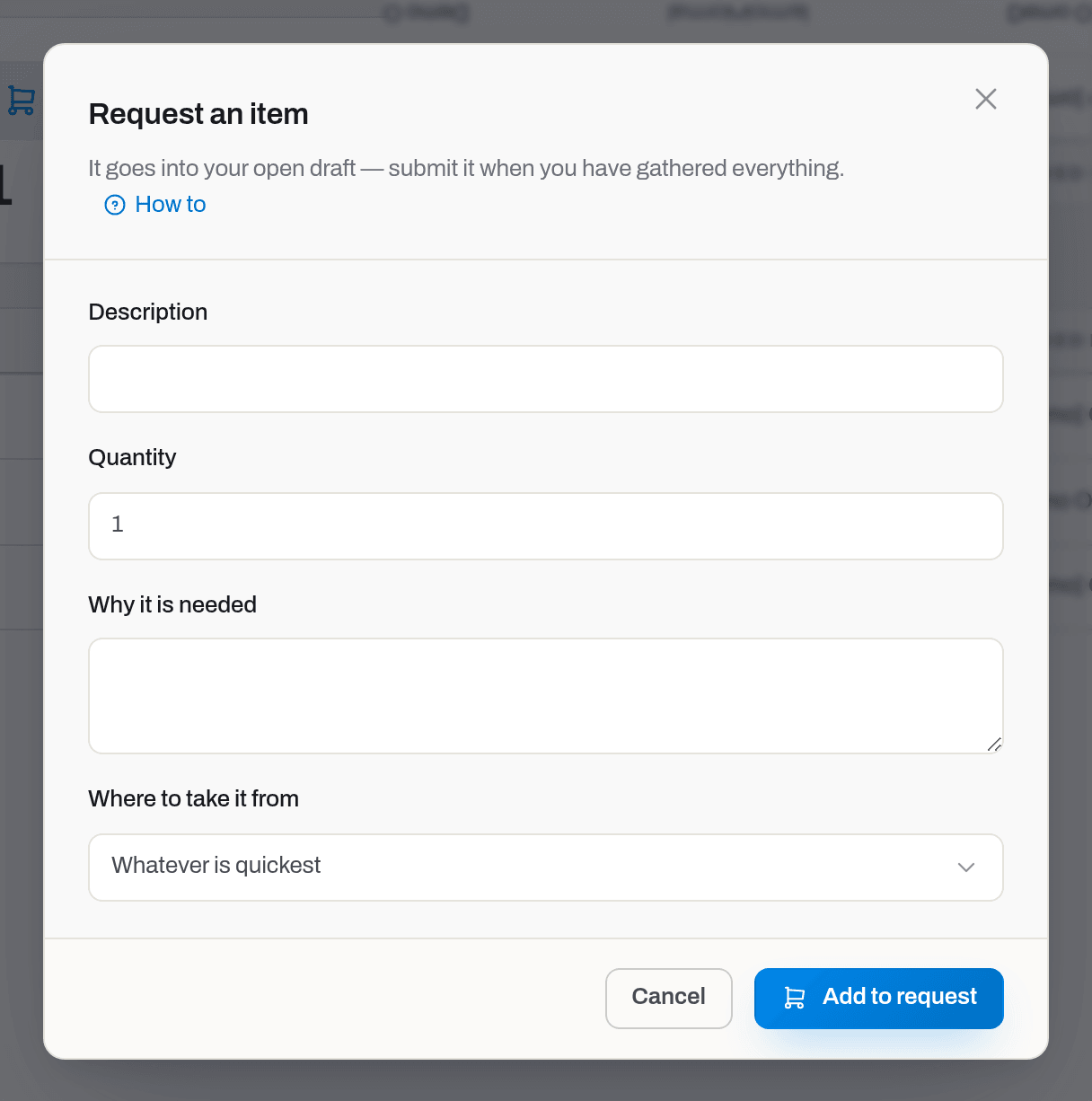
Result: a toast says which request took the line, and the request opens. Add the rest of the lines, then submit it.
If it fails: A line without an item needs a description. — type what you want. Quantity must be greater than zero. — a request for nothing is not a request.
From a job. On a job card, Request for this job opens the same dialog with the job already attached and Needed by set to the day the job starts — nothing arriving after that is of any use. The request carries the job through approval, ordering and receipt, so the approver reads what it is for rather than what it is, and the Job filter on the request list answers "what is this job still waiting for".
Edit a draft's header. While the request is still a draft, Edit on its page changes Title, Priority, Needed by, Deliver to, Notes and its Department, Line of business and Purpose — see Document dimensions. Left blank, a request started from a job picks up that job's own tags automatically.

Correct a line of a draft
Who: the author of the request, or a manager and above, while it is still a draft.
In the lines table, the pencil on a line changes its Quantity, Description and Why it is needed. A line typed as free text also lets you change its Unit; a line with a catalogue card keeps the card's unit. The bin next to it removes the line.
If it fails: Quantity must be greater than zero. — to drop a line, remove it instead. A line without an item needs a description. — a free-text line cannot lose its words. Once the request is submitted the buttons disappear; Withdraw it back to a draft to change a line.
Submit it and get a decision
Who: the author, or a manager for anyone's request.
- Open the request and check the lines: after approval, quantities are frozen.
- Click Submit.
- The approvers get a letter and a line in their feed. The dot on the Procurement icon in the capsule counts what waits for them.
The letter carries the lines, who asked, when it is needed — and the Estimated total, but only when it could be worked out in full. A half-counted number on paper is remembered; the caveat next to it is not. Half-counted, it stays on the card, marked incomplete — see What a request is likely to cost.
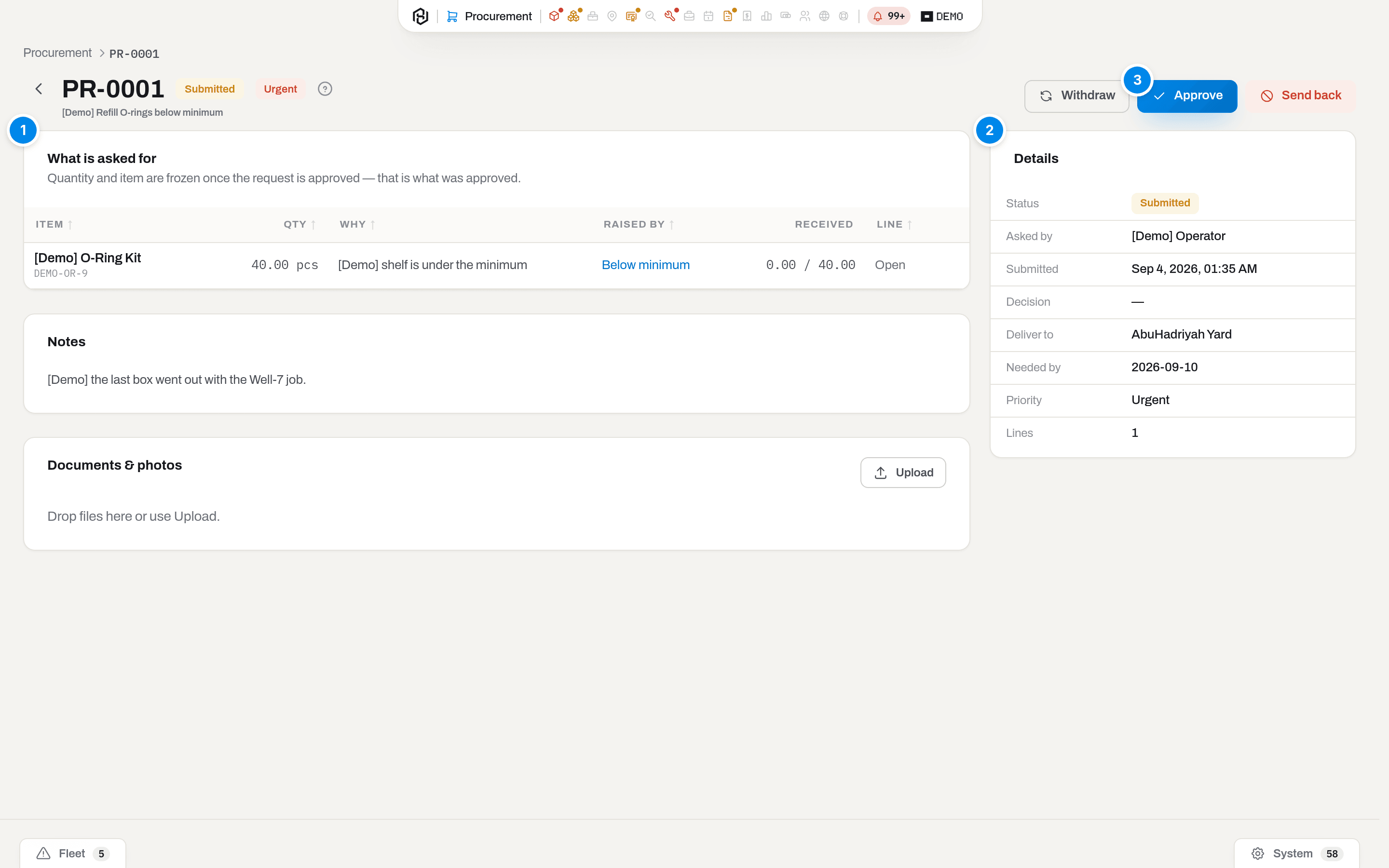
As an approver: open the request from the letter or from Awaiting my approval, then
- Approve — the lines can now be ordered, and the author is told;
- Send back — with a reason, which is required. The author fixes it and submits again under the same number.
With approval limits set up, the letter goes only to the step whose turn it is, and Awaiting my approval — both the number on the icon and the list under it — counts only what waits for you. Approve a step that has Then the next step on it and the request stays Submitted: it has moved to the next group, and now it is their letter. The Approvals block on the card shows the whole ladder — see Who decides depends on the amount.
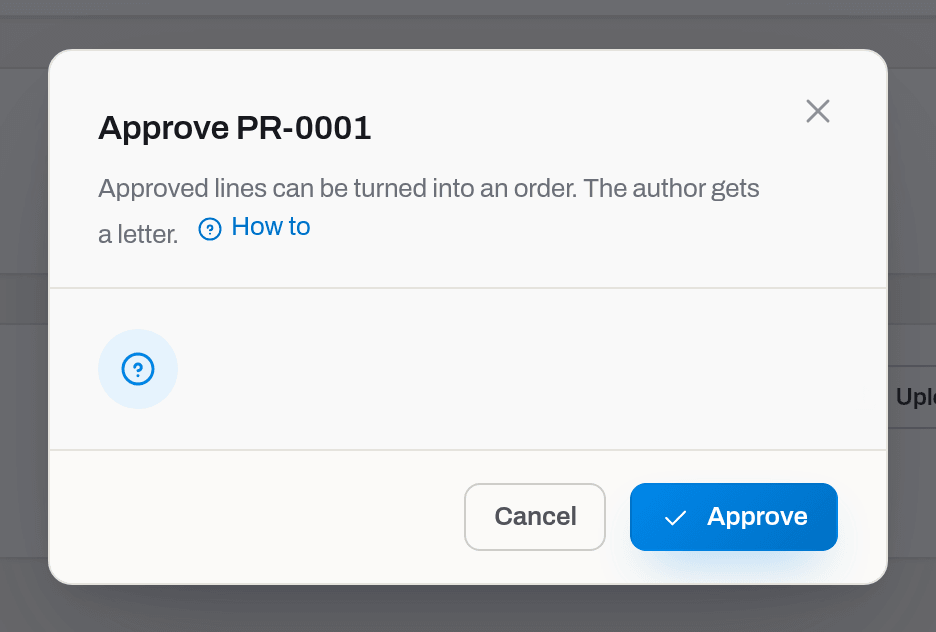
Result: the request moves to Approved or Sent back, and the decision — who and when — stays on the card.
If it fails: Add at least one line before submitting. — an empty request cannot be decided on. You cannot approve your own request. — someone else decides, unless an admin has allowed self-approval. Approving purchase requests is limited to the approvers of this workspace. — you are not in the group; see Procurement settings. PR-… is waiting for … to decide — this step is not yours. — the request landed on another step by its amount, or the step before yours has not signed yet. Rejecting a request requires a reason. — say what has to change.
Order from a supplier
Who: Manager and above, on an approved request. The supplier comes from the company list, so the Order button is shown only to people who can also open the Clients section.
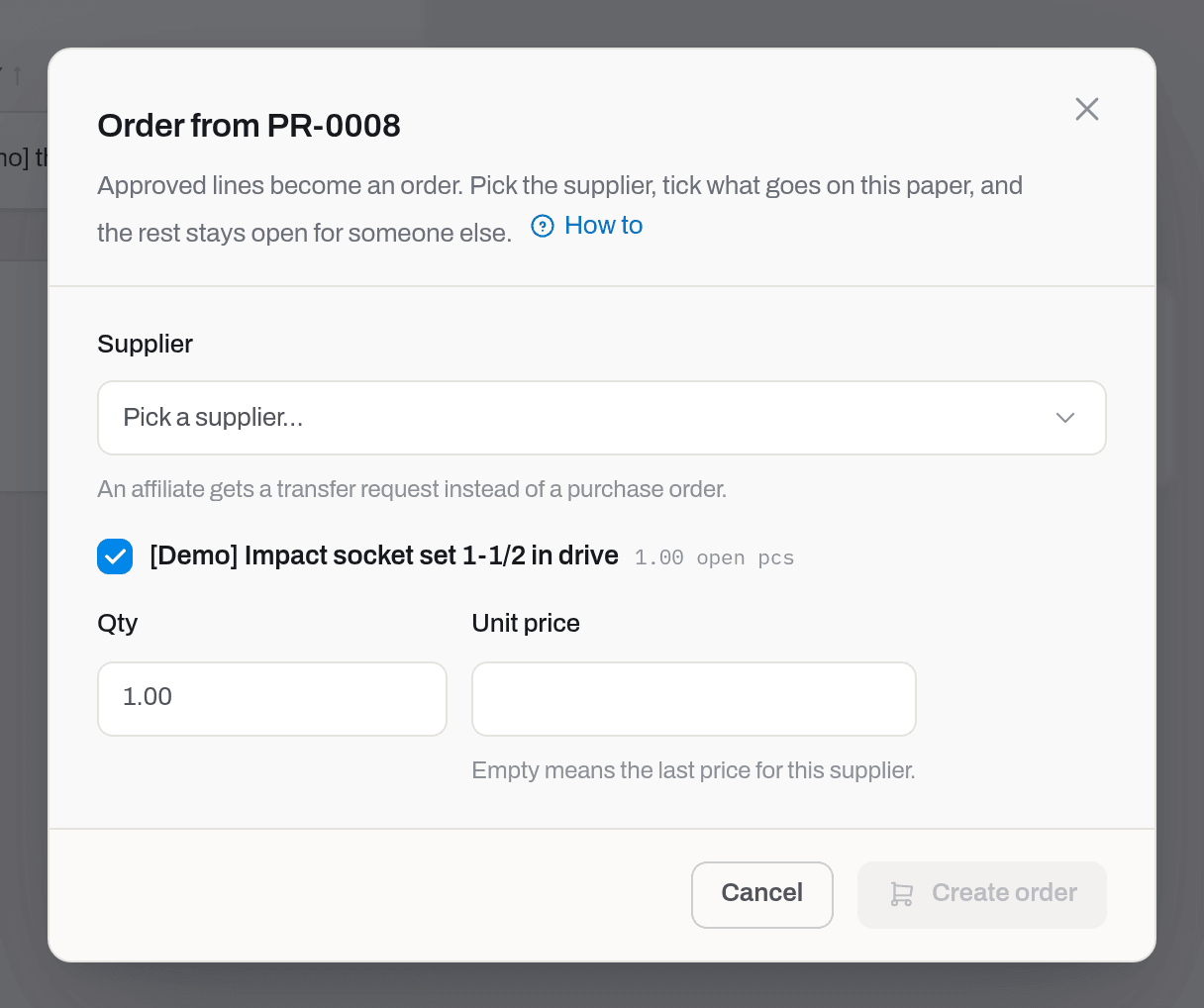
- Open the request and click Order.
- Pick the supplier. Only vendors are listed; an affiliate is marked in the list — see Ask an affiliate for it. A Service filter next to it narrows the list to vendors doing that trade — see A contact's position, and what a vendor does — and a supplier already picked stays listed even after the filter changes.
- If there is already a draft order for this supplier, choose it under Where to put the lines: two orders to one supplier in one day mean two deliveries.
- Tick the lines and check the quantity — it starts at everything still unplaced, and cannot be more than that.
- Type the unit price if you know it. Leave it empty and Hafrix fills it in from the last line ordered from this supplier for this item, along with their part number and description.
- Click Create order. The order opens.
Once the order is sent, the button on the card is Edit details, and it changes only the expected date, their reference, the notes and internal notes, the Budget month, the Performer and the linked Job — the lines, prices, delivery address, Incoterms and payment terms are what the supplier has, and changing them is a revision. A line's own Expected date works the same way: it is the one thing that still changes on a line after the order is sent — quantity and price do not (a 409 on the attempt).
Budget month and Performer are plain tags carried in from RigER: which month's spend this order is counted against, and who is doing the work. Neither drives the Budgets tracking above on its own — they are for filtering the register and for the Lines report below.
Received and Billed each read as one of three words — None, Partial or Full — for how much of the order's quantity has arrived and how much of it the supplier has billed. Both show as a badge on the register and on the card, and both filter the register the same way Type does.
Lines report, on the register toolbar, exports every line under the register's current filters — order, supplier, status, budget month, performer, position, item, the line's own quantities ordered/received/billed, its Expected date, unit price and currency — as an Excel file.
The order picks up the request's own Department, Line of business and Purpose the moment it is created — the Order dialog shows what it will inherit — and Edit on the draft changes them afterwards if the two ever need to differ; see Document dimensions.
Result: the order is SENT, the request shows it in its Orders block, and the ordered quantity is no longer counted as unplaced. Print gives the same PDF at any time.
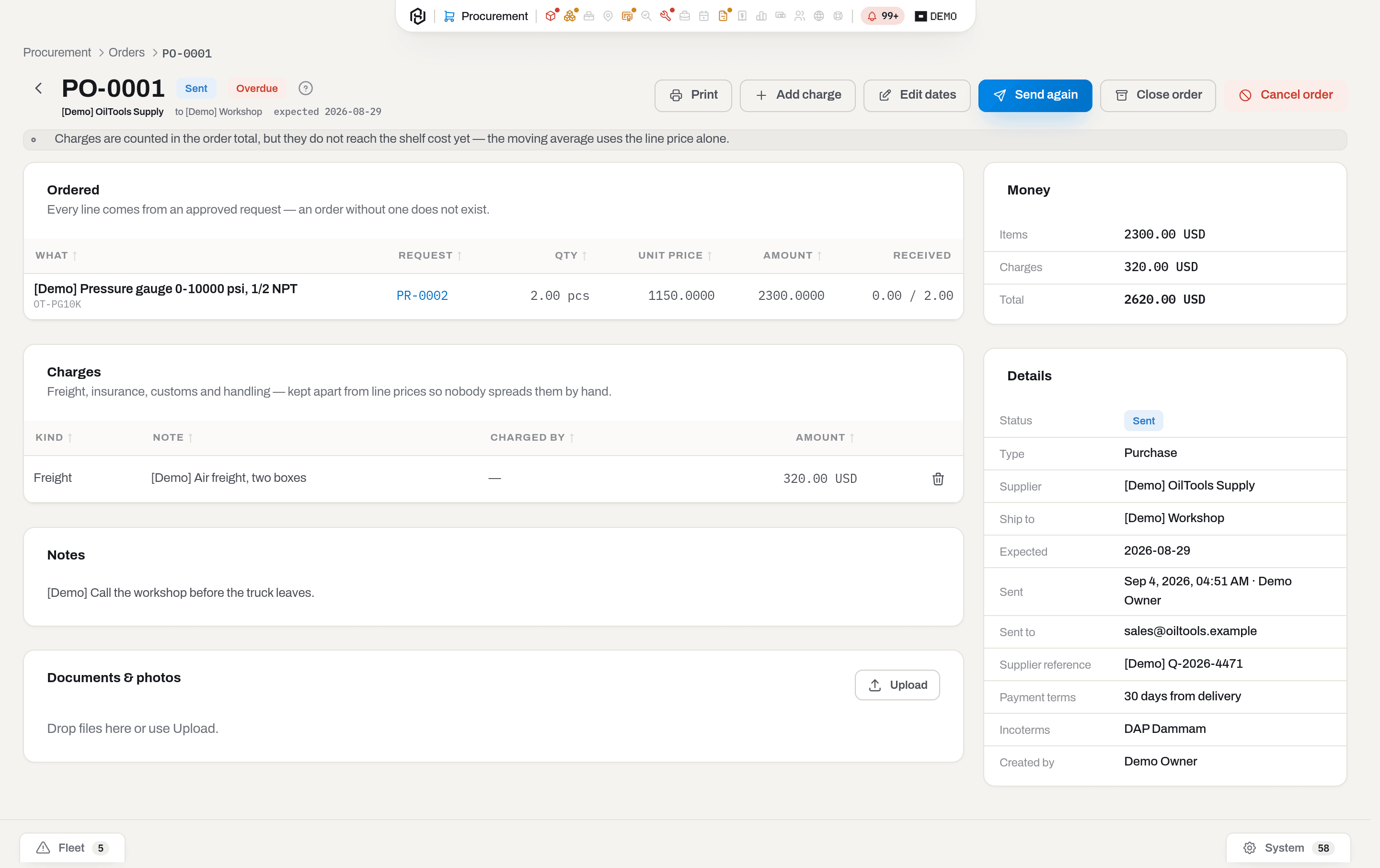
If it fails: Every line needs a price before the order goes out. — a blank price is not zero; fill it in. Only … of that line is still unplaced. — somebody has already ordered part of it. Request … is not approved. — get the decision first. … is a client, not a supplier. — orders go to vendors. Nowhere to deliver. — set Deliver to on the request, or a default address in Settings → Procurement.
Fast purchase
Who: anyone who can operate procurement and open the Clients section — the supplier comes from the company list, same as Order from a supplier. The Fast purchase button is shown only when an admin has turned it on and set a limit in Settings → Procurement.
Fast purchase is the request, the approval and the order in one step, for the small, ordinary buys that would otherwise wait on someone to approve a request they were never going to reject — a bag of fittings, a cable, a part off the shelf. A request is still created and approved — the tenant's fast purchase limit signs it on the spot, in the request's own timeline, not a person — so it stays visible, but nobody waits on it: click Fast purchase, fill in what was bought, and Hafrix creates the order, sends it, receives it and closes it, together with its receipt, all in one currency, from one supplier.
- Click Fast purchase, on the Procurement page or the orders register.
- Pick the supplier.
- Add a line for each item bought: pick it from the catalogue with the item picker, or, for something with no card yet, type a description and a category instead — the category is what the card gets when the item arrives. Fill in quantity and unit price; a part number and UoM are optional either way.
- Check Ship to — it starts at the workspace's default delivery address — and the currency, which starts at the supplier's own currency (or the workspace's own, if the supplier has none set); change it if this purchase was actually paid in another one.
- Add a reference and a purchase date if this is being logged after the fact, rather than bought just now.
- Attach a photo of the receipt or delivery note if you have one.
- Click Buy.
Result: a purchase order is created, sent, received and closed in one step, and it carries a FAST badge on the register and on its own card so it is easy to tell apart from an ordered-and-received one. A photo that fails to attach does not undo the purchase — you see a warning; attach the photo on the order card afterwards.
If it fails: Fast purchase is off in this workspace — raise a request, or ask an admin to set a limit in Settings → Procurement. — nobody has turned it on yet. This purchase comes to … , above the fast purchase limit of … — it goes through a request and an approval. — above the line, it is ordinary procurement again; see Order from a supplier. No exchange rate from … to … — without it the purchase has no known size, and an unknown amount is never a small one. Add the rate in Settings → Finance or raise a request. … is serialised equipment — it needs serial numbers and its own cards on arrival. Buy it through a request. — tracked assets keep their own paper trail. A line without an item card needs a description. / A line without an item card needs a category — the card is created on arrival. — a line with no catalogue item still needs to say what it is and where it will file. This purchase would take … over budget — an overspend is signed by a person, not by the fast purchase limit. Raise a request. Goods cannot arrive in the future — check the date on the delivery note. A fast purchase is booked within a month of buying — older spends go through a request. — the purchase date is more than 31 days back. … is our affiliate — a transfer goes through a request. — the supplier is one of ours; see Ask an affiliate for it instead. Add at least one line.
Buy for a client job
Who: anyone who can request or order — the job comes along for the ride, it is not a separate step.
A request can carry a Job — pick it on the request, or open Ask from the job's own card and it is filled in for you. Every order made from that request's lines inherits the same job; an order is never split across two jobs, and a line already on an order for one job cannot be added to an order for another.
The Purchase details block on the order card shows the job's code and name, its Client, the client's own Customer PO# and RSA reference, and Location — the same Deliver to address as the rest of the card. Edit details changes the linked job at any time, before the order is sent and after — exactly like Budget month and Performer — because a job assigned to the wrong order after the fact is a filing mistake, not a change to what was bought. Clearing the field leaves the order without a job.
The orders register filters by it too: Job in the toolbar narrows to Any, For a job or Not for a job, and a Job column (off by default — turn it on from Columns) shows the code on each row. The job's own card lists its orders on a Purchases tab — see See the money on a job.
Without the Jobs section you do not see which job a request or an order is for: no Purchase details block on the order card, no Job column or toolbar filter on either list, and no job rows when you compare two revisions. The order keeps its job — someone with Jobs still sees it, and orders still inherit the job from their request.
What counts toward the job's cost: every order sent, partially received, received or closed against it — a draft does not, because nothing has actually been committed yet, and a cancelled order never did. A closed order counts what actually arrived, not what was on the paper. Freight, customs and other charges on the order count too. A service line billed to a work order or tied to a unit is left out here, but it is not guaranteed to reach the job's margin some other way: it counts as Repair only if that work order's own job is this same job, and as Other only if the unit's cost entry falls inside this job's booking window — counting it in both places would overstate the job, and counting it nowhere is the price of not guessing.
Known limitation: goods bought for a job go into stock first. If the same parts are later issued from stock to a work order on this same job, their cost is counted twice — as Purchases (the order) and as Repair (the work order) — see See the money on a job for the tracked follow-up.
Record the supplier's acknowledgement
Who: Manager and above, on an order that is SENT.
Sending the order is our half; the supplier confirming it is theirs. Their order acknowledgement usually carries a delivery date of its own and a confirmation number — record both, so everyone waiting for the goods plans on the date the supplier actually promised.
- Open the order and click Acknowledged.
- In Promised delivery date, put the date from their confirmation. It starts as the order's current expected date; leave it empty if they confirmed without a date.
- In Supplier ref, put their confirmation number, if they gave one.
- Click Save acknowledgement.
Result: the order card shows Acknowledged with the date, the reference and the promised date. If the promised date differs from the expected date, the order's expected date moves to it, and the card keeps the date you originally asked for underneath — nothing is lost. Lines that carry their own expected date keep it. Everyone whose request went into the order gets a line in their feed with the promised date.
Saving it again, when the supplier sends a corrected confirmation, replaces the previous acknowledgement; the originally asked date is still the one kept. A new revision of the order clears the acknowledgement — the supplier confirmed the previous letter, so wait for them to confirm the new one and record it again. The expected date stays as it was.
How it counts for the supplier: on the company card, Delivery record measures On time against the date the supplier promised when there is one, and against the order's expected date otherwise. Acknowledged on time is the share of sent orders confirmed within 2 days of sending the latest revision (after a new revision, the clock restarts from it); an order not confirmed after 2 days counts as late, while one sent yesterday is not measured yet. Sent, never acknowledged counts the sent orders nobody recorded a confirmation for. Cancelled orders count in neither. Both figures start from the first order your company ever recorded an acknowledgement for — a later revision of that order does not move this starting point: older orders, and companies that never use the button, are not counted against the supplier.
If it fails: Order … is … — only a sent order can be acknowledged by the supplier. — a draft has not reached the supplier yet, and a received, closed or cancelled order has nothing left to confirm. Order … has a revision in progress … — while a revision is open the button is hidden: save and send the new revision first, then record the supplier's confirmation of it.
Revise a sent order
Who: Manager and above, on an order that is SENT or partially received.
The supplier already has a copy of this paper. When the deal changes — a later delivery date, a corrected price, a dropped line — Hafrix does not silently rewrite what was sent; it opens a new, numbered revision instead.
- Click Revise. The card unlocks exactly as if it were a draft again: dates, terms, lines, everything.
- Make the changes the supplier agreed to.
- Click Save revision and say why — the supplier and the next reader of this order will both ask.
Result: the header now reads PO-0001 Rev B, and a Revisions card lists every letter with its date, who saved it and the reason. If the order has an email address on file, the supplier gets the revised PDF attached with the reason in the text; without one, the new letter still exists, ready to hand over by hand. Print on the card always gives the current letter — to see an earlier one exactly as it was sent, open its row in Revisions and click Print revision there (an operator or above with access to Procurement; viewers see the list without it).
There is no undo. Clicking Revise by mistake is not free to walk back: save the revision anyway, with a reason such as opened by mistake — the extra letter costs nothing on paper, but a line with receipts on it cannot drop below what has already arrived, revision or not.
If it fails: Order … is not a draft. — a sent order does not accept an edit until Revise has opened it. This line already has receipts. — quantity cannot fall below what has already arrived against this line.
Compare two revisions
Who: Viewer and above.
Two ways to see what changed between two saved letters of a document: read both printed copies side by side, or let Hafrix line them up for you.
- Open the Revisions card, on an order, a quotation, a job or a repair card. From the second letter on, its row carries a Compare button — it compares that letter against the one right before it.
- Click Compare. The dialog opens with the two letters named in its title.
Result: a Changed fields block lists only the header fields that actually moved, before on the left and after on the right — a field that never changed between the two letters is not shown at all. Below it, every line from both letters is listed once, each marked Added, Removed, Changed or Unchanged — the difference a plain read of two PDFs would otherwise make you hunt for by eye. Unchanged lines start collapsed; Show unchanged opens them, for when you need to confirm that nothing else moved. Each line is shown by its name, with only the fields that moved listed as before → after. Lines match by their own id — an order or quotation line, a job rate, a part or a checklist step on a repair card — so a moved line stays the same line. Only a letter saved before lines carried an id is matched by position instead, so a line inserted in the middle can show as several lines "changed" rather than one clean "added" — read the fields, not only the badge, when that happens.
If it fails: No revision … on this document. — one of the two letters given does not exist on this document; compare from the Revisions card rather than typing letters into the address bar.
Ask an affiliate for it
Who: Manager and above, on an approved request, when the goods are sitting on a sister company's shelf.
- Mark the company as an affiliate once — see Mark a company as an affiliate.
- Order from it exactly as from a supplier: Order, pick the affiliate, tick the lines.
- The number comes out as
ICT-…and the dialog says why: this is a transfer, not a purchase. - As the price, put the value the affiliate carries the goods at, not a market price. Nothing is being bought — the cost is moving from one company of the group to another.
- Send works the same way; the printed form is headed Transfer request and carries no payment terms.
Result: an ICT- order on the same list as the purchases, filtered apart by Type when you need to.
Fulfil it from our own stock
Who: Operator and above, on an approved request that says where to deliver. The shelf comes from stock, so Fulfil from stock is shown only to people who can also open the Stock section.
The thing being asked for is often already ours, just in the wrong place. Moving it costs a van; ordering it costs money and three weeks.
- Open the request. Every open line with a consumable item card has a Fulfil from stock button.
- The dialog lists every shelf that has this item, with the quantity on each, except the one the request delivers to. An empty list is an answer too: nobody has it, so it has to be ordered.
- Pick the shelf, check the quantity — it starts at everything still unplaced on that line — and click Move it.
Result: the stock moves from that shelf to the request's Deliver to address, the line counts it under from stock, and the movement is signed with the request number in the stock journal — that is the whole record, there is no third document. When the line has everything it asked for, the request closes itself.
If it fails:
- Only an approved request is fulfilled from stock. — a draft has not been decided on yet.
- Say where to deliver before moving stock onto this request. — the request has no Deliver to; add it with Edit.
- Only a consumable line is fulfilled from stock. — a line written as words has no shelf, and serialized equipment moves by its own card, not by quantity.
- Only … of that line is still unplaced. — the rest is already on an order.
- Stock would go negative — that shelf does not have as much as the screen showed a minute ago; somebody consumed it in between.
Rent a tool in, extend it, send it back
Who: Manager and above. The supplier comes from the company list, so Open period is shown only to people who can also open the Clients section; Extend and Return are not.
A rented-in tool lives on an item card like any other, with Ownership set to Rented in. The card carries a Sub-rental block, and everything happens there.
- Open period when the tool arrives on the yard. Pick the vendor, put the PO number in if there is one, set the day it arrived and the rate — per day or per month. Leave To empty for an open-ended rental; it accrues until the tool goes back.
- Extend when the vendor leaves it with us longer: move the contract end date, and change the rate if it went up. The accrual is recounted from scratch, so shortening a period also takes back the months it no longer covers.
- Return when the tool goes back. Say which day it left.
Result: the rent shows up as Rental lines in the tool's cost of ownership, one per month, and in the Sub-rental tab of Finance next to what the tool earned. On return the card leaves the fleet — it stops being bookable, the rate is cleared, and the timeline says Returned to vendor. Rent the same tool again later and a new period brings the card back into service.
A part month is charged the way your workspace charges a part month for rentals — 30 days or the calendar month, whichever Settings → Finance says. A whole calendar month on a monthly rate costs exactly the rate, never rate × 31 / 30.
If it fails:
- A sub-rental period belongs to a rented-in card — the card's Ownership is Owned or Client-owned. Change it on the card first; a period does not decide who owns the steel.
- This card already has an open sub-rental period — extend the one that is open instead of starting a second.
- This period is already closed — the tool is already back with the vendor. A closed period is history and is not edited; if the terms were wrong, open a new one.
Delete a sub-rental period opened by mistake
Who: Manager and above.
A period opened on the wrong card, with the wrong vendor or by accident can be removed while it is still open. On the Sub-rental block of the card, click Delete and confirm.
Result: the period is gone together with its rent accrual — the Rental lines leave the tool's cost of ownership. The rate on the card is cleared; the vendor and PO go back to the last remaining period, if there is one.
If it fails:
- A closed period is history — it is not deleted — the tool is already back with the vendor and the rent has been paid. Only an open period can be deleted; Delete is not shown for a returned one.
Attach sub-rental files
Who: Operator and above with the Procurement section to upload; the uploader or a manager to edit or remove a file. Anyone who can see the section can view.
- Open Sub-rental files — {vendor} from either place:
- Procurement → Sub-rentals: click the paperclip at the end of the period's row. Without the Items section, a click on the row highlights it; click it again, or press Enter, to open the files too (Choose how a row click behaves).
- The item card's Sub-rental block: Files under the live period, or the paperclip on a row in the history.
- Drop files onto Documents & photos or click Upload.
Result: the vendor's agreement, the return note, and anything else worth keeping attach to that specific period, current or past. Edit and Remove show only on your own uploads; a manager sees them on every file.
If it fails: Only the person who uploaded this file, or a manager, can remove it. — someone else attached it; ask a manager to remove it instead.
Find what is ending soon
Who: anyone who can see Procurement.
Open Sub-rentals from the section header — on the requests list, from the menu next to Fast purchase. The Ending soon view is the same fourteen-day window the alert uses, so the count on the tab and the count in Alerts always agree. Accrued on each row is what the vendor will invoice for so far, in their currency.
Charges on an order
Who: Manager and above, on any order that has not been cancelled — a closed order still takes charges, because the forwarder's invoice arrives long after the goods do.
- Click Add charge.
- Pick the kind — freight, insurance, customs, handling or other — and the amount in the currency of the order.
- Choose how it is spread:
- By line value (the usual one) — each line carries a share in proportion to what it costs. Freight of a crated motor is worth more than freight of a box of seals, and customs is charged on value anyway.
- By quantity — each unit carries the same share. Right when the truck was paid by the pallet and the pallets are alike.
- Not allocated — the charge stays on the order total and never touches the shelf. Use it for money that did not make the goods more expensive: a demurrage penalty, a fine.
- Say who charges it: the forwarder or the broker, usually not the supplier of the goods.
Result: the charge counts towards the order total, and its share reaches the shelf.
- Added before the goods arrive — every receipt takes its own slice, worked out against the whole order. Two deliveries on one order split the freight between them; the cost per unit comes out the same on both. On the receipt you see it in the Charges column next to Cost on the shelf.
- Added after the goods arrive — the shelf is revalued where the stock still is: the value of that stock goes up by the share, so the moving average goes up by the share divided by everything standing in that place — deliveries share a shelf, and a charge on one of them is not a reason to reprice the rest. The quantity does not move, and the stock journal keeps one Revalue entry per place, saying which order and which charge did it. Whatever has already been used up cannot be revalued: that part of the charge stays off the shelf, and the order says how much of it did land. Serialized equipment has no average — its share is added to the book value of each card instead, and shows up in Finance as a capital addition.
The order card says how far this has got: N of M in charges have reached the shelf cost. Less than all of it is a normal state — the rest of the order has not arrived yet.
Correcting one. The forwarder's invoice came in for more than expected? Edit the amount: the difference is spread, and the history stays as it happened. A charge that has already reached the shelf cannot be deleted and cannot change its key or currency — its money is in the stock value and in item cards. Set the amount to zero instead, and the money comes back the same way it went in.
If it fails:
- This total is incomplete — a line has no price, or a charge is in a currency your workspace has no rate for. Add the rate in Settings → Finance; Hafrix will not treat one currency as another.
- No exchange rate for … so the … charge cannot reach the shelf — same cause, but now it blocks the receipt: the charge cannot be converted into the currency of the item card. Add the rate, or mark that charge not allocated.
- … had nothing left to land on — the goods that share belonged to have already been used up. There is no shelf left to revalue, so the money stays on the order total only. Nothing is broken; it is simply late.
- … is already part of the shelf cost — you are trying to delete or re-key a charge that has landed. Correct the amount instead.
Receive goods
Who: Operator and above, on an order that has been sent and is still waiting for something.
- Open the order and click Receive goods. A separate page opens, Receive goods on PO-…, with Cancel and Post receipt in its header; nothing is saved until you post.
- Under The delivery, put in Received at — the date the goods were accepted, not the day you are typing — and the Supplier's delivery note number: that is the number people argue about later, not ours.
- Each line of the order opens with the quantity that is still expected. Change Qty received to what actually came, or set it to zero for what did not: this receipt is about this delivery. What is still missing stays on the order for the next one.
- Goes to is the address the stock lands at — the order's ship-to by default.
- Cost on the shelf is filled in from the order price. Leave it as it is unless the delivery note says otherwise; if you type your own number, the receipt keeps it and the order is left alone. When the item card is kept in another currency, leave it empty and the workspace rate does the conversion.
- For serialized equipment, type one serial per line under Serial numbers. The receipt creates one item card per serial — with the supplier, the order number, the cost and the date already on it — and those cards are what you follow from then on. When the card is kept in a currency other than the workspace one, the receipt also writes down the rate of that day, so the book value in Finance stays the value of that purchase rather than following today's rate table.
- Click Post receipt in the header. Cancel takes you back to the order with nothing recorded.
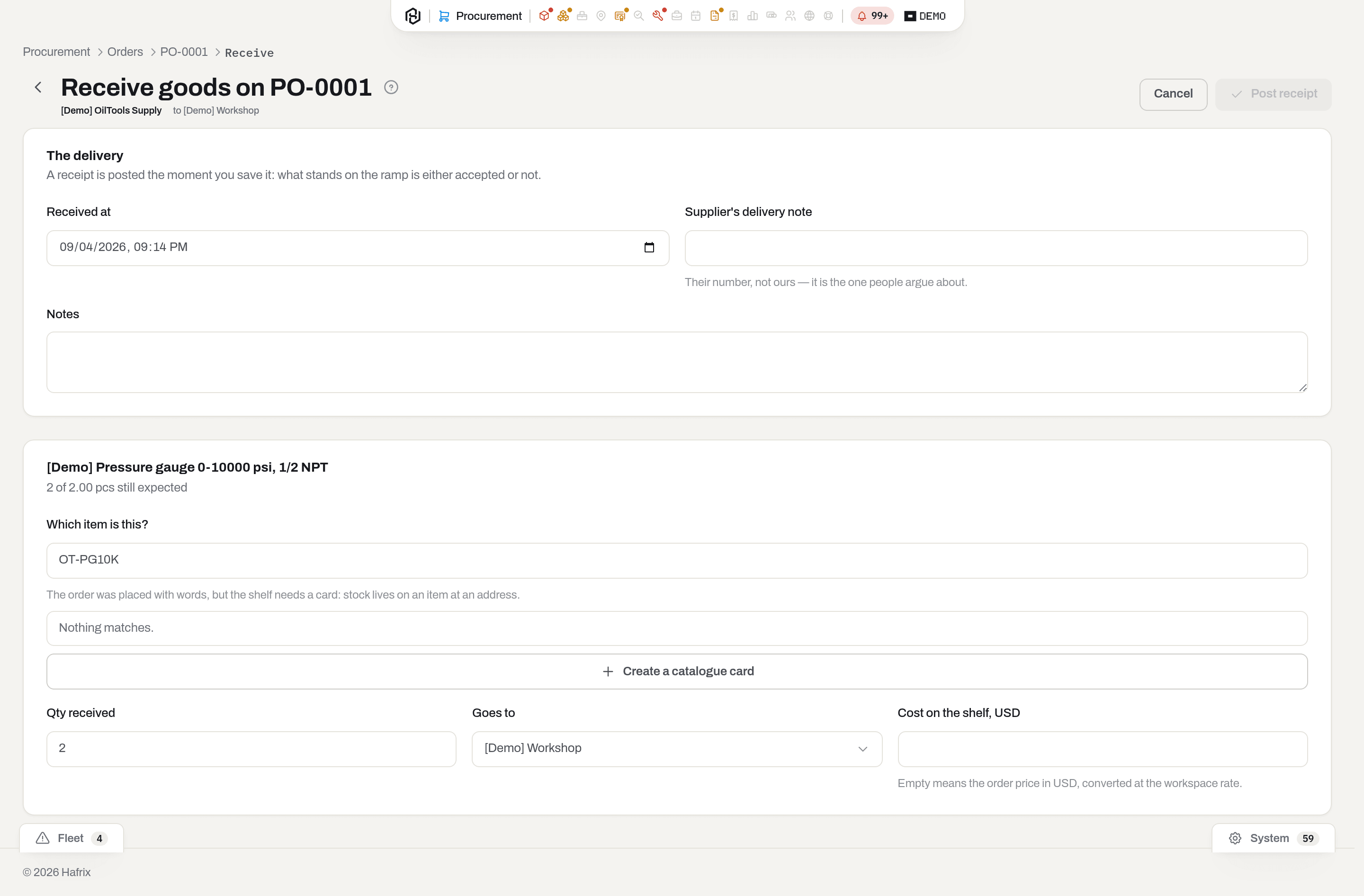
Result: a GRN-… document. Consumables move onto the shelf at that address and into the moving average; serialized units become item cards; the order becomes Partially received or, if everything is in, Received and then closed. The person who asked for it gets a line in their feed saying what arrived.
Cost on the shelf is the price plus this delivery's share of the order's charges — the Charges column on the receipt shows how much of it came from freight, customs and the rest. That is why the number on the shelf is usually higher than the price you agreed with the supplier, and it is meant to be: see Charges on an order.
If it fails:
- Only … of that line is still expected — more arrived than was ordered. That is a new order, not a bigger receipt: receive what was ordered and order the rest.
- No exchange rate for … → … — the order and the item card are in different currencies and the workspace has no rate. Add it in Settings → Finance, or type the cost from the delivery note. Hafrix will not treat one currency as another.
- … is serialised: type one serial number per unit — the count in the box has to match the quantity.
- Serial … already belongs to an item — that number is on a card already. Check the box: it is usually a typo, or the unit came back rather than arriving new.
- Order … is sent / is closed — goods arrive on a sent order. A closed one is finished; if something turns up anyway, that is a new order.
- Goods cannot arrive in the future — the date is the day the goods were accepted, and it cannot run more than a day ahead of now. It is not decoration: item cards take their acquisition date from it and the stock journal dates the movement by it, and a receipt that created cards cannot be undone.
- Order … was raised on … — the delivery is dated before the order that asked for it. Check the year on the delivery note; if the paper really is older, the goods came in on another order.
- A unit cost of … is out of range — that number does not fit on the shelf. Check where the decimal point sits: it is almost always a typo.
Order a service
Who: Operator and above to ask; Manager and above to order.
Not everything you buy is a thing. A rotor relined at a vendor's shop, an annual calibration, a third-party inspection — you are buying work, and it goes through exactly the same paper as a part: someone asks, someone approves, someone orders, someone accepts. One order can carry both — a service line and a couple of spares on the same sheet to the same supplier.
A service line has no item card, because there is nothing to put on a shelf. Instead it says what is being worked on, and that is what decides where the money ends up.
Where you start:
- a repair card with a vendor on it → Order repair from vendor. The work order comes with the line, and the cost of the job will land on that repair.
- an item card of serialized equipment → Order inspection. Pick Inspection or Calibration and, if you know it, the certificate the vendor is expected to issue.
Both open the same Ask to buy dialog you already use (Request an item), so nothing new has to be learned. Fill in the quantity — 1 for a job, or the hours if that is how the vendor bills — say why, and add it to a request. From there it is an ordinary request: submit, approve, order, send.
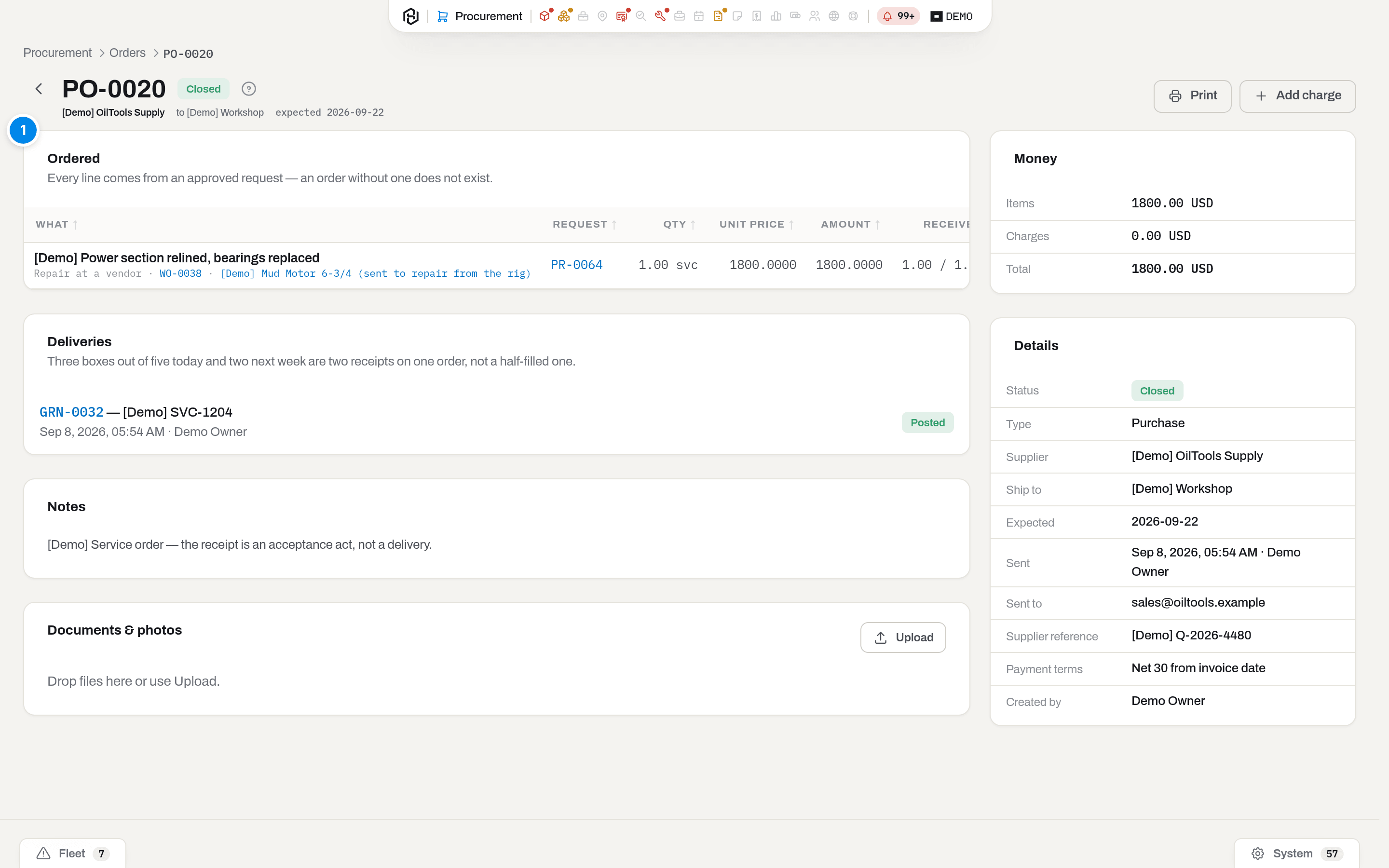
Accepting the work. A service arrives on the same Receive goods form, but the line asks for almost nothing: how much of it was done, and — for an inspection or a calibration — whether the vendor's certificate came back with it. There is no address, no item card and no cost to type: the price is the one on the order, and if it changed, the order is what gets changed.
The form tells you, in words, where the money is about to go:
| What the line says | What happens when you post it |
|---|---|
| The amount goes to the work order as external cost | The repair's External cost fills itself in. You no longer type it by hand — see Send a repair to a vendor. |
| The amount goes onto the certificate this raises | A certificate is created on the item, with the vendor, the cost and the expiry from the certificate type. It shows up in Compliance like any other. |
| The amount goes into the cost of ownership of that item | No repair and no certificate — the cost is still recorded against the item, so it shows up in its cost of ownership. |
| Nothing to charge it to | The service is not about one particular unit — container cleaning, a courier. It is on the order and the supplier's invoice, and nowhere else. |
Leave the certificate box unticked if no paper came back. The work is still accepted and the money still reaches the item — you simply have no certificate to show, which is the truth.
Result: a GRN-… that moves no stock. The person who opened the repair gets a line in their feed saying the vendor is done.
If it fails:
- Work order … is closed — a closed repair has already reported what it cost, and money cannot be added to it afterwards. Accept the work before you close the repair; if the bill turns up later, open a new repair for it.
- A service has no shelf — the line was sent with an address or a serial number. A service is accepted, not stocked.
- Say which item is inspected or calibrated — a certificate belongs to a card, so the line has to name one.
- Only a repair is ordered against a work order — an inspection is not a repair. Pick the right kind, or drop the work order.
- No exchange rate for … → … — the order is in one currency and the repair keeps its costs in another. Add the pair in Settings → Finance.
Undoing it works like any receipt (Undo a receipt): the amount comes back off the repair, and a certificate raised by that receipt is voided — the row stays, marked void, and drops out of compliance and out of the cost of ownership.
Undo a receipt
Who: Manager and above.
A posted receipt is never edited or deleted — the shelf has already moved. It is voided, with a reason.
- Open the receipt (from the order, or from the request it belongs to) and click Void receipt.
- Say why in one sentence. It is written into the stock journal next to the reversing entry, so a year later the movement explains itself.
Result: an opposite adjustment for every line, the counters on the order and the request go back, and a closed order opens again. A request that closed only because this delivery arrived opens with it.
If it fails:
- Stock would go negative — part of what arrived has already been used. There is nothing left to reverse; correct the shelf with a stock adjustment instead.
- This receipt created item cards — voiding paper does not undo a card that now has its own history. Scrap or delete those cards the usual way.
Close or cancel an order
Who: Manager and above.
- Cancel — the order is called off before anything arrives. A reason is required; the quantities go straight back to the request.
- Close — part of the delivery is never coming. The order is finished as it stands, and the missing quantity returns to the request, where it can be ordered from somebody else.
- Delete is only for a draft nobody has seen.
Result: the request lines open up again, and the request itself closes by itself if nothing is left waiting.
If it fails: Something has already arrived on this order — cancelling is no longer honest; close it short instead. Order … is already sent — a sent order is not deleted.
Close a request, or one line of it
Who: Manager and above. A line nobody has ordered yet can also be closed by its author.
- To drop one line — the need went away, or somebody else covered it — use the line's Close line button and say why. If the part simply turned up on one of our own shelves, move it instead of closing it: Fulfil it from our own stock leaves the trail on the request and on the shelf.
- To finish the whole request, click Close request. If anything is still open, a reason is required.
Result: the line or the request is marked closed with the reason next to it. Closing the last open line closes the request by itself; so does the arrival of everything that was asked for.
If it fails: Some lines are still open — say why the request is being closed. — write one sentence; in a month somebody will ask what happened to it.
Claim to supplier
Who: Operator and above to raise one; Manager and above to send it and to record the supplier's answer. Raising one may open a new claim to the supplier, who comes from the company list, so the button is shown only to people who can also open the Clients section.
Damaged goods do not end in quarantine. They go back to the supplier — as a warranty claim ("it failed in service, repair or replace it") or as a return ("this is not what we ordered, take it back"). The claim is the paper between the damage and the answer: what is broken, who was told, and how it ended.
Where a claim starts. Never on a blank form — always where the damage was found:
- a kit check line with a damaged quantity → Claim to supplier in the header of the check;
- an item card that has been reported damaged or sits In repair → Claim to supplier next to Request.
The list of everything raised is at Procurement → Claims (/procurement/claims).
- Pick the supplier. The item card does not always know who sold it, so this is asked once per claim; the item's vendor is offered when the card has one.
- Pick the kind — Warranty or Return. It decides what happens to the stock when you send the claim, so it is not decoration; see below.
- Say what is wrong. The supplier reads this word for word, so write it for them, not for us.
- Click Raise claim. The line lands in your open draft for that supplier, or starts a new one — the same basket rule as a request (Your open draft is a basket). Two damaged items from one supplier belong on one piece of paper.
- On the claim card, add photos and their replies as attachments, then click Send. The default address is the supplier's quality contact — brand new goods are argued with quality, not with the order desk. Leave the address empty if you sent it yourself, by phone or through their portal: the claim is still marked as sent, there is simply no letter.
What sending does to the stock. A return takes the quantity out of quarantine — it physically leaves us, and the shelf must not keep looking for it. A warranty claim touches nothing: what failed is still ours until they answer, and In repair is the truth. Serialized equipment keeps its status either way.
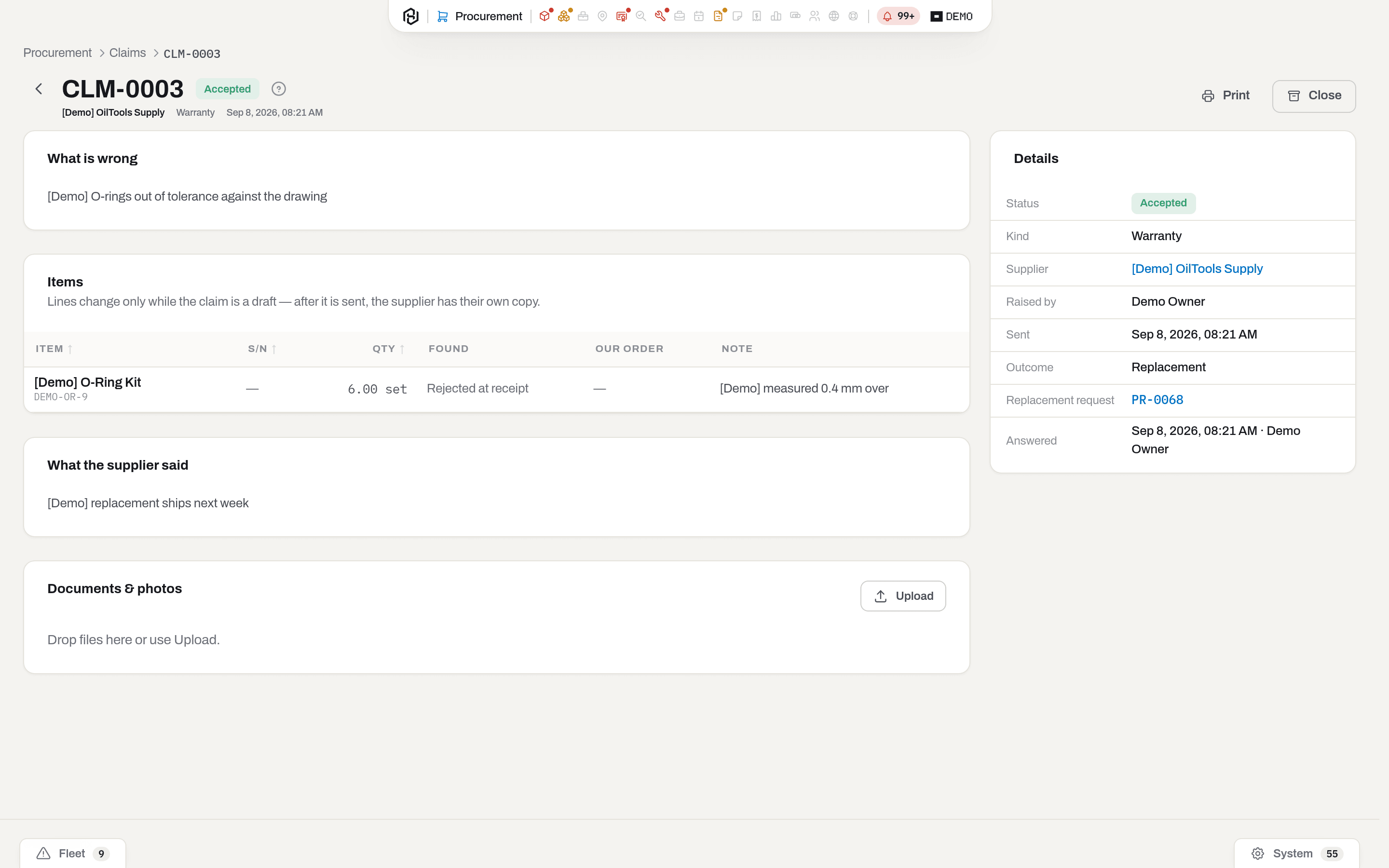
Recording the answer. When the supplier replies, open the claim and click They accepted or They refused.
| Outcome | What Hafrix does |
|---|---|
| Replacement | Raises an approved request and a draft order at zero price for the same items — the replacement is not a purchase, but it still needs paper. Receive it like any other delivery. |
| Credit | Writes down the amount against that supplier. It shows in the Credits block on their company card, and that is what they owe us. |
| Repaired | Puts a repaired event on the item card. It stays ours. |
| Nothing | Closes the case with no money and no goods moving. |
A refusal asks for their words: "out of warranty by three months" is arguable a year later, an empty refusal is not. Either way the author of the claim gets a line in their feed — the claim was theirs, and the answer is theirs to read.
When the replacement has arrived or the credit is settled, click Close.
If it fails:
- An empty claim has nothing to say — add at least one line before sending.
- … is blocked — the supplier is blocked on their company card, and no paper goes out to them. Lift the block first, or decide not to claim.
- Claim … is sent — lines change only while the claim is a draft. After it goes out, the supplier has their own copy of it.
- A credit without an amount is a promise — a credit outcome needs the sum and its currency.
- Only a sent claim gets an answer — a draft has not been shown to anybody yet; send it, or delete it.
Correct or delete a draft claim
Who: Manager and above. Changing the supplier also needs the Clients section — without it the field is locked.
Until a claim is sent it is only our draft, and every part of it can still change. Once it goes out, the supplier has their own copy and the buttons disappear.
- Edit in the header of the claim changes the kind, the supplier and what is wrong.
- In the items table, the pencil on a line corrects its quantity, serial number and note; the bin removes the line. A claim with no lines left cannot be sent.
- Delete in the header removes the whole draft with its lines — for a claim raised by mistake or to the wrong supplier. You land back on the list of claims.
If it fails:
- Claim … is sent — it has already gone to the supplier. Record their answer instead (Claim to supplier).
Enter a supplier invoice
Who: Manager and above. The supplier comes from the company list, so New invoice is shown only to people who can also open the Clients section.
- Open Procurement → Purchase orders → Supplier invoices and click New invoice.
- Pick the supplier, then the order the bill is for. The lines come from that order's receipts: what was accepted and is not billed yet, at the order price.
- Put in their invoice number exactly as it is printed. That number, not ours, is what an argument is about later — and the same number twice from the same supplier is refused, because a bill entered twice is the most expensive mistake in payables.
- Issued on and Due on come off the paper.
- Click Create invoice, then correct the lines on the card against their paper: quantity and price. The amount is ours to compute — quantity times price — so a total that does not match its own arithmetic never leaves for your accountant.
- Attach the scan of the invoice on the card. It is the document people go back to.
Result: a SINV-… invoice, matched the moment it has lines. Matched means it agrees with the order and the receipts; Exception means it does not, and the card says exactly how.
If it fails:
- Order … belongs to another supplier — that order is not this supplier's paper. Freight is the exception: a forwarder legitimately bills a charge on someone else's order, and that is allowed when the charge names them.
- … is approved and its lines are no longer editable — the signature is on it. Revise first.
- An invoice line points at exactly one of an order line or a charge — a line has to say what of ours it is billing.
Correct or delete a supplier invoice
Who: Manager and above. Changing the supplier also needs the Clients section — without it the field is locked.
While an invoice is Draft, Matched or Exception — nobody has approved it yet — its header can still change.
- Edit in the header of the card opens the supplier, their invoice number, the dates, the currency and the notes. Click Save and the invoice is matched again at once, so What does not add up always reflects what is saved.
- Delete removes the invoice with its lines — for a bill entered twice or against the wrong supplier. You land back on the list.
If it fails:
- Invoice … is approved and can no longer be edited — the signature is on it. Revise first (Approve an invoice, or send it back).
Approve an invoice, or send it back
Who: Manager and above.
- Open the invoice and read What does not add up, if there is anything there.
- If it is our typo, fix the line and the match clears itself. If it is their mistake, ask them for a corrected invoice — do not adjust our numbers to fit theirs.
- If the difference is real and agreed, click Approve and say why in one sentence. That reason stays on the document.
- A matched invoice needs no reason: Approve and it is cleared for payment.
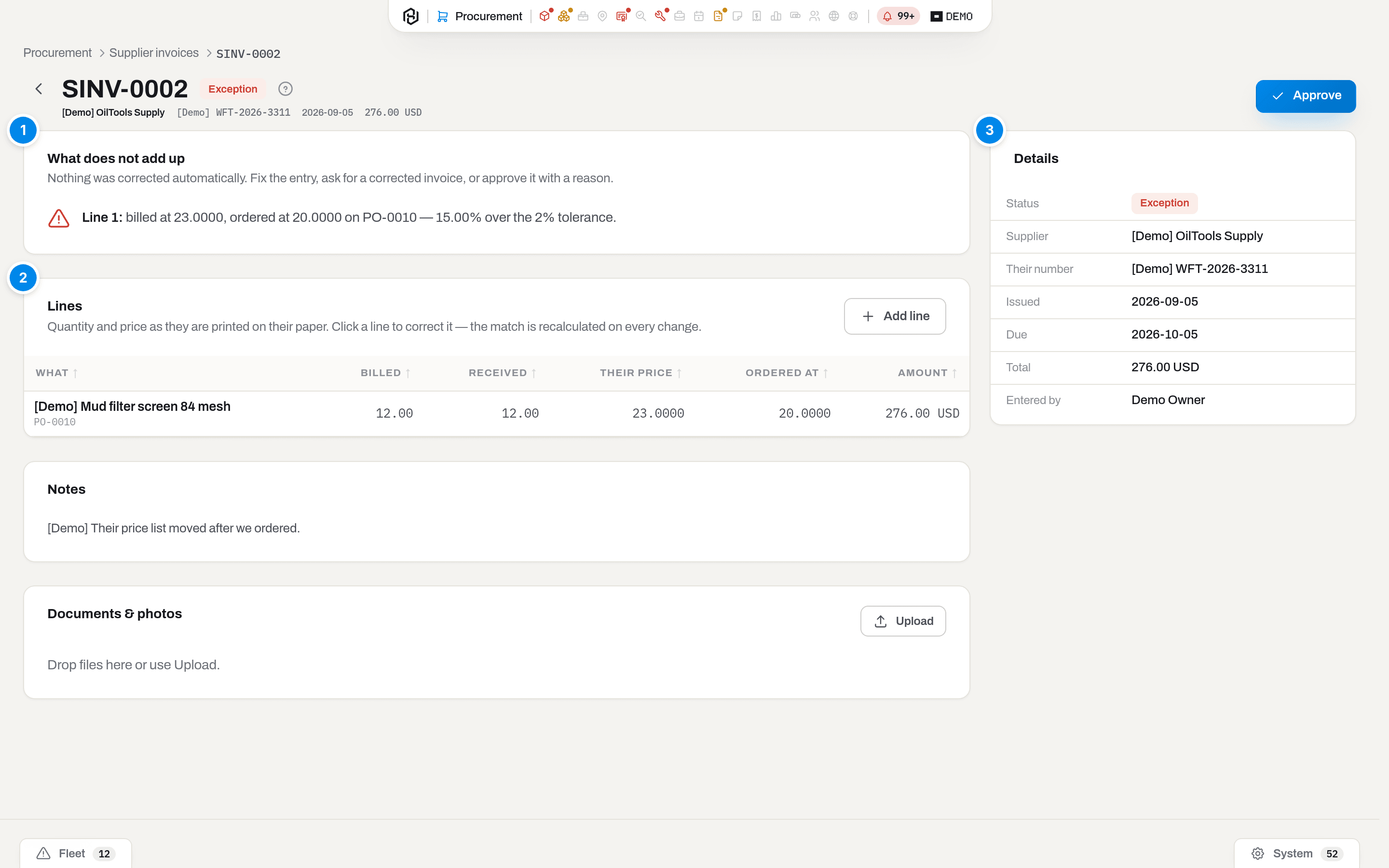
Result: the invoice is Approved and shows up in To export. Revise takes the signature off and re-runs the match, as long as the invoice has not gone to accounting yet.
If it fails:
- … does not match the order — say why you are approving it — the reason is required exactly when the numbers disagree.
- … is exported and cannot become approved — it is already in your books. Clear the export mark first, and only if the file was really deleted on that side.
Export payables to accounting
Who: Manager and above.
- In the list, choose what to send — the To export view is the working queue — or open one invoice.
- Click Export payables, pick CSV (for importing) or Excel (for reading) and click Export.
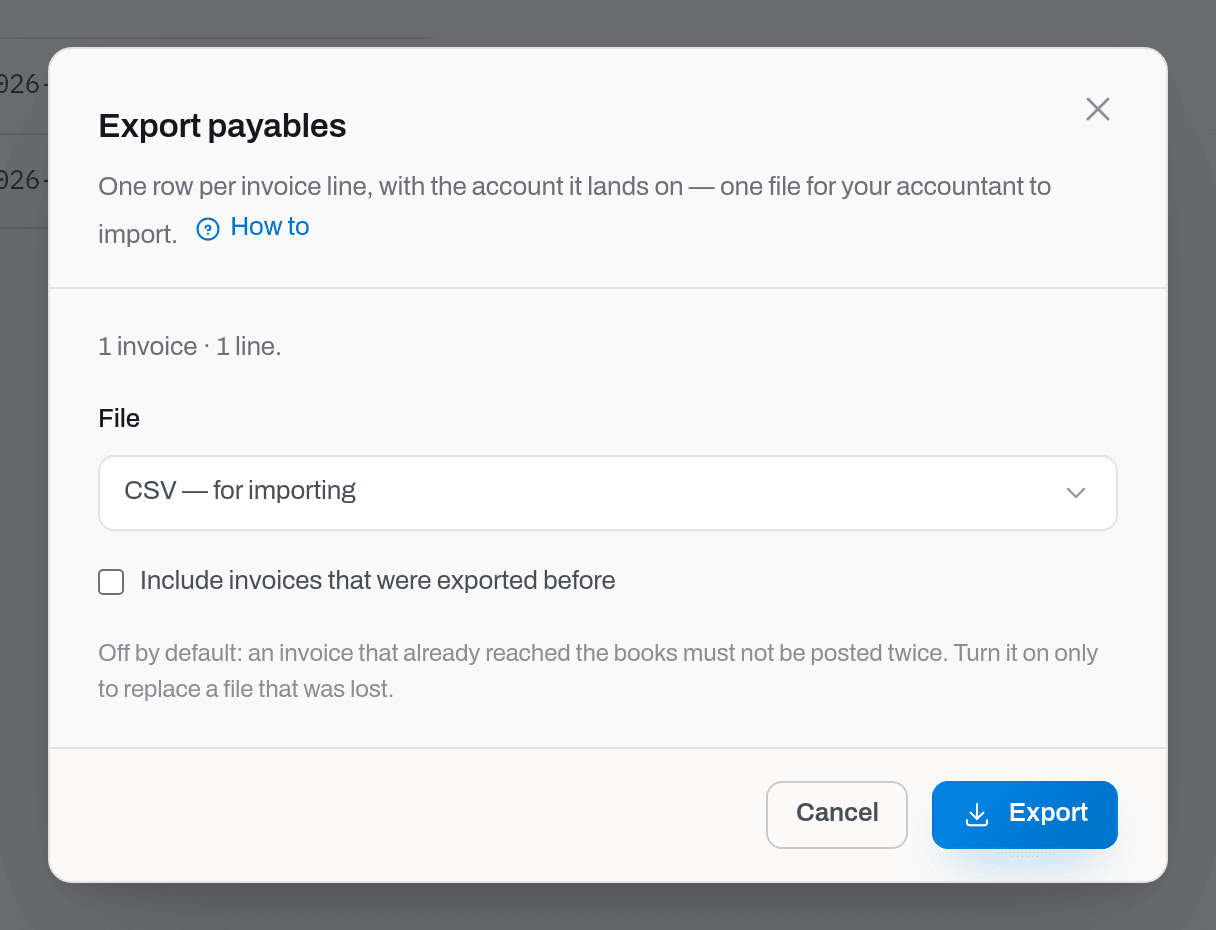
The file is one row per invoice line, with the account it lands on: inventory for consumables, fixed assets for serialized equipment, expense for services, free-text lines and every charge. The payable account and the invoice total ride on every row as header columns, so the distribution can be checked against the bill without opening anything else. Amounts come in the invoice currency and in the workspace currency, with the rate of that export — and the workspace total is the sum of its own rows, so the document balances by construction.
The accounts come from Settings → Finance → Chart of accounts: the export needs at least payable and expense, and it names the missing one rather than saying "set up the chart".
Exporting marks the invoice. A second export skips it — there is nothing to export — because an invoice posted twice is paid twice. To replace a file that was lost, tick Include invoices that were exported before: the same rows print again, with the rate they went out with, and the mark does not move.
Clear export mark is the one way back, and only if the file went to the wrong period and was deleted on that side. A paid invoice keeps its mark: clearing it would offer to post a closed document a second time.
If it fails:
- The chart of accounts is missing the … account — add it in Settings → Finance. Inventory and fixed assets are optional: without them those lines fall into expense.
- Nothing to export here — the invoices on this screen are not approved yet, or have already gone.
- … rows match this filter — narrow the filter; there is a ceiling on one request.
Mark an invoice paid
Who: Manager and above, on an approved or exported invoice.
- Open the invoice and click Mark paid.
- Put in the date it was paid and the payment reference — their transfer or cheque number, so the two records can be tied together later.
Result: the invoice leaves the Unpaid view. Hafrix has no bank feed and no payment journal: this is a note that accounting has paid it, and it is put on by hand on purpose.
Procurement settings
Who: Admin, in Settings → Procurement.
- Approvers — pick a group. Only its members (manager or above) can approve. Leave it empty and every admin approves.
- Approval limits — optional, and empty means the approvers above decide everything. Add a step, type the amount it goes up to (leave it empty for anything above), pick the group that decides it, and tick Then the next step if that group's approval should be followed by the one below it. Steps are kept sorted by their limit however you type them, and the last one cannot lead anywhere — see Who decides depends on the amount.
- Let the author approve their own request — for a workspace where the person who asks is also the person who buys. The decision still shows on the card, signed by them.
- Deliver to — where goods land when the request itself does not say. With neither, an order cannot be created at all.
- Order currency — what a new order is priced in. Leave it empty and orders start in the workspace currency from Finance.
- Payment terms — one line, carried onto every new order and printed on the paper the supplier gets.
- Order footer — the small print at the bottom of a printed order: bank details, gate instructions, whatever your suppliers have to see.
- Click Save.
- Budgets are the second card on the same page and are saved one at a time, not with this form — see Set a budget.
Result: the change takes effect immediately: Approve appears for the right people and disappears for everyone else, and the next order starts from the new defaults. Orders already made keep the terms they were made with — changing a default never rewrites paper that has been sent.
If it fails: No group with slug … in this workspace. — create the group first in Settings → Groups. Two steps cannot share the same limit. / Only one step can be left without a limit. — the list is read top to bottom, and two rules for the same money have no order. A limit is an amount above zero. — a step for nothing is not a step.
Price tolerance on the same page is how far a supplier's price may drift from the order price before the invoice is called an exception — 2% by default. It is not a licence to overpay: it is the width of ordinary rounding on their price list. Set it to zero and every cent of difference becomes a question.
Set a budget
Who: Admin, in Settings → Procurement → Budgets.
- Click New budget.
- Covers — Category, Job, Cost center or Whole workspace.
- What for — the category or the job to cover, or the cost center code. A workspace budget covers everything and takes no target.
- From and To — the period, both days included. A quarter and a year are the usual ones.
- Set aside — the amount. Currency stays the workspace currency unless you keep this budget in another one; orders in any currency are converted into it.
- Notes — for whoever reads it next quarter.
- Click Save.
Result: the budget appears in the list with a bar showing how much of it is already taken, and every request that touches its slice starts showing the Budgets block on its card. Nothing about existing orders changes — the figures are worked out from paper that already exists.
To correct one, click its row to highlight it, then click it again, or press Enter, to open it (Choose how a row click behaves); to remove it, use the bin. Deleting a budget removes only the line you compare spending against — the spending itself stays.
If it fails: Pick what this budget is for. — every slice but the workspace one needs a target. A workspace budget covers everything — leave the target empty. — the opposite case. No such category. / No such job. — it was renamed or merged; pick it again. The period ends after it starts, not before. — the dates are the wrong way round. A duplicate is refused too: there is already a budget for this slice and period, and the list will show it.
Mark a company as an affiliate
Who: Admin, on the company in Clients & companies.
A company in your own group — a sister company with its own warehouse — is not a supplier you buy from: goods coming from it are an internal transfer, priced at what it carries them for, on a different piece of paper. Tick Affiliate on the company to say so. The company has to be a vendor or both; a client-only company cannot be an affiliate.
See the section as a board
Who: Viewer and above.
The layout switch has a first position, Overview: instead of the register, the section shows a board of widgets — the register in numbers, and every number a link back into a quick view, the orders register or a document. The register is still the section: Overview is a view you switch into, and the section opens on the register itself, at Requests on the switch.
- Click Overview on the layout switch, at the left of the toolbar. Quick views, search and the filter rail belong to the register, so the toolbar keeps only the Department filter and the switch.
- Read the board. The Department filter applies to every widget — a request and an order both carry the same document dimension, so Awaiting receipt and Overdue POs narrow the same way as the request-side numbers.
- Click Requests to go back to the register.
| Widget | Shows | Links to |
|---|---|---|
| Counters | Awaiting my approval, Approved, not ordered, Awaiting receipt and Overdue POs | Approved, not ordered opens the register on the matching quick view; Awaiting receipt and Overdue POs open the orders register on its matching view; Awaiting my approval does too, but only for approvers — for everyone else it is a plain count, the same way the quick view itself is only offered to approvers |
| By status | Draft, Submitted, Approved, Rejected and Closed requests | The register, on the matching quick view — only Rejected has one of its own; the rest are plain counts |
| Needed soon | Open requests needed within the next seven days, including the ones already past due, oldest first, with how many days remain or how many they are overdue, and an Urgent badge where it applies | The request's card |
| Open orders | How many orders are sent or partially received, and the first eight by how soon they are expected, with an Overdue badge where the date has passed | The order's card |
| To order | The first eight approved requests that still have no order, with an Urgent badge where it applies | The request's card, and See all opens the register on the Approved, not ordered quick view |
| Recent | The latest requests raised, within the department you are looking at | The request's card |
A widget you have no right to is neither on the board nor on offer — the same rule as everywhere else in Procurement. The board is yours to arrange — drag by the header, resize or remove through the header menu, bring back through Add widget — exactly as on Overview, and the arrangement is saved for you and follows you to another computer.
Result: the address carries the tab (/procurement?tab=overview), so the link opens the board for a colleague too, with the same department filter.
Add or remove a widget on the board
Who: Viewer and above.
- To remove one: open its header menu (the ⋮ next to the drag handle) and choose Remove from board.
- To bring one back: click Add widget above the board, find it in the list and click Add.
Result: the widget leaves or joins the board right away, and the change is saved. The board of Procurement is its own: removing a widget here does not touch the board on Overview or on any other section.
Troubleshooting
| What you see | What it means |
|---|---|
| No Procurement in the capsule | The section is granted to groups you are not in — Roles & access. |
| No Request button anywhere | You are a viewer, or the section is closed to you. |
| No Approve on a submitted request | You are not an approver, it is your own request and self-approval is off, or the request is on a step decided by another group — see Who decides depends on the amount. |
| A request is Submitted and already shows a decision | It has passed one step of a chain and is waiting for the next group. The Approvals block says whose turn it is. |
| A cheap request went to the directors anyway | Its Estimated total could not be worked out in full — a line typed as words, or a card nobody has ever ordered. An unknown amount takes the strictest step on purpose. |
| Requisition PR-… is not a draft. | Somebody submitted it while you were typing. Withdraw it, or start a new request. |
| This draft belongs to someone else. | Only its author or a manager can edit a draft. |
| A dot on the Procurement icon that does not go away | Something is waiting for your decision — open Awaiting my approval — or an order is overdue. |
| No New order button on the Orders list | There is none. An order is created from an approved request — use Approved, not ordered. |
| An alert Budget nearly or fully used | A live budget has passed 80% of what was set aside. Nothing is blocked — decide whether to raise the budget, hold the next request, or let it run. |
| A cheap request went to the directors, and the estimate is complete | It takes a budget past what was set aside. The Budgets block on the card says which one — see What is set aside for it. |
| A budget shows incomplete next to its percentage | A sent order line has no price yet, or money on it is in a currency without a rate in Settings → Finance. What is shown is a floor. |
| A budget by cost center counts nothing | The code on the lines does not match it exactly. Open the hidden Cost center column on the order to see what was actually stamped — see A cost center on the line. |
| An alert Purchase order overdue | The expected date has passed and not everything has arrived. Chase the supplier, then move the date, close the order short, or cancel it — the alert goes out by itself. |
| This total is incomplete on an order | A line has no price, or a charge is in a currency without a rate in Settings → Finance. |
| … charge cannot reach the shelf on a receipt | The charge is in a currency with no rate to the item card's currency. Add the pair in Settings → Finance, or mark the charge not allocated. |
| … had nothing left to land on | A charge arrived after the goods it belonged to were used up. The money stays on the order total; there is no shelf left to revalue. |
| … is already part of the shelf cost | A charge that has landed cannot be deleted or re-keyed. Correct its amount — the difference is spread. |
Estimated total marked incomplete, or reading — |
A line is words rather than a catalogue card, the card has never been on a sent order, or its price is in a currency without a rate — see What a request is likely to cost. |
| The letter about a submitted request has no Estimated total | It could not be worked out in full, so it was left out of the letter on purpose. The card shows what is known. |
| No Fulfil from stock button on a line | The request is not approved yet, it has no Deliver to, the line is words rather than a catalogue card, the item is serialized equipment, or the Stock section is closed to you. |
An alert Stock below minimum with a PR-… next to it |
Somebody has already asked for a refill. Open the request instead of raising a second one. |
| No Sub-rental block on an item card | The card's Ownership is not Rented in, or you cannot see Finance figures. Ownership is set on the card itself. |
| A returned tool no longer shows up in Dispatch | That is the point — it went back to the vendor and is not ours to book. Renting it again brings the card back. |
| No Receive goods button on an order | The order is still a draft, or it is already finished. Goods arrive on a sent order. |
| The receipt asks Which item is this? | The line was ordered as words. Pick the catalogue card it lands on, or create one — see Receive goods. |
| No Order repair from vendor on a repair | The repair has no vendor on it. Add one in Edit — you cannot order from nobody. |
| A service line asks for an item card on the receipt | It is not a service line. Only lines raised as a service are accepted as work; a line typed as words is still goods. |
| The receipt says Nothing to charge it to | The service names neither a repair nor an item, so there is no unit to put the cost against. That is on purpose — see Order a service. |
| A vendor repair shows twice in cost of ownership | It should not, and it does not: the cost is counted once, when the repair closes. If you also typed External by hand before accepting the work, clear your number — the receipt fills it in. |
| An order jumped to Closed on its own | Everything on it arrived. A fully received order has nothing left to decide. |
| No Claim to supplier on an item card | The card has not been reported damaged and is not In repair — there is nothing to claim yet — or the Clients section is closed to you. |
| No Send on a claim | You are not a manager, or the supplier is blocked on their company card. |
| An order at zero price you did not raise | It is the replacement under an accepted claim. Zero is a real price here: the goods are not being bought again. |
| The Credits block is missing on a supplier | Nothing has been credited to us by them yet. It appears with the first accepted claim that ends in a credit. |
Related
- Stock — where a shortage becomes visible, where what arrives will land, and the Last received column that says when this was last bought and for how much.
- Alerts & notifications — the nightly Stock below minimum, and the feed lines about your requests.
- Maintenance — a repair waiting for a part is a reason to ask for one.
- Jobs — Request for this job on the job card, and the Job filter that says what a job is still waiting for.
- Roles & access — sections, groups and the role ladder.
- Clients & companies — suppliers, their contacts, the Affiliate switch and the Credits they owe us.
- Kits — where damage is usually found: a check line with a damaged quantity is where a claim starts.
- Finance — the workspace currency, the exchange rates an order in another currency needs, and the Sub-rental tab that puts rent paid next to what the tool earned.
- Item card — the Sub-rental block, the cost of ownership and the timeline of a rented-in tool.
Updated 2026-09-25
New to Hafrix?
See this workflow in your operation
See how Hafrix connects purchase requests, approvals and receiving with your equipment operations.