Getting started
Everything between the invitation in your inbox and the screen you will actually work on: the password you choose, the second factor, the workspace you land in, and the theme you will look at all day.
Where: https://dash.hafrix.com. Until you are signed in there is no navigation at all — every screen on this page is one card on a dark background, and nothing else to click.
Who can do what
| Role | On the way in |
|---|---|
| Viewer | Accept an invitation, set a password, sign in, reset a forgotten password, turn two-factor on for themselves |
| Operator | + the same, and the field app on the phone — see Field app |
| Manager | + nothing extra on the way in |
| Admin | + two-factor is not optional, and the invitations for everyone else are theirs to send |
At a glance
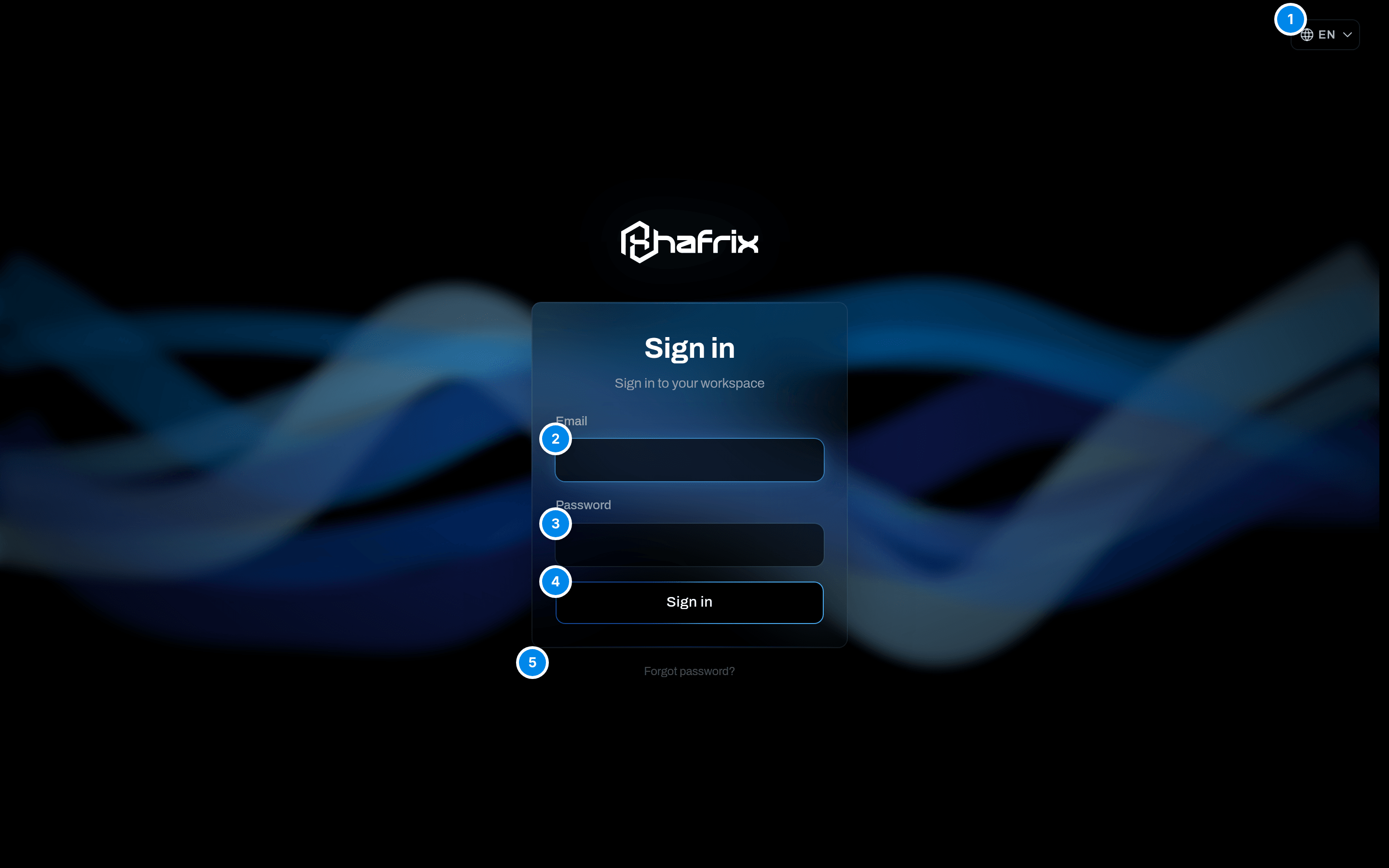
- Email — the address the invitation was sent to. There is no company name to type: Hafrix works out which workspaces are yours from the address.
- Password — the one you chose when you accepted the invitation, at least 12 characters. The eye button next to the field shows what you typed.
- Sign in — one button, one door. Hafrix staff, workspace admins and field operators all sign in here; the server decides where each of them lands.
- Forgot password? — the way back in when the password is gone. See Reset a forgotten password.
The screen is always dark and has no theme switch. Theme is a setting of the application you are about to enter, not of the door.
Key concepts
There is no sign-up form
You cannot create a Hafrix account for yourself. An account is always born from a link somebody sent you, and there are exactly two kinds:
| Link | Who sends it | Lives for | What it creates |
|---|---|---|---|
Invitation — /invite/… |
an admin of the workspace you are joining | 7 days | your account and your membership in that workspace |
Signup link — /signup/… |
the Hafrix team, after you have agreed on a subscription | 14 days | the workspace itself, plus its first admin — you |
Both links work once. Both carry the address they were sent to, and neither lets you change it: the link proves you can read mail at that address, which is why a person who joined through one never has to confirm the address separately.
One account, one address, several workspaces
Your account is the email address, and it is one account no matter how many companies you work for. A membership — a role in one workspace — hangs off it. Sign in once and Hafrix opens the workspace you used last; if there is more than one, it asks. Your password, your second factor and your list of devices belong to the account, not to any workspace, so switching companies changes none of them.
The second factor, and who has to carry it
With two-factor authentication on, the password stops being enough: after it, sign-in asks for the six digits your authenticator app shows. Any TOTP app will do — Google Authenticator, 1Password, Authy.
| Who | Is it required |
|---|---|
| Viewer, Operator, Manager | No, but you may turn it on |
| Admin of any workspace | Yes |
| Anyone in a workspace whose admin turned on the workspace-wide rule | Yes |
| Hafrix staff in the platform console | Yes, from the very first sign-in, with no grace period |
When it becomes required, you get seven days. The clock starts at your first password sign-in after the requirement appears, the Two-factor authentication card on your account says Required for your role — set it up before {date}, and a to-do row waits in your notifications. After the deadline the sign-in itself stops and hands you the setup screen instead.
The seven days are given once. Turn two-factor off later and the next window is 24 hours, not another week — the requirement is not something a switch can hold off.
The reminder email two days before the end is written for administrators and goes only to them. If it is the workspace-wide rule that caught you rather than an admin role, the to-do row is the only warning you will get — the date on the card is the one to watch.
Recovery codes are the way back in when the phone is gone: ten codes shaped ABCDE-FGHJK, each good once. They are shown once — when you turn two-factor on, and again only if you re-issue them.
Warning
A recovery code signs you in, and that is the only thing it does. Both dialogs that change two-factor itself — Turn off and New recovery codes — ask for your password and a current Six-digit code from the app, and take nothing else. So a spent set cannot be replaced with a recovery code either. Re-issue the codes while the app still works (Account), and read Move the second factor to a new phone before you replace the phone, not after.
Where you land
Accepting an invitation and signing in both put you on Items, whatever your role. That is the office view, and it is the right one for a viewer, a manager or an admin.
An operator normally works from a phone instead: the field app lives at /m, and the invitation email for an operator says so and links to it. Open that link on the phone, add it to the Home screen, and from then on the app opens on its own icon and signs you back into itself. See Field app.
How to
Accept an invitation
Who: anyone holding an invitation link.
- Open the link — the Accept invitation button in the email {inviter} invited you to {tenant} on Hafrix, or the link an admin sent you over WhatsApp. Both are the same link.
- Read the card: Join {tenant}, then who invited you and as what, then Sent to {email}. That address is the account you are about to get; it cannot be edited here.
- Now the card asks for one of three things, depending on who you already are:
- New to Hafrix — Full name (optional) and a Password of at least 12 characters. It is checked against known data breaches and refused if it turns up in one.
- An account on that address already exists — only Password, and it is your existing password; no new one is created.
- This browser is already signed in on that very address — no fields at all. The card says You are signed in as {email} — no password needed. and offers a single button, Join {tenant}.
- Click Accept invite — or Join {tenant}, if that is the button you were given.
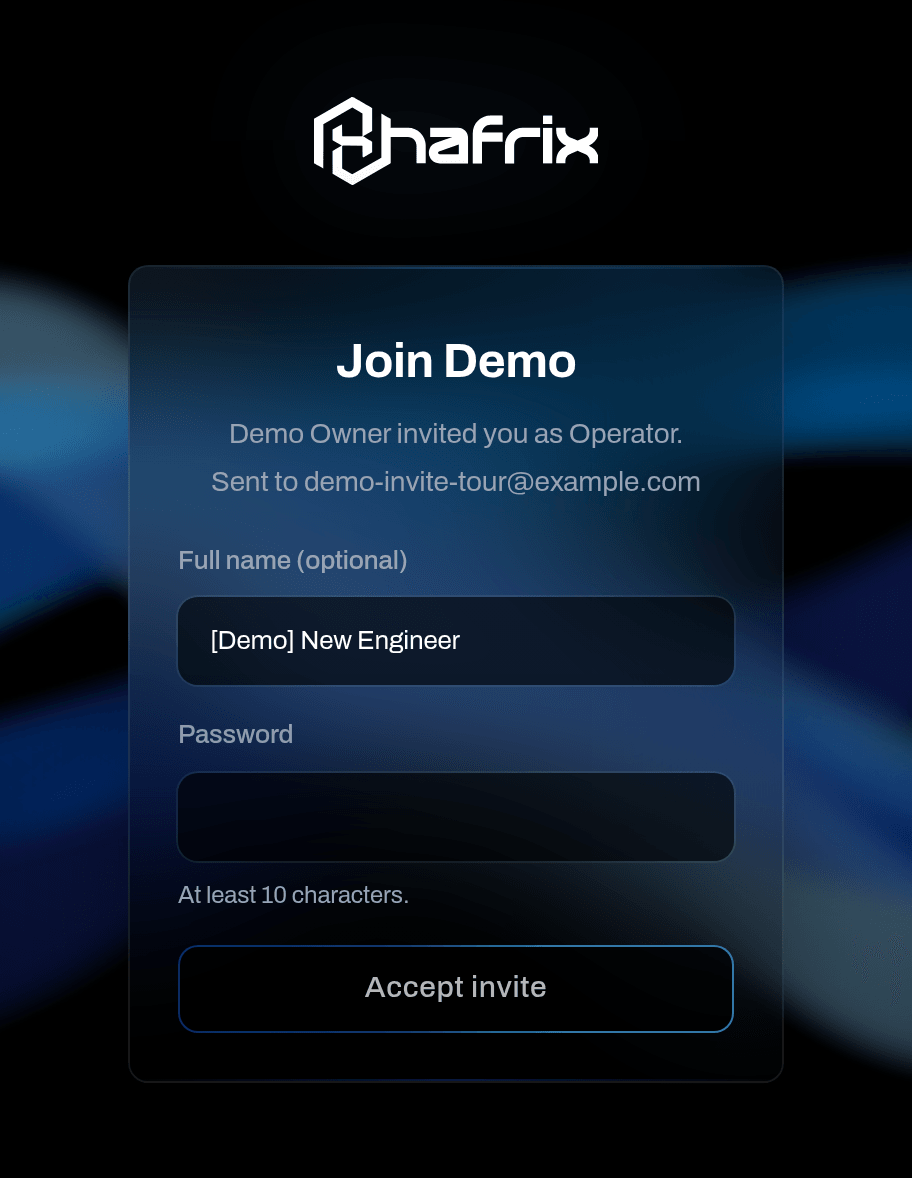
Result: you are signed in on the spot — there is no second sign-in — and you land on Items. Your address counts as confirmed from that moment, your role and job title are the ones the invitation carried, and the person who invited you gets the email {member} joined {tenant} on Hafrix.
If it fails:
- You are signed in as {someone}, but this invitation was sent to {address}. — the browser is already carrying somebody else's session. Click Sign out and accept and the same page comes back as a fresh one.
- An account with this email exists — enter its password. — the Password field wants the password of the Hafrix account you already have, not a new one. Forgotten it? Reset it first, then open the invitation again.
- This is a Hafrix platform account — it cannot join a workspace. — staff accounts live above the workspaces and never become members of one.
- A complaint about the password itself — too short, too common, too close to your email — arrives in the same red note under the button as everything else, not under the field.
When the invitation link no longer works
Who: anyone; the fix is with the admin who invited you.
An invitation is one-time and lives seven days. Used, revoked, expired or simply mistyped, it lands on the same dead end.
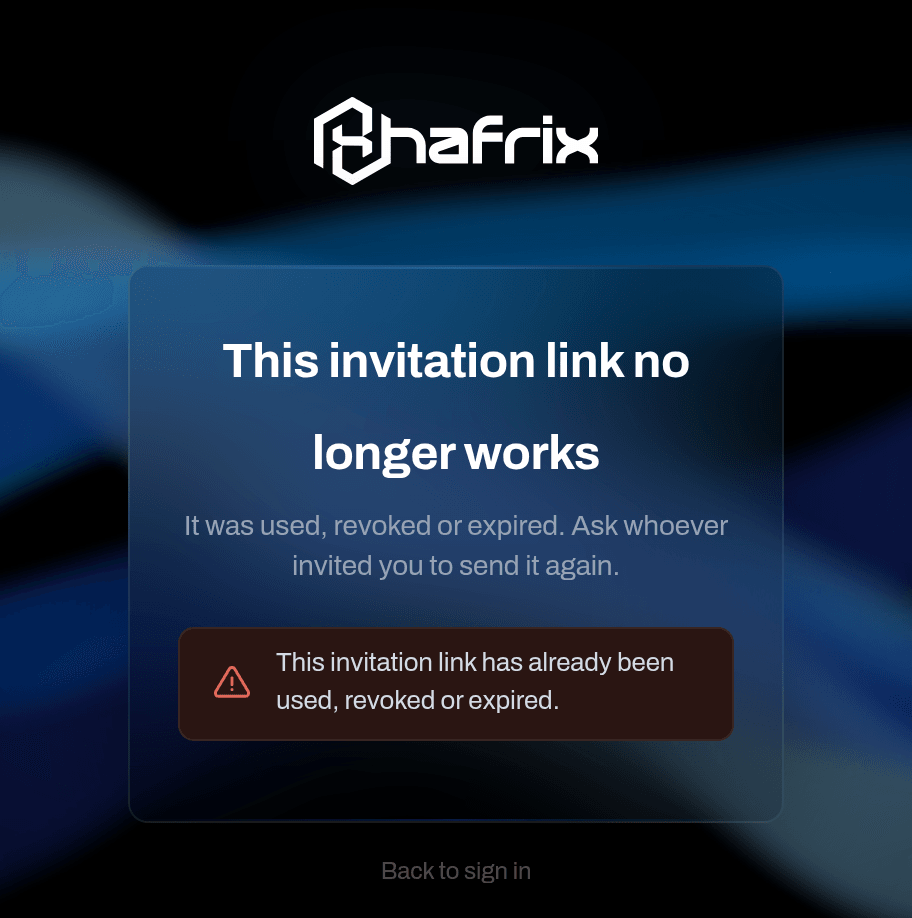
- The two dead ends read alike; the line that tells them apart sits inside the red note. This invitation link is not valid. means no such invitation exists for this workspace; This invitation link has already been used, revoked or expired. means it did exist and no longer opens.
- Ask whoever invited you to send it again: Settings → Users & invites → Resend on your row.
Result: a new link is issued and the old one dies at that instant — use the newest email, the reminder titled Reminder: your invitation to {tenant} on Hafrix.
If it fails: an invitation that was already accepted cannot be resent, and neither can a revoked one; the admin creates a new Invite user instead. If you think you already accepted it, do not chase the link — go to the sign-in screen and use your password.
Set up a workspace from a Hafrix link
Who: the person the Hafrix team sent a signup link to. This creates the company, not a seat in one.
- Open the link from the email You're invited to set up {company} on Hafrix. The card is titled Set up your workspace and shows the address it was sent to.
- Correct Company name if you want it spelled differently. Workspace address follows the name until you edit it: lowercase letters, digits and dashes, and it stays with the company afterwards.
- Fill in Your name, Phone (optional) and a Password of at least 12 characters. It is checked against known data breaches and refused if it turns up in one.
- Click Create workspace.
Result: the workspace exists, you are its owner and an admin, you are signed in, and you land on Items. The email Welcome to Hafrix — {company} is ready follows. Because you are an admin, two-factor is now required of you — the seven-day clock starts at your next sign-in with the password.
If it fails: This link is no longer valid — it was used or the 14 days ran out; ask the Hafrix team for a new one. A busy or reserved Workspace address is refused with the link still alive, so you only change that one field and submit again. If the address already has a Hafrix account, the Password field wants that account's current password.
Sign in
Who: anyone with an account.
- Open
https://dash.hafrix.com. Type Email and Password, then click Sign in. - What happens next depends on the account, not on anything you type: straight into Items, or Choose a workspace if you belong to more than one, or Enter your code if two-factor is on, or the setup screen if two-factor is overdue.
Result: you are in. If none of your other sessions carries the same browser · platform label, the email New sign-in to Hafrix from {device} tells you about it. A browser Hafrix has already recorded stays quiet — after a password reset too, because the old rows keep their labels — and so does an account that has no other sessions at all, which is what a brand-new account looks like.
If it fails:
- No active account found with the given credentials. — one message for a wrong password and for an address nobody knows, on purpose.
- Too many failed attempts. Try again in {N} min. — five wrong tries lock the account for fifteen minutes. Wrong two-factor codes count into the same five.
- Too many requests. Try again in a minute. — ten sign-in attempts a minute from one internet address, counted for the address and not for you; on a shared office connection somebody else may have spent them.
- Too many sign-in attempts from your network. Try again in a few minutes. — this one comes from the network in front of Hafrix rather than from Hafrix itself, and it counts the office address, not your account. There is nothing to unlock and nobody to ask: wait a few minutes and sign in again.
- This account has no access to any workspace yet. Ask your workspace administrator for an invite. — the account exists but has no membership, or the only workspace it had is suspended.
Set up two-factor authentication
Who: anyone signed in; required for admins.
- Open the profile menu in the capsule → Account → Security. If your role requires it, the Two-factor authentication card already says so and names the date.
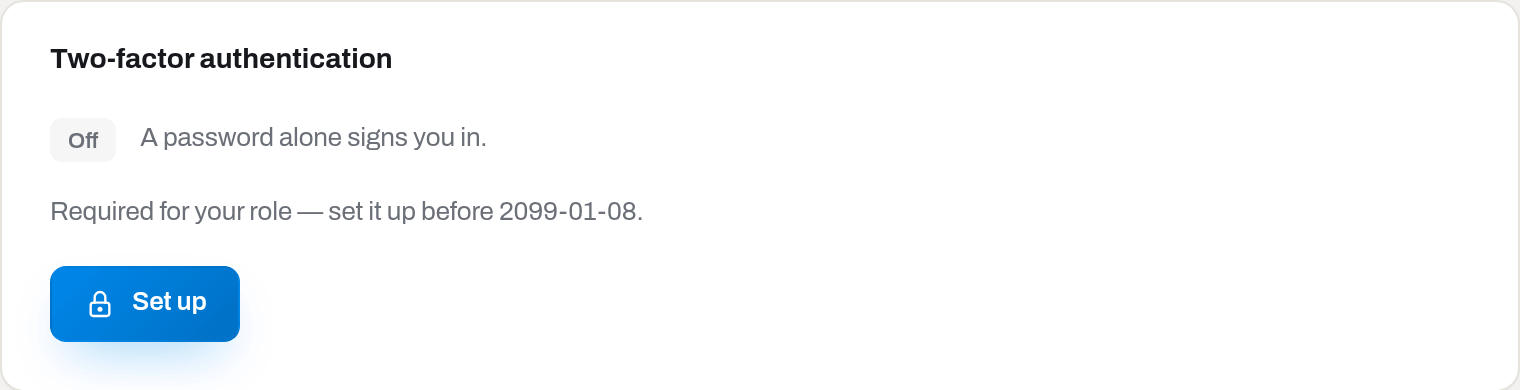
- Click Set up. The card turns into the setup form.
- Scan the square with your authenticator app. No camera on the machine? Copy the key under No camera? Type this key into the app instead: and type it into the app by hand.
- Type the current Six-digit code the app shows and click Turn on.
- Ten recovery codes appear. Click Copy codes, put them somewhere that is neither this browser nor your mailbox, and only then click I saved them.
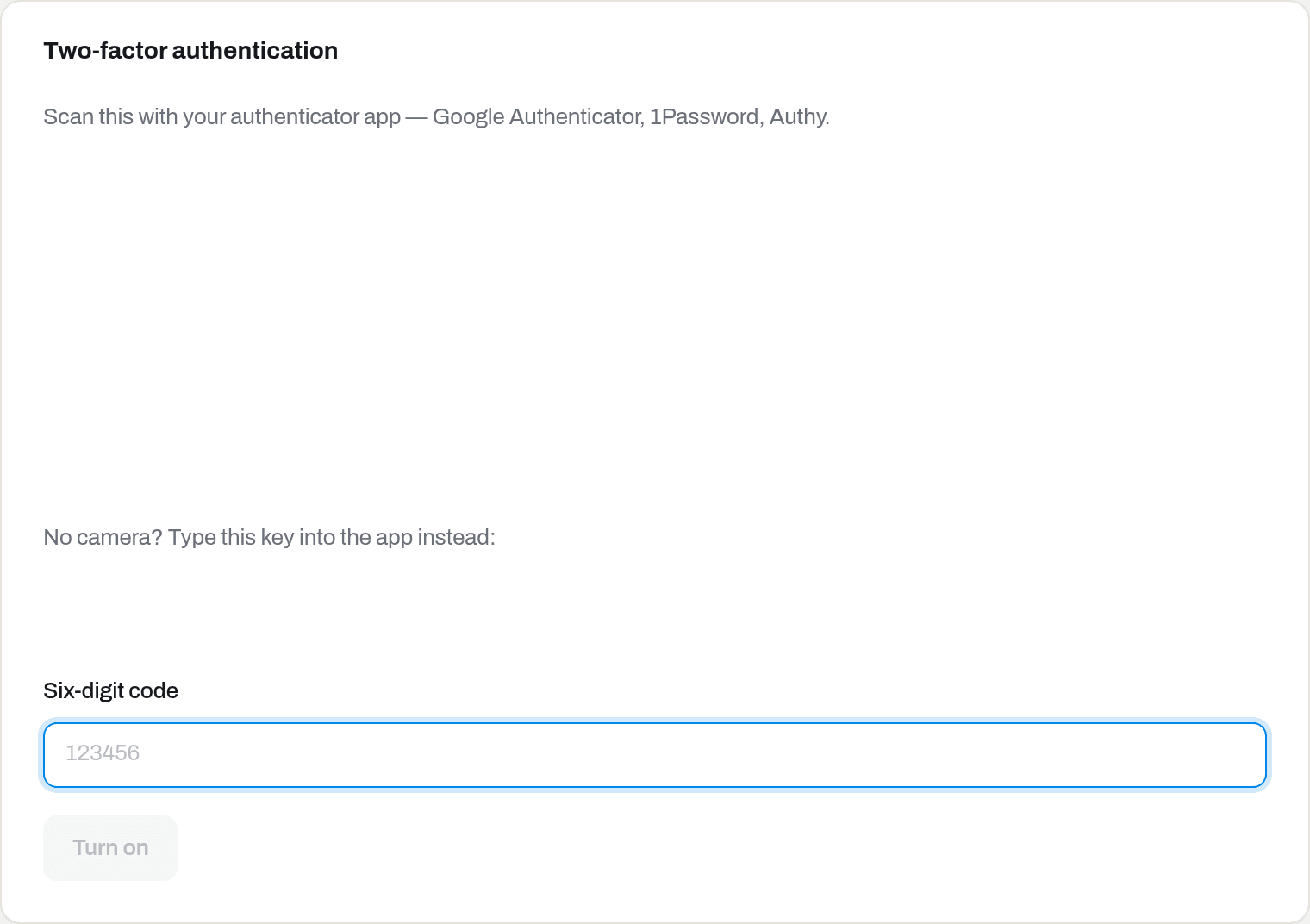
The two blank areas are deliberate. The upper one is the QR square you scan; the lower one, under No camera? Type this key into the app instead:, is the same secret written out in letters and digits for typing by hand. Both are different for every account and belong on your screen alone, so there is nothing to show here.
Result: the badge reads On, the email Two-factor authentication is on for your Hafrix account arrives, the to-do row about it disappears from your notifications, and this session stays open. The next sign-in is the first one that asks for a code.
If it fails: That code didn't match. Check the app — codes change every 30 seconds. — take the freshest code. If it keeps failing the phone's clock is drifting: switch it to automatic time. Five wrong codes lock the account for fifteen minutes, exactly as five wrong passwords do.
Note
If two-factor is already overdue, sign-in does not let you in at all: it shows the same form on the dark screen, titled Set up two-factor authentication, and finishing it signs you in without asking for the password again.
Sign in when two-factor is on
Who: anyone with two-factor on.
- Type Email and Password as usual and click Sign in.
- The card Enter your code appears. Type the current Six-digit code from the app and click Sign in again.
Result: you land where you would have landed anyway — Items, or the workspace picker.
If it fails: That code didn't match. Check the app — codes change every 30 seconds. — a code already spent inside its own thirty seconds is refused too, so wait for the next one rather than retyping the same digits. This sign-in attempt expired. Enter your password again. — the half-finished sign-in only lives five minutes.
Sign in without the phone
Who: anyone with two-factor on and a saved set of recovery codes.
- On Enter your code, click Lost your phone? Use a recovery code. The field becomes Recovery code.
- Type one of the ten codes you saved, shaped
ABCDE-FGHJK, and click Sign in. Use a code from the app instead switches back.
Result: you are signed in, that code is spent for good, and the email A recovery code was used on your Hafrix account tells you how many are left of how many.
If it fails: with no phone and no codes left there is no self-service way in. Nobody — not your admin, not the Hafrix console — can lift the second factor for you; write to care@hafrix.com.
Choose a workspace
Who: anyone who belongs to more than one company.
- Sign in as usual. When there is more than one workspace, Choose a workspace comes up instead of the list.
- Click the one you want. Each row shows the company name, its address, and your role in it.
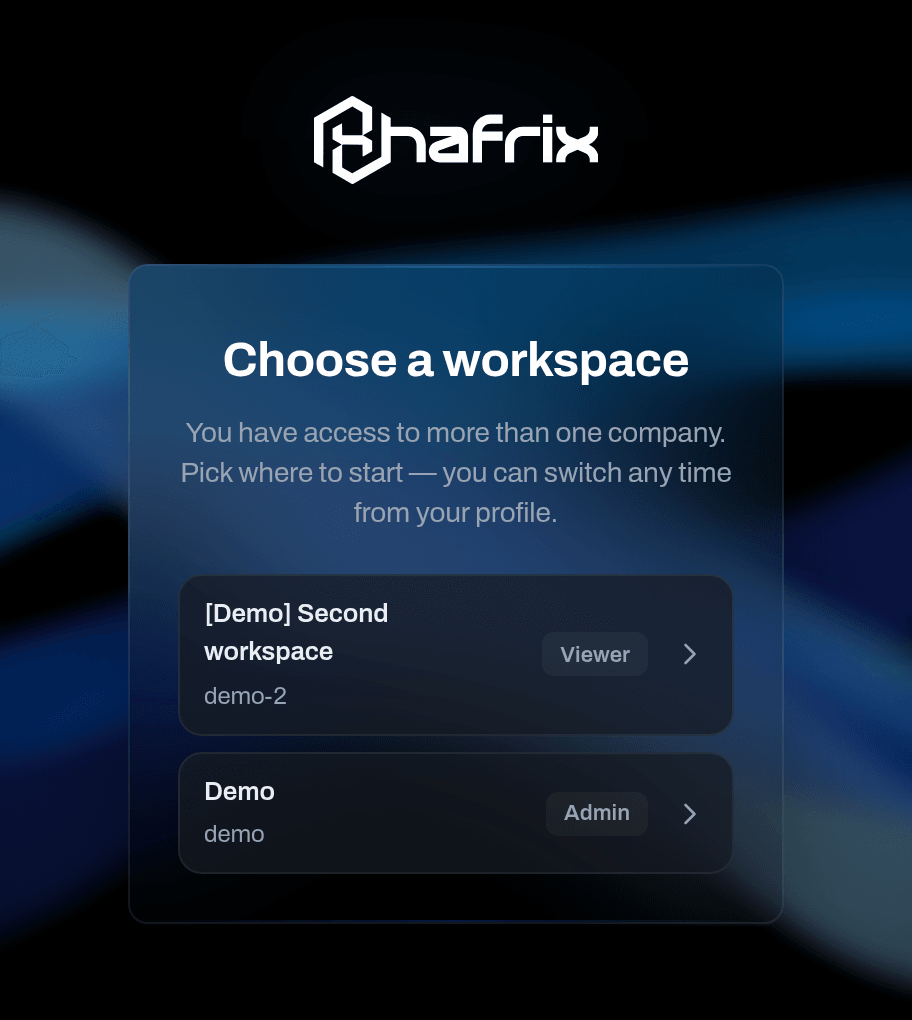
Result: you land on Items in that workspace. The session was already open in one of them — the one you used last — so this screen is a choice rather than a second sign-in. It comes up on every sign-in for as long as you belong to more than one company; what your pick changes is only which workspace the next session is opened in before you are asked.
If it fails: No access to this workspace. — your membership was removed or deactivated while you were away. A suspended company simply drops off the list.
Tip
You are not stuck with the choice: the profile menu carries the same list under Workspace, and switching there takes a click. See Interface basics.
Set the theme
Who: anyone signed in.
- Click your face at the right-hand end of the capsule.
- Theme — Light or Dark.
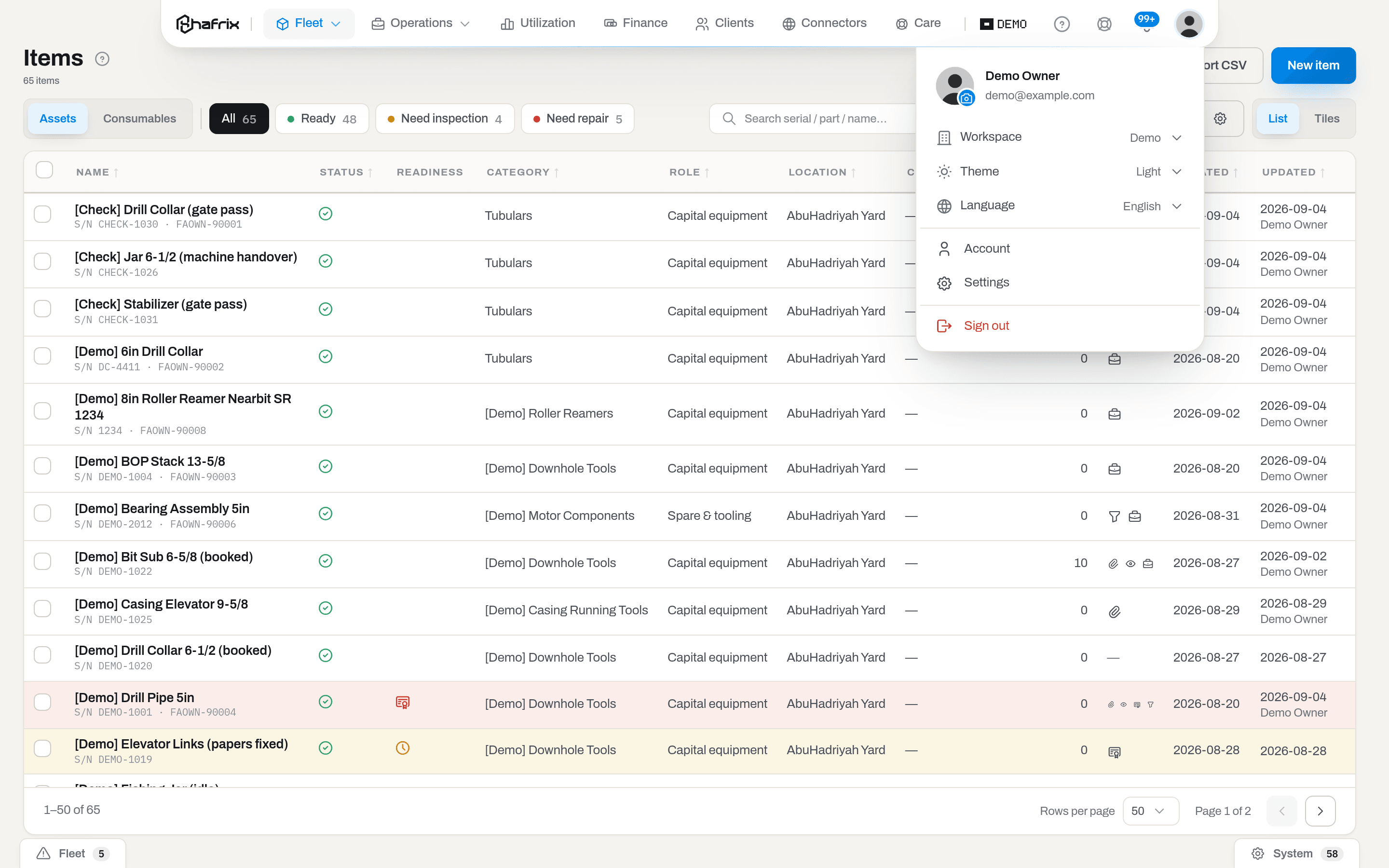
Result: it applies at once, with nothing to save, and is remembered in this browser. Sign in from another computer and pick it again there.
If it fails: the sign-in screen has no theme at all — it is always dark. Hafrix itself speaks English and has no language setting; your workspace's own words — item names, locations, notes, client names — appear exactly as your company typed them.
The profile menu is the only place that switches the theme. See Account.
Reset a forgotten password
Who: anyone with an account.
- On the sign-in screen click Forgot password?
- Type the address you sign in with and click Send reset link.
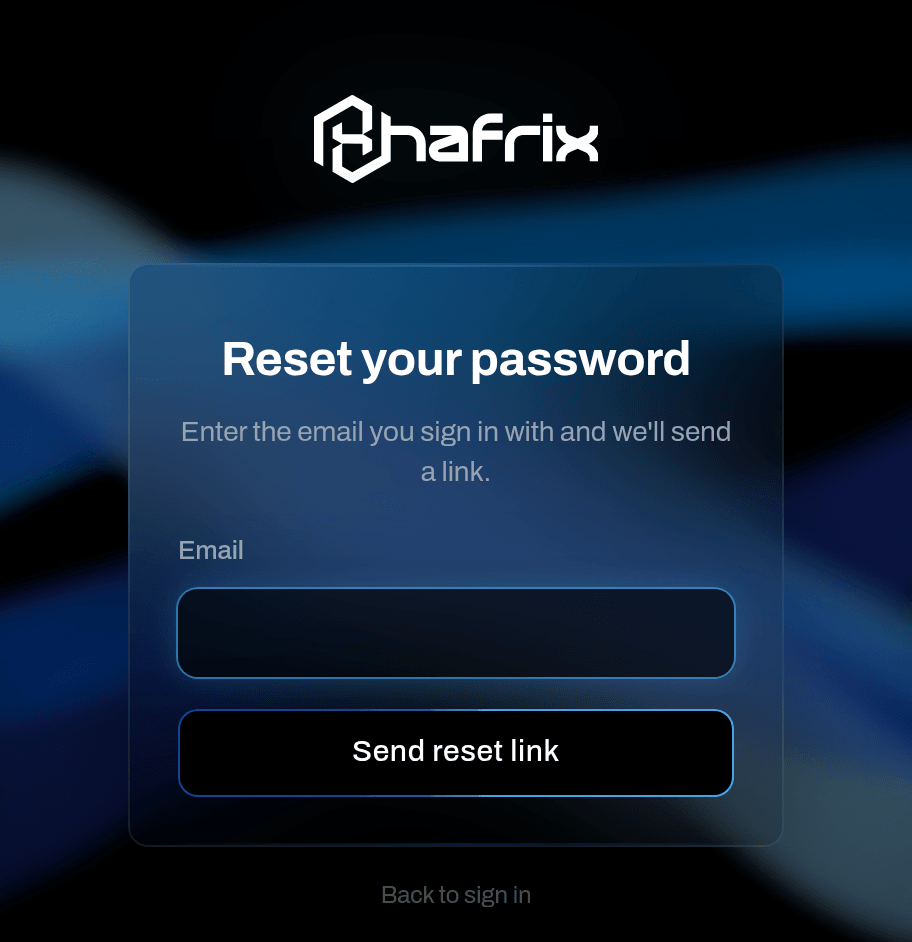
- The card turns into Check your inbox — and it says the same thing for an address nobody knows, so nobody can use this form to find out who has an account.
- Open the email Reset your Hafrix password and follow its link. It works once and for one hour.
- Fill in New password and Confirm password, then click Save password.
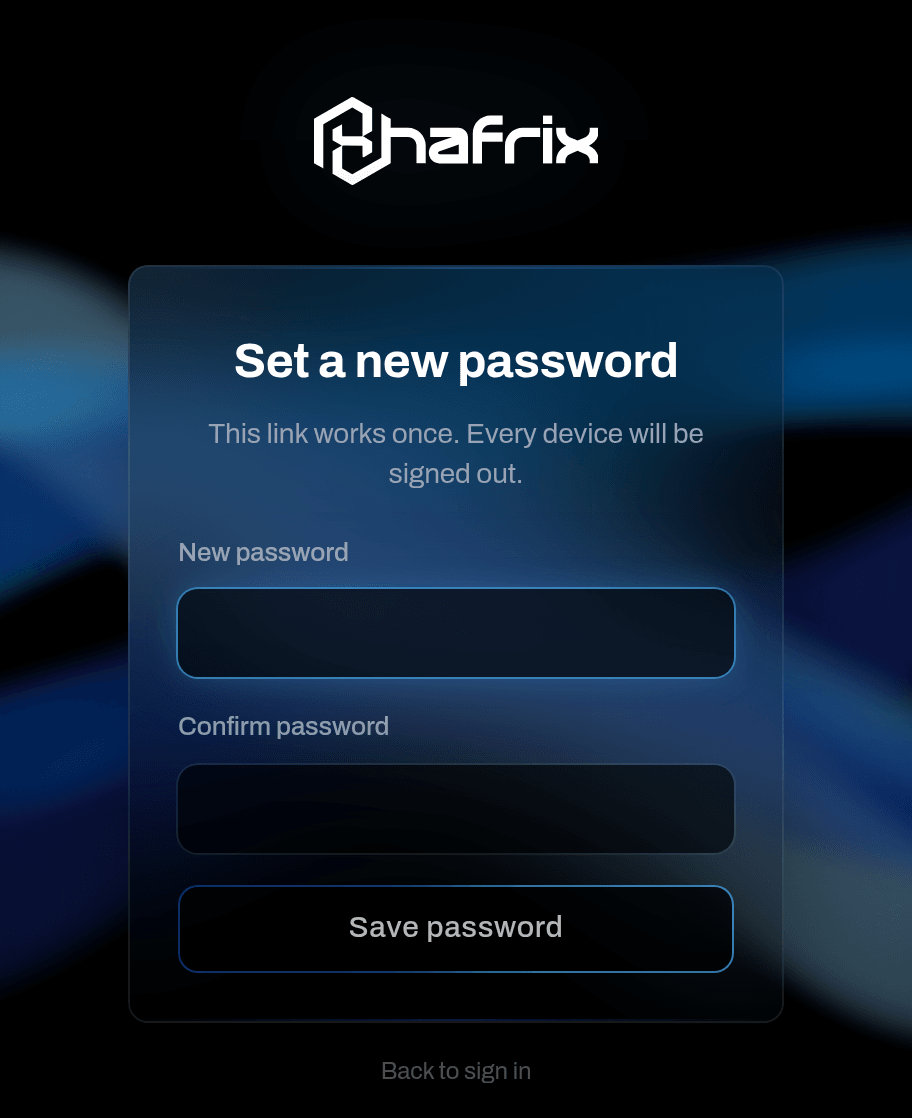
- If two-factor is on for the account, the first click adds a Six-digit code field instead of finishing — type the code from the app. No phone? Lost your phone? Use a recovery code turns it into Recovery code, and one of your ten works here too.
Result: Password changed, and every device is signed out, this one included — sign in again with the new password. The email Your Hafrix password was changed confirms it.
If it fails: The passwords do not match. — the two fields differ, and the button stays dead until they agree. This reset link is no longer valid. Request a new one. — more than an hour old, already used, or from an older email; ask for a fresh one. Hafrix sends at most three reset emails an hour to one address, and takes at most ten requests an hour from one internet address.
Move the second factor to a new phone
Who: anyone with two-factor on. Do this before you give up the old phone.
- While the old app still works: Account → Security → Turn off, then your password and a current Six-digit code.
- Click Set up again and enrol the new phone as in Set up two-factor authentication. Save the new recovery codes; the old set is gone with the old device.
Result: the emails Two-factor authentication was turned off on your Hafrix account and then Two-factor authentication is on for your Hafrix account mark both halves. For an admin, turning it off restarts the window rather than lifting the requirement — 24 hours this time, since two-factor has been on for this account before — and the first email names the new deadline to the minute. Do both halves in one sitting and the window never matters.
If it fails: if the old phone is already gone, this path is closed: a recovery code signs you in, but Turn off takes only the six digits from the app. Write to care@hafrix.com — no admin and no console can move it for you.
Tip
Keeping the same account in two authenticator apps at once is not possible after the fact — the key is shown only during setup. If you want a spare, scan the same square into both apps while it is on the screen.
Fields
| Field | Where | Meaning | Required |
|---|---|---|---|
| sign-in, Reset your password | the address you were invited on; it is the account | yes | |
| Password | sign-in, invitation | at least 12 characters when it is new, and not found in a known data breach; your existing one when the account already exists | yes |
| Full name (optional) | invitation | how you appear across Hafrix; prefilled from the invitation, editable later in Account | no |
| Six-digit code | Enter your code, setup, password reset | the current code from the authenticator app; it changes every 30 seconds | yes, when asked |
| Recovery code | Enter your code, password reset | one of the ten codes saved at setup, shaped ABCDE-FGHJK; each works once |
instead of the six digits |
| New password / Confirm password | Set a new password | the new password, twice | yes |
| Company name | Set up your workspace | how the company is named across Hafrix | yes |
| Workspace address | Set up your workspace | lowercase letters, digits and dashes; permanent | yes |
| Your name / Phone (optional) | Set up your workspace | the owner's own details | name yes, phone no |
What the system tells you
| When | Feed row | Who gets it | |
|---|---|---|---|
| An admin invites you | — | {inviter} invited you to {tenant} on Hafrix | you; an operator's copy also points at the field app |
| The invitation is re-sent | — | Reminder: your invitation to {tenant} on Hafrix | you; the previous link dies |
| You accept the invitation | — | {member} joined {tenant} on Hafrix | whoever invited you |
| A company is set up from a Hafrix link | — | Welcome to Hafrix — {company} is ready | the new owner |
| Your role needs a second factor and it is off | Set up two-factor authentication (To do) | Set up two-factor authentication before {deadline}, two days before the end — administrators only | the row: you; the email: you only if you are an admin somewhere |
| Your address is not confirmed | Confirm your email address (To do) | — | you |
| You turn two-factor on, or off | — | Two-factor authentication is on / was turned off on your Hafrix account | you |
| You use a recovery code anywhere | — | A recovery code was used on your Hafrix account, with how many are left | you |
| You sign in and no other session of yours carries that browser · platform label | — | New sign-in to Hafrix from {device} | you; an account with no other sessions at all gets nothing |
| You ask for a reset link | — | Reset your Hafrix password | you |
| The password changes, by reset or by hand | — | Your Hafrix password was changed | you |
The two To do rows are not scheduled announcements: they are checked against the facts every time the bell polls, so they appear and disappear on their own. Where they live and why there are three kinds of notice at all is Interface basics.
Related
- Interface basics — the capsule, the shape of every list and card, dialogs, and the three places a notice can appear. Read this next.
- Items — the screen you land on, and the register the whole product is built around.
- Field app — the phone half for operators: shift tickets, photos and signatures with no signal.
- Account — your name and photo, the address, the password, the second factor and the devices signed in as you.
- Roles & access — what your role opens, and why a whole section may be missing from the capsule.
FAQ
Nobody sent me anything. Can I just register? — No. There is no public sign-up form; an account is only born from an invitation or from a signup link the Hafrix team issues. If you know which company you belong to, ask one of its admins to invite you.
Which workspace do I type on the sign-in screen? — None, and there is no field for it. Your address is enough: Hafrix opens the workspace you used last and offers the others.
The invitation went to the wrong address of mine. — Nothing on the invitation page can change that; the address is what the link proves. Ask the admin to revoke that invitation and send a new one to the right address.
I accepted the invitation, so why does sign-in say my password is wrong? — Check that you are typing the address the invitation was sent to. If you already had a Hafrix account, accepting did not create a new password: the old one is still the one.
Do I have to turn two-factor on? — Only if you are an admin, or if your workspace requires it of everyone; the card in Account → Security tells you which. Everybody else may turn it on and nobody makes them.
I lost the phone with the authenticator app. — Sign in with a recovery code and keep working. Moving the factor to a new phone, though, needs a code from the old app, so if the old phone is truly gone, write to care@hafrix.com — see Move the second factor to a new phone.
Why is the sign-in screen dark when my Hafrix is light? — The theme is a setting of your account inside the application, remembered in your browser after you sign in. The door in front of it has one look for everybody.
I am an operator — why did the invitation open the office screens on my phone? — The link itself always lands on Items; it is the invitation email that points an operator at the field app. Open /m on the phone and add it to the Home screen, then use that icon from then on: Field app.
Updated 2026-08-31
New to Hafrix?
See this workflow in your operation
Explore the platform behind these guides: equipment inventory, rentals, maintenance and operational finance. Tell us which workflow you want to see.