Jobs
One piece of work for one client — a well, a rig, a period — and the equipment that is promised to it, out on it, or already back.
Where: capsule → Operations → Jobs (/jobs). If the entry is missing, your group has not been granted this section — see Roles & access.
Who can do what
| Role | In Jobs |
|---|---|
| Viewer | Open the list and the job cards, filter, sort and hide columns, switch to Overview |
| Operator | + New job, Edit, Edit contract, Sign, Reserve equipment, Mobilize, Return, Activate job, Complete, Cancel job, Delete, Print, Attach files |
| Manager | + nothing extra here |
| Admin | + nothing extra here |
There is a second lock next to the role, and today only one button on the screen knows about it. Everything that touches a booking — Reserve equipment, Mobilize, Return, Cancel, the gate pass, and creating a job around a kit — is checked on the server against the Dispatch section as well as your role, because a booking is exactly what the Dispatch board shows. Only the Print menu hides itself when that grant is missing; the other buttons stay on screen and answer This section is limited to specific groups in this tenant. when you press them. So with Jobs granted and Dispatch not, what you can actually finish is planning, editing and closing jobs — never putting equipment on one.
At a glance
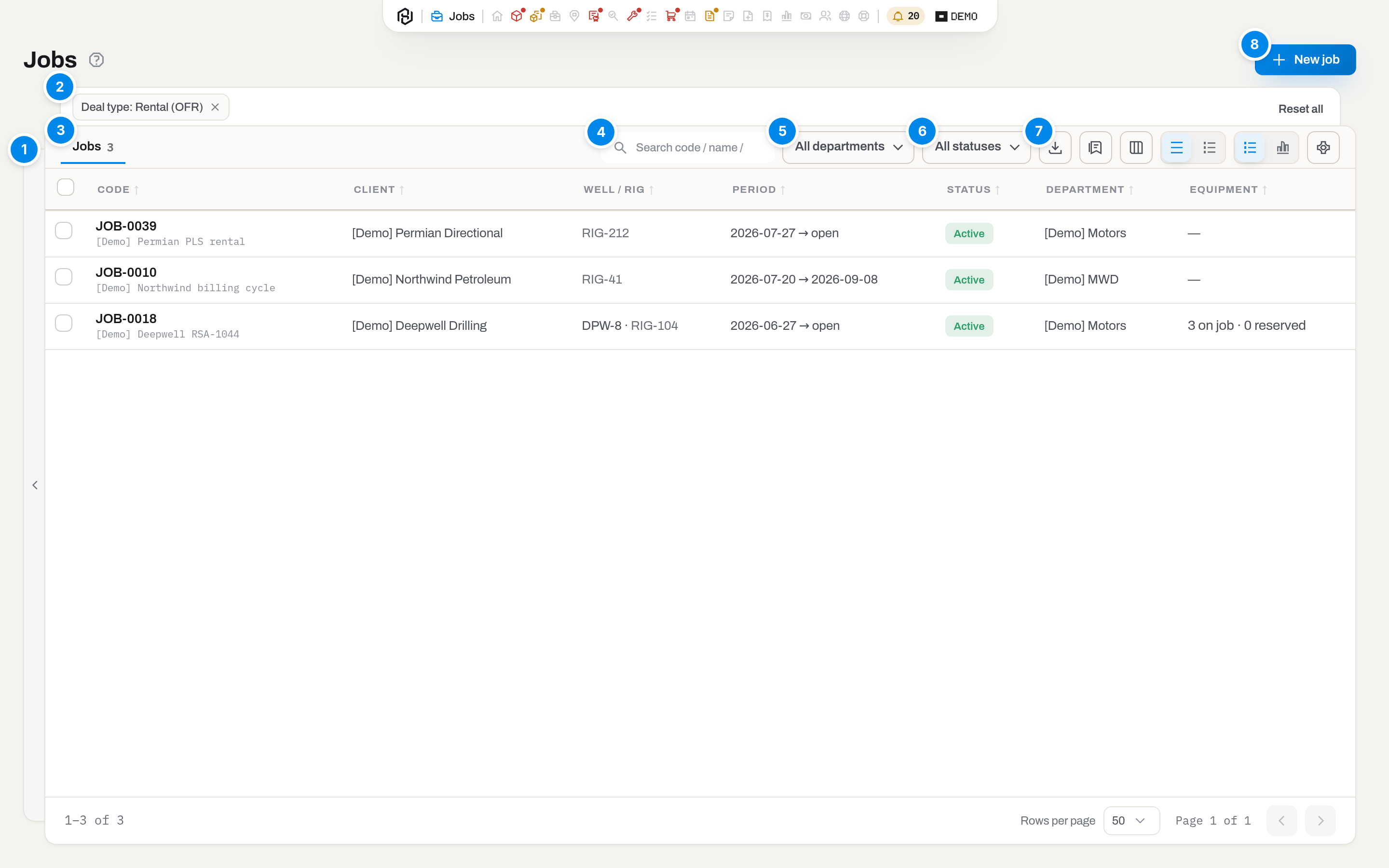
- Filters — a rail at the left edge of the list: a handle on its own outer edge opens it, and a click tucks it back to a thin 22px strip carrying nothing but the handle's chevron. Below 1200px wide the strip is gone and a Filters button, first in the table's header, opens the same panel as an overlay instead. The list narrows but stays in view and recounts itself as you pick; a group can be collapsed, a set field is outlined and carries a × that drops that one condition, and every visit to Jobs starts with the rail tucked away. Inside, conditions come in two groups:
- Client — one field, defaulting to All clients. Vendors are not offered, because a job is work for a client.
- Basics — Department (the document dimension set on the job, the same one the Department column shows), Line of business, Purpose, Deal type (only Rental (OFR), Service (OFS) or General (GR) jobs) and Mine: Everyone's jobs, or My jobs — the jobs where you are the Salesperson, the Service manager or the Engineer on the contract. A link with My jobs in it shows whoever opens it their own jobs, not yours.
- The active-filters tray — a strip that rides out from under the top edge of the list card while anything is set in the rail or the search box: one pill per condition, each with a × that drops it. Reset all, at the right of the tray, clears every condition at once — rail (the Department field included), search and Status. The Department button keeps its choice: it is your department lens, which part of the section you are looking at, not which jobs you are filtering out. There is no other reset button on the screen; in the narrow overlay, where there is no tray, Reset all sits at the top of the panel.
- Jobs — the one tab on the table's own header, with the number of jobs that match right now.
- Search — Search code / name / well / rig…: matches the job code, its name, the well and the rig.
- Department — one button right after the search box: the fleet department lens, the same button as on Items. It narrows the list to the jobs that have equipment of that department booked on them, so a job with nothing booked yet is not shown while a department is picked. The job's own Department is a different thing — a field of the job, picked under Basics in the rail.
- Status — a dropdown right after the department: the button reads All statuses until you pick one, then Status: Active (or whichever you chose); each of Planned, Active, Completed and Cancelled in the panel carries its own count under everything else you have set — search, the rail and your department lens — so the number next to a status is the number you get on the Jobs tab when you pick it. It leaves no pill in the tray — change it here, or clear it with Reset all.
- Export, Views, Columns, density, the layout switch and the department-view gear — the rest of the table's header row, all square icon buttons of one size; hover any of them to see its name. Export opens a menu of Excel, CSV and PDF; Views saves the list as it is set up now and brings it back; Columns shows or hides columns — Code always stays; the gear resets the table to what your department is set up to see, or, for an admin, changes it. List / Overview is one two-way switch — see See the section as a board.
- New job — top of the page, above the table. Operator and above; a viewer does not see the button.
The columns are Code, Client, Well / Rig, Period, Status, Department and Equipment. Flag and, for those who may see prices, Contract value (See what the contract comes to) are hidden to begin with — turn them on under Columns. The Code column carries the job name underneath it, Period reads start → end or start → open when the job has no end date, and Equipment counts the two states that matter — {n} on job · {n} reserved, or a dash when nothing has been booked yet. A click on a row highlights it; click its name, click the row again, or press Enter to open the job (Choose how a row click behaves). The back arrow on the job page brings you here, to the row you left, with your filters intact.
Filters, status, layout and page live in the address bar, so a list you have set up can be bookmarked or pasted to a colleague.
Key concepts
The job and the booking are two different ladders
A job moves through Planned → Active → Completed, and can be Cancelled while it is still open. A booking — one item on that job — moves through Reserved → Active → Returned, and can be Cancelled while it is still only reserved. The two are connected at one point only: mobilizing the first booking of a Planned job turns the job Active by itself, because equipment has left the yard and pretending the work has not started would be a lie.
| Job status | Meaning | What changes it |
|---|---|---|
| Planned | Agreed, not started. Equipment can be reserved, nothing has left the yard | New job creates it here |
| Active | Running | Activate job, or the first Mobilize on it |
| Completed | Finished and closed. Nothing can be reserved or mobilized on it any more | Complete |
| Cancelled | Called off. Same closed state as Completed, different reason | Cancel job |
Completed and Cancelled are final: there is no way back to Active, by design. A job closed by mistake is replaced by a new one, and the old one keeps its history.
Reserved, mobilized, returned
| Booking status | Meaning | What changes it |
|---|---|---|
| Reserved | The item is promised to this job for a period. It still sits in the yard, but nobody else can book it for those days | Reserve equipment |
| Active | The item is on the rig, counted as out of the yard, and shows this client on its own card | Mobilize |
| Returned | Back. The booking is closed on the day it actually came back, not on the day it was promised for | Return |
| Cancelled | The promise was dropped before anything left | Cancel on a reserved row, or closing the job |
Only Reserved and Active hold the item. Returned and Cancelled are history and block nothing — which is why an item that came back early can be booked again for the same week.
A conflict is a calendar collision, not a rule of thumb
One item cannot be reserved twice for overlapping days. The check is on the period, not on the job: two bookings of the same unit on two different jobs conflict as surely as two on the same one. An open end (To left empty) collides with everything after its start.
The dialog shows the collision before you send anything, and the same answer comes from the server if two people book the same unit at the same second: Item is already booked on job JOB-0006 (2026-09-27 → 2026-10-12).
Readiness is a warning here, never a block
The Readiness column repeats what Items computed: Ready, Need inspection, Need repair. Next to the badge sits a countdown, shown whenever the unit has a certificate date at all — expires in {n} d while there is still time, overdue {n} d once it has run out. A green Ready with expires in 12 d beside it is the normal, healthy case: the papers are valid today and want attention this month. A unit that is not ready can still be reserved and still be mobilized — the system says so out loud and leaves the decision to the person who signs for the load. A unit with no readiness at all (taken apart, obsolete) shows its item status in that column instead.
The deal lives on the job
A job is not only what work — it is also under what agreement. Three fields carry that: the client's PO (their purchase order number), the Contract / RSA number, and the Contract currency. They are not decoration: the invoice reads them. The PO travels onto the invoice by itself, the contract number is printed on the PDF next to the buyer's tax number, and the currency decides what the money on that invoice is counted in.
They are inherited, not retyped. The currency is copied from the client the moment the job is created and then belongs to the job, so raising a client to a new currency next year leaves last year's jobs counting in the one they were sold in. Payment terms come from the client too — 45 days on the client card beat the workspace default of 30 — and the PO comes from the job.
One consequence is worth knowing before you meet it: tickets from two different POs never end up on one invoice. A client with two rigs under two purchase orders gets two invoices, and the draft builder refuses to mix them — see One invoice per PO.
Days or tickets: how a job is billed
Billed by on the contract tab answers one question — what turns this equipment into money.
Field tickets is the way it has always worked: a signed daily sheet says the motor worked that day, and the invoice adds those days up.
Booking period is the way a rental is actually sold. The client takes the tool out on the 2nd and brings it back on the 9th, and pays for eight days — both days inclusive — whether or not anybody wrote a sheet on the 5th. On such a job the money comes from the booking, and nobody writes a daily ticket for the rental at all. A ticket is still welcome there, and still carries hours, crew, consumables and services; only equipment days are refused, because the booking already counts them.
| Field tickets | Booking period | |
|---|---|---|
| What counts equipment days | The signed daily sheet | The booking: From → To minus its breaks |
An EQUIPMENT line measured in DAY on a ticket |
Normal | Refused — equipment days come from the booking |
| Hours on a ticket | Normal | Normal |
| Where the invoice line comes from | Ticket lines added up | One line per unit per calendar month |
Two rules travel with it. The day rule is a workspace setting: both days inclusive by default, or the return day not charged — Finance settings. And the mode itself is fixed by the first invoice: switching a job that has already been billed would count the same days a second way, so the field goes dark and says so.
The delivery note is the record of the handover; the gate pass is paper for the gate
Two pieces of paper leave the yard with a kit, and they answer different questions. The delivery note is what the client and the office argue numbers over; the gate pass is what the guard checks at the gate — see The gate pass is paper for the gate, not the record below.
A delivery note is a document. It has a number of its own — DN-0001 going out, RN-0001 coming back, each counted separately — a date, the person who received it, and rows that are a snapshot: the name, serial number, category, hours, runs and KREV as they stood at the moment of the handover, and the parts fitted inside each unit listed under it. Rename the tool tomorrow, move a cutter to another body next week: the note does not change. That is the point of it. The client counts these numbers too — their own reference goes on the same note in Their reference, so RT-1844 and DN-0014 sit side by side and an argument about dates has one place to go.
Notes are born from an action. Mobilize and Return ask Issue a delivery note — the box is ticked — and one call makes one document for every booking in it: a kit handed over at once is one piece of paper, not ten. A handover signed on a phone puts that signature on the note and tells the office in the notification feed. Paper signed at a gate two days ago is entered by hand from New delivery note, back-dated, with the client's own number on it.
They live on the Delivery notes tab of the job. Each row prints as a PDF and can be sent to the client by email, with the document attached — the same way an invoice goes out. Nothing on a note is ever edited: a document that is already in somebody's hands does not change. Got it wrong, issue the next one; the gap in the numbering is more honest than a number used twice.
Service ticket: work done on the rig
A service ticket is the third kind of delivery note — numbered ST-0001, next to DN-/RN- — for work done to equipment that stays exactly where it is. Nothing is mobilized and nothing returns: the ticket does not move the units it covers, it records what was done to them on site.
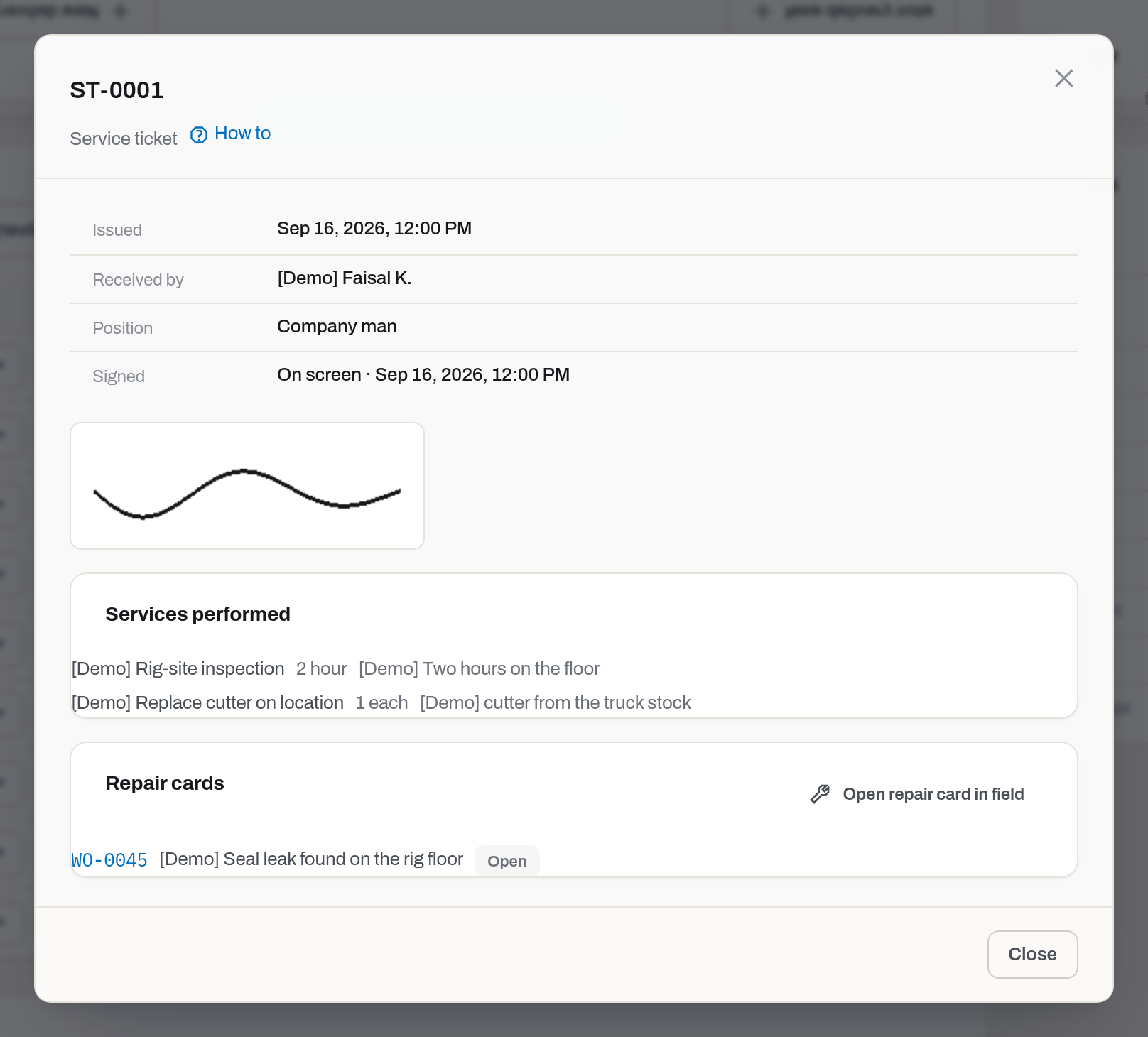
To write one, open the job's Delivery notes tab, click New delivery note and choose Service ticket. Pick the bookings it covers — only equipment currently Active on the rig can be on a ticket, the same way a return note only covers what has come back. Then list what was done: one line per service, picked from the services book or typed as a one-off, each with a quantity and a unit. Close it with who signed for the work. Signed has two answers: On paper — the ticket was signed with a pen, and you enter the name and position of whoever accepted it; On screen — the client signs right in the form, on the pad under their name, and the ticket cannot be issued until both the name and the signature are there. The card of the ticket shows which way it was signed, and the signature image when there is one (the image needs the Items section); the printed ticket carries it too.
A ticket often uncovers something that needs more than a service line — a seal that has to be replaced, a component that has to come out. From the ticket's card, Open repair card in field turns one or more of its units into a work order of kind In field, carrying the ticket as its basis so the office can trace the repair back to the paper that started it. The service lines themselves are not repair cost: they are billed from the invoice draft, with the ticket's number carried along as their source.
The gate pass is paper for the gate, not the record
A gate pass is the sheet for the gate: what goes out, on which job, who releases it. It is built from the job and its bookings at the moment you print it, before anybody has signed anything; the delivery note remains the record of the handover.
Printing a gate pass that lists at least one unit issues it: the sheet gets a number of its own — GP-0001, counted once for the whole workspace — and a QR code that anyone at the gate can scan to check the paper is genuine (see Verify a gate pass). Print it again with the same equipment and the same client, job and well/rig in the header and you get the same number and the same QR code — a reprint is the same document. Print it after the list or the header has changed — the client was reassigned, the well or rig reference was edited — and it gets a new number; the earlier copy is marked as replaced and keeps showing what was true when it was printed. An empty side prints without a number or a QR code — and printing it after everything was taken off the job voids the gate pass that was in force, so its QR code answers No longer valid. While the workspace is frozen, printing changes nothing: the same list prints under its existing number, a changed list prints as an unnumbered draft.
It has two sides, and the menu and the paper name the second one differently. Gate pass — out to the rig prints the sheet headed Out to the rig and lists the bookings that are Reserved and Active; Gate pass — back from the rig prints the sheet headed In from the rig and lists the ones that are Returned. A unit that has come back leaves the first sheet and appears on the second — the paper shows the state, not the history.
Headings and the signature boxes are printed in English and Arabic side by side, because the sheet is read at the gate and in the client's camp. Signatures appear twice over. Every item row has a Signed column carrying the name and time of whoever signed for that unit; the block at the foot of the sheet is the one that is grouped by person, so a man who received ten items appears there once instead of ten times. Where nobody has signed electronically, the row shows a dash and the box at the foot is an empty line for a pen — which is what the sheet is printed for in the first place.
How to
Create a job
Who: Operator and above.
- Click New job (top right of the list).
- Pick the Client. Only client companies are offered — if the list is empty you will see No client companies yet — add one on the Clients page. and have to register the company in Clients & companies first.
- Leave Code (empty = auto) empty to get the next
JOB-0001,JOB-0002… or type your own code. - Fill in Name — what people will call this work in the list.
- Well and Rig open to a search box: two characters bring up names from the Aramco mirror, a rig's row naming its contractor as well; move with the arrows and pick with Enter. Naming one fills in the other from the field history: the line under the field says where it came from and for which days. Suggestions are a courtesy, not a cage — type your own and press Enter (or pick the Use "…" row), and the hint then says Not in the Aramco mirror — the value stays as typed.
- Set Starts on (today by default) and, if the work has an end date, Ends on (empty = open).
- Add Notes if there is anything the crew should read.
- Click Create.
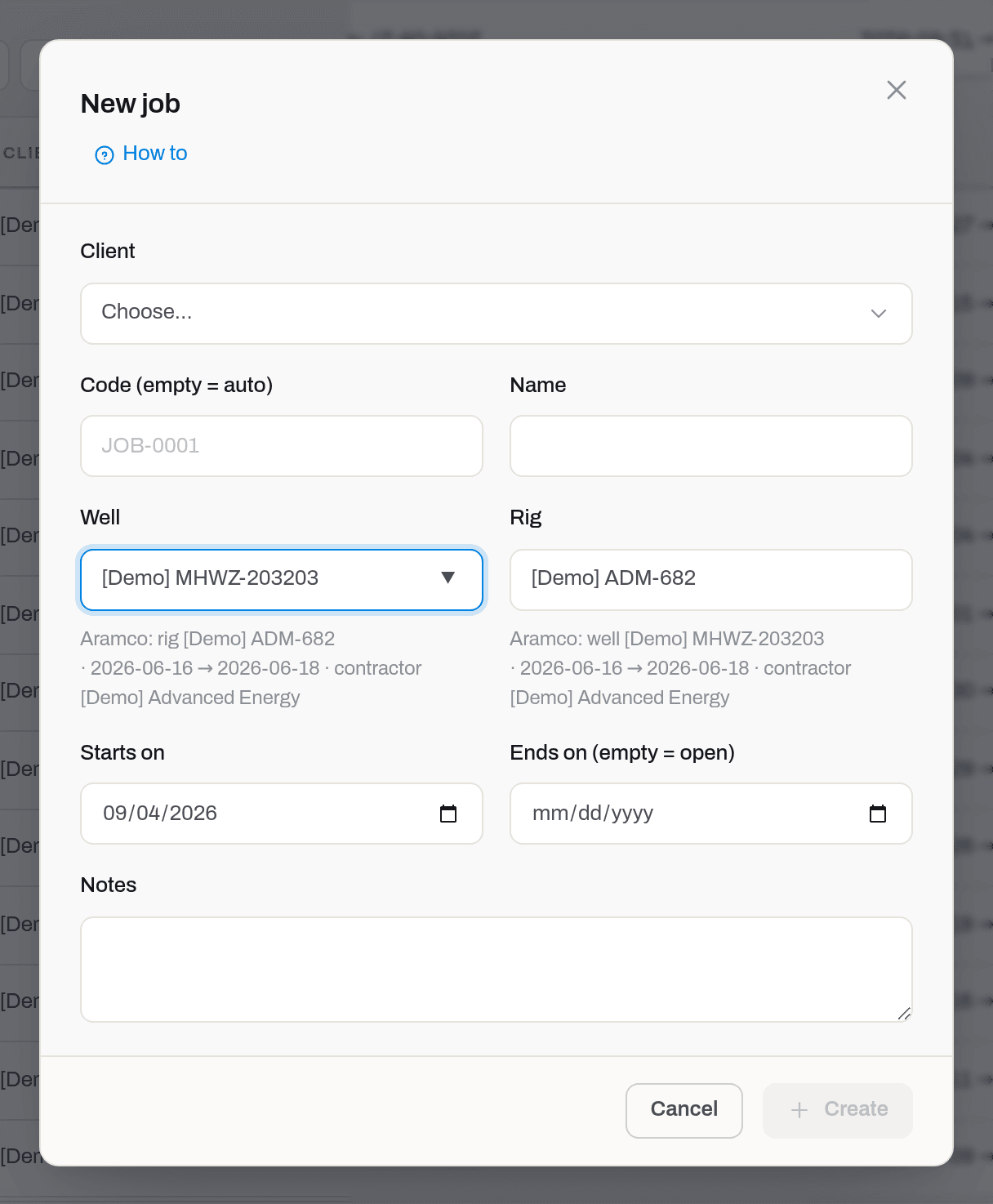
Result: the job is created Planned and its page opens. It appears in the list with its code and name, and a toast confirms the save.
Create stays disabled until Client and Starts on are both set — those two are the whole requirement.
If it fails: Requires tenant role 'operator' or higher. — ask an admin for the role. A code you typed by hand that already exists in the tenant is refused; leave the field empty and let the counter pick.
Tip
A job can also be created around a kit: select the rows in Items and pick Customer / rig → Reserve for a job in the selection bar. The job and all its bookings are then written in one go — if one of the items is not free, nothing is created at all, so you never end up with an empty job you have to clean up. That path books equipment, so it needs the Dispatch grant too: without it the whole request is refused and no job appears.
Read a job
Who: Viewer and above.
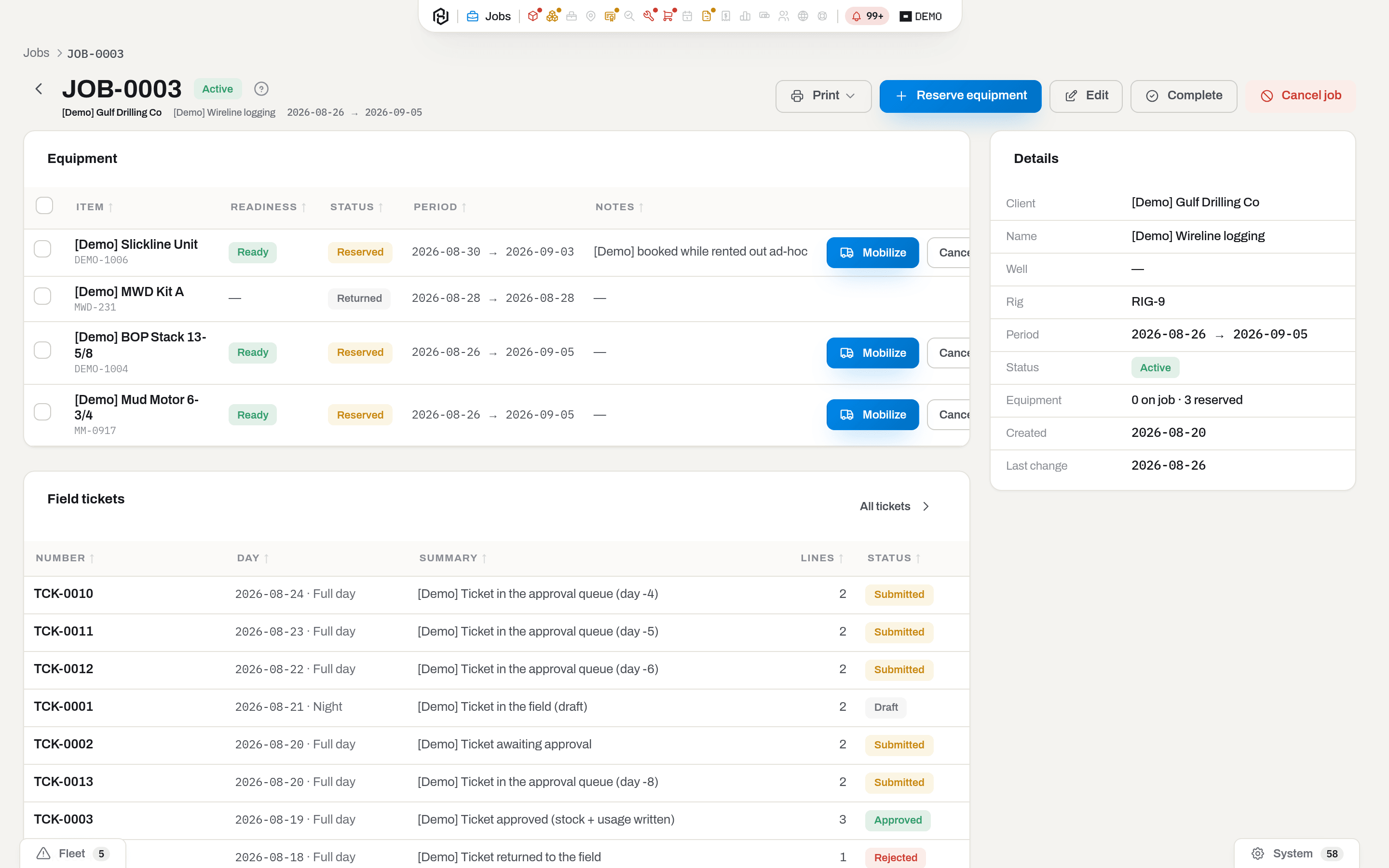
The header carries the code, the status badge, and underneath it the client, the name and the period. Everything on the left is what happened to this job — the Equipment card and the Field tickets card; everything on the right is what the job is — the Details facts and, when there is text in them, Notes (printed on the job order) and Internal notes (never printed — for your own team).
Equipment is one row per booking: the item (a link to its card), its Readiness, the booking Status, the Period it is promised for, the note that was written when it was booked, and the actions that fit the row. A long list is searched, not scrolled: the Search box next to the tabs narrows the rows as you type — by item name, serial or the booking note — and counts shown of total while it is on. Selecting all from the header checkbox takes the rows the search shows, not the whole list; the search stays in the address, so coming back from an item card lands on the same narrowed list. Details repeats client, name, well, rig, period, status, the {n} on job · {n} reserved count, and when the job was created and last changed.
The left card has two tabs. Equipment is the bookings; Contract is what the work was sold under — the client PO, the contract or RSA number, the contract currency, how it is billed, and the Job rates card for anyone who may see prices. The client PO also shows in Details on the right whenever the job has one, because it is the number people are asked for at the rig gate.
The back arrow before the code goes where you came from — the list, or the ticket or the board that sent you here. The Jobs crumb always goes back to the list with your filters.
Edit a job
Who: Operator and above. Only while the job is Planned or Active.
- Click Edit in the header.
- Change what you need — Client included, as long as nothing has ever been booked on this job — and click Save.
Save stays disabled while Code (empty = auto) or Starts on is empty. On an existing job the code is no longer optional: the job already has one, and blanking it would leave the row without a handle.
Result: a toast confirms the save; the header, the facts and the list row show the new values.
If it fails: the Client field is disabled and says The job already has assignments — the client is locked. The lock hangs on a booking having existed, not on its state — cancelling it or returning the unit leaves the row behind, so the field never opens again. Moving this work to another client means a new job.
Record the contract on a job
Who: Operator and above for the PO and the contract number; the Contract currency and everything on the Job rates card need the Finance section as well, and writing a rate needs Manager.
The job card has a second tab next to Equipment, called Contract. It shows what this work was sold under and — for those who may see prices — the rates agreed for it, including its Department, Line of business and Purpose — see Document dimensions. Below the numbers sits the Contract terms card: the Job type, the Deal type (Rental, Service or General — printed as OFR, OFS or GR), the client's Order number, the three people on the deal — Salesperson, Service manager, Engineer — the client's Primary contact and Secondary contact with their positions, Terms of payment, Payment method, Billing address, the Flagged mark and whether the contract is Signed.
- Open the job and click Contract.
- To change the numbers, click Edit in the header: Client PO, Contract / RSA, Contract currency and Billed by sit under the period, alongside Department, Line of business and Purpose.
- To change the terms, click Edit contract on the Contract terms card. Job type is picked from the catalogue (Job types); Deal type is optional and starts empty (Not set) — an invoice built from this job's tickets takes its deal type from here. The three people are members of this workspace and are picked by a Manager or above — an operator sees who is assigned but cannot change it; a contact is picked from the client's card (this needs the Clients section — without it, type the name, position, email and phone by hand) and then kept as a snapshot — the job remembers the name and position it was signed with even if the client's card changes later. Terms of payment and Payment method need the Finance section; Terms of payment starts as the client's and the next invoice for this job takes its due date from here. Tick Flag this job for attention and say why when something about the deal needs an eye — the flag shows in the list.
- When the client's representative has accepted the terms, click Sign on the same card. On paper — type the name from the signed paper and the position. On screen — the representative signs on the pad right there (this needs the Clients section: the drawing is kept as a file on the client's card, and the job's card shows the image only to those with Clients). Click Sign. The job records who signed, when and under which revision, prints it in the Accepted by box of the job order, and the button goes away. A signature belongs to the revision it was given under: when changed terms are saved as a new revision, the new revision prints with an empty Accepted by box, the card says which earlier revision was signed, and Sign comes back so the client can accept the new terms. The earlier revision keeps its signature in the job's revision history. A contract signed while the job was still Planned carries that signature onto Rev A when the job is approved.
- To add a rate that applies to this job only, click New rate on the Job rates card, choose what it applies to — Any equipment, one category, or the single item the row was opened from — set the Unit (
DAY,HOUR,WEEKorMONTH), Qty and the Rate, and click Save. Picking the scope and unit asks the client's price book for a rate and fills it in, along with Standby and Minimum — only when those fields are still empty, so a rate you already typed is never overwritten. - To sell the rig's rate below the book, set Disc % — the dialog shows the Net rate and the Amount it works out to before you save.
- To seed the table in one go, click Fill from price book: it adds one rate per unit already booked on the job and per unit of measure the price book prices it in — client book first, then the counter book, then the item card — skipping a book row in a different currency and any unit of measure the job already prices for that unit, whether by a rate on the unit itself, on its category or on Any equipment, so the contract price keeps winning on the next invoice. It is hidden on a cancelled job and never changes the price book itself.
Standby and Minimum are optional and behave exactly as they do in the rental price book: an empty standby falls back to the workspace standby factor, and the minimum is charged per ticket line, not per contract, and is never discounted.
Result: the row shows Qty, Rate, Disc %, Net rate and Amount per unit period (1,800.00 SAR / day) in the contract currency, and the next invoice built for this job prices its rental lines from the net rate — the invoice line will say Job rate where it would otherwise say Rental price book, and shows the rate after the discount, not a separate discount line.
Why a rate here at all: because a job rate beats the client's price book, and the book beats the counter price. A discount negotiated for one rig belongs on that rig's job; putting it in the client's book would quietly give it to every other job of that client as well.
If it fails: This job already has a rate for the same scope and unit — one job cannot hold two rates for, say, DAY on the same category; edit the existing row instead. This job already has an invoiced ticket — the contract currency is fixed means an invoice has already gone out counting in the old currency, and changing it now would disagree with paper the client already holds. The person is not a member of this workspace — the salesperson, service manager and engineer are picked from your members, not typed. This job is already signed — the current revision carries a signature already; record changed terms as a revision, then sign that. A signature cannot be dated in the future or before the job was created — the signing time comes from the device; check its clock. Quantity or discount out of range gives its own field error.
Add service and parts to the contract
Who: Viewer and above with Finance to see the card; Manager and above to write a line.
The Service and parts card sits below Job rates on the same Contract tab. A line is either a catalogue Service (billed by DAY, HOUR, EACH or METER, priced from the service book) or a Part — one item, or a category, billed EACH or METER and priced from the sale book.
- Open the job's Contract tab and click New service or part on the Service and parts card.
- Choose Service or Part. A service picks a catalogue service; a part picks either an item or a category — choosing one clears the other. Picking either asks its price book for a price and fills Price when the field is still empty.
- Description is optional and defaults to the catalogue name; set it when the line needs its own wording on the invoice. Set Qty, Price and, to sell below the book, Disc % — the dialog shows the net price and amount before you save.
- Click Save.
Result: the line shows on the card with its Amount, and once the job is invoiced, a matching field ticket or service ticket line is priced from this line before it falls back to the service or sale book.
Why here and not the price book: the same reason as a job rate — a price cut or a one-off service for this rig belongs on this job, not in the client's book where every other job of theirs would inherit it too.
Add a fee to the contract
Who: Viewer and above with Finance to see the card; Manager and above to write a line.
The Additional fees card holds charges that are not equipment, service or parts — a permit, a standby crew call-out, anything billed in words rather than from a catalogue.
- Open the job's Contract tab and click New fee on the Additional fees card.
- Description is required — there is no catalogue name to fall back to. Set Qty, Price and, if agreed, Disc %.
- Click Save.
Result: the fee waits on the contract until the job has started, then rides the next invoice drafted for the job's client and PO — exactly once. Once billed, the row shows Billed on INV-… and can no longer be edited or deleted.
To get it back on the next invoice: delete the fee's line from the draft, delete the draft, or void the invoice — any of the three releases the fee to be picked up again.
If it fails: A fee needs a description — the field cannot be left blank. Quantity or price out of range gives its own field error.
See what the contract comes to
Who: Viewer and above with Finance.
The Contract value card totals the job's own rates and lines over its planned dates — it is the contract as sold, not the invoice, so price-book terms like free days or a monthly cap are not in it.
- Open the job's Contract tab and read the Contract value card below Additional fees.
- Rental covers the planned period, start to end, counted the way rental billing counts it — the same rule for the return day and the same month length. The weekly or monthly rate is used when it is cheaper than the daily one, and each scope is multiplied by the largest Qty among its rate lines. A job with no end date shows the price for each rate unit the contract has lines in, joined with + and followed by open-ended — for example 900.00 USD per day + 500.00 USD per week, open-ended; a unit whose lines add up to zero is left out, and a contract priced only by the week or the month shows just that price. The Total is then labelled Total (excl. rental) — an open period has no total to give.
- Service and parts and Additional fees total the cards above; an hourly rate is left out of Rental, and the card says how many hourly lines were skipped, since hours worked are not known ahead of time.
Result: the same total, worded the same way, shows as the Contract value column in the jobs list — finance roles only, hidden until you turn it on under Columns, with the first open-ended unit price under it (+ 900.00 USD / day, or + 500.00 USD / week when there is no daily line) — and prints as a Contract estimate block on the job order with the same open-ended wording.
See the money on a job
Who: Viewer and above with the Finance section.
The Contract tab carries a last card, Money, below Job rates, Service and parts, Additional fees and Contract value. It shows whether the job made money, using the same rule the accounts department does: what invoices actually billed for it, minus what the units on it cost while they were booked here.
- Open the job and click Contract.
- Read the Money card: Billed (from invoices that have actually gone out — Sent, Partially paid or Paid — the same rule as Rental revenue), the costs split into Repair, Sub-rental, Purchases and Other, then Total costs, Margin and Margin %, and Days on job.
Result: a negative Margin is printed in red, the same convention as a negative number anywhere else on the money screens. The card's caption spells out the method: costs are direct, counting only the days each unit actually spent on this booking, not its whole service life — a motor that was also on three other jobs this year does not carry their costs here. Purchases is the exception to "direct": every purchase order bought for this job counts in full once it is sent, partially received, received or closed — not while it is still a draft, and never if it was cancelled — including freight and customs charges on it; a service line on the order that is billed to a work order or a unit is left out of Purchases, but it does not automatically land somewhere else either — it counts under Repair only if that work order's own job is this same job, and under Other only if the unit's cost entry falls inside this job's booking window, otherwise it counts in neither bucket.
Parts bought on this job's purchase orders and later issued from stock to this job's work orders count once, under Purchases: up to the quantity the job bought of that stock item, their cost is taken out of Repair.
If it fails: every field reading zero usually means no invoice has been sent for this job yet — Billed stays at zero until one is. If a line notes some invoices had no exchange rate, that amount was left out of the total; set the missing currency pair in Finance settings and reopen the card.
See the purchases bought for a job
Who: Viewer and above with the Procurement section.
Anything bought for this job — one or more purchase orders raised from a request that named this job — lists on its own tab, next to Equipment and Contract.
- Open the job and click the Purchases tab (hidden if you cannot see Procurement).
- Each row is an order: its number (opens the order), supplier, status, total and expected date.
Result: a quick read of what is on order or already in for this job, without leaving the job card. Click a row's number to open the order itself — see Buy for a client job for how an order gets linked to a job in the first place, and exactly what counts in Purchases above. The tab lists every order linked to the job, including drafts, cancelled orders and intercompany transfers; Money → Purchases counts only sent purchase orders, so the two totals can differ.
Save a revision of a job
Who: Operator and above, while the job is Active.
A job is never locked the way a sent order is — the rig does not wait for paperwork, and equipment moves on it every day. A revision does not change that: it is a saved snapshot of the deal, taken on demand, not a lock on the job.
- Open the job and click Save revision.
- Say what changed — a new rate, a well the rig moved to, anything the client or your own records will ask about later.
- Click Save revision in the dialog.
Result: the header now carries a letter, JOB-0001 Rev B, and the Revisions card gains a row with the date, who saved it and the reason. With a contact email on file for the client, they get the revised Job order PDF attached, with the reason in the text; the first revision (Rev A, taken the moment the job went Active) never sends a letter of its own — the job was not yet a live deal to revise.
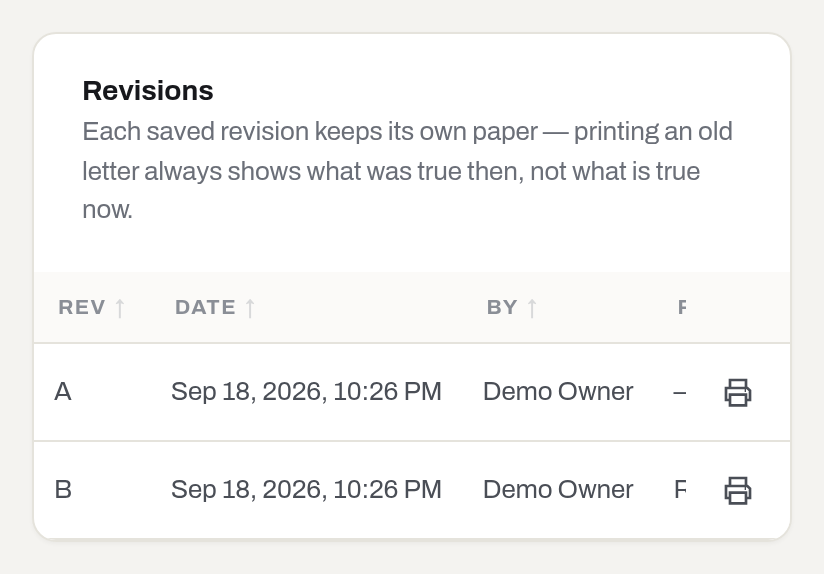
There is no undo. The letter, once saved, is history — printing an old one always shows exactly what the deal was on that day, not what it is now.
If it fails: the button is missing — the job is still Planned (there is nothing signed to snapshot until work starts) or already closed, or your role is below operator.
Attach files
Who: Operator and above with the Jobs section to upload; the uploader or a manager to remove. Anyone who can see the section can view.
- On the job card, drop files onto Documents & photos or click Upload, below the document revisions.
Result: the signed contract, the client's work order or PO, and anything else worth keeping travel with the job.
If it fails: Only the person who uploaded this file, or a manager, can remove it. — someone else attached it; ask a manager to remove it instead.
Print the job order
Who: Operator and above.
- Open the job and click Print job order.
- The PDF opens in a new tab: print it, or save it.
Result: a sheet carrying the current letter in its number, the client (name, address, contact), the well, the rig, the period, the client's PO and contract reference, the currency and billing mode, document dimensions, the Job rates table with its Qty, Disc % and Net columns, notes (not the internal ones), and who prepared it. A Service and parts table and an Additional fees table print below it when the contract has lines on either card, and a Contract estimate block — see Contract value — closes the sheet before the signature. Without the Finance section the sheet has no money on it: the rates, service and parts, and fees tables, the estimate, the currency and the payment terms are all left off, the same as on screen. This applies to earlier letters too. The copy emailed to the client with a revision always prints in full. It reflects the job as it stands right now; for an earlier letter, open its row in Revisions — see Save a revision of a job — and print that instead.
Compare two revisions
Who: Viewer and above; the rate lines also take the Finance section.
Comparing two letters of a job order works the way it does everywhere else in Hafrix — see Compare two revisions for how the dialog reads changed fields and lines. One thing narrows what a job shows: without the Finance section, the same rule that hides currency and tax elsewhere on the job also applies here, and the Job rates lines are left out of the comparison entirely rather than shown blank. The header fields that changed — client, well, rig, period, PO — still compare normally for everyone.
Reserve equipment
Who: Operator and above, with the Dispatch section granted. Only while the job is Planned or Active.
- Open the job and click Reserve equipment.
- Item opens to a search box: type a serial or a name and pick from the list — at most twenty matches come back, so search by serial rather than scrolling for a name. Units that have left the fleet (scrapped, lost, sold) are not offered at all. Consumables never appear — a job books serialized units, quantities are the business of Stock.
- Picking a unit adds it to In this set under the dates, and the panel stays open — a BHA is a set, so search and pick the next one straight away. A unit already in the set is dimmed in the list; the × on its row in the set takes it back out.
- Adjust From and To (empty = open) if the set is needed for less than the whole job. They default to the job's own period, and one period covers the whole set.
- Add Notes — what this kit is for, what has to happen before it goes. They go on every booking in the set.
- Click Reserve {count}.
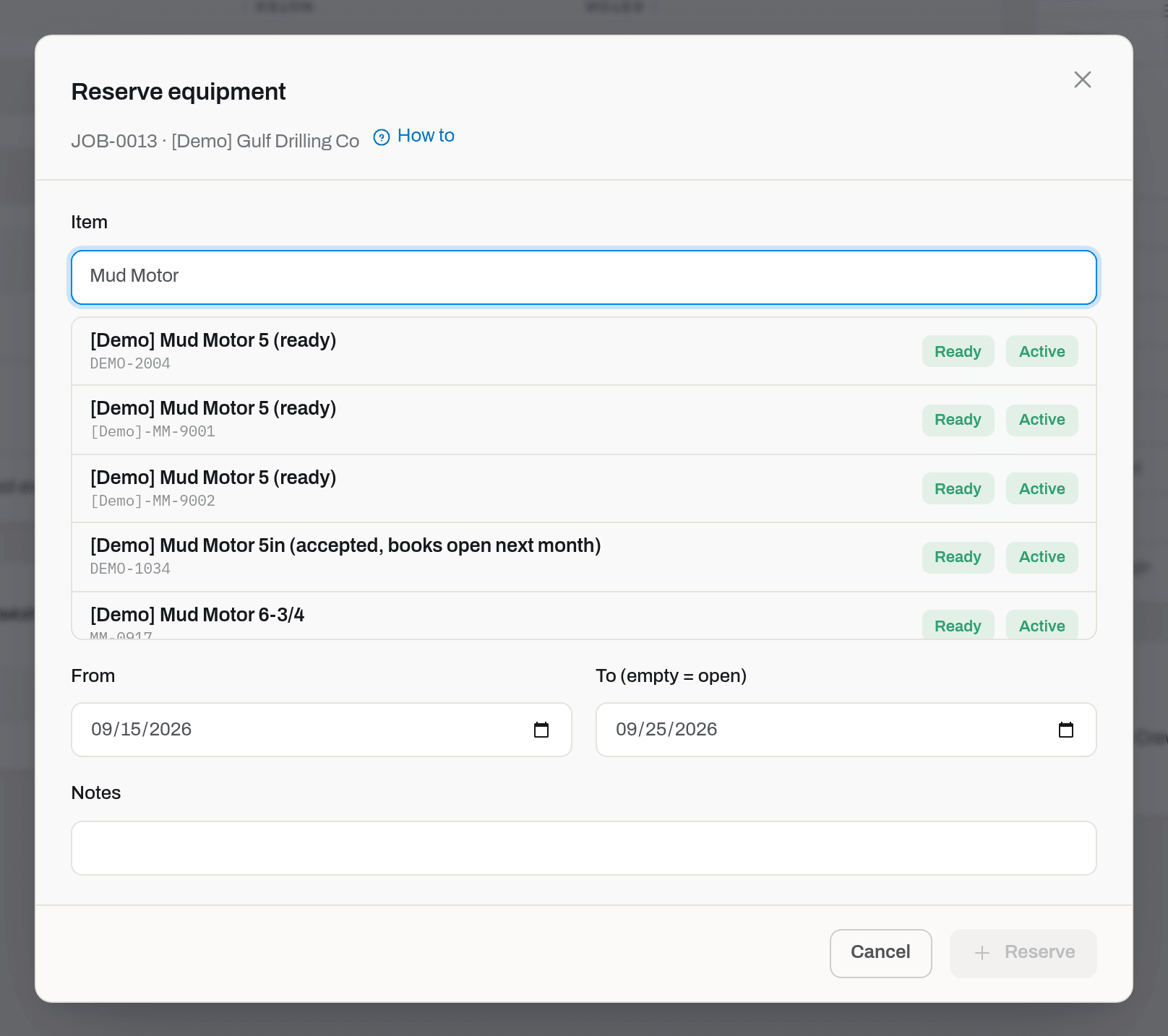
Result: one Reserved row per unit appears in Equipment, the Equipment count on the list grows, and the bookings show up on the Dispatch board. The set is booked in one request, unit by unit on the server, so a partial result is normal and honest: the window reports {done} done, {failed} failed, the units that went through leave the set, and the ones that did not stay in it with the server's reason beside them — fix the dates and press again.
If it fails: two warnings do not stop you and one marks the row.
- {count} items are out with a client — mobilization will need a return first. Those units are on a rig today. Booking them for later days is fine; they just have to come home before they can go out again.
- {count} items are not ready for work — booking is still allowed, check them before mobilization. The papers or the inspection are behind. Book them and fix them, or take them back out of the set.
- booked on {job} ({from} → {to}) beside a row, and {count} items are booked for this period — those bookings will be refused under the list. That unit collides with another job. It is still sent — the refusal comes from the server, in the server's words — and the rest of the set goes through; Reserve only goes dark when every unit in the set collides.
Fix a booking conflict
Who: Operator and above.
- Every unit you add to the set is checked against its own reservations and mobilizations as soon as it lands there.
- A unit that collides with the dates you have chosen is greyed out in In this set and carries the reason — booked on JOB-0006 (12 Oct → 26 Oct) — with the count repeated under the list: {count} items are booked for this period — those bookings will be refused.
- Move From and To clear of the collision, take the unit out of the set with its ×, or open the other job in Jobs and decide which of the two gets it.
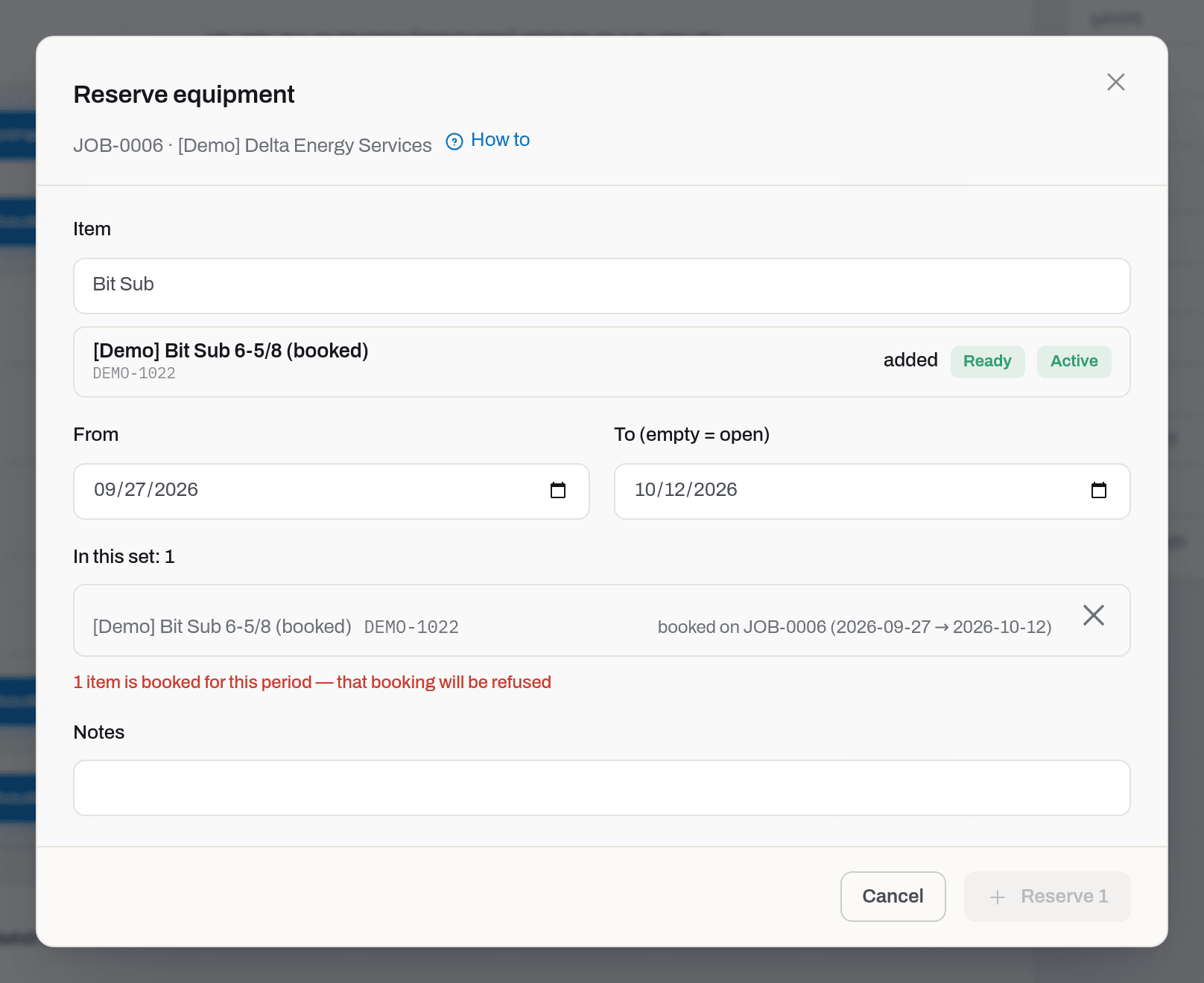
Result: the grey goes away as soon as the dates no longer overlap. A set that still contains a collision can be sent — that unit comes back as a failure (*Item is already booked on job … *) and stays in the set while the rest are booked. Reserve only goes dark when every unit in the set collides.
If it fails: an open-ended booking (To empty) on the other job blocks every date after its start — that other booking has to be closed or given an end date first.
Mobilize equipment
Who: Operator and above, with the Dispatch section granted.
There are two ways in, and they do not behave the same.
One row. Click Mobilize on a Reserved row. A dialog asks what goes on the paper: Issue a delivery note is ticked, and under it Received by and the client's own reference. Confirm — this is the click that turns a Planned job Active.
A whole kit. Tick the rows instead. A bar appears at the bottom with the count; click Mobilize there, read the list in the confirmation dialog, tick or untick the note, and confirm. The whole call gets one delivery note, not one per row.
A reamer body carries an extra column, Component (cutter set): a dropdown of the sets that fit its calibre. The list is scoped to the categories the body's slot names (cutter sets, not a BOP stack or anything else lying around unmeasured) and then to the calibre; a set with no calibre recorded is not excluded outright — it is not measured, not wrong — but it sorts to the bottom of the list, marked (size unknown). A body that already carries a set defaults to it and offers only a swap — pick a different one and the dialog puts it in, dated the moment of mobilization, while the one that was standing comes off; there is no way to send an already-equipped body out bare from here; detach it from the item's own card first if that is what you want. A body with nothing installed offers No set too, and leaving it there sends the body out bare; a line under the table warns {n} assemblies leave without a cutter set, but it never blocks the click.
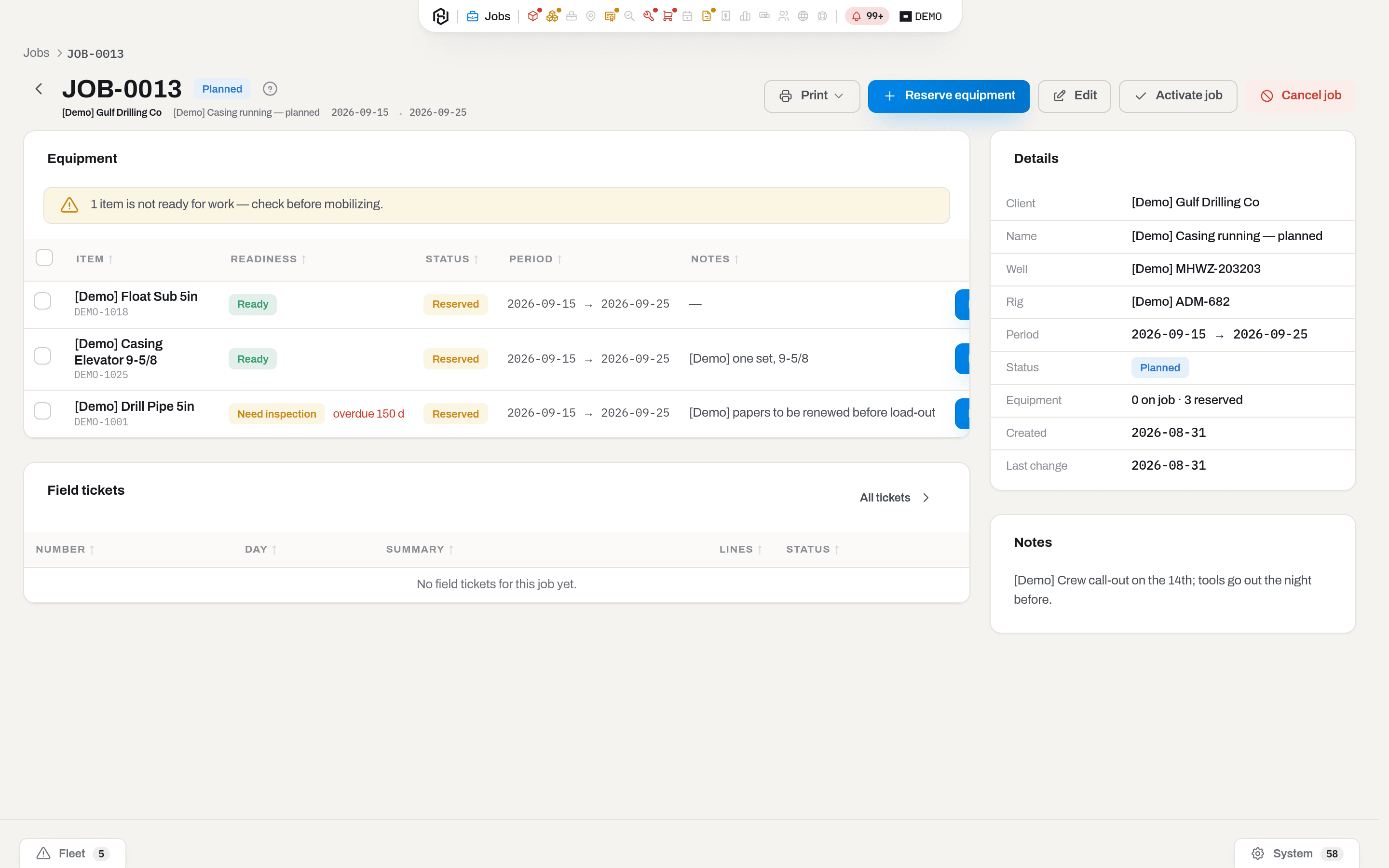
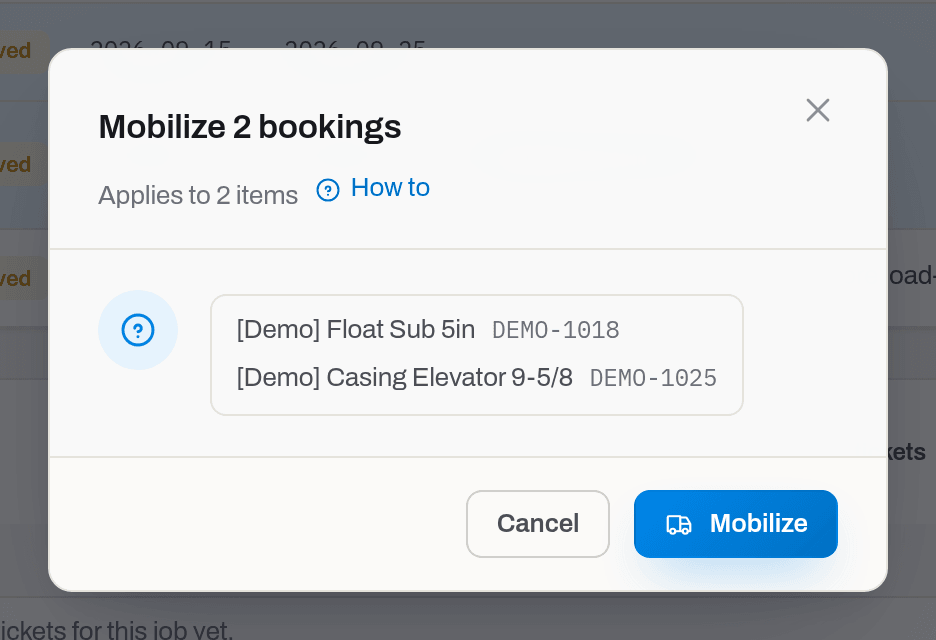
Result: the row turns Active, the item's card shows the client and the rig, the yard stops counting it as available in Utilization, and an Assigned row is written to the item's own timeline — carrying the note number, if you issued one. A Planned job becomes Active on the first mobilization. The note itself appears on the Delivery notes tab as DN-000n.
The banner above the table — {n} items are not ready for work — check before mobilizing. — counts any unit booked on this job, every Reserved and Active row of it, not the rows you happen to have ticked. It stays up until the last of them is sorted out, and it never blocks anything.
If it fails: Item is already assigned — return it first. The unit is out with somebody else, usually on an ad-hoc rental; return it there and mobilize again. In a kit, each row is processed on its own and the dialog reports {done} done, {failed} failed — the rows that failed stay ticked so you can fix the reason and repeat.
Return equipment
Who: Operator and above, with the Dispatch section granted.
- Open the job and click Return on an Active row, or tick several rows and use Return in the selection bar.
- The dialog asks the same question as a mobilization: Issue a delivery note, who handed the kit back, and their reference.
- Every row carries a Condition verdict for the body. A body with a set installed also carries Component (cutter set) (read-only, what is standing in it), Set condition and a Detach set tick next to it. Answering any of it is optional — leave the body on Continue for operation (and the set the same, where it applies) and the return goes through exactly as before.
| Verdict | Body | Set | What it does |
|---|---|---|---|
| Continue for operation | ✓ | ✓ | Nothing — stays Active |
| Did not run | ✓ | ✓ | Nothing either, only remembered on the return record — for the piece that never turned in the hole |
| Inspect | ✓ | ✓ | Sends it to In inspection |
| Need repair | ✓ | — | Sends the body to In repair; #1279 keeps this one off the set |
| Scrap | ✓ | ✓ | Retires it, the same Damaged event and email as scrapping from the item card |
Inspect, Need repair and Scrap only show up for someone with the Items section's own operator right — without it, the row offers just Continue for operation and Did not run, whatever the caller's rights on Dispatch. Detach set sits next to the set's verdict, ticked by default: the set comes off the body the moment it is returned and goes to the body's own yard location. Untick it only while the set's verdict is Continue for operation or Did not run, to send the body back out with the same set for another run; choose Inspect or Scrap for the set and the tick locks back on, because a set going to the shop or to scrap cannot stay installed.
Result: the row turns Returned and its period closes on the day the unit actually came back, not on the day it was promised until. The item is free again — for this job or any other — and a Returned row appears on its timeline. The return note is numbered RN-000n, in its own sequence, so the number alone tells you which direction the paper describes, and its own Condition column carries whatever verdicts were recorded. A detached set is written back onto the body's own history as its own event, and either verdict that changes a status shows up there too.
If it fails: Only ACTIVE assignments can be returned (now RESERVED). — the row is still only reserved, so there is nothing to bring back; cancel it instead. Returning from the item's own card does the same thing and closes the same booking.
Counter readings on a note
A note's rows are a snapshot and never change — but a running measure such as a battery's amp-hours or a pulser's flow hours is often only read at the moment the kit comes back, and the note is where that moment is recorded.
Who: Operator and above, with Jobs and Dispatch granted, before the note is signed.
- Click the note — any kind, though the reading is usually taken on a return — to open it.
- On the Readings card, click Add reading.
- Pick the Unit — any item listed on the note, or one of its fitted components — and the Counter it carries. The dialog shows the unit's last reading and when it was taken.
- Enter the Current value. If it comes in lower than the last reading, say why in Reason — the counter was replaced or reset. Add a Note if useful, and click Record.
Result: the line is applied to the unit as soon as it is recorded — the unit's counter and life budgets pick up the difference right away (or the value itself, for a counter that tracks a peak), there is no separate approval step. A signed note is frozen: no reading can be added to it or removed from it. The printed note carries a Readings section with every line.
If it fails: Counter X is switched off. — pick another from the ones still in use. X is not on this document: readings go on its unit or a component. — the item is neither on a row nor one of its fitted components. X for Y is already on this document. — remove the existing line first. Reading V is below the previous P — give a reason (counter replaced or reset). — fill in Reason. {note number} is signed — a signed note is not changed. — the note has already been signed; nothing on it can change.
Set the rental period and pause a rental
Who: Operator and above, with the Dispatch section granted. Only on a job billed by booking period, and only on a booking that has been mobilized.
The Rental column shows what the client will be charged for: the period, the number of days behind it, and how many breaks it contains. Click Rental period on the row to change any of it.
- From is filled in by the mobilization — the day the unit actually went out, not the day it was booked for. To is filled in by the return; leave it empty while the tool is still on the rig.
- To stop the clock for a few days, click Add break and choose what kind it is:
- Standby — the tool is with the client but not working. Those days are charged at the standby rate.
- Off rent — the rental is stopped. Those days are not charged at all.
- Set the break's From and To, write a Reason — waiting on cement, rig move — and click Add break.
- Click Save to keep the dates.
Result: the row shows the new period and day count, and the next invoice built for this job charges exactly those days. Breaks split the period: an invoice line covering a month with a standby in the middle carries one entry per stretch, so the paper says which days were rented and which were on standby.
Why the booking calendar does not move: From and To here are the money. The booking's own dates keep the unit off every other job, and shortening them would open the calendar to somebody else while the tool is still on the rig. That is why a rental that started late is charged from the 5th while the booking still holds the 1st.
If it fails:
- {n} invoiced day(s) would fall outside the rental period or This break covers … , already invoiced — those days are on a document the client already has. Void that invoice first, or leave them alone.
- This booking already has a break on {from} → {to} — breaks cannot overlap; edit the one that is there.
- The rental starts on {date} — a break cannot begin earlier — a break lives inside the rental, never around it.
- Only a mobilised booking can be paused — nothing has left the yard yet, so there is nothing to pause.
Correct or remove a break
Who: the same people who add breaks — Operator and above, with the Dispatch section granted.
Open Rental period on the booking row. Each break in the Breaks list has two icons:
- the pencil changes its kind (Standby or Off rent), its From and To, and the Reason. Click Save;
- the bin removes it after you confirm: the days go back into the rental and are charged in full.
Result: the day count and the next invoice follow the corrected break at once.
If it fails:
- This break covers … , already invoiced — the break sits on days the client already has on an invoice, either where it is now or where you are moving it. Void that invoice first.
- This booking already has a break on {from} → {to} — the new days overlap another break; correct that one first.
- The rental starts on … — a break cannot begin earlier or cannot run past it — a break lives inside the rental period.
Swap a unit on the rig
Who: Operator and above, with the Dispatch section granted. On an Active booking of a job billed by booking period.
A tool fails on the rig and its twin goes in instead. For the client nothing happened: the rental runs on, under the same deal, at the same rate.
- Click Swap on the Active row.
- Find the replacement by serial or name and pick it.
- Set Swapped on if it was not today.
- Click Swap.
Result: one step, not two — the old booking is returned and the new one is mobilized in the same transaction, so the calendar never opens a gap for somebody else to book into. The old row turns Returned with its rental closed on the swap day, the new row starts the day after it, and the swap day is charged once. Both units keep their own serial on the invoice: the client sees what actually stood in the hole.
If it fails: Only an ACTIVE booking can be swapped — the row is still reserved, so mobilize it or cancel it. Item is already booked on job … — the replacement is promised elsewhere for those days.
Cancel a booking
Who: Operator and above, with the Dispatch section granted.
- Click Cancel on a Reserved row, or tick several and use Cancel in the selection bar.
Result: the row turns Cancelled, stops holding the dates, and stays on the job as a record that the plan changed.
If it fails: Only RESERVED assignments can be cancelled (now ACTIVE). — the unit is already on the rig. Return it; a mobilization is a fact and is never cancelled away.
Print a gate pass
Who: Operator and above, with the Dispatch section granted.
- Open the job and click Print in the header.
- Choose Gate pass — out to the rig for the load going out, or Gate pass — back from the rig for what came home.
- The PDF opens in a new tab: print it, or save it.
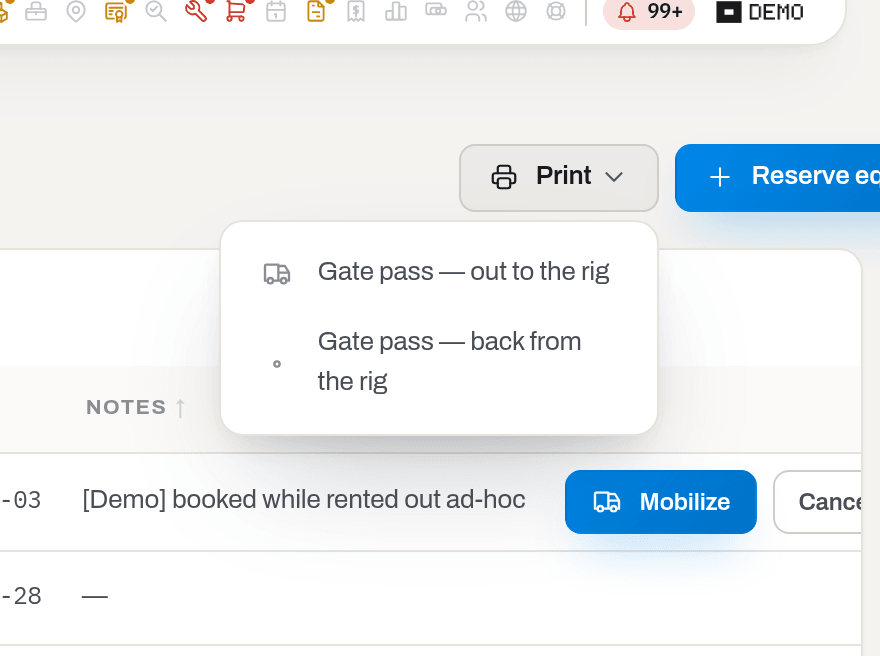
Result: a sheet carrying your workspace logo and the line Printed {date} by {name}; a title with the gate pass number next to the job code and, beside it, a QR code captioned Scan to verify this document; then the facts — client, job, well and rig, direction, the yard the kit is leaving from, and an Items count; then the numbered table with Item (and its booking note underneath), Serial, Category, Booking period and Signed; then the two boxes at the foot, Released by ({your workspace}) and Received by (client representative) — Returned by on the way back. A long kit runs onto further pages, and every page is numbered Page n of m. Nothing is written to the job's timeline — printing is not an equipment movement — but the first print of a new list records the issued gate pass behind the QR code. The file name carries the number, for example JOB-0007-gate-pass-out-GP-0001.pdf.
If it fails: the Print button is missing — the section Dispatch is not granted to your group, or your role is below operator. The sheet says Nothing to move: no bookings in this direction. when there is nothing in that state yet — a job whose kit has not come back has an empty back from the rig side, and that is correct.
Note
The gate pass prints whatever electronic signature already exists for that movement, but it never collects one. Signing happens where the handover happens — on a phone at the gate, or with a pen on this sheet.
Warning
Where a signature was taken on a phone, the block at the foot of the sheet prints the signer's name and position, the time, and the coordinates the phone recorded, with their accuracy in metres. This is paper you hand to somebody else at a gate: know that it leaves your hands with a location printed on it.
Verify a gate pass
Who: anyone holding the paper — a guard at the gate or the client's representative. No account and no sign-in are needed.
- Scan the QR code next to the title with a phone camera.
- The link opens a page from your workspace that answers one question: is this paper genuine?
Result: one of four answers, in a band at the top of the page.
- Genuine document (green) — the gate pass was issued in the system and it is the current copy for this job and direction.
- Superseded by GP-0013 — ask for the current copy (amber) — the paper was genuine, but the equipment list or the document header (client, job, well or rig) changed after it was printed and a newer gate pass replaced it. The number shown is the copy in force now, even if it changed more than once.
- No longer valid — nothing is on this pass any more (red) — the paper was genuine, but every item on it was taken off the job after it was printed, so there is nothing to let through on it. An older copy whose newer replacement was emptied the same way shows this answer too. If equipment is booked again, printing gives a new gate pass with a new number; this copy stays void, while an older replaced copy then points to that new number.
- Document not found — this may not be an original (red) — the code on the paper does not belong to any gate pass in that workspace. Treat the paper with suspicion and call the company that issued it.
Under a genuine, superseded or void answer the page repeats what was printed: the number, the direction, the workspace that issued it, the job, the client, well and rig as they stood at that print, when it was issued and by whom, and the table of items with serial, category, booking period and the same booking note that runs under the item on paper. Compare that table with the paper in your hand — a line added with a pen will not be there. If the client, job or well/rig was changed afterwards without a reprint, this page still shows what the paper says, not the current record. Nothing else is shown: no prices, no other jobs, nothing that is not already on the sheet.
If it fails: an error instead of one of the four answers is not a verdict on the paper — the check is limited per network to protect the codes, or the phone has no connection at the gate. Wait a minute and scan again.
Accept a gate pass
Below the printed table, on a genuine gate pass only, is a checklist: mark every line OK, Damaged or Missing, add a comment (required for Damaged or Missing), attach a photo from the phone's camera, then sign — name, position (optional) and a finger-drawn signature. Anyone holding the paper can fill this in, the same way anyone can hold the paper; saving it is the part that needs an account.
Who can save: a person signed into this workspace with the operator role or higher and both the Jobs and Dispatch sections open, or a recipient opening the pass from a key sent by email (below). Everyone else can still tick statuses and write comments — nothing here is hidden — but where saving is not allowed the button is replaced by a line explaining why:
- Not signed in — the checklist stays filled in; press Sign in to save, sign in, and the page returns here with the statuses, comments, name and position still in place (photos and the signature are not carried across a sign-in, since a phone's camera roll and a hand-drawn line do not survive that trip — take the photo and sign again).
- Signed into another workspace — the page says so; nothing here belongs to that account.
- Signed in without the role or the sections — the page explains the same limit the server would answer with (docs/14): ask an operator or manager who has both Jobs and Dispatch.
- Superseded or void — the checklist does not appear at all; only the band at the top does, same as Verify a gate pass — a replaced or emptied gate pass cannot be accepted.
Accept with a key from an email. The person receiving the equipment at the rig — the client's representative or the gate guard — usually has no Hafrix account. A manager sends them a key instead: on the job, below the document history, each printed gate pass has a card with its number and a Send key button. Enter the recipient's Name and Email and press Send key; they get an email with a link to this page, and the link is also shown to you once — Copy it if you want to pass it on another way (it cannot be shown again; send a new key instead). The key works for 14 days, can be used more than once (to accept again), and opens only this gate pass. The card lists every key issued for the pass: Name, Email, State (Active, Revoked or Expired), Expires, Issued by and Last opened. Revoke stops a key at once. Sending a new key to the same email revokes the earlier one for that address.
Opening the link shows the same checklist under Accepting as <name> and Link valid until <date>: the recipient marks the lines, takes photos and signs without signing in, and the name on the signature is filled in from the key. The acceptance is recorded under their name and marked via key on the summary. A link that was revoked or has expired says so — This link has been withdrawn or has expired. Ask the sender for a new one. A key cannot be sent for, or used on, a superseded or void gate pass.
Who can send and revoke keys: a manager or higher with both the Jobs and Dispatch sections open. Others with those sections see the list of keys without the buttons.
Scan label opens the phone's camera and reads the QR on an item's own label (the same scanner as everywhere else it appears). Signed in, a Hafrix QR label (it encodes the item's address) finds its line by the item itself, and any other sticker is matched against the serial numbers on the pass. Not signed in, only a sticker that carries the serial number itself can find its line: a Hafrix QR label is matched to a line only for a signed-in employee, so without signing in it finds nothing — tick that line by hand. A matching line gets ticked OK if nothing was marked yet and highlights the line for a moment. A code that matches nothing on this pass gets a toast saying so, not a guess.
Result: saving records a signed acceptance — version 1, or the next version if one already exists — and shows a summary in place of the empty form: Accepted <date> by <name> — N OK, N damaged, N missing, with every line's status next to it. Anyone can see the statuses; a signed-in person with the sections above also sees the comments, the photos (tap one to open it full size; a photo still being checked for viruses shows a placeholder until the check passes) and, on a line marked Damaged on the In direction, a link to the maintenance work order it opened (repeating the same acceptance on that line reuses the same ticket while it is still open; once that work order is closed or cancelled, a new one is opened). Any line marked Damaged or Missing, on either direction, posts to the timeline and emails the job's service manager (docs/17).
Accept again: once a gate pass has been accepted, a person who can save sees an Accept again button next to the summary instead of an open form. It opens a fresh checklist pre-filled with the current statuses — a new signature is required either way — and saving it adds another version; the earlier acceptance is kept, not overwritten. Reprinting the gate pass afterwards keeps the same number and QR code and adds a line to the sheet: Accepted <date> by <name>.
Issue a delivery note by hand
Who: Operator and above, with the Dispatch section granted.
Use this when the paper came first: the kit went out on a hand-written sheet at the gate, and the system is catching up two days later. It is also how a client's own note number gets into Hafrix.
- Open the job and go to the Delivery notes tab.
- Click New delivery note, choose the direction, tick the bookings it covers and, on an outbound note, the lines Sold on tickets that left with the same truck; set Issued to the day it actually happened.
- Fill in Received by and, if the client gave you one, Client's reference —
RT-1844,SO-218, whatever is written on their sheet. Anything else written on the paper goes into Notes; it is printed at the foot of the note. - On a return note, every ticked assembly that carries parts gets a card Not returned from …: tick the cutter set that stayed in the hole and pick the reason — Lost, or Moved to another assembly. The part is taken off the body with that reason, on this note, not a week later by somebody else, and the note prints it as not returned. The card offers what stands in the body now and what the return of this trip took off; a part removed earlier is history and is not listed.
Result: a numbered document with a snapshot of the bookings as they stand right now. It is never edited afterwards.
If it fails: All bookings on a delivery note belong to one job. — you have picked a booking from another job; a note covers one job. A delivery note needs at least one booking or sold line. — nothing was ticked.
Sold items on a delivery note
Who: Operator and above, with the Dispatch section granted.
A set of cutters or MWD consumables sold to the client leaves the yard on the same truck as the rented kit, and the gate wants one sheet for all of it. A SALE line of a field ticket can be put on an outbound delivery note next to the bookings.
- Make sure the ticket is submitted and its sale line has the item picked — a draft can still be rewritten, and a sold line without an item has nothing to print.
- Open the job, Delivery notes, New delivery note, direction Out to the rig.
- Under Sold on tickets tick the lines that left; the list only shows lines that are not on a note yet and whose ticket is submitted or approved.
Result: the sold lines print after the bookings, marked Sold, and the sheet says that sold items are not expected back. The note counter on the tab shows them separately (5 · 2 sold). Each sold line goes on exactly one note.
If it fails: Sold items are not expected back; a return note cannot list them. — you chose Back from the rig; sold lines only go out. Bookings not on this job or a sold line from another job — a note covers one job. The line is missing from the list — it is already on a note, its ticket is still a draft or was rejected, or it has no item.
Send a delivery note to the client
Who: Operator and above, with the Dispatch section granted.
- On the Delivery notes tab, click Send on the row.
- Leave To empty to use the client's ordering contact, or type an address.
- Add a message if you need to, and send.
Result: the client gets the note as a PDF attachment, in English, with the job, the well, the rig, your PO number and the item count. Replies come back to you, not to support — you sent it.
If it fails: This client has no contact email — add one on the client card. Put an address on the client, or type one in To.
Ship with a bill of lading
Who: Operator and above.
A delivery note, return note, receipt note or release note carries a Transport block — a service ticket does not, because nothing on it leaves the yard. Click Edit transport on the note to fill it in: Carrier and Carrier reference, the Driver and their phone, the Vehicle and Trailer, Origin and Destination with a contact for each — prefilled from the warehouse and the job, correct them when this load goes somewhere else — Pieces (leave it empty; it is counted from the note's own rows), Weight, and Departed / Arrived.
Three signatures travel with the load, the same three a paper bill of lading carries:
- Released by — your own warehouse, handing the kit to the truck.
- Received by carrier — the driver, signing at the gate on the way out. Signing here fills in Departed if it is still empty.
- Delivered to — whoever takes delivery at the rig. Signing here stamps Arrived with the moment of signing.
Each side signs once, and Received by carrier has to be signed before Delivered to — signing out of order is refused. Signing Delivered to also closes the transport block for editing; the note itself is untouched. A signature needs an actual drawn line on the pad — a typed name and time alone are refused. Departed and Arrived, once filled in, can be corrected later but never cleared back to empty.
Bill of lading and Packing slip on the Transport block print two sheets, either one at any time and however far the signing has got: Bill of lading — headed BOL-<note number>, spending no number of its own — with the transport details and the three signature boxes, a blank line under any box nobody has signed yet; and Packing slip — a numbered list of the pieces and what is inside each one, with a Checked by line at the foot.
Result: the office sees "{number} departed" on the feed the moment the carrier signs, and "{number} delivered" when the receiving signature lands.
If it fails: a signature already on the note cannot be replaced from here — a wrong name on a side that is already signed means a fresh note, not an edit.
Complete a job
Who: Operator and above, and only while the job is Active. Complete is not drawn on a Planned job, and the server would refuse it anyway: Transition PLANNED → COMPLETED is not allowed. Work that was planned and never happened is either started first — Activate job, or the first Mobilize — or closed with Cancel job, which is what that outcome usually deserves.
- Open the job and click Complete.
- Read the warning and confirm.
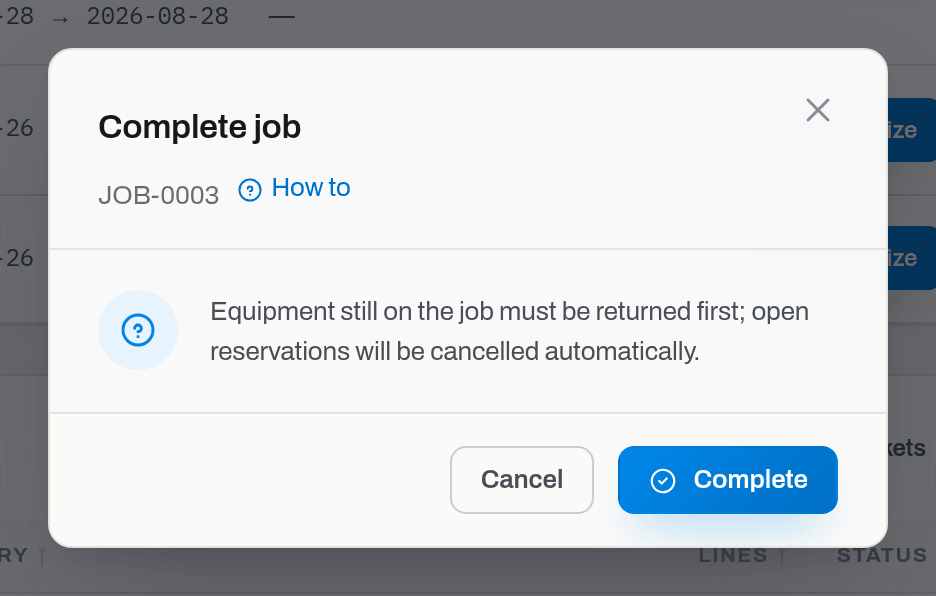
Result: the job becomes Completed, and every booking that was still only Reserved is cancelled for you — a promise nobody used does not need a separate cleanup. Nothing can be reserved or mobilized on the job afterwards.
If it fails: Job has {n} item(s) still on it — return them first. Equipment that is Active has to come home before the job can close; the system will not quietly write it off the rig.
Cancel a job
Who: Operator and above. Only while the job is Planned or Active.
- Click Cancel job and confirm.
Result: the same closing rules as Complete — reserved bookings are cancelled automatically, active ones must be returned first — with Cancelled as the outcome. The job stays in the list and in the history.
If it fails: the button is missing on a job that is already closed. There is no way back from Completed or Cancelled.
Delete a job
Who: Operator and above.
- Delete appears only on a Planned job that has never had a booking. Click it and confirm.
Result: the job is gone for good.
If it fails: Only a PLANNED job without assignments can be deleted — cancel it instead. This is the one deletion in the section, and it exists for a typo in the first minute of a job's life. Anything that has touched equipment is closed, never erased.
Close or cancel several jobs at once
Who: Operator and above.
- In the list, tick the jobs you need. A bar appears at the bottom with the count.
- Click Complete or Cancel in that bar and confirm.
Result: each job is processed on its own by the rules above — reserved bookings cancelled, the rest closed — and the dialog reports {done} done, {failed} failed.
If it fails: the grey-out before sending catches only jobs that are already Completed or Cancelled — untick those. A Planned job passes that check and is then refused by the server, Transition PLANNED → COMPLETED is not allowed., which is the commonest way this dialog ends half-done: complete the active ones, then cancel the planned ones in a second pass. A job with equipment still on the rig fails with the same message as a single close. Failed rows stay ticked so you can fix the reason and repeat; if nothing went through at all the dialog says Nothing done — {count} rows failed.
Find the tickets written on a job
Who: Viewer and above, with the Tickets section granted.
- Open the job and scroll to Field tickets. Rows are the days that were reported on this job — number, day and shift, summary, how many lines, status.
- Click a number to open the ticket, or All tickets to open the whole queue filtered to this job.
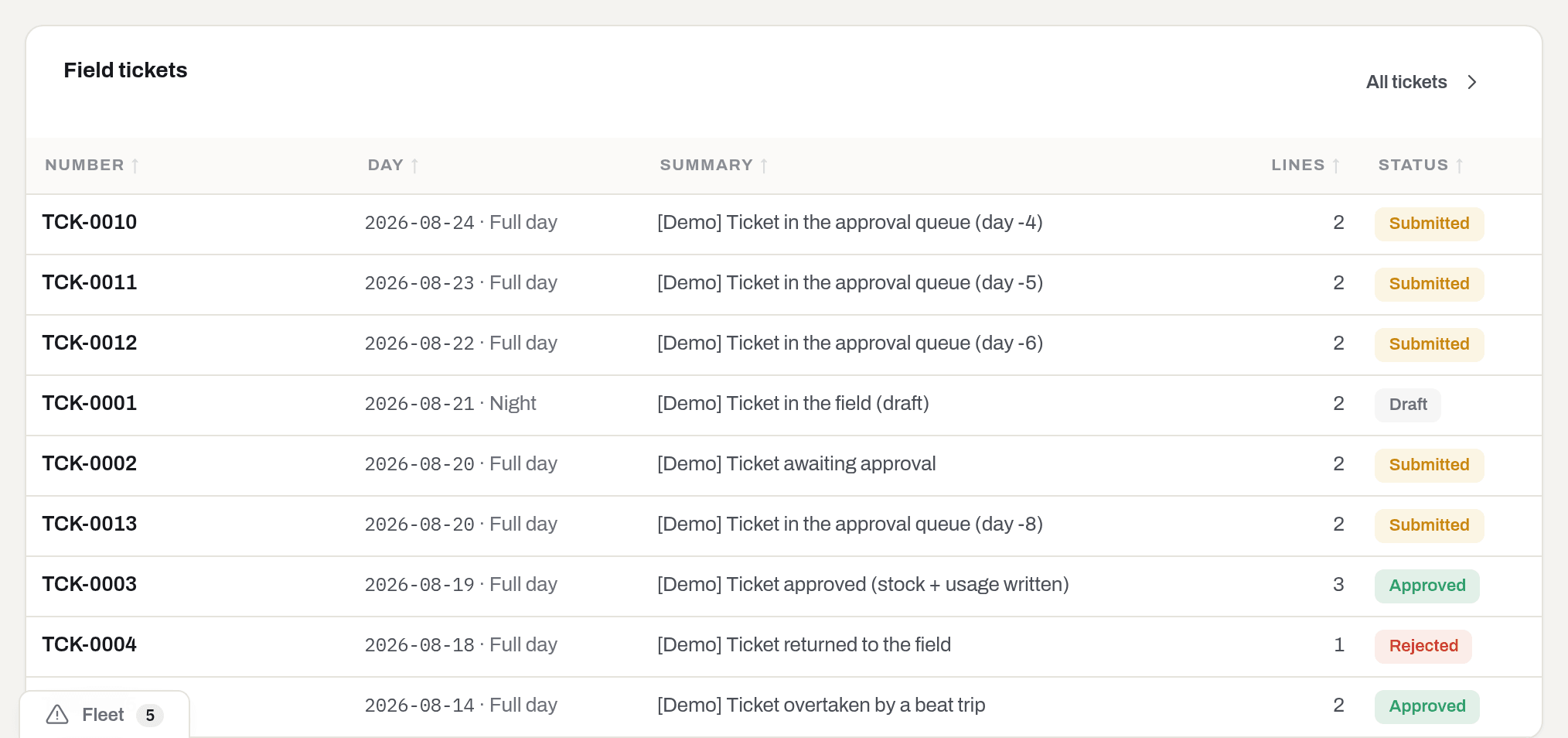
Result: the block is sorted by day, not by number — tickets are numbered when they arrive in the office, and a phone that was offline for a week delivers them late. What the statuses mean and how a ticket is approved is in Field tickets.
If it fails: No field tickets for this job yet. — nobody has reported a day on this job, or the tickets were written against another job.
See the section as a board
Who: Viewer and above.
The layout switch in the table's header has a second position, Overview: instead of the register, the section shows a board of widgets — the register in numbers, and every number a link back into the list filtered by status, the dispatch board or a job's card. The register is still the section: Overview is a view you switch into, and Jobs opens on List.
- Click Overview — the bar-chart icon of the List / Overview switch, among the square icon buttons at the right of the table's header. The rail, the tray, search, Status and the table's own icons belong to the register, so above the board the header keeps only the Department button and the same switch.
- Read the board. The Department button is the same department lens as on the list: each number is counted over the jobs of that department, and a link from a widget opens the register narrowed to the same department.
- Click List — the rows icon on the same switch — to go back to the register.
| Widget | Shows | Links to |
|---|---|---|
| Counters | Planned, Active, Completed, 30 days and Reserved (bookings across the department's jobs, not jobs themselves) | The register, filtered to that Status — Reserved is a plain count, it has no link of its own |
| By status | Planned, Active, Completed and Cancelled jobs | The register, filtered to that Status |
| Ending soon | Active jobs whose end date falls within the next seven days, soonest first, with how many days remain | The job's card |
| Overdue return | Active jobs whose end date has already passed — equipment that was due back and is not, oldest first, with how many days overdue | The job's card |
| Open reservations | The five nearest Reserved bookings across the department's jobs, by pick-up date, with the item and the job | Dispatch |
| Unsigned tickets | Tickets you can see that are still Draft or Submitted with no signature on them | The Field tickets queue, on All statuses (no status matches exactly "Draft or Submitted without a signature", so the list is wider than the number) — this widget answers to the Tickets section, not Jobs, and is on the board only where that section is granted |
| Recent | The latest jobs created, within the department you are looking at | The job's card |
A widget you have no right to is neither on the board nor on offer — the same rule as everywhere else in Jobs. The board is yours to arrange — drag by the header, resize or remove through the header menu, bring back through Add widget — exactly as on Overview, and the arrangement is saved for you and follows you to another computer.
Result: the address carries the tab (/jobs?tab=overview), so the link opens the board for a colleague too, with the same department lens.
Add or remove a widget on the board
Who: Viewer and above.
- To remove one: open its header menu (the ⋮ next to the drag handle) and choose Remove from board.
- To bring one back: click Add widget above the board, find it in the list and click Add.
Result: the widget leaves or joins the board right away, and the change is saved. The board of Jobs is its own: removing a widget here does not touch the board on Overview or on any other section.
Fields
| Field | Meaning | Required | Who edits |
|---|---|---|---|
| Client | Whose work this is. Vendors are not offered | yes | Operator+, and only until the job's first booking ever — the lock does not lift |
| Code (empty = auto) | The handle of the job; unique in the workspace. Empty gives the next JOB-#### |
no | Operator+ |
| Name | What people call this work in the list | no | Operator+ |
| Well | The well: search the Aramco mirror (2+ characters) or type your own and press Enter | no | Operator+ |
| Rig | The rig, same search, contractor shown beside the name; naming one of the pair fills in the other | no | Operator+ |
| Starts on | First day of the work; the default period of every booking made on it | yes | Operator+ |
| Ends on (empty = open) | Last day, or empty for open-ended work | no | Operator+ |
| Client PO | The client's purchase order number. The invoice inherits it, and tickets from different POs are never billed together | no | Operator+ |
| Contract / RSA | The frame agreement number. Printed on the invoice PDF | no | Operator+ |
| Contract currency | What money this deal is counted in. Copied from the client when the job is created; fixed once a ticket of this job has been invoiced | no | Operator+ with Finance |
| Billed by | Field tickets — equipment days come from the signed tickets. Booking period — they come from the booking instead, and a ticket on this job may not carry equipment days at all. Fixed once the job has been invoiced | no | Operator+ |
| Notes | Free text for the crew and the client. Printed on the job order | no | Operator+ |
| Internal notes | For your own team only — never printed. RigER's Internal comment lands here | no | Operator+ |
| Job type | What kind of work it is, from the Job types catalogue | no | Operator+ |
| Deal type | Rental, Service or General — printed as OFR / OFS / GR. Starts empty (Not set); an invoice built from this job takes its deal type from here | no | Operator+ |
| Order number | The client's order number, when it differs from the PO. Searchable in the list | no | Operator+ |
| Salesperson / Service manager / Engineer | The people on the deal — members of this workspace | no | Manager+ (an operator sees them, read-only) |
| Primary contact / Secondary contact | Whom to call at the client: name, position, email, phone. Picked from the client's card (with the Clients section) or typed by hand, kept as a snapshot on the job | no | Operator+ |
| Terms of payment | Days from the invoice date; empty means as the client. Copied from the client when the job is created; the invoice inherits it from here | no | Operator+ with Finance |
| Payment method | Bank transfer, cheque, cash, card or other — as agreed | no | Operator+ with Finance |
| Billing address | Where the invoice goes; starts as the client's address | no | Operator+ |
| Flag this job for attention / Why | The Flagged badge in the list and on the card, and the reason behind it | no | Operator+ |
| Signed / Signed by / Position (in Sign) | On paper or On screen; the client's representative who accepted the terms. Recorded once per revision | yes / no | Operator+, on screen also with Clients |
And on the Job rates card, in New rate:
| Field | Meaning | Required | Who edits |
|---|---|---|---|
| Applies to | Any equipment, one category, or one item. The narrower row wins; among categories the nearest one in the tree wins | no | Manager+ with Finance |
| Unit | DAY, HOUR, WEEK or MONTH. A day rate never prices an hourly line; a booking billed by period takes the cheapest mix of day, week and month rates |
yes | Manager+ with Finance |
| Rate | The money per unit, in the job's contract currency | yes | Manager+ with Finance |
| Standby | The rate for a standby day. Empty falls back to the workspace standby factor | no | Manager+ with Finance |
| Minimum | The least this line may cost, charged per ticket line | no | Manager+ with Finance |
| Notes | Why this price was agreed | no | Manager+ with Finance |
And on a booking, in Reserve equipment:
| Field | Meaning | Required | Who edits |
|---|---|---|---|
| Item | The asset being booked; search by serial or name | yes | Operator+ |
| From | First day the unit is held. Defaults to the job's start | yes | Operator+ |
| To (empty = open) | Last day it is held. Defaults to the job's end; empty holds it indefinitely | no | Operator+ |
| Notes | Why this unit, what has to happen before it goes | no | Operator+ |
And on a delivery note, in Add reading:
| Field | Meaning | Required | Who edits |
|---|---|---|---|
| Unit | Any item listed on the note, or one of its fitted components | yes | Operator+, before the note is signed |
| Counter | The kind of running measure — amp-hours, flow hours and so on, from Counter types | yes | Operator+, before the note is signed |
| Current value | The number read off the unit now | yes | Operator+, before the note is signed |
| Reason | Why the value is lower than the previous reading — a counter replaced or reset | when the value is lower and the counter runs a total | Operator+, before the note is signed |
| Note | A free-text remark on the line | no | Operator+, before the note is signed |
What the system tells you
| When | Feed row | Who gets it | |
|---|---|---|---|
| Reserved bookings start tomorrow, anywhere in the workspace | {n} bookings start tomorrow — {job} · {client} — the kit leaves on {date} | — | operators and above who can see Dispatch |
| The contract is signed | {code} signed — {signer} signed the contract for {client}. | — | operators and above who can see Jobs, except the person who recorded it |
| Any successful save — created, reserved, mobilized, returned, closed | — | — | a toast, to you, at the moment you do it |
The reminder runs once a night (07:15 in the workspace's own time zone) and writes one row for the whole workspace — not one per unit, and not one per job. The count adds up every Reserved booking whose first day is tomorrow, wherever it sits, while the job code and the client in the text are simply taken from the first of them. Two jobs loading out on the same morning therefore share a single line, and it names only one of them: open the Dispatch board to see what the row actually covers. Bookings that are already Active are not counted — that equipment left the yard days ago.
Jobs send no email. What a job does write is history on the equipment: every mobilization puts an Assigned row and every return a Returned row on the item's own timeline, with the job code on it — see Items.
Related
- Dispatch board — the same bookings on a calendar, across all jobs at once; that is where you look for a free week rather than a free unit.
- Field tickets — the days reported on a job: hours, equipment, consumables, and their approval.
- Items — the units you book, their readiness, and the timeline that records every job they went on.
- Maintenance — the repair card a service ticket opens, and how In field differs from In shop.
- Clients & companies — the companies a job can be created for, and their billing details: tax number, payment terms, contract currency.
- Invoices — where the PO, the contract number and the job rates end up.
- Utilization — how much of the fleet is out on jobs and for how long.
- Roles & access — why a button, or this whole section, may be missing.
FAQ
Why is there no Delete on my job? — Because it has bookings, or because it is no longer Planned. A job that has touched equipment is part of the yard's history; close it with Complete or Cancel job instead.
Do I have to fill in the PO? — Only if the client insists. Tick A PO number is required on every invoice on the client card and their invoices refuse to be sent without one; leave it off and the field is simply a useful label.
I set a job rate and the invoice still used the old price. — The invoice is a snapshot: it was priced when the draft was built. Delete the line and rebuild the draft, or correct the rate on the line by hand.
Why can't I complete the job? — Something is still on the rig. Return the Active rows first; the reserved ones will be cancelled for you when the job closes.
Why is the Client field greyed out? — Equipment has already been booked in that client's name. Moving the job to another client would rewrite what happened, so the field locks on the first booking.
What is the difference between Cancel and Cancel job? — Cancel on a row drops one reservation. Cancel job closes the whole job and drops every reservation on it at once.
The unit I need shows a warning but the system still let me book it. — That is deliberate. Readiness is information, not a lock: the yard, not the software, decides whether a tool with an expired certificate can go out. The warning follows the booking all the way to the mobilization dialog so nobody can say they were not told.
Where do I see all my bookings, not just this job's? — On the Dispatch board. This page answers what is on this job; the board answers where is my fleet this month.
Does the gate pass have a number I can quote? — Yes, once it lists at least one unit: GP-0001 in the title, next to the job code. Reprinting the same list keeps the number; a changed list gets a new one and the old copy shows as superseded when its QR code is scanned. The delivery note keeps its own DN-/RN- number for the record of the handover.
Why does the gate pass show an empty signature line? — Nobody has signed that movement electronically yet. The line is there to be signed with a pen — that is the normal case, and the electronic signature simply fills the same box when it exists.
Updated 2026-09-29
New to Hafrix?
See this workflow in your operation
Connect equipment availability, dispatch and billing in one rental workflow. See how Hafrix fits the way your team runs a job.