Kits
A kit box is not a crate you throw tools into: it has a standard — the list of what belongs in it — and at any moment Hafrix can tell you what is in it, what is missing, and where the missing thing actually is.
Where: capsule → Fleet → Kits (/kits). If the entry is missing, your group has not been granted this section — see Roles & access.
Who can do what
| Role | In Kits |
|---|---|
| Viewer | Open the list, switch views, search, filter, read any kit and any standard |
| Operator | + fill a kit by moving stock and items (Stock, item card); count the field side of a check they are named on |
| Manager | + create, edit, archive and replace a standard and its positions; open checks, keep the base side, resolve discrepancies and close |
| Admin | + nothing extra here |
At a glance
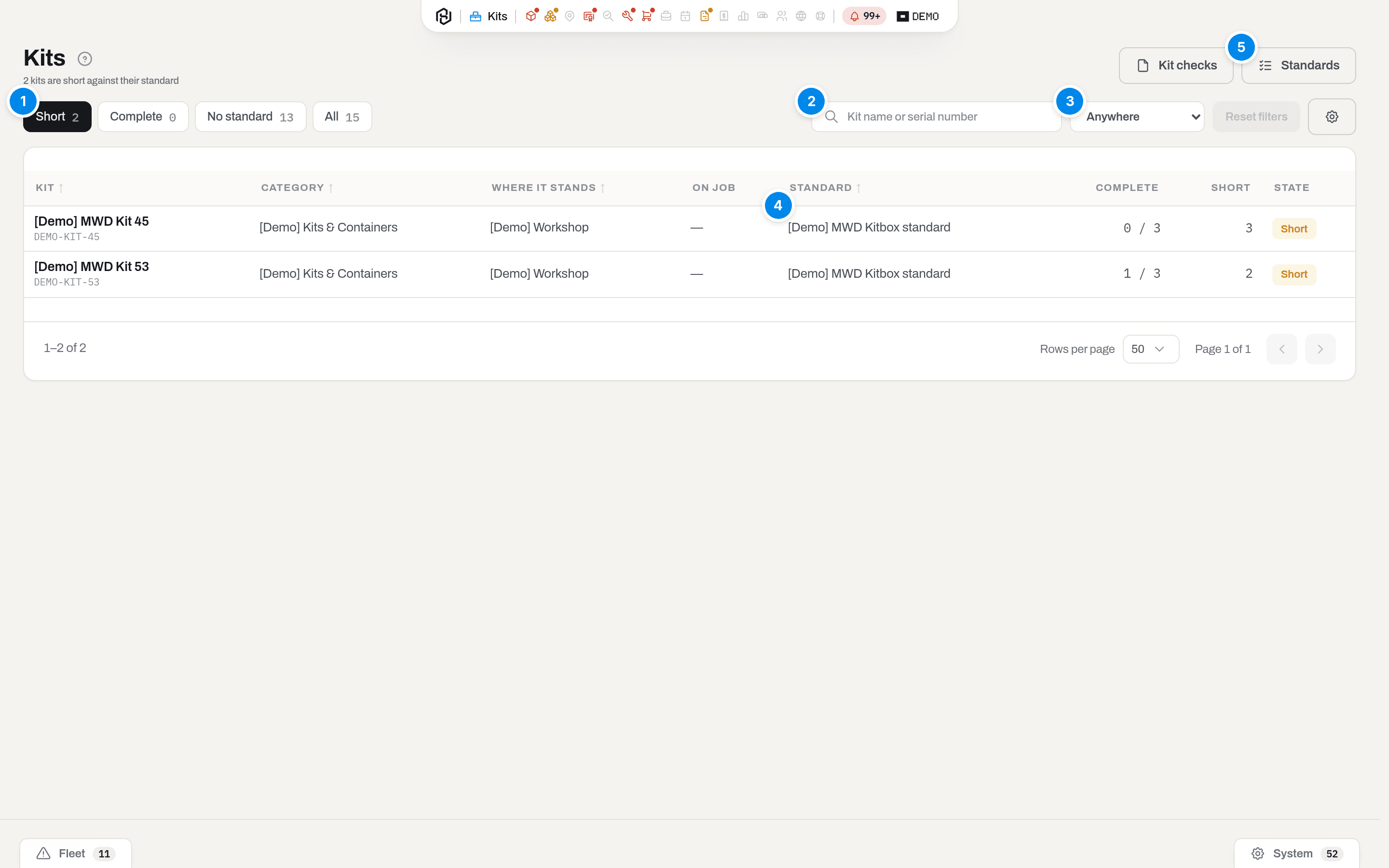
The list is one row per kit box — the top-level containers, the ones that stand in a location. Compartments (Box 1, Blue Box) are not rows of their own: they are part of the kit they sit in.
- View — a dropdown in the table's own header: Short, Complete and No standard, each with its own count; the button reads All until one is picked. Short matters most — it is the list of boxes that need work before they leave.
- Search — matches the kit name and its serial number.
- Where it stands — the one location filter, a dropdown in the table's own header, measured by the place the box is actually in (a kit inside another container is counted where the outer one stands).
- Complete reads
228 / 231— how many positions of the standard are satisfied. - Standards — the second screen of the section, where the list itself is edited. It opens from the menu next to Kit checks, the split button at the top right.
Key concepts
The standard lives on the category
A standard is a list of positions — item, quantity, compartment, section — and it belongs to a category, not to one box. Two boxes of the same category are measured by the same list, and subcategories inherit it.
That is deliberate: Kit-53 is incomplete is a state of that box, not a second standard. If a client ever needs two genuinely different kits, they become two subcategories, each with its own standard.
A position names one thing, and it names it once. Which of the two you pick is the first question the dialog asks:
- a consumable card asks for a quantity — twelve O-rings of part number
OR-2515; - a serialized type asks for units of a kind — two Gamma probes. A category, and a part number if you need to narrow it down; any unit of that category, or of a category under it, closes the position.
A serialized type has no card to take a name from, so it carries a name of its own — ASU box with power cable & USB cable, filed under the type Surface Equipment. Leave that name empty and the line is called by its type instead, which reads the same for every line of that type: a checklist can end up with a dozen rows all called Surface Equipment, and there is nothing on them to correct. A consumable card takes its name and description from the item card — the standard links to it, and that is where you change them.
The name a line carried when a check was built stays on that check. Rename a position and the paper already signed still reads the way it was signed; only rebuilding a draft picks the new name up.
A serialized position names a type, never one unit, and that follows from the standard living on the category. Name probe G-1163 and Kit-53 is short forever, because that probe lies in Kit-45; swap a probe for an equal one and the box would go red while the equal probe lands under Over the standard. Naming the type instead, both boxes are measured by the same list and each is closed by its own units.
A quantity on a serialized position is a count of units — two probes, not the same probe twice. In the box the positions are matched top-down, in the order you see them: one unit closes one position, and units beyond the count are listed as over the standard.
An archived standard measures nothing but keeps its lines: the box that was packed by it is still on a rig. Archiving is what you do instead of deleting. Kits of that category stop being scored against it and a new check never picks it up, but its positions stay where they are, and every check ever built from it still reads the way it was signed. One button brings it back.
A category is measured by a single active standard, and it may keep as many archived ones as it has had. That is why restoring a standard while another one is active asks you to archive that one first, and why the list of standards has a state filter: active, archived, or both.
Which checklist a kit uses
A kit is measured by the standard of its own category, and if that category has none, by the nearest one above it: a box in Kit boxes is measured by the standard of Kit boxes, and if the list lives on the parent Kits & Containers, the box under it is measured by that. The search only goes up the tree — never sideways, never down.
That is what makes the category of a kit a real decision, not a label. Move a box from Kit boxes up into Kits & Containers and it stops being measured by the checklist that lives on Kit boxes: nothing above it has a list, so the box has no standard, completeness stops counting and the kit appears under No standard. Nothing is lost — the checks already signed keep their lines, and moving the box back brings the standard back — but until then the box is not scored.
So the screen asks before it happens. Changing the category of a kit that has a standard shows what it is measured by today and what it will be measured by after the change; you can go ahead, but not by accident.
A kit without a standard says so at the top of its card, together with the way out: create a standard for its own category, or move the kit to a category that already has one. The card names that category when there is one under the kit's own — which is the usual case, because the list often lives one level down, on the specific kind of box.
Completeness is measured against the full standard
Quantities are counted across the whole box — the kit itself and every compartment in it. Six O-rings in Box 1 and six in the Blue Box are twelve, and the position is satisfied.
There is no "not needed right now" flag on a position. A probe that went out for inspection must show the kit as short — that is the point. What the number means depends on where you are standing: at the base an incomplete kit is normal and wakes nobody; when the kit goes out (a check-out document), the shortage has to be zero or accepted on purpose.
A shortage says where the thing is
A missing line is never just none:
- for a serialized type the row names up to three units of that type lying outside the box, with the place, the state and since when — G-1163 · MWD Lab · In inspection · since 3 Sep. The one that last travelled in this kit comes first, then the free ones before the busy ones. One number, two different actions: fetch that unit, or take a free one;
- for a consumable the row lists up to three other places that hold it, largest first — 40 · MWD Lab. What lies in this kit already is not repeated there.
Over the standard is a question, not an error
Anything in the box that the standard does not name is listed separately, under Over the standard. Boxes are packed by people; something extra is worth a question, not a red mark.
A container is an address, not a position
An item marked as a container is an address inside the box, not a thing the box is counted for. The kit reads it as a compartment: it is not measured against the standard, it never appears under Over the standard, and it cannot be put on a check sheet — the sheet refuses it by name and says to clear the container flag.
That is right for Box 1 and the Blue Box. It is wrong for a piece of equipment that someone marked as a container by mistake: it lies in the kit, and no count sees it.
So the kit card names them. Marked as containers lists every container inside the box that the standard addresses no line to — a compartment the standard has never named, and an item flagged by mistake, look the same from here. If the row is really a piece of equipment, open its card and clear the container flag; the container has to be empty first. If it is a compartment, either the standard should name it, or the box holds a compartment nobody uses.
A box with no standard has no addresses to compare against, so the block stays away — there the kit is not measured at all.
A check has two sides
A kit leaving for the rig and coming back is written down as a check sheet — KCO-0004 on the way out, KCI-0004 on the way back. A box that is not going anywhere is counted on a count sheet, KCC-0004, which has one side and is described in Count a kit standing on the base. Each check sheet has two sides and four states:
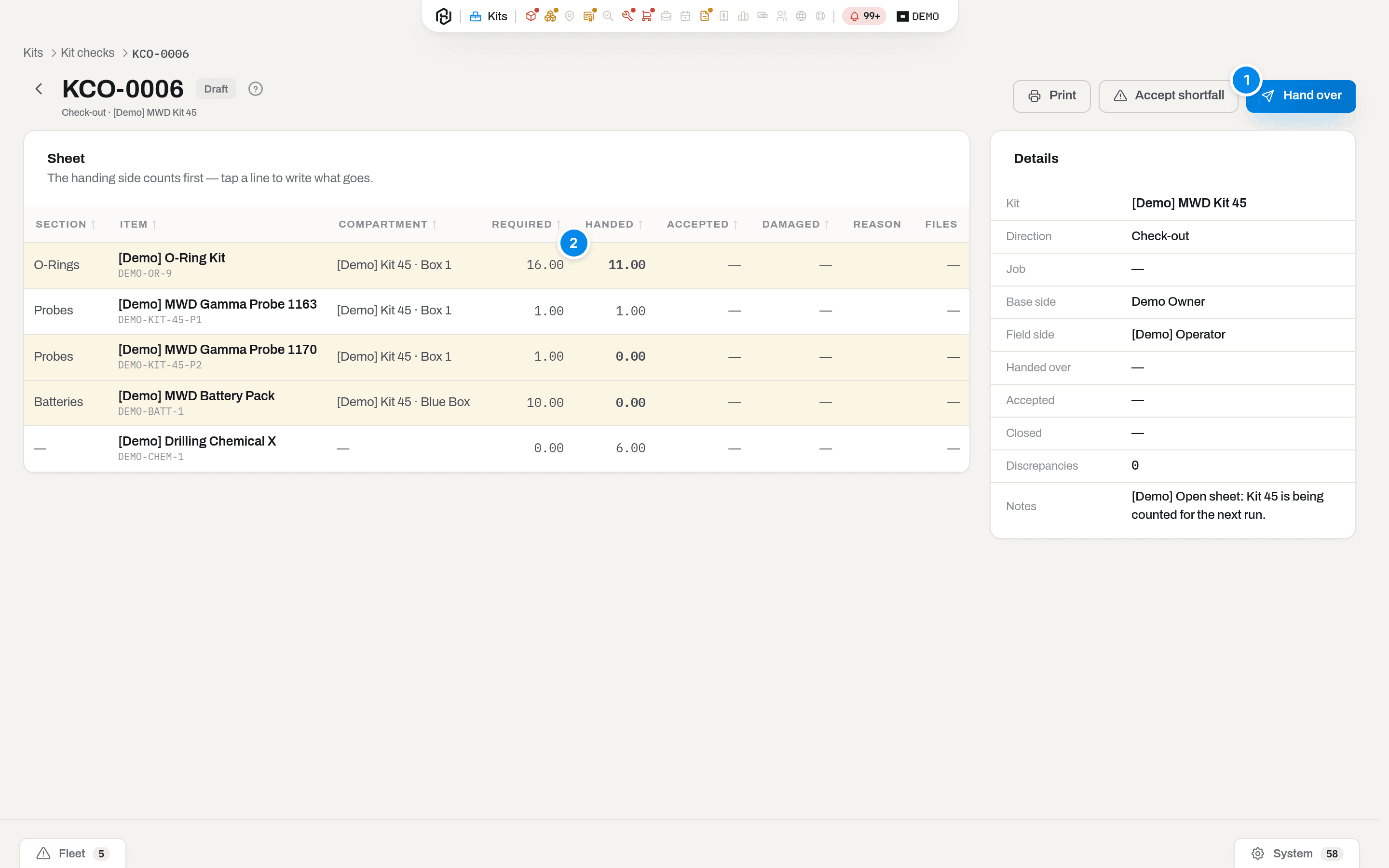
Draft → the handing side counts and writes its column. Handed over → that column is signed and closed; the receiving side starts counting. Accepted → both columns are filled and the differences are visible. Closed → the sheet is history, and this is the only step that moves stock.
A sheet opened by mistake is deleted rather than carried on: Delete sheet on the sheet itself, a manager's button, and only while the sheet is a draft. Nothing has moved in stock at that point, so nothing is left behind; from Handed over on, the sheet is somebody's signed paper and stays. Deleting it frees the box's open-check slot for the next sheet.
A sheet is a snapshot, not a live mirror. Its lines are taken from the box the moment the sheet is opened, and they stay as they were: a signature has to mean what the two people saw that day. The sheet says so itself — Lines snapshot in its details gives the date, and when something has been put into the box or taken out of it since, a band above the table says so and counts the lines that differ. A draft picks the change up with Refresh lines; a signed or closed sheet never does, and the change belongs to the next sheet. The band watches serialized units — which of them are in the crate — not how much of a consumable is left: for a quantity, the line itself shows System: 12 beside your figure.
Two rules make the sheet worth signing:
- nobody writes in the other side's column. On a check-out the base hands over and the rig accepts; on a check-in it is the other way round. Handed 4, accepted 3 stays on the sheet as it is;
- a difference is explained, never assumed. Hafrix does not write off the missing one by itself: until somebody names an outcome, the sheet does not close. There are three, and each one posts differently:
| Outcome | What it means | What closing does |
|---|---|---|
| Miscount | The accepted figure is the right one | The box is set to what was counted |
| Short load | It never left the base | The quantity goes back to the place the box stands in |
| Loss | It left and did not arrive | The quantity is written off as Lost — not as used on the run |
A short load only exists on a check-out: on the way back it is the rig that loads. And the two outcomes that write something off need something to be missing — when the receiving side counted no less than was handed over, the outcome is a miscount, whatever it is called.
A sheet starts from what is actually in the box — the standard's positions plus anything lying there over the list. A serialized position of two units becomes two rows of one unit each, because that is how they are counted and signed for; a unit that is not in the box still gets its row, with the serial number empty. A kit that is short against its standard cannot be handed over until the shortage is accepted with a reason, which is then printed on the sheet.
If the box is topped up after the sheet was opened, Refresh lines rewrites a draft from what is in the box now. It is the handing side's button and works on a draft only: rows that stay keep the numbers already written, rows for things no longer in the box go away. When the handing side prints a draft, the same refresh runs first, so the paper shows the box as it is today; anyone else, and any handed-over or closed sheet, gets the sheet exactly as it stands. An empty row of a serialized position is named after the model: the same name as the units of that part number carry, so two units of one type never read as two different things.
Anything that got into the box past the system — a cable from another kit, a tool from the rig store — is put on the sheet with Add a position. It is the handing side's button on a draft, and it names the thing and counts it in one step. The row has no section and nothing required against it, and it is marked Added by hand: it came neither from the standard nor from what Hafrix knew was in the box. Refreshing the lines leaves it alone — the system does not know about it by definition, so not in the box cannot mean gone from the box. If Hafrix later does know — somebody moved that unit into the box in the system — refreshing folds your row into the sheet's own line and drops the Added by hand mark, keeping the damage and the words you put on it: one unit is one row, and nobody signs for the same probe twice. Closing the sheet is what makes it true: a unit Hafrix holds somewhere else moves into the box, a quantity is taken in like any other excess. Undeclared iron is the thing this avoids — it arrives at the base with nobody's name on it and surfaces on the next sheet as a mystery.
Items that travel as a pair (RFD and its XL-50) are checked too: sending one without the other stops the signature until you confirm you meant it.
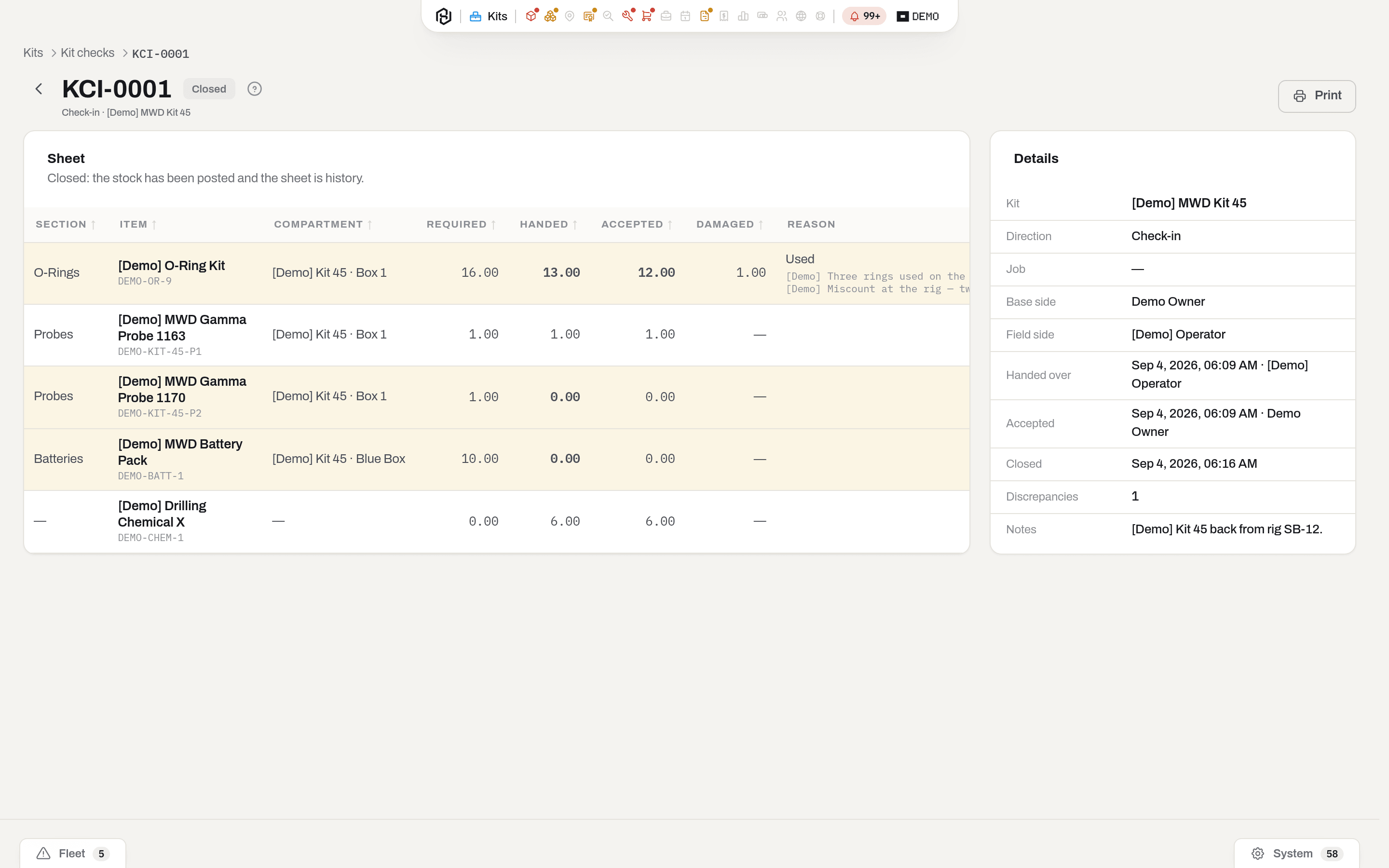
What closing a check-in does
- what did not come back is written off with a reason from a short list — Used, Damaged, Lost, Lost in hole, Expired;
- what came back damaged moves to the Quarantine location instead of the shelf: it goes to the lab and is either scrapped or claimed from the supplier. Damage needs words — that justification is what a manager approves — and a photo attached to the line;
- a serialized unit that did not come back gets the Lost status; a damaged one moves to quarantine and goes In repair;
- what came back in excess of what Hafrix knew was in the box is taken into it. Somebody added it on the rig, or the last count was wrong — either way the box is set to what the two of you are holding, not quietly left short.
Closing a check-out issues nothing — the contents are already inside the box, and the box travels with them — but it does count the box: what both sides agreed on becomes what Hafrix knows is in it, and any outcome you named is posted with it.
While you write your column, the line shows System: 12 — what Hafrix believes is in that box right now. It never blocks anything: you count with your eyes, and the number is there so a difference becomes a question before you sign, not a surprise at closing. The receiving side does not see it — a count checked against a number already on the screen is not a count.
How to
Read a kit
Who: Viewer and above.
- Open Kits and click the box. The page shows every position of the standard, complete and short alike, with the Where it is column filled in for whatever is missing.
- Short rows are highlighted. Short quantity in the facts panel is the total across the box.
- Item card opens the box itself — its contents by compartment, its timeline, its documents.
- A long standard is searched, not scrolled: the Search box in the header of the lines card narrows the table as you type — by item name, part number, serial or section, and a fragment of a serial is enough, with or without the dashes. The header counts shown of total while the filter is on; the cross in the box clears it. The search stays in the address, so coming back from an item card lands on the same narrowed list.
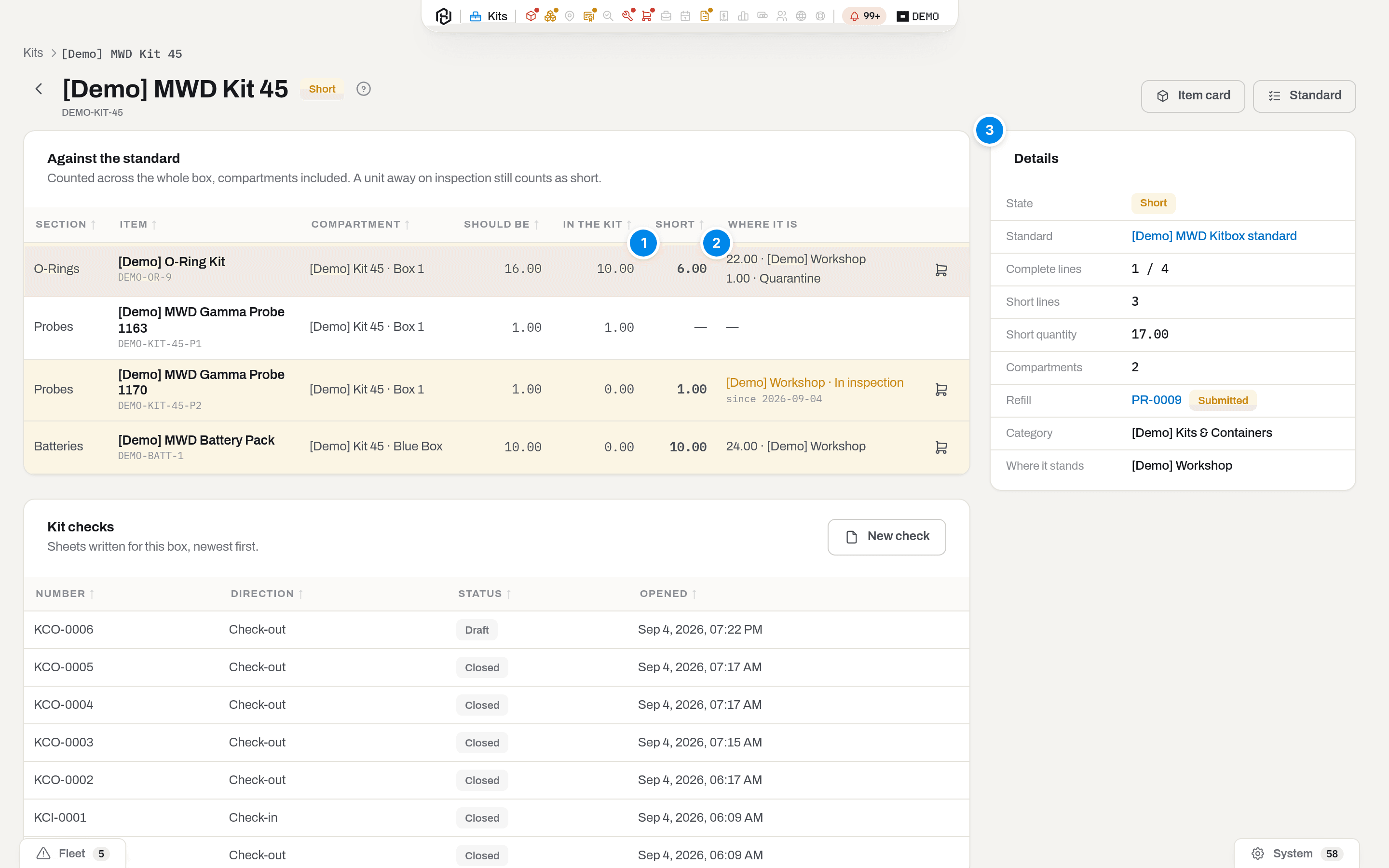
The card can carry one more block, Marked as containers — see A container is an address, not a position.
Write a standard
Who: Manager and above.
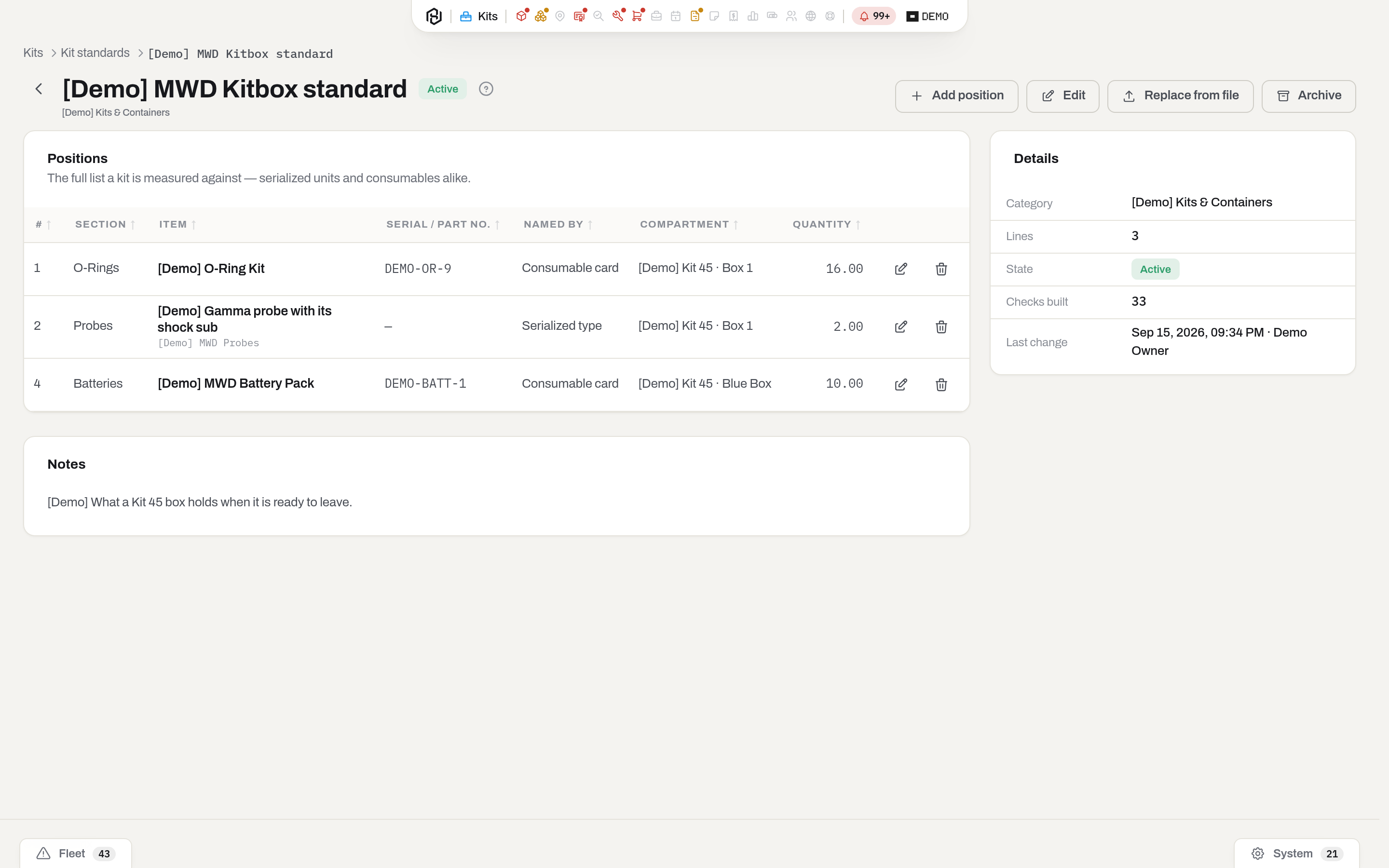
- Kits → Standards → New standard. Pick the category whose kits it measures and give it a name.
- Add position: find the item by name, serial or part number, pick it, say how many. A serialized type is picked by category instead, and there you can give the line its own name — what the thing is called on the checklist. A card line has no name field: its name lives on the item card, and the dialog links straight to it.
- Optionally say the compartment it belongs to and the section it sits under in the paper checklist. The compartment is matched by name, so Box 1 finds the Box 1 of whichever kit is being measured. Boxes that carry the kit number in their name match too: Box 1-45 and Box 1-53 are both read as Box 1, so you can label identical boxes with the kit they belong to without breaking the standard. Only the number of the box's own kit is dropped — a compartment called Black Box XL-50 keeps its whole name.
- Positions can be edited and removed at any time; the standard remembers who changed it last. Removing a position that checks have already been filled against is allowed, but those checks lose their link to it — the dialog says in how many, so the number is in front of you before you decide.
- Archive instead of deleting. A standard that has even one check built from it cannot be deleted: there is no Delete on it at all. Archive it — it stops measuring kits and Restore brings it back. Only a standard nothing has been built from can be erased, and that dialog names how many positions go with it.
- Replace a standard with a new version. When a new checklist arrives, do not delete the old one. Open the standard, Download current standard, edit the file in a spreadsheet, then upload it with Replace from file. Keep the columns you downloaded —
Section,Compartment,Part No,Description,Qty, and theRefcolumn the download adds — and name only things the park already holds.Compartmentis the one column that wants the box's exact name as it is written on its card: the file names a box of the yard, so write Box 1-45, not Box 1.Descriptionis also where a serialized line keeps its own name: write the thing there and the upload keeps it, leave the type's own name and the line stays called by its type.Refis what lets the file find the exact card again, so leave it alone: without it a row is matched by part number and description, and two cards sharing a number stop the upload: this screen connects a list to the park, it does not create cards. The previous version is archived rather than erased, so checks already built keep the version they were measured against. If a single row cannot be read, nothing at all is applied: the screen lists the rows and the reason, you fix the file and upload it again.
A long standard is searched, not scrolled: the Search box in the header of the lines card narrows the table as you type — by item, part number or section — and counts shown of total while it is on.
Create a standard from a file
Who: Manager and above.
A checklist usually arrives as a spreadsheet, not as a hundred dialogs. When a category has no standard yet — a new kind of box, or a kit that was moved and lost the list it used to be measured by — build it from the file in one go.
- Kits → Standards → New standard from file.
- Pick the category the list measures. Everything of that category, and of the categories under it, will be measured by it.
- Download the empty template — CSV or Excel — if you are starting from scratch. It carries the columns the upload reads:
Section,Compartment,Part No,Description,Qty,Ref. A file exported from another standard works just as well; clear itsRefcolumn if you want the rows matched by part number instead of by card. - Choose your file and upload it. The name is optional — leave it empty and the standard is called after its category.
- Every row has to name something the park already holds: this screen connects a list to the park, it does not create cards. If one row cannot be read, nothing is created — the screen lists the rows and the reason, so you fix them in one pass and upload again.
- If the category already has an active standard, the upload stops and names it: a category is measured by one list at a time. Open that standard and use Replace from file instead — the old version is archived, and the checks built from it keep it.
Rows that name something outside the category the standard measures are kept, not refused — a box legitimately holds things filed elsewhere — but they are listed back to you after the upload, under Lines outside the kit category, so a row that landed in the wrong file does not go unnoticed. The same list appears when you replace a standard with a new version.
Send a kit out and take it back
Who: Manager keeps the base side; the named field engineer keeps the rig side.
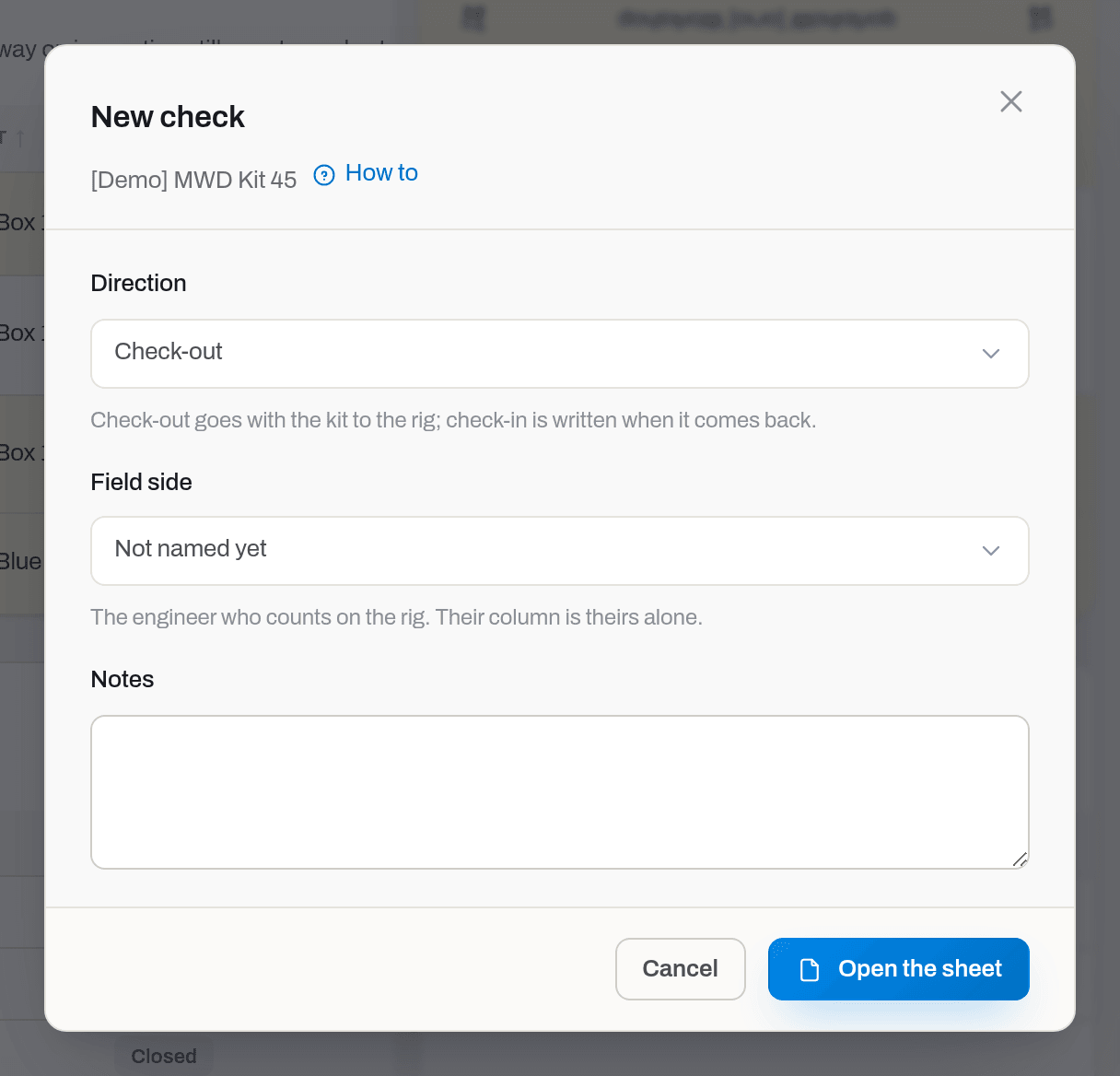
- Open the kit and press New check. In practice you open a check-out: the return sheet is opened for you when the check-out closes. Pick the direction and the job the box travels on — a check-out needs one, and a check-in inherits it from the check-out. Name, if you know them, the engineer who will count on the rig: the list holds the people of this workspace from the Operator role up, because a viewer has no column to sign. The sheet opens with every position of the standard and everything lying in the box over it.
Record the run and print the tag
A check-out or check-in carries a Run card next to its details: run number, well, rig, circulating hours, max temperature, crew and run comments. Either side can write it while the sheet is open — a PATCH, not a new document — and it locks to read-only the moment the sheet closes. Leave well or rig blank and the sheet uses the job's own; type something and it overrides just this run.
Close does one more thing when circulating hours are on the sheet: it posts them, together with the max temperature, as usage on the kit itself and on every serialized component that actually travelled — accepted on a check-out, handed over on a check-in, a tool lost in the hole included, since it worked the run before it went missing. A sheet with no hours closes the same way; the dialog only says so, it never blocks on it.
Print tag gives a one-page tag for the box: run number, well, rig, crew, this run's hours next to the kit's running total, and a Tool string table listing every serialized position with its own accumulated hours. A QR code on the tag opens the kit's card. It prints from a draft sheet too, marked DRAFT — the hours only firm up once the sheet closes.
The kit's run history is simply its closed check sheets: open the kit, go through its check list and each closed sheet carries its run and the hours it posted; the kit's card shows the running total, and every component's card lists the same run in its usage timeline.
Count a kit standing on the base
Who: Manager and above.
A check sheet needs a run: the base hands the box over and the rig accepts it. A box that has stood at the base for six months has nobody to hand it over to, and until it goes out again nothing tells you whether what is written in Hafrix is still what is in the crate. That is what a count is for — and it is also how a box gets its opening balance: an empty kit is counted once, and that first count is what puts its contents into the system.
- Open the kit and press Count the kit. The sheet opens straight away — a count has no job and no second person to name — with every position of the standard and everything lying in the box over it.
- Open the box and write what you find. Click a line to highlight it, then click it again, or press Enter, to open it and type the figure in Counted (Choose how a row click behaves); the item name in the line links to its own card instead. Your eyes decide, not the screen: System: 12 is shown beside the field so a difference becomes a question now rather than a surprise later.
- Found something damaged? Say how many and why on the same line. It travels to Quarantine when the sheet closes, exactly as it would on a return.
- Something in the box that the sheet does not list is added with Add a position, the same way as on a check sheet.
- Sign the count. There is no second side to wait for, so this one step closes the sheet and posts it: the box is set to what you counted — up or down, as an adjustment, never as consumption — damage goes to quarantine, and anything you counted but Hafrix held elsewhere moves into the box.
- Print gives the paper: one count column and one signature box, headed Kit count.
Moved something into the box after the count? The closed sheet keeps its figures, and that is deliberate: closing it has already set the stock to what was counted, so rewriting the paper afterwards would rewrite the movement too. The sheet will tell you the box has changed — "Lines were taken from the box on 14 Sep. The box has changed since: 2 units differ" — and the kit page shows the live figure. When you want the paper to match the crate again, count the kit once more: a new KCC sheet takes a fresh snapshot and closes on today's contents.
The Serial column shows the serial number of the unit on each line — the same field the printed sheet has, so the paper on the clipboard and the screen read alike. A yellow line means one thing only: less is there than the standard asks for. It is not a lock, and the line is edited like any other.
Closing this sheet is also how a kit gets its first assembly: signing the count sets the box to what you counted, independently of the stock card — the "put this quantity in the kit box" a first-time setup needs, done through the same step as any later count.
An empty socket is left alone. A serialized unit you did not find is not written off as lost: you saw an empty compartment, not a disappearance. The kit is simply short against its standard, and that is what the kit page will say.
A count opened by mistake is not carried on: Delete sheet removes it while it is a draft, and the box is free for the next one. Signed, it stays — see A check has two sides.
Charge a loss to the client
Who: Manager, on the base side of a return sheet.
Something went to the rig and did not come back. Whether the client pays for it is your call, item by item — the reason it was written off does not decide the money, and lost in hole is no different from dropped over the side.
- Open the return sheet and count it as usual. A line where nothing came back — a serialized unit accepted at zero, or a quantity short — gets a Charge button in the last column.
- Press it. Say how many units the client pays for (all of them by default), the price per unit and the currency, and — in your own words — why.
- Leave the price empty and the replacement price book fills it in, if it covers this item for this client. An empty book stops nothing: type the amount you agreed.
- Charge records the decision. The column then shows the amount, and the invoice number once the loss has been billed.
Consumed material is never charged again: using it up is the job, and the server refuses it.
Result: the loss waits in the queue to be invoiced. The next invoice for that client picks it up as a line of its own — Loss · Gamma probe 1163 · KCI-0007 — and until then it shows up in Unbilled work as a loss that nobody has been charged for. While an invoice holds it the decision is frozen; void the invoice or drop the line from the draft and the loss comes back to the queue, decision intact.
Charging the client changes nothing about the equipment itself: the unit stays written off, and its remaining value is disposed of the usual way.
Ask for a refill
Who: Operator and above with the Procurement section.
A kit comes back short — used, lost or damaged — and the shortage is read straight off the kit page: every row that is missing something shows a cart on the right.
- Open the kit. Rows short against the standard are highlighted, and Where it is already says whether the thing is missing or merely elsewhere.
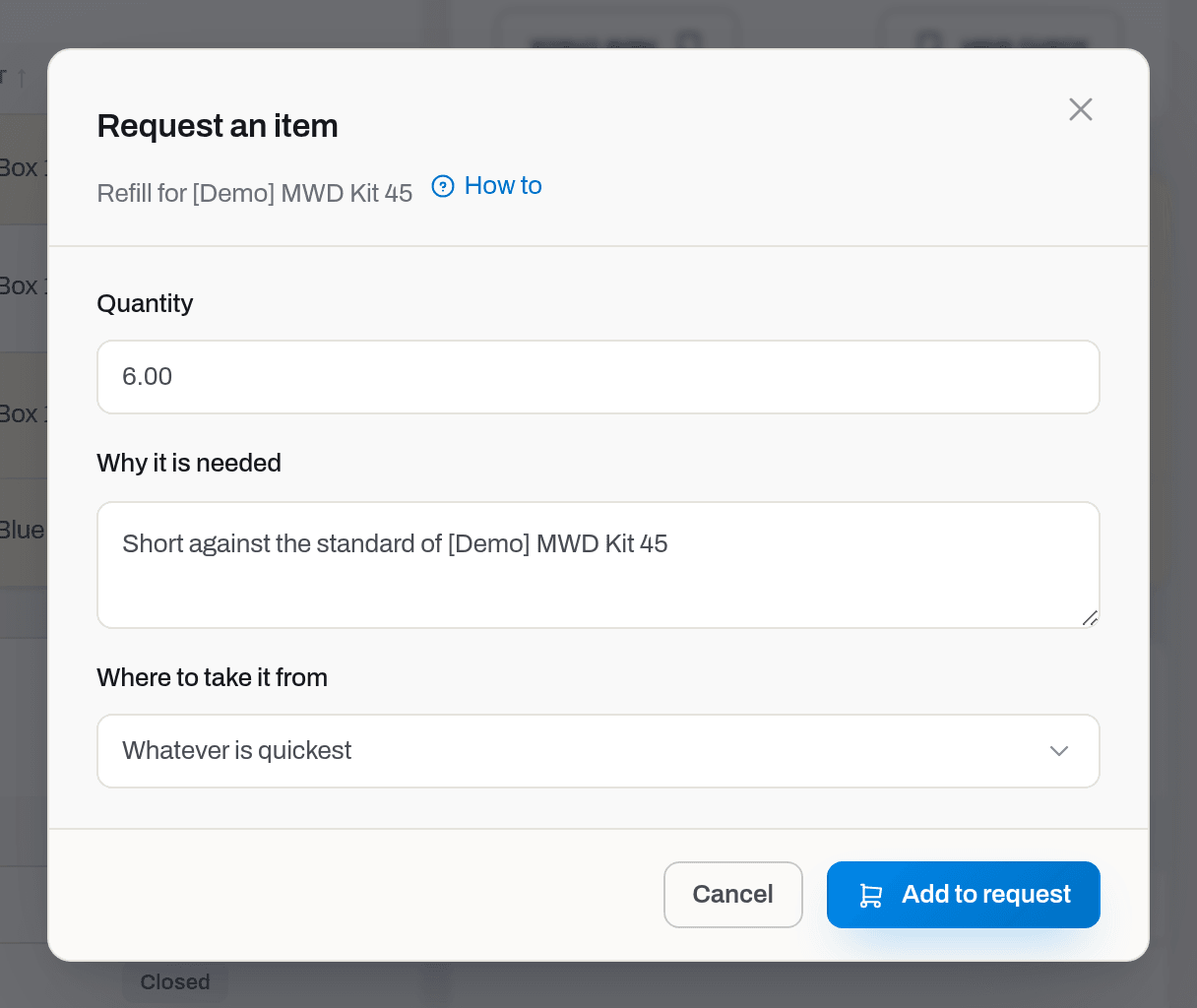
- Press the cart on the row. The usual Ask to buy dialog opens, prefilled with the item, the missing quantity and the reason.
- Adjust the quantity if the box needs more than the standard says, and confirm. The line lands in your open request — the same basket every other screen uses.
Result: the kit page shows what has been asked for in Refill, with the request number and its state, so the next person does not ask twice.
Fill a kit
Who: Operator and above, with both Kits and Stock open to you.
A kit short against its standard does not have to be filled line by line through Stock — whose Consumable and Place pickers search as you type once the standard runs to hundreds of lines. Refill to standard does it in one confirmation:
- Open the kit. When it is short a consumable, Refill to standard sits with the other kit actions.
- Press it. The dialog lists, position by position, what it is about to take and from where, fullest location first.
- Confirm. Every line moves as an ordinary stock transfer — the same movements, the same stock history a manual transfer would leave.
- What stock cannot cover stays a shortage, named line by line in the dialog. That part is a purchase decision, and it goes the way it always did: Ask for a refill.
One compartment instead of the whole kit. The Compartments card on the kit page lists every compartment of the box: the positions it holds, and how many of them are short. The refill button on a compartment row runs the very same plan against that compartment alone — the dialog is headed by the compartment's name, and the confirmation moves its lines only. It appears where there is something to move: a compartment short a consumable, and both Kits and Stock open to you. Positions that lie in the kit outside any compartment are filled by Refill to standard on the kit.
Two limits are deliberate:
- it takes only from locations — a shelf, a store, a lab. What lies in another kit is not taken, because that box is emptied by its own check sheets and not behind their back. So the addresses offered here can be fewer than the ones A shortage says where the thing is lists;
- it moves only consumables. A standard line named by a type is closed by a unit, and a unit goes in with Move on its item card — pick the compartment as its new place.
Move the kit itself and everything inside travels with it, both the items and the stock: the contents keep their address inside the box, and the box changes location.
Refill to standard moves the goods with no paper of its own. When the window needs a signature for what left the shelf, fill the same shortage onto a pull sheet instead — its own document, with lines, lot numbers and a print.
Notes and limits
- A box with no standard is still listed — No standard is an honest answer, not a reason to hide it.
- A compartment is a container item inside the kit, so it never appears as a position of the standard, and never as something over it.
- Lists of boxes name the owner: a compartment is shown as Black Box · MWD Kit box (Kit-45), so two boxes of the same name are told apart before you move anything into one.
- One kit has one open check at a time, and a count takes the same slot: two open sheets on one box would be two truths about its contents. That slot is taken by the return sheet as soon as the check-out closes, so the next check-out starts once the box has come home.
- A count has no job, no field side and no phone: the box is counted where it stands, so there is nobody to send the sheet to. Nobody is notified either — the person this is news for is the one holding the paper. No schedule and no reminders come with it: a count is made when somebody asks for one.
- New check and Delete sheet belong to the manager, and whoever opens a sheet keeps its base column. Everything else on the sheet — writing your column, signing, resolving a difference — is decided by the side you stand on, not by your role. Nobody has to be the same person as anybody: the one rule of that shape is about signatures, and it is the opposite one — the two sides of a sheet are never signed by the same hand.
- A position is declared by the side that hands over, and only while the sheet is a draft: on a check-in that is the rig, on a check-out the base. It has to exist in the park first — the sheet names a card, it does not invent one.
- The field side of a sheet is filled on the phone — the offline field app — and the web keeps the base side. The engineer counts blind: the base's column is not on their device at all, only the standard. If nobody is named as the field engineer, a manager may count that column — but not the same person who signed the hand-over.
- Closing a check-out puts the box on the job — the same booking any tool gets when it is mobilised: the kit page and the item card both say On job, and the gate pass prints from the job. Closing the check-in takes it off again and the box goes back to where it stood. Until the check-out is closed the box is still at the base, however far the paperwork has gone.
- An engineer sees the sheets of their own job and the ones that name them; somebody else's kit simply does not exist for them. Their own job means either: the sheet names them as the field side, or they keep tickets on the job it travels on — so the whole rig crew reads the sheet, not only the person the base happened to name. The limit is the Operator role's alone: a viewer writes on no sheet and therefore reads them all, as far as their section grants go — see Roles & access.
- Quarantine is a location, created the first time something damaged comes back. What happens to it afterwards — scrap or a supplier claim — is decided by a human, not by the sheet.
- A refill is an ordinary purchase request (
Kit short against standardis its origin), not a thing of its own: it is approved, ordered and received in Procurement like everything else, and the kit page only shows what has been asked for.
Updated 2026-09-22
New to Hafrix?
See this workflow in your operation
Explore how Hafrix connects equipment records, locations and readiness across your fleet. Bring your inventory workflow to a demo.