Notification codes
Every row the system can write into your notification feed: the exact words you will read, what put the row there, who else received it, and where clicking it takes you.
Where: the bell at the top of the capsule → All notifications (/notifications); this is not a section, so it is not in the capsule list and no grant closes it. The bell and the page read the same feed under the same tabs — there is no second list to check.
Who can do what
| Role | In the feed |
|---|---|
| Viewer | Read own rows, Mark all read, Unread only, Got it on an announcement |
| Operator | + Got it on a fleet alert (needs the Alerts section) |
| Manager | + receives the fleet, maintenance, tickets, register and finance rows |
| Admin | + receives The beat connector did not answer |
Nobody chooses what they receive: there is no per-person notification setting. A row reaches you because of your role and because the section it belongs to is open to your group — see Roles & access.
At a glance
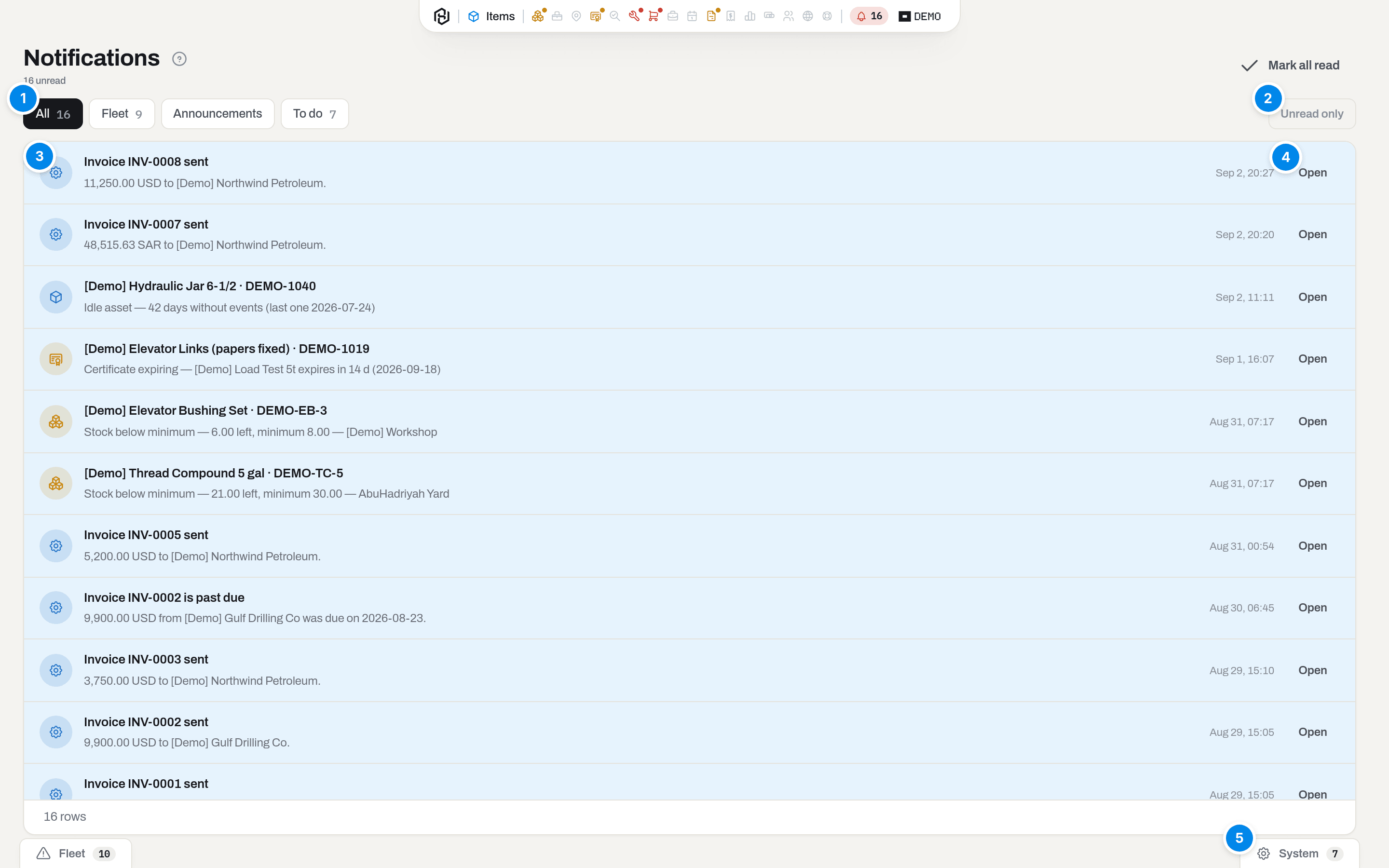
The feed of [Demo] Viewer — five system rows about invoices and five fleet alerts.
- Quick views — All, Fleet, System, each with its unread count. Fleet and System are the two tabs the four kinds of row fall into, described below.
- Unread only — hides everything you have already opened. Mark all read (top right) empties the badge without answering anything.
- Row icon — the colour is the level, not the topic: grey-blue for info, amber for important, red for critical.
- Open — follows the row's own link; the row is marked read on the way.
Key concepts
Four kinds of row, two tabs
Every row belongs to exactly one kind, and the kind decides which tab it lands on and what makes it go away. The split is by kind alone, never by subject — a to-do about the fleet still lands on System, because it is a to-do, not an alert.
| Kind | Tab | Written by | Goes away when |
|---|---|---|---|
| ALERT | Fleet | The nightly fleet rules — a new finding about a piece of equipment or a stock level | The data stops being true (certificate renewed, stock topped up) |
| BROADCAST | System | A person: your admin, or the Hafrix team | The author revokes the announcement |
| ACTION | System | The system, about you or the company — something only a person can finish | You do it (turn on 2FA, confirm your email, set a depreciation policy) |
| SYSTEM | System | The system, about the company — something already happened | Never. A system row is news, not a task; it stays in the list |
Note
Fleet answers "what is wrong with, or waiting on, the equipment"; System answers everything else — "what did a human tell us" and "what is waiting for me" both live there, one tab instead of the two they used to have.
Machine words come from the app, not from the database
A SYSTEM or ACTION row stores only a code (invoice_overdue) and the facts it needs (number, total, client). The sentence you read is assembled by the app from your own language. That is why the tables below list a code and a phrase with {placeholders}: the placeholders are filled in from the row, and the rest is translated.
Two consequences worth knowing: the same row reads in Arabic for a colleague who works in Arabic; and company data inside a row — item names, client names, ticket numbers — is never translated.
An announcement is the opposite: its words were typed by a person and are stored exactly as typed, in one language.
Level decides the shape, not the importance
| Level | What you see |
|---|---|
| info | A line in the feed, on its tab. Nothing interrupts you |
| important | The line is bold and counts towards the badge; an announcement at this level also opens in the middle of the screen |
| critical | Only announcements reach this level: the window in the middle of the screen closes by Got it and nothing else — Esc and a click outside do not dismiss it |
A fleet alert never opens a window, however bad the finding is. A critical alert (CERT_EXPIRED) arrives as an important row: bold, counted, still just a line.
Read, acknowledged, closed
Three different states, and they are not interchangeable.
- Read — you saw the line. It clears the badge. Mark all read sets it on everything at once and answers nothing.
- Acknowledged — you pressed Got it. Only two things ask for it: an important or critical announcement (personal — your confirmation, not your colleague's) and a fleet alert (company-wide — one person acknowledges it for everyone, on the alert itself).
- Closed — the reason is gone. The row leaves the feed and the bell on its own.
Acknowledging a fleet alert does not close it. The finding is closed by data: renew the certificate and the row disappears by itself. Got it on an alert row needs Operator and above with the Alerts section — the steps are in Alerts.
Fleet and System, and the live reorder block
The bell panel and /notifications both carry the same two tabs beside All:
- Fleet — every alert row: the nightly rules' findings. Above the list sits Time to reorder, a live extra source: stock is counted at night but spent during the day, so this block asks the warehouse directly every 30 seconds and shows what is below minimum right now as {item} · {location} · {qty} < min {min}. A pair already covered by a
STOCK_BELOW_MINalert is shown as the alert instead, because the alert has a Got it. - System — everything that is not an alert: announcements, your own to-dos (including "{count} items are not being depreciated"), and the system rows about invoices, repairs, tickets, imports and the ledger.
The bell panel shows the newest eight rows per tab and a link to All notifications; the page shows up to a hundred with counts on each tab.
Note
Sections no longer carry their own banners about the state of the fleet or of your account. If you remember a "Time to reorder" strip on Stock or a two-factor banner on top of a page, they now live in the bell — the reorder block on Fleet, the 2FA prompt on System. What is still shown inside a section is only about the data on that screen.
Feed row, toast, email
| Answers | Who sees it | Lives | |
|---|---|---|---|
| Toast — Saved, Deleted, Not saved | Your own click, just now | You | A few seconds, bottom right |
| Feed row | Something that happened without you | Everyone the news concerns | Until it is closed, or forever |
| Something you must learn about even when the app is closed | Whoever the letter is addressed to | Your mailbox |
The rule behind the split: you never get a feed row about your own action. Close a work order and your colleagues get the row; you get a toast. The full list of letters is in Email templates.
Fleet alert codes
Ten rules run nightly and write a row only when a finding is new — a certificate that has been expired for a week does not ring every morning. The row reads {item name} · {serial} on the first line and {rule} — {detail} on the second, and every one of them links to Alerts (/alerts).
Everyone whose group can see the Alerts section receives all ten.
| Code | Rule | Detail you read | Level |
|---|---|---|---|
CERT_EXPIRED |
Certificate expired | {cert} overdue by {days} d (expired {date}) | important |
CERT_EXPIRING |
Certificate expiring | {cert} expires in {days} d ({date}) | info |
INSPECTION_DUE |
Inspection due | {why}, {days} d ago ({date}) — last {cert} {last}, or — no {cert} on record; {why} names the event of the work cycle |
info |
LIFE_EXCEEDED |
Life budget exceeded | {pct}% of the {dimension} budget — {used} of {budget} | important |
LIFE_WARN |
Life budget warning | {pct}% of the {dimension} budget — {used} of {budget}, plus ~{months} mo left at the current pace | info |
MAINTENANCE_DUE |
Maintenance due | {level} at {pct}% of the {dimension} interval — {used} of {interval}, last {last} on {date} | important |
MAINTENANCE_SOON |
Maintenance due soon | {level} at {pct}% of the {dimension} interval — … | info |
WORK_ORDER_STALE |
Work order open too long | {number} open for {days} d (since {date}) — {title} | info |
STOCK_BELOW_MIN |
Stock below minimum | {qty} left, minimum {min} — {location} | info |
IDLE_ASSET |
Idle asset | {days} days without events (last one {date}), or without a single event (registered {date}) | info |
Within a family the rules exclude each other: an item is either Certificate expiring or Certificate expired, never both. The daily summary of everything open arrives by email — see Alerts.
Announcement rows
Two sources, one shape. The row shows the title, a preview of the text, and who it is from: From {name}, From your workspace, or From the Hafrix team.
| Source | Written in | Reaches |
|---|---|---|
| Company announcement | Settings → Announcements (Admin only) | Every active member of your workspace |
| Platform announcement | The Hafrix platform console | Every active member of every workspace it targets |
Announcements are written in Settings → Announcements — see Admin settings.
They are not edited after publishing — half the company has already read them. The author revokes the old one and writes a new one; revoking clears the row from everyone's list and stops the window from opening again, and what people have already read stays read.
To-do codes
Three, and each closes itself the moment its reason is gone. The first two are re-checked every minute while the app is open.
| Code | Title | Text | You get it when | Takes you to |
|---|---|---|---|---|
mfa_required |
Set up two-factor authentication | Your role signs in with a second factor. Scan a code, type six digits, keep the recovery codes. | Two-factor is required for you (you are an admin, or your workspace requires it) and not yet on | Account → Security |
email_unverified |
Confirm your email address | {email} has not been confirmed yet — password recovery needs it. | Your address has never been confirmed | Account → Profile |
finance_no_policy |
{count} items are not being depreciated | They have a cost but their category has no depreciation policy. Until it does, they stay out of the ledger. | The monthly posting skipped items because their category has no policy. Manager and above, with the Finance section | Settings → Finance |
finance_no_policy is a to-do about equipment, but the split is by kind, not by subject: as an ACTION row it sits on the System tab like every other to-do.
System codes
Nineteen codes. Unless a row says otherwise, it goes to everyone who is Manager or above and whose group can see the section named in the last column — and never to the person who caused it.
Equipment and the yard
| Code | Title / text | Fires when | Section |
|---|---|---|---|
item_damaged |
Damage reported: {item_name} / {who}: {description} | Somebody reports damage on an item card or from the field app | Items |
import_finished |
{count} items imported (1 item imported in the singular) / {who} imported {file_name} into {category}. | A CSV import finishes and actually created rows. A dry run and an empty file say nothing | Items |
audit_ready |
Register reconciliation is ready / {file_name}: {rows} rows, {matched} matched, {decisions} waiting for a decision. | A register reconciliation run finishes — the disputed pairs are for somebody else to judge | Register audit |
assignments_start_tomorrow |
{count} bookings start tomorrow (1 booking starts tomorrow in the singular) / {job_code} · {client} — the kit leaves on {date}. | Every morning, for reserved bookings whose first day is tomorrow. One row per run, not one per booking. Operator and above | Dispatch |
Repairs
| Code | Title / text | Fires when | Section |
|---|---|---|---|
work_order_closed |
Repair closed — ready to bill / {number} on {item_name}: {price} to bill {bill_to}. | A work order is closed, it is billable to a client or a vendor, and a price was found | Maintenance |
work_order_unpriced |
Repair closed without a price / {number} on {item_name} is billable to {bill_to}, but no rate covers it — set one under Settings → Maintenance. | The same close, but no rate covered it | Maintenance |
work_orders_closed |
Repairs closed — ready to bill / {count} work orders closed: {price} to bill, {unpriced} without a price. | Several work orders are closed in one go from the list | Maintenance |
An internal repair is silent: there is nothing to bill, and the item's own timeline already records it.
Field tickets
| Code | Title / text | Fires when | Goes to |
|---|---|---|---|
ticket_submitted |
Ticket {number} is waiting for approval / {who} submitted the shift of {date} on {where}. | A field ticket is submitted | Manager and above, Field tickets |
tickets_submitted |
{count} tickets are waiting for approval / {who} submitted them in one go. | Two or more tickets are submitted together | Manager and above, Field tickets |
ticket_rejected |
Your ticket {number} came back / {who} asked for a correction: {reason} | An approver sends a ticket back | The person who wrote the ticket — nobody else |
tickets_rejected |
{count} of your tickets came back / {who} asked for a correction: {reason} | Several of your tickets are sent back at once | The person who wrote them |
The two rejection rows are personal: in a batch of thirty, each author gets only their own.
Invoices
| Code | Title / text | Fires when | Goes to |
|---|---|---|---|
invoice_sent |
Invoice {number} sent / {total} to {client}. — any channel but email is named at the end: — by mail, — by hand, — via the operator portal | An invoice is emailed, a delivery by mail or by hand is recorded, or the invoice is uploaded to the operator portal | Everyone who can see Invoices, whatever their role, except the sender |
invoice_payment |
Payment received: {number} / {client} paid {amount}. {balance} is still due on this invoice. | Money is recorded against an invoice | Everyone who can see Invoices, except whoever recorded it |
credit_note_issued |
Invoice corrected: {number} / {total} credited to {client} against {invoice} — {reason} | A credit note is issued | Everyone who can see Invoices, except the one who issued it |
invoice_overdue |
Invoice {number} is past due / {total} from {client} was due on {due_date} — the amount is what is still owed, not the invoice total | Every morning, one row per open invoice that passed its due date with a balance | Everyone who can see Invoices |
invoices_exported |
{invoices} invoices exported to accounting / {payments} payments received; {reversals} entries reversed. | Journal entries are exported to the accounting system | Managers and admins who can see Invoices, except the one who exported |
The ledger
All five go to Manager and above with the Finance section. The ledger rows are the one family that reaches everybody who qualifies, including the person who started the posting: a monthly close is not anybody's personal click.
| Code | Title / text | Fires when |
|---|---|---|
finance_month_posted |
{period} closed in the ledger / {amount} of depreciation posted on {items} items. | The monthly posting wrote at least one entry — on the 1st, or when somebody posts by hand |
finance_opening_accepted |
Opening balances accepted for {period} / {amount} came in from the external register on its cut-off date — the schedule continues from the next month. | The first posting of a workspace that had nothing to charge yet, only balances brought in from an outside register |
asset_fully_depreciated |
Fully depreciated: {item_name} / {item_ref} reached the end of its book life in {period}. It stays in the register at its residual value — depreciated is not the same as scrapped. | An item reaches the end of its book life during a posting |
asset_sold |
Sold: {item_name} / {item_ref} left the register — proceeds {proceeds}, result {profit_or_loss}. | A disposal is posted for an item marked sold |
asset_written_off |
Written off: {item_name} / {item_ref} left the register with no proceeds — result {profit_or_loss}. | A disposal is posted for an item that left any other way |
The workspace
| Code | Title / text | Fires when | Goes to |
|---|---|---|---|
beat_sync_failed |
The beat connector did not answer / Last night's sync failed, so run hours have not arrived: {error} | The nightly connector run cannot reach the source. Level important | Admin only — it is a setup problem, not a fleet problem |
How to
Read the feed
Who: anyone.
- Open the capsule and click the bell. The panel shows the eight most recent rows on three tabs.
- Click a row to follow it — the row is marked read on the way.
- For the whole list with counts and the unread filter, click All notifications.
Result: the badge drops by the rows you opened.
If it fails: an empty panel says Nothing new — you have no live rows, which is the normal state.
Clear the badge
Who: anyone.
- Click Mark all read — in the bell panel or in the top right of
/notifications.
Result: the badge and the tab counts go to zero. The rows stay in the list.
If it fails: nothing to clear — the button is off when the count is zero. Note that this answers nothing: an announcement still waits for Got it, an alert still waits for somebody to acknowledge it, and a to-do still waits for you to do it.
Confirm an announcement
Who: anyone.
- An important or critical announcement opens in the middle of the screen, one at a time, oldest first. {count} more waiting tells you how many follow.
- Read it and click Got it.
Result: the window closes and does not come back; the row is marked read. The next announcement, if any, opens.
If it fails: on a critical announcement Esc and a click outside do nothing — the button is the only way out. That is deliberate.
Find a row that has already closed
Who: anyone.
Closed rows are not shown anywhere in the feed — that is what closing means. What you are looking for is in the section the row came from:
- A fleet alert → Alerts → the Closed quick view.
- An announcement → Settings → Announcements, where the author sees it marked Revoked.
- Anything else → the section itself: the invoice, the work order, the ticket, the item's own timeline.
Result: you see the event with its full history instead of a one-line summary.
What the system tells you
Some of these rows come with a letter as well. The rule is that a letter is sent when the news must reach somebody who is not looking at the screen; the letter and the row never replace each other.
| Row | Email as well | Who gets the email |
|---|---|---|
| Any fleet alert | One daily digest of everything open, not a letter per finding | Every manager and admin, unless your workspace has been given an explicit list of addresses |
item_damaged |
Damage reported on {item} | The same fleet recipients |
work_order_closed, work_orders_closed |
Repair {number} closed on {item} / {count} repairs closed and ready to bill | The same fleet recipients |
finance_month_posted, finance_opening_accepted |
{period} closed: {amount} depreciation on {items} items | The same fleet recipients |
invoice_overdue |
One summary letter per run: {count} invoices past due in {company} | The same fleet recipients |
ticket_rejected, tickets_rejected |
Ticket {number} was sent back to you | The author of the field ticket |
| Announcement | Only if the author ticked Send by email as well | Everyone who got the row |
invoice_sent |
The invoice itself, with the PDF attached | The client's accounting address — not a Hafrix user |
credit_note_issued |
The credit note, with the PDF attached | The client's accounting address — not a Hafrix user |
work_order_unpriced, beat_sync_failed, assignments_start_tomorrow, import_finished, audit_ready, ticket_submitted, asset_*, finance_no_policy, mfa_required, email_unverified |
none | — |
The other direction also happens: several letters have no feed row at all — password changes, new sign-ins, invitations, two-factor changes, a voided certificate. Those are about your account, and an account event that only lived in a feed would be a security hole. The full catalogue is in Email templates.
Related
- Alerts — the queue behind every
Fleetrow, and the daily digest. - Email templates — every letter Hafrix sends, and when.
- Roles & access — the two axes that decide which rows reach you.
- Basics — the capsule, the bell, toasts and dialogs.
- Admin settings — announcements, workspace settings, finance policies.
FAQ
A colleague got a row and I did not. Why? — Two filters run before a row is written: your role, and whether your group can see the section the row belongs to. Most system rows go to Manager and above; the connector row goes to admins only; the invoice rows go to anyone with the Invoices section, viewers included.
Why do I never get a row about the work I just did? — By design. Your own action is answered by the toast in the bottom-right corner. Rows exist for people who were not there.
Can I turn some of these off? — No. There is no notification preferences page, and no screen for the fleet mailing list either: the letters go to every manager and admin, or to a list of addresses set up for your workspace on request. Ask support if that list needs to change.
A row shows a code instead of a sentence. — That row's code is newer than your app's dictionary. Report it: the words exist, they just have not reached this build.
The badge is at zero but the tab counts still show numbers. — Mark all read clears unread; the tab counts on /notifications count live rows, read or not. A row leaves a tab only when its reason is gone.
How fast do notifications arrive? — Within a minute. The app asks the server every 60 seconds, and Time to reorder asks the warehouse for below-minimum stock every 30. Nothing is pushed instantly.
I acknowledged a fleet alert and it is still there. — Acknowledging says "seen, taken up"; it does not fix anything. The row closes when the finding stops being true — renew the certificate, top up the stock, log the maintenance.
Updated 2026-08-31
New to Hafrix?
See this workflow in your operation
Explore the platform behind these guides: equipment inventory, rentals, maintenance and operational finance. Tell us which workflow you want to see.