Roles & access
Two independent things decide what Hafrix lets you do: the role you hold in this workspace, and the sections your groups open for you. Almost every "why can't I see that?" is one of the two.
Where: both are set in capsule → profile menu → Settings → Users & invites and Groups (/settings?tab=members, /settings?tab=groups). Those two tabs are Admin only. Your own role and workspace are shown in the profile menu under Workspace.
Who can do what
| Role | Across Hafrix |
|---|---|
| Viewer | Read everything in the sections they can see: lists, cards, dashboards and Export |
| Operator | + the daily writing: items, stock moves, jobs, dispatch, field tickets, work orders, certificates, files |
| Manager | + the decisions and the reference data: approve a ticket, void a certificate, price a repair, invoice a client, edit clients and locations, Settings reference tabs |
| Admin | + the workspace itself: people, roles, invitations, groups and section grants, CSV import, usage, announcements, the register audit, finance settings |
At a glance
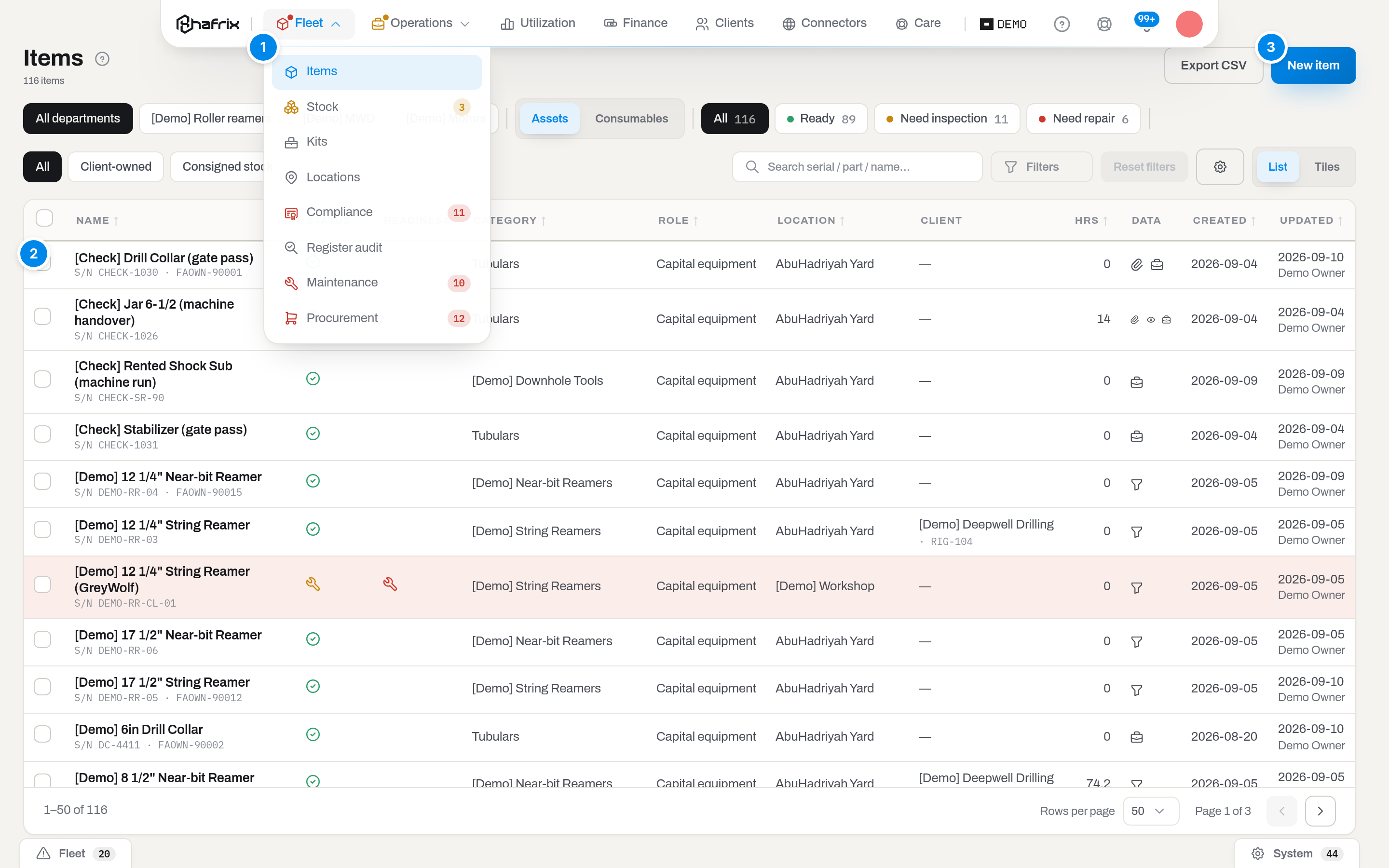
The same screen, the same workspace, seen by an admin.
- Fleet menu — the sections your groups open. Register audit is here because this admin is in the group that was granted it.
- Row checkboxes — the selection bar behind them writes to the fleet, so operators and above get them.
- New item — a write action, so it appears from Operator up.
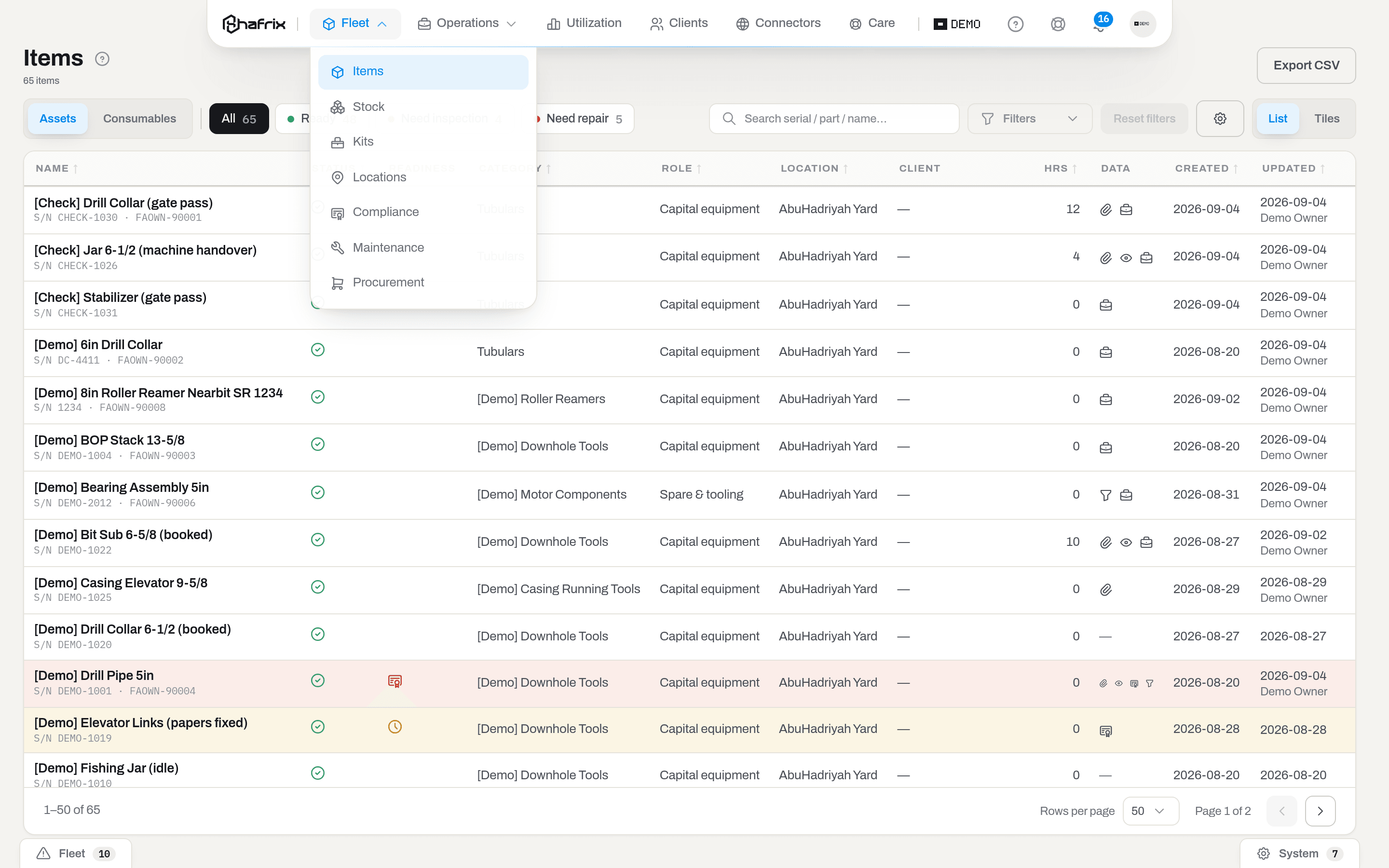
The same list, same data, opened by a viewer. Register audit has left the Fleet menu, the checkbox column is gone, and only Export is left in the header. Nothing was disabled or greyed out — Hafrix does not show a button that the server would refuse.
Key concepts
The two axes
Role answers how deep may this person change things — one ladder, four rungs, each rung includes everything below it:
Viewer → Operator → Manager → Admin
Section grants answer a different question — which parts of Hafrix does this person work in at all. They are handed out to groups, not to people, and they are independent of the role: a group opens a section, a role decides what you may do once you are inside.
Important
A role never overrides a grant. An admin who is not in a group that holds the section does not see it either — that is the whole point, because in many workspaces everybody is an admin.
Your role is per workspace, not per person: the same account can be an admin in one workspace and a viewer in another. Switch with the profile menu → Workspace.
The third axis: your own job
One role has a limit of its own, and it is not a grant you can hand out — it comes with the role. Operators see only the paperwork of their own jobs; viewers read everything in the sections they are given, and so do managers and admins.
A job is yours the moment your name is already on a document of it: you are named as the field engineer on a kit check, you wrote a field ticket on it, or you opened a work order from the rig. From then on you see everything on that job — your crew mates' tickets too, not only your own — and nothing on anybody else's.
Note
This is why a rig hand opening Field tickets may see an empty list, or two rows where a coordinator sees two hundred. Nothing is broken and nothing is filtered in the browser: the server never sent the other rows. Somebody else's ticket opened by address answers Not found, not Forbidden — a refusal would confirm it exists.
A viewer is not held to it, and the reason is the sentence above: a job becomes yours by your name on a document, and a viewer writes none. Holding a viewer to the axis would leave them with an empty list on every field screen — a second, silent version of the section grants that are already deciding what they may open.
There is no switch for it in Settings: the axis follows the role, on the assumption that an operator is a field person and everybody else sits in the office. If you need an office operator who files paperwork on behalf of other crews, promote them to Manager; if you need a trainee who reads one rig and nothing else, make them an Operator — or tell us either way, and the limit moves onto the membership instead.
What each role may do
| Viewer | Operator | Manager | Admin | |
|---|---|---|---|---|
| Open lists, cards and dashboards, Export | yes | yes | yes | yes |
| Select rows and run the actions behind the selection bar; Print labels and item reports | — | yes | yes | yes |
| Items, stock, jobs, dispatch, field tickets, work orders: create, edit, move, log | — | yes | yes | yes |
| Add and correct a certificate; upload files; edit or remove your own upload | — | yes | yes | yes |
| Confirm or reject a connector match; acknowledge an alert | — | yes | yes | yes |
| Void a certificate; approve, reject or unapprove a ticket | — | — | yes | yes |
| Price a repair by quote, decide who pays for it, invoice a client | — | — | yes | yes |
| Clients and locations; edit or remove anyone's upload; run Check now and Sync now | — | — | yes | yes |
| Settings reference tabs: Categories, Certificate types, Life budgets, Maintenance, Finance, Shifts, Crew roles | — | — | yes | yes |
| Money: edit an item's money card, Impair, depreciation policies | — | — | yes | yes |
| People: invite, change roles, deactivate; Groups and section grants | — | — | — | yes |
| Import CSV, Usage, Announcements, Workspace | — | — | — | yes |
| Register audit: the whole section | — | — | — | yes |
| Finance settings (currency, financial year) and posting depreciation for a month | — | — | — | yes |
Two-factor authentication is mandatory for admins — the person with the keys to the workspace signs in with a second factor. See Account.
What each section asks for
Reading is the low bar; writing is the interesting one. Both are checked on the server, so this table is what actually happens, not what the screen suggests.
| Section | Open it | Change things in it | The higher bar inside |
|---|---|---|---|
| Items | Viewer | Operator | Categories and Import CSV — see below |
| Stock | Viewer | Operator | Fulfil from stock on a purchase request also needs this section |
| Locations | Viewer | Manager | — |
| Compliance | Viewer | Operator (add and correct a certificate) | Voiding a certificate — Manager |
| Register audit | Admin | Admin | Pulling a register cost into an item also needs the Finance section |
| Maintenance | Viewer | Operator (open, close, cancel, parts) | A quoted price and the billing decision — Manager |
| Jobs | Viewer | Operator | Reserving equipment on a job also needs the Dispatch section |
| Dispatch | Viewer | Operator | — |
| Field tickets | Viewer | Operator (draft, lines, submit, reopen) | Approve, reject, unapprove — Manager |
| Invoices | Viewer | Manager | — |
| Utilization | Viewer | nothing to change — it is a report | — |
| Finance | Viewer | Manager | Finance settings and posting a month — Admin |
| Clients | Viewer | Manager | Assign to a client, Order on a purchase request, Open period on a sub-rental, Claim to supplier and a supplier's New invoice also need this section; so does changing the supplier on a claim or a supplier invoice |
| Connectors | Viewer | Operator (confirm or reject a match) | Sync now — Manager |
| Alerts | Viewer | Operator (Got it / Undo) | Check now and Life budgets — Manager |
When an action takes a required value from another section — the client for Assign, the supplier for Order, Open period, Claim to supplier and a supplier's New invoice, the shelf for Fulfil from stock — it needs both sections, its own and that one. The server refuses it otherwise, and the button is not shown: without that list the dialog could never be completed.
The grant list calls the ticket section Field tickets; the capsule entry for that same section reads Tickets — one section, two labels.
Alerts has no entry of its own in the capsule — you reach it from the bell or from a notification row. Closing it to a group still closes the page and stops the fleet notifications.
Reference data lives in Settings but belongs to a section: Categories to Items, Certificate types to Compliance, Shifts and Crew roles to Field tickets, Maintenance to Maintenance, Finance to Finance, Life budgets to Alerts. You need Manager and the section — a manager whose group does not open Compliance has no Certificate types tab.
Settings itself is deliberately not grantable: groups and grants are managed there, so a wrong grant can always be undone from the inside and a workspace can never lock itself out.
Section grants, in practice
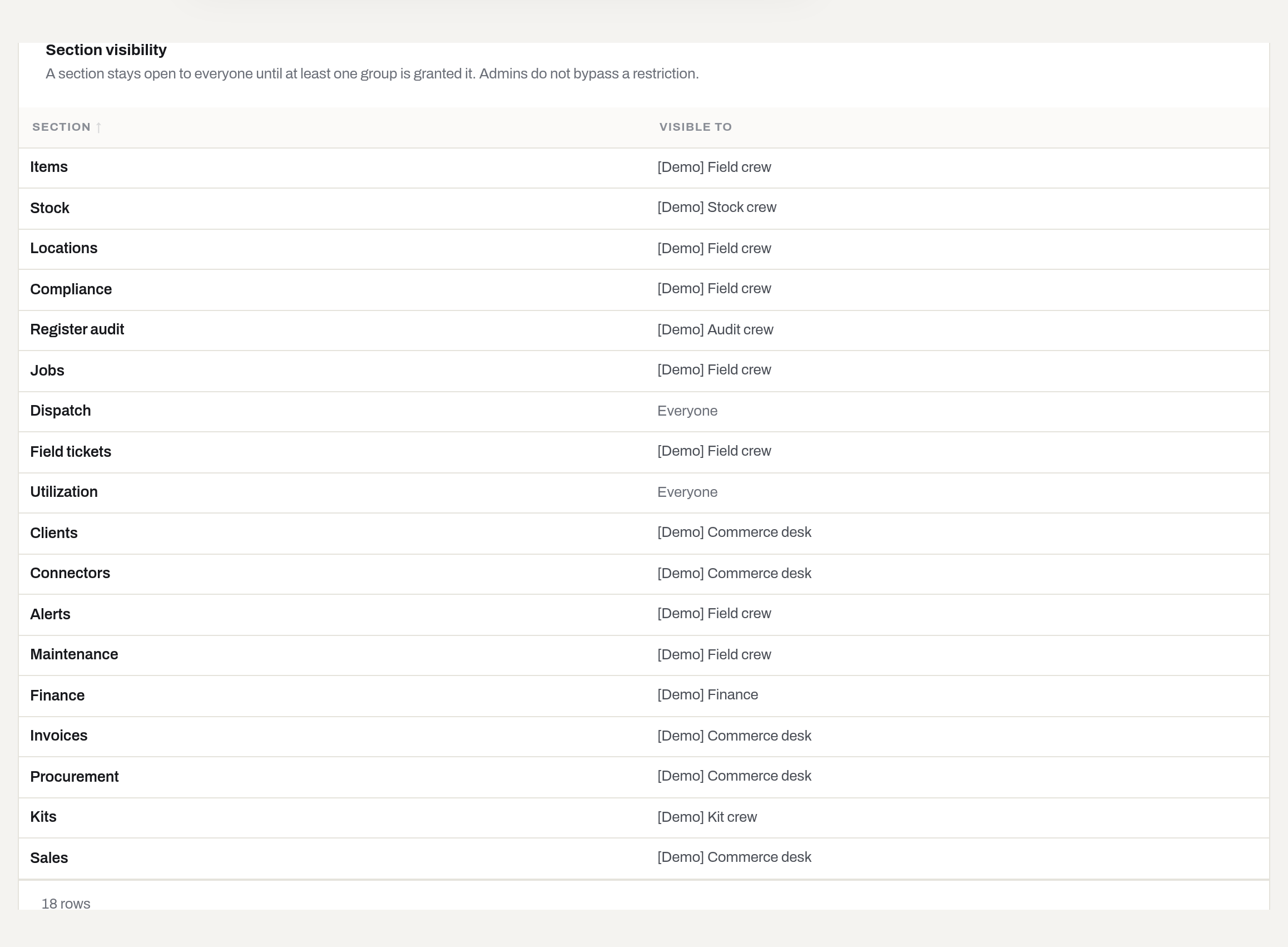
Settings → Groups holds both halves. The upper card lists the groups; the lower one, Section visibility — the table above — is the answer to "who sees what" for the whole workspace. One line per section, and only two things can stand in the right column: the word Everyone, or the names of the groups that still see it.
The rule is short:
- A section with no group granted it says Everyone — every active member sees it.
- The moment one group is granted a section, that section is visible only to members of that group. Grant it to several groups and it is the union of them.
- Admins do not bypass it. Nobody does.
This is also why there is no "hide Items from Anna" switch anywhere in the app: the grant works the other way round. A group that hides a section from one person is a group that holds everybody except her — you grant the section to the rest of the workspace, and she drops out of it. Several rows in the table above are exactly that, which is why a restricted section can name a group whose membership is almost the whole company.
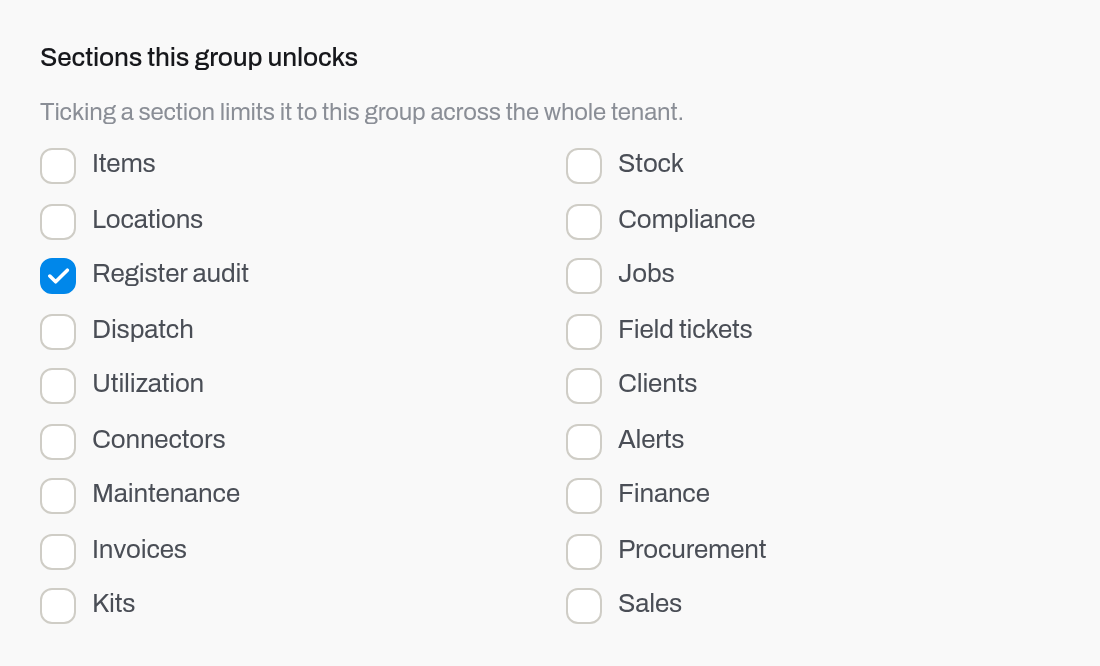
A click on a group row highlights it; click it again, or press Enter, to open it (Choose how a row click behaves): tick the people who belong to it, and tick the sections it unlocks. Ticking a section limits it to this group across the whole tenant — that is the sentence to read twice, because ticking a box takes a section away from everybody outside the group.
Money is a section, not just a screen
Finance behaves like every other section on the capsule — and then goes one step further. Granting it to a group also takes every sum out of the screens that section does not own:
| Screen | Without Finance you still see | You no longer see |
|---|---|---|
| Item card and item form | The item, its vendor and PO number | Acquisition cost, rental rate, the currency next to them |
| Stock | Quantities, minimums, locations | Avg cost, stock value, the Inventory value line, the unit cost box in Receive |
| Maintenance and a work order | What was repaired, who pays, whether a price is still missing | Labour, parts and workshop costs, the price and the price book behind it |
| Certificate form | Everything else about the certificate | Its cost |
| Item timeline and the printed item report | What happened | The amounts attached to repairs, damage and impairment |
| Settings → Maintenance | Service levels, maintenance plans | Repair rates — a price book, so it needs Finance as well |
This is deliberate: "we do not show money to this person" has to mean the whole workspace, not one tab. It also cuts the other way — without Finance those fields cannot be filled in either, so whoever enters a purchase cost, a repair cost or a certificate's cost has to be in a group that holds the section.
Flags stay: a work order still shows No price, and an item still shows that its cost is on file. They say the paperwork is unfinished; they never show an amount.
Why a section can be missing
Two different reasons, and they look almost the same:
| What you see | Why |
|---|---|
| The entry is gone from the capsule | Either your group does not hold that section, or the section has a role floor you are under — Register audit is admin-only, so it never appears for anybody else |
| You typed the address or followed a link and got a page reading This section is not open to you in this workspace | The same refusal, one step later: the section is closed to you, so the page is not drawn at all. The button under the note takes you to the first section you do have |
| A page loads but a button you expected is missing | Your role is below what that action needs — see the tables above |
A viewer who types /audit gets that note: Register audit is admin-only, and in this workspace it may also be granted to a single group. Either reason gives the same page. Nothing is broken and nothing is hidden from you by accident. You are simply not in this section.
Where you land after signing in follows the same rule. Hafrix opens Items if you have it; if your group does not hold Items, you land on the first section in the capsule that you do have, and the Hafrix logo in the capsule leads there too.
The owner
Exactly one person in a workspace is the owner, marked with an Owner badge in Settings → Users & invites. Owner is not a fifth role — it sits next to the ladder:
- Only the owner can hand ownership over, and only after typing their own password.
- The owner cannot be demoted or deactivated by anyone, including themselves. Transfer first.
- The owner is always an admin — the new owner is promoted to admin as part of the transfer.
- The last active admin cannot be demoted or deactivated either, owner or not.
Nothing important is deleted
Some things have no Delete for anybody, at any role. That is a design decision, not a missing permission:
| Thing | Instead |
|---|---|
| An item | Change status — Scrap, Sold, Lost. Its timeline is the yard's memory |
| A certificate | Correct it, or void it (Manager) — the row stays, struck through |
| A work order | Cancel it with a reason |
| A submitted or approved field ticket | Reject it back to the crew, or unapprove it |
| A person | Deactivate them — the trail of what they did stays |
| An invitation | Revoke it |
| An announcement | Revoke it |
What can be deleted: a job that is still Planned and has nothing reserved on it, a ticket still in Draft, a file you uploaded, and unused reference rows.
Tenant roles are not the Hafrix console
/platform is the Hafrix staff console — a different door with a different key. It is not a fifth role and no tenant admin can reach it: it needs a Hafrix staff account, its own sign-in, and its own second factor. Hafrix staff manage workspaces, signup links and platform-wide announcements there; they never hold a role inside your workspace, and every time a support engineer opens your workspace card it is written into the platform audit trail.
The reverse is just as strict: a workspace token is refused by /platform, and a console token is refused by everything under your workspace.
How to
See your own role and sections
Who: everybody.
- Hover the capsule so it expands. The expanded capsule lists exactly the sections that are open to you — that is your half of the section axis, and there is no separate "my permissions" screen.
- Alerts is the exception: it has no entry of its own and is reached from the bell.
- Open the profile menu (your avatar, far right). Workspace names the workspace you are in; the menu also carries Account and, from Manager up, Settings.
Note
Read the expanded capsule, not the resting one. At rest the capsule shows a row of dim section icons that is not filtered by your access — an icon can still be there for a section you cannot open.
Result: you know both axes: the sections in the expanded capsule, and your role, which the admin who invited you set.
If it fails: if the capsule shows fewer sections than a colleague's, you are in different groups — ask an admin to look at Settings → Groups.
Invite someone
Who: Admin only.
- Settings → Users & invites → Invite user.
- Fill in Email, and if you know them, Name and Job title.
- Pick the Role — start low. A role is one click to raise later.
- Tick the Groups they belong to, so they land with the right sections from the first sign-in. The block appears only once at least one group exists.
- Leave Send an invitation email on to have Hafrix mail the link, or switch it off to copy the link and send it yourself.
- Click Create invite.
Result: the invitation appears under Invitations with its Expires date; if you asked for the email, the person gets the invitation email. If you switched the email off, the link is shown once — copy it now, only a hash of it is stored.
If it fails: An invitation for this address is already pending — resend it instead. — the row is already in the list; use Resend or Revoke.
Change someone's role
Who: Admin only.
- Settings → Users & invites.
- In the person's row, open the Role select and pick the new role.
Result: the change is immediate and a toast confirms it. The person sees it on their next page load — buttons and sections appear or disappear accordingly.
If it fails: This is the last admin of the workspace. — promote somebody else first, so the workspace is never left without an admin. The owner's Role select is disabled, so Transfer ownership first — the owner keeps admin access. is an answer you only meet through the API; in the screen, see Transfer ownership instead.
Note
Raising somebody to Admin makes two-factor authentication mandatory for them. They will be asked to set it up, with a deadline.
Deactivate someone
Who: Admin only.
- Settings → Users & invites.
- In the person's row, click active — deactivate.
Result: they lose access to this workspace immediately — every section, every button, every API call. Everything they did stays where it is, with their name on it. The row now reads inactive — reactivate, which is how they come back.
If it fails: This is the last admin of the workspace. — the same guard as a role change. The owner has no button at all: their status cell reads owner — protected, so the owner refusal never reaches the screen.
Restrict a section to a group
Who: Admin only.
- Settings → Groups → New group. Give it a Group name; the Key is filled in for you.
- Click Save, then click the new group's row to highlight it, and click it again, or press Enter, to open it (Choose how a row click behaves).
- Under Members, tick everyone who should keep the section.
- Under Sections this group unlocks, tick the section.
Result: the Section visibility table below now names your group next to that section instead of Everyone. For everybody outside the group the section disappears from the capsule, its API answers This section is limited to specific groups in this tenant, its Settings tab (if it has one) is gone, and its notifications stop arriving. If the section was Finance, the sums it owns also disappear from the screens that keep working — see Money is a section, not just a screen.
If it fails: if the section is still visible to a colleague, check the group's Members list — and check whether a second group also holds a grant on the same section, because grants add up.
Warning
Ticking a section takes it away from everyone who is not in the group — including you, and including every other admin. Put yourself in the group before you tick, or you will have to reopen the section from Settings → Groups (which stays reachable: Settings can never be granted away).
Open a section back up to everyone
Who: Admin only.
- Settings → Groups, click the group row to highlight it, then click it again, or press Enter, to open it (Choose how a row click behaves).
- Untick the section under Sections this group unlocks.
- If more than one group holds it, do the same in each — the Section visibility table lists them all.
Result: as soon as the last grant is gone, the row says Everyone again and the section returns to everybody's capsule.
Transfer ownership
Who: the owner only.
- Settings → Users & invites.
- In the row of the person taking over, click Make owner.
- Read the hint — {who} becomes the owner and an admin. You keep admin access, but from then on only the new owner can pass ownership on.
- Type Your password and click Transfer ownership.
Result: the Owner badge moves, the new owner is promoted to Admin if they were not one, and they get the You are now the owner of {workspace} on Hafrix email. You stay an admin.
If it fails: a wrong password is refused — this is the one action Hafrix asks you to re-authenticate for. The other two refusals, You already own this workspace. and This person no longer has access to the workspace., are API answers you will not meet in the screen: Make owner is not drawn on your own row, nor on a deactivated one.
Work out why a button is missing
Who: everybody.
- Is the whole section missing from the capsule? Then it is the section axis — ask an admin to check Settings → Groups (or the section is admin-only, like Register audit).
- Is the section there but the button gone? Then it is the role axis — find the action in What each section asks for and compare it with your role.
- Ask an admin for the role you need, naming the action rather than the rung: I need to approve tickets is easier to act on than make me a manager.
Result: Hafrix never shows a disabled button for a permission you lack — it shows nothing at all. So "the button is not there" is always an answer, never a bug.
Fields
Settings → Users & invites
| Field | Meaning | Who edits |
|---|---|---|
| The sign-in address; it cannot be changed here — the person changes their own in Account | — | |
| Name / Job title / Phone | The person's card as the rest of the workspace sees it | Admin |
| Role | The rung on the ladder for this workspace | Admin |
| Status | active — deactivate / inactive — reactivate; the owner shows owner — protected | Admin |
| Groups (on the invite) | Which groups the newcomer joins, and therefore which sections they land with | Admin |
Settings → Groups
| Field | Meaning | Who edits |
|---|---|---|
| Group | The name people read, e.g. Audit crew | Admin |
| Key | The stable identifier; suggested from the name for a new group, and left alone afterwards | Admin |
| Description | Free text — what this group is for | Admin |
| Members | Who is in the group | Admin |
| Sections this group unlocks | The grants. A tick limits that section to this group across the whole workspace | Admin |
What the system tells you
| When | Feed row | Who gets it | |
|---|---|---|---|
| Somebody is invited | — | {who} invited you to {workspace} on Hafrix — carries the link | the invited address |
| The invitation is re-sent | — | Reminder: your invitation to {workspace} on Hafrix — the old link stops working | the invited address |
| The invitation is accepted | — | {name} joined {workspace} on Hafrix | the admin who sent it |
| Ownership is transferred | — | You are now the owner of {workspace} on Hafrix | the new owner |
| A role makes two-factor mandatory | Set up two-factor authentication | Set up two-factor authentication before {date} | the person concerned |
| A sign-in from an unknown device | — | New sign-in to Hafrix from {device} | the person concerned |
| A section is closed to a group | — | — | nothing is announced — the entry simply stops appearing |
A change of role or a deactivation is not announced by email or in the feed. The person finds out the next time they load a page, so tell them yourself.
Section grants also filter the notification feed: fleet alerts about a section reach only the people who can see it. Close Alerts for a group and its members stop hearing about the fleet, not just seeing it. This works backwards as well: a section you lose takes its old rows out of your feed with it — including rows you had already read, and including the amounts they carried. Give the section back and they return, unread as they were.
Related
- Getting started — the first sign-in, the invitation, two-factor authentication.
- Account — your own profile, password, second factor and sessions.
- Admin settings — the rest of what an admin sets for the workspace.
- Catalogues in Settings — the Settings tabs a manager keeps.
- Items — the section most of these examples come from.
- Finance — book value and depreciation: the section a workspace most often wants to close to a group.
- Alerts & notifications — how grants decide who hears about the fleet.
FAQ
Why can't I see a section my colleague sees? — You are in different groups. A section stays open to everyone until an admin grants it to a group; after that only that group sees it. Ask an admin to open Settings → Groups and read the Section visibility table with you.
I am an admin — why is a section still hidden from me? — Because admins do not bypass a grant. Otherwise the whole mechanism would be pointless in a workspace where everybody is an admin. Add yourself to the group that holds the section, in Settings → Groups.
I typed the address and got an empty page instead of an error. — That is what a closed section looks like from inside: the page frame renders, the data behind it is refused, and the table says 0 rows. Do not read it as "there is no data".
Can I give someone just one extra button? — No. There are four rungs and no per-button permissions, on purpose: a permission matrix nobody can keep in their head is a permission matrix nobody audits. Move the person up a rung, or move the work to somebody who already has it.
How do I stop the accountant from seeing the fleet, and the yard from seeing the money? — Two groups, two grants: give one group Finance and Invoices, give the other the fleet sections. Remember it only bites if the people you are separating are not all admins with access to Groups.
Nobody in our workspace is an admin any more. — That cannot happen through Hafrix: the last active admin cannot be demoted or deactivated, and the owner cannot be demoted at all. If you are locked out for another reason, the Hafrix team can help from the platform console.
Does a role travel between workspaces? — No. The role lives on your membership of one workspace. The same account can be an admin in one and a viewer in another; switch with the profile menu → Workspace.
Updated 2026-08-31
New to Hafrix?
See this workflow in your operation
Explore the platform behind these guides: equipment inventory, rentals, maintenance and operational finance. Tell us which workflow you want to see.