Catalogues in Settings
The catalogues a manager keeps — seven tabs and fourteen cards: what kinds of equipment exist, what papers they carry, how long they last, what a repair costs, what the fleet is worth, what you charge for rentals, crew, goods and services, and how crews and shifts are named. Nothing here is a record of work — it is the vocabulary every other screen writes in.
Where: the capsule → your avatar at its right edge (Account menu) → Settings (/settings). The entry appears for managers and admins only. Each catalogue is an entry in the settings menu down the left side, and the open entry lives in the address: /settings?tab=maintenance is a link you can send to a colleague.
Who can do what
| Role | In these catalogues |
|---|---|
| Viewer | Nothing — Settings is not in the menu |
| Operator | Nothing — same |
| Manager | Every tab on this page: create, edit, and delete where deleting is allowed |
| Admin | + the admin tabs next door, and the Finance settings card inside Finance |
Note
The admin half of this screen — Users & invites, Groups, Announcements, Usage, Import CSV, Workspace — is a different job and a different document. See Administering a workspace.
At a glance
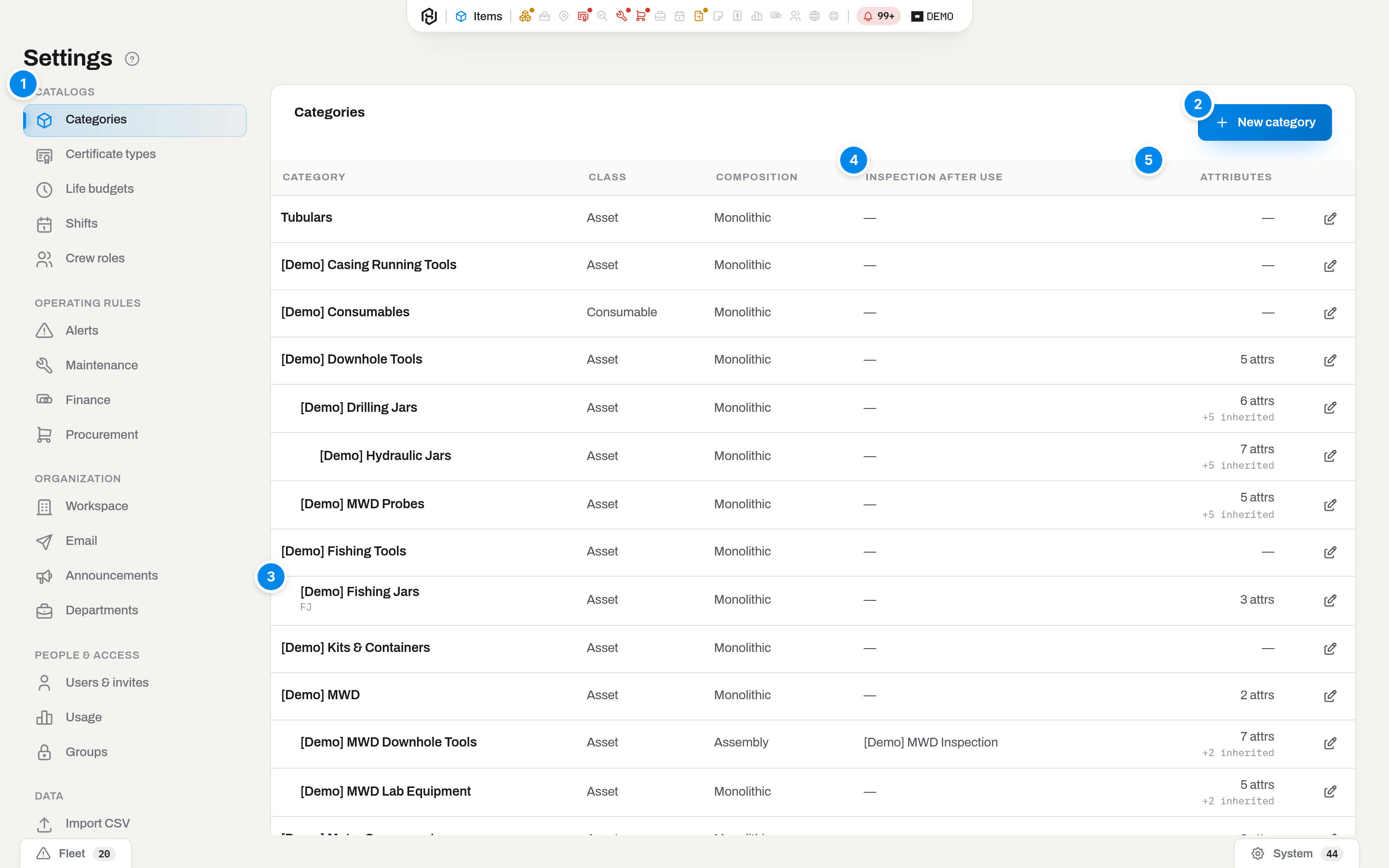
- Settings menu — every part of Settings, in groups: the catalogues of this page sit under Catalogs (Categories, Certificate types, Life budgets, Shifts, Crew roles) and Operating rules (Maintenance, Finance), the admin ones below them. A fresh workspace shows a manager all seven catalogues; an entry goes missing only once somebody has restricted its section to particular groups — see Which tabs you see. On a phone the menu folds into one button above the card.
- New … — the create button of the card you are looking at. Every catalogue has one, top right of its card.
- A nested category — the indent is the tree. There is no expander and no sorting here: rows come out in tree order.
- Inspection triggers — which events of the work cycle make a unit of this category owe an inspection.
- Attributes — how many fields the category's specification schema carries.
Seven catalogues, eleven cards: Life budgets also shows Actual life against the budget, Maintenance holds three cards, and Finance holds three for a manager and four for an admin. Rows open by click or by the pencil; the footer counts them; a bin, where the row has one, deletes at once with no «are you sure» — the row is not gone, it moves to Settings → Trash for thirty days, see Switch off rather than delete. On the four cards that carry an In use count — Shifts, Crew roles, Service levels and Services — the bin is not drawn on a row other records already hold; on the rest you learn the row is busy from the refusal.
Key concepts
Which tabs you see
Two questions are asked, and they are different questions. Role decides how deep you may change data: everything on this page needs manager or above. Section decides whether the entry exists for you at all — and by default it does.
A section is open to everyone until somebody grants it. The moment the first group grant is written for a section, that section becomes visible only to members of the named groups; until then, no grant means no restriction. So a fresh workspace shows every manager all eight catalogues, and an entry disappears only after an admin has deliberately narrowed its section. Being an admin does not get you past it — that is the whole point of the mechanism.
| Catalogue | Card(s) | Section it belongs to |
|---|---|---|
| Categories | Categories | items |
| Certificate types | Certificate types | compliance |
| Life budgets | Life budgets · Counters · Actual life against the budget | alerts |
| Counter types | Counter types | items |
| Maintenance | Service levels · Repair categories · Repair rates · Maintenance plans | maintenance |
| Finance | Finance settings (admin) · Depreciation policies · Rental rates · Labour rates | finance |
| Shifts | Shifts | tickets |
| Crew roles | Crew roles | tickets |
| Job types | Job types | jobs |
If none of the nine is open to you, the page shows its title and nothing else. That is a grant somebody wrote, not a bug — see Roles & access.
Counters, the card that lists which counter budgets apply to which category, asks for the items section on its own — the same one Counter types and the item card's counters ask for — so a workspace that opened alerts but narrowed items does not show that card on the Life budgets tab at all.
A category is the type; the item is the copy
Everything a category carries applies to every item filed under it, and to none that are not:
- Default class — whether new items of this kind are a serialized Asset or a Consumable stock card. The item form follows the category when you pick it.
- Composition — Monolithic or Assembly. On an assembly the contents of a unit read as components rather than as things stored inside a box.
- Repair — ticked by default. Untick it for gear that is written off rather than repaired (reamer cutter sets come this way from the preset): no work order can be opened for such a unit, the card shows no Repair button, and Damage scraps the unit with the reason damaged beyond repair. The rule inherits down the tree — a size subcategory under a non-repairable parent is non-repairable too, and its box is greyed out.
- Maintenance counters — which measures a maintenance plan may use for this category: Hours, Runs, KREV, Months. Until you tick anything the list is derived from the attribute schema — hours, runs and months for everyone, KREV as soon as the category declares Default RPM or Gear ratio — and the note under the boxes says so. Tick or untick a box and the list becomes this category's own; subcategories inherit it, and Back to derived returns to the schema. Reamer cutter sets come from the preset with KREV set explicitly: they wear by the body's revolutions without an RPM of their own.
- Inspection triggers — up to four events of the work cycle, each with the certificate type it asks for. Any of them flips the unit to Need inspection on its own, without anybody pressing anything — see Set the inspection triggers.
- Attribute schema — the specification fields the item form offers.
- Downstream, the category is also the key that life budgets, depreciation policies, maintenance plans and price-book rows hang on.
Categories nest, and the tree is not decoration: a price-book row written on a parent category also covers everything below it, and so does the attribute schema — see Schemas inherit down the tree.
The attribute schema
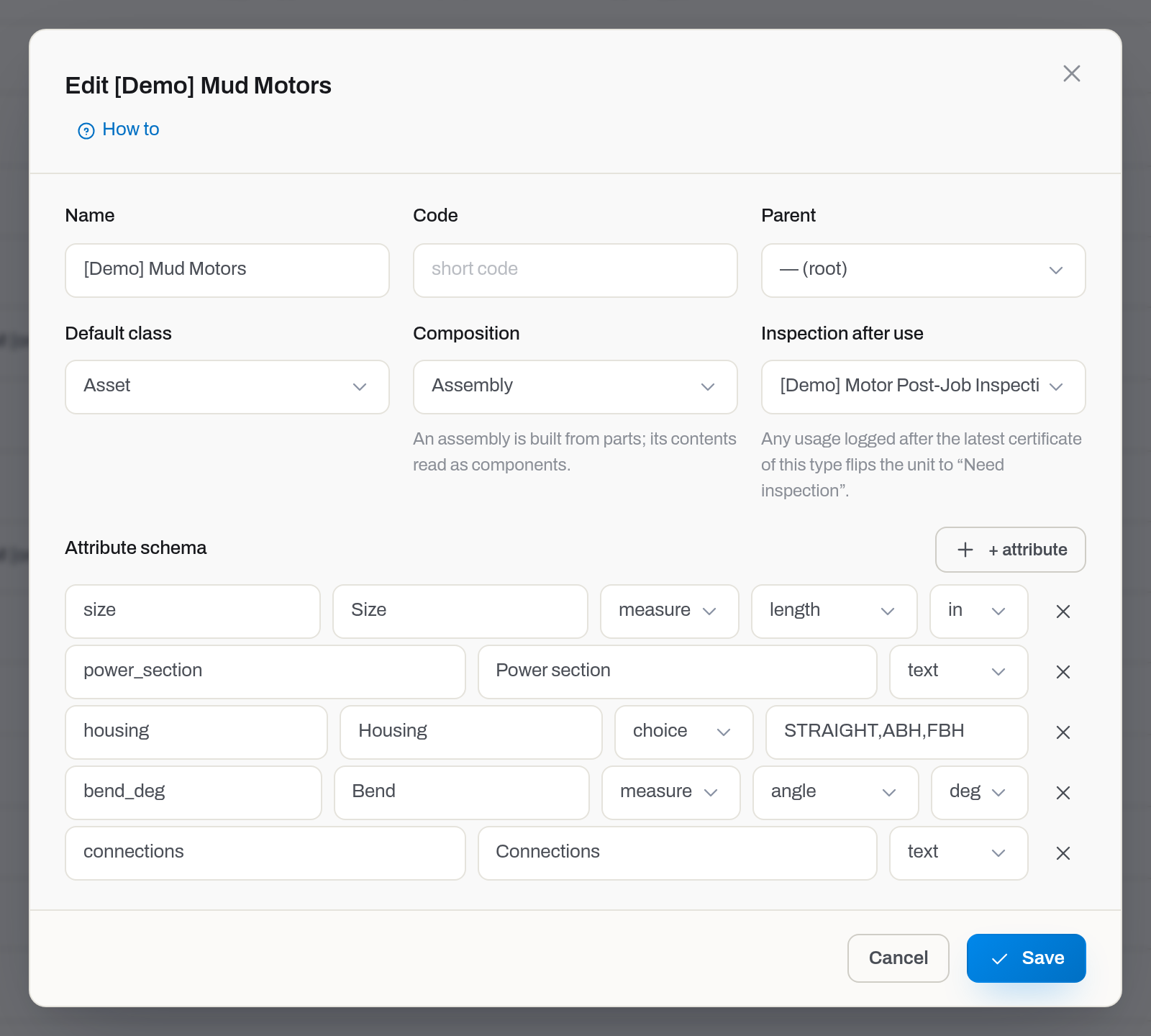
This is the one thing on this page that changes how a form looks. A schema is an ordered list of fields; each has a key (the machine name, stored on every item), a Label (what people read), and a type.
| Type | What you get on the item form |
|---|---|
text |
free text — threads, power sections, anything you will not compute with |
number |
a plain number, no unit |
measure |
a number with a unit: you also pick the quantity (length, mass, pressure, torque, angle, temperature, volume, flow) and the default unit |
date |
a date |
bool |
yes / no |
choice |
a fixed list, typed here comma-separated (STRAIGHT,ABH,FBH) |
measure is why this exists. A measure field accepts what the yard actually writes — 30' 5 3/4", 2 7/8, 3.6 FT, 350 bar, or a bare number read in the field's own unit — and the server converts it. It keeps three things at once: what the person typed, the number in the field's unit, and the same number in the base unit of that quantity. Sorting, comparison and the ?attr.length__gte=25ft filters all run on the base value, which is the only reason a list of lengths written in three different notations can be compared at all. The unit sits on the field, not on the workspace: in [Demo] Downhole Tools, size is read in inches while length in the same category is read in feet.
Warning
The key is the identity of the value. Rename a key and the values already on items stay behind under the old key — the item card still shows them, but below the schema and headed by the raw key (stab_od) instead of your label. Remove a field from the schema and nothing is deleted either: the values stay and keep showing the same way. Add and correct freely; rename only when you mean it.
Schemas inherit down the tree
A schema written on a parent category applies to every category below it. Tubulars declares od, id, connections, length and material once, and Stabilizers, NMDC, Subs and the rest carry all five without a word of their own. What a child adds is added on top; the item form, the item card, the filters, the CSV export and the printed report all read the same resolved list, in the same order — the parent's fields first, the child's after them.
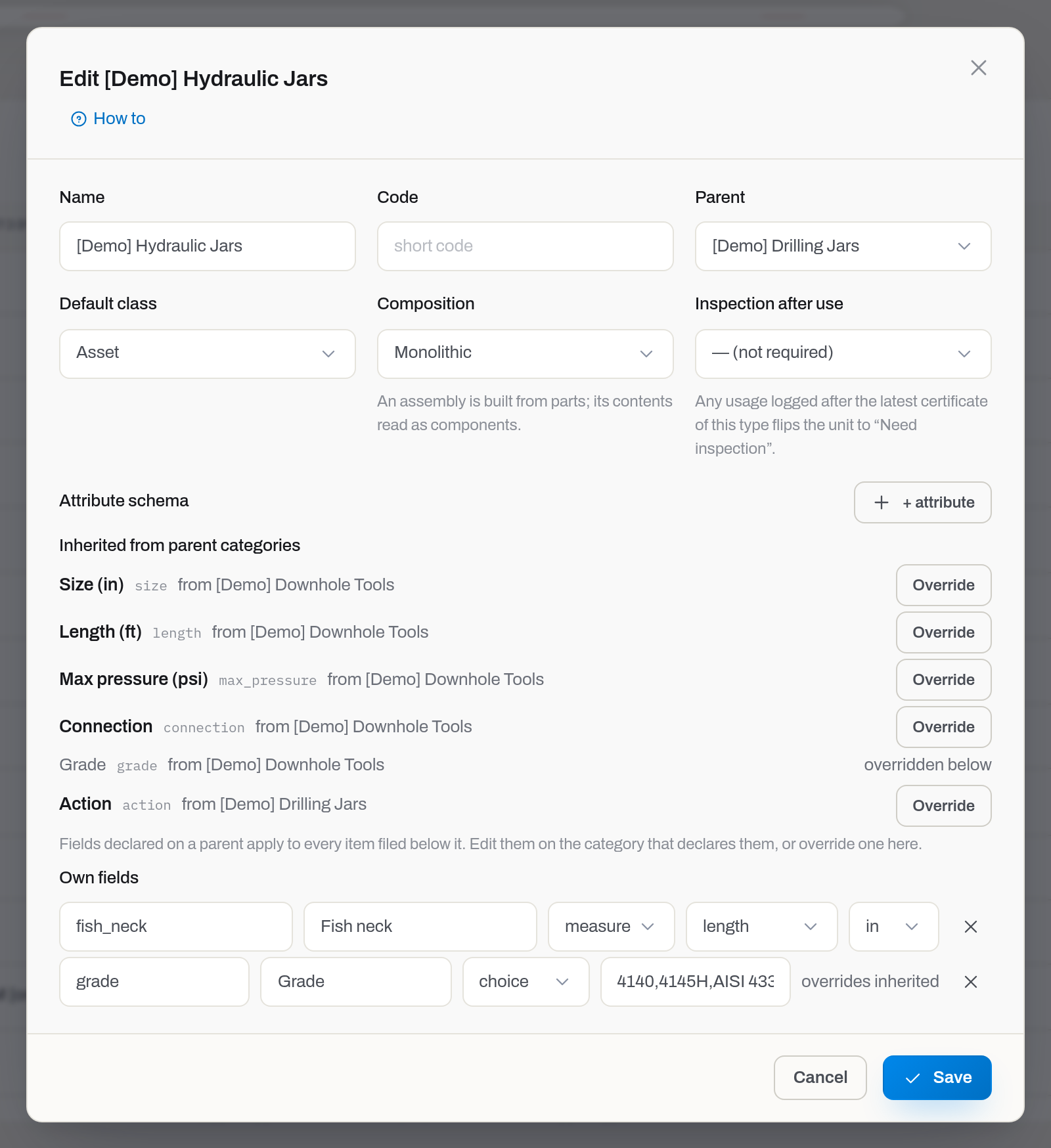
The dialog therefore shows two groups, and they do not mix:
- Inherited from parent categories — read-only rows, each naming the category that declares the field. Change one there and the change lands on every category below it at once.
- Own fields — what this category adds, edited here.
Overriding. A child may re-declare an inherited field to refine it: a different label, a different default unit of the same quantity, a different list of choices. Press Override on the inherited row and it drops into Own fields, filled in, keeping its place in the order. The inherited row then reads overridden below.
What a child may not do is change what the field measures — turn an inherited length measure into free text, or a length into a pressure. The save comes back with the reason and the name of the category that declares it: 'od': 'Tubulars' declares it as a length measure, and this category would make it a plain text field. A child may change the label, the unit or the choices — not what the field measures. The refusal is not pedantry: the number a measure compares by is stored on every item under that branch, and re-reading inches as pounds per square inch would silently break every filter, sort and export that touches it. The same refusal protects the other direction — a parent cannot re-declare a field in a way that breaks a category below it, and the message names the child.
Note
Categories that were filed under a parent before schemas inherited may still carry their own copy of the parent's fields. An identical copy was dropped when this went live, so the parent is now the single place to edit them. A copy that differs stays where it is — it is an override, and it was somebody's decision.
The icon marks the type
Every category carries an Icon — a small mark for the kind of equipment it is: a reamer, a cutter set, a mud motor and each of its parts (rotor, stator, housing, coupling, mandrel, bearing), an MWD probe, a battery, a surface console, a laptop, lab equipment, and on through the hydraulics, shop and supply marks, plus a handful of generic ones (toolbox, box, packages) for whatever does not fit a specific tool. It is picked from a list, not typed. Groups set up by Hafrix during onboarding — MWD, Motors, Roller reamers and their sub-groups — come with their icon already chosen; you can change it.
Leave it on Same as parent — the blank option at the top of the list — and the category takes the icon of the nearest ancestor that has one set, the same upward walk the attribute schema makes, only for one value instead of a list of fields. If nobody up the chain has set one, the category falls back to the mark lists have always drawn: a box for an asset, a stack of packages for a consumable.
The resolved icon shows everywhere the type needs to be told apart at a glance: next to the name in the Items list, large on the card in the Items tile view, in the header of an item's own page, and on the category's row in the tree itself.
An item never carries an icon of its own — it always shows the one its category resolves to, the same way it never carries its own attribute schema.
Price books resolve from the specific to the general
Five of the catalogues are price books — Repair rates, Rental rates, Labour rates, Consumable and sale prices and Services and fees — and all five answer the same way. A row with no client is the default for everyone; a row with no category, unit or speciality is the default for anything. When several rows could apply, the closest one wins:
- a row for this client beats a row for All clients;
- within that, a row on one unit beats a row on a category, and among categories the nearest one up the tree wins;
- among rows that are still tied, the latest effective from date that is not after the day being priced.
That is why a rate carries a date instead of being edited in place: raising the price in April must not re-price March. To change a price, add a new row from the day it starts — leave the old one where it is.
A row that carries an Agreement only ever competes for the client and the date once that agreement is signed and its term covers the date — see When rates apply; otherwise it is skipped as if it were not there, and the ladder above resolves the next row down.
Switch off rather than delete
Catalogue rows are referenced by work that has already happened, so most of them stop being deletable the moment they are used, and the server says so plainly:
| You try to delete | Refusal |
|---|---|
| A service level with rates, plans or work orders | Rates, plans or work orders reference this level — switch it off instead of deleting. |
| A repair rate that priced a closed work order | Closed work orders were priced by this rate — add a newer rate instead. |
| A shift a ticket uses | Tickets reference this shift — deactivate it instead of deleting. |
| A crew role a ticket line uses | Ticket lines reference this crew role — deactivate it instead of deleting. |
A refusal is never a dead end: the server says how many records hold the row and links to the first few of them — Location is used by 34 items — update them first. Open a link, point that record at another row, and the bin comes back on its own.
On four cards you learn that a row is busy before you click rather than after: Shifts, Crew roles, Service levels and Services carry an In use count on the row, and where the count is above zero the bin is not drawn. Categories and Certificate types answer the same question inside the edit dialog instead — see Delete a category or a certificate type. If some of the holders sit in the trash, the refusal says so and points at Settings → Trash — a deleted record still holds what it referenced.
For a service level, a shift and a crew role the way out is the same: clear the offered checkbox. A switched-off row keeps its history and disappears from the pickers people use, and a maintenance plan parks the same way with In use — the rule watches this plan.
A repair rate has no such switch — there is no active flag on a price at all, and the server says what to do instead: add a newer rate. A price is superseded by date, never by being turned off, for the same reason it carries a date in the first place.
Three cards keep the bin off the row and put Delete inside the edit dialog instead: Categories and Certificate types, where it appears only while nothing uses them, and Maintenance plans — a plan's overrides go with it, not just the plan. Life budgets and Depreciation policies carry the bin on the row, next to the pencil — see Remove a life budget and Remove a depreciation policy. Rental rates, Labour rates, Consumable and sale prices and Services and fees, on the other hand, delete freely — income is a projection recalculated from the book, not a signed document. A service in the catalogue is switched off rather than deleted once a ticket line or a price row names it, like a crew role.
A successful delete is not permanent. Wherever the bin is offered — Shifts, Crew roles, Service levels, Services, Categories, Certificate types, Maintenance plans, Rental rates, Labour rates, Consumable and sale prices and Depreciation policies — pressing it does not erase the row: it drops out of every list and picker and waits in Settings → Trash for thirty days, where an admin restores it. See Trash for how restoring and the thirty-day window work.
Delete a category or a certificate type
Categories and certificate types are counted where they are opened, not on the list: the list feeds every picker on the screen, and counting the holders of each row there would cost more than the list itself.
- Open the row — Settings → Categories or Settings → Certificate types — to get the edit dialog.
- Look at the left edge of the footer. Delete is there when nothing points at the row; Used by N records stands in its place when something does — items, child categories, budgets, plans, price rows or certificates.
- Press Delete and confirm. The row moves to Settings → Trash, drops out of every list and picker, and an admin can restore it from there.
A busy row is not a dead end: point its holders elsewhere first — move the items to another category, file the certificates under another type — and the button comes back. A new, unsaved row has nothing to delete; close the dialog instead. Managers of the section see the button — Items for categories, Compliance for certificate types.
Document dimensions
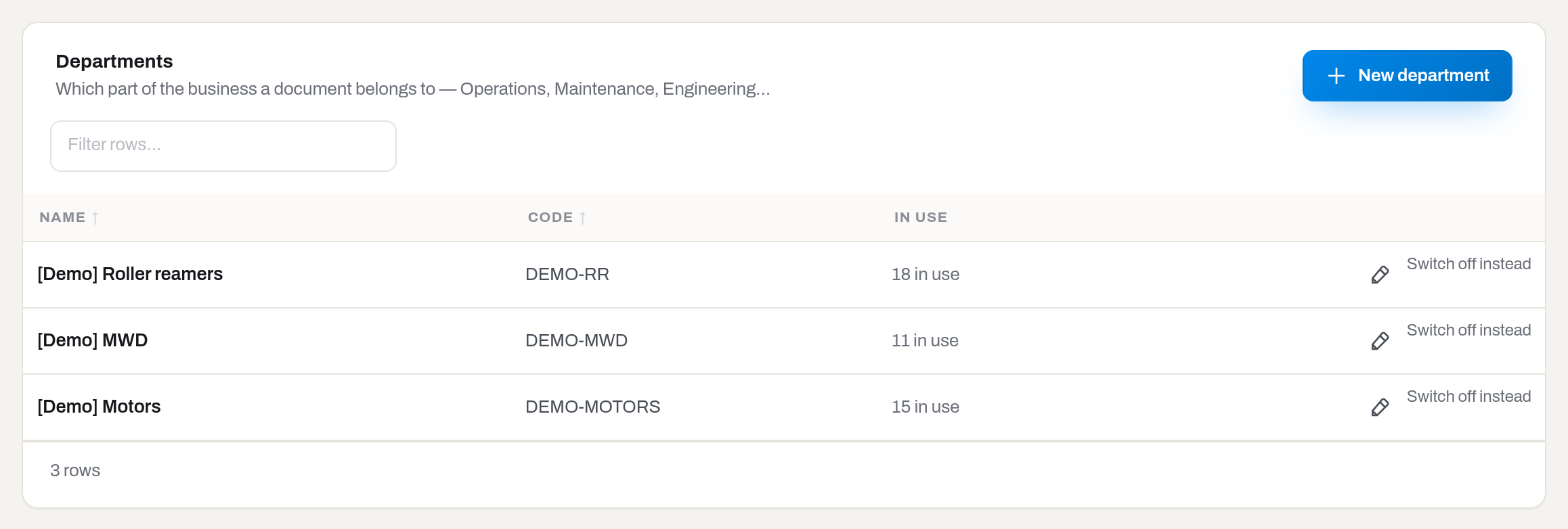
Jobs, requisitions, purchase orders, invoices, credit notes and work orders can each carry three optional analytics, the way RigER used to slice a document: Department (which part of the business it belongs to), Line of business (which line it serves) and Purpose (why it exists). All three are optional; a document with none of them works exactly as it always has.
Each is its own catalogue — Doc. departments, Lines of business and Purposes, three tabs under Catalogs — shaped like every other catalogue here: a code (short, Latin, unique — this is what travels to accounting), a name, a sort order, and switch off rather than delete once a document names it (see Switch off rather than delete).
A document mostly inherits its dimensions rather than setting them from scratch, and only while all three are still empty — a value entered by hand is never overwritten: a requisition created from a job takes them from the job, a purchase order raised from a requisition takes them from the requisition, and a credit note raised against an invoice takes them from that invoice.
A line's cost centre follows the same document-first order: it comes from the document's Department when the document has one, falling back to the job's department, and only then to the item's own cost centre. The three codes also travel unchanged into the accounting exports — the ledger export and the accounts-payable export both carry Department, Line of business and Purpose as their last columns, blank where a document carries none.
Every list that carries one of these documents — Jobs, Requests, Orders, Invoices, Work orders — shows a Department column and filters for all three, and the card of a document you can otherwise edit lets you change them there too, under Edit. The Finance report By dimension (Finance) turns the same three tags into a revenue-and-expense breakdown.
How to
Add a category
Who: Manager and above, with the items section.
- Open Settings → Categories and click New category.
- Fill in Name (required) and, if you use short codes, Code.
- Pick Parent — leave — (root) for a top-level kind, or choose a parent to nest it.
- Set Default class (Asset / Consumable) and Composition (Monolithic / Assembly).
- Leave Maintenance counters derived unless this kind of gear wears by a measure its attributes do not reveal — the box list is explained under Key concepts.
- Click Save.
Result: the row appears in tree order under its parent, indented. New items can be filed under it immediately.
If it fails: Save stays disabled until Name has something in it. A category cannot be its own parent — it is left out of the Parent list. Two categories cannot share a name under one parent: the save comes back as a bare Request failed, and the reason is a sibling of the same name — the same name under a different parent is fine.
Give a category an attribute schema
Who: Manager and above, with the items section.
- Click the category row to highlight it, then click it again, or press Enter, to open it (Choose how a row click behaves).
- Under Attribute schema, click + attribute. A row appears with three controls: the key, the Label, and the type.
- Type a key — lowercase, no spaces, and unique inside this category. It is what the value is stored under, so choose it once and keep it.
- Pick the type. For
measure, two more selects appear: the quantity and the default unit. Forchoice, type the options comma-separated. - Repeat for each field, drop one with the Delete button at the end of its row (drawn as a ✕), then click Save.
If the category has a parent, everything the parent declares is already listed above under Inherited from parent categories, read-only and named by its owner — do not retype those fields here. To refine one, press Override on its row: it drops into Own fields filled in, and you edit the copy. See Schemas inherit down the tree.
Result: the item form for this category grows an Attributes — {category} block in the order you set here — inherited fields first, own fields after — and the columns appear in the items CSV export with the unit in the heading.
If it fails: [0]: every attribute needs a key. — a row was left with an empty key. [0]: duplicate key 'od'. — the key is already used in this category. [0]: unit 'psi' is not a length unit — the unit and the quantity have to match. [0]: choice type needs choices[]. — a choice field with no options. 'od': 'Tubulars' declares it as a length measure… — an inherited field cannot change what it measures, only its label, unit or choices.
Set the inspection triggers
Who: Manager and above, with the items section.
Inspection here follows the work cycle, not the calendar. A motor that sat on the shelf for a year and a motor that ran eight jobs in that year do not arrive on the bench in the same state, so the rule is written as events, and each event names the certificate it asks for.
| Event | Fires when | Days |
|---|---|---|
| After job | usage was logged after the latest certificate of that type | — |
| After reassemble | a part was fitted into or pulled out of the assembly after that certificate | — |
| After idle | the unit is free on base and neither worked nor got a certificate of any type for this many days | required |
| Before job | the unit is free on base and the certificate is missing, older than this many days, or predates the last return | required |
- Make sure the certificate type exists — see Add a certificate type.
- Open the category and switch to the Inspection tab. For each event you want, pick the certificate type; leave the rest on — (not required).
- After idle and Before job also ask for a number of days. Without it they would never remind anybody, so Save stays disabled until the number is there.
- Click Save.
Result: from now on any of those events turns a unit of this category Need inspection — whether the hours came from a person, a field ticket or the Aramco connector — and the card says which event it was. The nightly run also opens one Inspection due alert per unit, not one per event: the reason travels inside it, and when several events are true at once the alert is titled by the most important one (after job, then after reassemble, then after idle, then before job).
The tab is offered for Asset categories only. A stock card has no copy of its own, so it has no readiness either; switching a category to Consumable clears its triggers on save.
Triggers do not travel down the tree. A category holds the rule for the units filed in that category and nowhere else — subcategories are not covered by their parent. If your motors live under Motors → Mud Lube and Motors → Oil Sealed, set the triggers on both, not on Motors. Setting them only on the parent looks like the rule is on and quietly never fires, because no unit is filed there.
A unit that has never been inspected is covered too. It does not need a back-dated certificate to get started: with no certificate of that type on file at all, the first run you log turns it Need inspection, and Before job asks for the first paper while it waits on base. Until then it is neither expired nor overdue — there is no paper to expire, so its compliance badge stays empty.
After idle counts from the last thing that happened to the unit, whatever it was. Any certificate restarts its clock, not only one of its own type: a motor that came off a full NDT service yesterday is not a motor that has been standing on the shelf, so it is not asked for a six-month visual on top. The other three events look at their own type only, because they answer a different question — "is this particular reason closed".
Composition that arrived with an import does not count as a reassembly. When a workshop book is loaded into Hafrix, the dates in it say "as of this file, that rotor was in that motor" — a snapshot, not a day somebody opened the assembly. The Components table on the unit's card marks such a date imported, and After reassemble steps over it; the first part your shop actually fits or pulls in Hafrix is what sets the event off. Pulling a part out of an imported assembly counts too — the removal is your shop's work even when the row is not.
After idle stays quiet when it has nothing to count from. A unit with no usage and no certificate at all has no last movement on record, and "idle for 90 days" would be a guess. Before job is what speaks for such a unit.
If it fails: the selects are empty because the workspace has no certificate types yet — they only offer what Certificate types holds.
Set the storage requirement
Who: Manager and above, with the items section.
A place says what it is — its shelter and what it offers (Locations). A category says what its equipment needs. Neither half is worth much alone; together they answer the question nobody has time to walk the yard for — what is lying in the wrong place right now.
- Open the category and find Storage requirement, under the inspection triggers.
- Minimum shelter — the least protected place that still counts as good enough: Open yard, Covered, Indoors or Climate controlled. Anything at or above it passes. Leave it on No requirement and the category takes whatever a parent asks for.
- Required conditions — tick what the place must offer: Dry, Secure, Hazmat, Power, Clean area. Conditions a parent category already requires come ticked and locked: a child may add to the requirement, never soften it.
- Click Save.
Result: every live unit of this category is checked against the place it sits in on the nightly run, and one that does not fit opens a Storage conditions not met warning (Alerts). Anybody moving such a unit into an unsuitable place is told so in the Move dialog before they confirm (Item card).
It inherits, unlike the inspection triggers. Shelter comes from the nearest category that sets one — the category itself first, then up the tree — and required conditions add up along the way. Write Climate controlled on Electronics once and every probe, driver and sensor rack below it is covered.
Only our own places are judged. A client site and a vendor's workshop are somebody else's yard: we do not run them, so the rule stays silent about them rather than filling the queue with warnings nobody can act on.
A place that says nothing is not accused of anything. If neither the location nor any parent of it declares a shelter, the rule has nothing to compare and opens no finding — the answer is unknown, not bad. Missing conditions are still reported, because a condition that was never ticked is not offered.
Serialized units only, for now. Consumables live as quantities in many places at once, and their requirement — chemicals, fuel, anything flagged Hazmat — is a separate story that is not built yet.
If it fails: the dialog stays open with the server's words at the bottom.
Start from an equipment preset
Who: Hafrix support, at your request.
A preset is a ready-made branch of the catalogue for one type of equipment: the categories, their attribute schema, the inspection triggers, the life budget, and the repair levels its trade works to — all at once. Three exist today: Roller reamers (bodies as assemblies with After job MPI, the sizes, string / near-bit, points, gear ratio and default RPM, four cutter slots on the body; cutter sets as their own serialized units with a budget of 200 hours), Mud motors (mud lube and oil sealed, stabilizer sleeves, rotors, stators, bearing assemblies, housings, mandrels, couplings, motor spares and the shop's hand tools — the last two carry a Size of their own, so a spare is found by the size the workshop asks for — and all four inspection triggers on the motor bodies — after job, after reassemble, after 180 days idle and a paper no older than 335 days before the next job, with two kinds of paper: a full NDT inspection valid for a year and a visual inspection with no term of its own) and MWD (downhole tools, surface equipment, lab equipment, kits and consumables — size and connections asked of the whole department, telemetry, temperature and pressure ratings asked of the tools, five probe-stack seats on the downhole category — pulser, directional, gamma, TVD and battery, the last one taking two, and an After job inspection on the tools only, because lab and surface gear runs on the calibration calendar; it also brings the three repair levels the trade works to — Repair level 1, Repair level 2 and Repair level 2F (failure) — with no intervals attached, because a level says what was done, not when it is due). A preset also opens the matching department — see Set up departments.
Ask support to apply one and it arrives in your workspace as ordinary reference data. From that moment it is yours: rename a category, change a label, add a field of your own. Applying the same preset again never overwrites your edits — it only adds what is missing, so a preset that gains a field later can be topped up safely.
Result: the categories appear in Categories with their schemas filled in, the life budget in Life budgets, and any repair levels the preset carries in Service levels.
If it fails: nothing at all changes and support tells you why — a preset refuses to write anything it cannot write completely.
Add a certificate type
Who: Manager and above, with the compliance section.
- Open Certificate types and click New type.
- Fill in Name — this is the wording people will pick from when they attach a certificate to an item.
- Default validity (days, empty = no expiry) — how long a certificate of this kind is good for. Leave it empty for papers that never expire; the table then reads no expiry.
- Applies to (a note for people) — free text; it is a hint in the list, not a rule.
- Click Save.
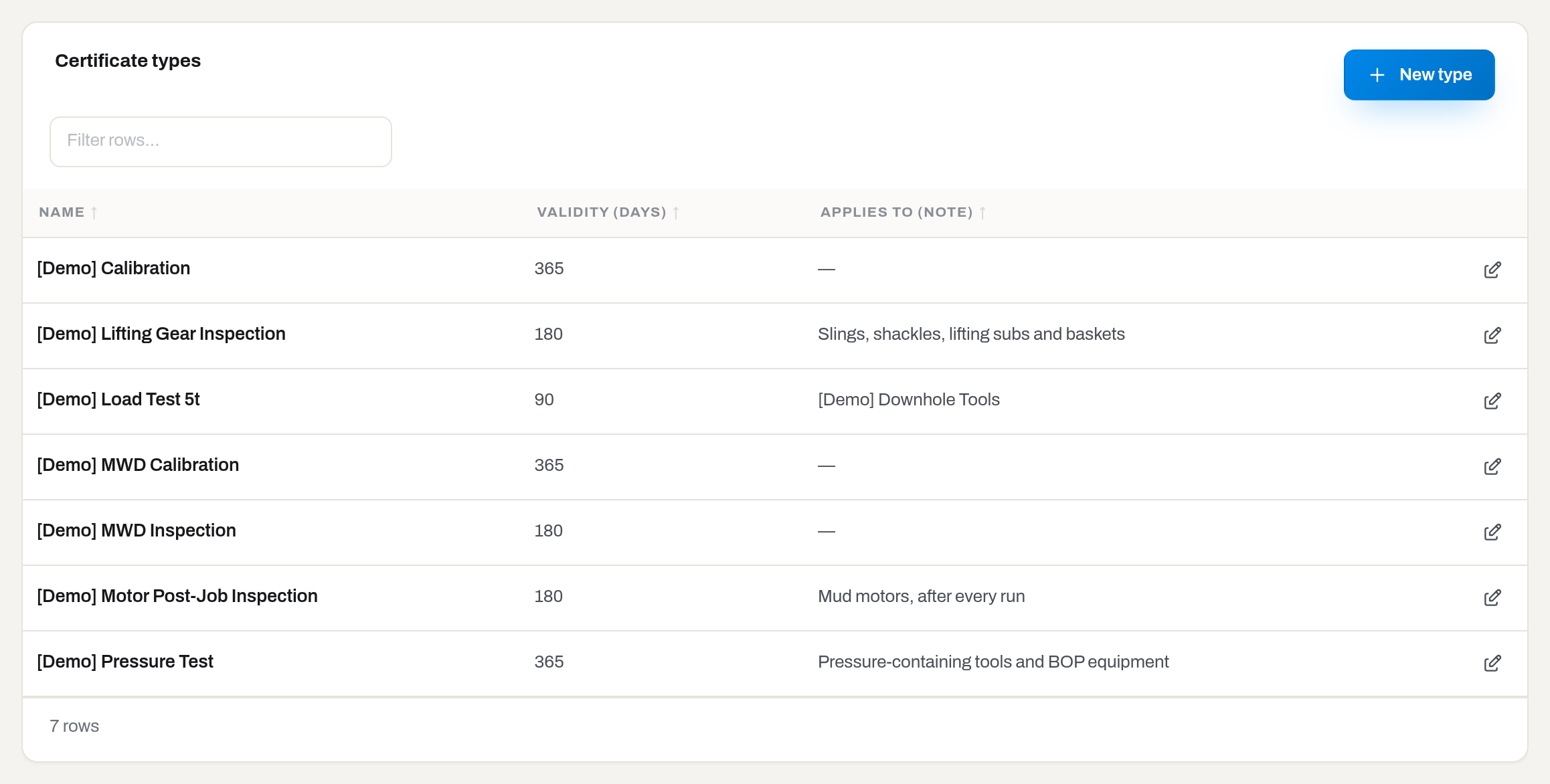
Result: the type is offered wherever a certificate is recorded, and its validity pre-fills the expiry date. Everything in Compliance — expiring, expired, the daily digest — counts certificates of the types kept here.
If it fails: Save stays disabled without a Name. Changing the validity does not move the expiry date of certificates already issued; it only pre-fills the next one.
Set a life budget
Who: Manager and above, with the alerts section.
- Open Life budgets and click New budget.
- Pick the Category. The list offers Asset categories only, and only those without a budget; the field locks once the budget exists — one budget per category.
- Fill in the dimension that matters for this kind of tool: Hours, Runs, KREV or Months. Fill only what you mean — an empty dimension is not a zero, it is not measured. KREV is thousands of cartridge revolutions, the measure a cutter set is really worn out by — see Items.
- Warn at, % of the budget — 80 by default.
- Click Save.
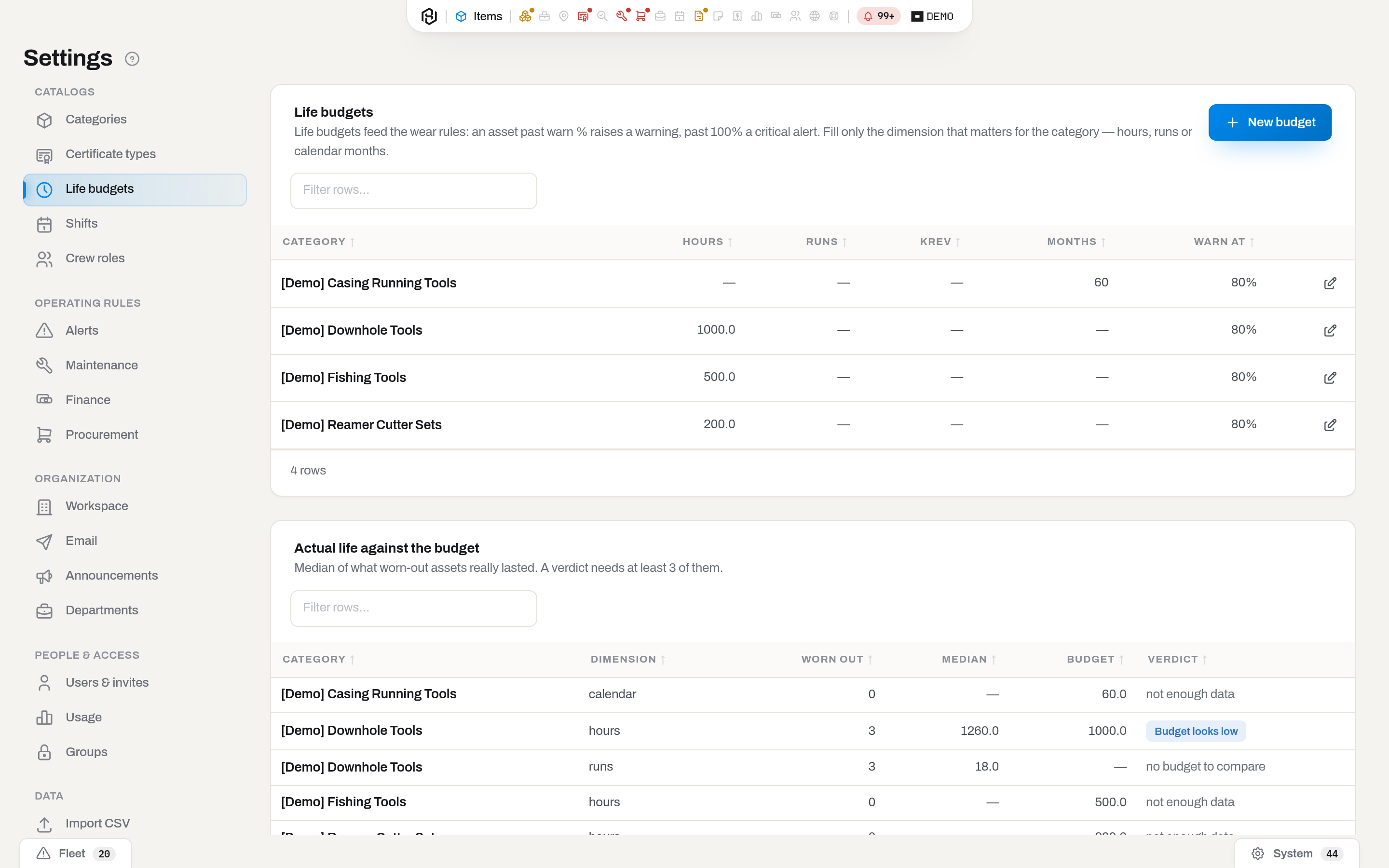
Result: the nightly rule starts watching accumulated use against the budget. Past the warn percentage it raises Life budget warning, past 100% Life budget exceeded, and Remaining life can project when a unit runs out.
If it fails: Save stays disabled with the note Set at least one dimension — an empty budget raises nothing. until one of the three is filled — the API answers the same case with Set at least one of expected_hours, expected_runs, expected_calendar_months., which you will only see through the API. New budget greyed out means every asset category already has one.
Tip
The second card, Actual life against the budget, is the answer to «is this number any good?». It takes the assets that actually wore out, shows the median of what they lasted, and compares it to your budget — Budget looks low, Budget looks high, Budget matches. It stays quiet until at least three units have been scrapped, and says not enough data until then, because a verdict from two dead motors is a coincidence.
Remove a life budget
Who: Manager and above, with the alerts section — the same people who set budgets.
On Life budgets, click the bin on the budget's row and confirm.
Result: the budget is gone and the category is free again in New budget. The wear rules stop watching that category against a budget; hours, runs and months already logged on its assets are not touched. To change a number rather than stop watching, open the budget with the pencil instead.
Counter types
Who: Manager and above, with the items section.
The built-in life budgets watch hours, runs, KREV and calendar months — the measures that already exist on every unit. A counter type adds a measure of its own: amp-hours on a battery, running hours on a downhole flow path, the peak temperature a pulser has ever seen. It sits next to the life budgets, not instead of them — a unit can wear against both at once.
- Open Counter types and click New type.
- Name — what the counter is called on the item card and in Log usage.
- Key — the short code the API and the field on Log usage are addressed by; lowercase letters, digits and
_. It locks once a reading exists against it, so a typo here is worth catching before the first reading. - Unit — Hours, Amp-hours, Cycles, Count or Temperature (°C).
- Rule — Adds up, for a counter that accumulates (amp-hours, flow hours), or Keeps the peak, for one that only ever records a high-water mark (a maximum temperature). The rule also locks once a reading exists.
- Click Save.
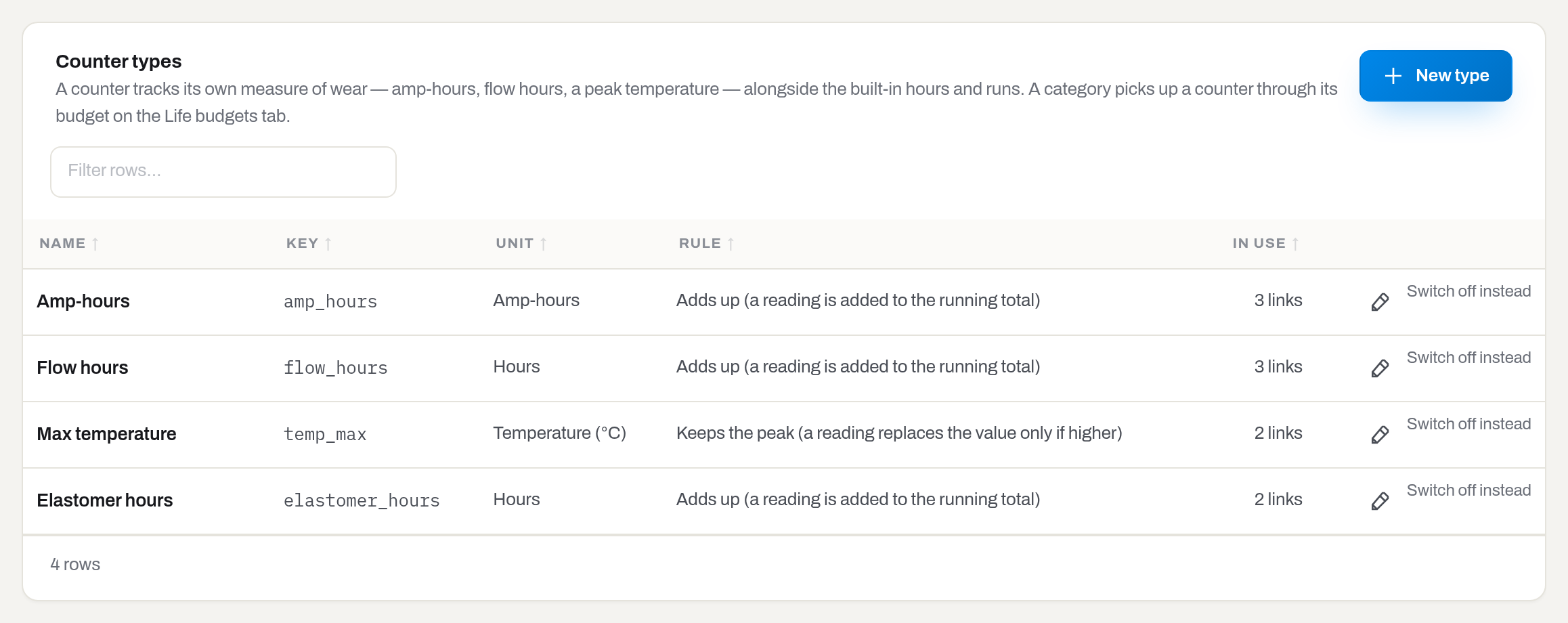
Result: the type is offered on Log usage for every asset once its category picks it up through a budget — see Category counters below — and its running value appears as a bar in the item card's Condition.
If it fails: Save stays disabled without a Name, a Key or a Unit. Deleting a type that already has readings against it fails with in use — untick Active instead; Log usage stops offering an inactive type, but the values already recorded stay on the units that have them.
Category counters
Who: Manager and above, with the items section.
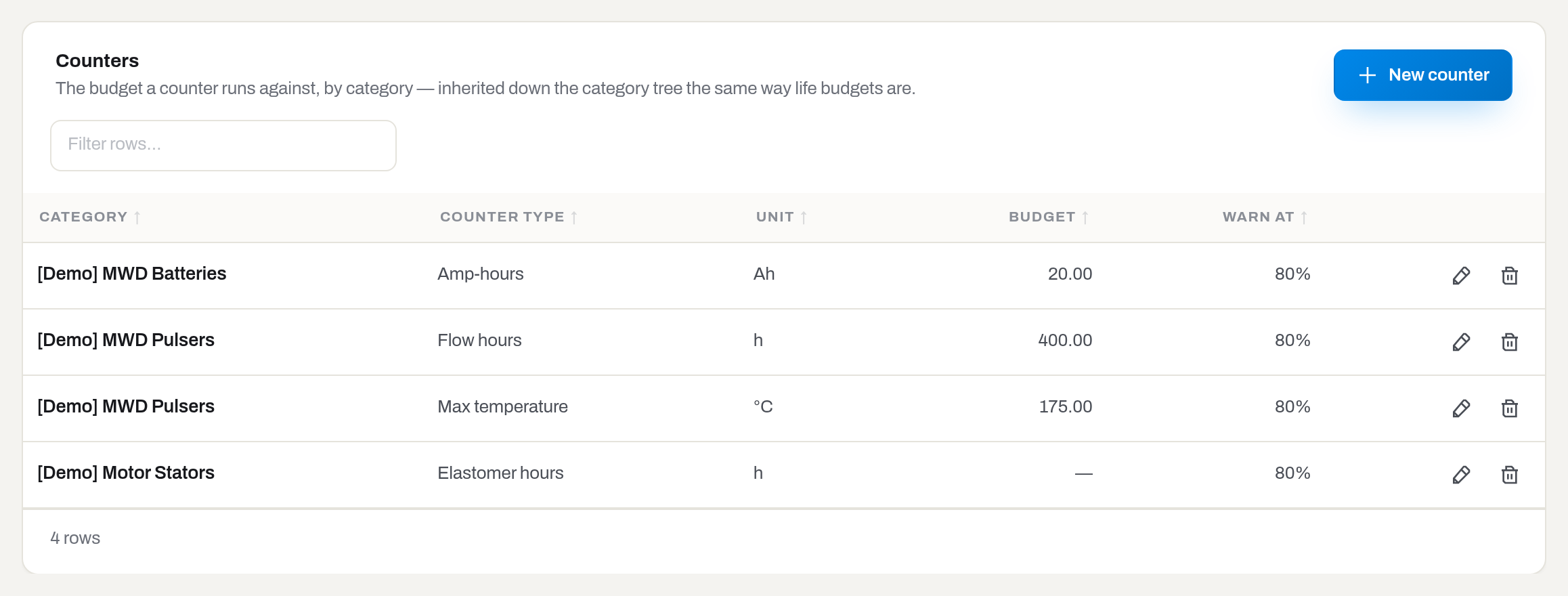
A counter type by itself measures nothing — a category has to claim it with a budget, the same way a life budget claims hours or runs. This is what the Counters card on the Life budgets tab is for, and it inherits down the category tree the same way life budgets do: set it on a parent, and every child category picks it up until one of them sets its own.
- Open Life budgets and, in the Counters card, click New counter.
- Pick the Category and the Counter type.
- Budget — the limit this category runs against; leave it empty to track the counter with no limit at all (the item card still shows the running value, just without a bar).
- Warn at, % of the budget — 80 by default.
- Click Save.
Result: every asset in that category (and its children, unless they set their own) shows the counter as a bar in Condition, the same way a life budget does — past the warn percentage the bar turns amber, past the budget it turns red.
If it fails: Save stays disabled without a Category and a Counter type. A category can hold more than one counter — one row per counter type — but not the same counter type twice.
Add a service level
Who: Manager and above, with the maintenance section.
- Open Maintenance → Service levels and click New level.
- Fill in Name — Minor repair, Major rebuild, Inspection & test, or whatever your contracts call it. There are no defaults here on purpose: the names come from your paperwork, not from ours. An equipment preset may bring the levels its trade works to — MWD arrives with Repair level 1, Repair level 2 and Repair level 2F (failure) — and they are ordinary rows you can rename, describe or switch off.
- Add Code, Description and Sort order if you want them.
- Leave Offered when logging a repair ticked.
- Tick Overhaul: this level resets the life budget when this level is a capital overhaul — a full rebuild, a stator reline — and every repair at it should start the unit's life over. Leave it off for an ordinary repair, even a fairly big one.
- Click Save.
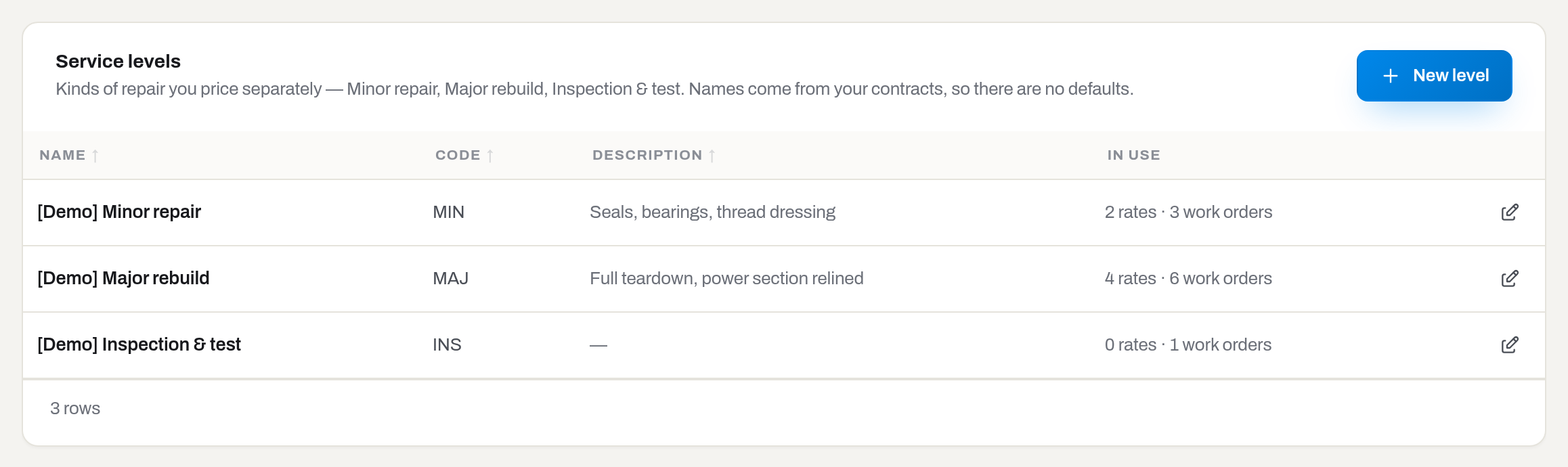
Result: the level appears in the Repair dialog, marked Overhaul in this list when the tick is on, and can now carry prices and plans. The In use column counts what already depends on it — {rates} rates · {orders} work orders. A work order opened at this level ticks Overhaul: count life from zero by default when it closes — the person closing it can still untick it, and a repair closed without it can be reset afterwards.
If it fails: with no levels at all, Repair rates shows Create a service level first — rates hang on levels. and its New rate button is disabled; Maintenance plans says Add a service level first — a plan says what to do, not only when.
Add a repair category
Who: Manager and above, with the maintenance section.
A repair category is how a repair is classified for reporting — Level 1, Level 2, Rotor Rechrome, Electronic Evaluation — a different axis from the service level, which is what the price book charges for. A category may point at a level, and then the Repair dialog sets that level for you the moment the category is picked.
- Open Maintenance → Repair categories and click New category.
- Fill in Name, and Code and Description if you want them.
- Pick a Service level if this category always means one — leave No level otherwise.
- Leave Offered when logging a repair ticked.
- Click Save.
Result: the category appears on the Repair dialog and the work order form, and, once picked, on the work order's Details and the printed repair card.
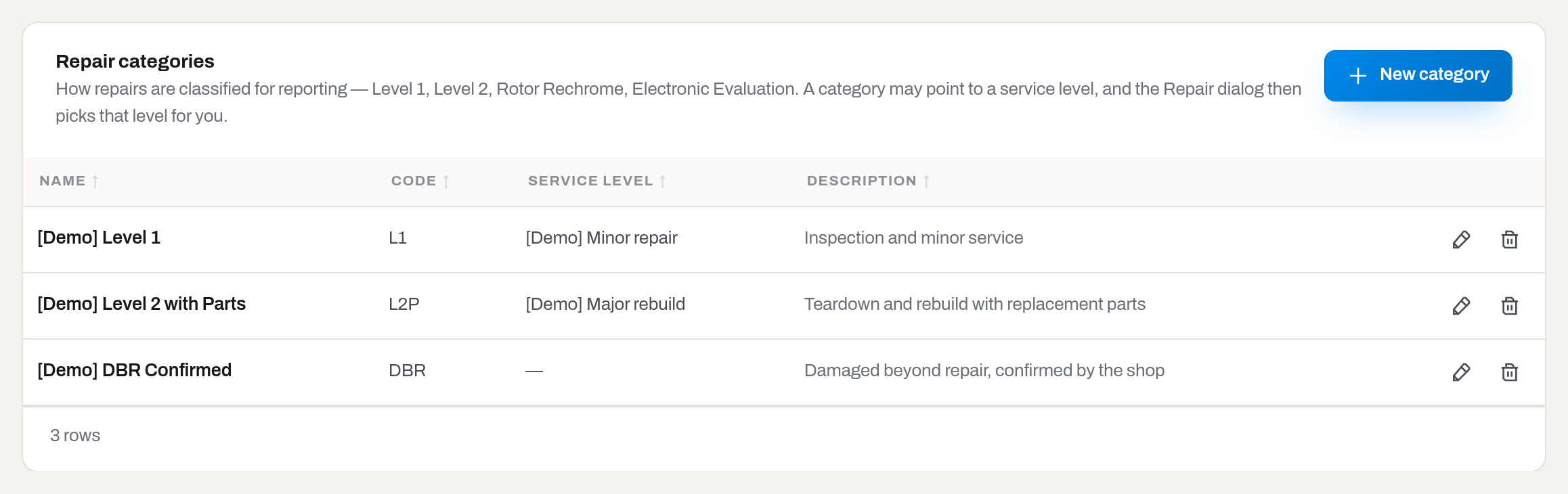
If it fails: a category already used on a work order cannot be deleted — switch it off instead.
Price a repair
Who: Manager and above, with the maintenance section.
- Open Maintenance → Repair rates and click New rate.
- Client — pick one, or leave All clients for the list price.
- Level (required) and Category — leave Any category to price the level for all equipment. A rate on a parent category also covers its subcategories.
- Flat price (required) and Currency — what the level costs.
- Effective from (required, today by default) — the day this price starts.
- Labour beyond scope, per hour and Parts beyond scope, markup % are contract terms recorded next to the price; they are not added to the flat price automatically.
- Click Save.
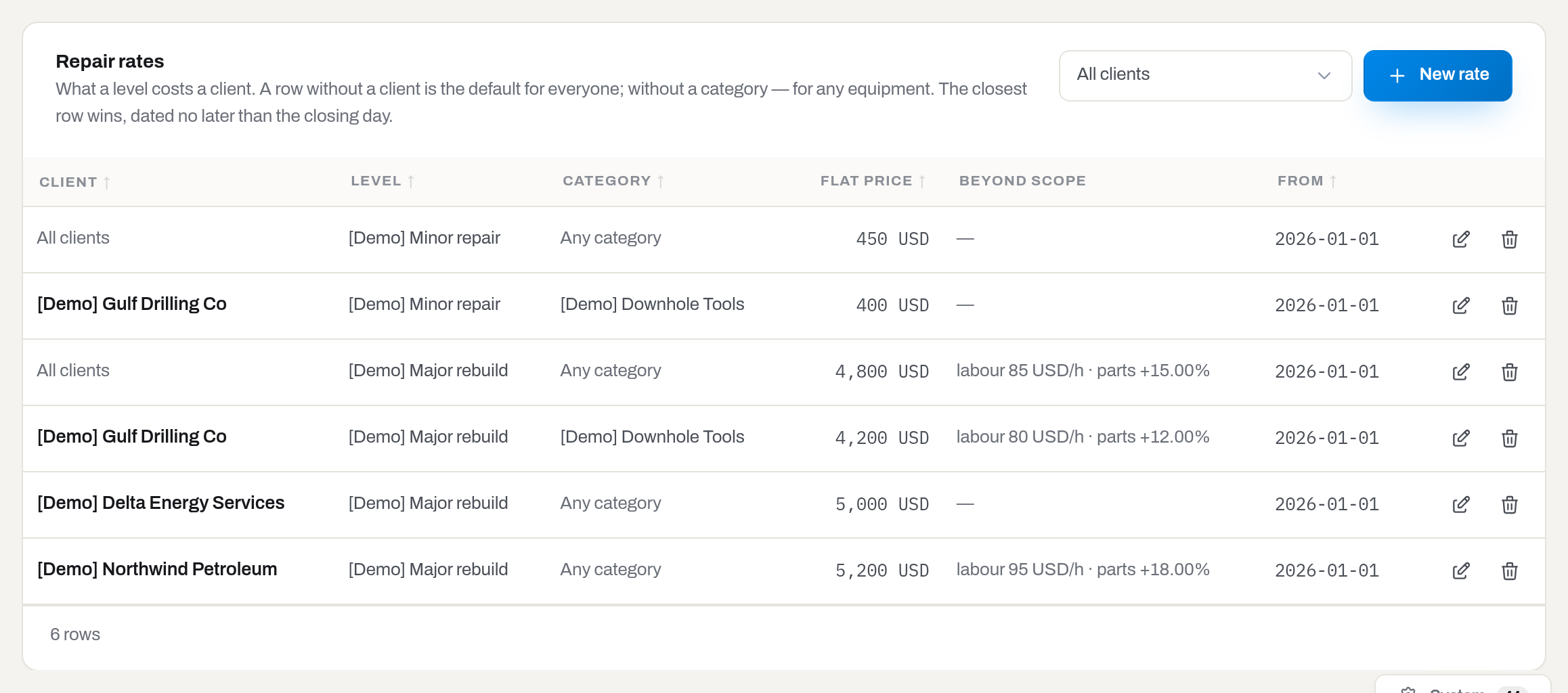
Result: closing a work order of that level for that client picks this row up. The card filters by Client, and the Clients screen links straight here with the filter already set.
If it fails: A rate for this client, level and category already starts on this date. — that exact combination is already priced from that day; open the existing row, or give the new one a later Effective from. With no matching rate at all nothing refuses anything — the card simply reads No rates yet — repairs will close without a price., and a work order closes without money on it.
Schedule preventive service
Who: Manager and above, with the maintenance section.
- Open Maintenance → Maintenance plans and click New plan.
- Pick the Category (Asset categories only) and the Service level (active levels only). Both lock once saved: a plan is the pair.
- Fill one unit, whichever the plan is counted in — Every, hours, Every, runs or Every, months — measured since the last closed work order of that level. Leave the others empty. Every, KREV shows up only once you pick a category whose Maintenance counters include KREV — roller reamer bodies and cutter sets do, out of the preset; a motor plan never offers it. See Add a category for how a category gets its counters.
- Warn at, % of the interval, and Notes if the plan needs explaining.
- Click Save.
Result: the plan lands in the table with its Interval in one line — 300 h, 3 months, 1200 KREV — and the nightly rule raises Maintenance due soon past the warn percentage and Maintenance due past the interval, with a button that opens the work order. Opening a work order of that level silences the finding; closing it moves the clock forward.
If it fails: Save stays disabled with Set at least one interval — an empty plan raises nothing. until an interval is filled, and New plan is disabled outright while the workspace has no active service level. A plan is removed with Delete inside its own dialog, not from the row. One category can carry several plans, one per level — Minor repair every 1000 hours and Major rebuild every 800 is two plans, not a contradiction. Untick In use — the rule watches this plan to park a plan without losing it.
A plan is the rule for the whole category, and a row marked N units on their own numbers says part of the category no longer follows it. Those exceptions are set on the units themselves, not here — see Item card.
Set the money basics
Who: Admin only, with the finance section. A manager works on the rest of this tab but does not see this card at all.
- Open Settings → Finance. Finance settings is the card at the top.
- Functional currency — the one every report is counted in. A purchase keeps its own currency and the rate of the day it was bought, so changing this does not restate the past.
- Financial year starts in — the month the year opens on. Roll-forward in Finance starts its period there unless you pick another.
- Default method — Straight line or Units of production: what a new depreciation policy starts with. It changes nothing already written.
- Capitalization threshold — a hint in the repair form, not a rule: above this amount a repair is usually capitalized instead of expensed.
- Standby factor — what a standby day costs as a share of the day rate.
1.0is the same as working,0.5is half. A rental rate with its own Standby rate ignores the factor. - Part month — how a part month is priced when a rental period is broken down: Thirtieth of the monthly rate, or By the calendar month the period starts in. Thirty is the default because that is how contracts in the region are usually written; the calendar option is for contracts that say so. See How a rental period is priced.
- Part month pricing — Day and week rates until a full month (the default) prices a short rental from the daily and weekly steps of your price list and prorates the monthly rate only once a whole month has run. Always prorate the monthly rate charges every part month as monthly rate ÷ days of its calendar month × days rented, even a short tail: 1,100 a month for June 23–30 is 1,100 × 8 / 30 = 293.33, and 20 days of a 28-day February at 1,500 is 1,071.43. A full calendar month is always exactly the rate. With this option the divisor is the calendar month, so Part month switches to By the calendar month and stays there. Invoices already cut a rental at month ends, so June 23 – July 20 is 293.33 for June plus 1,100 × 20 / 31 = 709.68 for July. A rate whose Period pricing is Daily rate only or Flat monthly charge keeps its own rule, and a scope with no monthly rate is priced as before. In the price lookup without dates the divisor is the length of the current month.
- Rental days — how the days of a booking are counted on a job billed by booking period: Both days inclusive (out on the 2nd, back on the 9th, eight days — how rental logs are normally kept) or Return day not charged. Change it before the first invoice built from a period; afterwards it would disagree with paper the client already holds.
- Tax rate, % — one rate per invoice document, not per line; empty means invoices carry no tax line, and zero is a real rate that is printed. Payment terms, days is what the due date is counted from the send date. Payment details is printed on the invoice exactly as written — bank, IBAN, whatever your clients need.
- Exchange rates — one row per pair, read as this many of the right currency per one of the left:
USD/SAR3.75. Add rate adds a row, the bin removes one. - Click Save.
Result: the note Saved appears by the button. Reports switch to the new currency at once; the financial year, the threshold and the standby factor apply to what is counted from now on. Rates are merged pair by pair, so a pair you did not touch stays as it was.
If it fails: Save stays off with A pair looks like USD/SAR. while a currency pair is written any other way. A purchase in a currency with no rate has no book value until the pair is set — the register shows the unit without one rather than guessing. Removing a pair does not rewrite what was already converted with it.
Tax schedules
Who: Manager and above, with the finance section.
A tax schedule is a named row in this catalog, not a percentage typed into a field: KSA gets by with one VAT rate, but a schedule can carry several jurisdictions at once — a state and a county, each printed on its own line — for a document that owes more than one tax.
- Open Finance → Tax schedules and click New tax schedule.
- Name and, if you keep one, Code.
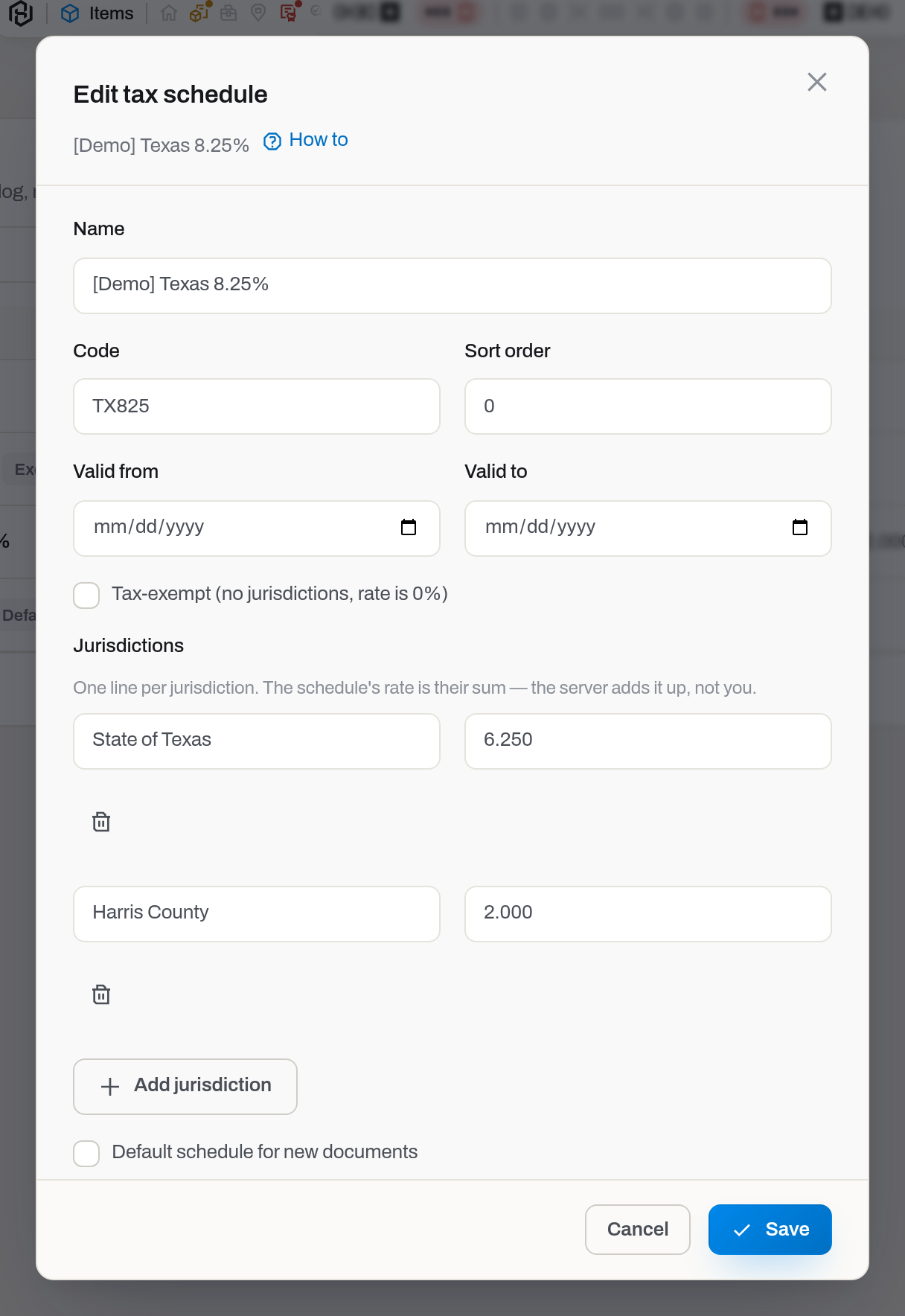
- Jurisdictions — one row per component: a name and a Rate %, for example State of Texas
6.25and Harris County2.00. The schedule's own Rate is their sum; the server adds it up, not you. Add jurisdiction adds a row, the bin removes one. - Tax-exempt (no jurisdictions, rate is 0%) — for a genuinely zero-rated document, an export say. This is a different state from a schedule that adds up to zero: ticking it clears the jurisdictions list, and the document prints as exempt rather than as a 0% tax line.
- Default schedule for new documents — exactly one schedule can hold this. A client, job, invoice or purchase order that does not pick its own schedule starts here.
- Valid from / Valid to — the window this rate is in force, for when a rate changes by law on a known date. Leave both empty for no boundary. The window is for reference: it does not switch the default schedule off by itself, so retire an expired schedule by clearing Active.
- Active — switch off rather than delete once a schedule has history against it; see Switch off rather than delete.
- Click Save.
Result: the schedule appears in the tax schedule picker everywhere one is offered — see Where it's used below — and its rate is whatever its jurisdictions add up to from that point on.
If it fails: A tax schedule already carries this name. — names are unique in the workspace. Deleting a schedule that is on any document is refused; the confirm dialog already tells you how many documents hold it before you try. Switch Active off instead — a document's tax has to keep reading the rate it was actually charged, even years later.
Where it's used: the same catalog, the same select, at every level tax is decided — a schedule picked lower down always wins over one picked higher up:
- Company — Default tax schedule on the client's card. Empty leaves the client without one; the rate is then picked per invoice instead.
- Job — its own Tax schedule, or empty to fall back to the client's default.
- Invoice — its own Tax schedule in Invoice details, or No schedule (manual rate) to price it the old way, with Tax rate, % from the money basics.
- Invoice line and purchase order line — their own schedule, or Same as invoice / Same as order to follow the header. A line on a different schedule than the rest of the document — an exempt line on an otherwise taxed invoice — prints its own row in the tax breakdown; see Tax by schedule.
- Purchase order — the same header choice as an invoice.
- Credit note — never chooses one itself; it reads the schedule the invoice it corrects was charged under.
Set a depreciation policy
Who: Manager and above, with the finance section.
- Open Finance → Depreciation policies and click New policy.
- Pick the Category — Asset categories without a policy, one policy each; the field locks after saving.
- Pick the Method. Straight line spreads the cost evenly over Useful life, months. Units of production charges the months the tool actually worked: set Measured in (Hours / Runs), the Expected total, and a Calendar floor, months — an idle motor still ages.
- Residual, % of cost — what is left at the end.
- Click Save.
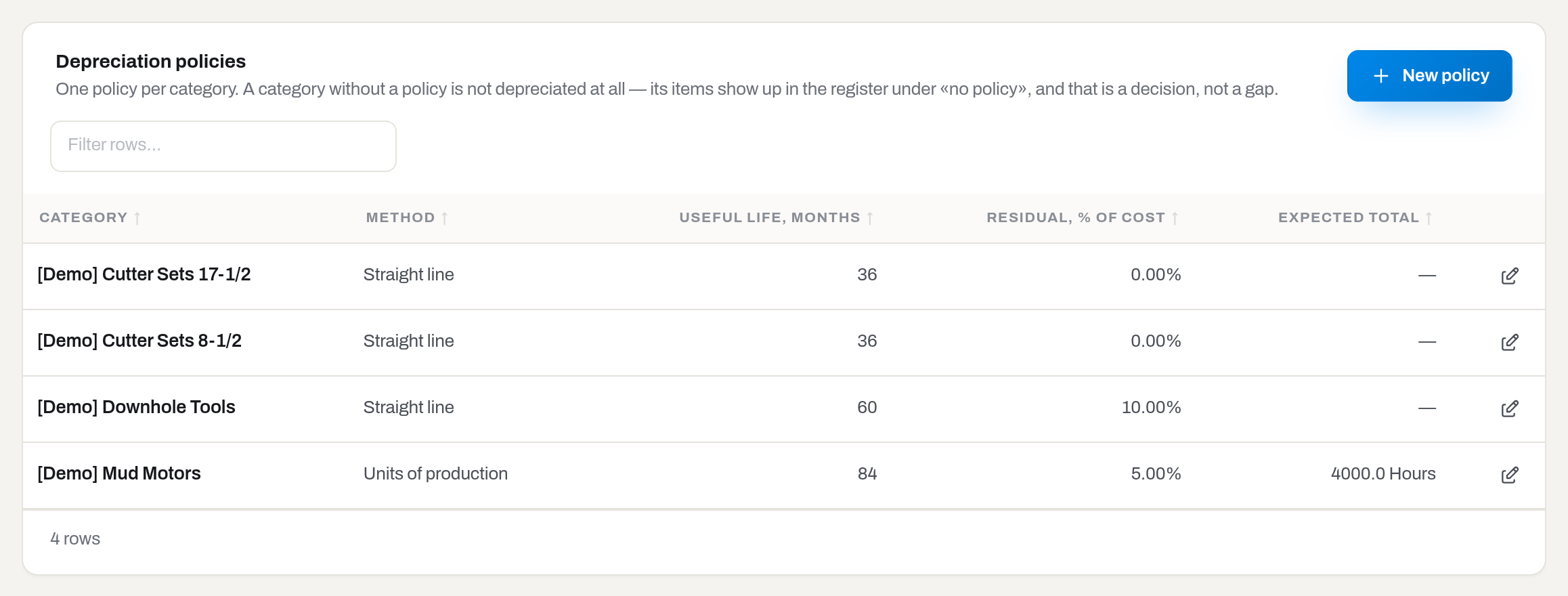
Result: items of that category start being depreciated at the next month close — the 1st of the month at 06:00 workspace time — and appear in the Finance register with a book value.
If it fails: the Category list only offers categories that are still free, so from this screen a second policy is unreachable; the API answers that case with This category already has a depreciation policy. A category with no policy is not a mistake the system will nag about: its items sit in the register under Without a policy, which is a decision you are allowed to make.
Note
The currency the whole register is counted in, the month the financial year starts, the capitalization threshold and the Exchange rates table live in the Finance settings card at the top of this tab, and only an admin can change them — see Set the money basics.
Remove a depreciation policy
Who: Manager and above, with the finance section — the same people who set policies.
On Depreciation policies, click the bin on the policy's row and confirm with Delete.
Result: the policy moves to Settings → Trash, where an admin can restore it for thirty days, and its category is free again in New policy. From the next month close the category's items are no longer depreciated and sit in the Finance register under Without a policy. Depreciation already posted stays in the books — past months are not recalculated. To change the method or the numbers rather than stop depreciating, open the policy with the pencil instead.
Price equipment rental
Who: Manager and above, with the finance section.
- Open Finance → Rental rates and click New rate.
- Client — one client, or All clients for the list price.
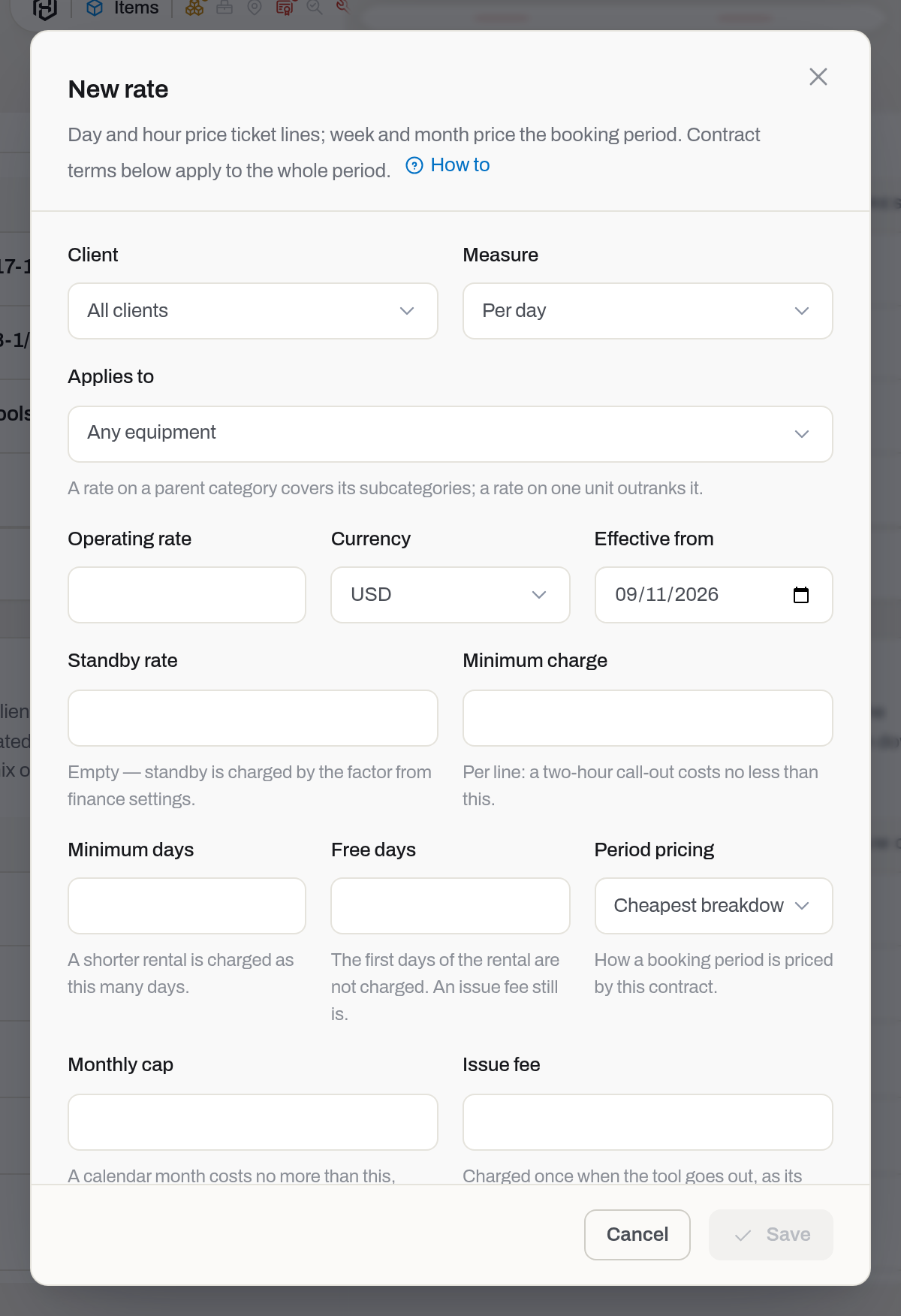
- Measure — Per day, Per week, Per month or Per hour. All four live side by side: day and hour price the lines of a field ticket, week and month price a rental period — see How a period is priced.
- Applies to — Any equipment, One category, or One unit. A rate on a parent category covers its subcategories; a rate on one unit outranks it.
- Operating rate, Currency, Effective from.
- Standby rate — leave it empty and standby is charged by the factor from finance settings. Minimum charge applies per line: a two-hour call-out costs no less than this.
- Period terms — the contract rules that apply to a whole rental, not to one line. Minimum days: a shorter rental is charged as this many days. Free days: the first days are not charged (an issue fee still is). Monthly cap: a calendar month costs no more than this, however many days it ran. Issue fee: charged once when the tool goes out, as its own service line. Period pricing decides how the period is broken down — see below. Leave them all empty for a plain book.
- Click Save.
Result: field tickets and the income report price equipment from this book. Without a matching row the income for that unit reads as zero, and the report says so: {count} item(s) worked without a list rate — their revenue reads as zero.
If it fails: Save stays disabled with Choose a category, or set Applies to back to Any equipment. under Category until a category is picked, and with Choose a unit, or set Applies to back to Any equipment. under Unit until a unit is. A rate for this client, scope and unit already starts on this date. — that combination is already priced from that day; open the existing row, or move Effective from forward. A rate for one unit does not need a category — it has its own. — Applies to is one thing or the other, never both. The unit picker offers serialized assets only; the API answers a consumable with Only serialized assets are rented out. A flat monthly charge belongs on a monthly rate. — Flat monthly charge is only offered on a Per month row, because on a daily rate it would mean a month at the price of a day.
How a rental period is priced
A field ticket is priced line by line. A rental period — the days a unit is out, from the delivery note to the return — is priced from the same book, by mixing the measures the client has:
- Minimum days first: a rental shorter than the minimum is charged as the minimum.
- Free days come off next, so a promise of free days is not swallowed by the minimum.
- The remaining days are broken down into the cheapest mix of whole months, whole weeks and days. Rounding a tail up to a whole unit counts as a candidate: five days at a weekly rate is cheaper than five daily ones, so the week wins.
- A part month is charged pro rata — but only once the rental has run a whole month. Three days never cost a thirtieth of the monthly rate: the monthly price is earned by a month, otherwise the daily and weekly steps of your price list would mean nothing. The divisor is Part month in the money basics. If Part month pricing there is Always prorate the monthly rate, a scope with a monthly rate skips steps 3 and 4 as written: whole months at the rate, and any part month — however short — at the rate ÷ days of its calendar month × days.
- Monthly cap, if set, is the ceiling for each calendar month the rental touches.
- Issue fee is added last, as its own service line. The cap does not cover it.
Period pricing overrides step 3 for contracts that are written differently:
| Setting | What it does |
|---|---|
| Cheapest breakdown | The default described above. |
| Daily rate only | Week and month rows are ignored; the period is days × the daily rate. |
| Flat monthly charge | A fixed amount per calendar month for as long as the tool is out, whatever the day count. Only on a Per month row. |
Terms are read from the rows of the same scope: whichever measure carries the term, that term applies. Where two rows disagree, the coarser measure wins — a monthly row outranks a weekly one, a weekly one outranks a daily one.
The rate is chosen by the day the rental starts, and that rate prices the whole period. A price rise dated in the middle of a rental does not change what was already agreed.
Price crew
Who: Manager and above, with the finance section.
- Open Finance → Labour rates and click New rate.
- Client, Measure (Per day / Per hour), and Speciality — leave Any speciality for a blanket crew rate.
- Rate, Minimum charge, Currency, From.
- Click Save.
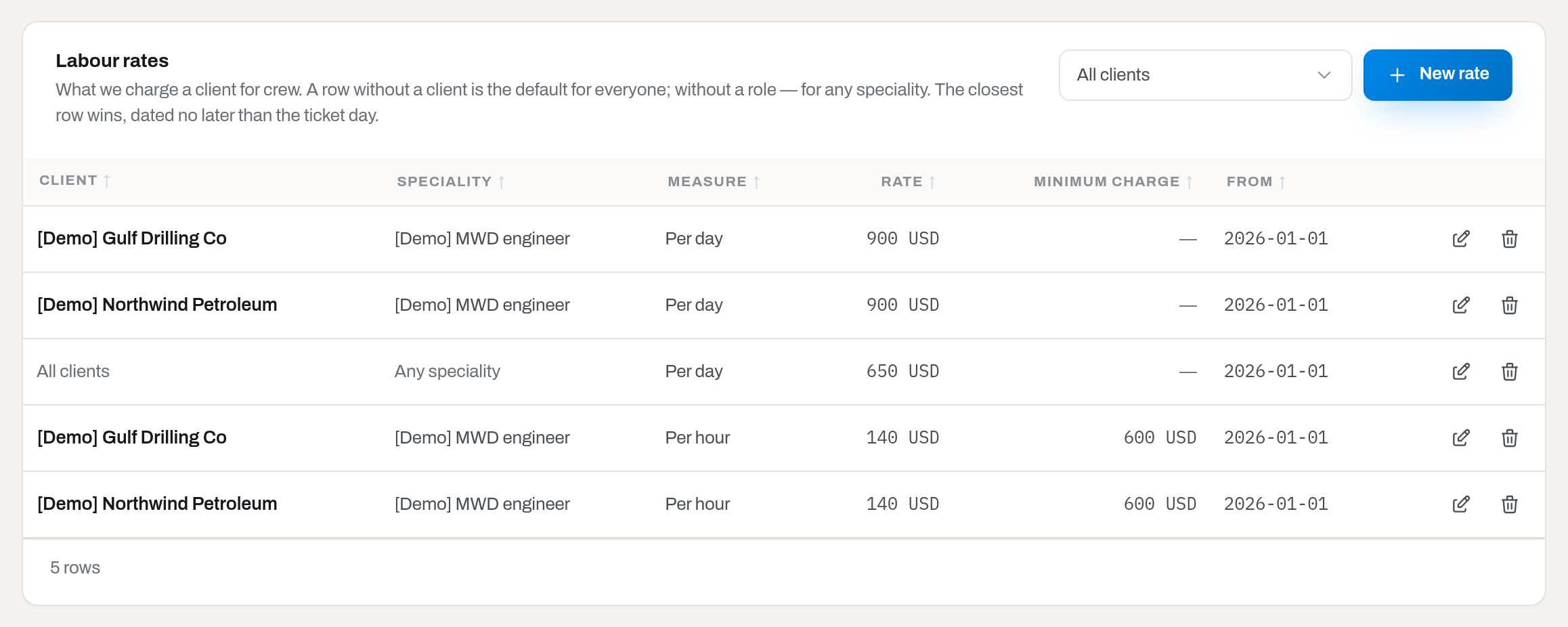
Result: crew lines on field tickets get a price when they reach an invoice. The book has two axes, not three: labour has no category tree, only the speciality.
If it fails: A labour rate for this client, role and unit already starts on this date. — give the new row a later From, or edit the one that is already there. With no matching row at all the card reads No labour rates yet — crew lines come into an invoice without a price. The speciality here is the crew role; the person's name stays on the ticket line and settles who was on the well, not what it costs.
Cost an hour of crew
Who: Manager and above, with the finance section.
Labour cost rates is what an hour of each crew role costs us — not a price to the client. It feeds the Labour cost of a repair card that has a crew; the client is still charged from Labour rates.
- Open Finance → Labour cost rates and click New cost rate.
- Crew role — leave Any role for the fallback that covers every role without a row of its own.
- Cost per hour, Currency, From, and Notes if you like.
- Click Save.
Result: every Open repair card with a crew is recalculated at once — a line that read No cost rate picks up the new rate and its hours join Labour cost. Editing or deleting a row recalculates them the same way. Closed repair cards keep the cost they closed with. A row for the role beats a row for any role; among those, the latest From on or before the day of the work applies.
If it fails: A cost rate for this role already starts on this date. — give the new row a later From, or edit the one already there. A rate in a currency other than the repair card's cost Currency is not converted: the crew line reads Rate in another currency instead. Deleting a row is for good — the book has no bin.
Price something you sell
Who: Manager and above, with the finance section.
Rental is not the only thing a client is billed for. Cartridges, cutter sets, sealing kits and lengths of hose are sold, and until this book existed those lines reached an invoice with no price at all — somebody typed the figure again on every document. The sale book answers the same question as the rental book, for goods: what does this client pay for this thing from this date.
- Open Finance → Consumable and sale prices and click New price.
- Client — one client, or All clients for the list price.
- Measure — Per piece or Per metre. There are no days and no hours here: what is sold does not come back.
- Applies to — Anything, A category, or One item. The item search covers both consumables and serialized units: one book prices a cartridge counted by the box and a cutter set carrying a serial.
- Price, Currency, From, and Notes if the row needs a remark.
- Click Save.
Result: Consumable lines on field tickets and Sale lines get a price when they reach an invoice, and the card shows Priced by → Sale price book. The same book prices a part sold with a repair.
If it fails: Save stays disabled with Choose a category, or set Applies to back to Anything. under Category until a category is picked, and with Choose an item, or set Applies to back to Anything. under Item until an item is. A sale price for this client, scope and unit already starts on this date. — open the existing row, or move From forward. A price for one item does not need a category — it has its own. — Applies to is one thing or the other, never both. Sale prices are agreed with clients, not vendors. — the row is a contract with a customer; a supplier's price lives on the supplier card.
Price a replacement
Who: Manager and above, with the finance section.
A tool goes to a rig and does not come back. Whether the client pays for it is decided by a person, on the return sheet, one loss at a time (Kits) — this book only suggests the amount. That is the whole difference from the books above: an empty rental or sale price means a line reaches an invoice with nothing on it, while an empty replacement price stops nobody. The person types the figure they agreed.
- Open Finance → Replacement prices and click New price.
- Client — one client, or All clients for the list price.
- Applies to — Anything, A category, or One item. There is no measure here: what is lost is lost by the piece.
- Price, Currency, From, and Notes if the row needs a remark.
- Click Save.
The closest row wins, exactly as in the other books: a row for one item beats a row for its category, a category beats the list price, and among equals the latest date that is not after the day the sheet was closed.
Result: when a manager charges a loss and leaves the amount empty, this price is taken, and the invoice line says it was priced by the replacement book rather than by hand. Consumed material never reaches this book — using it up is the job, and it is not charged twice.
If it fails: Save stays disabled with Choose a category, or set Applies to back to Anything. under Category until a category is picked, and with Choose an item, or set Applies to back to Anything. under Item until an item is. A replacement price for this client and scope already starts on this date. — open the existing row, or move From forward. A price for one item does not need a category — it has its own. — Applies to is one thing or the other, never both.
Add a service
Who: Manager and above, with the finance section.
Mobilization, demobilization, a rig-site inspection, rig-up, a redress fee — the things you charge for that are neither equipment nor a person's hours. They are a catalogue, not free text, for the same reason crew roles are: a price is charged against a named service, and Mob / Mobilization / Mob. charges in one column can be charged against nothing.
- Open Finance → Service catalogue and click New service.
- Name — what the client will read on the invoice.
- Code — optional, for your own cross-reference.
- Default measure — what this service is usually counted in: per call, per day, per hour or per metre. The field picks it up first on a service line and can still change it.
- Leave Offered in the field ticked while the service is current.
- Click Save.
Result: the service appears in the picker on a ticket line, on the phone, and on a manual invoice line. It also becomes something you can price in the card below.
If it fails: the Save button stays grey until the service has a name. A service a ticket or a price row already names cannot be deleted — clear Offered in the field instead, and it disappears from the pickers while its history stays.
Price a service
Who: Manager and above, with the finance section.
- Open Finance → Services and fees and click New price.
- Client — one client, or All clients for the default.
- Service — from the catalogue above. Picking one fills in its default measure.
- Measure — Per call, Per day, Per hour or Per metre. The measure of the price and the measure of the line must match: an hourly rate does not price a per-call line.
- Rate, Minimum charge, Currency, From.
- Click Save.
Result: service lines that name this service are priced from the book when they reach an invoice, and the card reads Priced by → Service price book. A service line described only in words is still priced by hand — that is what "one-off" means.
If it fails: New price is greyed out while the catalogue is empty — a price needs something to price. A price for this client, service and unit already starts on this date. — give the new row a later From, or edit the one that is there.
Map the chart of accounts
Who: Manager and above, with the finance section.
Your accounting system reads account codes, not words. The chart of accounts is the one place where our line — a rental day, a crew day, a repair, the tax, the money that arrived — is given the code it carries in your books, so the ledger export lands instead of bouncing.
- Open Finance → Chart of accounts and click New account.
- Role — what the account is for:
- Accounts receivable — the control account every invoice is debited to. Required.
- Revenue — what the work is credited to. Required at least once.
- Tax payable — where the tax on the document goes. Needed only once an invoice actually carries tax.
- Bank / cash — where a received payment is debited. Needed only when you export payments.
- Applies to (revenue only) — leave Every kind of line for a single revenue account, or pick Equipment, Labour, Consumables, Services, Sales or Repairs to send that kind somewhere of its own. A kind with no account of its own falls back to the general one — the same specific-before-general rule the price books follow.
- Account code and Account name — exactly as they read in your accounting system.
- Cost centre — optional, and it is a dimension, not an account: it travels with the entry in its own column, next to the code.
- Click Save.
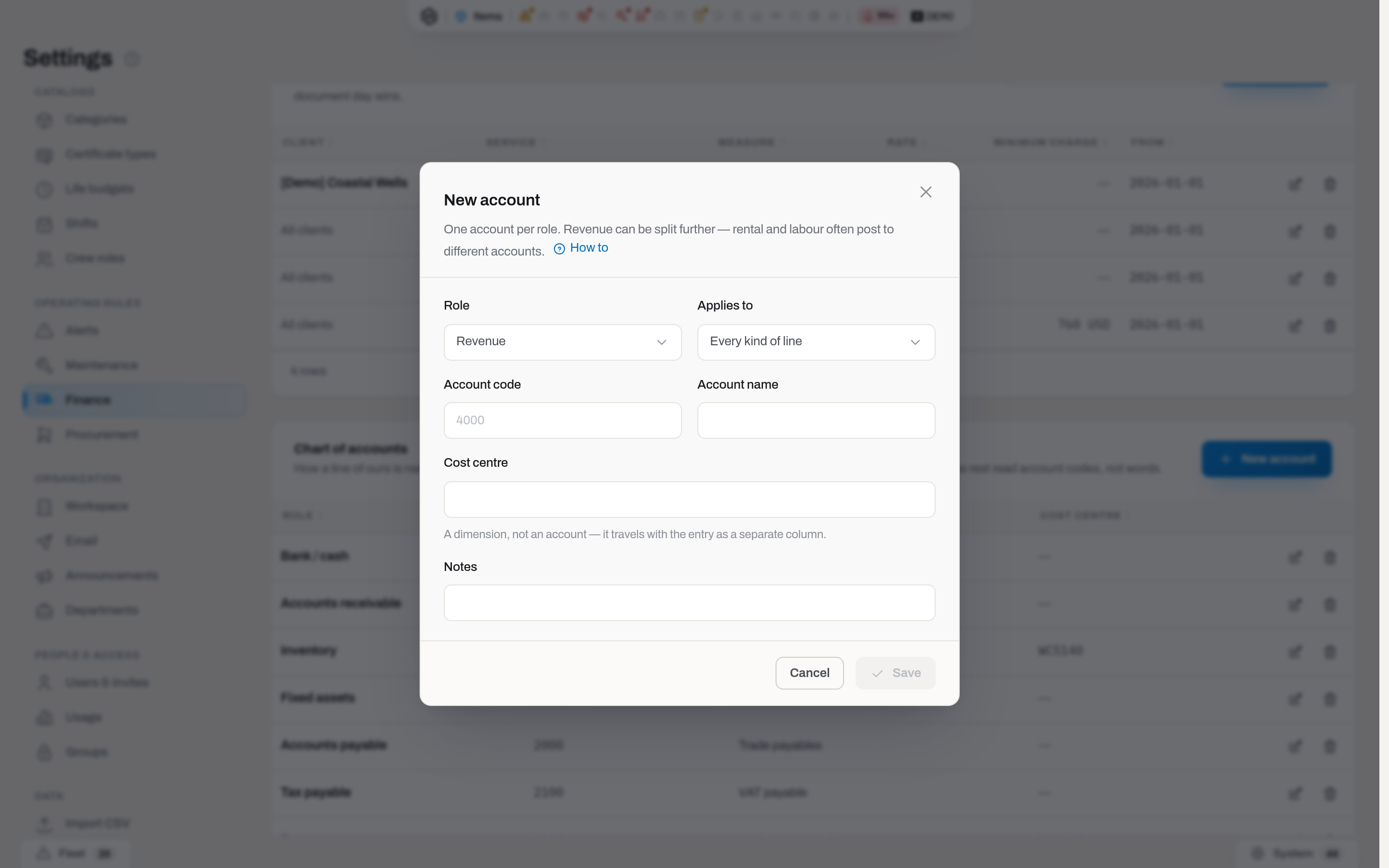
Result: Invoices can now produce a journal file. Until an account it needs exists, the export dialog names it — The chart of accounts is missing the receivable, revenue account — and offers a link back to this card. It asks for what the batch in front of it actually needs, so a tax account is only demanded once a taxed invoice is in the batch and a bank account only once a payment is; you are never sent to invent an account you do not use.
If it fails: This role already has an account in the chart. — one account per role, and per kind for revenue: two "default revenue" rows would make the posting depend on the order of a list. Only revenue accounts are split by line kind. — receivable, tax and bank are about the whole document, so Applies to is offered for revenue alone.
Add a shift
Who: Manager and above, with the tickets section.
- Open Shifts and click New shift.
- Fill in Name, and Code and Sort order if you use them.
- Starts at and Ends at draw the Window column. The window is a hint for people, not a calculation — nothing is billed from it.
- Default shift for new tickets marks the one a new ticket starts with; there can be only one, and ticking it here unticks the previous one. Offered in the field is what puts it in the picker.
- Click Save.
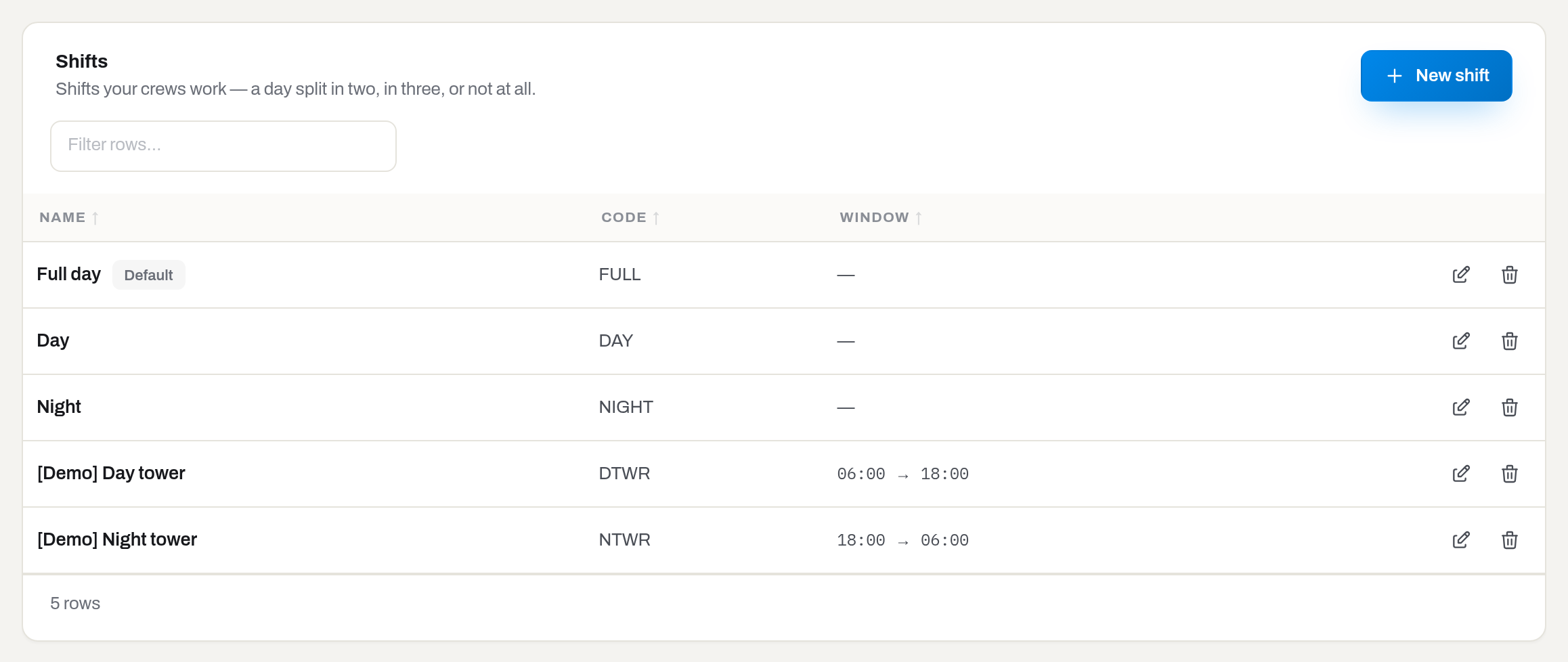
Result: the shift is offered when a field ticket is written. Every new workspace starts with Full day, Day and Night already in the catalogue so that the first ticket has something to pick — rename them to your own practice rather than working around them.
If it fails: Tickets reference this shift — deactivate it instead of deleting. Clear Offered in the field instead; existing tickets keep the shift they were written with.
Add a job type
Who: Manager and above, with the jobs section.
- Open Job types and click New job type.
- Fill in Name — what kind of work it is, as your contracts name it: Directional, Motor Rental, LIH Event, Warranty, Service.
- Code and Sort order if you use them; Offered on new jobs is what puts it in the picker.
- Click Save.
Result: the type is offered in New job and on the Contract tab of a job, and prints on the job order. Every new workspace starts with the five types above — rename them to your practice rather than working around them.
If it fails: a type a job already refers to has no bin on its row, and deleting it another way answers with the jobs that hold it. Clear Offered on new jobs instead; existing jobs keep the type they were sold under. A name already in use answers A job type with this name already exists.
Add a crew role
Who: Manager and above, with the tickets section.
- Open Crew roles and click New crew role.
- Fill in Name — the speciality as your contract names it, not a person.
- Code, and Default unit (Not set / day / hour / each / meter) — what a line of this speciality is normally measured in.
- Leave Offered in the field ticked and click Save.
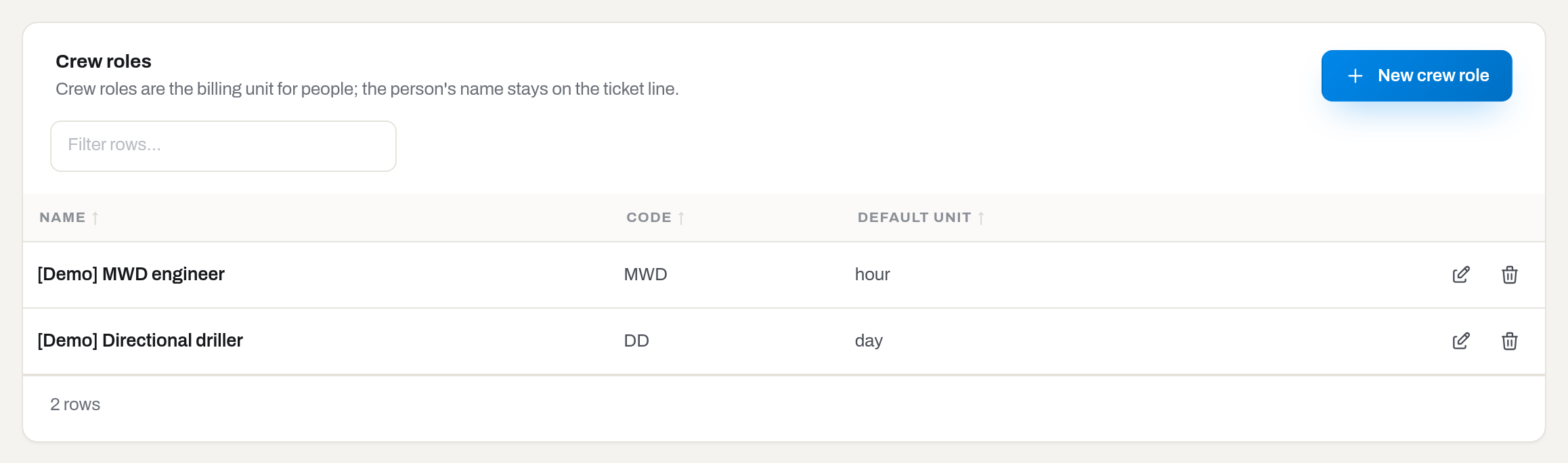
Result: the role can be put on a field ticket line and priced in Labour rates. Nothing is seeded here on purpose — job titles are yours to name.
If it fails: Ticket lines reference this crew role — deactivate it instead of deleting. An empty catalogue shows No crew roles yet — the field has nothing to pick from., which is exactly what the crew will see.
Fields
Categories
| Field | Meaning | Required | Notes |
|---|---|---|---|
| Name | What the kind of equipment is called | yes | |
| Code | Short code shown under the name | no | |
| Parent | Where it sits in the tree | no | — (root) for top level |
| Default class | Asset or Consumable | yes | the item form follows it |
| Composition | Monolithic or Assembly | yes | an assembly's contents read as components |
| Inspection triggers | Which events of the work cycle owe an inspection | no | assets only; empty = not required |
| Storage requirement | What the place holding these units must be | no | see Set the storage requirement; it does come down the tree |
| Attribute schema | The specification fields of this kind | no | see The attribute schema; a parent's fields come down on their own, inherited |
Certificate types
| Field | Meaning | Required |
|---|---|---|
| Name | What the paper is called | yes |
| Default validity (days, empty = no expiry) | Pre-fills the expiry date | no |
| Applies to (a note for people) | Free-text hint | no |
Life budgets
| Field | Meaning | Required |
|---|---|---|
| Category | Which kind of equipment | yes; locked after saving |
| Hours / Runs / KREV / Months | How much this kind is expected to last | at least one |
| Warn at, % of the budget | When the warning fires | no; 80 by default |
Counter types
| Field | Meaning | Required | Notes |
|---|---|---|---|
| Name | What the counter is called | yes | |
| Key | Address used in Log usage and the API | yes | locked once a reading exists |
| Unit | Hours, Amp-hours, Cycles, Count or Temperature (°C) | yes | |
| Rule | Adds up or Keeps the peak | no; Adds up by default | locked once a reading exists |
| Sort order | Order in the picker | no | |
| Active | Whether Log usage offers it | no; on by default |
Category counters
| Field | Meaning | Required | Notes |
|---|---|---|---|
| Category | Which kind of equipment | yes; locked after saving | |
| Counter type | Which counter | yes; locked after saving | one row per counter type per category |
| Budget | The limit the category runs against | no; empty = tracked with no limit | |
| Warn at, % of the budget | When the bar turns amber | no; 80 by default |
Service levels
| Field | Meaning | Required |
|---|---|---|
| Name | What the kind of repair is called | yes |
| Code / Description / Sort order | Bookkeeping and order in the picker | no |
| Offered when logging a repair | Whether the Repair dialog shows it | no; on by default |
Repair categories
| Field | Meaning | Required |
|---|---|---|
| Name | How the repair is classified for reporting | yes |
| Code / Description / Sort order | Bookkeeping and order in the picker | no |
| Service level | Sets that level on the work order when this category is picked | no; empty = No level |
| Offered when logging a repair | Whether the Repair dialog shows it | no; on by default |
Repair rates
| Field | Meaning | Required |
|---|---|---|
| Client | Whose price this is | no; empty = All clients |
| Level | Which kind of repair | yes |
| Category | Which equipment | no; empty = Any category |
| Flat price / Currency | What the level costs | yes |
| Effective from | The day this price starts | yes; today by default |
| Labour beyond scope, per hour | Contract term recorded alongside | no |
| Parts beyond scope, markup % | Contract term recorded alongside | no |
| Notes | Free text | no |
Maintenance plans
| Field | Meaning | Required |
|---|---|---|
| Category / Service level | The pair the plan is written for | yes; locked after saving |
| Every, hours / Every, runs / Every, months / Every, KREV | The interval since the last repair at that level, in one unit; Every, KREV is offered only to categories whose Maintenance counters include KREV | one |
| Warn at, % of the interval | When Maintenance due soon fires | no; 80 by default |
| In use — the rule watches this plan | Whether the nightly rule reads it | no; on by default |
Tax schedules
| Field | Meaning | Required |
|---|---|---|
| Name | What the schedule is called | yes; unique |
| Code | Short code, for your own reference | no |
| Jurisdictions | One row per component: a name and a Rate % — the schedule's own rate is their sum | at least one, unless exempt |
| Tax-exempt (no jurisdictions, rate is 0%) | The document is zero-rated, not merely priced at 0% | no |
| Default schedule for new documents | Exactly one schedule can hold this | no |
| Valid from / Valid to | The window the rate is in force | no; empty = no boundary |
| Active | Offered in the pickers while on | no; on by default |
| Notes | Free text | no |
Finance settings (admin)
| Field | Meaning | Required |
|---|---|---|
| Functional currency | What every report is counted in | yes; USD by default |
| Financial year starts in | The month the year opens on | yes; January by default |
| Default method | What a new depreciation policy starts with | yes; Straight line by default |
| Capitalization threshold | A hint in the repair form, not a rule | no |
| Standby factor | A standby day as a share of the day rate | no; 1.00 by default |
| Rental days | How a booking period is counted: both days inclusive, or the return day not charged | no; inclusive by default |
| Tax rate, % | One rate per invoice document | no; empty = no tax line |
| Payment terms, days | How long an invoice has to be paid | no; 30 by default |
| Payment details | Printed on the invoice as written | no |
| Exchange rates | USD/SAR 3.75 — of the right per one of the left |
no; a purchase with no pair has no book value |
Depreciation policies
| Field | Meaning | Required |
|---|---|---|
| Category | Which kind of equipment | yes; locked after saving |
| Method | Straight line or Units of production | yes |
| Useful life, months | The life, straight line | yes for straight line |
| Calendar floor, months | The life that runs even when the tool is idle | units of production |
| Measured in / Expected total | Hours or Runs, and how many are expected in total | units of production |
| Residual, % of cost | What is left at the end | no |
Rental rates and Labour rates
| Field | Meaning | Required |
|---|---|---|
| Client | Whose price this is | no; empty = All clients |
| Measure | Per day, Per week, Per month or Per hour (labour: day or hour) | yes |
| Applies to (rental) | Any equipment, One category or One unit | yes |
| Speciality (labour) | Which crew role | no; empty = Any speciality |
| Operating rate / Rate, Currency | The price | yes |
| Effective from / From | The day this price starts | yes |
| Standby rate (rental) | Empty = charged by the factor from finance settings | no |
| Minimum charge | Per line: the floor for a short call-out | no |
| Minimum days (rental) | A shorter rental is charged as this many days | no |
| Free days (rental) | The first days of the rental are not charged | no |
| Monthly cap (rental) | The ceiling for one calendar month | no |
| Issue fee (rental) | Charged once when the tool goes out, as a service line | no |
| Period pricing (rental) | Cheapest breakdown, Daily rate only or Flat monthly charge | no |
Chart of accounts
| Field | Meaning | Required |
|---|---|---|
| Role | Accounts receivable, Revenue, Tax payable or Bank / cash | yes |
| Applies to | Which kind of line this revenue account takes; empty = every kind | revenue only |
| Account code | The code in your accounting system | yes |
| Account name | What it is called there — printed next to the code in the file | no |
| Cost centre | A dimension carried in its own column of the export | no |
Shifts and Crew roles
| Field | Meaning | Required |
|---|---|---|
| Name | What the shift or speciality is called | yes |
| Code / Sort order | Bookkeeping and order in the picker | no |
| Starts at / Ends at (shift) | The Window — a hint for people, not a calculation | no |
| Default shift for new tickets (shift) | Exactly one shift can hold this | no |
| Default unit (crew role) | day / hour / each / meter, or Not set | no |
| Offered in the field | Whether the picker shows it | no; on by default |
Job types
| Field | Meaning | Required |
|---|---|---|
| Name | What kind of work it is; unique among the live rows | yes |
| Code / Sort order | Bookkeeping and order in the picker | no |
| Offered on new jobs | Whether New job and the Contract tab offer it | no; on by default |
What the system tells you
Saving a catalogue row sends nobody an email and writes nothing to the notification feed — it is a change to the vocabulary, not an event. What the catalogues do is arm the rules that speak later, once a night:
| What you set here | What speaks, and when |
|---|---|
| An inspection trigger on a category | Inspection due in the alert feed, and the unit reads Need inspection in Items straight away |
| A certificate type with a validity | Certificate expiring 30 days out, Certificate expired after — both also in the daily fleet digest (07:30 workspace time) |
| A Life budget | Life budget warning past the warn percentage, Life budget exceeded past 100% |
| A Maintenance plan | Maintenance due soon past the warn percentage, Maintenance due past the interval, with a button that opens the work order |
| A Depreciation policy | the month close posts depreciation on the 1st at 06:00 workspace time, and a Fully depreciated row lands in the notification feed of managers who can see Finance |
| Nothing at all | silence — an empty catalogue does not warn you that it is empty; the screens downstream simply have nothing to offer |
Alerts are evaluated once a night (07:00 workspace time), so a budget you set today starts talking tomorrow morning — or right away if you press Check now in Alerts. Depreciation is the exception: it is posted monthly, not nightly.
Related
- Administering a workspace — the admin tabs on this same screen: people, groups, announcements, usage, CSV import, workspace.
- Items — where categories, attribute schemas and inspection triggers are actually felt.
- Compliance — the certificates the types here describe.
- Maintenance — work orders that use the levels, rates and plans.
- Finance — the register the depreciation policies feed, and the income the rental book prices.
- Alerts — the nightly rules that life budgets, maintenance plans and certificate types feed.
- Field tickets — where shifts and crew roles are picked.
- Invoices — where labour rates turn crew lines into money, and where the chart of accounts turns them into journal entries.
- Roles & access — why a tab is missing.
FAQ
Why can I not see the Settings entry at all? — It is offered to managers and admins. Operators and viewers work with records, not with the vocabulary records are written in.
I am a manager, but the Finance tab is missing. — Somebody has restricted the finance section to particular groups, and you are not in one of them. Sections start open to everyone; they narrow only when a grant is written, and after that even an admin has to be in the group. Ask whoever keeps the groups.
Can I delete a category? — Yes, while nothing uses it: open it, and Delete sits at the left of the dialog footer — see Delete a category or a certificate type. Categories are the key that items, budgets, policies, plans and price-book rows all hang on, so once any of them names the category the footer says Used by N records instead. If a kind of equipment is out of use but still has history, stop filing new items under it.
I added a field to a parent category and nothing changed on the items below. — It should, and now it does: the schema resolves from the root down, and every screen reads the same resolved list. If a child still shows only its own fields, open it and look at Inherited from parent categories — if the field is listed there but also in Own fields, the child carries an older copy that overrides the parent. Delete the copy and the parent's version takes over.
I renamed an attribute key and the values disappeared from the field. — They were not deleted; they are stored under the old key and the item card shows them below the schema, without a label. Put the old key back to reunite them, then decide.
Why does a price have a date instead of just being edited? — Because reports look backwards. Editing a rate would re-price months that are already closed. Add a row with the new Effective from and leave the old one alone.
Two rates could apply to the same ticket. Which one wins? — The most specific: this client over all clients, one unit over a category, the nearest category up the tree, and among equals the latest date not after the day being priced.
Why is there nothing in Crew roles and Service levels out of the box? — Because those names come out of your contracts. Guessing what your company calls a repair or a speciality would put wrong words on your invoices. Shifts are the exception: Full day, Day and Night are seeded so the first field ticket has something to pick.
Can I delete a tax schedule? — Not once it is on a document. The bin is there either way, but the confirm dialog names how many documents hold the schedule before you press it, and the server refuses the delete for the same reason: an invoice's tax has to keep reading the rate it was actually charged on the day it was signed. Switch Active off instead — it drops out of the pickers without touching what is already written.
Updated 2026-09-25
New to Hafrix?
See this workflow in your operation
Explore the platform behind these guides: equipment inventory, rentals, maintenance and operational finance. Tell us which workflow you want to see.