Stock
How much of every consumable lies in every place — a location or a kit box — what it is worth, and the four movements that change it: receive, consume, transfer, adjust.
Where: capsule → Fleet → Stock (/stock). If the entry is missing, your group has not been granted this section — see Roles & access.
Who can do what
| Role | In Stock |
|---|---|
| Viewer | Open the list, switch views, search, filter, choose columns |
| Operator | + Receive, Consume, Transfer, Adjust, and the same two actions on many lines at once; set a minimum level (API only — see Set a minimum level) |
| Manager | + nothing extra here |
| Admin | + nothing extra here — a movement is never deleted, by anyone |
At a glance
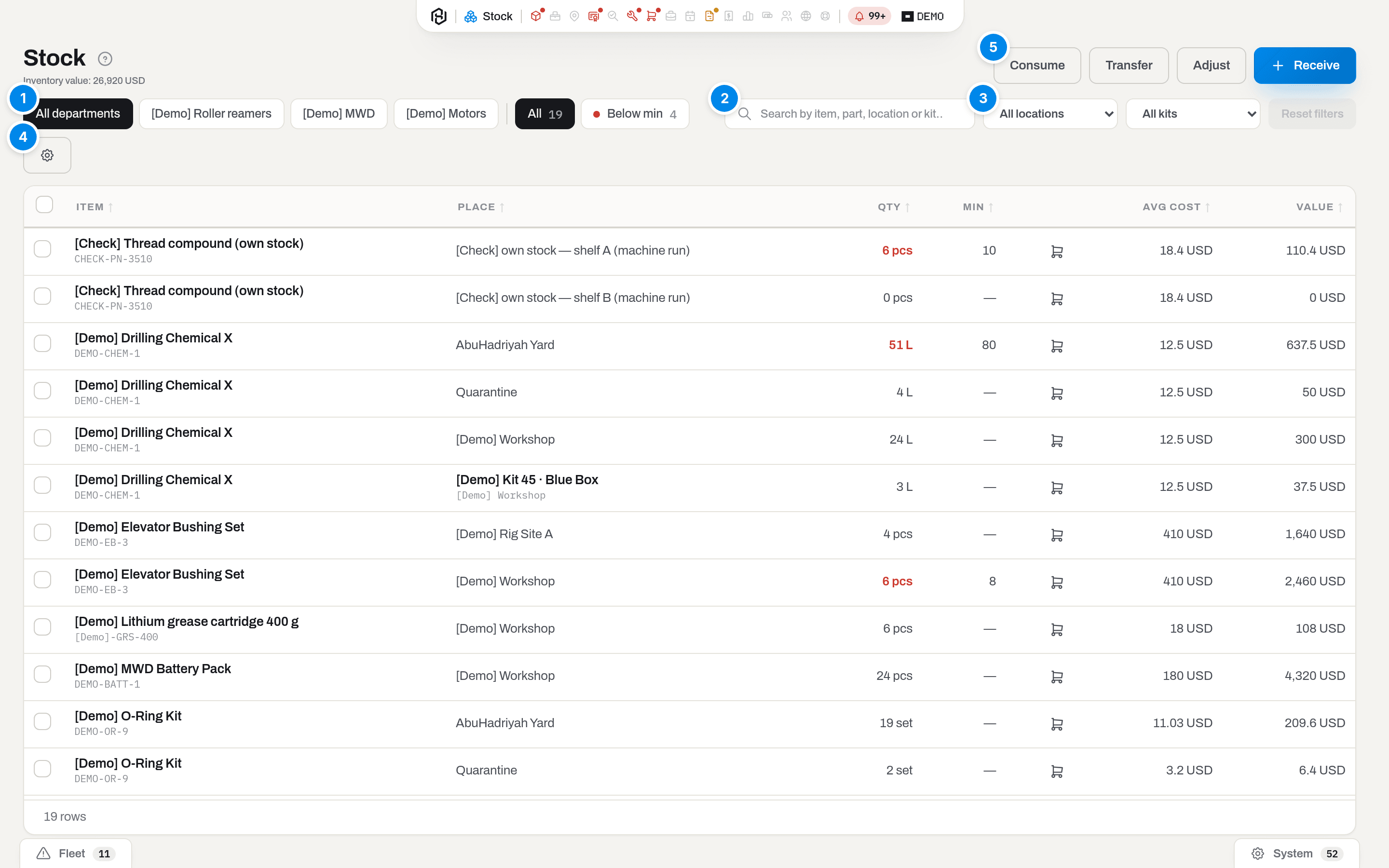
- Level — a dropdown in the table's own header: pick Below min to see just the lines that need reordering, with a live count on the option; the button reads All otherwise. That single pick is the shortest answer to what do we need to order.
- Search — Search by item, part, location or kit…: matches the consumable's name, its part number, and the name of the place it lies in — a location or a kit box.
- Location and Kit or container — two more dropdowns in the table's header: the button shows the pick, All locations and All kits clear them. Reset next to them clears the search too.
- Columns — the gear: Part no. is hidden by default and the rest can be hidden, except Item — its checkbox is disabled, because a row with no name is not a row. The same panel switches the toolbar buttons and chips on or off. The choice is remembered for you, and what your department's admin took off this screen is missing on purpose — see Set up how a list looks for you.
- Consume, Transfer, Adjust, Receive — the four movements. Operator and above; a viewer does not see them at all.
Under the title, Inventory value adds up the rows you are currently looking at, not the whole yard — filter the list and the number follows. A Qty printed in bold red is below that line's Min. A click on a row highlights it; click its name, click the row again, or press Enter to open the consumable's card in Items (Choose how a row click behaves); the footer counts the rows (3 of 9 rows when a filter is on).
Qty is printed with the unit from the consumable's card — 120 pcs, 18 L, 4 set. The unit belongs to the card, not to the line: the same part lying in the yard and in the workshop is counted the same way, and changing it in one place changes it everywhere, including the purchase request raised from this screen. Set it on the card — The unit it is counted in; a card that has none shows a bare number.
The Place column names a location outright, or — for a line that lives inside a kit — the box, as a link to that box's card, with the location the box is currently standing in underneath it. Clicking the box name opens the box; a click anywhere else on the row highlights it — click it again, or press Enter, to open the consumable (Choose how a row click behaves).
Note
There is no Export on this screen and no page of movement history. What has happened to a line is visible in its numbers, not in a log you can browse; the last week of movements is on the board (See the section as a board).
Tip
The layout switch on the right of the toolbar has two positions. List is the table; Overview replaces the rows with a board of widgets — the stock in numbers (See the section as a board).
Key concepts
A stock line is a pair: consumable and place
Hafrix does not keep "how many O-rings do we have". It keeps how many lie in this place — one row per (consumable, place) pair. The same part in the yard and in the workshop is two lines, with their own quantity, their own average cost and their own minimum. That is also why the same part can be quiet in one place and screaming in another.
Serialized equipment is not here: an asset is one unit with a history and lives in Items. Only items created as Consumable (stock card) get stock lines — a movement aimed at an asset is refused with Stock operations apply to consumables only.
A place is a location or a kit
A kit box is not a shelf and not a product: it is a place that travels. So a stock line can be addressed to a location or to a container — a kit, a basket, or one of the compartments inside a kit — and never to both. Every selector on this screen offers the two in one list under two headings, Locations and Kits & containers, and you pick exactly one.
This is what lets twenty seals live in Blue Box of Kit 45 rather than being consumed the day they left the lab. When the kit drives to the rig, its contents go with it: nothing is re-keyed, and the Place column still says Blue Box, while the line underneath — the location the box is standing in — follows the box.
- Compartments are containers too. Box 1, Blue Box and their kin are units of their own inside the kit, so stock addressed to a compartment belongs to that compartment. The kit's own card lists what is addressed to the kit itself; open a compartment to see what is in it.
- Assemblies are not places. A mud motor is a product, not a box: consumables are not put inside it, and the Kits & containers list does not offer one.
- A kit is not a location. It takes no minimum level, it carries no cost, it is left out of the On hand total in Items, and it does not appear in Locations — that page still lists what is addressed to the location itself. What is in a kit has been handed out; what is in a location is still yours to hand out.
The four movements
Every movement is a signed quantity written against one line, and none of them can be edited or deleted afterwards. A mistake is corrected by another movement.
| Movement | What it means | Signed qty | Needs | Touches Avg cost |
|---|---|---|---|---|
| Receive | Goods arrived from a vendor | + | Place, Qty; Unit cost and PO no. if you know them | yes — this is the only way new money enters |
| Consume | The stuff was used up | − | Place, Qty; Reason and Job optional | no |
| Transfer | The same goods moved to another place — including into a kit and back | − here, + there | From, To, Qty | on the receiving side only |
| Adjust | The count on the shelf is not the count on the screen | + or − | Place, signed Qty, Reason (required) | no |
What makes Adjust different
The other three describe something that happened in the world: a truck arrived, a pail was opened, a box moved. Adjust describes something that happened to the record — the shelf was always right and the number was wrong.
It is the legitimate movement when:
- a cycle count finds more or fewer than the screen says;
- something was spilt, stolen or written off and there is nothing to consume it against;
- an earlier entry was keyed wrong and has to be brought back to reality.
It is not the right movement when a real event has its own verb. Receiving a delivery as an adjustment loses the price and the PO, and leaves Avg cost stale; consuming as an adjustment loses the link to the job that ate it. That is why Reason (required) really is required: an adjustment with no explanation is an unexplained hole in the count.
Warning
Nothing can push a line below zero. Any movement that would is refused with Stock would go negative (-9975.00). — the number in brackets is what the balance would have become, so a shortage you discover is fixed by adjusting down to what is really there, never by consuming more than the line holds.
Avg cost and Value
Avg cost is a moving average per line, kept in the currency of the consumable's card. It moves only when goods come in:
- Receive with a Unit cost re-averages the line — receive 6 at 99 onto 6 already there at 81, and the line becomes 12 at 90;
- the incoming half of a Transfer between two locations carries the source line's average, so cost travels with the goods; the source's own average does not change (a kit at either end changes this — see below);
- Consume and Adjust never touch it — they only change how much is left.
A line inside a kit carries no cost at all. Issuing a consumable to a kit is the moment it is spent, so the cost leaves the shelf and the kit line shows no Avg cost and no Value — otherwise the same money would sit twice in Inventory value, once on the shelf and once in the box. How much was written off is not lost: it is on the transfer itself, in the stock journal. The quantity stays visible, because that is what tells you whether the kit is complete.
Sending some of it back from a kit to a location puts the quantity back at that location's own average, which leaves the average exactly where it was; onto a shelf that never held this consumable, it arrives at the price it was issued for. The write-off is not reversed by the return — what came back is simply no longer spent.
Value is simply Qty × Avg cost, and the Inventory value under the title is the sum over the visible rows — kit lines add nothing to it.
Last received answers a different question — when did we last buy this, and for how much? It reads the stock journal: the date of the newest Receive for that item, the unit cost on it and the order number, if there was one. Unlike Avg cost, it is one number rather than a blend, which is what you want when you are deciding whether to order more. Bring it in with Columns; the price on it needs the finance section, the date does not.
Note
The currency next to Unit cost is a label, not a choice: it comes from the consumable's card. Mixing two currencies into one average would make it meaningless, so to buy in another currency you change the currency on the item card in Items. That works only while no line of the consumable holds stock: with anything on a shelf the card refuses the change, because the old average would then be read in the new currency. Consume or adjust the stock down to zero first, change the currency, then receive again.
Minimum level and Below min
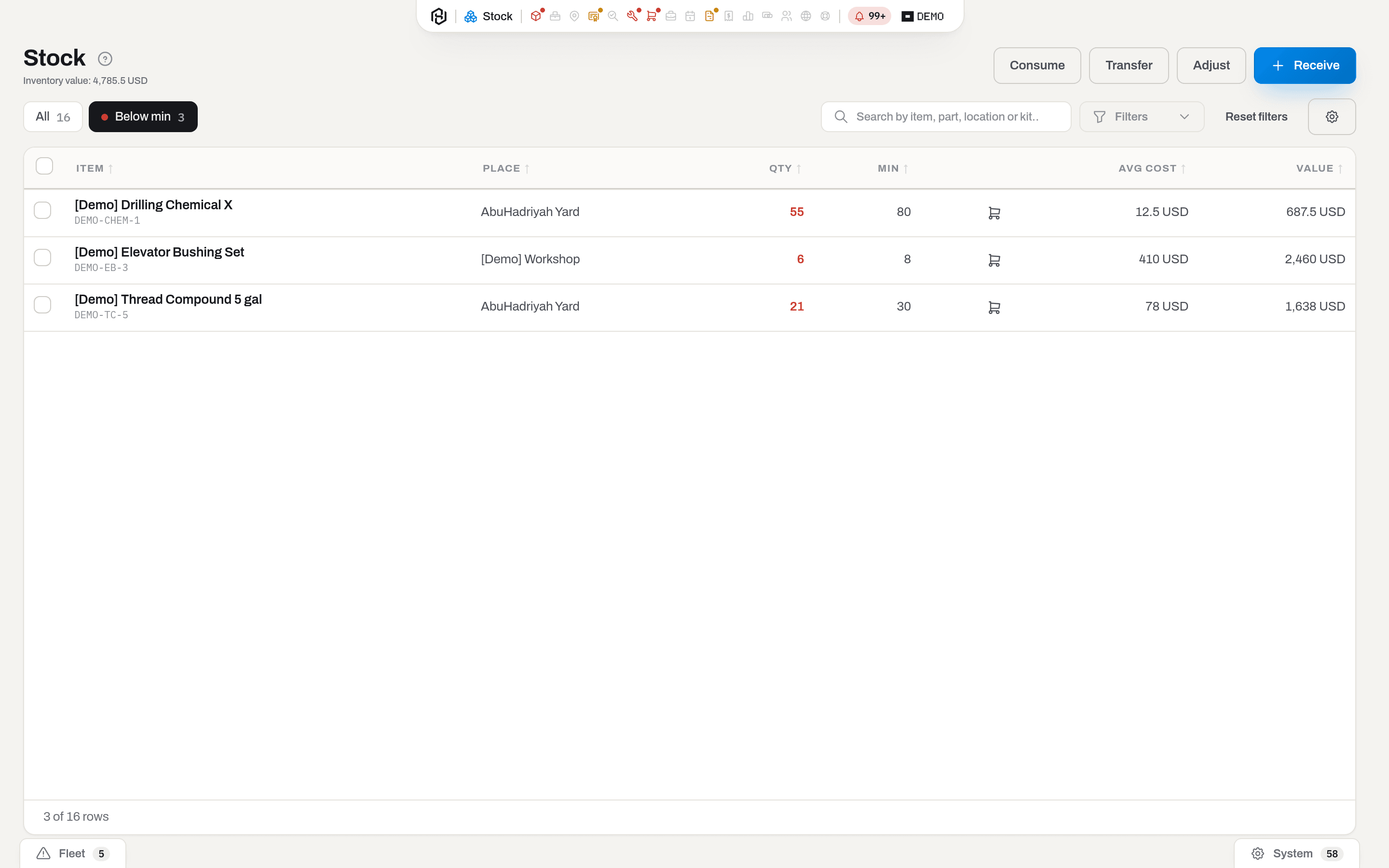
Min is a property of the line, not of the consumable: the yard may want thirty pails on hand and none at the rig. When Qty drops under Min, three things happen at once — the number turns red, the line joins the Below min view, and it appears in the Time to reorder block on the Fleet tab of the bell straight away, without waiting for the night.
A line with no Min (an em dash in the column) can never be below minimum. That is a decision, not an oversight: a minimum is a promise someone has to keep.
A line inside a kit cannot be given a minimum, and the form says so rather than saving one quietly. What is in the box is already written off, and you top the box up from the shelf, not from a supplier — a signal raised on the box would call for buying when the answer is to hand it out. Put the minimum on the location the box is refilled from.
Zero is a different answer from an em dash. An em dash means nobody has decided yet; zero means the decision was we order this one when it is asked for — the comparison is strict, so a line with a minimum of zero never turns red, however empty the shelf is. Use zero for parts you buy per job and leave the em dash on nothing you actually care about.
The same quantity is visible without leaving the register: the Consumables tab of Items carries an On hand column that adds up the card's storage locations — not what is in kits — and turns red when any of them is below its minimum.
How to
Find a line
Who: Viewer and above.
- Type a name, a part number, a location or a kit into the search box, or pick a Location or a Kit or container in the toolbar.
- Click Below min to see only the lines that need ordering; click All to come back.
- Click a column header to sort by it; use Columns to bring in Part no. or Last received.
Result: the address bar carries the view and the filters, so the list can be bookmarked and shared. Location asks what physically stands here — a kit parked in the yard brings its contents into the answer; Kit or container narrows to one box and offers only the boxes that actually hold something. The footer says {shown} of {count} rows, and Inventory value re-adds itself over what is left.
If it fails: No stock matches the filters. — click Reset. No stock yet — receive something. means the tenant has no stock lines at all: a line is created by its first Receive, not by hand.
Receive stock
Who: Operator and above.
- Click Receive (the blue button, top right).
- Pick the Consumable and the Place the goods landed in — a location, or a kit under Kits & containers. Both open to a search box: type a few letters of any word, in any order, to narrow the list — "pump 6" finds Mud Pump Liner 6" — then move with the arrows and pick with Enter; Esc closes it without choosing.
- Enter Qty, and — if the invoice is in front of you — Unit cost and PO no.
- Click Save.
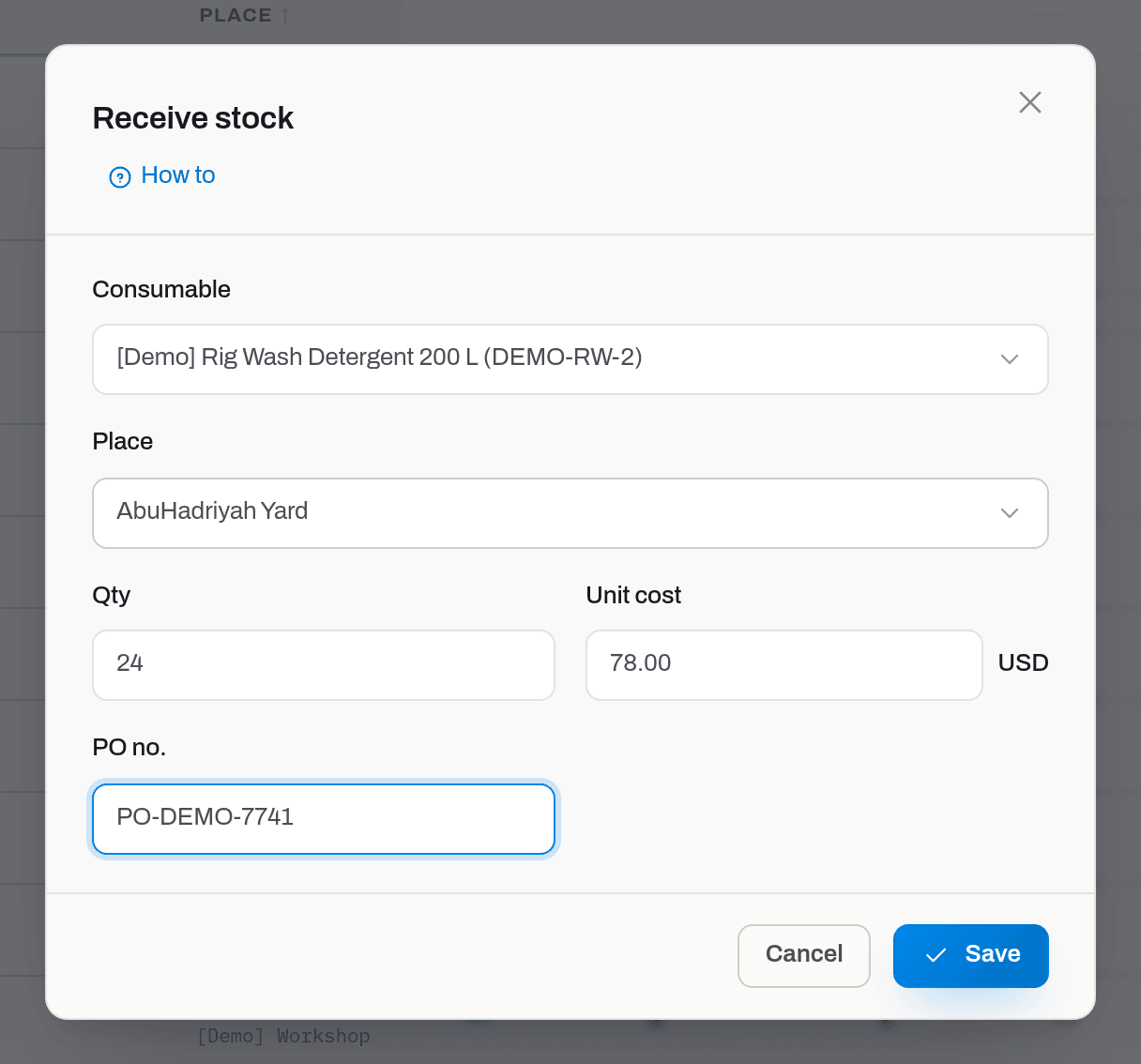
Result: the line's Qty grows, Avg cost and Value are recalculated, and a toast says Saved. If this is the first receipt of that consumable in that location, the line appears in the list. A line that was Below min and is now above it leaves the red view at once; an alert already raised on it closes at the next rules run.
If it fails: Receive qty must be positive. — a receipt cannot be negative; use Adjust to take something away. Stock operations apply to consumables only. — you picked a serialized asset. Without the role, the four buttons are not there at all.
Tip
Receiving without a Unit cost is allowed and leaves the average alone — but the goods then carry the old price into every job that consumes them. If you know what you paid, type it.
Consume stock
Who: Operator and above.
- Click Consume.
- Pick the Consumable and the Place it is being taken from — a location, or the kit it was used out of. Both search as you type, the same as in Receive.
- Enter Qty — a plain positive number; the system writes it as a subtraction.
- Fill in Reason if you want to — unlike Adjust, this one does not insist — and pick Job (optional) if the material went out on a specific job. Only planned and active jobs are offered, and the list searches as you type too.
- Click Save.
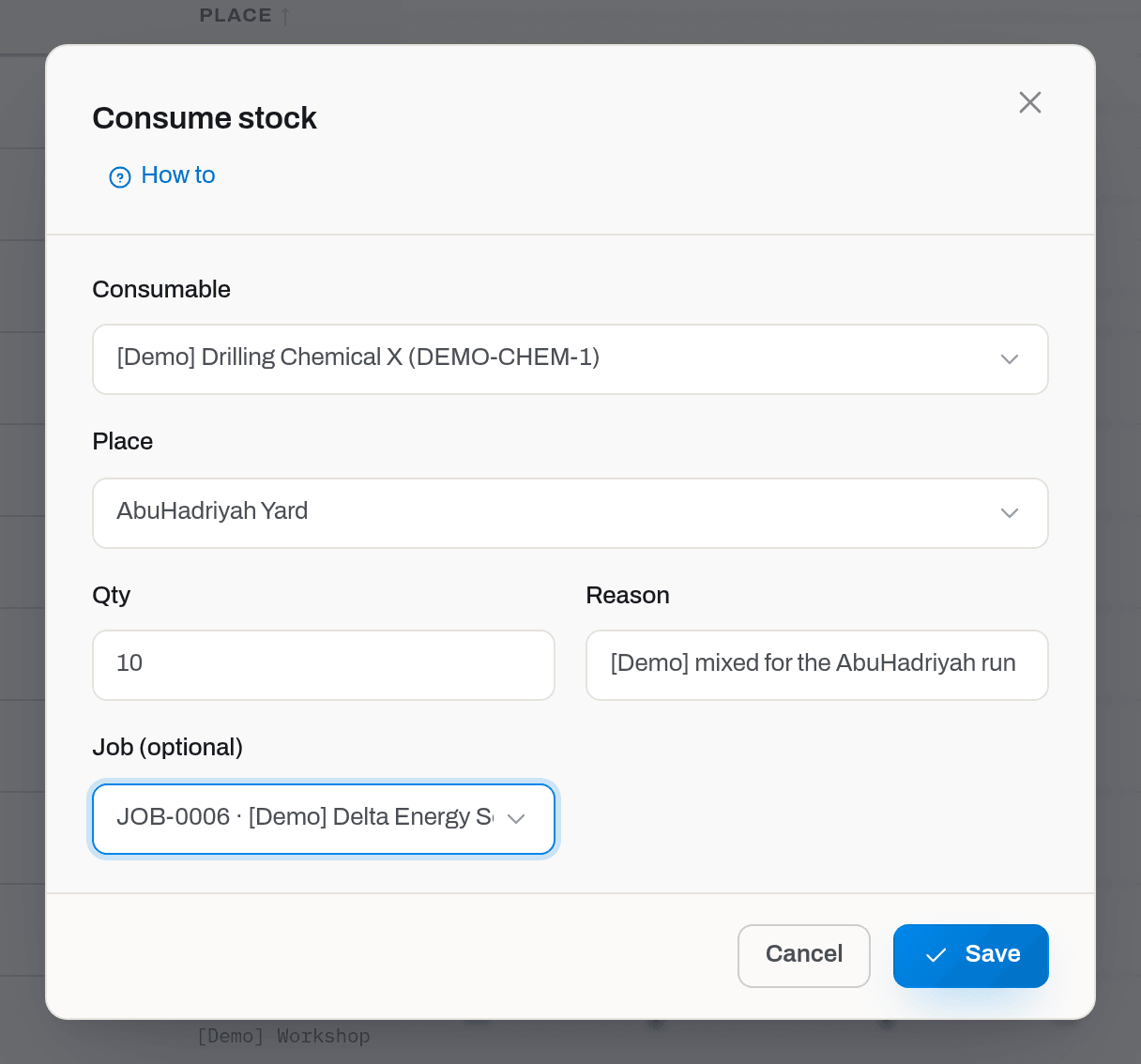
Result: the line drops by that quantity; the movement is stamped with the job, which is how consumed material later reaches the job's cost. A toast says Saved.
If it fails: Stock would go negative (-9975.00). — you are trying to take more than the line holds. Check the place first: the pails may be in the workshop, or inside a kit, and not in the yard — in which case Transfer them before you consume.
Transfer stock
Who: Operator and above.
- Open the arrow next to Consume in the header and pick Transfer.
- Pick the Consumable, then From and To. Each of the two lists holds both headings — Locations and Kits & containers — so a transfer runs between two locations, from a location into a kit, from a kit back to a location, or between two compartments. All three fields search as you type, the same as in Receive.
- Enter Qty and click Save.
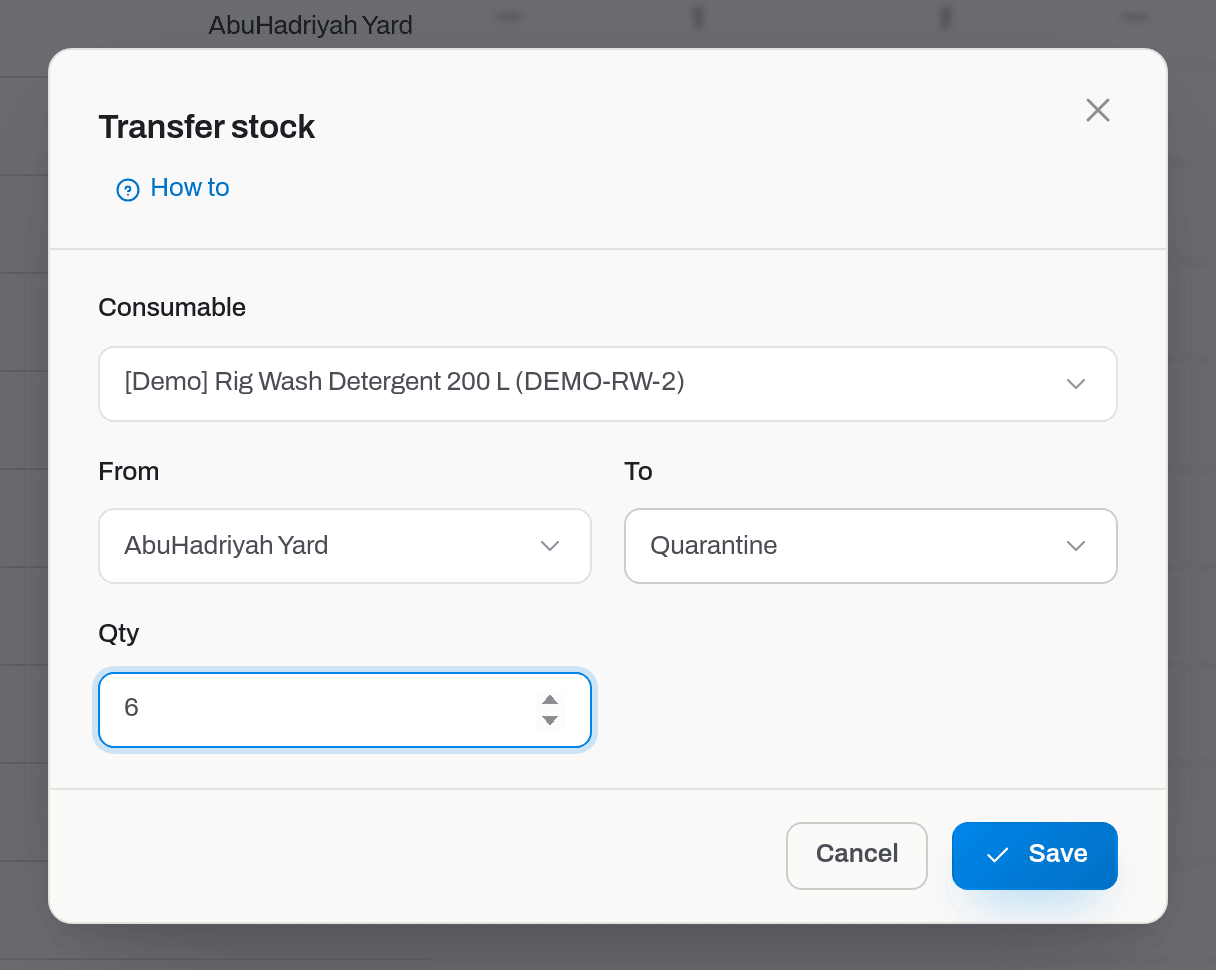
Result: two movements are written in one go — out of the source, into the destination — so the total in the yard is unchanged. Between two locations, the destination's Avg cost is re-averaged using the source line's cost and the source's average stays as it was. Into a kit, the cost is written off instead and the kit line holds no price; back out of a kit onto a shelf, the quantity arrives at that shelf's own average, so the average does not move. If the destination had no line for this consumable, it now has one.
If it fails: Transfer to the same place. — From and To must differ. Stock would go negative (-1.00). — the source does not hold that much.
Note
Loading a kit is an ordinary transfer, not a special kind of movement: the goods leave the lab and arrive in the box, and the quantity in the yard is unchanged. The cost, though, does not travel with them — it is written off as they leave the shelf, and the kit line holds no price. Unloading is the same transfer the other way round: the quantity comes back at the receiving shelf's own average, or — if that consumable was never held there — at the price it was issued for.
Adjust stock
Who: Operator and above.
- Count what is actually on the shelf.
- Open the arrow next to Consume in the header, pick Adjust, and pick the Consumable and the Place. Both search as you type, the same as in Receive.
- In Qty (signed: +5 / −3) enter the difference, not the new total:
-2if two are missing,5if five turned up. - Fill in Reason (required) — say what the count showed and when. Save stays disabled until you do.
- Click Save.
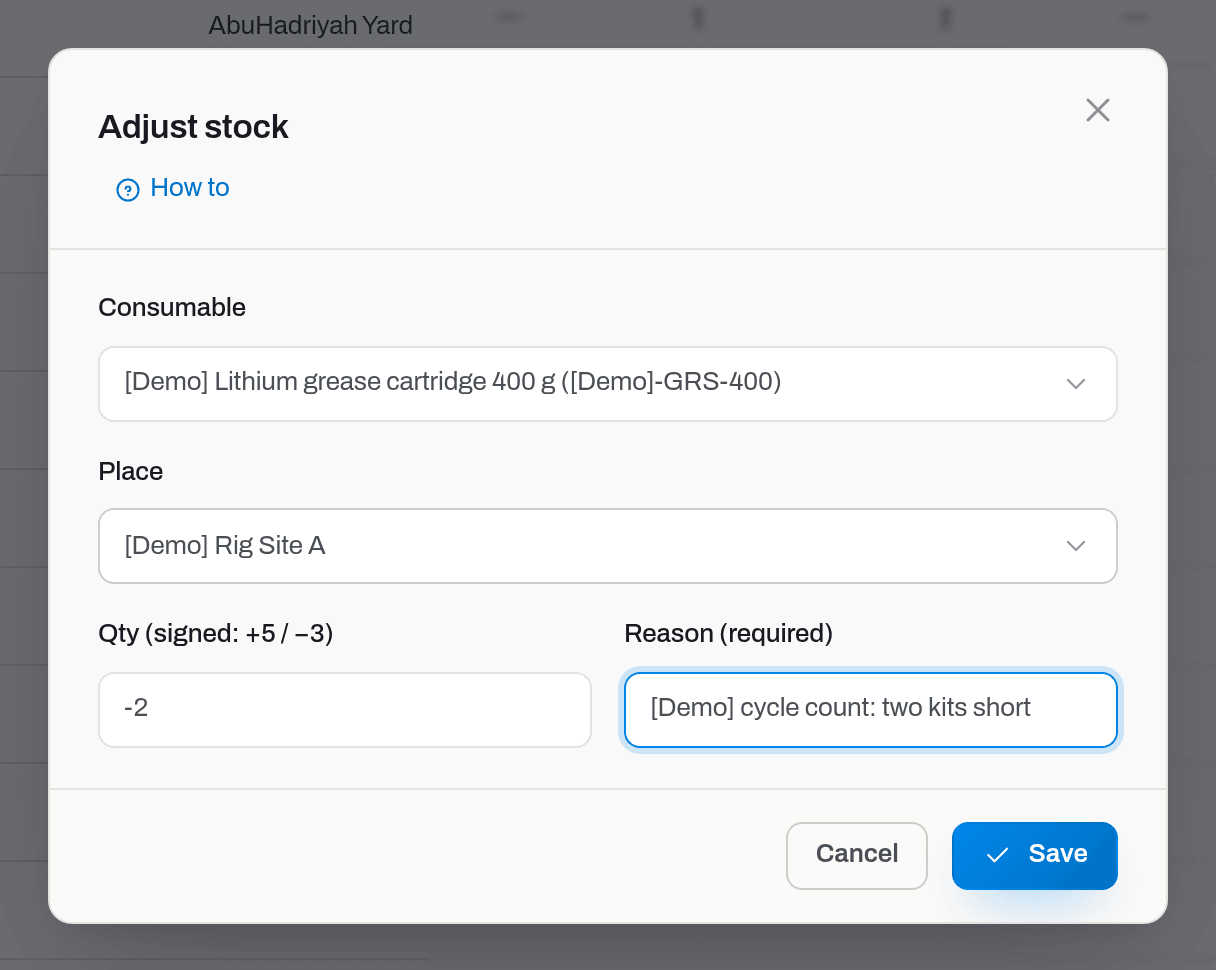
Result: the line moves to the counted number; Avg cost is left alone, so Value changes only because the quantity did.
If it fails: Adjustment requires a reason. — the field is not decoration. Adjustment of zero makes no sense. — if the count matches, there is nothing to record. Stock would go negative (-3.00). — you are subtracting more than the line holds; the count you are correcting to cannot be less than nothing.
Move or consume several lines at once
Who: Operator and above. A viewer has no checkboxes.
- Tick the lines you need. A bar appears at the bottom with the count and three actions — Transfer, Consume and Set min… (that last one is a different shape of dialog — see Set a minimum level).
- Pick Transfer or Consume. Each selected line arrives in the dialog with its On hand number and a quantity box already filled with the whole balance — that is how a kit gets shipped out. Overtype any box to send less.
- For a transfer choose the destination To — a location or a kit, the same two headings as everywhere else; for a consumption fill in Job (optional) and Reason. Both apply to every line. To and Job search as you type too.
- Click Transfer / Consume.
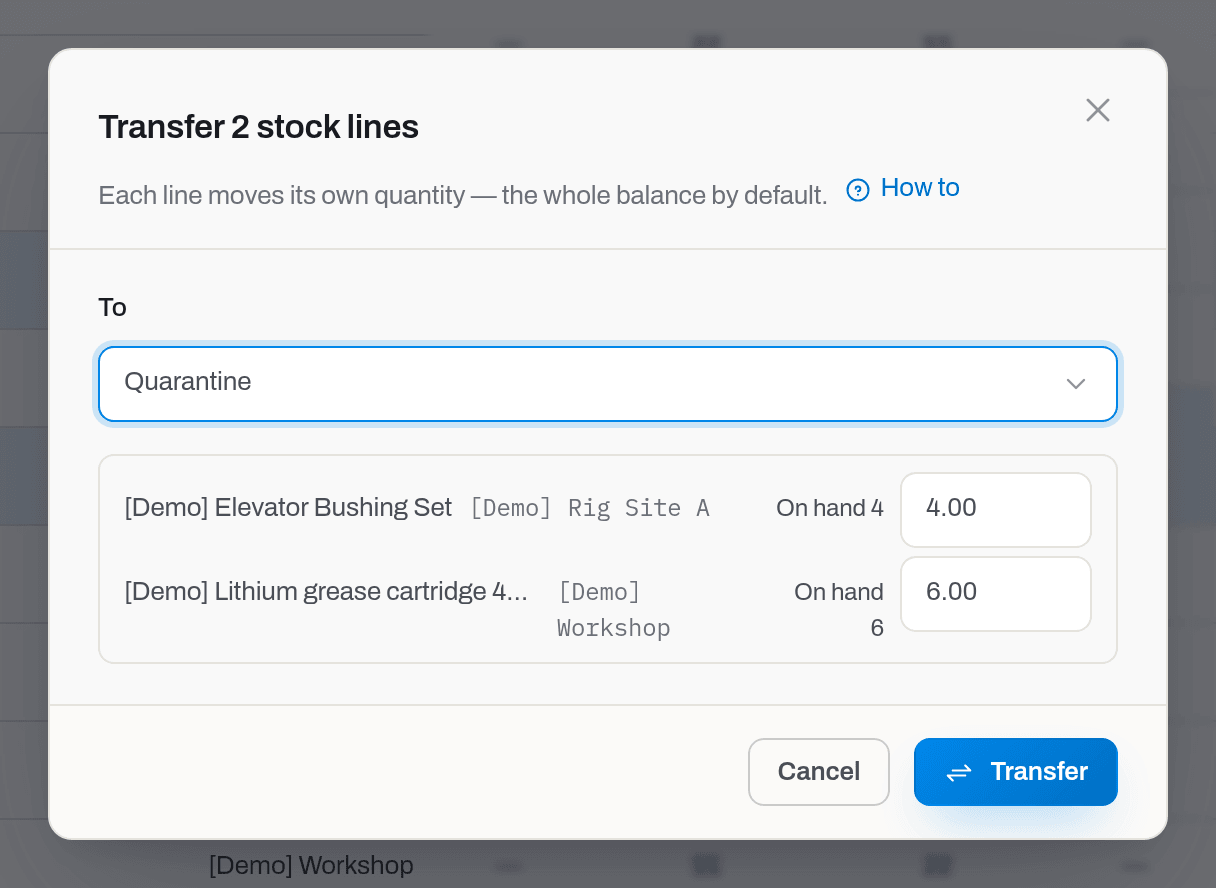
Result: every line is processed on its own and the dialog reports {done} done, {failed} failed. Lines that failed stay selected with the reason next to them, so you can fix and repeat; the dialog closes by itself only when nothing failed.
If it fails: Nothing done — {count} rows failed — read the reason on each row. Sending a line to the place it already sits in fails with Transfer to the same place. while its neighbours go through, which is why the failures stay on screen instead of rolling everything back.
Load a kit and unload it again
Who: Operator and above.
- Pick Transfer from the menu next to Consume, pick the Consumable, and set From to the location the goods are standing in — the lab, the yard.
- Open To, scroll past Locations to Kits & containers, and pick the kit or the compartment inside it. A compartment is a unit of its own: Blue Box-45 is a different destination from Kit 45.
- Enter Qty and Save. The line appears in the list with the box in the Place column; the kit's own card lists it under Consumables.
- To take goods back, run the same transfer with the two ends swapped — From the box, To the location.
Result: two movements, out of one place and into the other. Nothing is consumed by loading a kit and nothing is created by unloading it: the quantity is the same, only its address changed. Sending several lines at once is the same thing done from the selection bar — see Move or consume several lines at once.
If it fails: Stock can only be addressed to a container item. — the destination is not marked a container; mark it on its card in Items, or pick a real box. Give exactly one of location or container_item. — an old bookmark or an integration is sending both ends of the address at once. If the kit you are looking for is not in the list, its category's composition is Assembly — a motor is a product, not a place.
Issue a pull sheet
Who: Operator and above. Starting and issuing a sheet also needs the section its target lives in, because that is where the goods are written: Purpose: Kit needs Kits (consumables go inside a box), Job needs Jobs (the stock is consumed against the job), Work order needs Maintenance (the part becomes a line of the work order). An operator issues against a work order only when it belongs to one of their own jobs — the same rule as on the work order itself, see The field sees its own jobs; anyone else's sheet they can still open and print, just without Issue. Adding or removing lines on a draft, cancelling it or deleting it needs only Stock, whatever the target.
A pull sheet is the paper at the stock window — Newsco's Inventory Pull Sheet and Sign Out Sheet in one document: who came for what, under what it is drawn — a kit, a job or a work order — the lines with their serial numbers and lot numbers, and two signatures, the one asking and the one handing over. It is a document, not a movement of its own kind: issuing it writes the same stock movements a manual Transfer, Consume or Add part would, only with a number, a printed copy and a record of who signed for it.
- Open Pull sheets under Stock, or start one from where the goods are going: Pull sheet from shortfall on a short kit, Pull sheet on a job or on a work order — each fills in the target for you.
- Pick the Purpose — Kit, Job or Work order — and the target, if it is not already filled in, and the From location the goods will leave from. Requested by, Department and Purpose are optional and can be left for later: Requested by is who this sheet is written for — it prints on the sheet next to the Requested by signature box, and only the person actually picked here (not just typed) gets the feed line when the sheet is issued. A manager picks Requested by from the people in this workspace; anyone else — the list of people is manager and above only — types the name instead, and it prints the same way, just without a feed line. Once a manager has picked a person, the printed name is always theirs: anyone else sees it but cannot retype it, so the paper and the feed line never point at two different people.
- For a kit, tick Fill from the shortage (on by default) to load the draft with every position the kit is short, capped by what this location actually holds — the same count Fill a kit shows, but written onto a paper instead of moved on the spot. For a job or a work order, add lines by hand: pick the Item and the Qty. A serialized unit is only ever offered for a kit — a job takes hardware on a delivery note and a work order installs it directly, never on a pull sheet. Write the Lot no. on a line if the shelf carries one; Hafrix keeps no record of lots on its own, only what is written here and printed on the sheet.
- The sheet opens as a draft, saved the moment it is created — check it: a line can still be fixed or removed, and Requested by, Department and Purpose can still be set or changed with Edit header on the draft's own card, while it stays a draft. Cancel or delete it here too, if it turns out not to be needed. When it is right, Issue, filling in Received by if it is not already named.
Result: every line moves for real, in one transaction — a consumable into the kit or off the shelf against the job or the work order, a serialized unit into the kit — so a shortage on any one line rolls the whole sheet back rather than going out half filled. The sheet turns Issued, stamped with who issued it and when; if Requested by is a person picked from the workspace (not just a typed name), they get a line on their feed. Print puts the two signature boxes on the page — Requested by and Issued by — for the window.
If it fails: Add at least one line before issuing. — an empty sheet cannot be issued. {name} is not at {location}. — a serialized line was written against a location the unit no longer stands on; find where it is and start again from there. Stock would go negative (…) — the location does not hold enough; issue what it has, or pick a fuller one. This pull sheet also needs access to the … section. — you lack the Kits, Jobs or Maintenance section the target lives in, so the sheet refuses to start or to issue; ask an admin for it or leave the issue to someone who has it — see Roles & access. This work order is outside your crew's jobs. — the work order belongs to a job that is not yours; someone on that job, or a manager, issues it. Job … is … — the job is closed or cancelled (possibly while the sheet sat as a draft), and a closed job takes no more stock; cancel the sheet.
Note
An issued sheet is done: its purpose, its target and its lines never change afterwards, and it cannot be deleted — only a draft can be edited, cancelled or deleted. There is no reversal built into the sheet itself; goods that went out by mistake come back the way anything does — an ordinary Transfer, or Return to stock on a work order — in the other direction.
Set a minimum level
Who: Operator and above. A viewer has no checkboxes and no button.
Min belongs to the line — the person who knows how fast that location burns through the part is the one who should set it, and in practice that is the yard operator or the manager who owns the reordering. It is set for a whole selection at once, because that is how departments actually think: we keep twenty of these, not one shelf at a time.
- Narrow the list to the lines you mean — a search, a Location, your department, the Below min view. Anything that gets them onto one screen.
- Tick them. The bar at the bottom of the screen shows the count; Select page ticks the whole page in one click.
- Click Set min…. The dialog lists what you selected with the quantity on hand beside each line, so you can see what the number will be measured against.
- Type the threshold and click Set min…. One number goes to every selected line. Leave the box empty to clear the minimum, or type
0for a part that is ordered on demand.
Result: the Min column fills in and the dialog reports {done} done, {failed} failed. Any line that is now under its minimum turns red, joins the Below min view and shows up in Time to reorder on the Fleet tab of the bell straight away; the alert Stock below minimum is raised at the next rules run — or right away if a manager presses Check now in Alerts & notifications. A single line can also be changed through the API — PATCH /api/v1/stock-levels/{id} with min_level.
If it fails: Nothing done — {count} rows failed — read the reason on each row; failed lines stay selected so you can repeat only them. A negative threshold is refused outright. Setting a minimum on a line that does not exist yet is impossible — receive the goods once and the line appears; a card with no stock line at all is a catalogue entry, and it shows an em dash in the On hand column of Items.
See the section as a board
Who: Viewer and above.
The layout switch has a second position, Overview: instead of the rows, the section shows a board of widgets — the stock in numbers, and every number a link back into the list or into the section that owns it. The list is still the section: Overview is a view you switch into, and Stock opens on List.
- Click Overview on the layout switch, at the right of the toolbar. Search and filters belong to the rows, so the toolbar keeps only the department chip and the switch.
- Read the board. The department lens applies: each number is counted over the lines of the department you have chosen, and a link from a widget opens the list narrowed to the same department.
- Click List to go back to the rows.
| Widget | Shows | Links to |
|---|---|---|
| Counters | Lines with stock on hand, the consumables and places they cover, how many lines are below their minimum, and Value — the priced lines added up in one currency | The list |
| Below minimum | The lines furthest under their Min, with the quantity on hand against the threshold | The list, on the Below min view |
| Movements, 7 days | How many movements of each kind the week brought, and the last ones | The list |
| Consumed on jobs, 30 days | Which jobs took the most consumables this month — movements and quantity per job | The job's card |
| Awaiting receipt | Purchase orders that are sent or partly received, with the expected date | Purchase orders |
Value is shown only to roles that see money; the other counters are the same for everyone. It adds up the lines that carry an average cost — a line received without a price, or lying in a kit, has none and is left out, exactly as under the list title. If the lines you are looking at are kept in more than one currency, Value is blank — two currencies do not add up. A widget you have no right to is neither on the board nor on offer: Awaiting receipt needs Procurement, and the server keeps the orders out of the summary for anyone without it. The board is yours to arrange — drag by the header, resize or remove through the header menu, bring back through Add widget — exactly as on Overview, and the arrangement is saved for you and follows you to another computer. The board you start from is the department's: an admin can set the order and sizes a department opens the board with (Set a view for a department), and Reset to department layout brings you back to it — your own arrangement is cleared, the department's stays.
Result: the address carries the view (/stock?view=overview), so the link opens the board for a colleague too, with the same department lens.
Add or remove a widget on the board
Who: Viewer and above.
- To remove one: open its header menu (the ⋮ next to the drag handle) and choose Remove from board.
- To bring one back: click Add widget above the board, find it in the list and click Add.
Result: the widget leaves or joins the board right away, and the change is saved. The board of Stock is its own: removing a widget here does not touch the board on Overview or on Items, and Reset to department layout clears only this section's arrangement.
Fields
| Field | Meaning | Required | Who edits |
|---|---|---|---|
| Consumable | Which stock card the movement is about; the list shows name (part no.) | yes | Operator+ |
| Place | Where the goods are received into, consumed from or adjusted at: one entry from Locations or from Kits & containers, never both | yes | Operator+ |
| From / To | The two ends of a transfer; each is a location or a kit, and they must differ | yes, for a transfer | Operator+ |
| Qty | How much. Positive for receive, consume and transfer — the sign is applied for you | yes | Operator+ |
| Qty (signed: +5 / −3) | The adjustment's difference, with its own sign | yes, for an adjustment | Operator+ |
| Unit cost | What one unit cost on this delivery; drives the moving average. The currency beside it comes from the item card and is not selectable | no | Operator+ |
| PO no. | The purchase order this delivery came in on | no | Operator+ |
| Reason | Why the goods left, or what the count found | for an adjustment | Operator+ |
| Job (optional) | The planned or active job the material went out on | no | Operator+ |
| Min | The level under which this line counts as short | no | Operator+, not from this screen — see Set a minimum level |
What the system tells you
| When | On screen | Feed row | |
|---|---|---|---|
| Any movement saved | toast Saved | — | — |
| A movement is refused | Not saved plus the reason under the dialog | — | — |
| Qty falls under Min | the number turns red, the line joins Below min, and Time to reorder on the Fleet tab of the bell lists it immediately | Stock below minimum — after the nightly rules run (07:00 workspace time), for everyone who can see Alerts | in the daily fleet digest (07:30 workspace time), to the alert recipients set in the tenant profile, otherwise to managers and admins |
| Qty climbs back above Min | red and Below min clear at once | the alert closes itself at the next run | — |
Time to reorder does not wait for the night: whoever consumed the last five pails sees the line there straight away, while the alert with its acknowledgement appears the following morning. Both say the same thing — see Notification codes.
Related
- Items — the Consumables tab holds the cards these lines belong to; a card's Stock panel lists that consumable's quantity in each place, kits included.
- Item card — a kit box's own card: Contents for the serialized units and the compartments, Consumables for the quantities addressed to that box.
- Locations — every location page ends with Consumable stock in {name}: everything standing there, the racks under it and the kits parked on it included, with a Where column saying which.
- Field tickets — a consumable line on a ticket names a quantity and a Write off from location; approving the ticket writes the Consume movement, and undoing the approval returns it with a counter-entry rather than deleting anything.
- Maintenance — Parts from stock on a work order consumes from a location at that shelf's average cost, or from a kit box at the price the part was issued to that box for, and Return to stock puts the part back where it came from.
- Alerts & notifications — where Stock below minimum is acknowledged with Got it, and where Check now re-runs the rules without waiting for the night.
- Roles & access — why the four buttons or the whole section may be missing.
FAQ
Why can I not find my drill pipe here? — Stock is quantities of consumables. A serialized unit is one thing with a history and lives in Items; it is moved with Move, not with Transfer.
I received the wrong quantity — can I delete the movement? — No. Movements are the yard's evidence and nothing removes them. Correct the number with Adjust and say so in the reason; the trail then shows both what was keyed and what was fixed.
Why is my average cost not what I paid? — Because it is an average, not a price tag. Every receipt at a new price pulls it towards that price in proportion to the quantities, and goods arriving by transfer bring the sending location's average with them.
Consume or Adjust for a spillage? — Adjust, with a reason. Consume means the material did its job; a spilt drum did not.
Why does the Min column show a dash on most lines? — Because nobody has set a minimum there. Only lines with a minimum can be below it, and only they can raise Stock below minimum.
How do I see everything a kit holds, compartments included? — Not yet in one number: the kit's card lists what is addressed to the kit itself, and each compartment lists its own. Completeness against a kit standard is the next step of this work.
Can I write off a part from a kit on a work order? — Yes. Add part on a work order offers every place that holds the part, kit boxes among them, each with its own quantity. A shelf shows its average cost; a kit box shows none, because what is in a kit has already been written off — the repair is still costed, at the price the part was issued to that box for. The bin on the line puts it back into the same box.
A ticket was approved and my stock dropped — who did that? — The approval did. A consumable line on a field ticket, and a part added to a work order, both write real Consume movements against the address named on the line — a location for a ticket, a location or a kit box for a work order.
Updated 2026-09-22
New to Hafrix?
See this workflow in your operation
Explore how Hafrix connects equipment records, locations and readiness across your fleet. Bring your inventory workflow to a demo.